
Upload Image
AI Image Upscaler for Bigger Images
Enlarge small images for crops, listings, banners, and print handoffs while keeping the original composition intact.
Samples
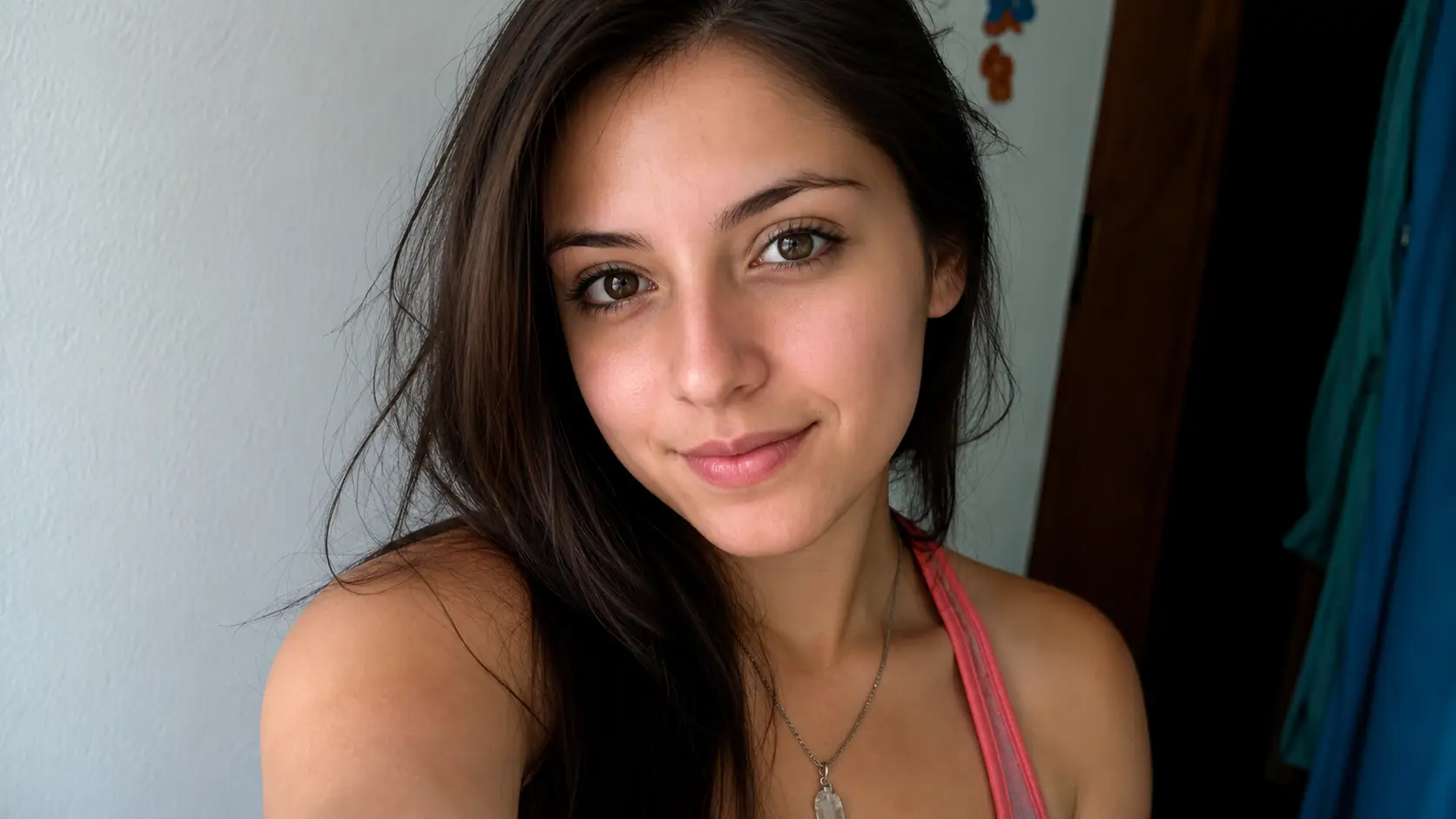
Make a small image usable at a larger size
- 01
Upload the small image
Choose a PNG, JPG, WEBP, or GIF that already looks usable but needs a larger output.
- 02
Select Upscale Image
Run the upscale pass so Ezier can create a larger version of the same image.
- 03
Check the enlarged version
Look at faces, text, edges, and texture at the size where the image will be used.
- 04
Download or repair the source
Download when the larger file holds up. If blur or noise becomes obvious, repair the source before another upscale.
Upscale illustrations, products, and everyday photos
Create larger versions of images that already have the right subject and composition. Use it for visuals that need more usable detail in layouts, previews, exports, or client handoffs.
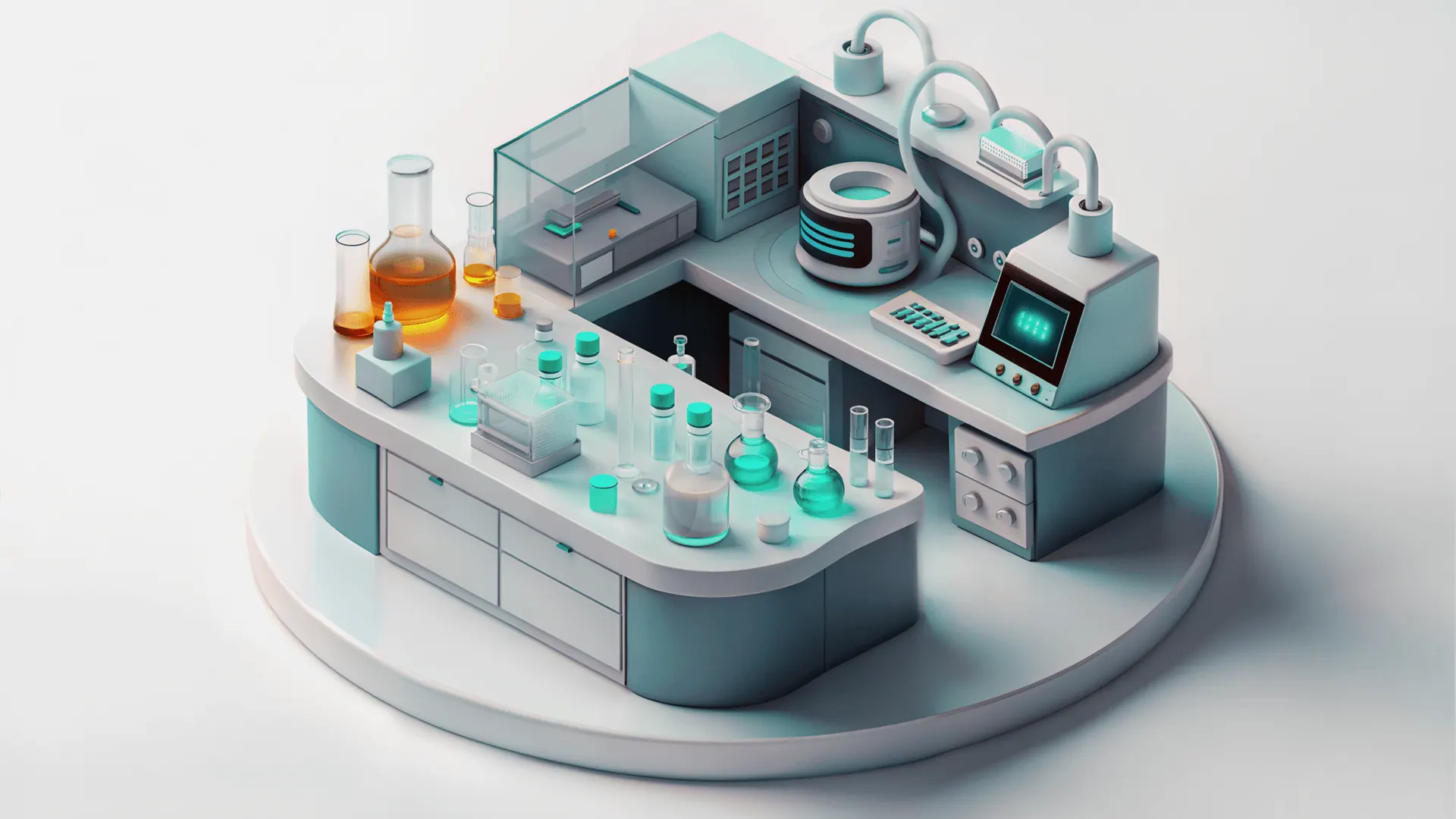
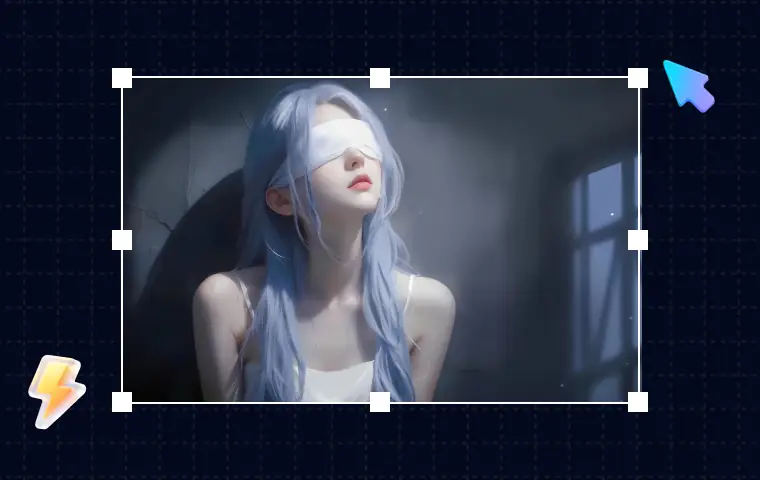
Low-res illustrations with fine scene detail
Enlarge stylized scenes, icons, and concept visuals so small shapes, props, and background details hold up in a larger layout.
Product close-ups for larger placements
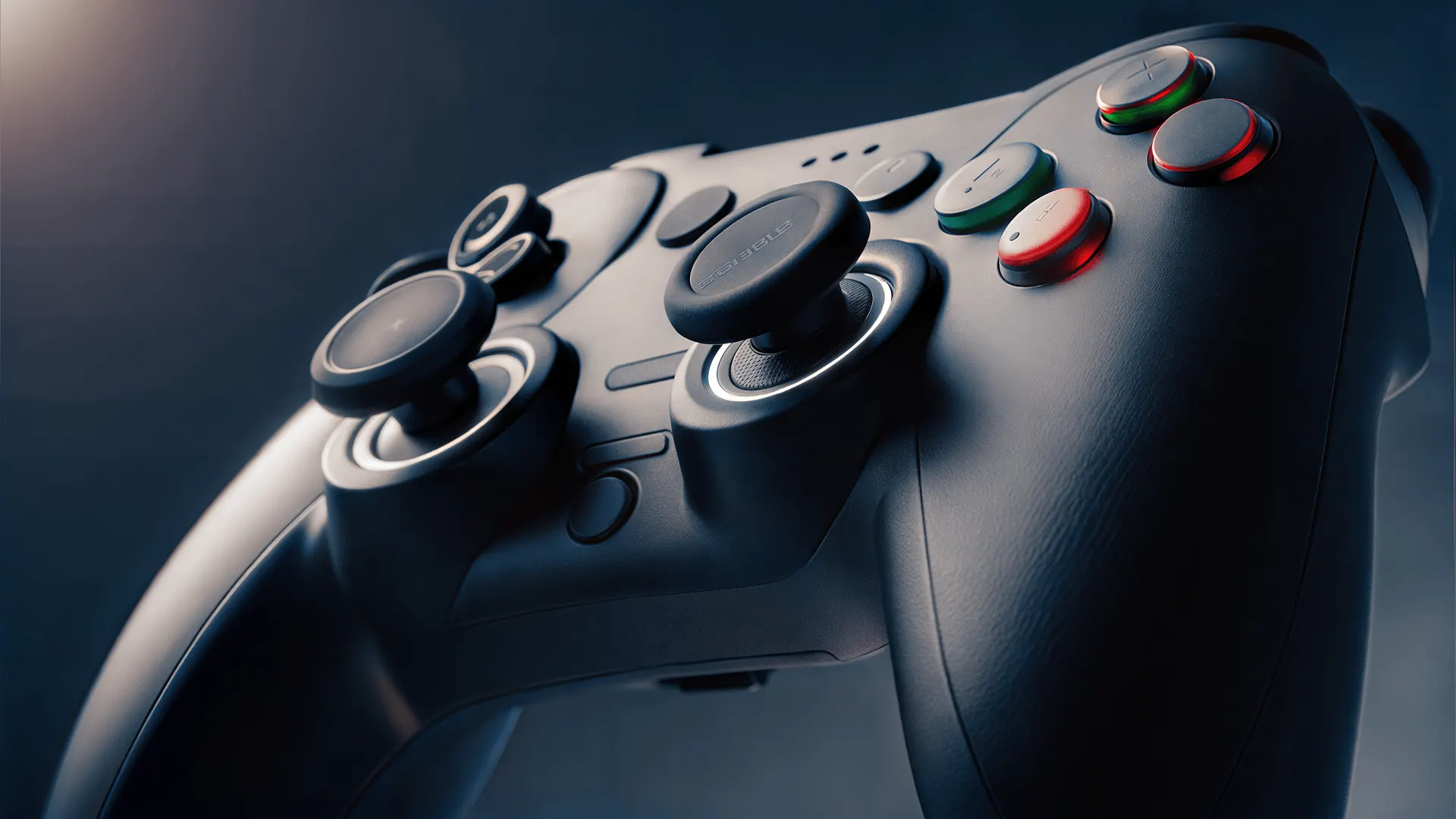
Upscale product photos when buttons, edges, surface texture, and shadows need to stay readable in a bigger crop.
Everyday photos that need more usable size
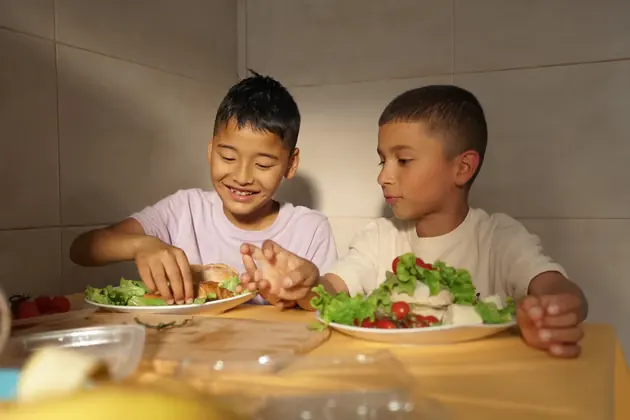
Create a larger version of family, lifestyle, or event photos while keeping the original moment and framing intact.
Check the enlarged file where it will be used
Upscaling is about final use, not just the preview. Review the output inside the crop, listing, banner, or print size you actually need.
Start from the best available source
If the file is noisy or flat, use Image Enhancer first so the upscaler starts from a cleaner image.
Fix blur before adding pixels
If the source is soft because of shake or missed focus, start with Unblur Image before you increase the size.
Judge the real placement
A file can look fine in the preview and still fall apart once it is cropped into a banner, listing, slide, or print layout.
Edit the larger file when layout changes come next
If you still need local cleanup after upscaling, move into AI Image Editor so the next step starts from the larger file.
Image Upscaler in Ezier
Enlarge the image before the layout needs more pixels.
Start here when the image is clear enough but too small for the next placement. If it still feels soft, clean it with Image Enhancer or Unblur Image first, then upscale the better source.
Image Upscaler FAQ
Answers about resolution, output size, and when to upscale versus repair the source.
What does AI Image Upscaler do?
It enlarges an existing image so you have more pixels for crops, listings, slides, banners, print tests, or larger layouts while keeping the same composition.
Is Image Upscaler the same as Image Enhancer?
No. Image Upscaler is for size. Image Enhancer is for cleanup, tone, noise, and overall quality when the image is already large enough.
Should I use Image Upscaler or Image Sharpener?
Use Image Upscaler when the file is too small. Use Image Sharpener when the size is fine but edges, labels, hair, fur, or small details still need a crisper finish.
Should I unblur before upscaling?
Yes, when blur or missed focus is the main problem. A clearer source usually gives the upscaler a better base to enlarge.
What should I check after upscaling?
Check the image inside its final crop or layout. Look at faces, text, straight lines, fabric, hair, and product edges before downloading.
Keep creating
Keep working from here
Continue with image edits, compare model quality, or send the result into a video workflow.

AI image tools
More image tools
Create, edit, clean up, or upscale stills.

AI models
Compare image models
Pick a better model before making more versions.

AI video tools
Make it move
Animate a still or turn it into a clip.
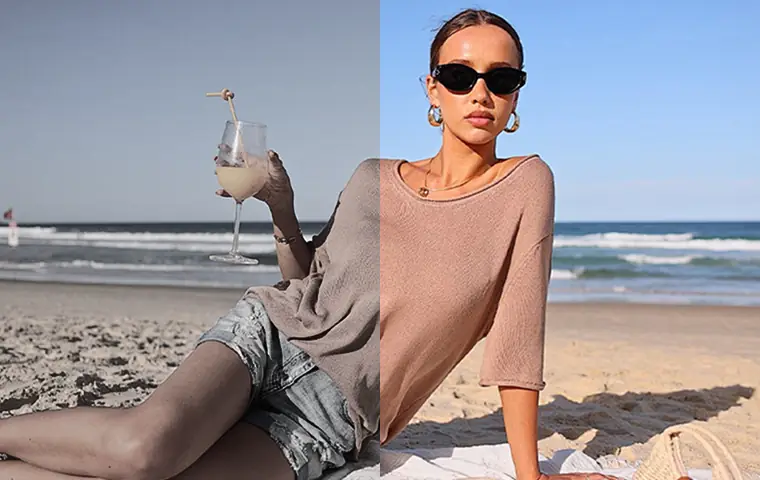
Image Enhancer
Improve quality
Recover detail, color, and clarity.
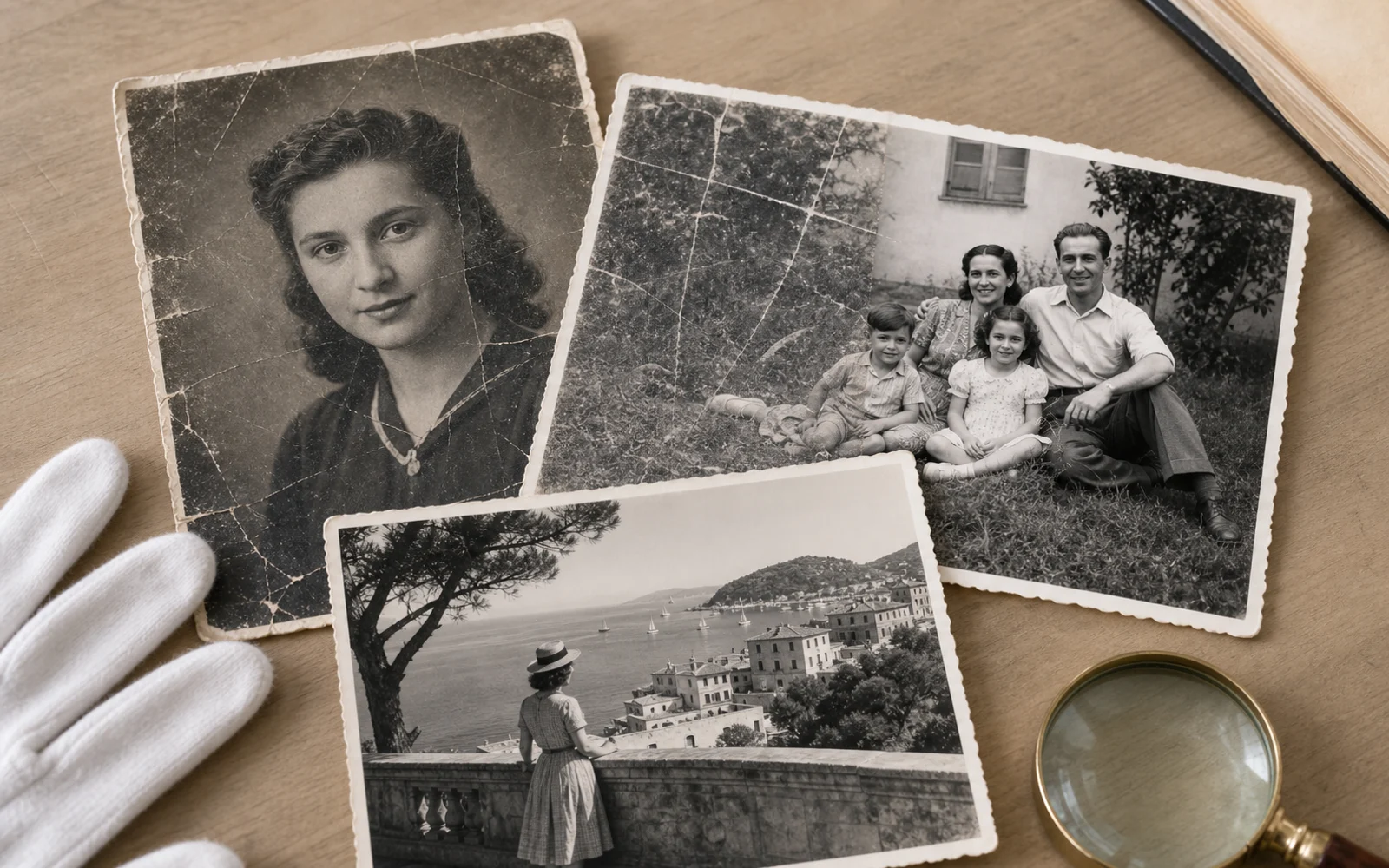
Old Photo Restoration
Repair aged photos
Reduce scratches, fading, blur, and scan damage.
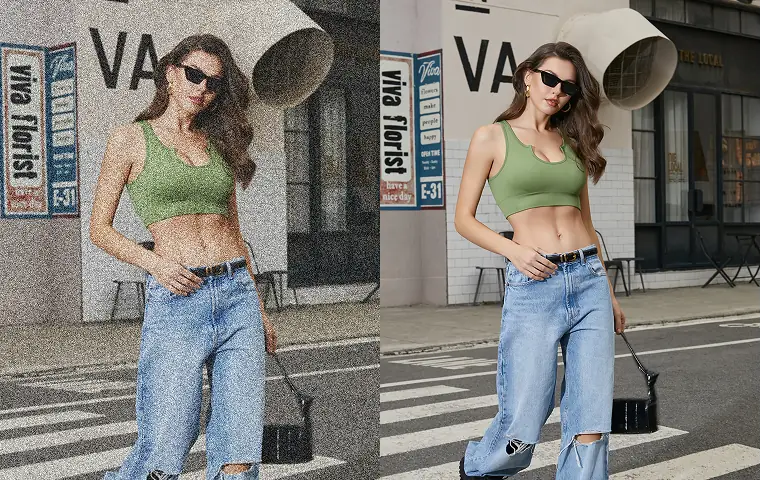
Image Sharpener
Sharpen detail
Make soft edges and small details clearer.
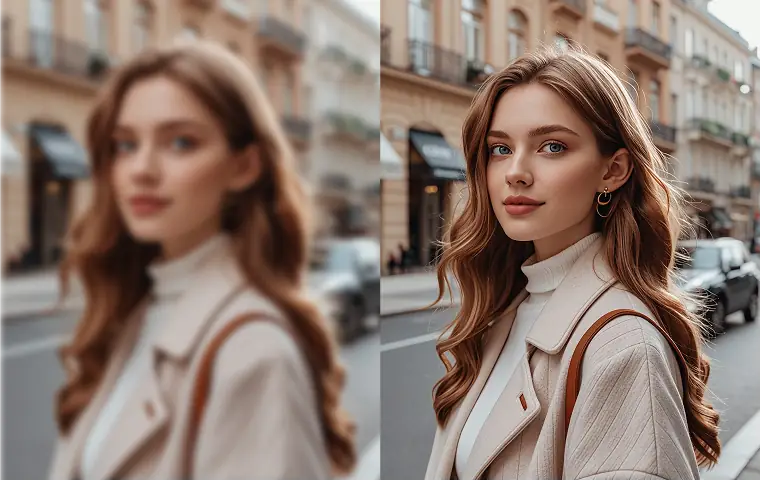
Unblur Image
Fix blur
Recover focus in blurry photos.
AI Image Editor
Prompt-based edits
Change an image without starting over.

Image to Image
Use a reference
Restyle or revise an existing image.
AI image tools
More image tools
Create, edit, clean up, or upscale stills.
AI models
Compare image models
Pick a better model before making more versions.
AI video tools
Make it move
Animate a still or turn it into a clip.
Image Enhancer
Improve quality
Recover detail, color, and clarity.