
Use it as a prompt-led motion test
Public HappyHorse AI details are limited, so treat the first pass as a practical test: can the idea create clear motion, a readable hook, and a useful ending frame?
Use HappyHorse AI on Ezier to test short video hooks, expressive character beats, and fantasy-style transitions. Write one focused scene, then generate.
Use HappyHorse AI to test one short video idea at a time: the opening motion, the visual surprise, and the final frame you may want to refine.
Create a 6-second high-impact video of a red supercar racing across a white salt desert at sunset. Add a low-angle tracking camera, dust rolling behind the tires, chrome transformation energy, and one powerful final frame that feels like a fantasy car commercial.
Start from HappyHorse AI and spend the first decision on the scene brief: hook, subject, action, camera move, and final frame.
Describe the subject, action, camera movement, visual change, and ending frame. Keep the first draft focused on one beat instead of several cuts.
Use upload when it is available for the selected setup. If you are working from prompt only, describe the reference look, motion, and final frame directly in the brief.
Use the credit estimate on Generate as the final check. After generation, review the hook, subject consistency, camera movement, and whether the ending frame is strong enough to refine.
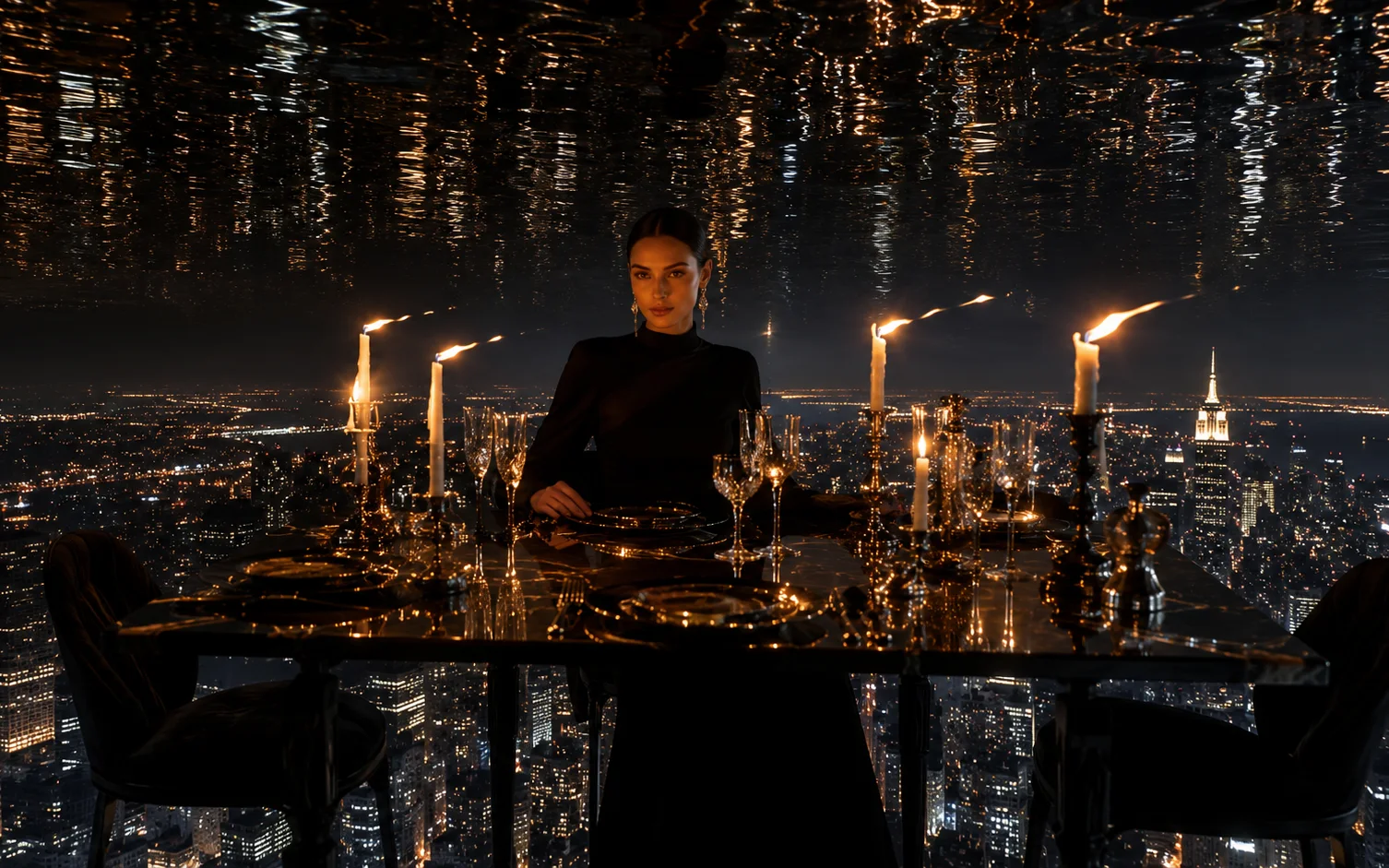
A strong HappyHorse AI prompt gives the model one clear scene: the opening hook, the subject action, the camera move, the visual change, and the frame that should hold at the end.
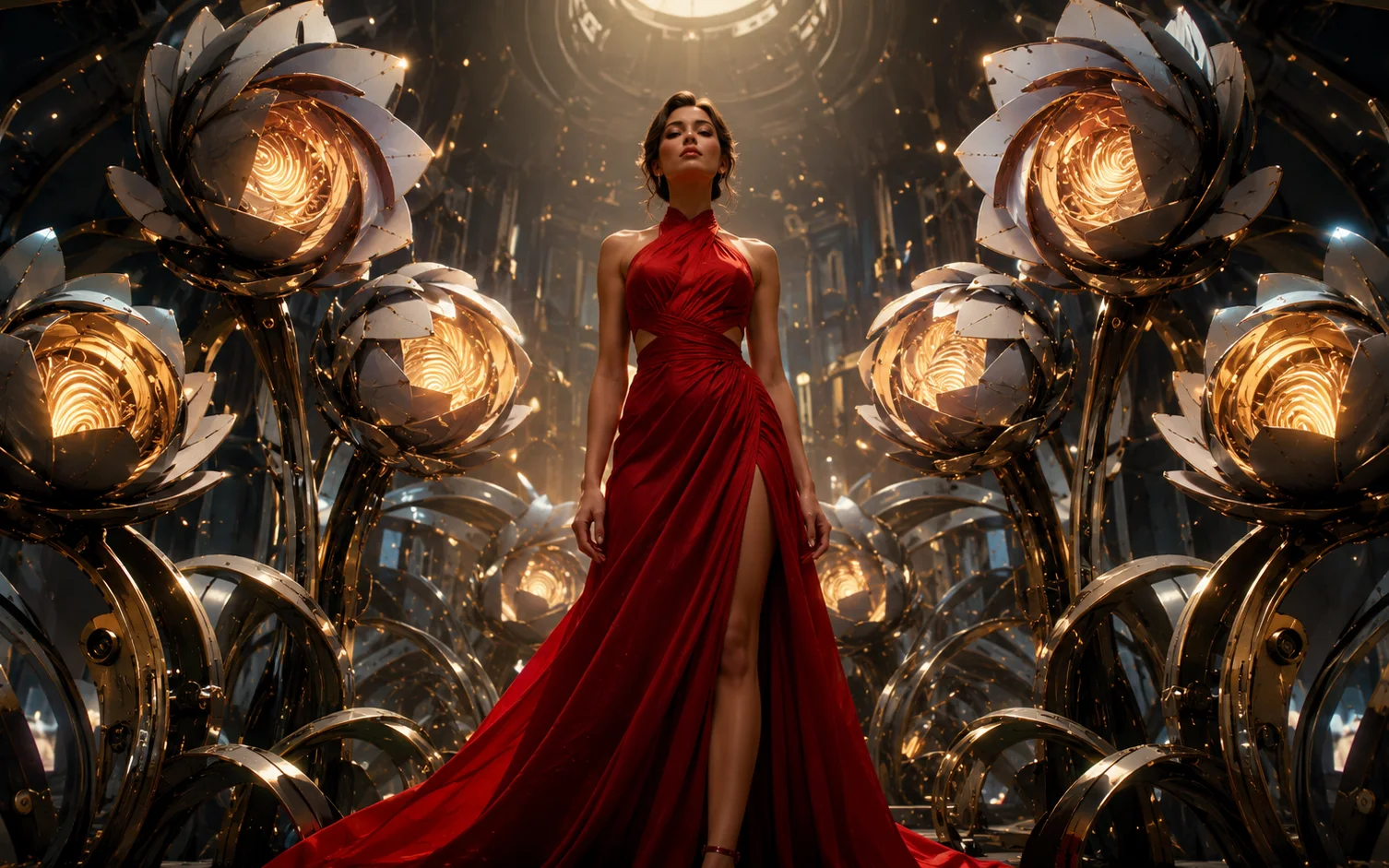
HappyHorse AI fits compact ideas where the first movement needs to read quickly. Put the attention-grabbing change at the start, then use the rest of the prompt to keep it clear.

For expressive subjects, name the body action, camera tracking, and what should remain stable. The cleaner the movement goal, the easier the result is to judge.
A transformation prompt still needs structure: where the scene starts, what changes, how the camera moves, and what final frame should hold after the effect lands.
Keep the setup grounded in the choices you can act on: use HappyHorse AI, write the scene in the prompt box, add supported inputs when upload is available, and check credits before Generate.
For short-form drafts, the opening action matters. Put the strongest visual change near the start of the prompt.
Describe one main subject and one camera move. Too many moving elements make the first draft harder to evaluate.
Ask for a clean hold at the end so the result can become a thumbnail, next edit, or stronger prompt reference.
After generation, compare hook clarity and subject consistency before spending another pass on style details.
Use public model notes as context, then judge the draft in Ezier: prompt clarity, upload availability, credits, motion quality, and the generated result.
Public HappyHorse AI details are limited, so treat the first pass as a practical test: can the idea create clear motion, a readable hook, and a useful ending frame?
Start with one scene, one subject, and one visual change. Add story or extra cuts after the motion works.
Check short clips for subject stability, scene continuity, camera movement, and whether the final frame is worth polishing.
Use the prompt box, upload availability, visible settings, credit estimate, and generated result as your practical guide.
HappyHorse AI in Ezier
Start with a short-form concept, generate a focused draft, then review motion clarity, subject stability, and the final frame before refining.
Practical answers for HappyHorse AI prompts, short-form use cases, supported uploads, credits, and result review in Ezier.
Write a short video brief in the prompt box, use HappyHorse AI for the draft, add supported inputs when upload is available, check the credit estimate on Generate, then submit the draft.
Name one hook, the subject, the action, camera movement, visual change, and final frame. A focused prompt is easier to judge than a multi-scene script.
Detailed public HappyHorse AI parameter documentation is still limited compared with larger model families. Use the prompt box, visible Ezier controls, credit estimate, and generated result as the practical guide.
Yes, use it to test a compact visual hook, expressive subject motion, or fantasy-style transition before refining the idea into a more polished clip.
Use upload when it is available for the selected setup. If you are working from prompt only, describe the reference style, subject shape, motion, and final frame in the prompt.
Check whether the opening hook is clear, the subject remains recognizable, the camera supports the action, and the final frame is useful for a thumbnail, edit, or next prompt.
Use a different video tool when the job needs visible controls for a specific duration, audio behavior, reference inputs, or longer story continuity. Use HappyHorse AI when the immediate hook is the main thing to test.
Related paths
Use another model for a different motion style, edit the clip, or improve the source asset.

AI models
Compare models
Choose a better fit before you generate.

AI video tools
Turn images into motion
Animate a still or create a clip.

AI image tools
Create or edit images
Make, clean up, or upscale stills.
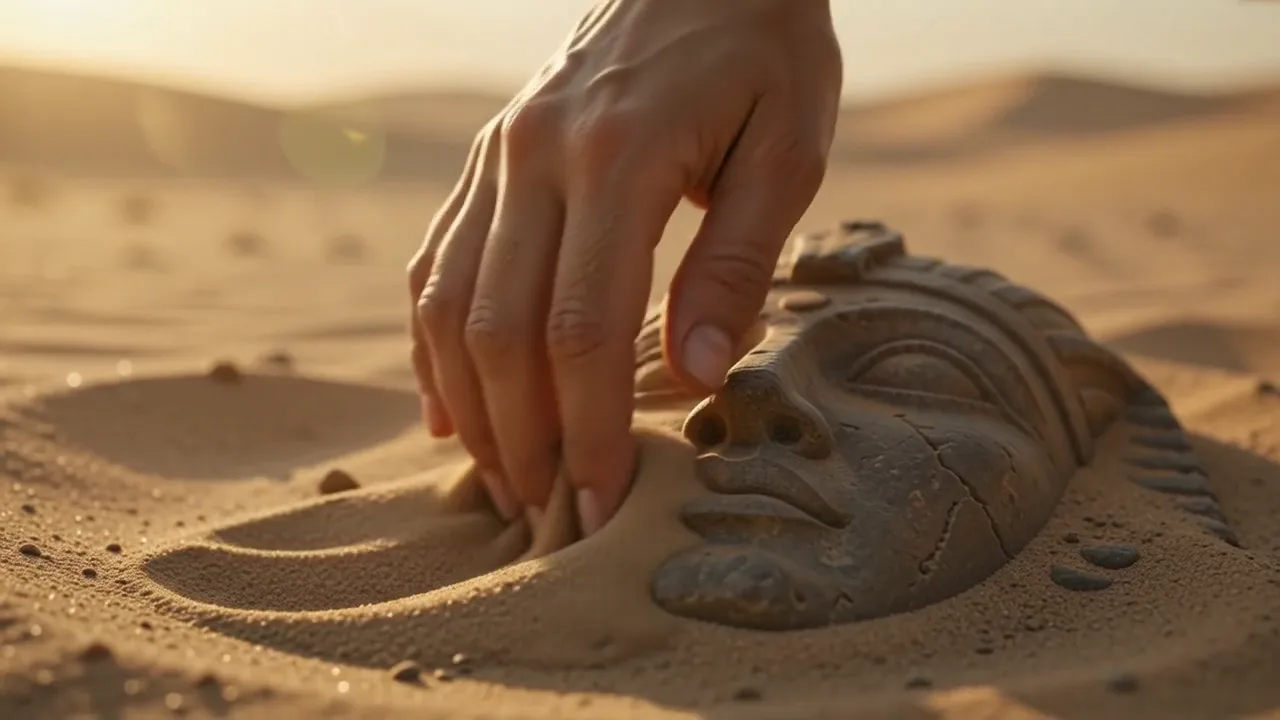
Kling 3.0
Action and motion
Use for action, motion, and story beats.
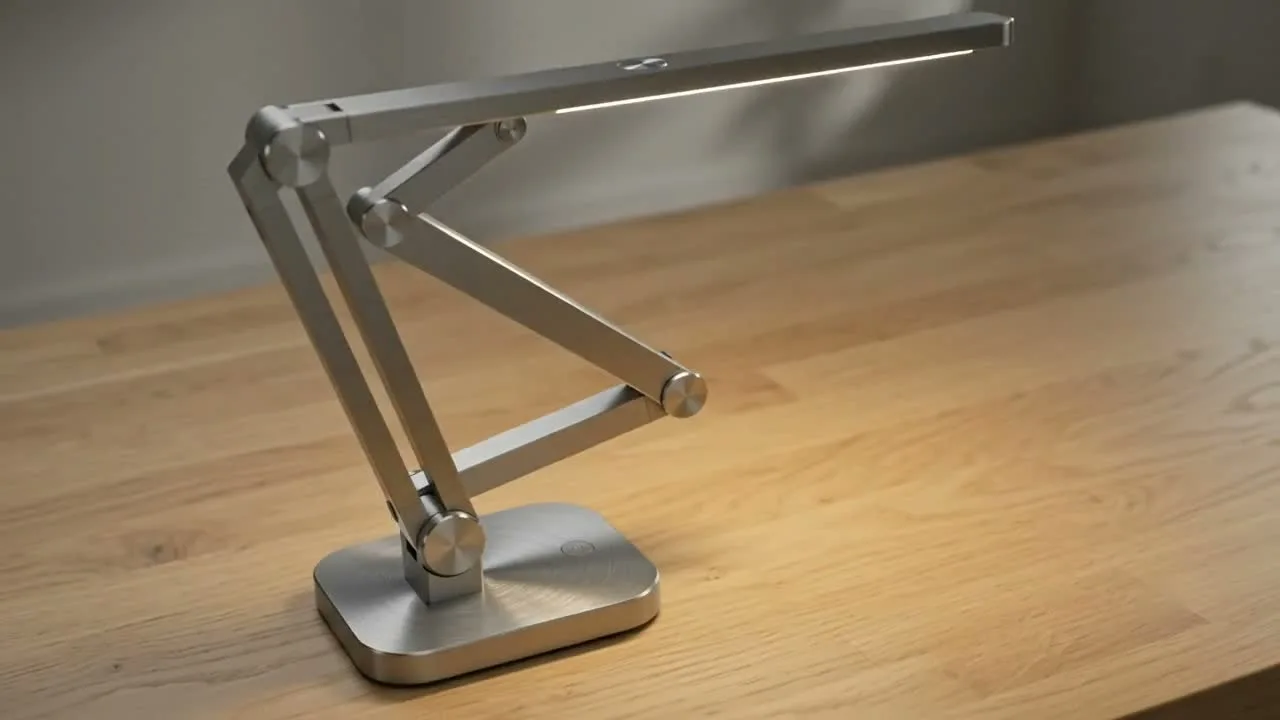
Seedance 2
Reference-led video
Use for fast motion drafts from references.
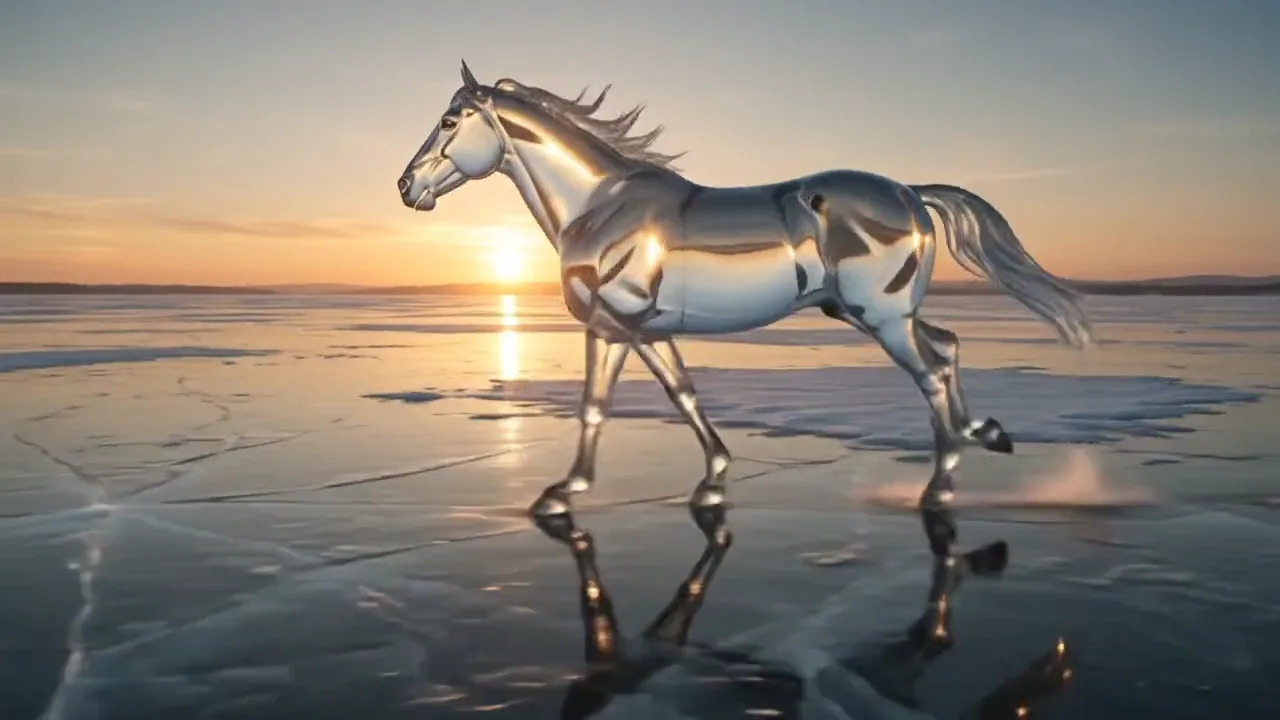
Hailuo AI
Physical motion
Use for fabric, liquid, and physical motion.
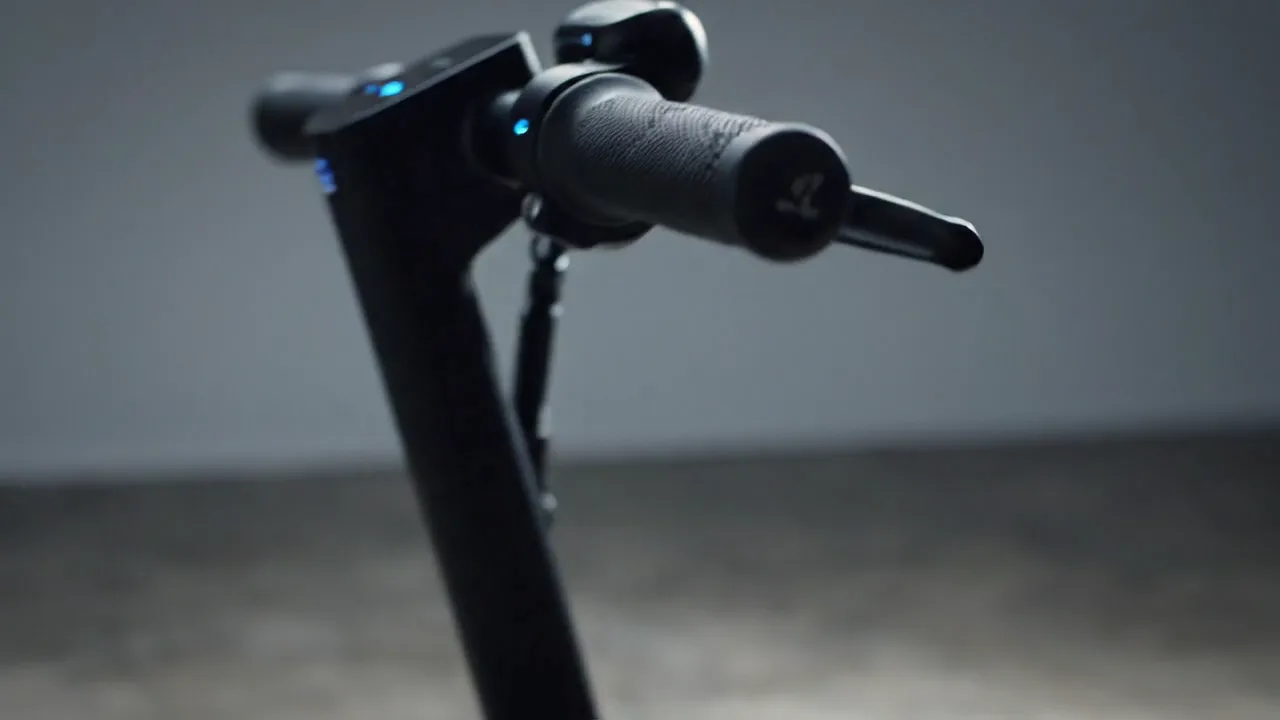
Veo 3.1
Cinematic control
Use for cinematic shots and camera moves.
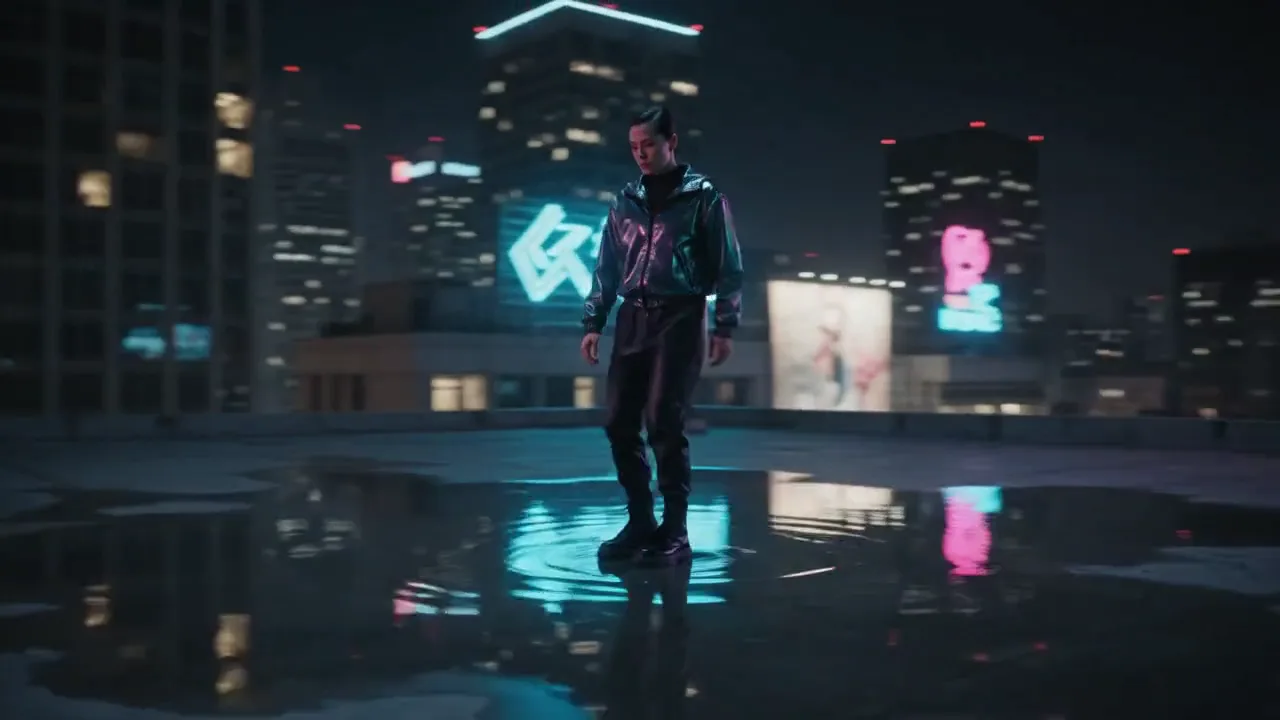
Seedance AI
Seedance family
Explore more Seedance video options.
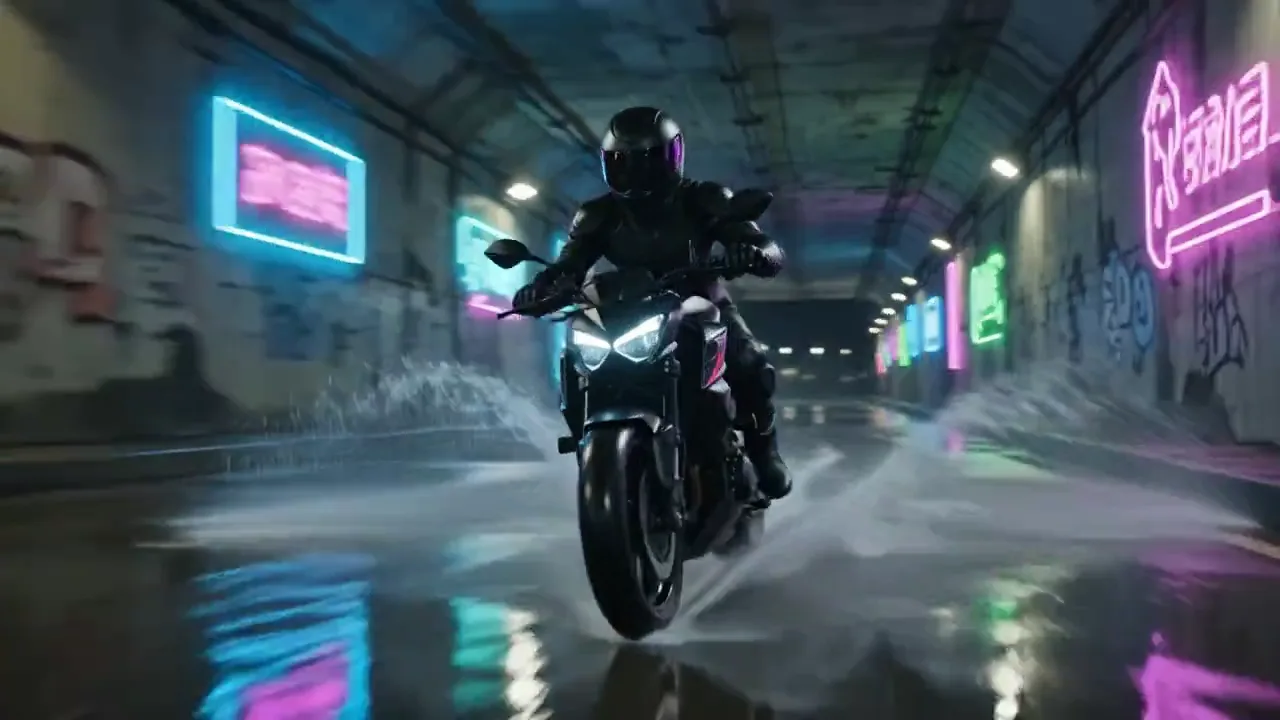
Kling AI
Kling family
Explore more Kling video options.
AI models
Compare models
Choose a better fit before you generate.
AI video tools
Turn images into motion
Animate a still or create a clip.
AI image tools
Create or edit images
Make, clean up, or upscale stills.
Kling 3.0
Action and motion
Use for action, motion, and story beats.