
Face Morph Video From Two Images
Upload a starting image and an ending image, then generate a short morph video you can review, download, or create again.
Create
Starting image
Ending image
Sample morphs
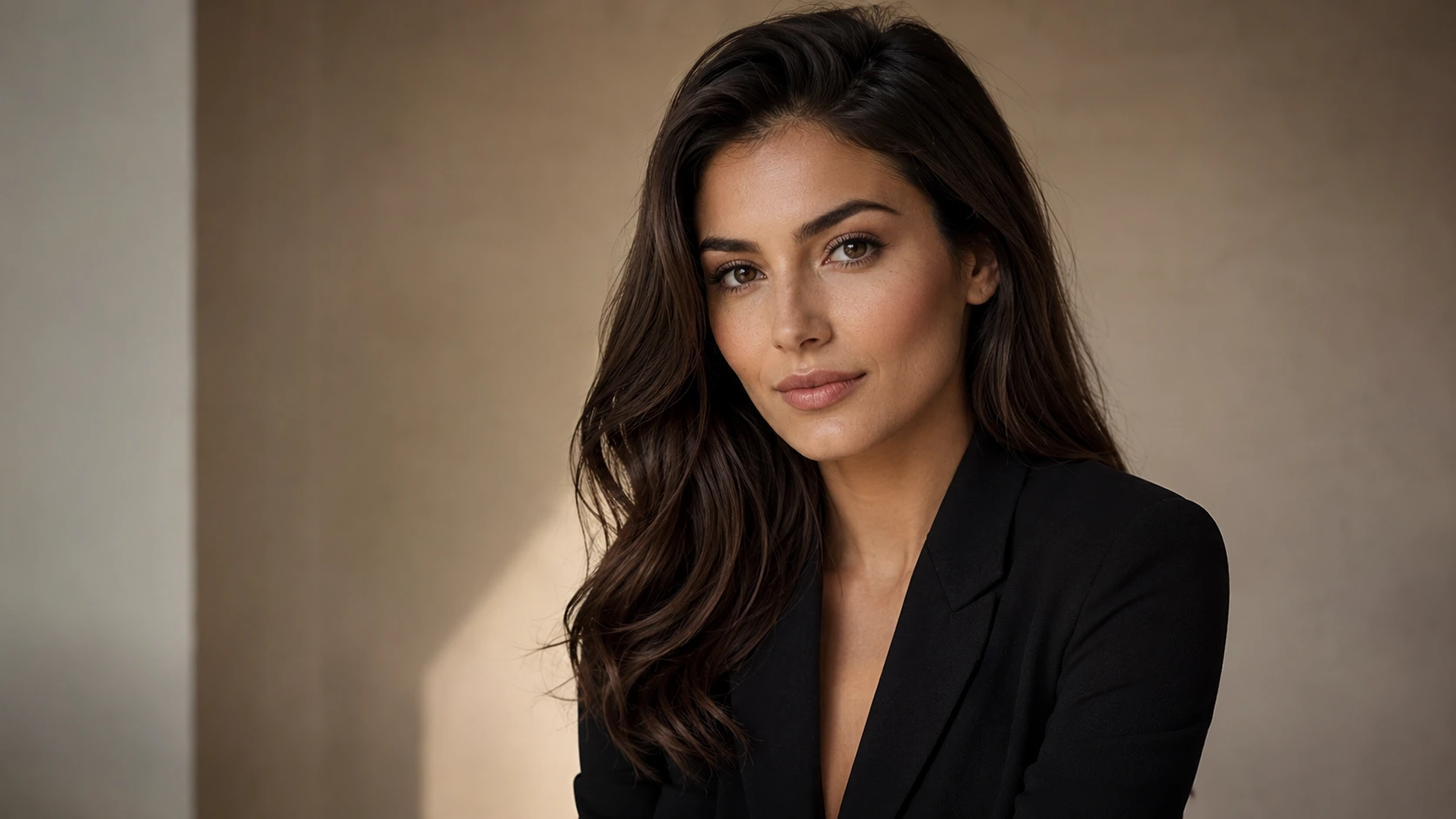
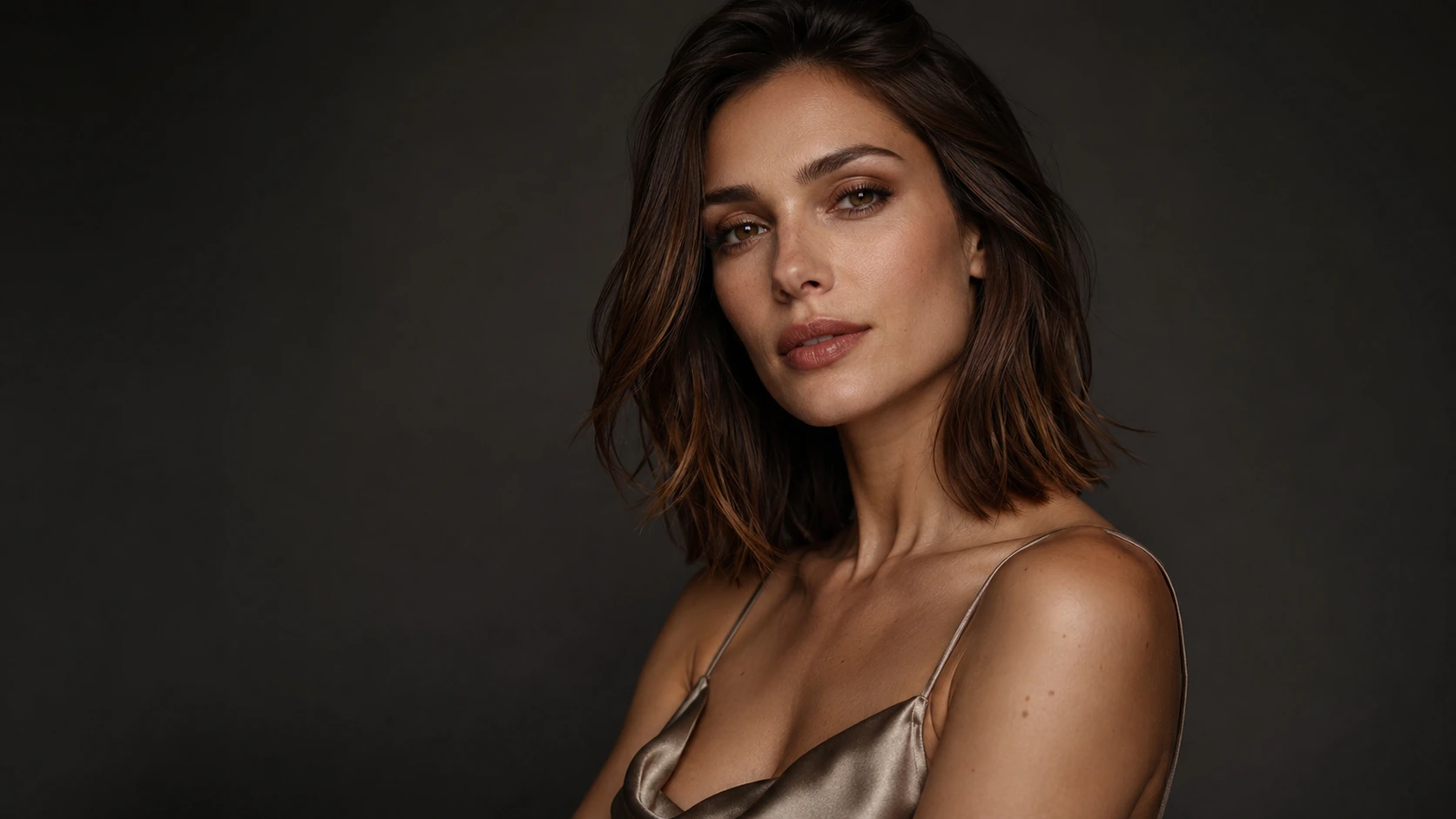
How to create a face morph video in Ezier
- 01
Choose the starting image
Select the portrait you want to see at the beginning of the video.
- 02
Choose the ending image
Select the portrait you want the morph to reach.
- 03
Create and review the video
Generate the video, then watch how the two portraits blend.
- 04
Download the result
Save the version that matches the look you want.
Explore face morph video examples
These reference examples show different transformations you can create from two portraits.
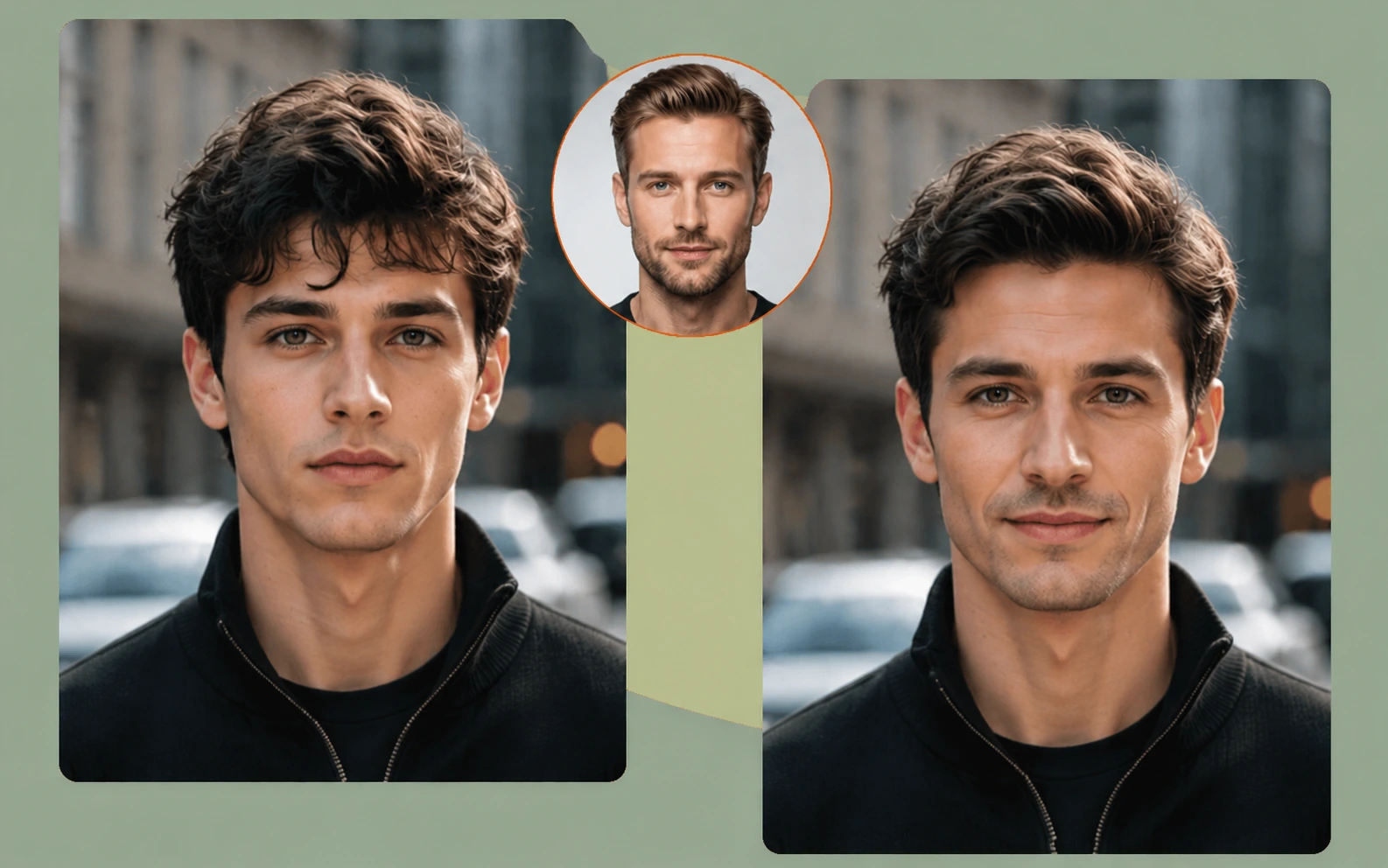
Create a portrait-to-portrait transition
Generate a short video that transforms one portrait into another, with the change itself as the visual focus.
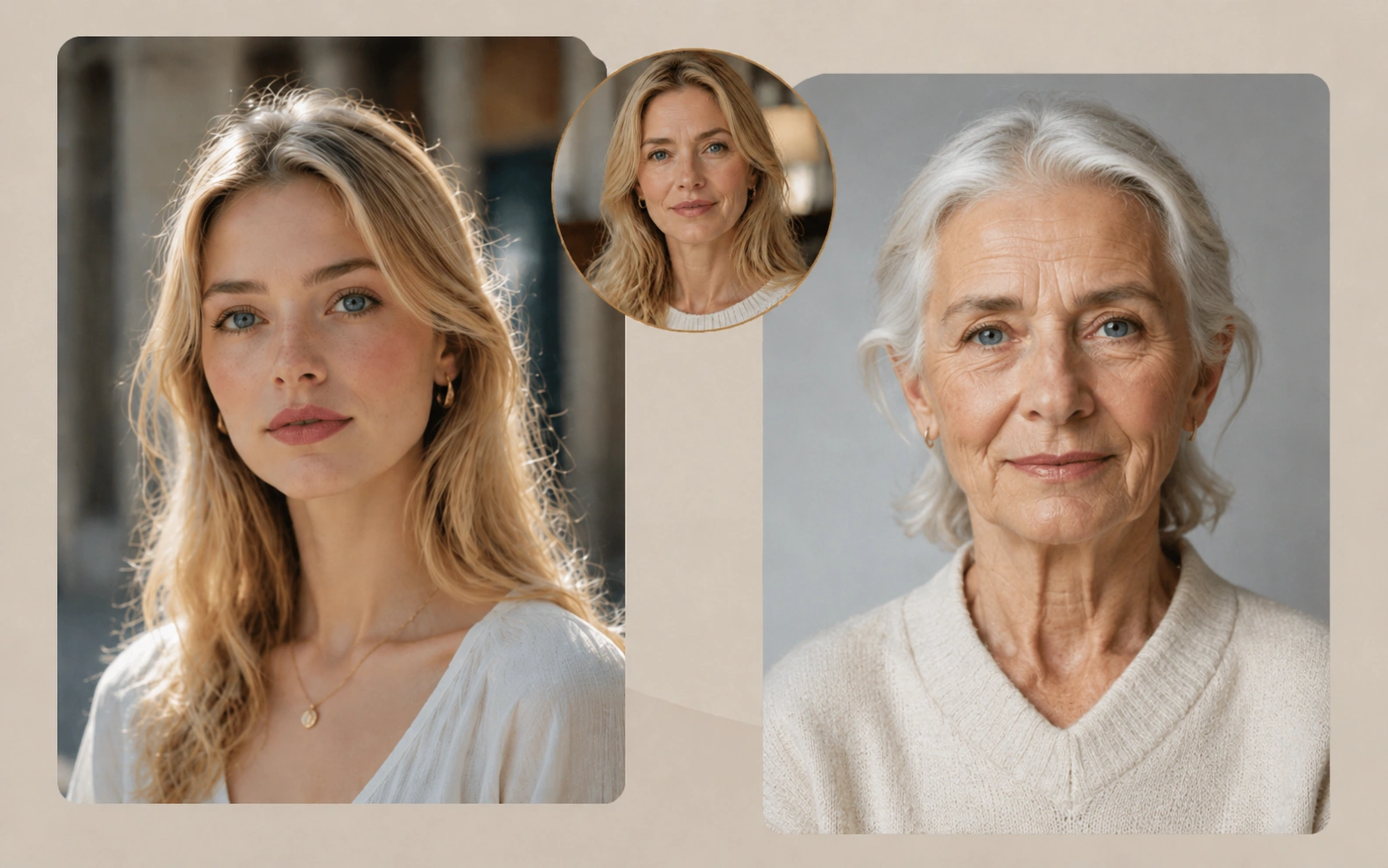
Try a stronger age transformation
Use portraits with a larger age difference to explore a more noticeable change in appearance.
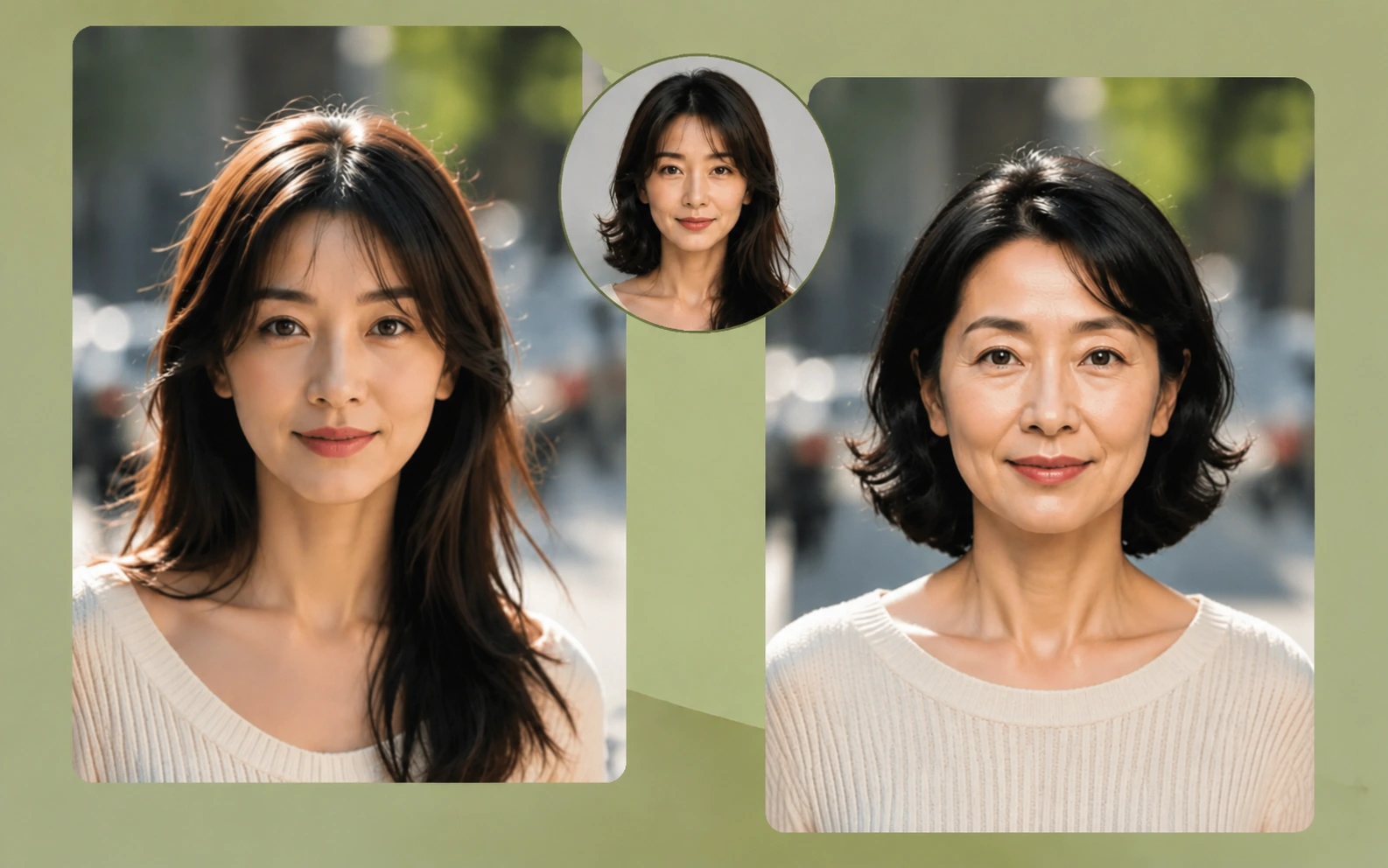
Explore changes in the final look
Test different portrait pairs to see how the generated video handles changes in features, hair, and expression.
Tips for a smoother face morph
Use two portraits that are easy to align. Similar framing and clear facial detail give the generated transition a better starting point.
Choose clear, well-lit portraits
Use a front-facing or near-front-facing portrait with visible eyes, mouth, and face shape.
Keep the framing consistent
Match head size, camera angle, and shoulder position across both portraits to reduce visible jumps.
Simplify the background
Busy scenes, strong shadows, or objects near the face can distract from the blend. Use AI Image Editor if the portrait needs a quick cleanup.
Use portraits you have permission to edit
For mockups, social tests, and client work, use images you are allowed to transform and share.
Ready for the reveal?
Turn two portraits into a transformation.
Upload your starting and ending images, then watch the change unfold in a short video.
Face morph FAQ
Answers about source images, credits, prompts, results, and next steps.
What does face morph do?
It generates a short video that blends a starting portrait into an ending portrait.
What should I upload first?
Start with the portrait you want to see first, then add the portrait you want the video to reach.
Does face morph use credits?
Yes. The current credit estimate appears on the Create video button before you generate.
Do I need to write a prompt?
No. The two portraits guide the transition; no extra prompt is required.
What can I use a face morph video for?
Use it for creator concepts, social tests, pitch mockups, product reveals, or any short clip where the transformation itself is the point.
Which image formats can I upload?
Upload PNG, JPG, WEBP, GIF, or AVIF images up to 20MB each.
What if the transition looks off?
Try a different source pair and generate again. Similar framing and a less extreme angle can help the blend read more clearly.
Related paths
Refine the clip another way
Try another video step when the next move is a new source, a different model, or a cleaner result.

AI video tools
More video tools
Generate, edit, clean up, or improve clips.

AI models
Compare video models
Pick a better model before rendering again.

AI image tools
Prepare source images
Create a stronger still for the next video run.
AI Video Generator
Start a video
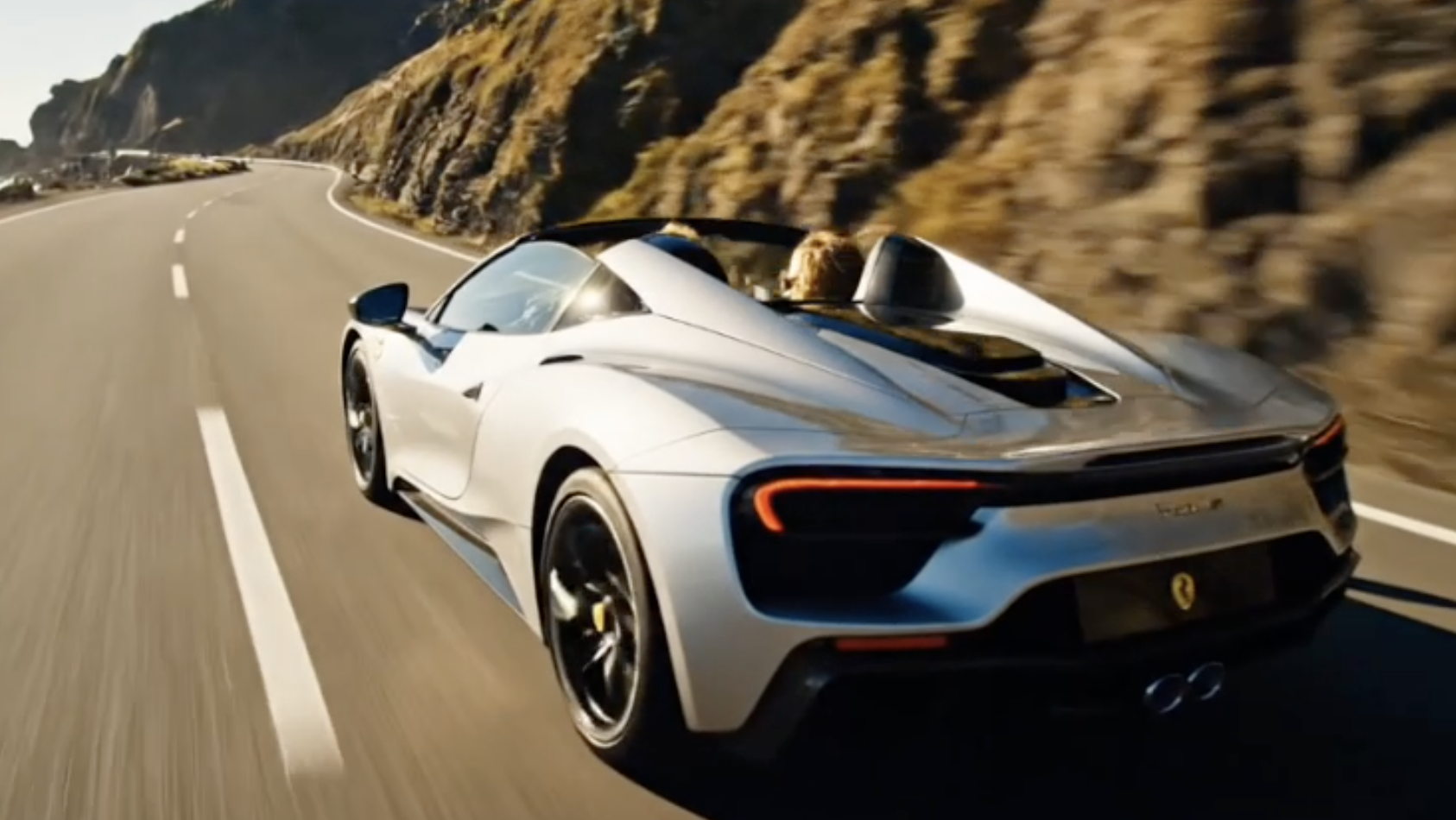
Create a clip from a prompt or image.
Text to Video
Prompt-first video
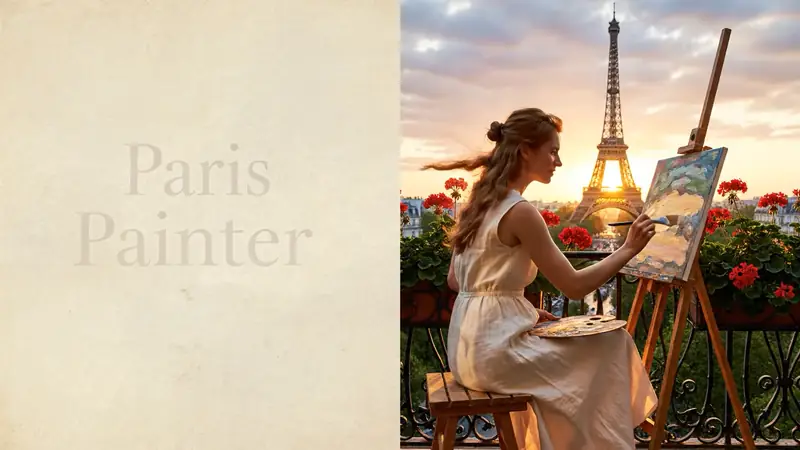
Turn a written scene into motion.

Image to Video
Animate a still
Turn an image into a short clip.
Video to Video
Restyle footage
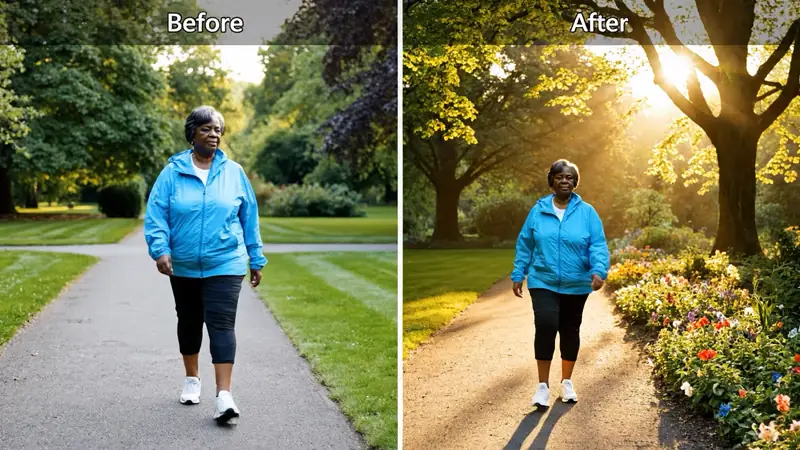
Change the look of an existing clip.
AI Video Extender
Extend a clip
Continue a short video into a longer scene.
AI Video Editor
Edit with prompts
Revise a clip without a timeline.
AI video tools
More video tools
Generate, edit, clean up, or improve clips.
AI models
Compare video models
Pick a better model before rendering again.
AI image tools
Prepare source images
Create a stronger still for the next video run.
AI Video Generator
Start a video
Create a clip from a prompt or image.