
Create Video-Ready Images with Wan Image
Use Wan Image on Ezier to generate product first frames, character keyframes, cinematic scene plates, and visual drafts. Choose a Wan model, set ratio and image count, check credits, then generate.
Create first frames with Wan Image
Use Wan Image for stills that need to hold up before they ever move: product scenes, character keyframes, cinematic plates, and image-to-video starting frames.
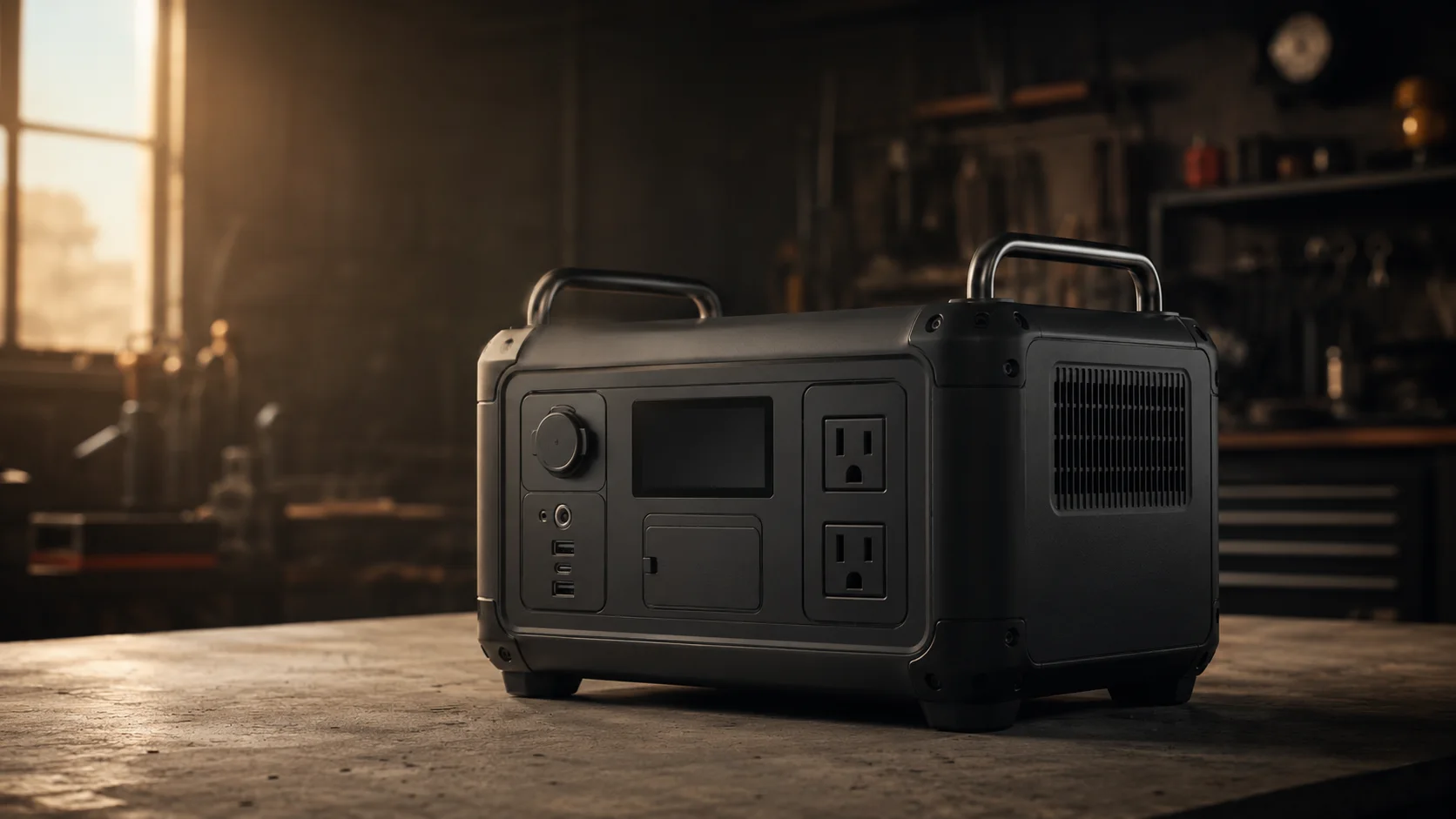
Create a cinematic product first frame for a compact matte-black portable power station on a concrete workshop table. Show metal handles, vent details, rubber feet, realistic reflections, and clear background space for a slow camera push-in.
How to create a Wan Image frame in Ezier
- 01
Write the still-image brief
Start in the prompt box with the asset type: product first frame, character keyframe, cinematic plate, background, or concept image. Name what must stay clear when the image is used later.
- 02
Choose from Select Model
Open Select Model and pick the Wan option that fits the job. Use faster options for drafts, and richer image options when product detail, character shape, or scene lighting matters.
- 03
Set ratio and frame count
Open Auto to choose the canvas ratio and image count. Generate more than one image when you need to compare crop, subject placement, or first-frame direction.
- 04
Check credits, then review the frame
The Generate button shows the credit estimate before you submit. After generation, inspect subject edges, lighting, background artifacts, and open space before saving or refining.
What to decide before generation
A strong Wan Image prompt describes the still as a production asset: what the subject is, how the frame is composed, and where motion could happen later.
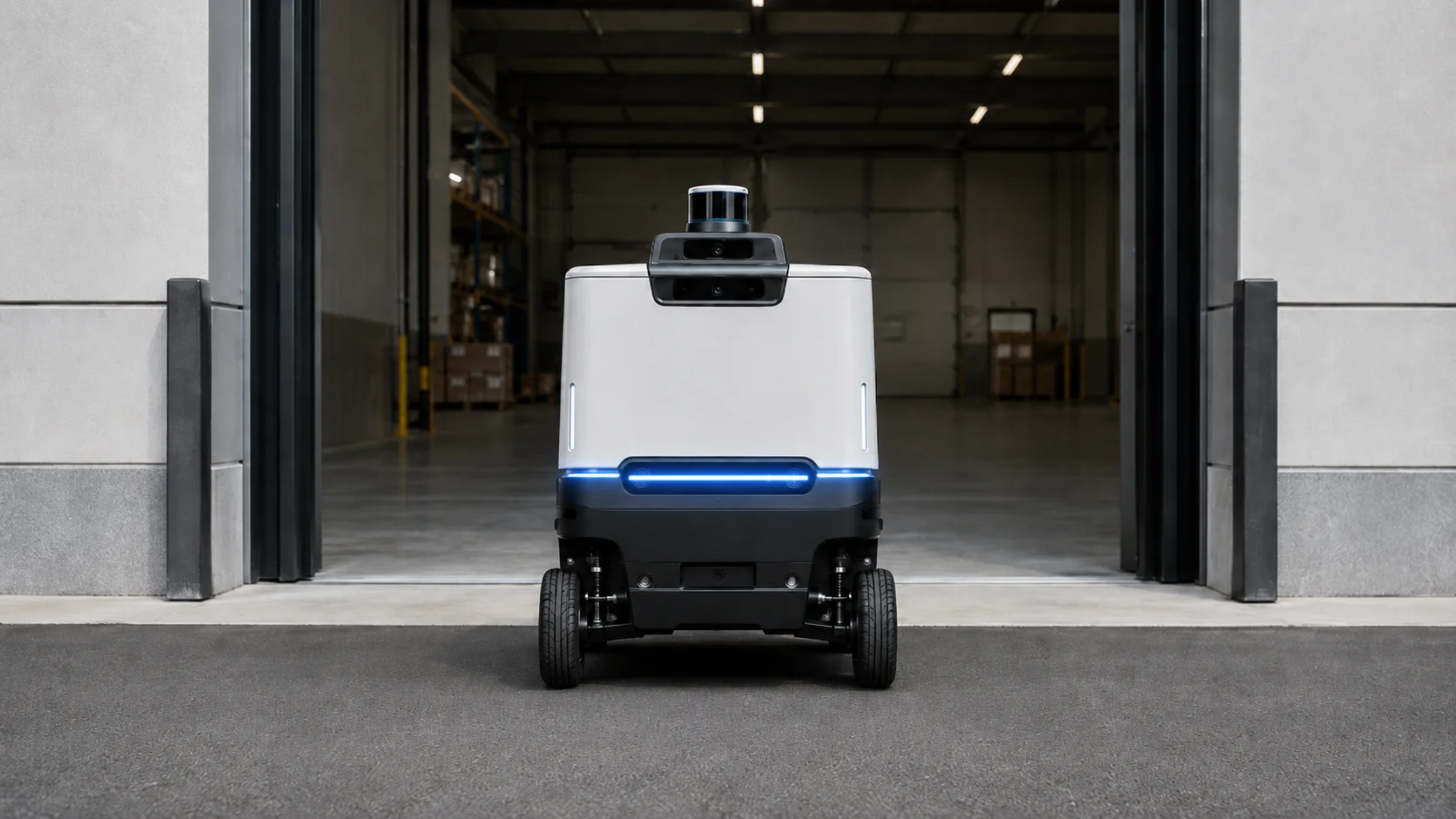
Make the subject easy to hold
For products, characters, and vehicles, describe the main subject, angle, edge detail, and background separation. A clear still makes the next creative step easier to control.
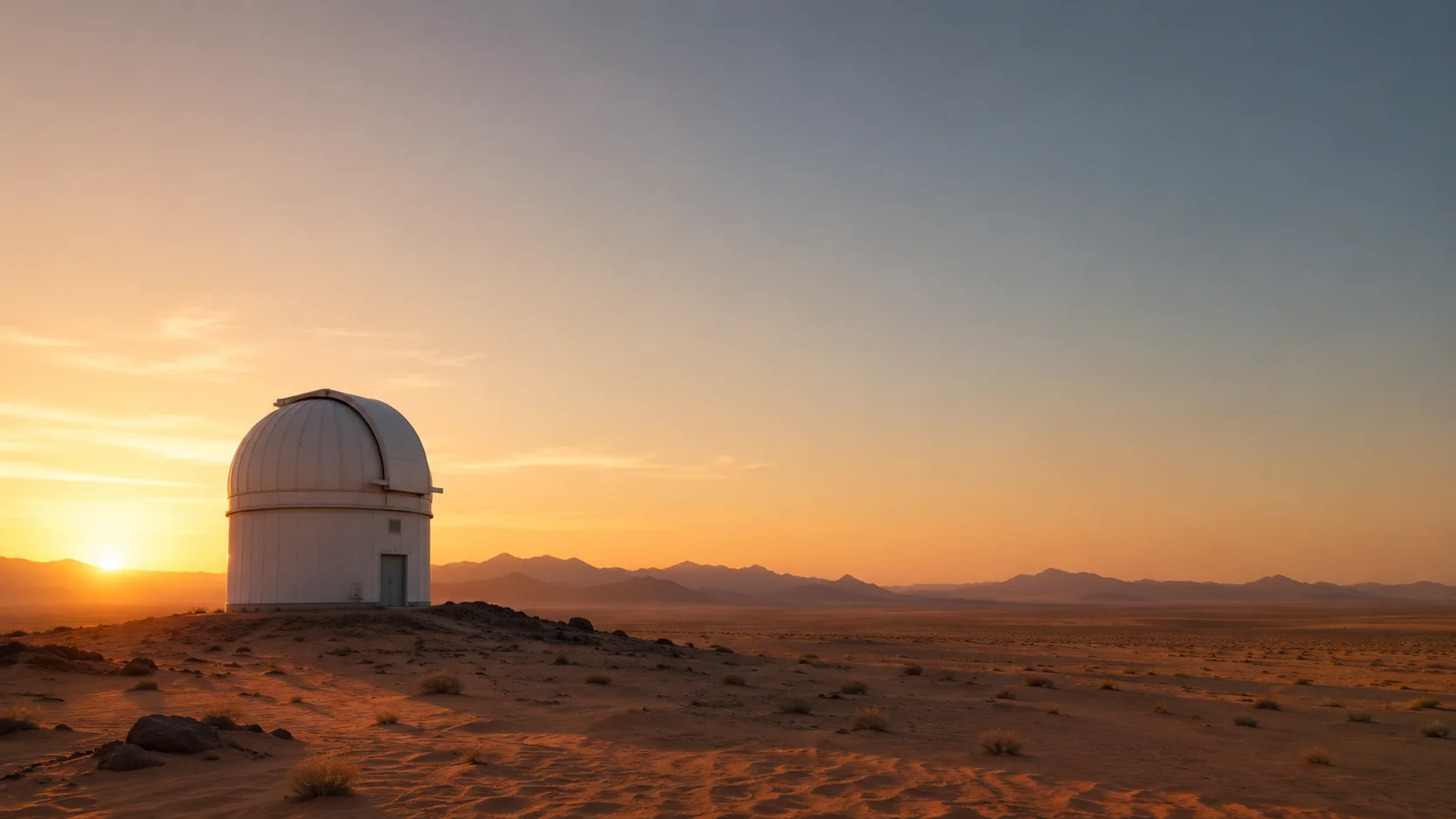
Leave space for motion
For cinematic scenes, say where the camera could move: push in, pan, drift, or reveal. Leave room around the subject so the image does not feel cropped before motion starts.
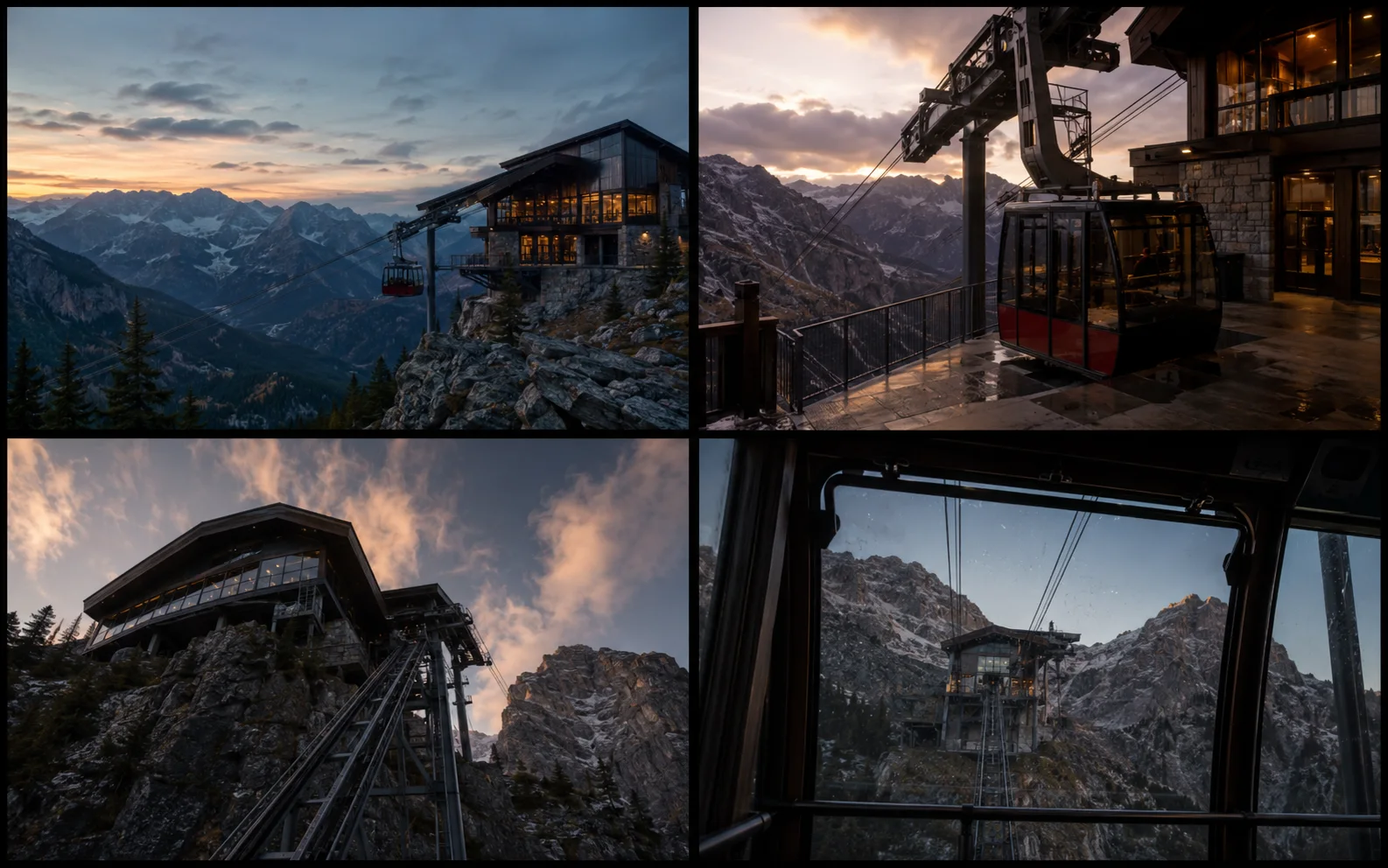
Compare frames before refining
Use multiple images when the opening frame matters. Compare silhouette, lighting, depth, and subject consistency, then refine the strongest result instead of repairing every weak draft.
Wan Image settings worth checking
Choose a Wan image model, set the canvas ratio and image count, then check the credit estimate before generating first-frame options.
- 1-4
- Image count rangeWan image models can generate several options at once. Use one for a direct draft, or more when composition and subject placement need comparison.
- 1:1+
- Canvas ratio choicesUse square ratios for product studies, wide ratios for cinematic scene plates, and vertical ratios when the image needs to fit a mobile-first format.
- Image to video
- Still-to-motion useWan is widely searched around image-to-video and text-image-to-video work, so this image page treats the still as a source frame, not just a standalone picture.
Use first-frame language
If the image may become a video source, write it as an opening frame: stable subject, clear foreground, layered background, and enough room for movement.
Pick ratio from the destination
Use wide ratios for cinematic scenes, square ratios for product comparisons, and vertical formats when the result is likely to become a mobile story or short clip.
Generate multiple options for composition
Small placement differences can matter later. Use multiple images when you need to compare room for camera movement, crop, depth, or subject isolation.
Keep the prompt concrete
Wan Image prompts work better when they name the subject, material, camera angle, lighting, background, and the kind of motion the still should support.
Inspect before the next workflow
Check hands, product edges, faces, logos, reflections, and background artifacts before using the image as a source for a video or edit.
Leave local setup terms in their place
GPU, VRAM, RTX 3060, ComfyUI, and Diffusers matter for local Wan setups. On Ezier, focus on the prompt, Wan model, ratio, image count, and credit estimate.
Wan Image in Ezier
Create a stronger frame before adding motion
Write the subject, framing, lighting, and motion intent into the prompt. Compare the generated images, then keep the frame with the clearest subject and cleanest space for movement.
Wan Image FAQ
Practical answers for Wan Image prompts, model choice, ratio, image count, credits, and image-to-video preparation.
How do I generate with Wan Image in Ezier?
Type the still-image brief in the prompt box, choose a Wan image model from Select Model, open Auto for ratio and image count, check the credit estimate, then select Generate.
What should I write in a Wan Image prompt?
Name the asset, subject, camera angle, lighting, background, and final use. For image-to-video preparation, describe the result as a stable first frame with room for motion.
Which Wan Image settings should I check before generating?
Check the Wan model, canvas ratio, image count, and credits shown on the Generate button. These choices affect composition options, cost, and how quickly you can compare drafts.
Is Wan Image the same as Wan Video?
No. Wan Image is used here for still-image generation and video-ready visual direction. Wan Video and Wan image-to-video workflows use an image as a source or first frame for motion.
When should I generate more than one image?
Generate multiple images when composition matters: product first frames, character keyframes, cinematic plates, and backgrounds that may need motion later.
Can I use Wan Image for image-to-video preparation?
Yes. Use Wan Image to make a clean source image or opening frame, then inspect subject stability, edges, lighting, and background artifacts before using it in a motion workflow.
Do I need a local Wan setup?
No. ComfyUI, GPU setup, and VRAM planning matter for local Wan workflows. On Ezier, you can work online by writing a prompt, choosing a Wan model, checking ratio and image count, and generating with credits.
Which Wan option should I choose?
Use faster Wan options for early drafts and richer image options when realism, product detail, character shape, or scene lighting matters. The available choices appear in the model menu.
Is Wan Image better than Qwen Image or Nano Banana?
Choose Wan Image when the still may become a video-ready frame or cinematic scene. Choose Qwen Image when readable text matters, and Nano Banana models when reference-image editing is the priority.
Related paths
Where to go after Wan Image
Use another model for a different look, edit the image, or make the result move.

AI models
Compare models
Choose a better fit before you generate.

AI image tools
Create or edit images
Make, clean up, or upscale stills.

AI video tools
Turn images into motion
Animate a still or create a clip.

Qwen Image
Readable text
Use for labels, posters, and diagrams.

Nano Banana 2
Balanced image creation
Use for higher-resolution images, multiple references, and longer edit chains.
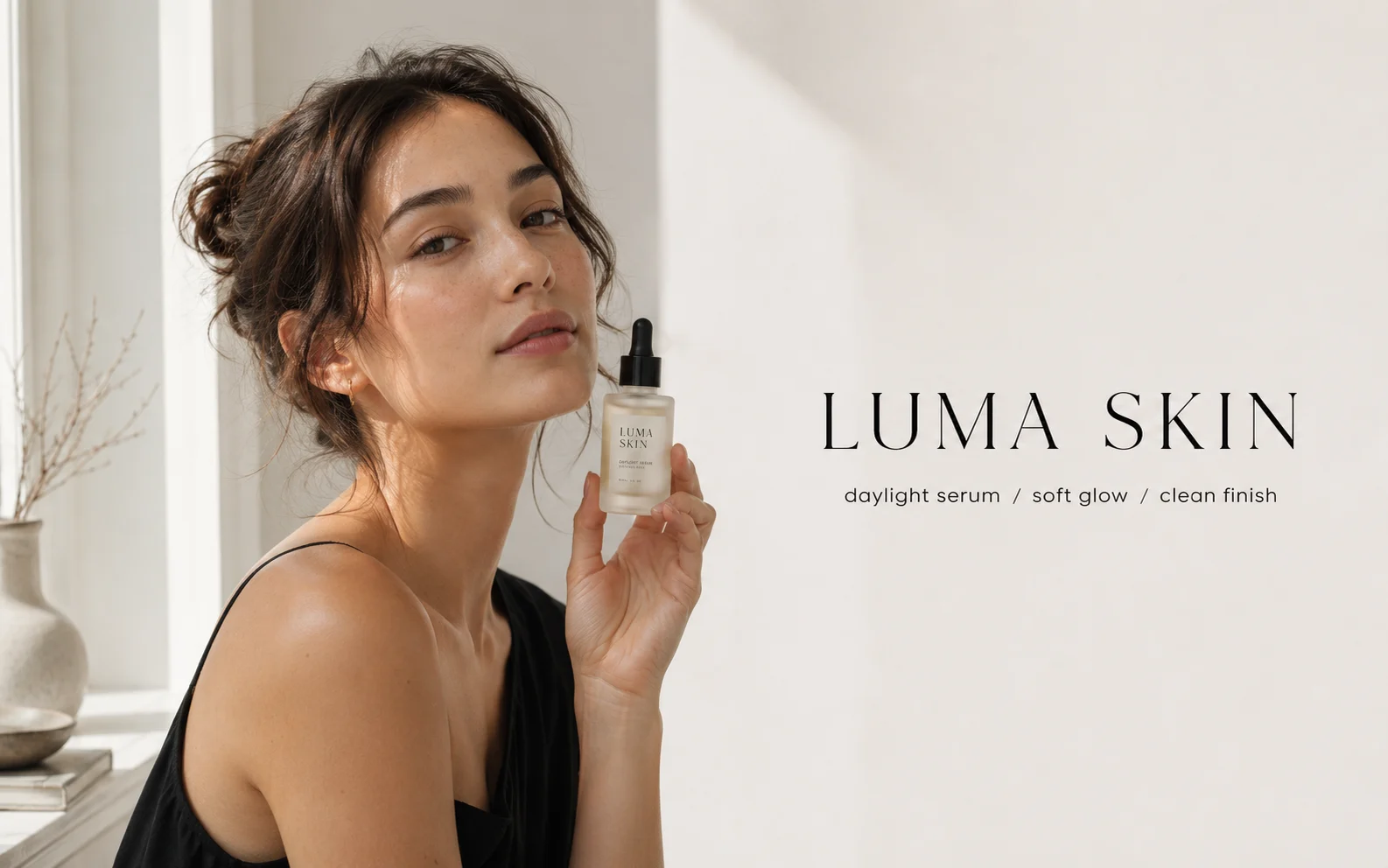
GPT Image 2
Polished visuals
Use for ads, product shots, and clean edits.
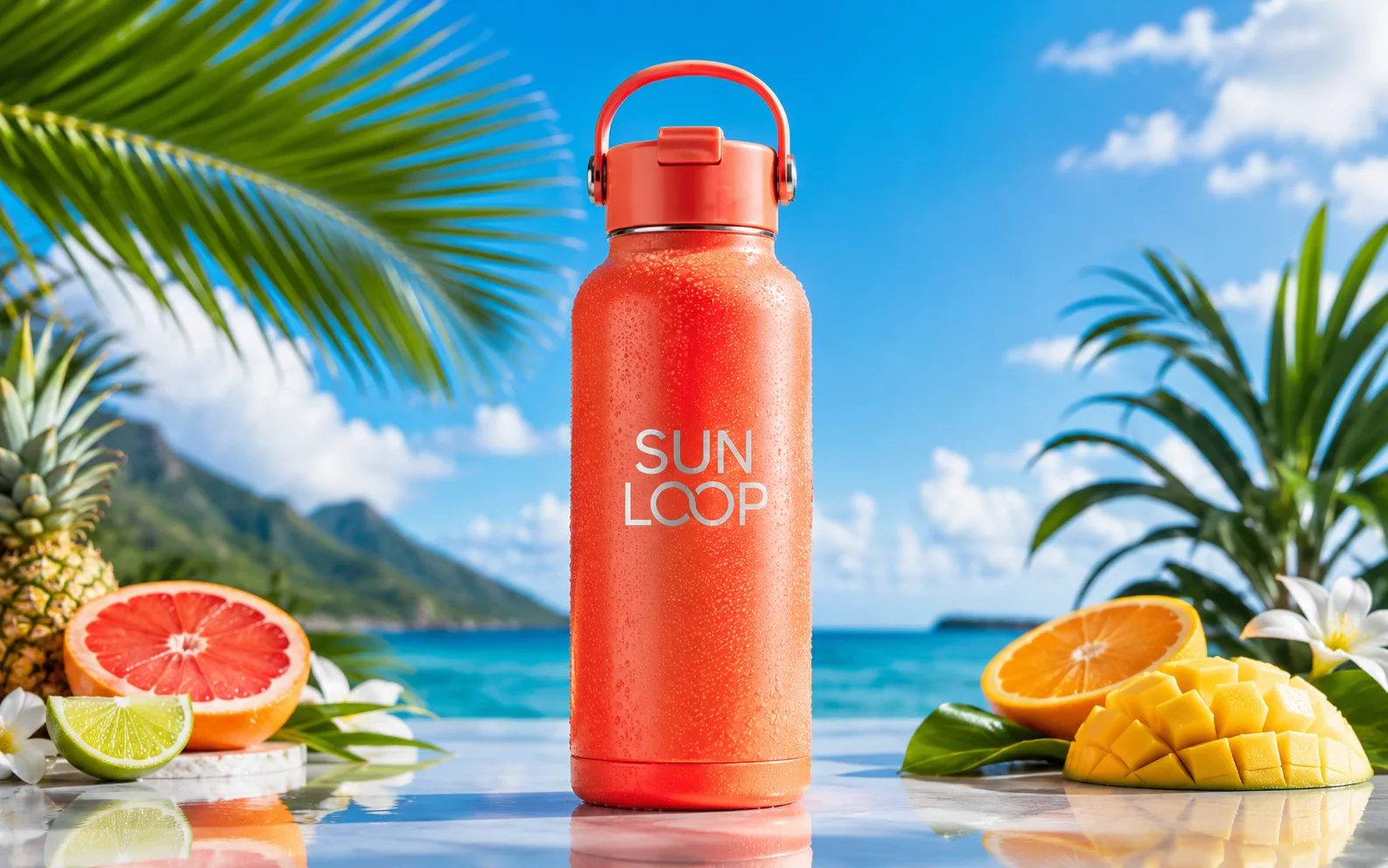
Nano Banana Pro
More control
Use for detailed prompts and readable text.
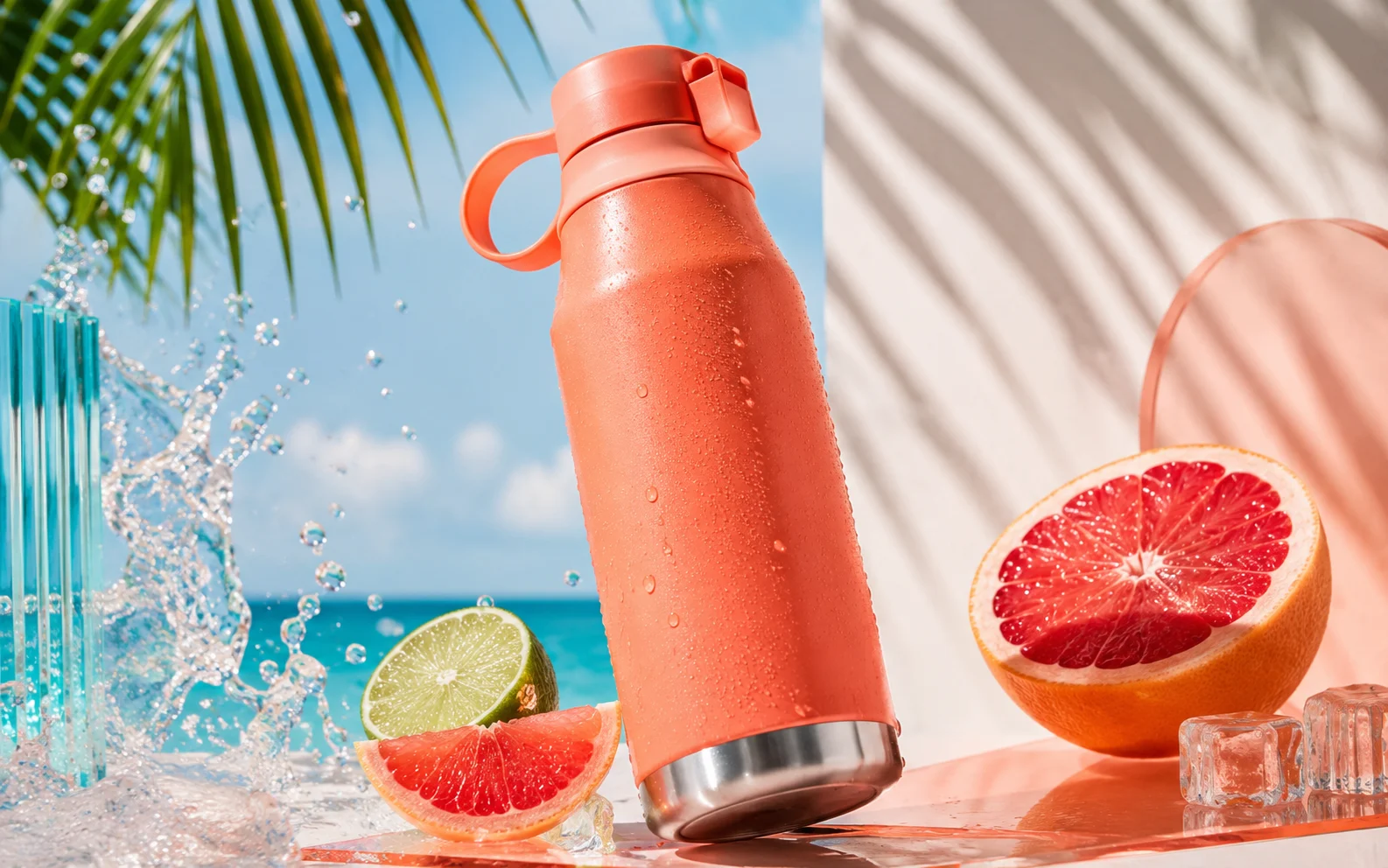
GPT Image
Quick OpenAI drafts
Use for quick concepts and simple edits.

Nano Banana AI
Nano Banana family
Explore more Google image options.
AI models
Compare models
Choose a better fit before you generate.
AI image tools
Create or edit images
Make, clean up, or upscale stills.
AI video tools
Turn images into motion
Animate a still or create a clip.
Qwen Image
Readable text
Use for labels, posters, and diagrams.