
Create Fast Visual Drafts with GPT Image
Sketch social graphics, product concepts, brand boards, and image edits with GPT Image on Ezier. Start from a prompt, add a reference image when available, check credits, and refine the strongest draft.
Best uses for GPT Image
Use GPT Image for fast visual direction: social graphics, product concepts, creator ads, reference edits, and brand mood boards that need a strong first draft before deeper polish.
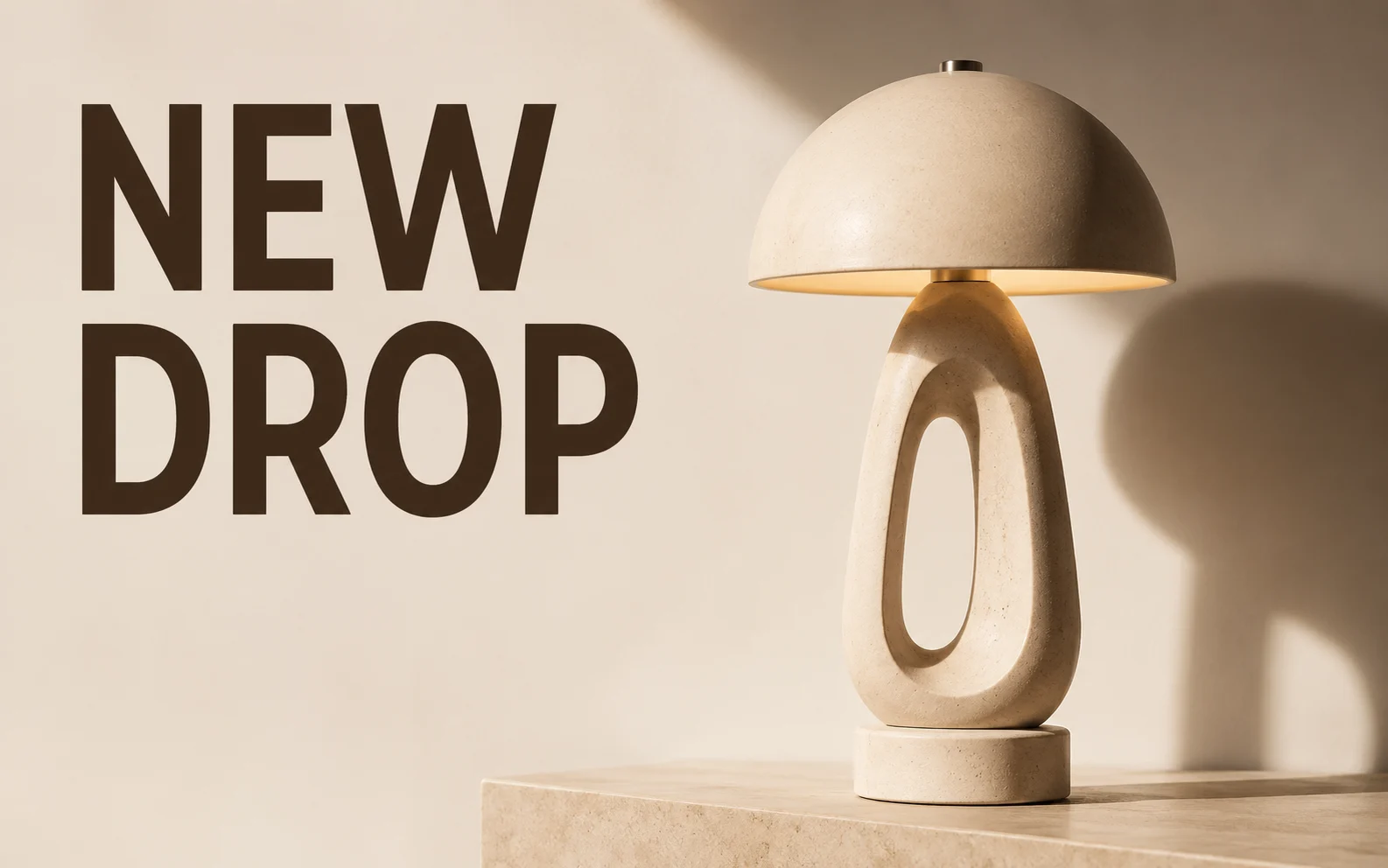
Create a square social media campaign image for a sculptural desk lamp. Use one hero product, warm studio lighting, strong graphic shadow, a clean beige background, readable headline text "NEW DROP", and clear space for a small call to action.
How to use GPT Image on Ezier
- 01
Start with the final surface
Say whether you need a social tile, product image, poster, background, mood board, or edit. GPT Image follows the brief better when it knows the shape of the finished asset first.
- 02
Give it a tight visual brief
Name the subject, setting, crop, lighting, style, and final use. If the image needs words, keep them short and put the exact text in quotes.
- 03
Add a reference image
Upload an image when you need to preserve a product, face, pose, room, or camera angle. Say what can change and what must stay intact.
- 04
Review before you iterate
Check credits, generate, then look for the specific fix: cleaner background, sharper subject, better crop, safer text, or more space for copy.
What GPT Image is especially useful for
GPT Image is strongest when the brief has a visible target: what the image is for, what should stay recognizable, and which few details matter most in the first result.
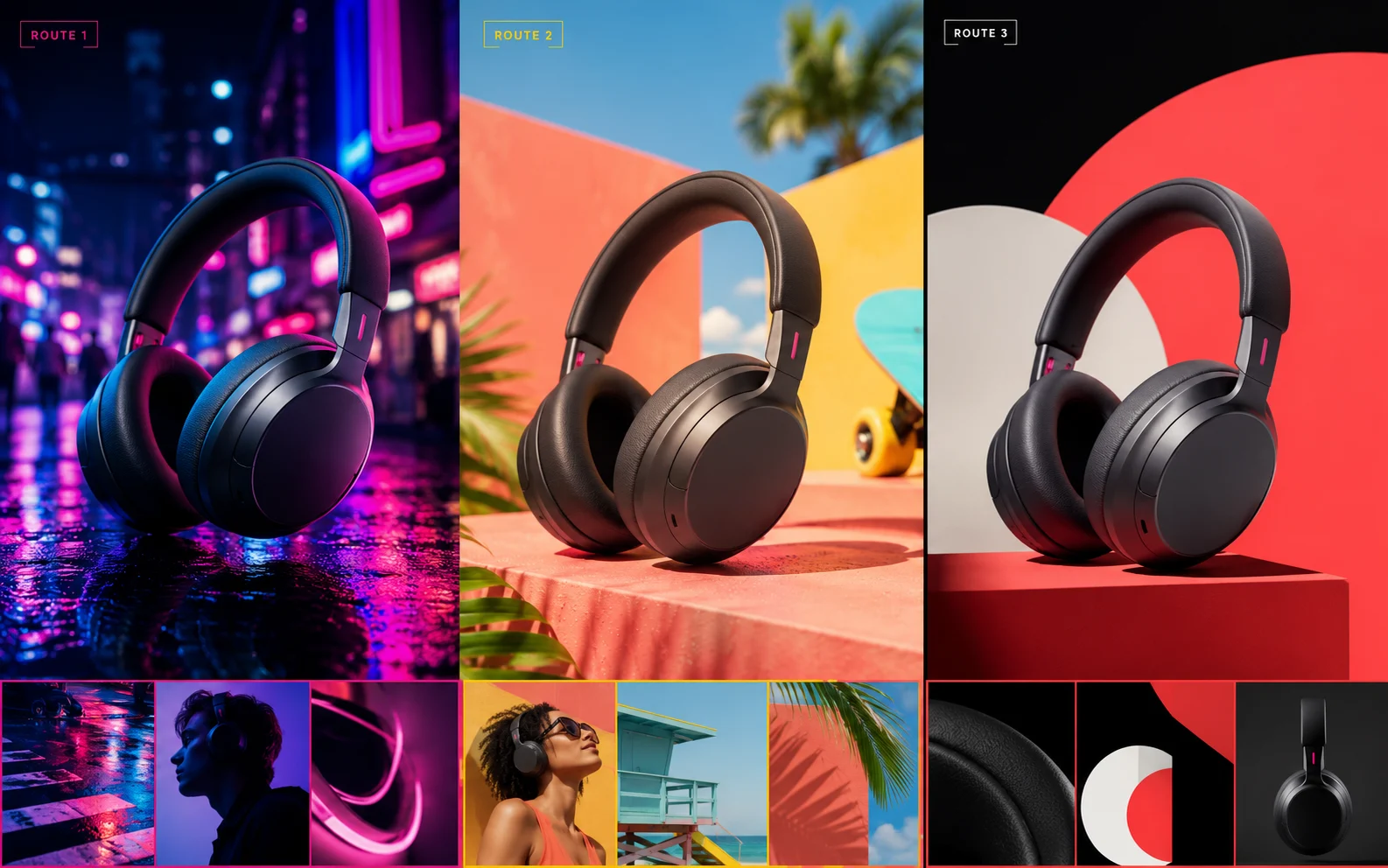
Fast creative routes
Use GPT Image to explore several campaign directions quickly: product scenes, social posts, thumbnails, creator visuals, and early ad concepts. It is a good first pass when style and direction matter more than final precision.
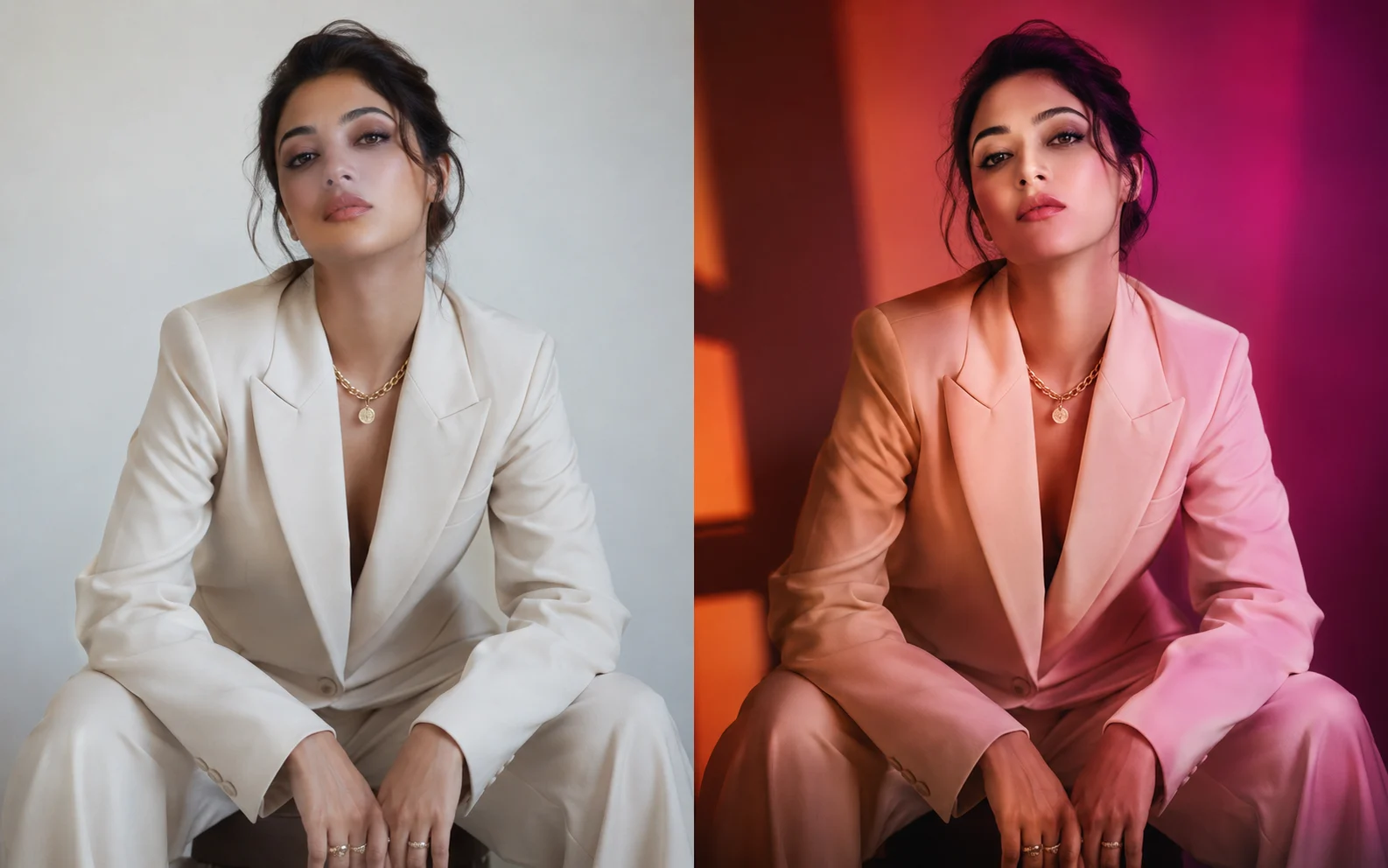
Reference edits with boundaries
Use GPT Image for prompt-led edits when the change is clear: clean the scene, shift the lighting, restyle the setting, or remove distractions while keeping the subject recognizable.
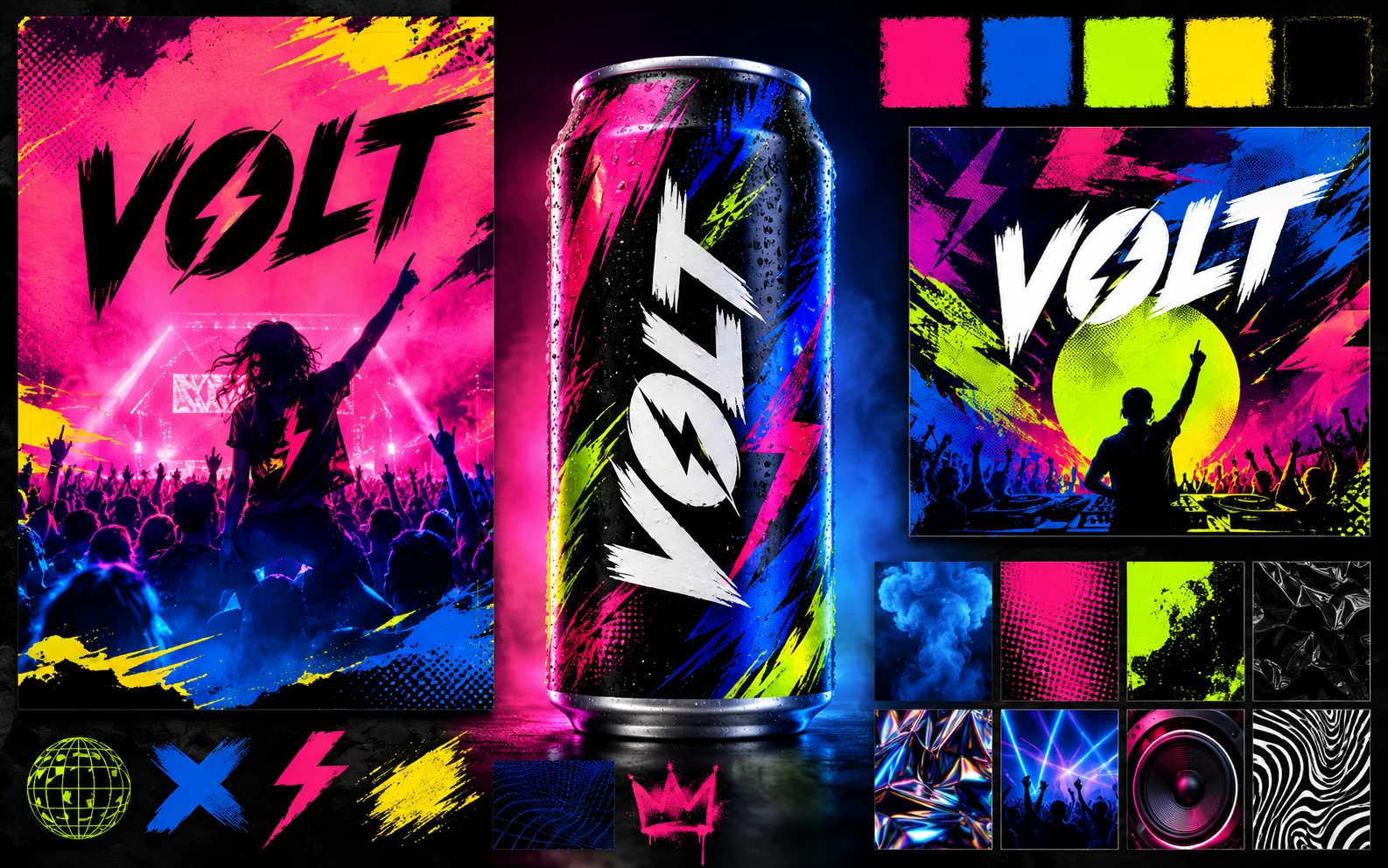
Brand boards and short text
Use GPT Image for mood boards, color directions, poster drafts, background ideas, and simple branded graphics. Keep generated text short, then review every word before using the image publicly.
Get better GPT Image results
Treat GPT Image like a visual drafting partner. Give it a clear surface, a small set of constraints, and a review pass for text, claims, and protected details.
- Text + image
- InputsStart from a prompt, then add an image when the edit depends on a real product, pose, room, or composition.
- Common ratios
- FormatsPlan for square, portrait, or landscape outputs. Use the available size options you see in the generator.
- Credits
- UsageUse GPT Image for lighter drafts, then spend heavier iterations on the version that is already close.
Make the destination obvious
Say whether you want a product photo, poster, social tile, thumbnail, background, mood board, or edited reference image. The destination tells GPT Image how to frame the result.
Keep in-image text short
GPT Image can handle simple words and labels, but long copy is fragile. Use one headline or a few labels, put exact text in quotes, and check every character.
Move up when layout matters
When the brief depends on cleaner typography, a stricter composition, or a more polished campaign asset, test the same prompt in GPT Image 2 and compare the result before deciding which one is worth iterating.
Protect what should not drift
For edits, name the protected parts: face, product shape, logo, color palette, camera angle, room layout, or material texture.
Describe the clean result
Instead of a long list of negatives, describe the image you want: plain background, sharp subject, no extra props, readable label, centered crop, or empty space on one side.
Do not force every fix into one prompt
If the best image still has a weak background, awkward crop, or small artifact, keep the strong subject and finish it with an editor or background remover.
GPT Image in Ezier
Draft and refine GPT Image visuals in Ezier
Write a prompt, add a reference image when upload is available, check the credit estimate, and refine the result while the idea is still fresh.
GPT Image FAQ
Practical answers for using GPT Image in Ezier without overworking the prompt.
What is GPT Image best used for on Ezier?
GPT Image is useful for prompt-based image drafts, product concepts, social graphics, simple edits, backgrounds, and starter campaign visuals. Use it when you want a strong first image quickly before polishing the idea further.
Is GPT Image the same as DALL-E 3?
No. GPT Image refers to OpenAI image generation models after the older DALL-E generation. It is built for prompt-based image creation and, when supported, image-based editing.
When should I use GPT Image 2 instead?
Use GPT Image 2 when the result needs stricter layout control, cleaner text inside the image, or a more polished final asset. GPT Image is still useful for lighter drafts and quick creative tests.
Can GPT Image edit uploaded images?
Yes, when upload is available. Add a reference image, describe the exact change, and name the parts that should stay recognizable.
Can GPT Image create readable text in images?
It can create simple text, especially short headlines or labels. For longer copy, complex typography, or strict layout work, keep the wording short and consider testing GPT Image 2.
Can GPT Image make transparent backgrounds?
Transparent or clean-background results depend on the available settings. If you need a cleaner asset, generate the strongest subject first and use a background remover afterward.
Do I need an API key to use GPT Image on Ezier?
No. You can create with GPT Image in Ezier from the browser without setting up API access.
How do credits or limits work for GPT Image?
Credits and limits can vary by account benefits, selected settings, and platform rules. Check the estimate shown on the generate button before submitting.
Keep testing
More routes from GPT Image
Compare a nearby model, polish the image with tools, or continue the idea as a video.

AI models
Compare models
Choose a better fit before you generate.

AI image tools
Create or edit images
Make, clean up, or upscale stills.

AI video tools
Turn images into motion
Animate a still or create a clip.
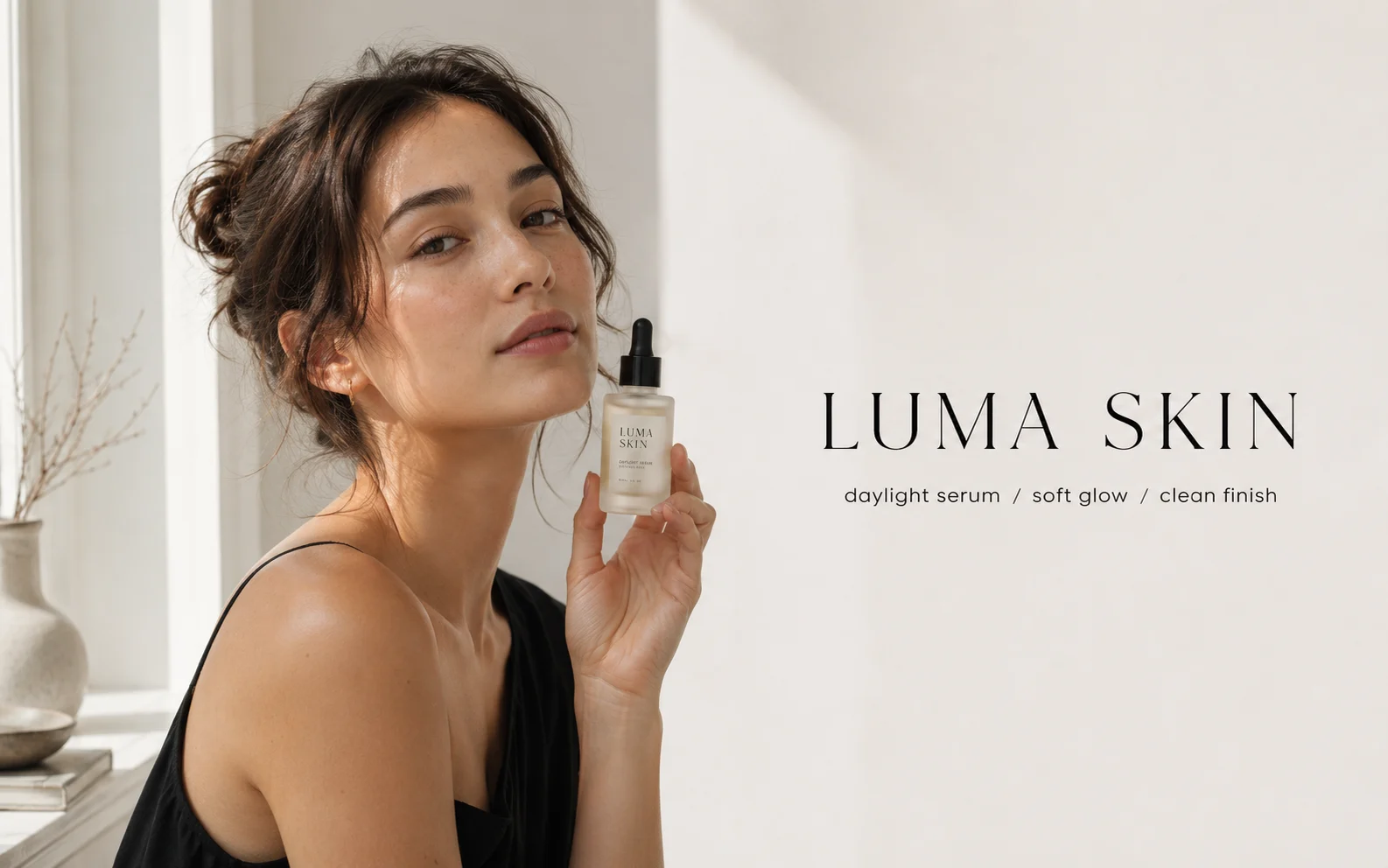
GPT Image 2
Polished visuals
Use for ads, product shots, and clean edits.
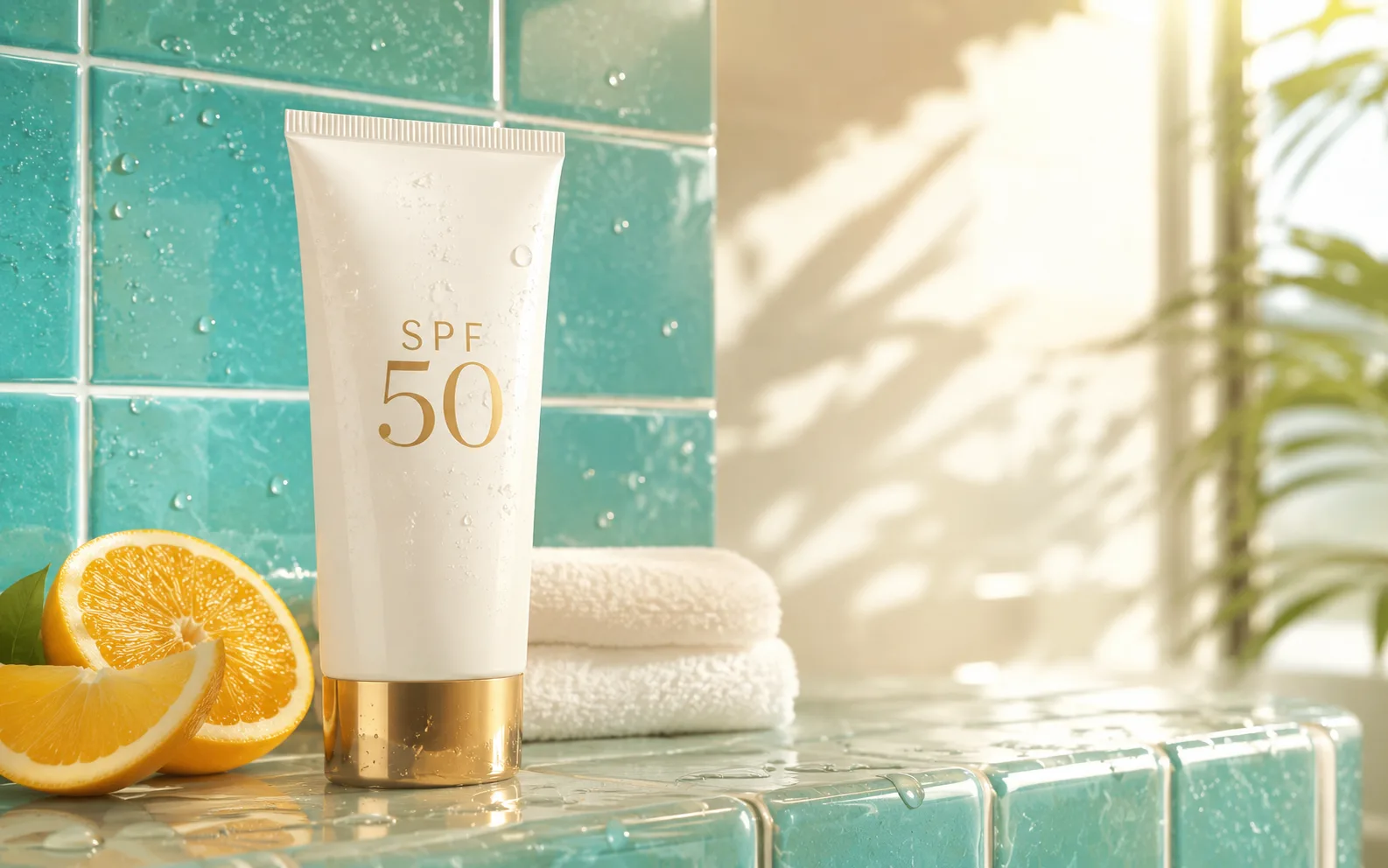
Nano Banana 2
Balanced image creation
Use for higher-resolution images, multiple references, and longer edit chains.
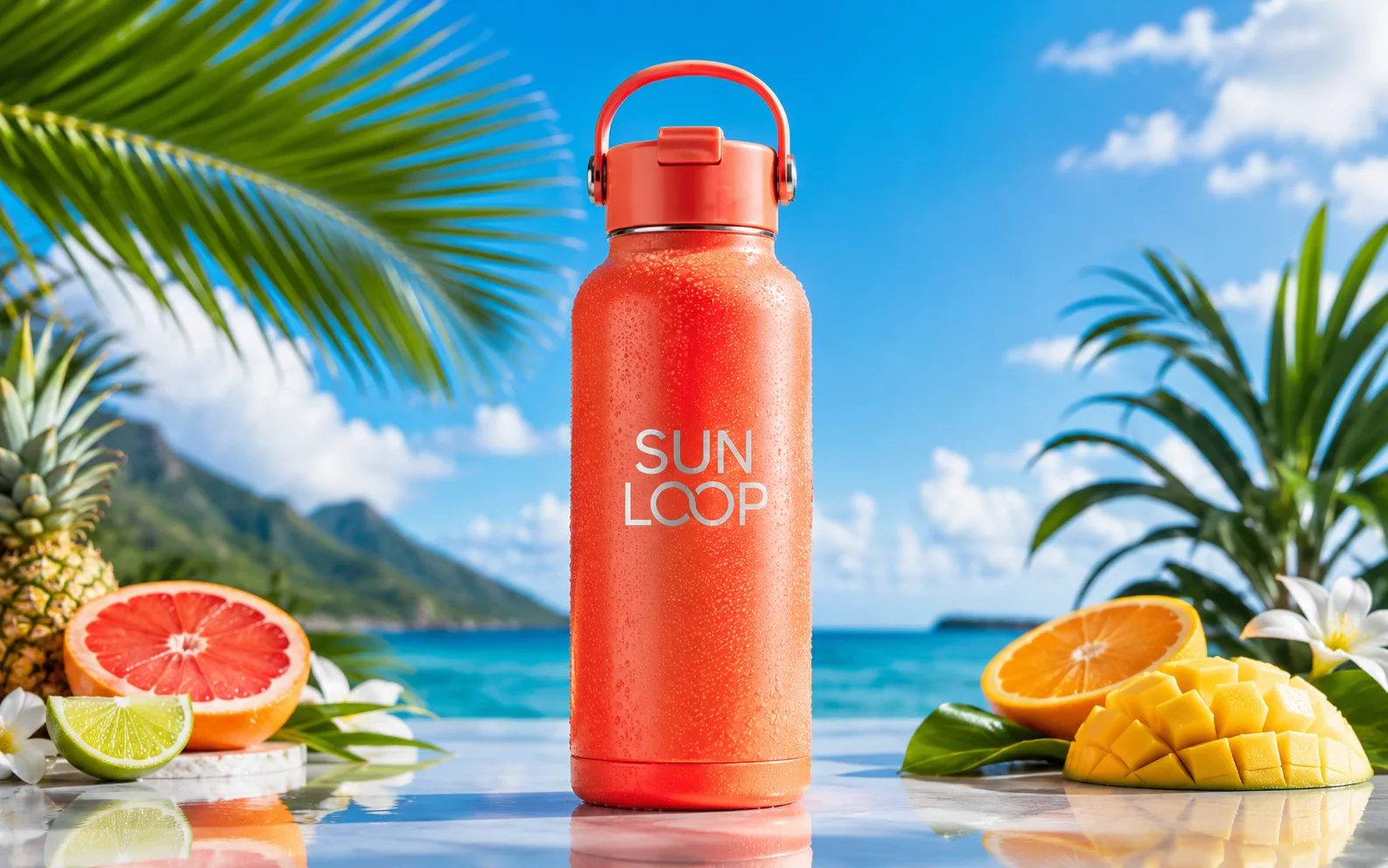
Nano Banana Pro
More control
Use for detailed prompts and readable text.
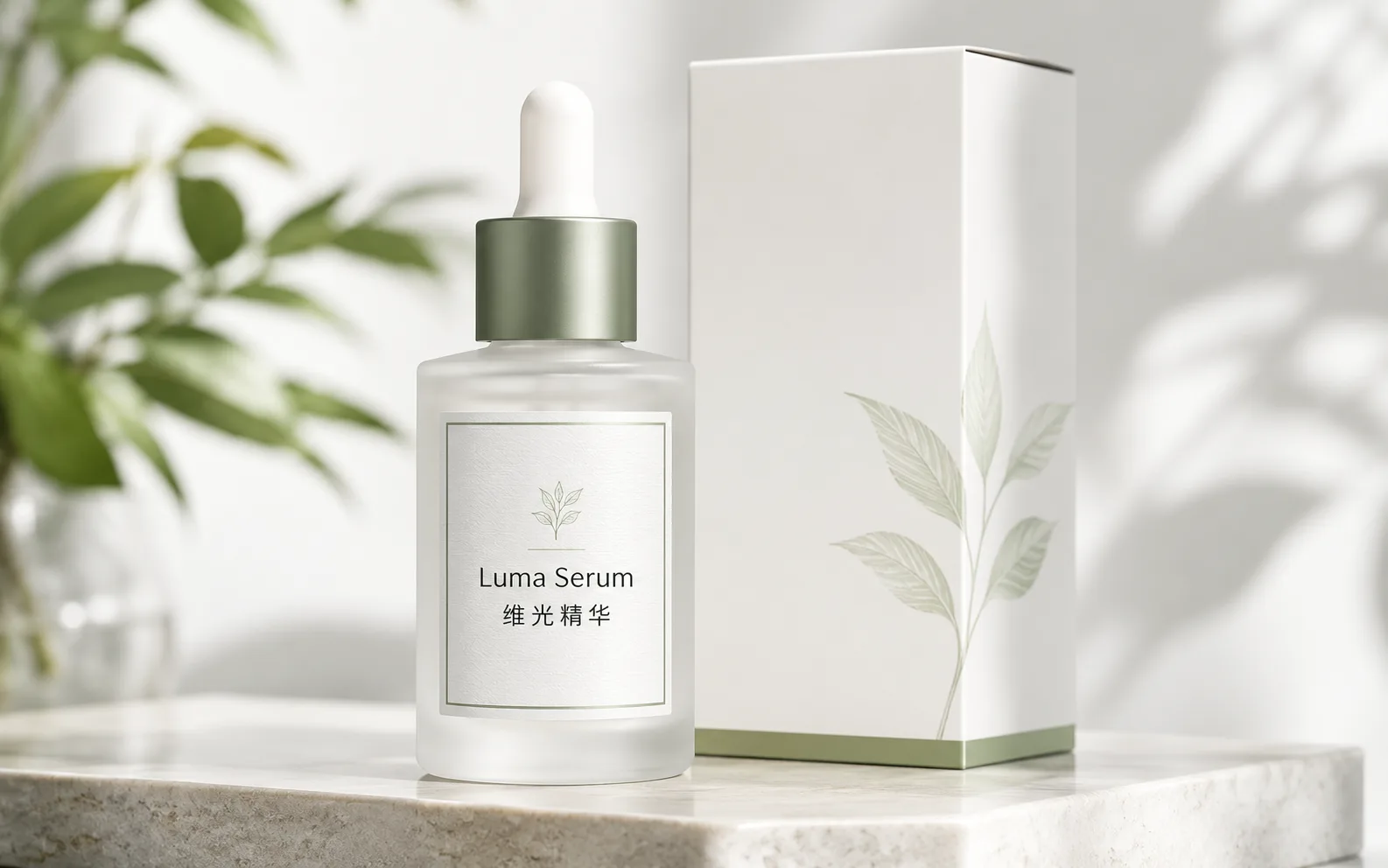
Qwen Image
Readable text
Use for labels, posters, and diagrams.
Nano Banana AI
Nano Banana family
Explore more Google image options.
Wan Image
Video-ready frames
Use when the image may move next.
AI models
Compare models
Choose a better fit before you generate.
AI image tools
Create or edit images
Make, clean up, or upscale stills.
AI video tools
Turn images into motion
Animate a still or create a clip.
GPT Image 2
Polished visuals
Use for ads, product shots, and clean edits.