
Create Ads and Posters with GPT Image 2
Build posters, product ads, social tiles, and image edits with GPT Image 2 on Ezier. Start from a prompt or supported reference image, then refine readable text, layout, and visual detail.
Best uses for GPT Image 2
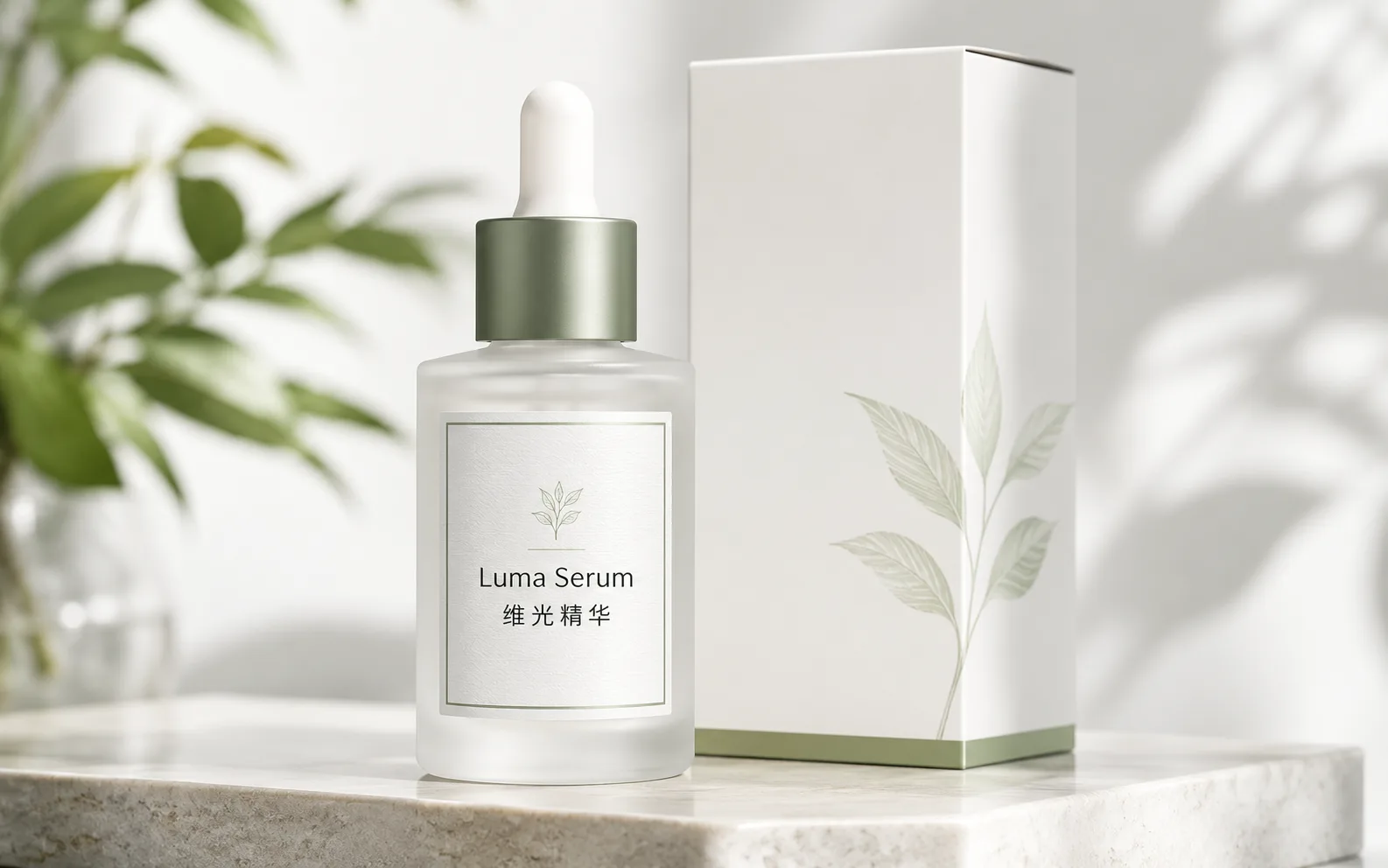
Use GPT Image 2 when you need a finished-looking image: product ads, campaign posters, social tiles, concept boards, realistic edits, or visuals with clearer layout control.
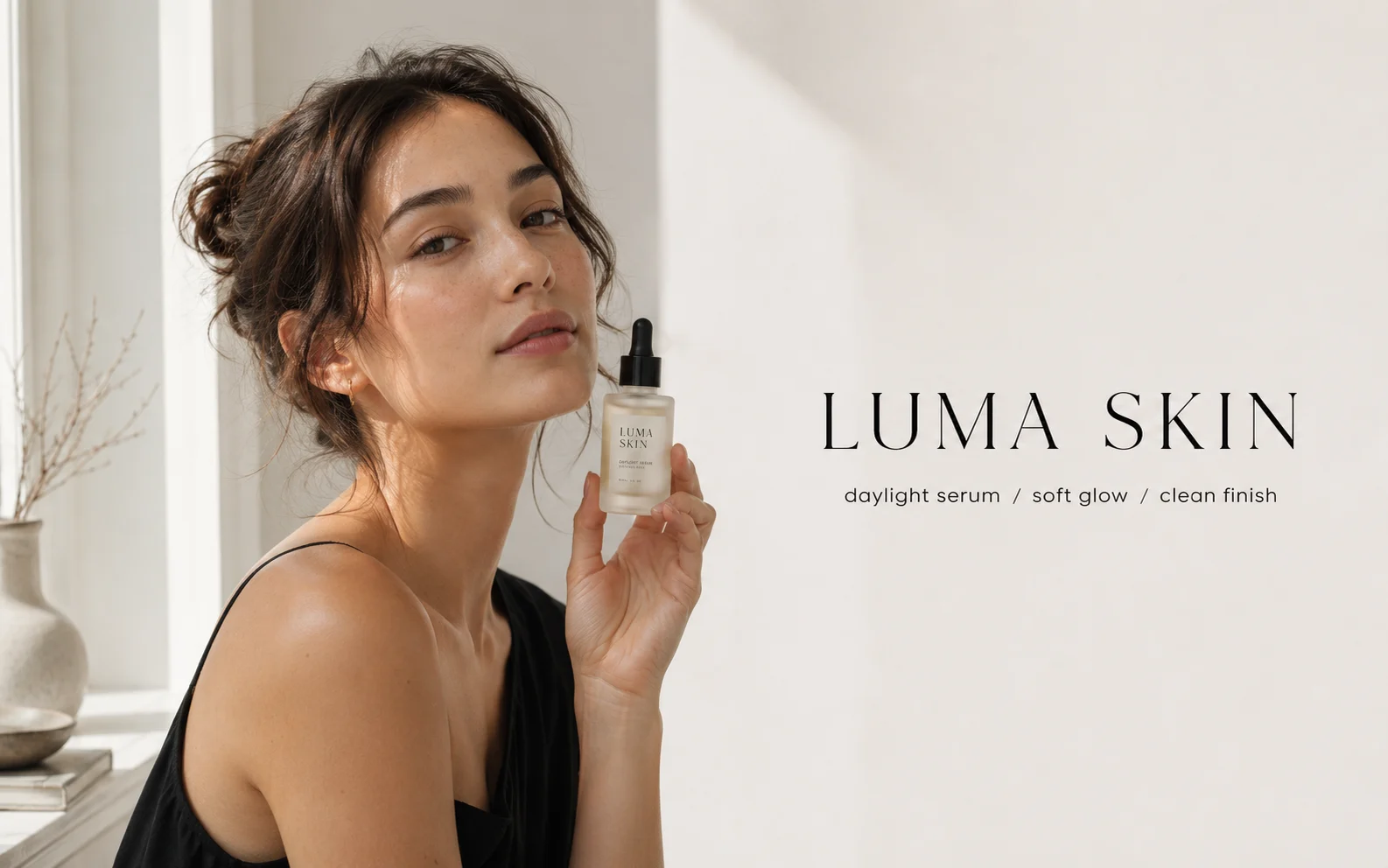
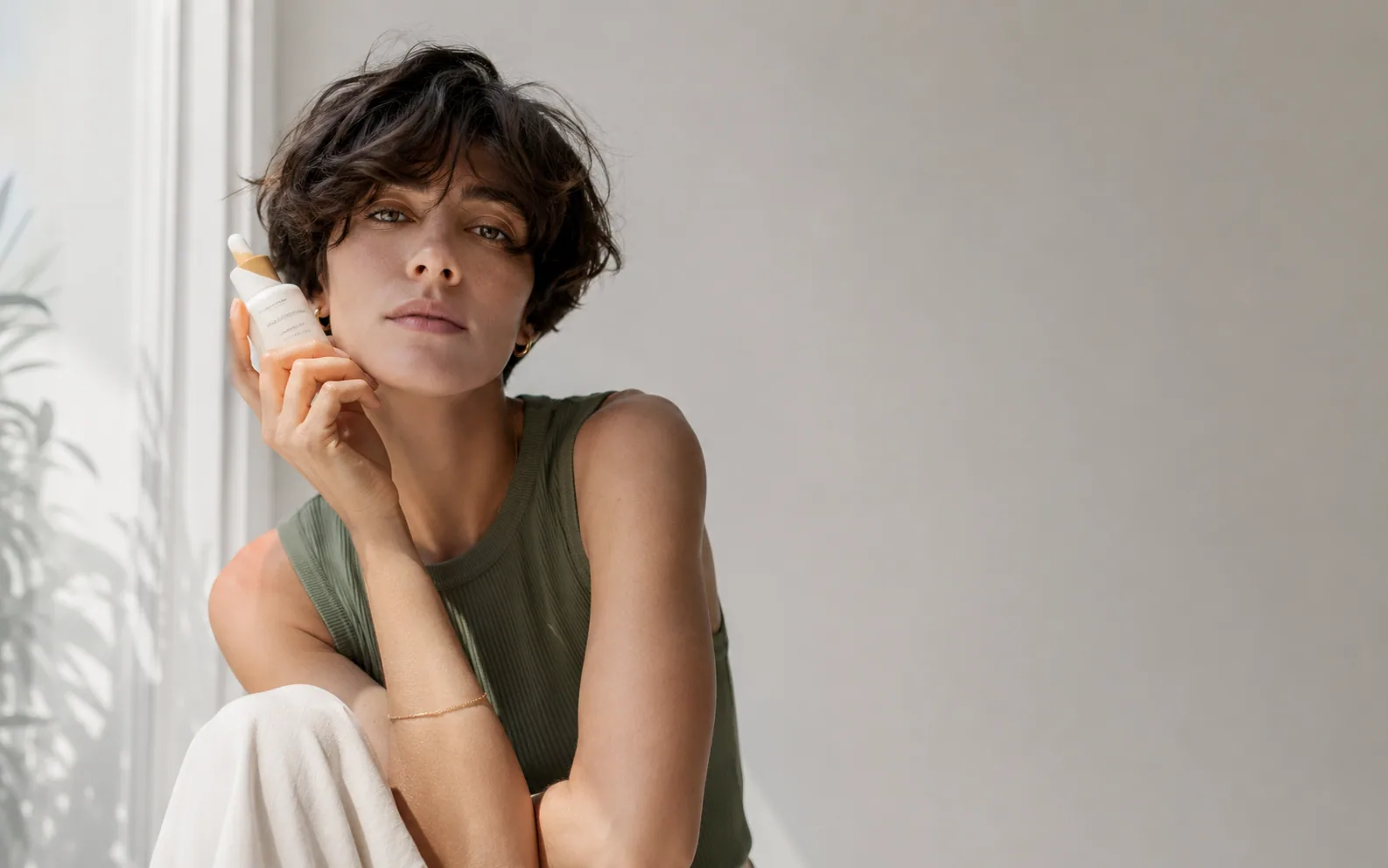
Create a premium beauty advertisement featuring an elegant model holding a small skincare serum bottle near a bright window, soft natural daylight, realistic skin texture, neutral white wall, clean negative space, readable headline text “LUMA SKIN”, and small subcopy “daylight serum / soft glow / clean finish”.
How to use GPT Image 2 on Ezier
- 01
Start with the finished asset
Decide whether you need a product ad, poster, social tile, portrait concept, mockup, or edit. Name the format first so GPT Image 2 can plan the layout around the final use.
- 02
Describe the scene and layout
Name the subject, setting, crop, lighting, composition, and final use. If the image needs text, add the exact short copy and where it should appear.
- 03
Add a reference when it helps
Upload a source image when you need to preserve a product, face, logo, pose, room, or composition. Say what can change and what must stay recognizable.
- 04
Generate, then tighten the brief
Check the available size options and credit estimate, generate, then refine with specific fixes such as cleaner edges, better subject placement, more negative space, or sharper text.
What GPT Image 2 is especially useful for
Choose GPT Image 2 when the first result needs to be usable, not just visually interesting. It works best when your prompt gives the format, layout, reference details, and any short text the image should include.
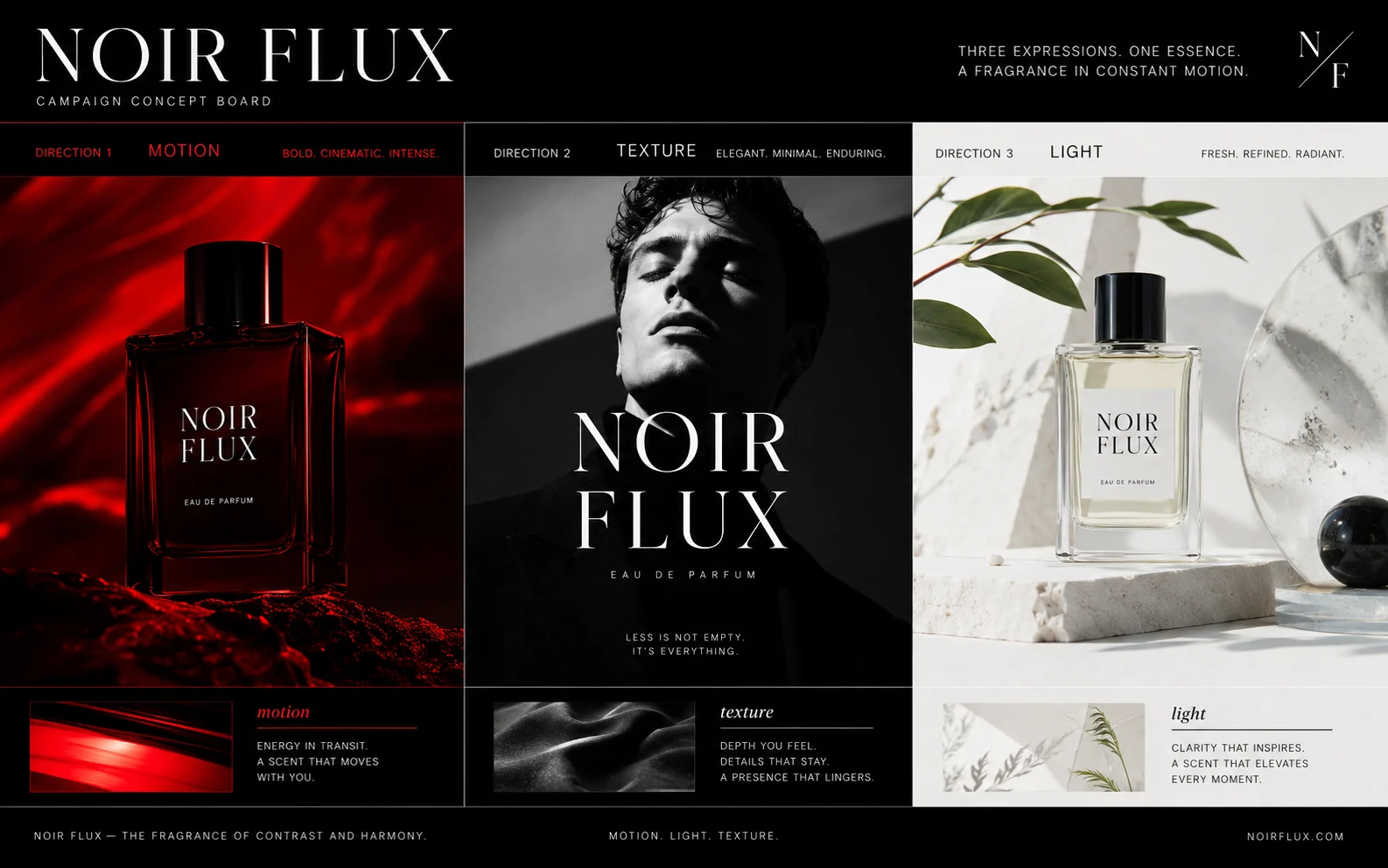
Campaign assets with controlled layout
Use GPT Image 2 for posters, social tiles, labels, banners, and campaign boards where composition matters. If the asset needs words, write the exact headline or short copy instead of asking for “some text.”
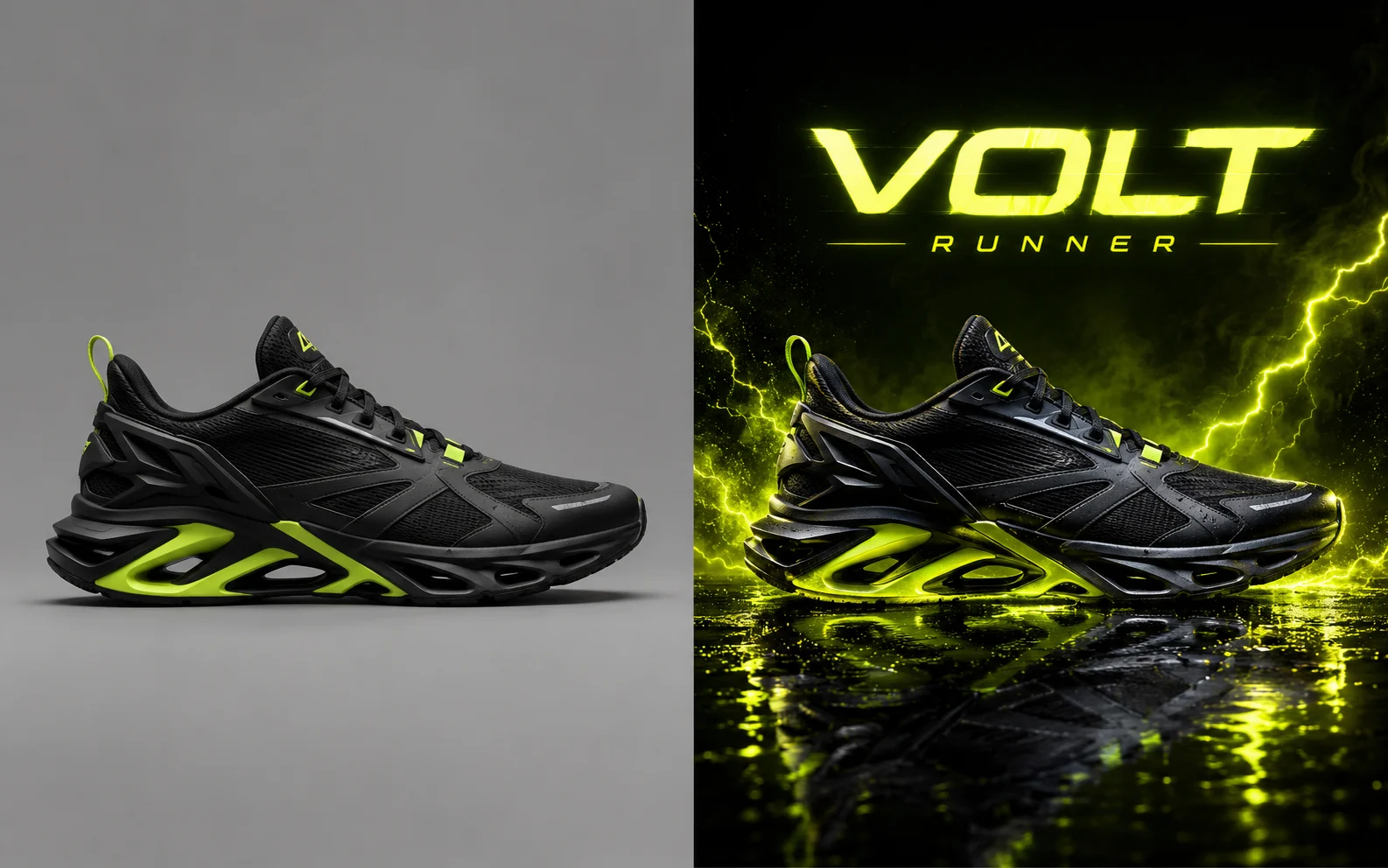
Realistic edits that preserve the subject
Use GPT Image 2 for product-photo edits, scene changes, lighting cleanup, and material polish. Say both the change and the protected detail: logo, face, shoe shape, fabric, reflection, or camera angle.
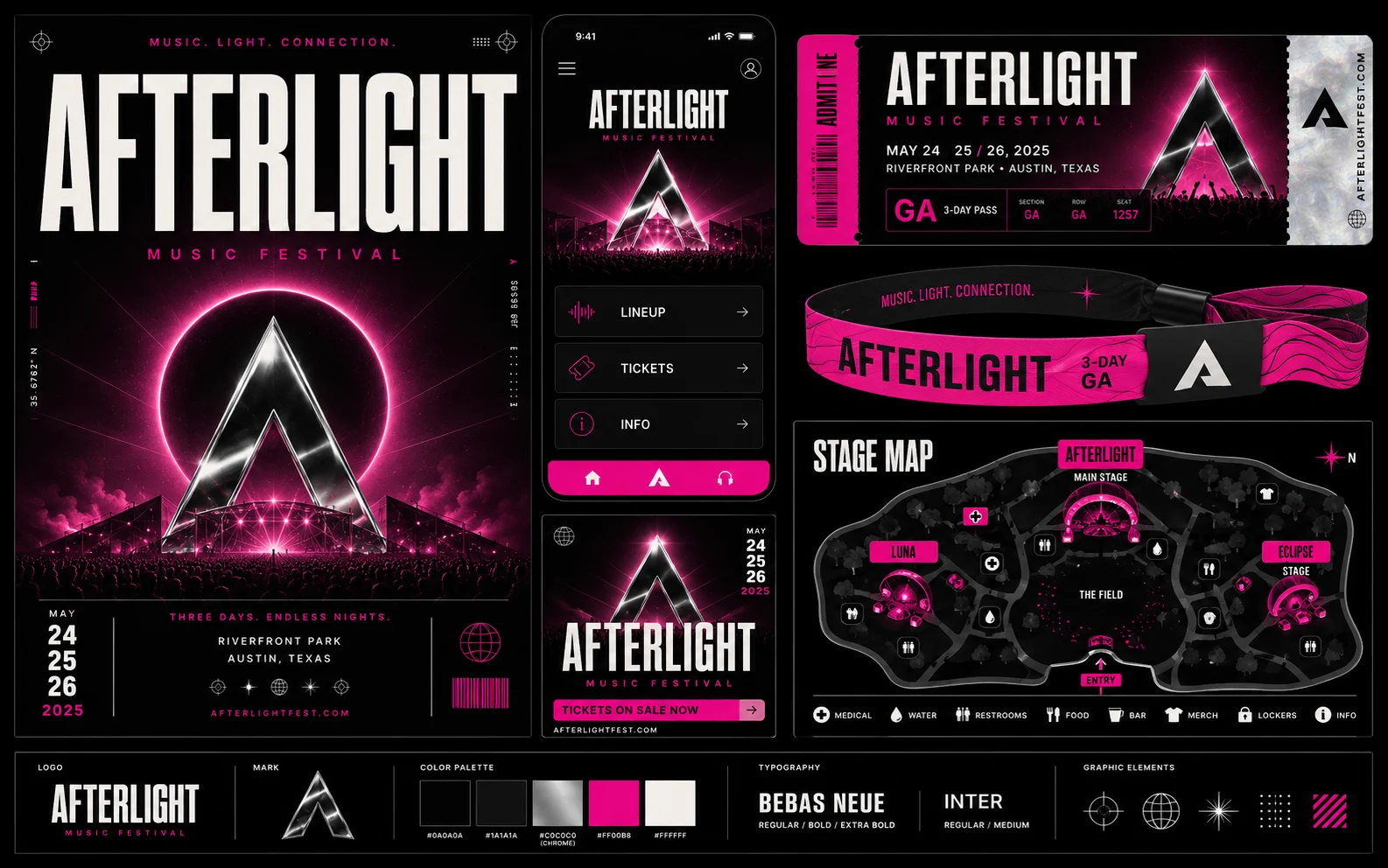
Brand boards and multi-image concepts
Use GPT Image 2 for brand boards, product concepts, app screens, slides, tickets, maps, and other multi-image directions. Describe the hierarchy, spacing, palette, type treatment, and asset set before adding style words.
Get better GPT Image 2 results
GPT Image 2 is strongest when the brief reads like a compact design direction: final surface, exact copy, visual hierarchy, protected source details, and the channel where the image will be used.
- Text + image
- InputsUse a prompt plus a reference image when the subject, layout, face, product, or logo needs to stay recognizable.
- Image
- OutputBest suited to finished-looking ads, posters, mockups, UI frames, concept boards, and edited source images.
- 3,840px
- Max edgeChoose the canvas around the destination: social tests can stay compact, while posters and boards need more room.
Name the finished surface first
Start with poster, product ad, square social tile, app screen, concept board, or edited reference image. GPT Image 2 follows layout better when it knows what the image is for before style words arrive.
Write copy before style
For posters, labels, menus, slides, or social graphics, include the exact headline, short labels, casing, and text position. Keep the copy short, then check every word before publishing.
Describe hierarchy, not just mood
Say what should be dominant, what should stay quiet, where negative space belongs, and whether the output needs room for a headline, price, badge, or call to action.
Protect source details in edits
When editing a reference image, name the protected parts: face, product shape, logo, clothing, room layout, color palette, camera angle, or material texture.
When a lighter draft is enough
When the brief does not depend on precise text or complex layout control, the earlier GPT Image model can be a practical option for simpler drafts and cost-conscious tests.
Review realism and claims
GPT Image 2 can make realistic photos, documents, and product scenes look convincing. Review labels, prices, legal claims, and sensitive edits manually before using them in public.
GPT Image 2 in Ezier
Create or edit images with GPT Image 2 in the same workspace.
Write a GPT Image 2 brief, add a reference image when you need to preserve details, check the credit estimate, then review and refine the result in Ezier.
GPT Image 2 FAQ
Practical answers for creating, editing, and refining images with GPT Image 2.
What is GPT Image 2 best used for on Ezier?
GPT Image 2 is useful for product ads, campaign posters, social tiles, concept boards, mockups, and reference-based edits. It helps most when the result needs a clear layout or short readable text.
Can GPT Image 2 create images with readable text?
Yes. GPT Image 2 can be useful when the image needs a headline, label, menu item, poster title, or short campaign line. Keep the wording brief and include the exact text in the prompt.
Can I use a reference image with GPT Image 2?
Yes, when you see the upload control in the workspace. Add a reference when you need to keep a product, face, logo, pose, room, or composition recognizable.
How do I make GPT Image 2 follow a layout?
Describe the final asset first: poster, square social tile, product ad, app mockup, or edit. Then add subject placement, negative space, crop, text position, and the style direction.
Why did the text in my GPT Image 2 image look wrong?
Text can fail when the prompt asks for too many words, gives unclear placement, or mixes several design directions. Shorten the copy, name the exact words, and ask for one clear text area.
Does GPT Image 2 cost credits on Ezier?
GPT Image 2 may use credits based on the settings you choose and the benefits in your account. Check the estimate shown on the generate button before submitting.
Do I need an API key to use GPT Image 2 on Ezier?
No. You can create with GPT Image 2 in Ezier from the browser without setting up API access.
Related paths
Where to go after GPT Image 2
Use another model for a different look, edit the image, or make the result move.

AI models
Compare models
Choose a better fit before you generate.

AI image tools
Create or edit images
Make, clean up, or upscale stills.

AI video tools
Turn images into motion
Animate a still or create a clip.
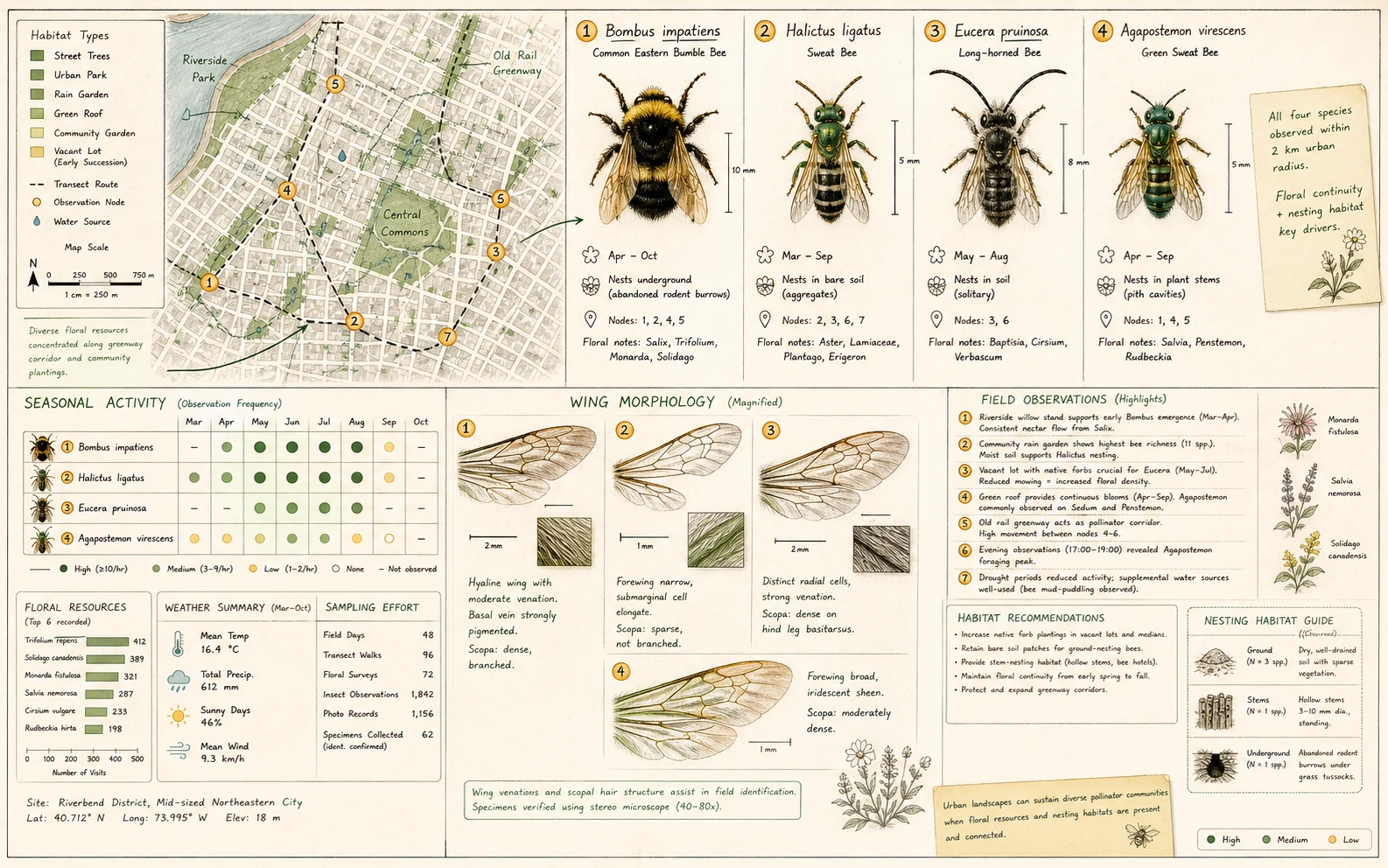
Qwen Image 3.0
Production-ready layouts
Use for dense layouts, multilingual text, realistic detail, and image edits.
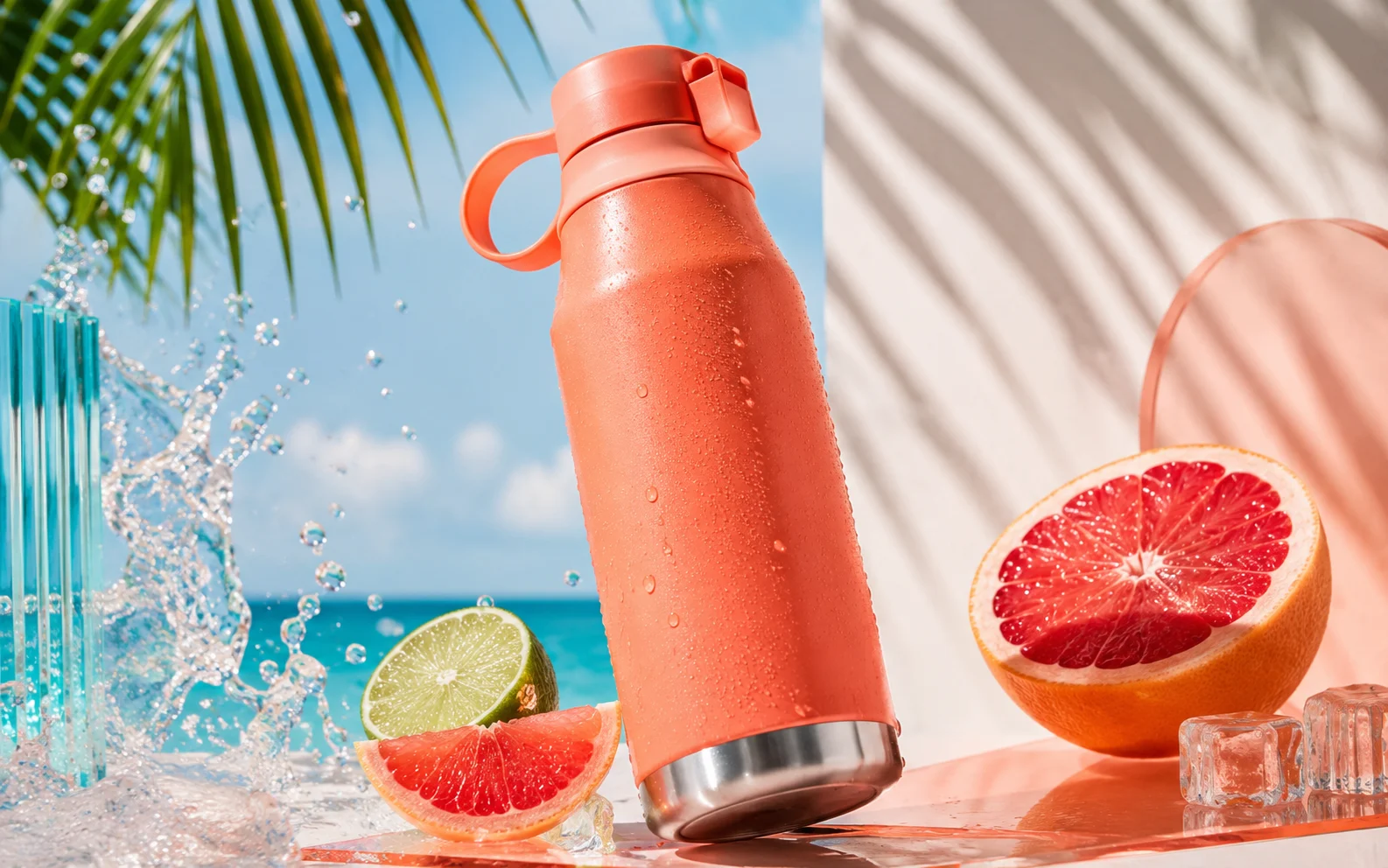
GPT Image
Quick OpenAI drafts
Use for quick concepts and simple edits.
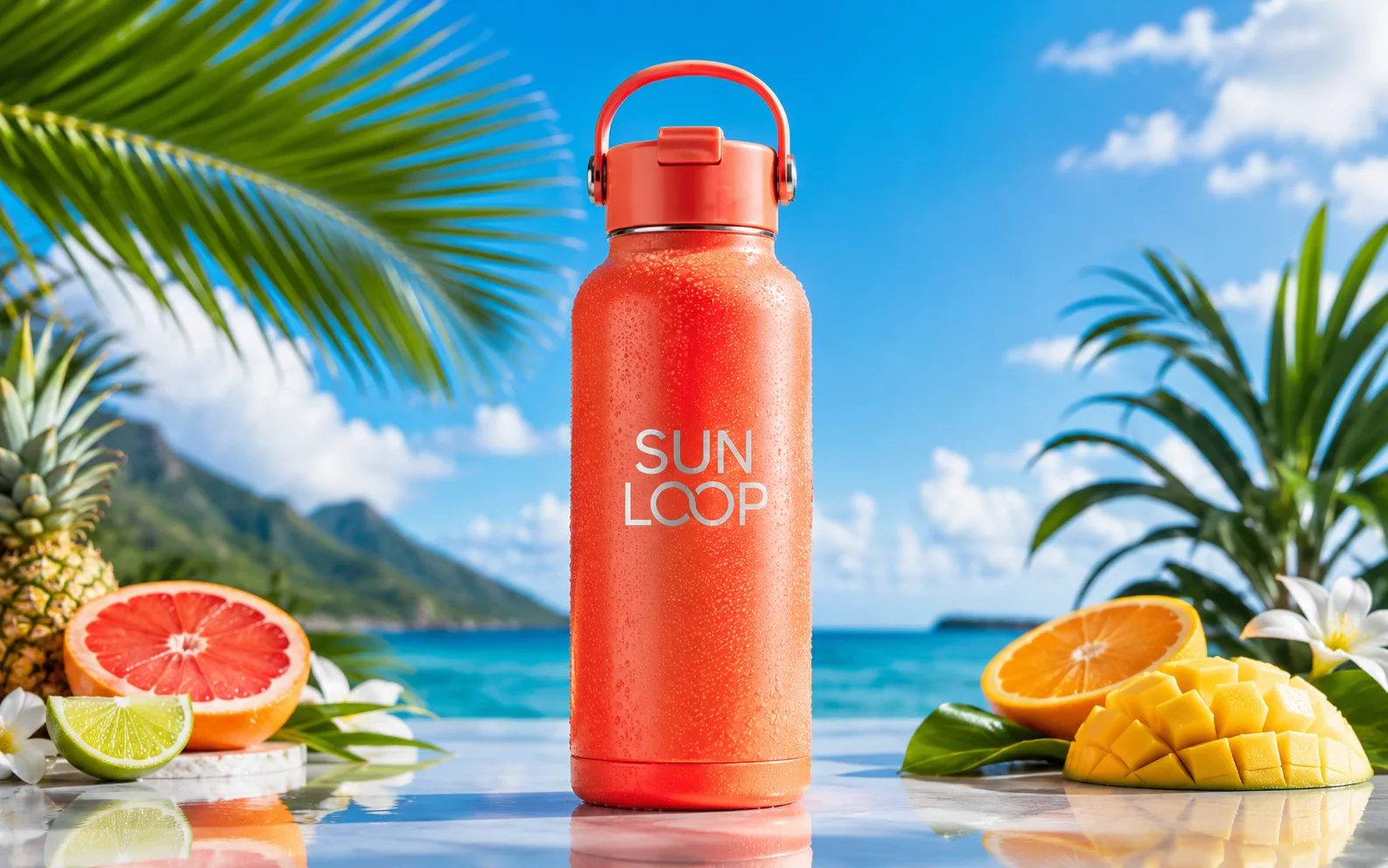
Nano Banana Pro
More control
Use for detailed prompts and readable text.
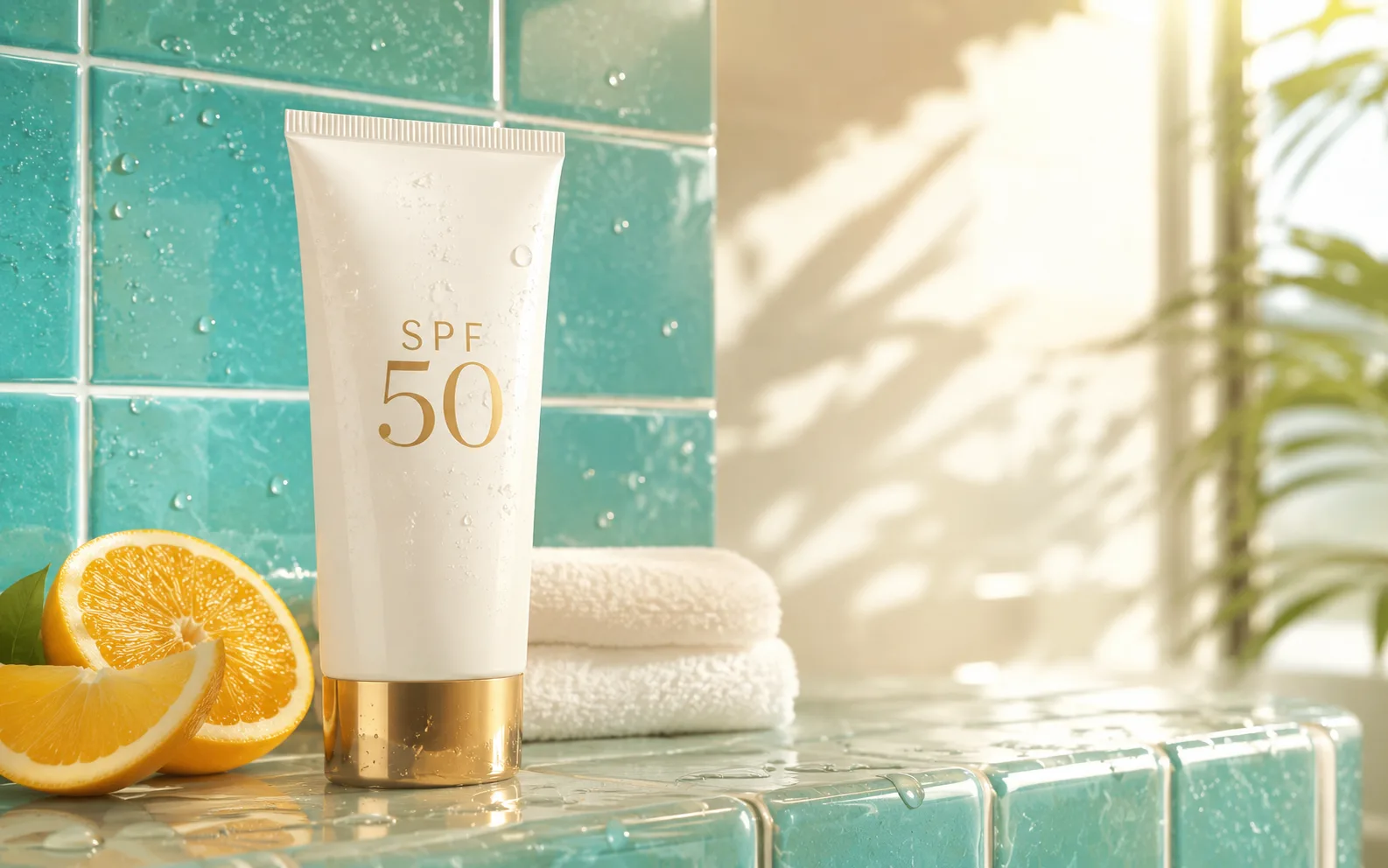
Nano Banana 2
Balanced image creation
Use for higher-resolution images, multiple references, and longer edit chains.
Qwen Image
Readable text
Use for labels, posters, and diagrams.
Nano Banana AI
Nano Banana family
Explore more Google image options.
AI models
Compare models
Choose a better fit before you generate.
AI image tools
Create or edit images
Make, clean up, or upscale stills.
AI video tools
Turn images into motion
Animate a still or create a clip.
Qwen Image 3.0
Production-ready layouts
Use for dense layouts, multilingual text, realistic detail, and image edits.