
Video Background Remover for Clean Subject Clips
Upload a short MP4 or MOV to remove the full background while keeping the person or product ready for demos, lessons, social clips, and product videos.
Create
Original Video
Sample videos
How to remove a video background in Ezier
- 01
Upload the source video
Add one MP4 or MOV in Original Video. The file must be 100MB or smaller.
- 02
Run background removal
When the upload finishes, click Create. This tool only needs the video file, so there is no prompt or model setup.
- 03
Review the processed clip
The right panel changes from Sample videos to Result Video when the processed clip is ready.
- 04
Download the cleaned video
Play the result, check the subject while the video moves, then use Download Result if the background removal holds up.
Where Video Background Remover helps most
These examples show source clips where the background is the problem, but the subject is still worth keeping: a busy room, a close portrait, and a bright window scene.


Talking-head clips in busy rooms
Remove shelves, desks, doors, and home-office clutter while keeping the speaker centered for explainers, intros, course modules, or branded social posts.


Close portraits with visible subject detail
Separate the subject from a soft indoor background while keeping attention on hair, glasses, shoulders, and clothing texture.


Backlit shots with a bright scene behind
Clear a bright window or outdoor view behind the subject while keeping the person, clothing shape, and rim-lit hair readable.
Get steadier video background removal
Video background removal has to hold up across moving frames. Use source clips where the subject stays readable, the action is not too chaotic, and the background does not fight the subject for attention.
Keep the subject readable while moving
Choose footage where the person or product remains visually separate from the background as they turn, gesture, or move through the shot.
Watch for motion blur and occlusion
Fast hands, loose hair, shiny glasses, and thin props can confuse the subject boundary when they move across the frame.
Start with one simple action
A short clip with one main movement is easier to process and easier to review than a long shot with sudden turns, cuts, or crowded motion.
Play back the result before export
Look for flicker, missing detail, or boundary wobble while the video plays. Problems often appear between frames, not in the paused thumbnail.
Ready to clear the scene?
Start with the video you want to reuse.
Upload one MP4 or MOV where the subject is already easy to see. The result panel will show whether the background removal is ready for your edit, demo, lesson, or post.
Video Background Remover FAQ
Use these answers to choose between full background removal and nearby cleanup tools.
What does a video background remover do?
Video Background Remover separates the subject from the rest of the scene across the clip. The goal is to keep the person or product while removing the full environment behind it, not to sharpen the footage or delete one isolated object.
Do I need a green screen to use this page?
Not necessarily. The source does not have to be shot on a green screen. In practice, results are easier to trust when the subject stays visually separate from the background while the video plays.
Should I use this for captions, logos, or watermarks?
No. Use Video Subtitle Remover for burned-in captions and Video Watermark Remover for corner logos, timestamps, or watermarks. Video Background Remover is for removing the environment behind the subject.
Do I need to write a prompt or choose a model here?
No. This workflow runs from the uploaded video only. Add one MP4 or MOV, wait for upload to finish, and click Create.
When should I use this instead of Remove Object from Video?
Use Video Background Remover when the whole environment should disappear and the subject should remain. Use Remove Object from Video when the background is mostly fine and you only want to erase one item such as a person, stand, sign, or prop inside the frame.
What if the result looks unstable?
Try a shorter or cleaner source clip where the subject stays more separate from the background while moving. If the problem is only one object, caption, or watermark, use the dedicated remover for that task.
Can I replace the removed background with a new scene on this page?
Not in this workflow. This page removes the background and returns a processed video, but it does not include controls for choosing a replacement image, color, or video background.
More to try
Find the right next tool
Find the next tool for generation, restyling, cleanup, extension, or model comparison.

AI video tools
More video tools
Generate, edit, clean up, or improve clips.

AI models
Compare video models
Pick a better model before rendering again.

AI image tools
Prepare source images
Create a stronger still for the next video run.

Remove Object from Video
Clean distractions
Remove unwanted objects from footage.

Video Watermark Remover
Remove marks
Clean watermarks or overlays from clips.
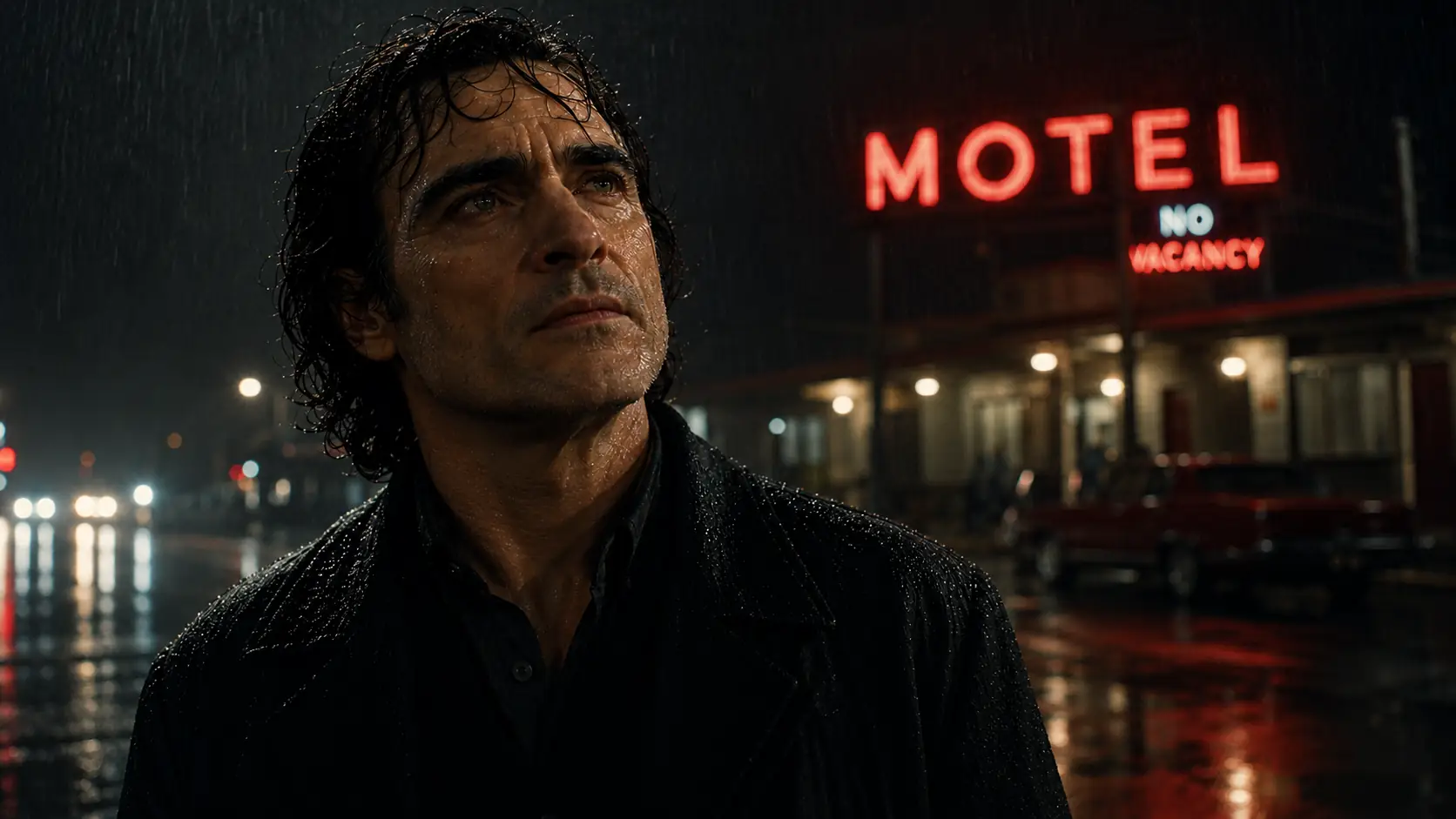
Video Subtitle Remover
Remove captions
Clean burned-in subtitles from footage.

AI Video Editor
Edit with prompts
Revise a clip without a timeline.
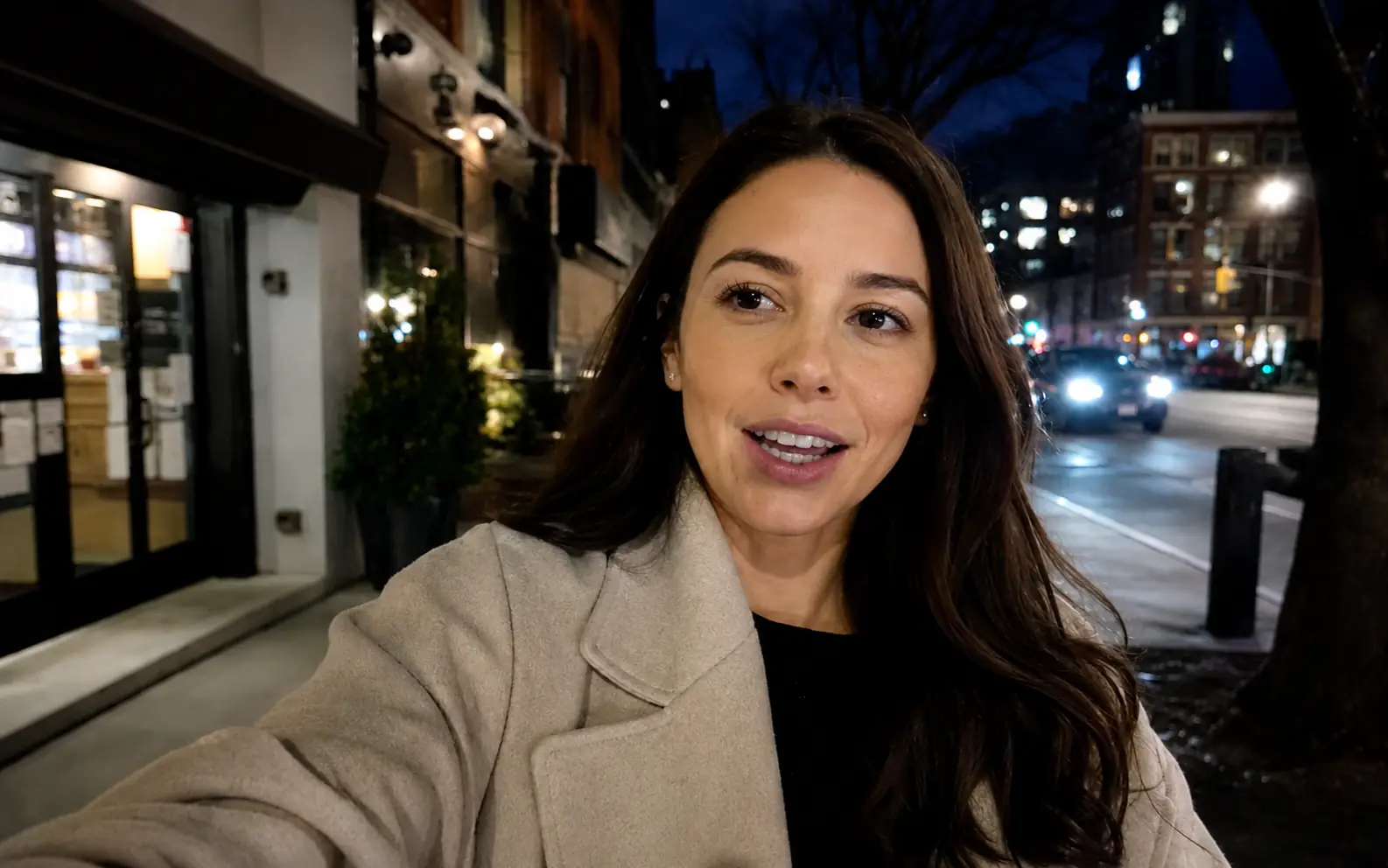
Video Enhancer
Improve quality
Sharpen, denoise, and restore clips.

Video Upscaler
Make it larger
Upscale clips for bigger screens.
AI video tools
More video tools
Generate, edit, clean up, or improve clips.
AI models
Compare video models
Pick a better model before rendering again.
AI image tools
Prepare source images
Create a stronger still for the next video run.
Remove Object from Video
Clean distractions
Remove unwanted objects from footage.