Product voiceover
0:00 / 0:00

Text to speech works best when a script is prepared for listening. Start with clean copy, choose a voice for the audience, direct the delivery, then review the complete recording.
Use short sentences and clear punctuation so the voice has natural places to pause.
Choose the language and voice style that fit the subject, format, and listener.
Set the speed, pitch, emphasis, pauses, and pronunciation notes for the intended tone.
Review the full result for pacing, names, numbers, and awkward pauses before downloading.
Choose the voice, control the delivery, and keep review and download in one workspace.
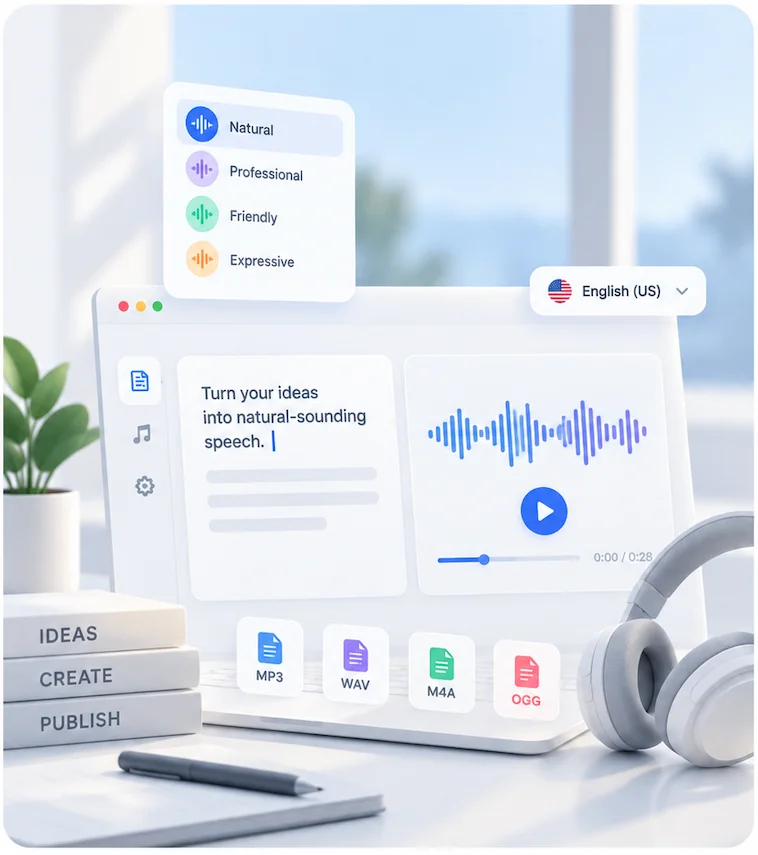
Match the voice and language to different audiences, formats, and regions.
Adjust speed, pitch, emphasis, pauses, and pronunciation without rewriting the script.
Listen to each completed generation in the same workspace before saving the file.
Continue into voice cloning, voice changing, voiceover, and preset voice libraries when the task changes.
Play three voice styles before choosing the delivery for your script.
Small changes to the script and review process can make the voice sound more natural.
Use shorter sentences and natural punctuation. Copy written for a page often needs editing before it sounds natural aloud.
Add pronunciation notes for names, acronyms, product terms, and words the voice may read incorrectly.
Generate a short section with names, numbers, and long sentences before processing the complete script.
Listen from beginning to end and check pacing, pauses, emphasis, and transitions before publishing.
Text to speech converts a written script into spoken audio with a synthetic voice. Enter your script, choose a voice and language, adjust the delivery, and generate the audio.
Yes. The free tier covers trying the tool. Check pricing for current plans, limits, and the amount of audio included.
Yes. You can play the sample outputs on this page without signing in. Generating speech from your own script requires sign-in.
No. Text to speech uses a preset synthetic voice. Voice cloning starts from a reference recording and is a separate workflow.
Choose from 100+ natural voices across 30+ languages, including English, Spanish, Portuguese, French, Hindi, Arabic, Chinese, and Japanese.
Yes. Add pronunciation notes, then adjust speed, pitch, emphasis, and pauses to shape the delivery.
Yes. After generation finishes, you can play the result and download the audio file.
You own the output. Commercial-use rights depend on your plan. Check your plan's terms before publishing.
More AI voice tools
Browse preset voices, create a custom voice, or work with a specific language or accent.
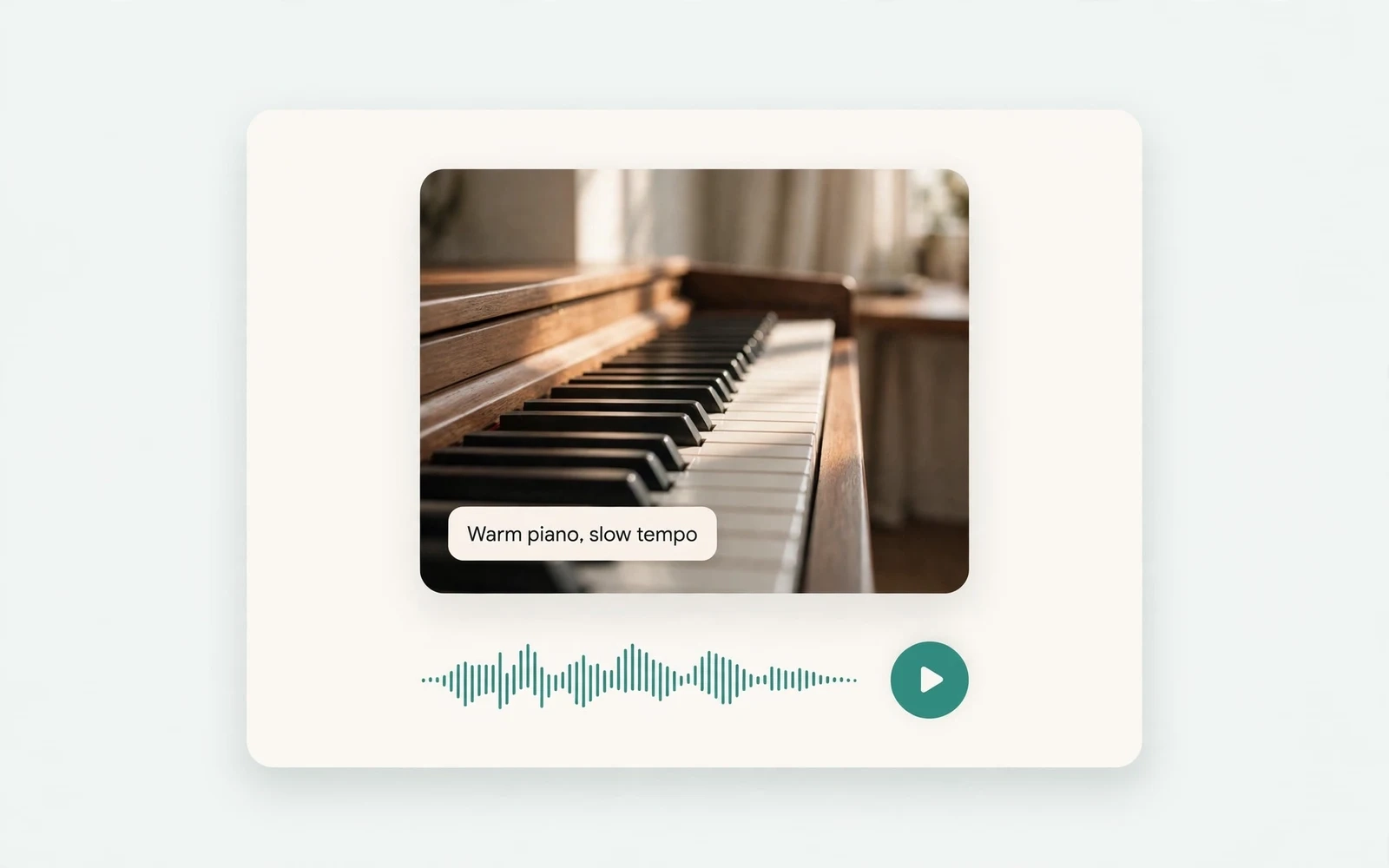
AI Music Generator
Generate instrumental music
Create instrumental tracks from a text prompt.
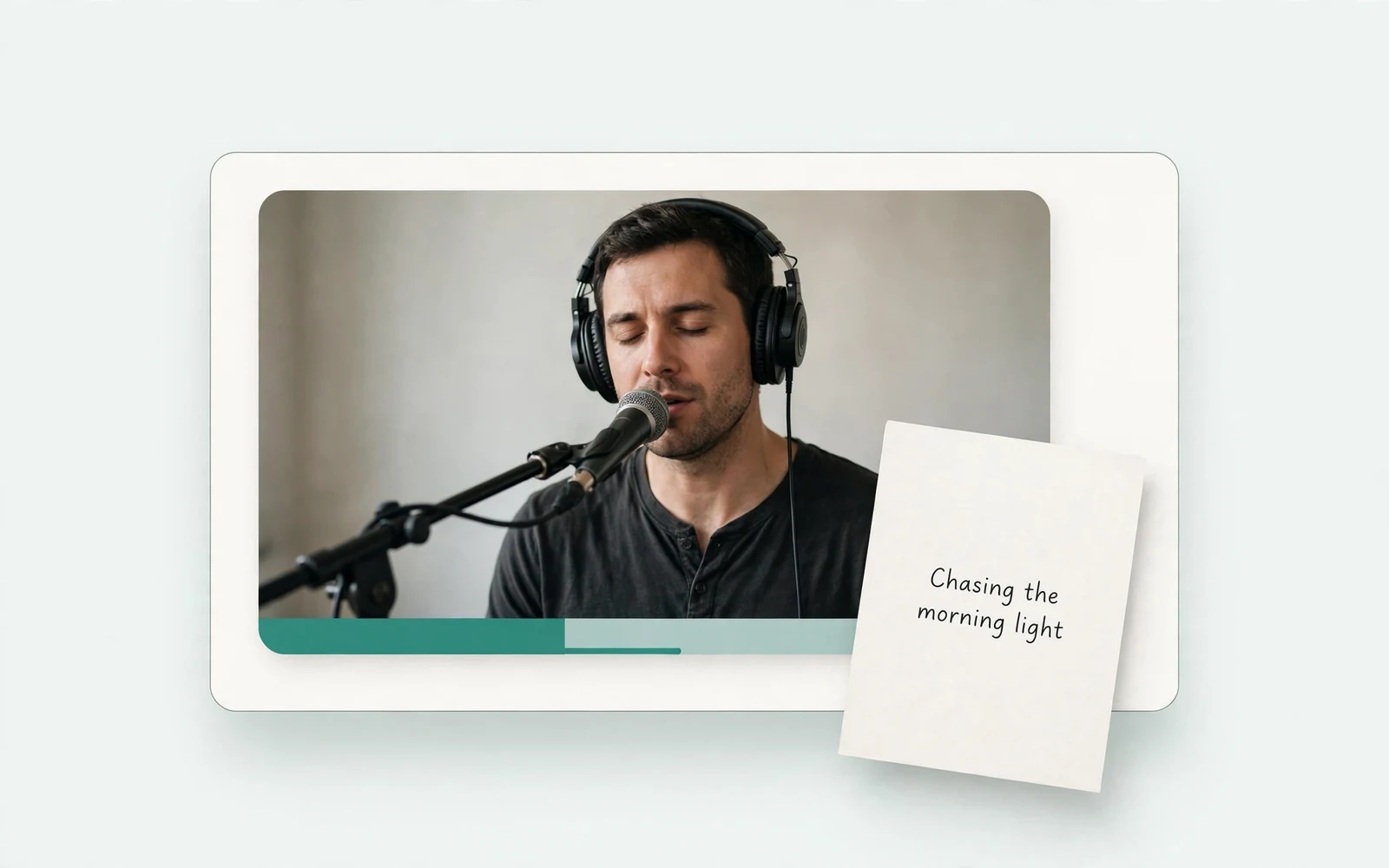
AI Song Generator
Add lyrics and vocals
Turn lyrics and ideas into complete songs.
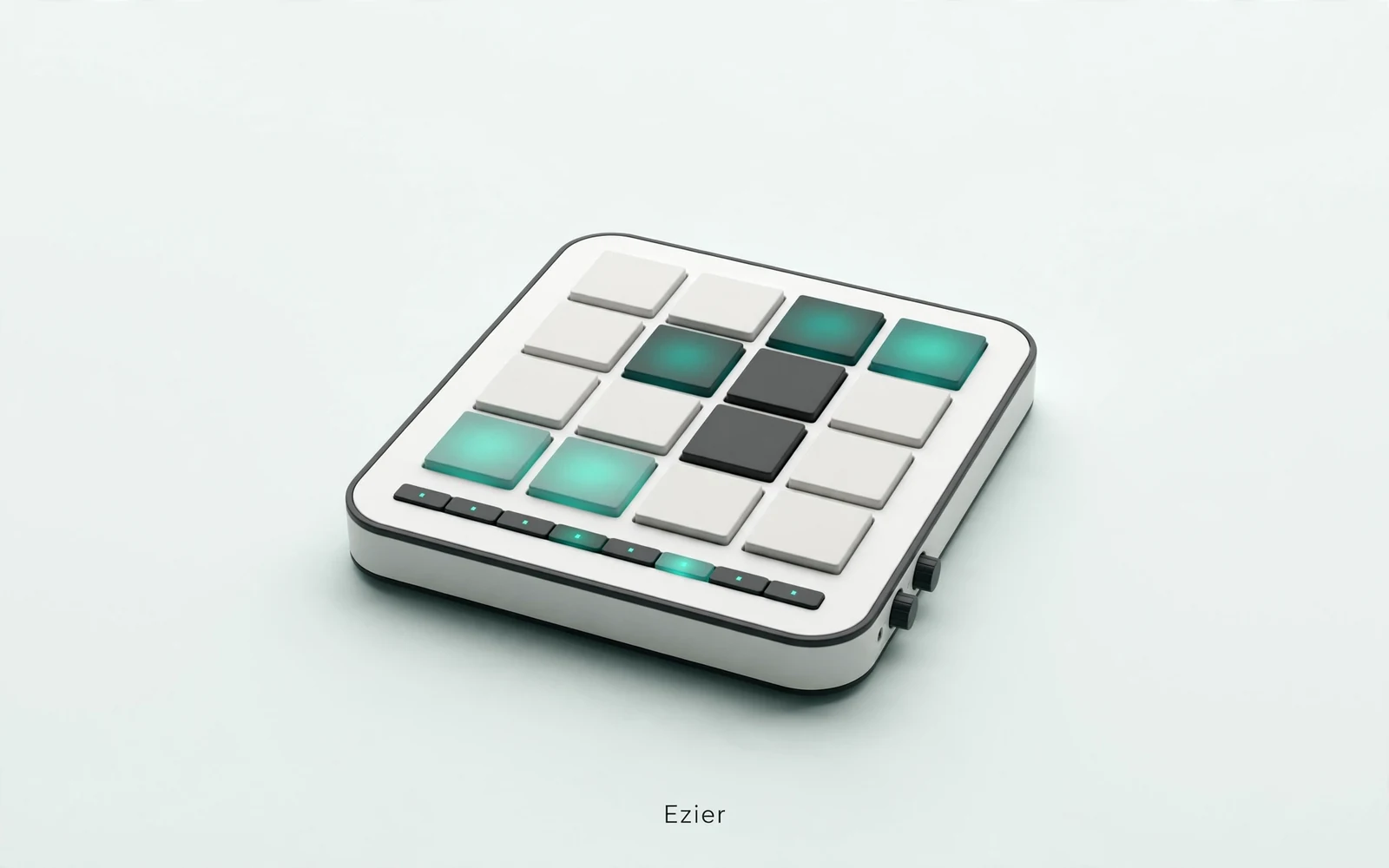
AI Beat Maker
Build a beat
Build beats and grooves from a short prompt.
AI Voice Cloning
Create a custom voice
Replicate a specific real voice from a sample.
AI Voice Changer
Transform recorded audio
Transform a recording into a different voice.
AI Sound Effects Generator
Generate a sound effect
Generate any sound effect from a description.
Soundboard
Play sounds instantly
Trigger instant sound effects from a soundboard.
AI Voice Over
Narration workflows
Produce voiceovers for video and presentations.
Voice Over Advert
Ad and promo voiceovers
Create voiceovers tuned for ads and promos.
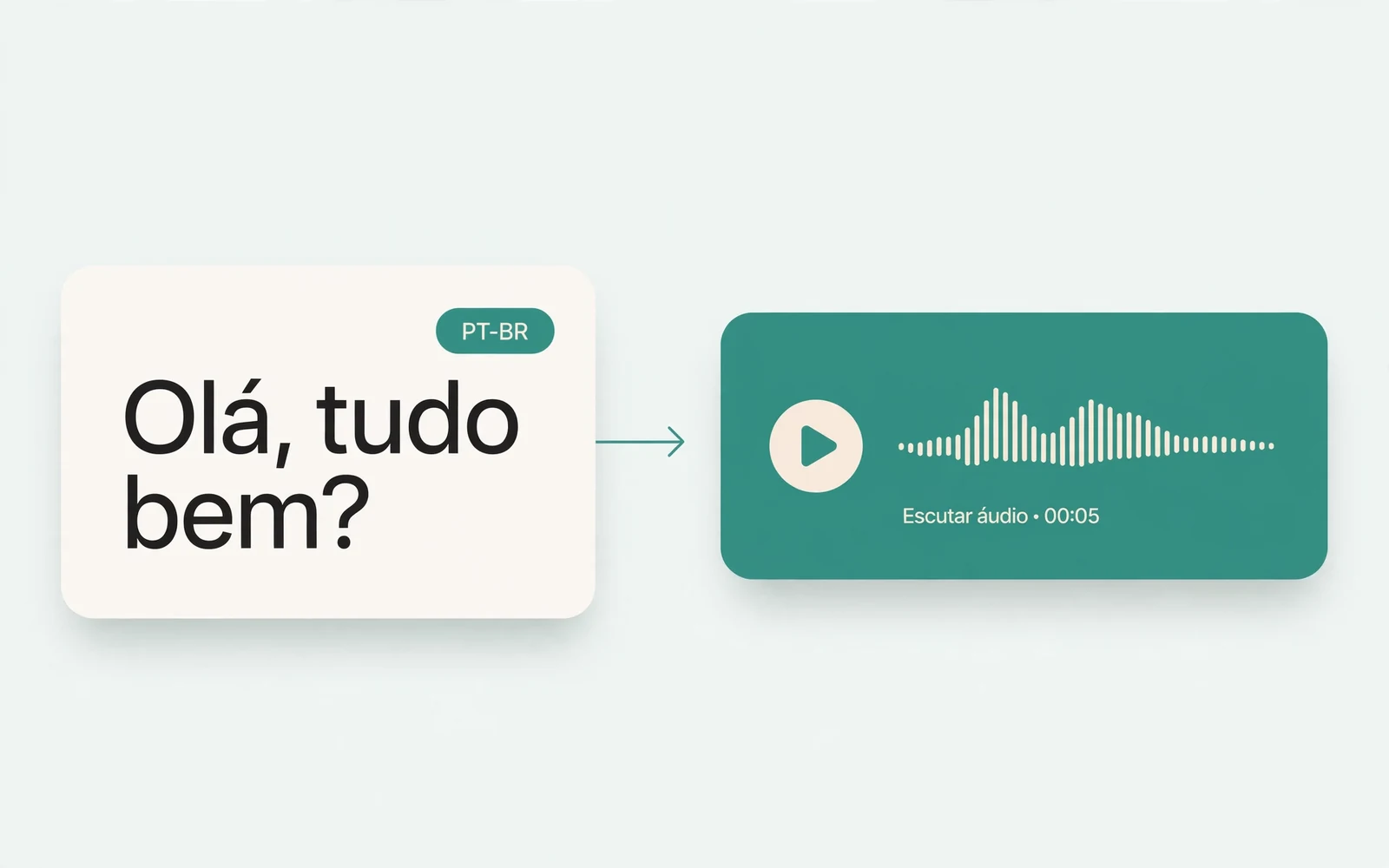
Portuguese Text to Speech
Portuguese speech
Generate natural Brazilian Portuguese speech.
British Accent Generator
British English voices
Convert text to British-accented English speech.
Anime Voice Changer
Anime character voices
Restyle a recording with an anime character voice.
Girl Voice Changer
Young feminine voices
Convert a recording into a young feminine voice.
Audio Converter
Convert an audio file
Convert audio files between formats.
MP4 to MP3 Converter
Extract audio from MP4
Extract the audio track from an MP4 video.
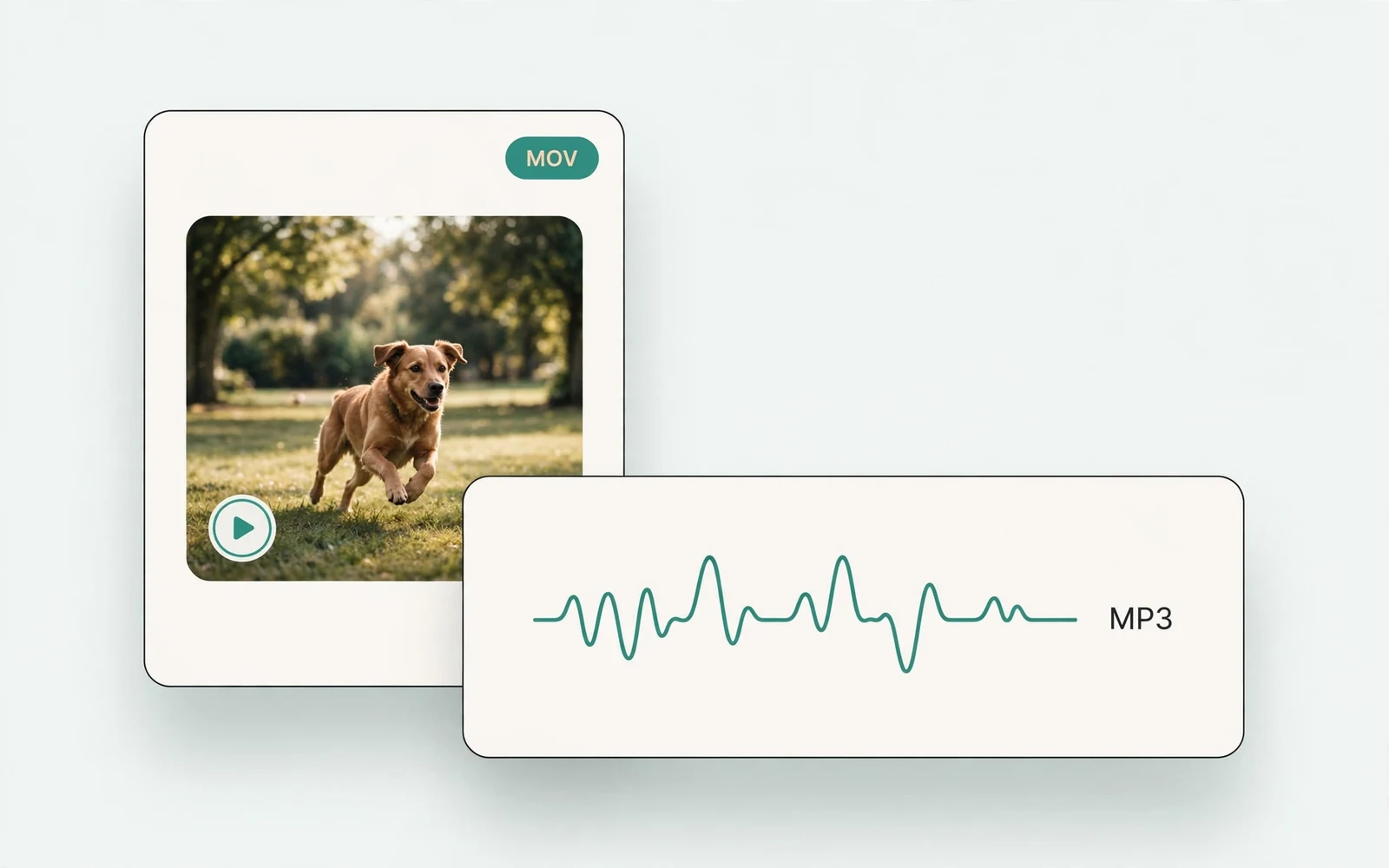
MOV to MP3 Converter
Extract audio from MOV
Extract the audio track from a MOV video.
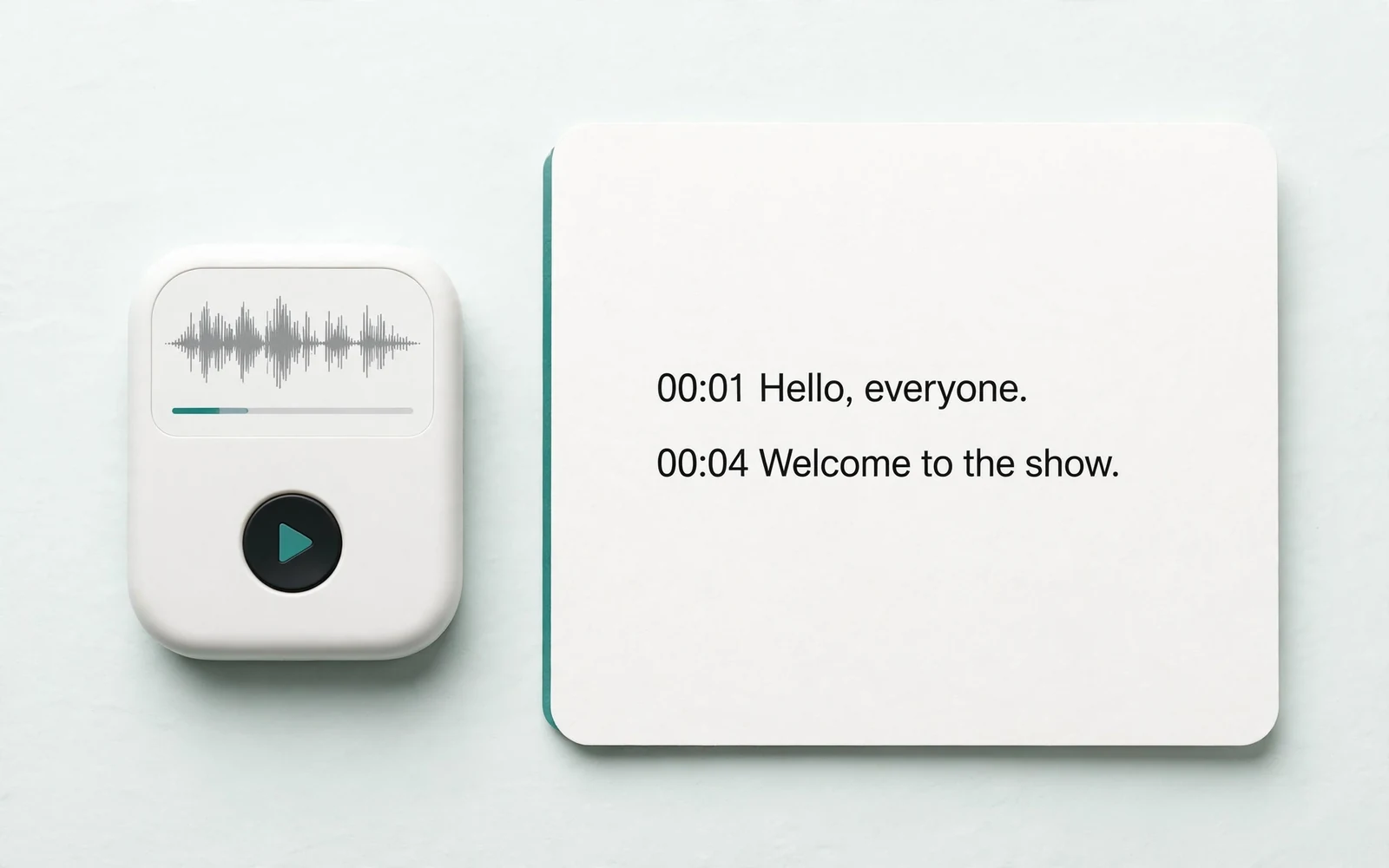
Audio to Text
Transcribe a recording
Transcribe any recording into text.
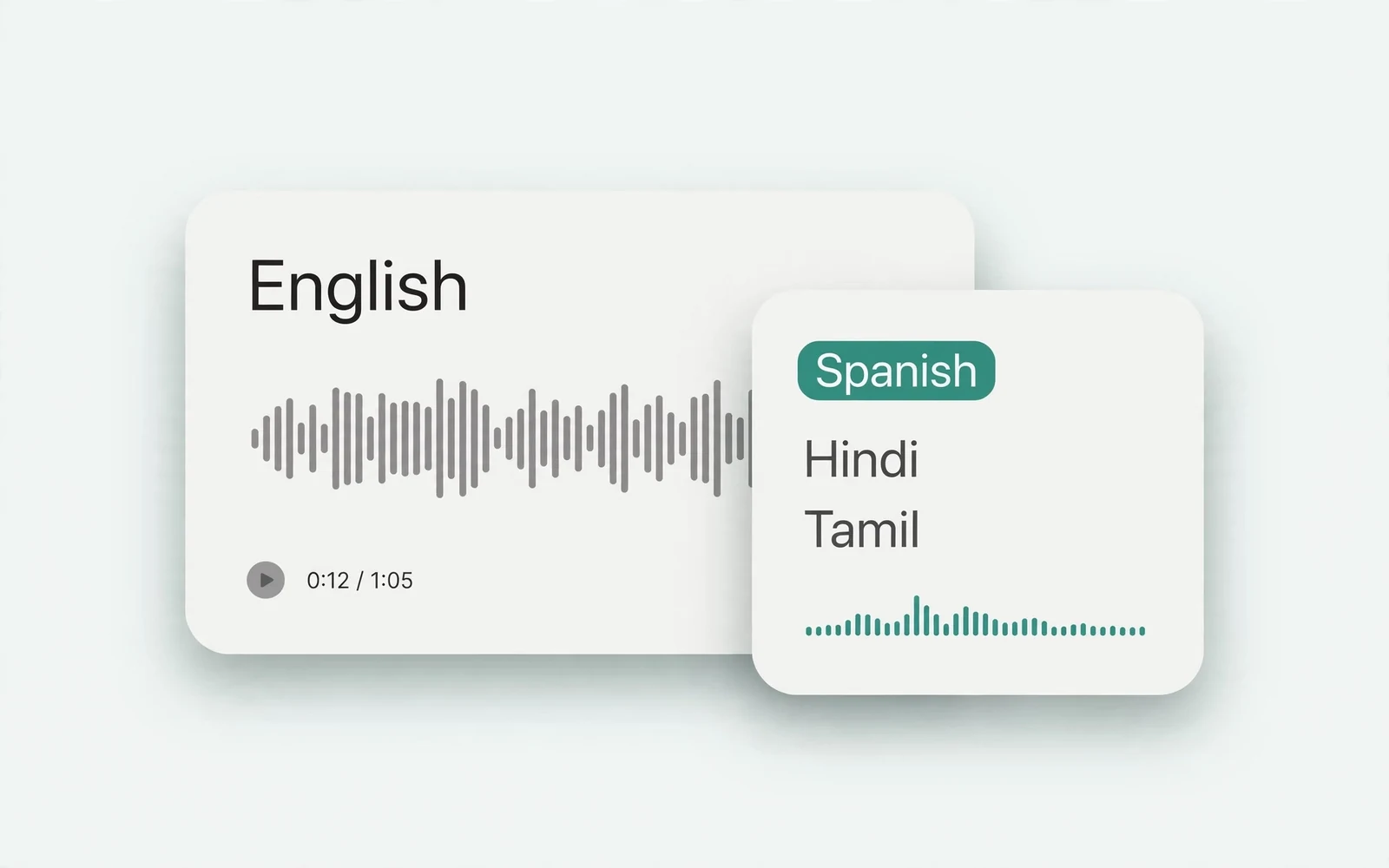
Audio Translator
Translate spoken audio
Translate spoken audio into another language.
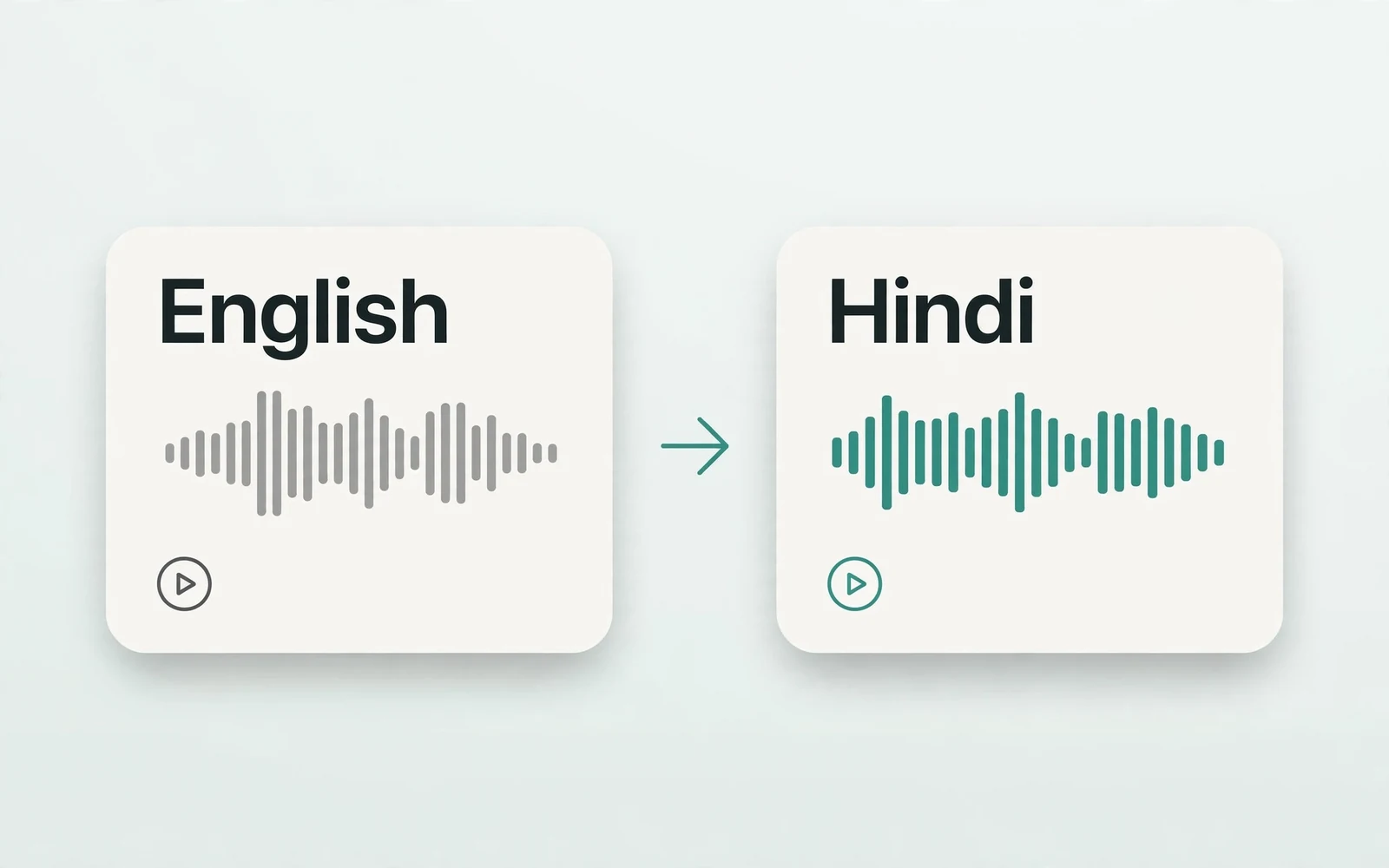
English to Hindi Voice Translator
English to Hindi audio
Turn English speech into Hindi audio.
Translate English to Tamil Audio
English to Tamil audio
Turn English speech into Tamil audio.
Hindi to English Voice Translation
Hindi to English audio
Turn Hindi speech into English audio.
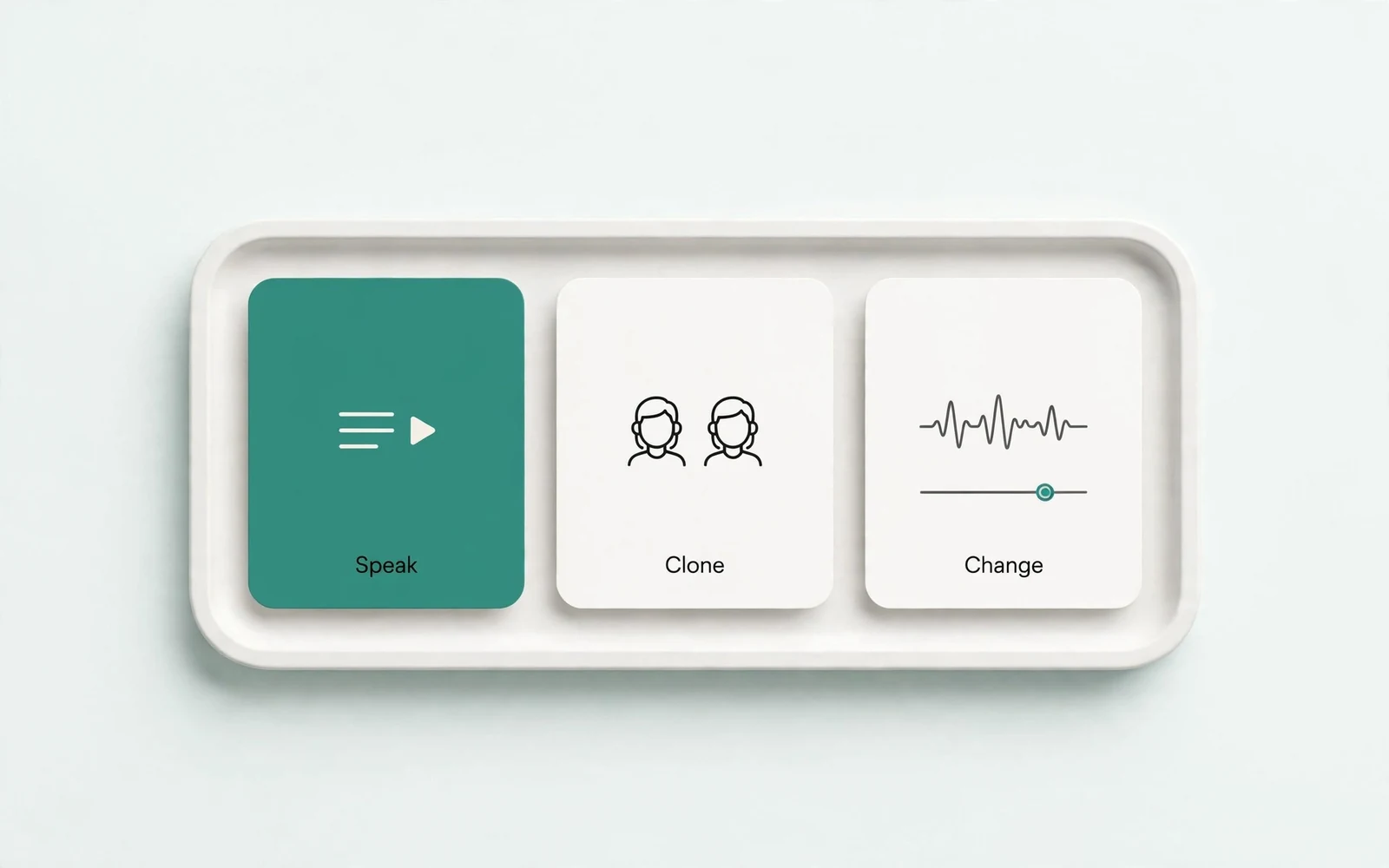
AI Voice Generator
Design a new voice
Design a brand-new voice from a description.