
Veo is the Google video path
Use this page when you want to work inside the Veo family rather than compare every video model on the hub.
Use Veo AI on Ezier to draft cinematic videos, vertical clips, and audio-aware scenes with Veo 3.1 or Fast. Choose settings, check credits, then generate.
Use Veo AI when the clip needs cinematic camera direction, Google video generation, audio-aware motion, or a faster Veo 3.1 draft before a more deliberate review.
Create an 8-second 16:9 cinematic video of a futuristic airport runway at dawn. A sleek autonomous aircraft glides silently through low fog while runway lights ripple on one by one. Use a slow lateral tracking camera, realistic engine hum, distant control-tower ambience, soft sunrise reflections, and end on a clean wide frame with the aircraft centered.
Open Select Model and pick the Veo model that fits the next run. Use Veo 3.1 for more directed cinematic or audio-aware clips, and Veo 3.1 Fast when you mainly need a quicker comparison.
Start with the clip type: cinematic shot, vertical ad draft, product reveal, reference-style motion, or audio-aware scene. Then add subject, action, camera movement, timing, sound, and final frame.
Open settings before generating. For Veo choices in Ezier, check aspect ratio, resolution, duration, audio, and seed when that control is available.
Check the Generate credit estimate before submitting. After generation, review prompt adherence, subject stability, camera movement, audio fit, and whether the ending frame is reusable.
Veo AI prompts are easier to review when they connect one shot goal with the camera move, delivery frame, sound cue, and final moment.

A fast Veo draft is useful for comparing camera moves, crops, and hook ideas. Keep the prompt lean so every result is easy to judge against the next option.
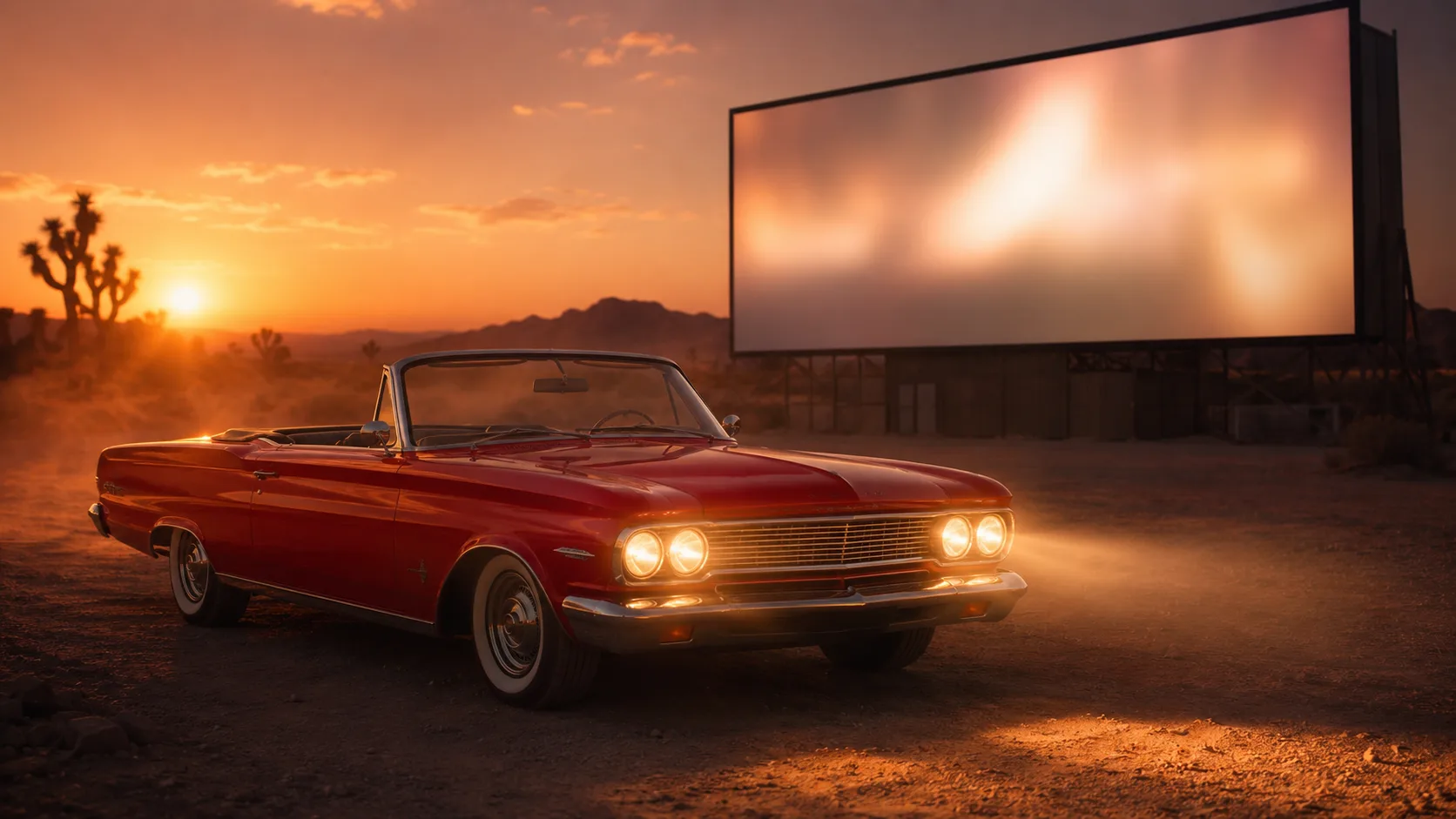
When the selected Veo option supports audio, write sound as a visible story cue: footsteps, market ambience, engine hum, fabric movement, dialogue tone, or a timed beat.

Choose 16:9 for wider cinematic scenes and 9:16 for social clips. Put the format in the prompt so the subject, camera path, and empty space survive the generation.
Keep the setup tied to the controls users can change: Select Model, prompt, aspect ratio, resolution, duration, audio, supported seed control, credit estimate, and Generate.
A short Veo prompt should not ask for a push-in, orbit, drone move, and handheld follow at once. Pick the movement that makes the scene easier to judge.
Call out the product shape, face direction, clothing, room layout, or lighting that should not drift while the scene moves.
When audio is enabled, check whether ambience and effects support the visual action. Regenerate when the sound distracts from the subject or timing.
Compare camera continuity, subject stability, format fit, and ending frame before spending credits again. Refine the strongest clip, not every draft.
Treat Veo AI as a model-family choice. Decide whether the next run is for speed, audio, format, or final review before spending credits again.
Use this page when you want to work inside the Veo family rather than compare every video model on the hub.
Use Veo 3.1 for more directed clips and audio-aware review. Use Fast when the next step is quick comparison before a more careful run.
Write ratio, duration, resolution needs, audio intent, and final frame only when those choices matter to the result you need.
Look for prompt adherence, stable subject shape, believable camera motion, useful sound, and an ending frame that supports the next edit.
Veo AI in Ezier
Draft faster when you are testing motion, use audio-aware Veo when sound changes the scene, then check format, timing, credits, and the final frame before refining.
Practical answers for model selection, shot prompts, audio direction, ratio, duration, credit checks, and reviewing the generated clip.
Write the video brief in the prompt box, choose the Veo option from Select Model, open settings for ratio, duration, resolution, audio, and seed when available, check credits, then generate.
Name the subject, action, camera movement, duration, sound intent, format, and final frame. A strong prompt says what should move, what should stay stable, and where the clip should land.
Choose Veo 3.1 Fast when you want quicker comparisons of hooks, crops, or camera ideas before committing to a more careful Veo pass.
Choose the audio-capable Veo option when ambience, effects, speech tone, music timing, or sound-driven action matters to the clip. After generation, review whether the audio supports the visual motion.
Veo AI is the Veo family page in Ezier. Use it to choose Veo 3.1 or Veo 3.1 Fast based on whether you need a more directed cinematic pass or quicker comparison.
Yes. Choose 9:16 when the clip is for shorts or social ads, keep the subject centered, and mention safe space for captions or overlay text in the prompt.
Check subject stability, camera continuity, physics, audio timing, format fit, and the final frame. Refine the strongest direction instead of rewriting every idea.
More to try
Check related video models, refine the clip with tools, or build a better starting frame.

AI models
Compare models
Choose a better fit before you generate.

AI video tools
Turn images into motion
Animate a still or create a clip.

AI image tools
Create or edit images
Make, clean up, or upscale stills.
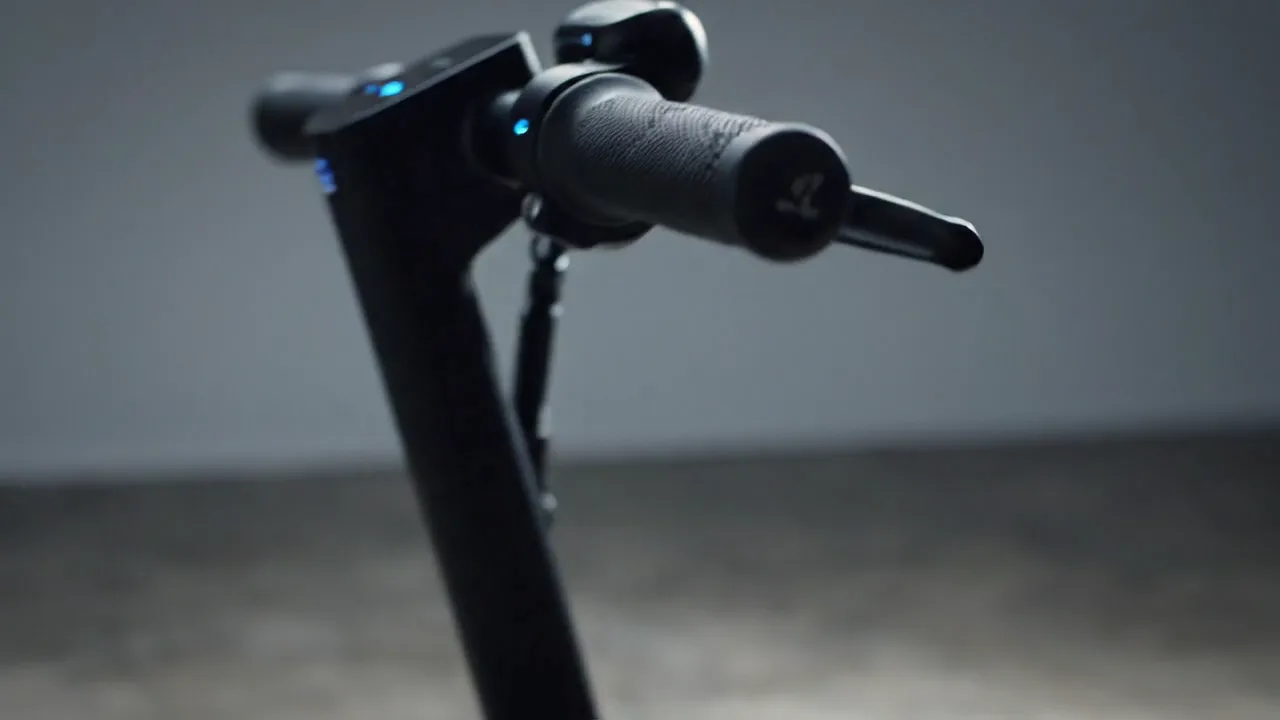
Veo 3.1
Cinematic control
Use for cinematic shots and camera moves.
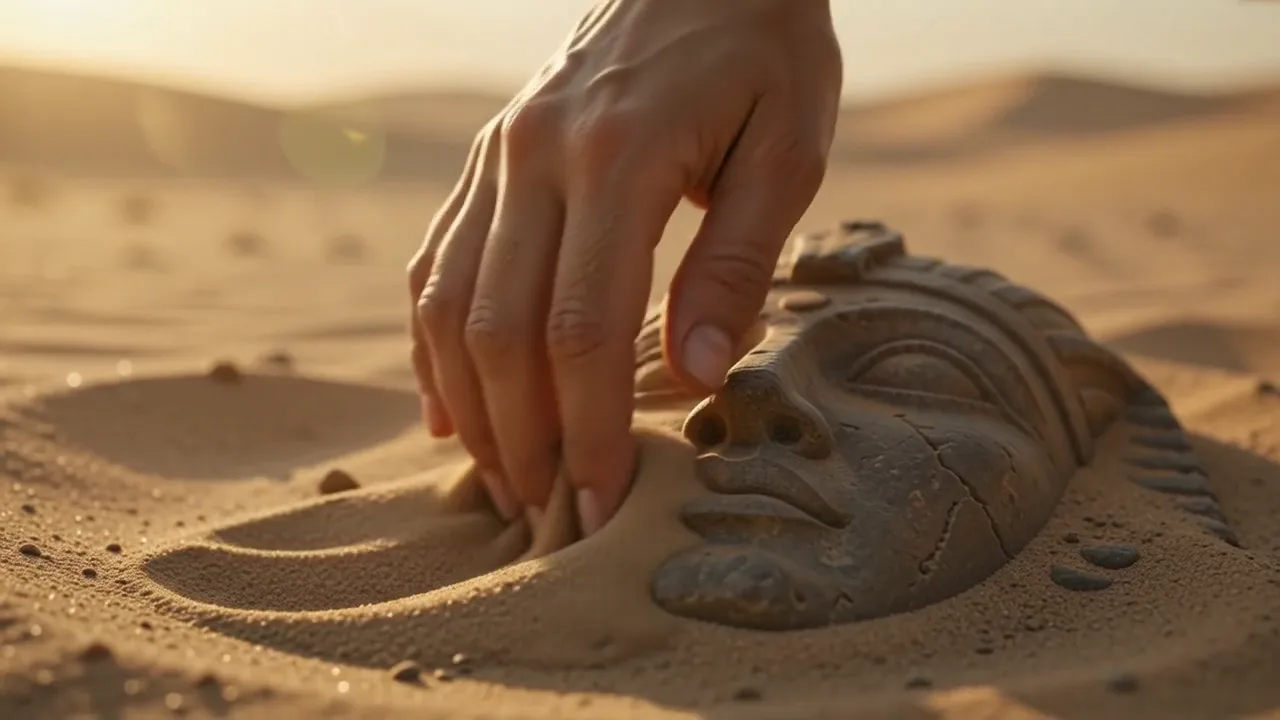
Kling 3.0
Action and motion
Use for action, motion, and story beats.
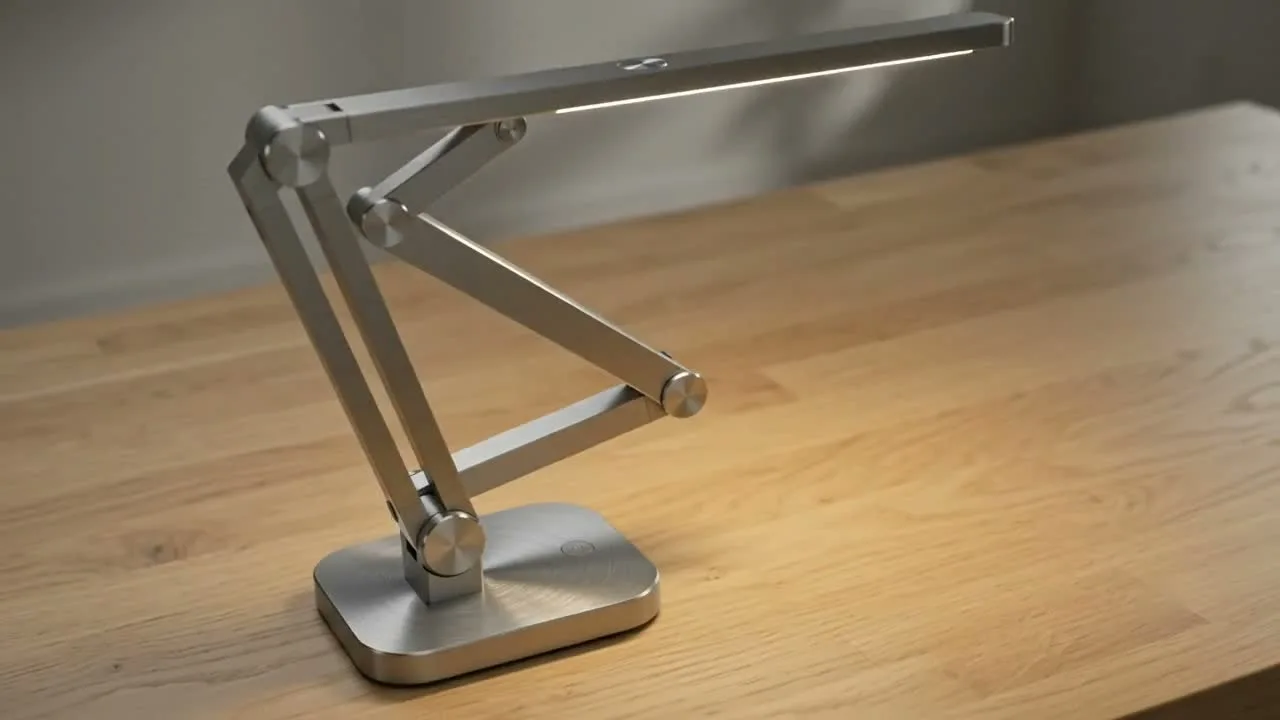
Seedance 2
Reference-led video
Use for fast motion drafts from references.
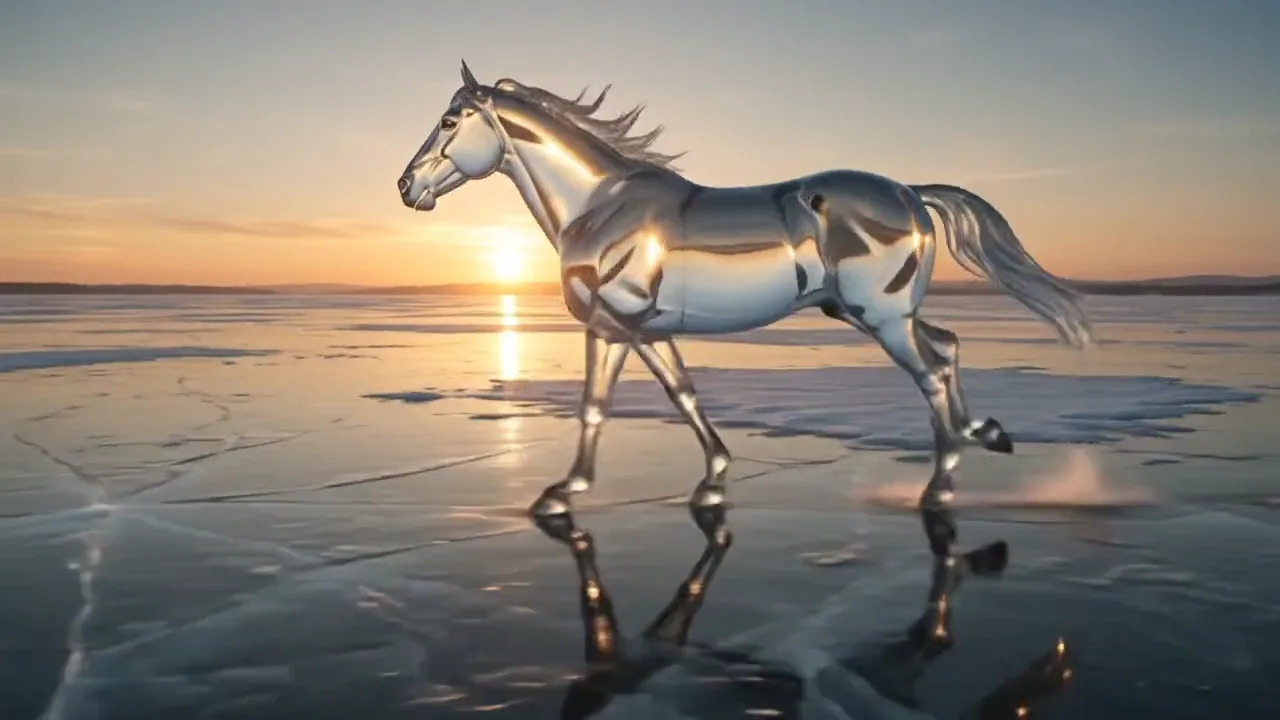
Hailuo AI
Physical motion
Use for fabric, liquid, and physical motion.
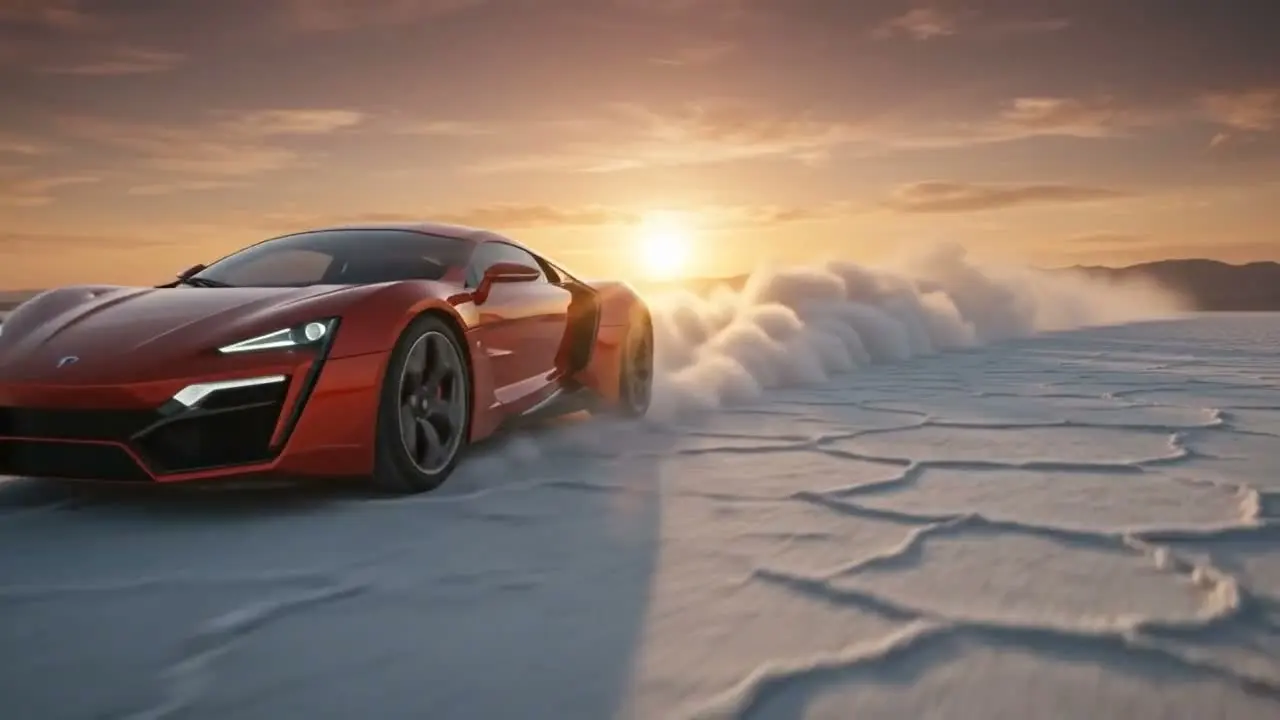
HappyHorse AI
Short video hooks
Use for short hooks and stylized clips.
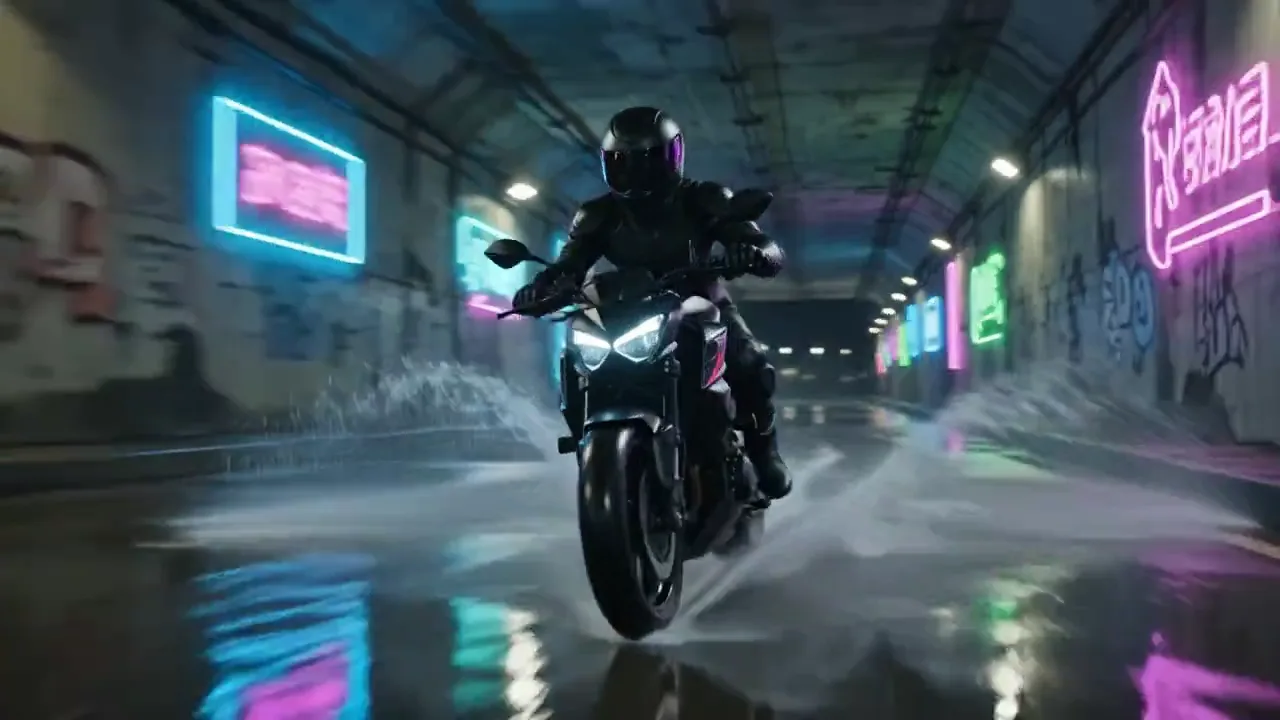
Kling AI
Kling family
Explore more Kling video options.
AI models
Compare models
Choose a better fit before you generate.
AI video tools
Turn images into motion
Animate a still or create a clip.
AI image tools
Create or edit images
Make, clean up, or upscale stills.
Veo 3.1
Cinematic control
Use for cinematic shots and camera moves.