
Hailuo 2.3 is framed around complex motion
MiniMax describes Hailuo 2.3 as improving physical action, stylization, micro-expression, and response to motion commands. Use that as a reason to write the movement clearly.
Use Hailuo AI on Ezier to draft physics-heavy action, stylized motion, fabric, liquid, debris, and creature shots. Choose a Hailuo model, check credits, then generate.
Use Hailuo AI when movement sells the scene: cracking ice, cloth under force, creature landings, liquid splash, debris, or a stylized action beat that still needs readable weight and direction.
Create a 6-second 16:9 Hailuo AI video of a glass horse galloping across a frozen lake at dawn. Each hoof strike sends thin cracks through the ice and mist into the air. Use a low side-tracking camera, keep the horse silhouette stable, show clear weight and impact, and end on a wide frame with the sunrise reflected in the broken ice.
Open Select Model and choose the Hailuo option that matches the job. In Ezier, use Hailuo 02 for physics-heavy passes, Hailuo 2.3 for stronger stylized motion, and Hailuo 2.3 Fast when you want more directions to compare.
Start with the subject, force, path, camera move, and reaction. Say what moves and what responds: cloth, water, dust, glass, hair, debris, smoke, or light.
Upload a supported image or source when it helps the shot. Use it to protect the first frame, creature design, costume, product shape, or motion style instead of adding vague mood.
Check the Generate credit estimate before submitting. After generation, review the physical reaction, subject stability, camera path, style control, and whether the final frame is worth refining.
A stronger Hailuo prompt names the force, the material reaction, the camera move, and the final frame that proves the clip worked.
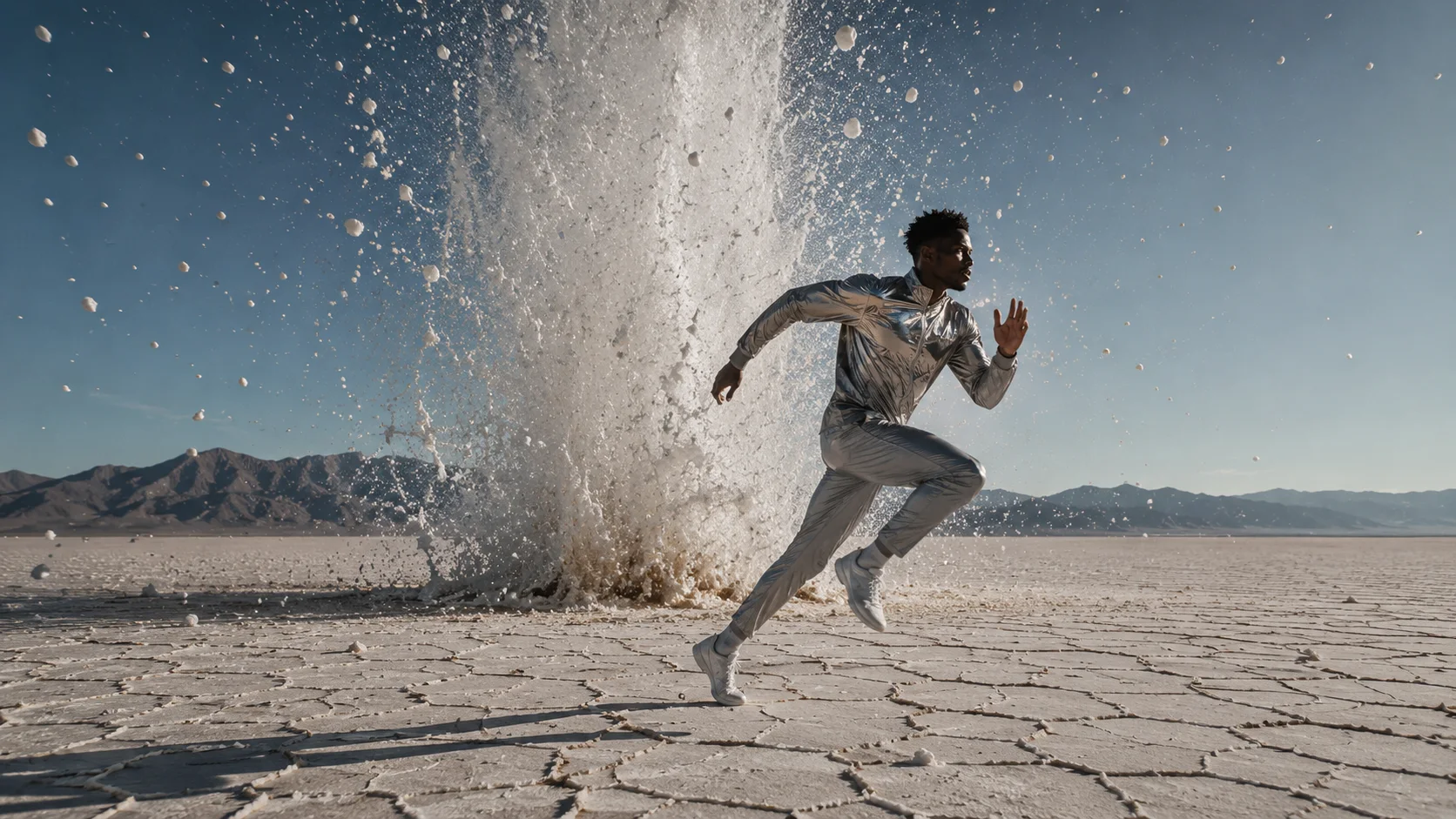
Hailuo prompts need visible cause and effect. Name the hit, pull, fall, bend, splash, crack, or rebound, then name the material detail that proves the motion has weight.
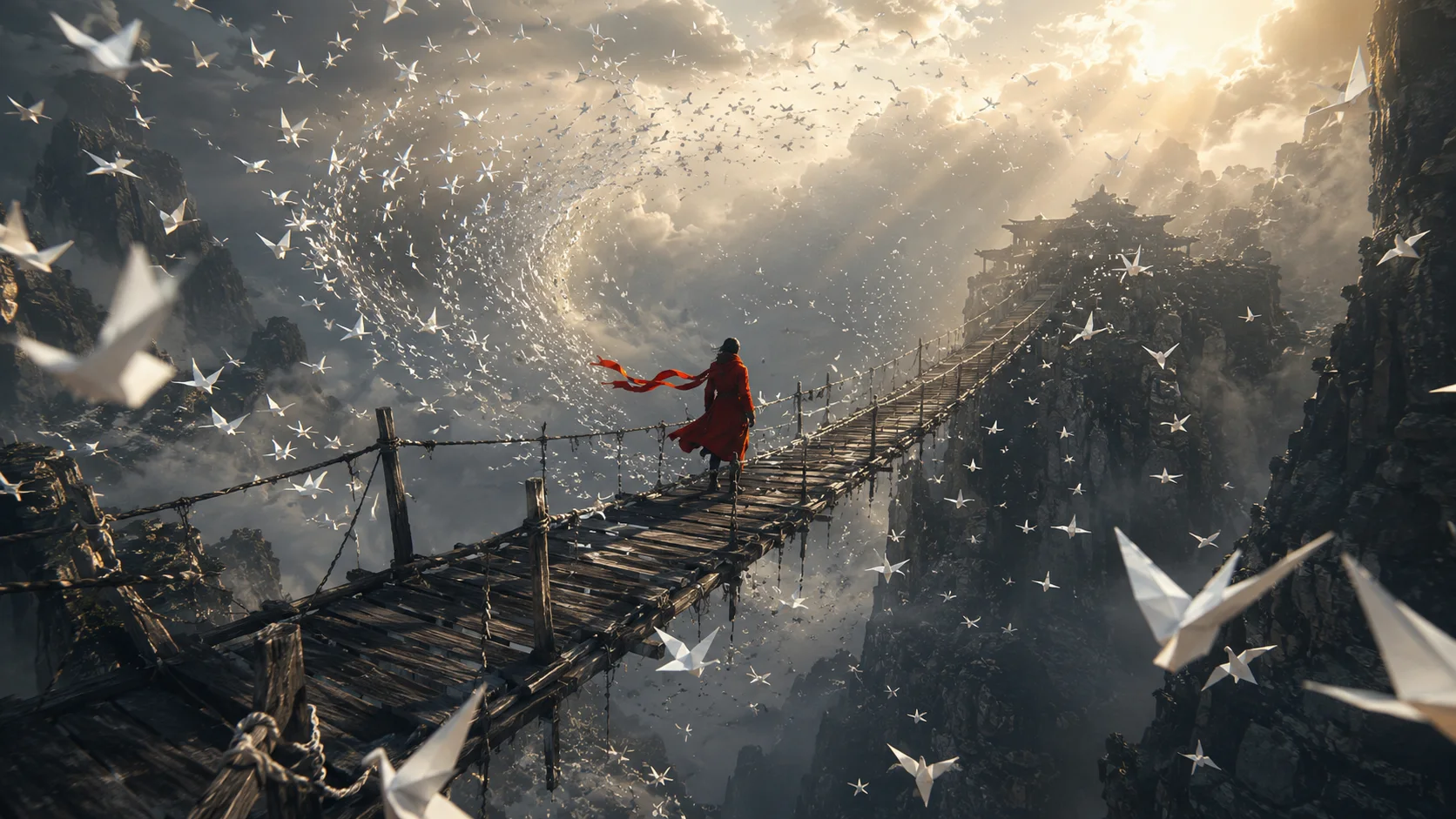
Stylized Hailuo clips still need a stable motion spine. Let the look be expressive, but keep the body path, silhouette, and final frame simple enough to judge.
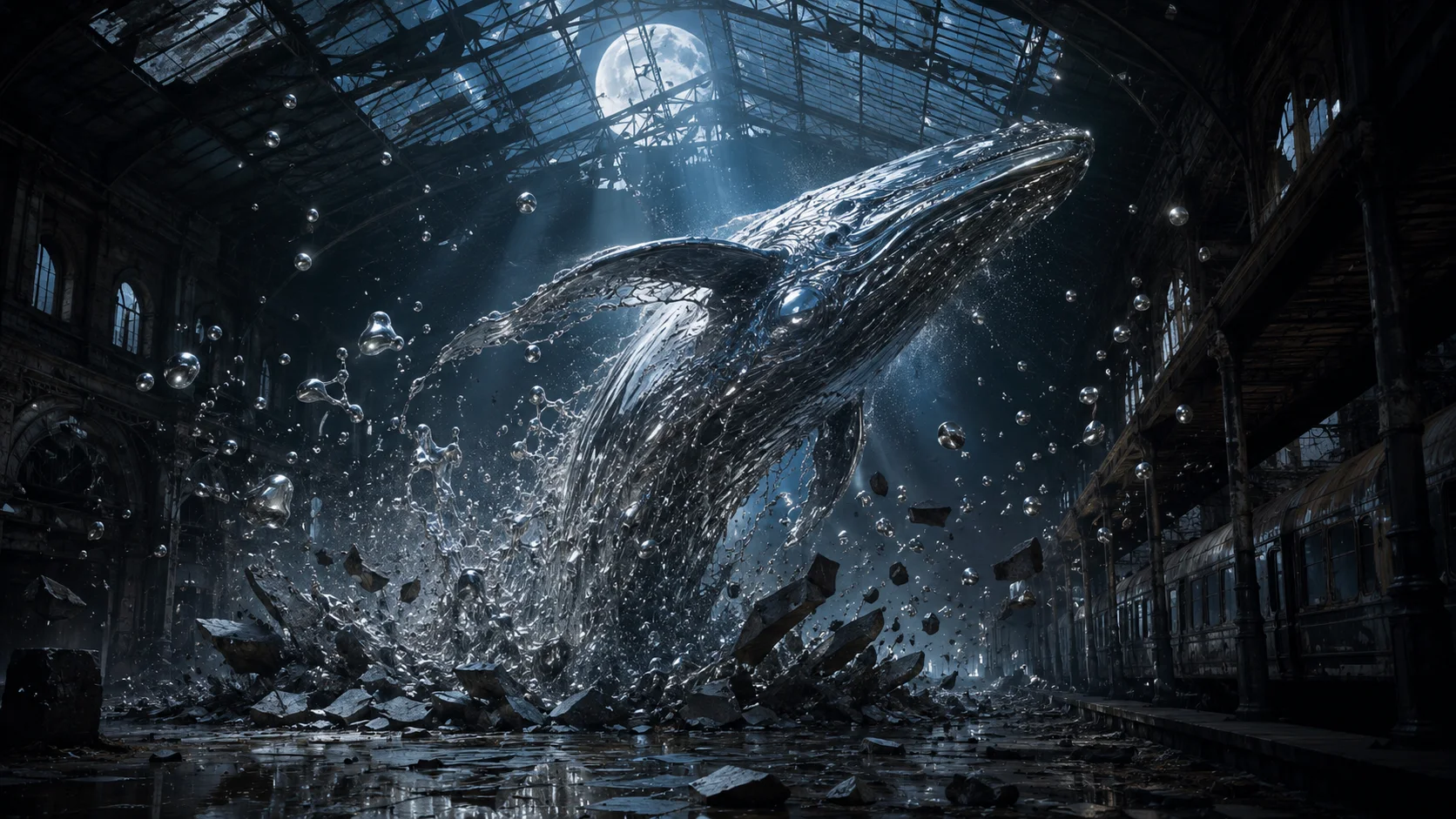
When several motion ideas could work, use Hailuo 2.3 Fast to compare action paths, silhouettes, camera distance, and ending frames before refining the strongest one.
Stay close to the decisions you can make in Ezier: write the prompt, choose a Hailuo model, add a supported reference when needed, check settings and credits, then generate.
Before judging style, check whether the action creates a believable reaction: splash, bend, crack, drift, impact, dust, or rebound.
If the subject melts into the style, tighten the next prompt around silhouette, material, costume, color, and the start or end frame.
A follow, orbit, push, or wide hold makes unusual motion easier to judge than a prompt with several competing camera moves.
Choose the pass with the clearest motion and most reusable final frame. Then adjust timing, force, material reaction, or camera distance.
Hailuo AI is strongest when motion has visible cause and effect. In Ezier, turn that strength into a brief you can actually review: force, reaction, camera intent, and a readable subject.
MiniMax describes Hailuo 2.3 as improving physical action, stylization, micro-expression, and response to motion commands. Use that as a reason to write the movement clearly.
Ezier lists Hailuo 02 for physics simulation, Hailuo 2.3 for motion control and artistic stylization, and Hailuo 2.3 Fast for speed-to-quality balance.
Build the prompt around the model choice, supported upload, available settings, credit estimate, and Generate. Use the controls shown for the selected Hailuo model.
A Hailuo result is worth refining when force, material response, subject stability, camera intent, and the ending frame already work together.
Hailuo AI in Ezier
Start with one physical action, choose the Hailuo option that fits the pass in Ezier, then review weight, reaction, subject clarity, and the ending frame before spending again.
Practical answers for choosing Hailuo 02, Hailuo 2.3, or Hailuo 2.3 Fast, writing motion prompts, using references, checking credits, and reviewing clips.
Write the video brief in the prompt box, choose Hailuo 02, Hailuo 2.3, or Hailuo 2.3 Fast from Select Model, add a supported reference when it helps, check credits, then generate.
Describe the subject, force, material reaction, camera movement, style level, and final frame. A strong prompt says what causes the motion and what should react on screen.
Choose Hailuo 02 in Ezier when the pass is mainly about physics simulation: impact, collision, liquid movement, debris, cloth, cracking surfaces, or visible cause and effect.
Choose Hailuo 2.3 when stylized physical motion or motion-command response matters most. Choose Hailuo 2.3 Fast when you want to compare directions before refining the strongest pass.
Use upload when the selected Hailuo option supports the input you need. References are useful for a starting frame, creature design, product shape, costume, or motion style.
Hailuo AI is the Hailuo family page in Ezier. Use it to choose Hailuo 02, Hailuo 2.3, or Hailuo 2.3 Fast based on physics simulation, stylized motion, faster comparison, credits, or generation time.
Choose Hailuo AI for physics-heavy or stylized motion. Choose Veo for cinematic prompt control, Kling for action continuity, and Seedance for faster multimodal drafts or reference-led iteration.
More to try
Check related video models, refine the clip with tools, or build a better starting frame.

AI models
Compare models
Choose a better fit before you generate.

AI video tools
Turn images into motion
Animate a still or create a clip.

AI image tools
Create or edit images
Make, clean up, or upscale stills.

MiniMax H3
2K multimodal video
Use for 2K clips with multi-image direction and generated audio.
Kling 3.0
Action and motion
Use for action, motion, and story beats.

HappyHorse AI
Short video hooks
Use for short hooks and stylized clips.
Veo 3.1
Cinematic control
Use for cinematic shots and camera moves.
Seedance 2
Reference-led video
Use for fast motion drafts from references.
Kling AI
Kling family
Explore more Kling video options.
AI models
Compare models
Choose a better fit before you generate.
AI video tools
Turn images into motion
Animate a still or create a clip.
AI image tools
Create or edit images
Make, clean up, or upscale stills.
MiniMax H3
2K multimodal video
Use for 2K clips with multi-image direction and generated audio.