
Image to Video From a Frame You Control
Upload a still image, describe the motion and camera feel, choose a compatible model, and generate a clip that keeps the subject and composition recognizable.
See how a still frame becomes motion
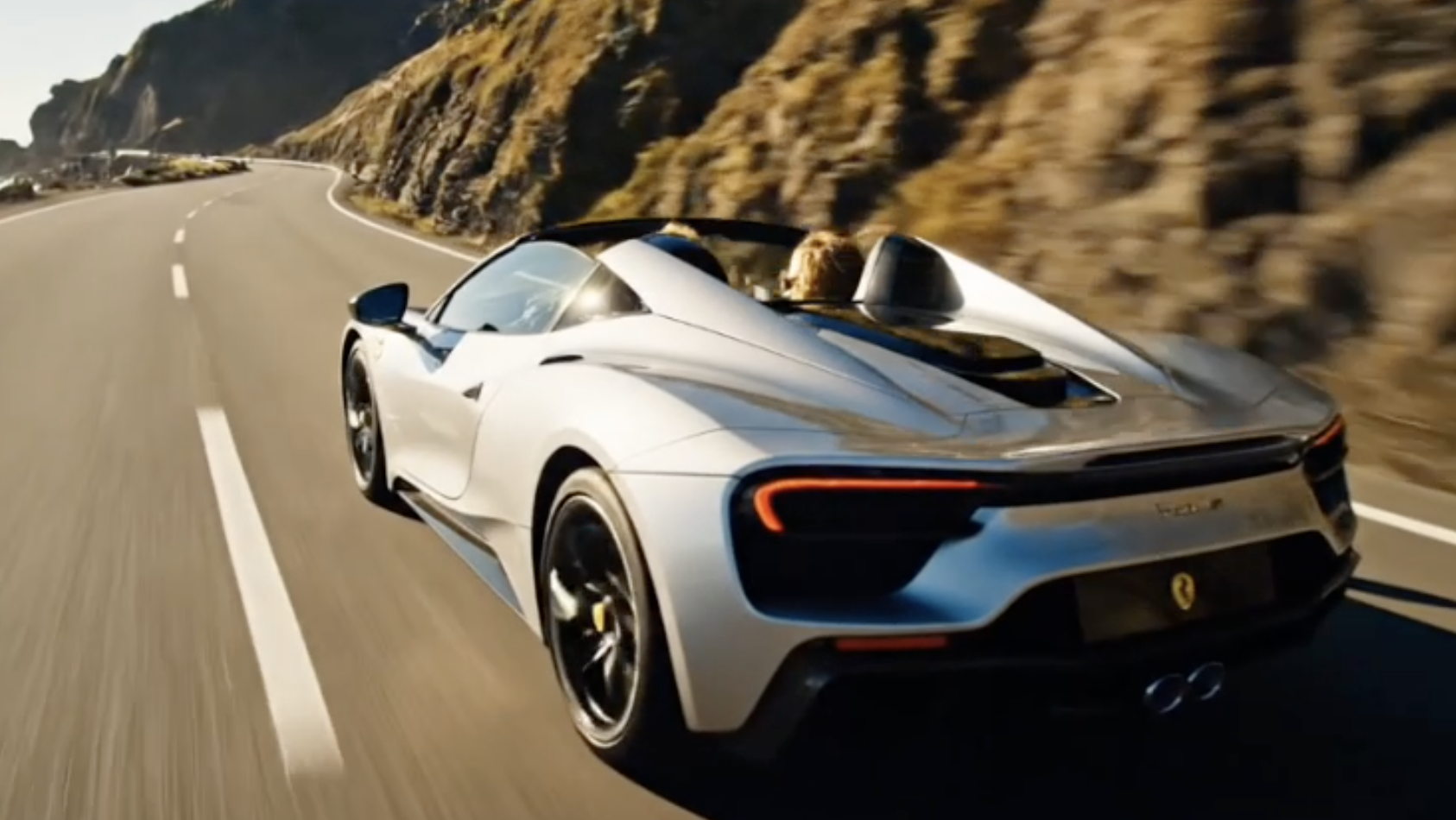
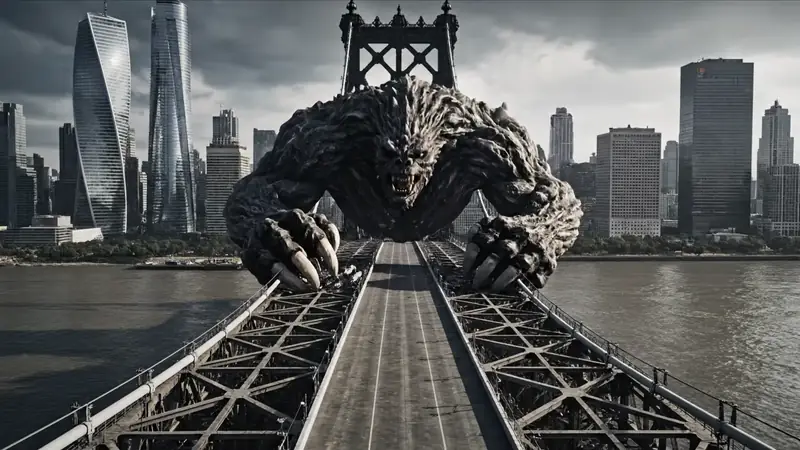
Use these examples to inspect what changes and what stays stable when one image becomes a short clip: face and outfit, vehicle and storm scale, rider and landscape. The best results start with a frame worth preserving.
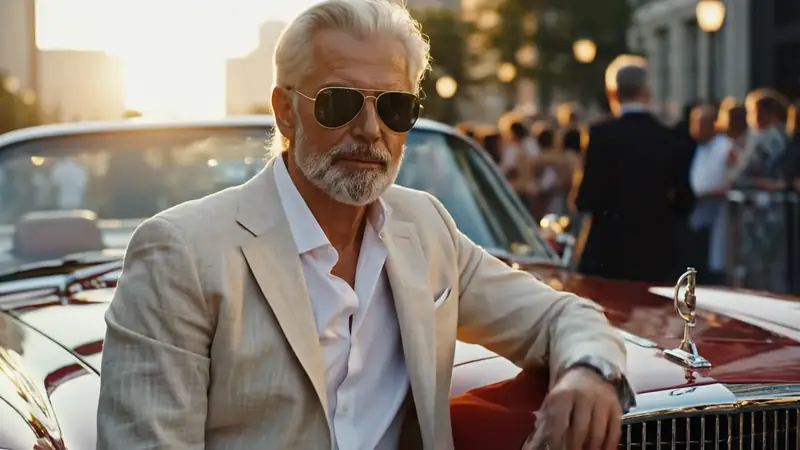
Animate this still into a cinematic luxury portrait. Keep the same silver-haired man in a light beige suit and aviator sunglasses leaning against the red vintage car, with the same upscale outdoor event background. Add a subtle camera push-in, natural blinking, a slight head turn, a small hand movement on the car, gentle guest motion in the background, warm golden-hour sunlight, shallow depth of field, and a premium fashion-commercial look with realistic detail.
How to turn one image into motion
- 01
Upload the frame you want to animate
Choose a still with a clear subject, readable lighting, and a composition worth keeping. Cleaner edges and fewer competing details give the model more to preserve.
- 02
Choose a compatible video model
Use the model picker to choose a model that accepts image input. Set available controls such as ratio, duration, or resolution before generating instead of burying them in the prompt.
- 03
Write motion around the source image
Describe what moves, how the camera moves, the mood, and what should stay unchanged. Ask for motion that belongs to the frame, not a completely different scene.
- 04
Generate and check for drift
Review whether the subject, layout, and style still match the source image. If the clip drifts too far, simplify the motion, try another model, or prepare a stronger image before generating again.
What Image to Video can preserve and change
Image to Video keeps your still image as the visual anchor while the model adds motion, camera feel, and atmosphere around it. Use Text to Video when the whole scene should be invented from a prompt. Use Video to Video when the source is already a clip. If the starting image needs cleanup first, prepare it with Image Enhancer.
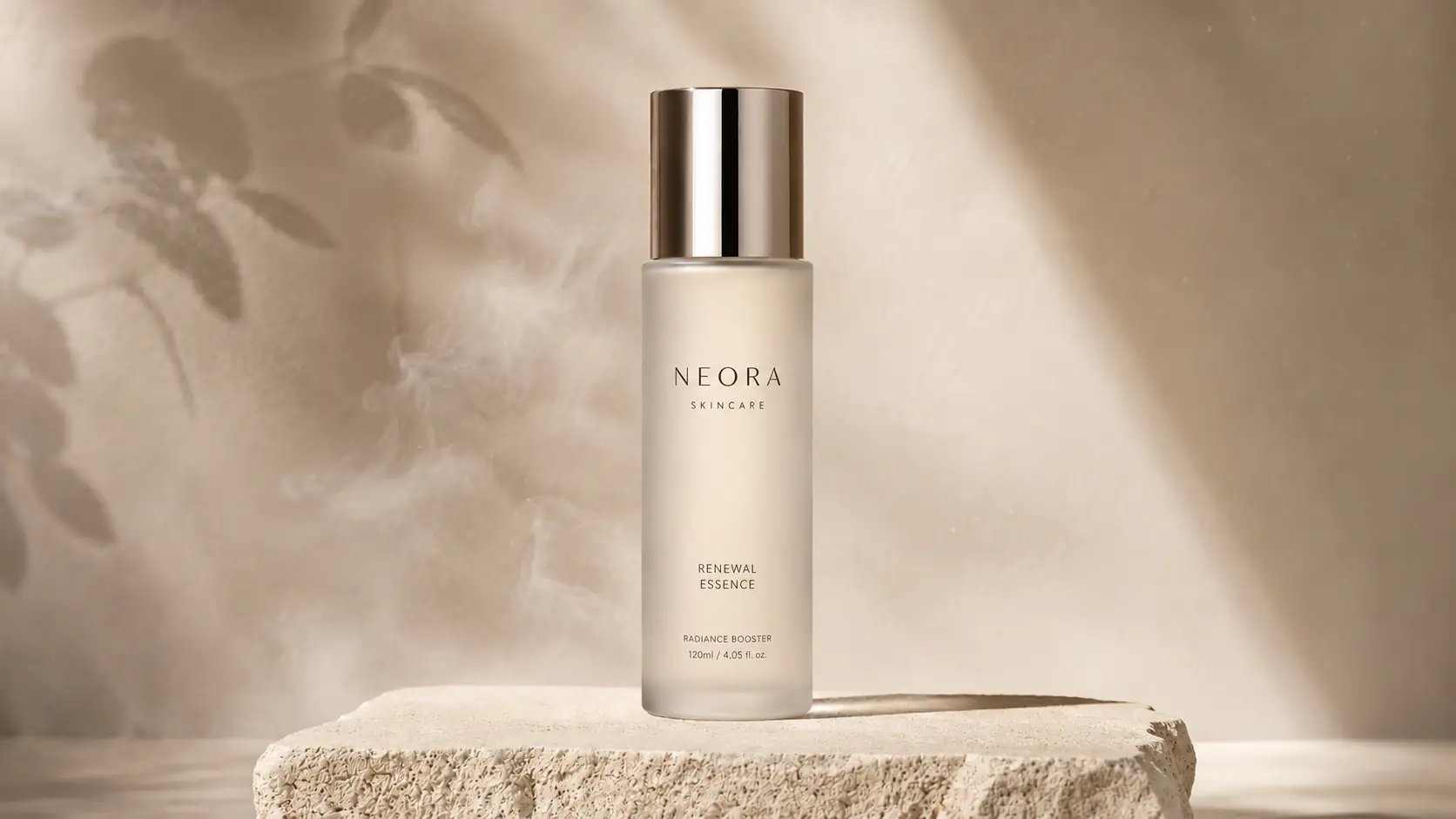
Preserve the visual identity
The source image gives the model a subject, layout, color world, and style to hold onto, so the clip can move without feeling like a new composition.
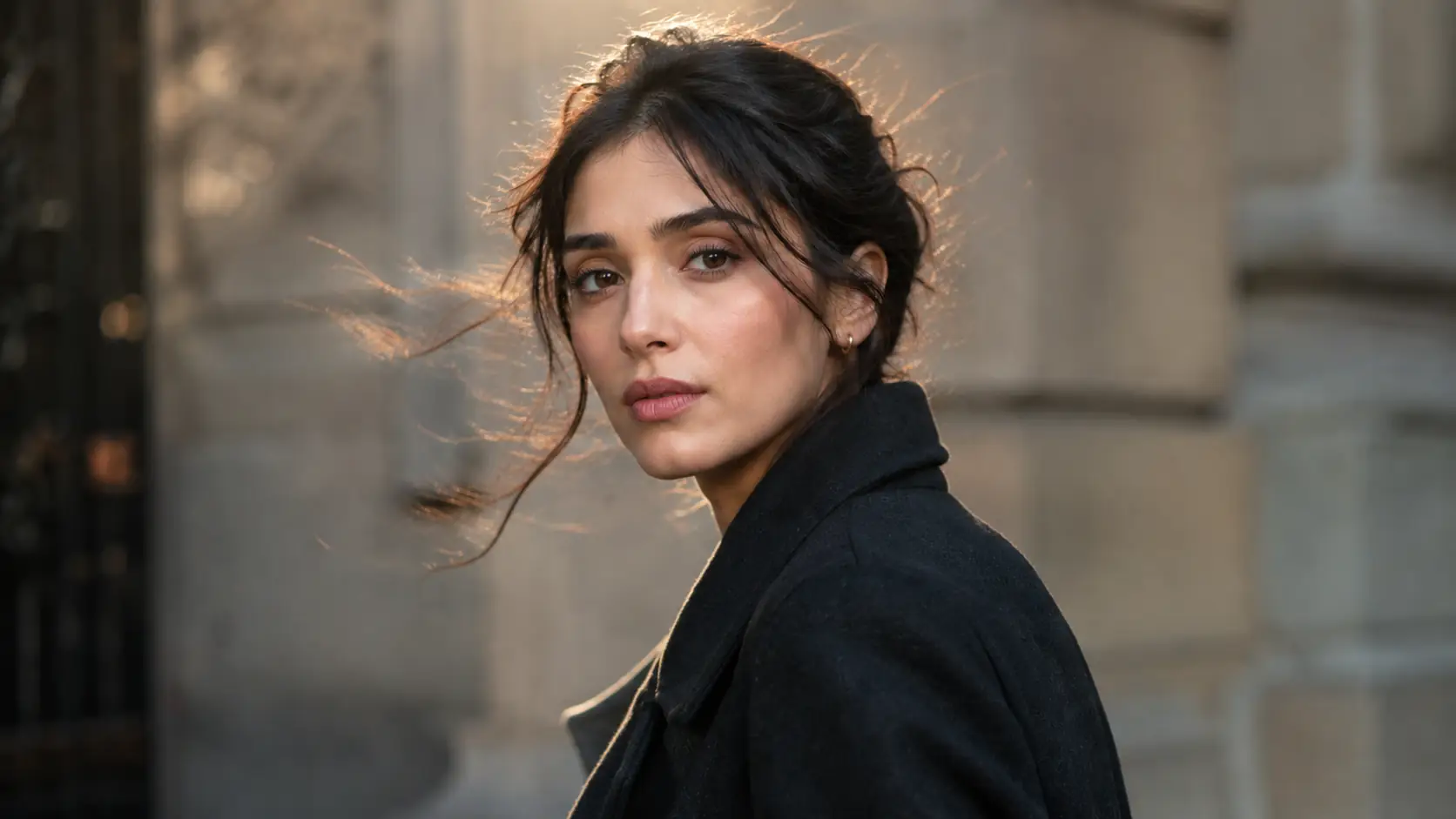
Add motion around the frame
Image to Video can add subject movement, camera movement, background activity, light shifts, and atmosphere while using the still as the opening visual anchor.
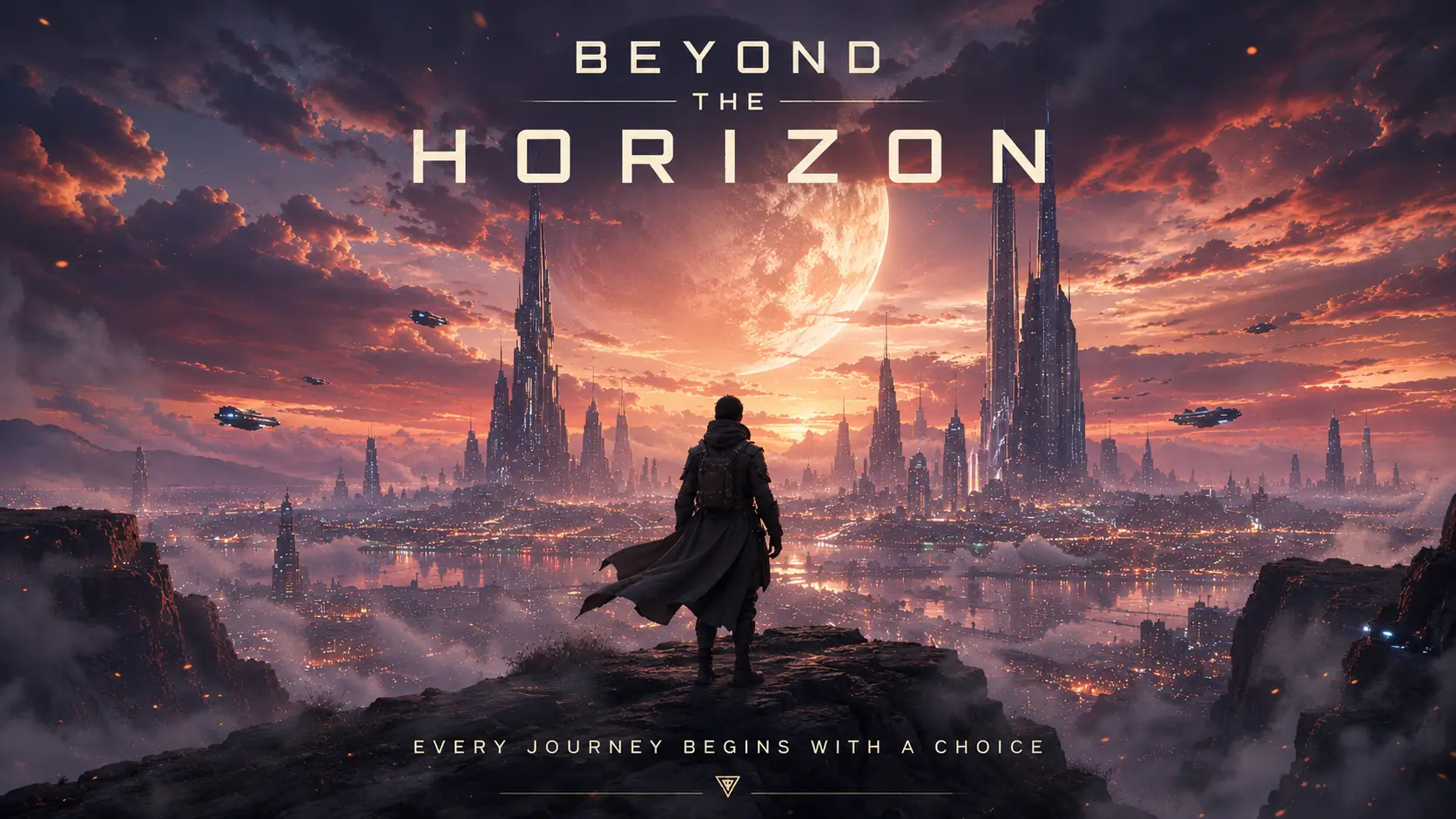
Bring designed worlds to life
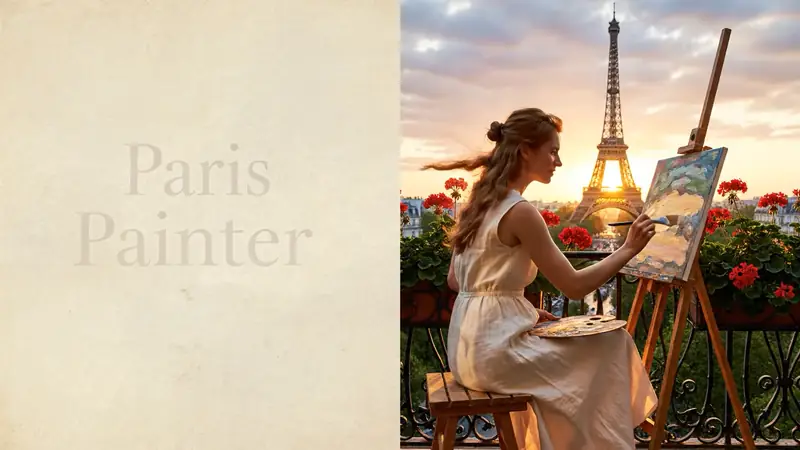
Concept art, posters, and AI-generated stills can keep their composition while adding depth, atmosphere, and camera movement around the frame.
Keep the source frame recognizable in motion
The first frame does not need to stay frozen. It needs to stay recognizable: subject identity, key edges, composition, and mood should survive as movement, camera motion, and atmosphere build.
Start with a frame the model can read
Sharp subject edges, one clear focal point, and readable lighting give the model more to hold onto. If the still looks soft, noisy, or muddy, clean it first in Image Enhancer before you animate it.
Give the clip one dominant movement
A still image can support subject motion, camera movement, and atmosphere, but the first pass should have one main motion idea. Add complexity after the subject stays stable.
Name the details that cannot drift
Call out the face, product shape, logo, outfit, silhouette, room layout, or poster composition that should remain recognizable while the clip moves.
Judge the whole clip, not the opening frame
Many generations look closest to the source image at the start. Watch the full result for identity shifts, warped edges, background changes, or a final frame that no longer matches the original idea.
Image to Video in Ezier
Animate the frame you already trust.
Upload the still image, choose a model that accepts image input, describe the motion around the frame, and check the credit estimate before you generate. For prompt-only scenes, use Text to Video. For existing footage, use Video to Video.
Image to Video FAQ
Answers for deciding when to animate a still image, what to write in the prompt, and how to keep the result close to the source frame.
What does Image to Video do?
Image to Video turns an uploaded still image into a generated motion clip. The image acts as the visual anchor, while the prompt tells the model what movement, camera motion, and atmosphere to add around that frame.
When should I use Image to Video instead of Text to Video or Video to Video?
Use Image to Video when you already have a still frame that should stay recognizable. Use Text to Video when the whole scene should be invented from a prompt, and use Video to Video when your source is already a moving clip.
What types of images work best as starting frames?
Images with one clear focal subject, readable edges, decent lighting, and a stable composition usually animate more reliably. Product photos, portraits, character art, posters, concept frames, and high-quality AI images can all work when the subject is easy to read.
Do I still need a prompt if I already have an image?
Yes. The image gives the model the first frame, but the prompt tells it what should move. Describe the subject motion, camera movement, pace, atmosphere, and any details that must stay recognizable.
What should I protect in an Image to Video prompt?
Name the details that make the source image valuable: face, product shape, logo, outfit, silhouette, room layout, poster composition, lighting, or color style. Then add the motion around those anchors instead of asking the scene to change completely.
Do all video models accept image input?
No. The selected model needs to support image-to-video input. If a model does not accept a still image, choose a compatible model before you generate. Available settings such as ratio, duration, or resolution can also vary by model.
Can I use AI-generated images, posters, or concept art as the source?
Yes. AI-generated stills, posters, and concept frames can be strong sources because the composition is already locked. Image to Video is useful when you want that designed frame to gain depth, atmosphere, or camera movement without restarting from text alone.
What should I do if the result drifts from the source image?
Simplify the motion request first. Ask for one dominant movement, name the details that must stay stable, and try a cleaner source image or another compatible model if the subject, layout, or style keeps changing too much.
How do credits work for Image to Video on Ezier?
Check the estimate shown on Generate before you submit. The visible number can change with the selected model and available settings, and the final credit use is confirmed during generation.
Keep creating
Set up the next pass
Continue with generation, editing, model choice, or source preparation without starting from the sidebar.

AI video tools
More video tools
Generate, edit, clean up, or improve clips.

AI models
Compare video models
Pick a better model before rendering again.

AI image tools
Prepare source images
Create a stronger still for the next video run.
AI Video Generator
Start a video
Create a clip from a prompt or image.
Text to Video
Prompt-first video
Turn a written scene into motion.
Video to Video
Restyle footage
Change the look of an existing clip.
AI Video Extender
Extend a clip
Continue a short video into a longer scene.
AI Video Editor
Edit with prompts
Revise a clip without a timeline.
Video Enhancer
Improve quality
Sharpen, denoise, and restore clips.
AI video tools
More video tools
Generate, edit, clean up, or improve clips.
AI models
Compare video models
Pick a better model before rendering again.
AI image tools
Prepare source images
Create a stronger still for the next video run.
AI Video Generator
Start a video
Create a clip from a prompt or image.