
Create Images with Readable Text Using Qwen Image
Use Qwen Image on Ezier to create posters, product labels, diagrams, and reference-image edits. Write a prompt, upload a source image for edits, choose ratio and image count, then generate.
Use Qwen Image when the words matter
Use it for prompts and edits where the final image has to be read: posters, labels, signs, slide graphics, diagrams, and bilingual layouts.
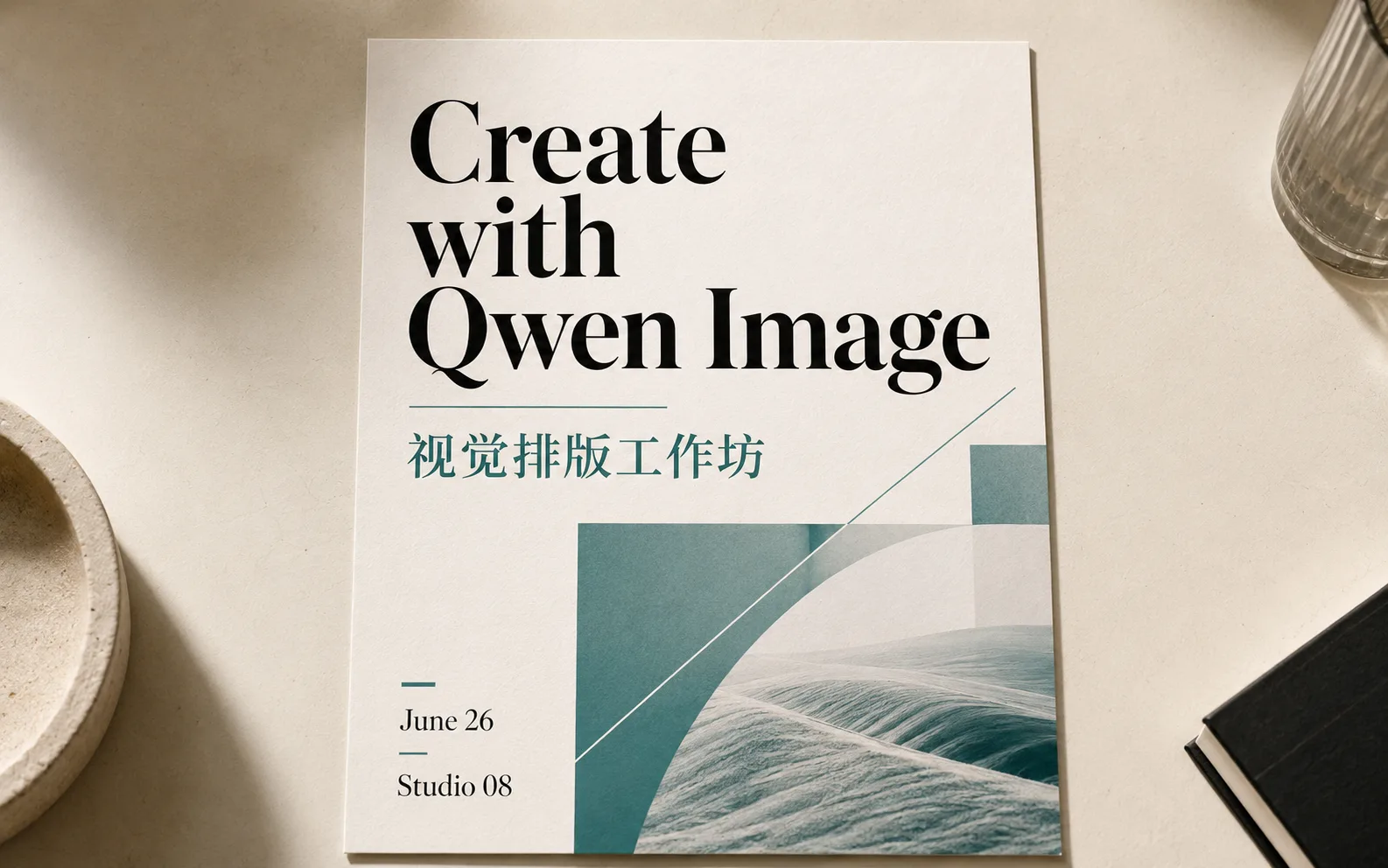
Design a clean launch poster for a bilingual design workshop. Use the exact headline "Create with Qwen Image", add the Chinese line "视觉排版工作�?, keep both lines readable, and leave space for a date and venue.
How to use Qwen Image on Ezier
- 01
Write the asset and exact words
Start in the prompt box with the asset type: poster, product label, slide graphic, sign, or diagram. Put the words that must appear in quotes, including Chinese or English line breaks.
- 02
Attach a source image for edits
For image editing, add the reference first so the request is routed as an edit instead of a blank text-to-image prompt. Then say what should change and what should stay recognizable.
- 03
Open the settings chip
Use the Auto settings chip to choose the canvas ratio, resolution for Qwen variants that offer it, and the number of images. Generate more than one image when you need text-layout options to compare.
- 04
Check credits, generate, then inspect
The Generate button shows the credit estimate before you submit. After generation, inspect spelling, line breaks, labels, logos, small numbers, and subject consistency before saving.
What to write into the prompt
Qwen Image works best when the prompt says what text should appear, where it belongs, and how the image should be checked after generation.
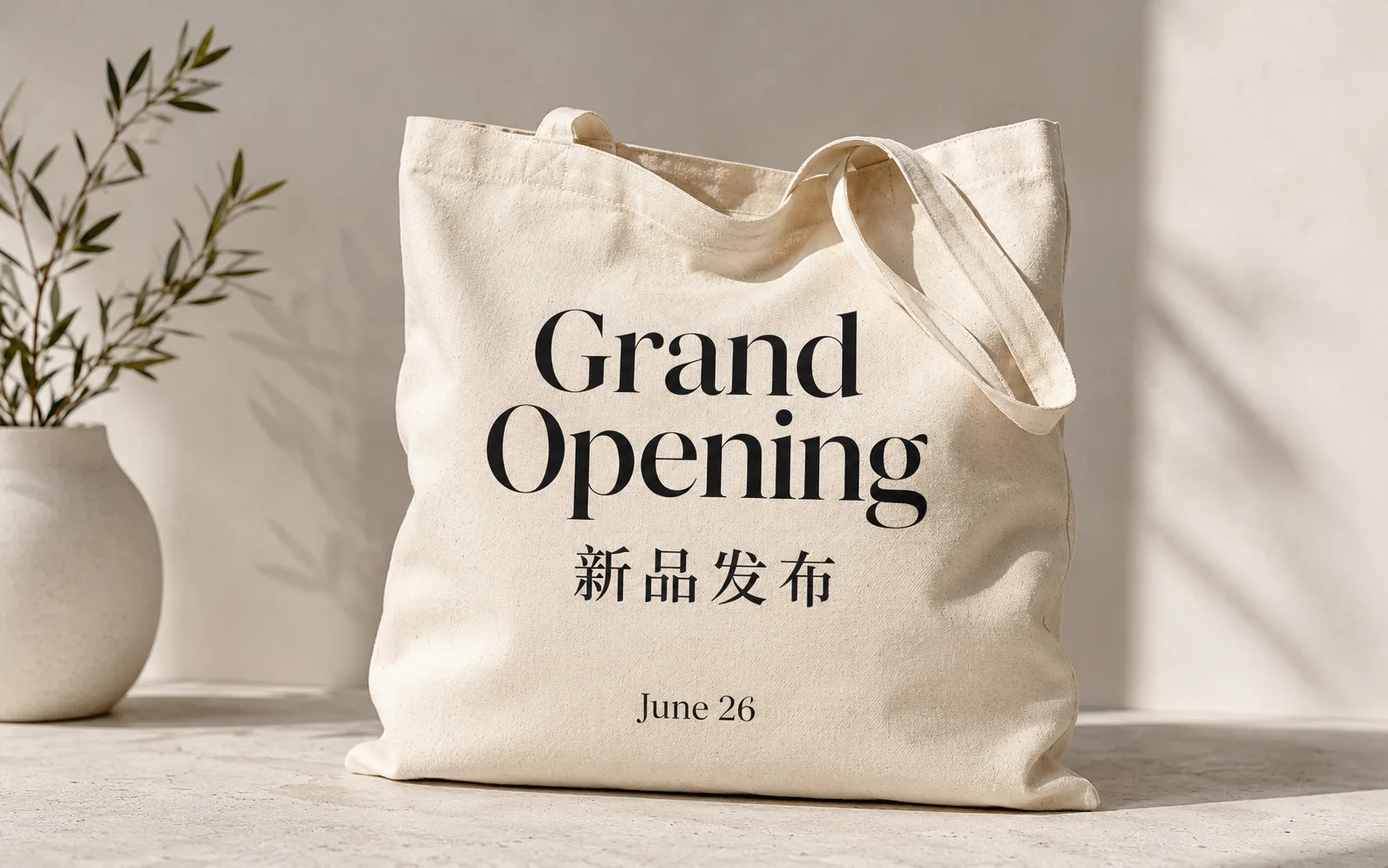
Quote the words that must survive
For posters, signs, and title cards, quote exact text such as "Grand Opening" or "新品发布". Add hierarchy notes like headline, subtitle, small date, or bottom-left label.
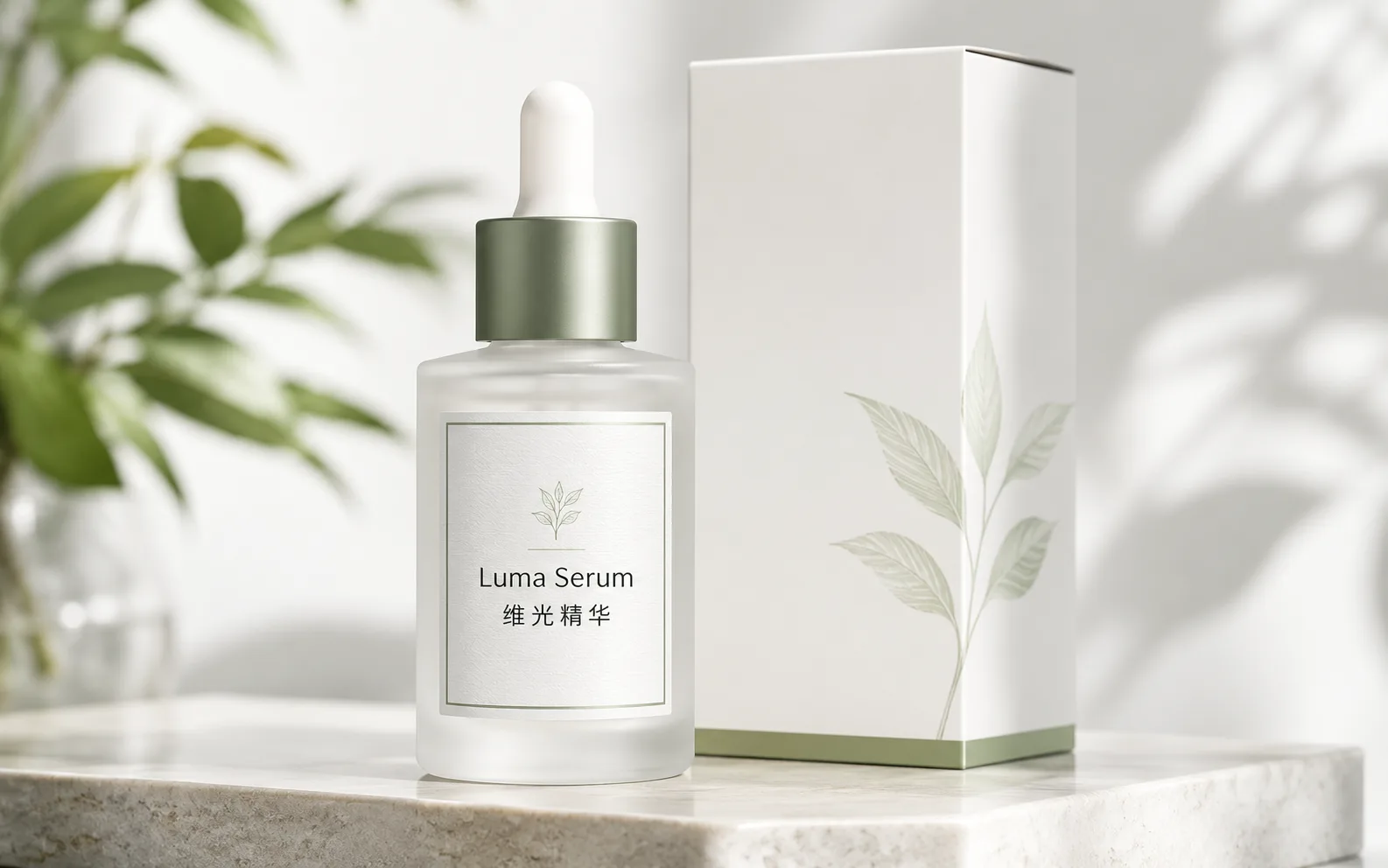
Describe the label as part of the product
For packaging and ecommerce concepts, include the product name, visible label copy, material, crop, and lighting. If you upload a product reference, say which shape, logo area, or label placement should stay stable.
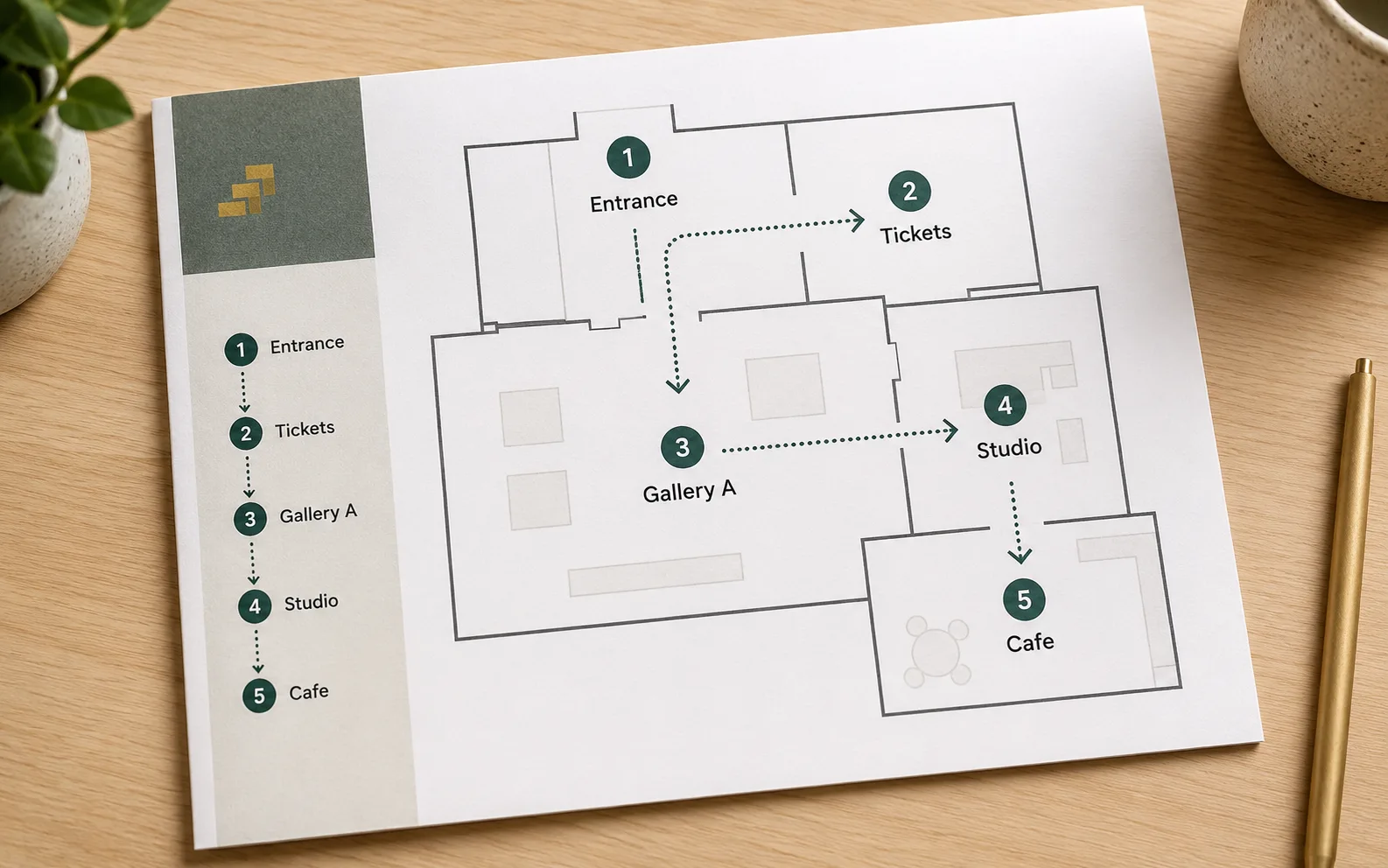
Give diagrams their reading order
For explainers, list the steps in order and name the arrows, sections, and labels. Short labels work better than paragraphs when the final image has to remain readable.
Qwen Image settings worth checking
Start from a prompt, add a reference image for edits, choose the Qwen variant, adjust the canvas, compare image counts, and check credits before generating.
- 20B
- Text rendering focusQwen describes the first Qwen-Image release as a 20B MMDiT image foundation model, which is why text rendering and editing deserve specific prompt attention here.
- 1K
- Longer prompt supportQwen-Image 2.0 public notes emphasize longer prompts for slides, posters, infographics, comics, and other structured assets. Use that space for layout instructions, not filler adjectives.
- 1-4+
- Image count varies by Qwen optionThe image count selector follows the selected Qwen model. Use more images when you want to compare typography, label placement, or diagram structure before refining.
Choose the Qwen option deliberately
Use Select Model to confirm whether you are using Qwen Image, Qwen Image Plus, or Qwen Image 2 Pro before comparing results.
Let Auto stay neutral until format matters
Auto is useful for first drafts. Choose 16:9 for wide banners, 9:16 for vertical posts, 1:1 for product or social squares, and 4:3 or 3:4 when the design needs a calmer frame.
Separate bilingual lines
For Chinese and English in the same image, write each line separately and say which one is primary. Mixed-language text is easier to inspect when the prompt gives hierarchy.
Use uploads for preservation tasks
Upload a source image when the job is to keep a product, face, pose, or composition recognizable. Without a source image, the page starts from text-to-image generation.
Inspect before you export
Qwen is strong at text rendering, but generated text is still visual output. Check spelling, line breaks, small numerals, label edges, and logo-like marks before using the result.
Keep local setup terms in context
ComfyUI, LoRA, NF4, GGUF, safetensors, VAE files, and VRAM matter when running Qwen locally. On Ezier, the useful decision is simpler: prompt, upload if needed, adjust settings, and generate online.
Qwen Image in Ezier
Create the image around exact words
Put the headline, label, or diagram text in the prompt, choose the ratio and image count, check the credit estimate, then inspect the result before saving.
Qwen Image FAQ
Practical answers for this Qwen Image page: prompts, uploads, ratios, image count, credits, and text rendering.
How do I generate with Qwen Image in Ezier?
Type the image brief in the prompt box, keep exact text in quotes, choose a Qwen model from Select Model, open the settings chip for ratio and image count, check the credit estimate, then select Generate.
When should I upload an image for Qwen Image?
Upload an image when you want to edit an existing product shot, character, face, package, layout, or reference composition. Without an upload, Qwen Image starts from a text-to-image prompt.
Which Qwen Image settings should I check before generating?
Check the selected Qwen model, canvas ratio, resolution for variants that offer it, number of images, and the credits shown on the Generate button. These choices affect format, comparison speed, and cost.
Can Qwen Image create readable Chinese and English text?
Yes. Qwen public materials emphasize text rendering in both alphabetic languages and Chinese. Keep important copy short, separate bilingual lines, quote exact words, and inspect the generated image before publishing.
What prompts work best for Qwen Image text rendering?
Prompts work better when they name the asset, exact text, hierarchy, layout, and review target. For example: create a 9:16 poster with headline "Create with Qwen Image", Chinese subtitle "视觉排版工作�?, date area, and clean spacing.
How many images should I generate at once?
Use one image when you already know the layout. Use multiple images when you need to compare typography, label placement, crop, or diagram structure. The available count follows the selected Qwen model.
What do Qwen Image version names mean?
Qwen Image 2.0, Qwen Image 2512, and Qwen Image Edit 2511 are version names people search when comparing Qwen image generation and editing releases. Qwen describes Qwen Image 2.0 as a newer direction for longer instructions, text-rich generation, and editing.
Do I need ComfyUI, LoRA, NF4, GGUF, or safetensors to use Qwen Image here?
No. Those terms matter for local Qwen Image setups. On Ezier, you can generate online by writing a prompt, uploading a source image for edits, choosing ratio and image count, and using credits.
Is Qwen Image better than GPT Image or Nano Banana?
Choose Qwen Image when readable text, Chinese or English copy, labels, and structured diagrams are central to the result. Choose GPT Image for broad natural-language interpretation, and Nano Banana models for polished reference-image edits.
Keep testing
More routes from Qwen Image
Compare a nearby model, polish the image with tools, or continue the idea as a video.

AI models
Compare models
Choose a better fit before you generate.

AI image tools
Create or edit images
Make, clean up, or upscale stills.

AI video tools
Turn images into motion
Animate a still or create a clip.
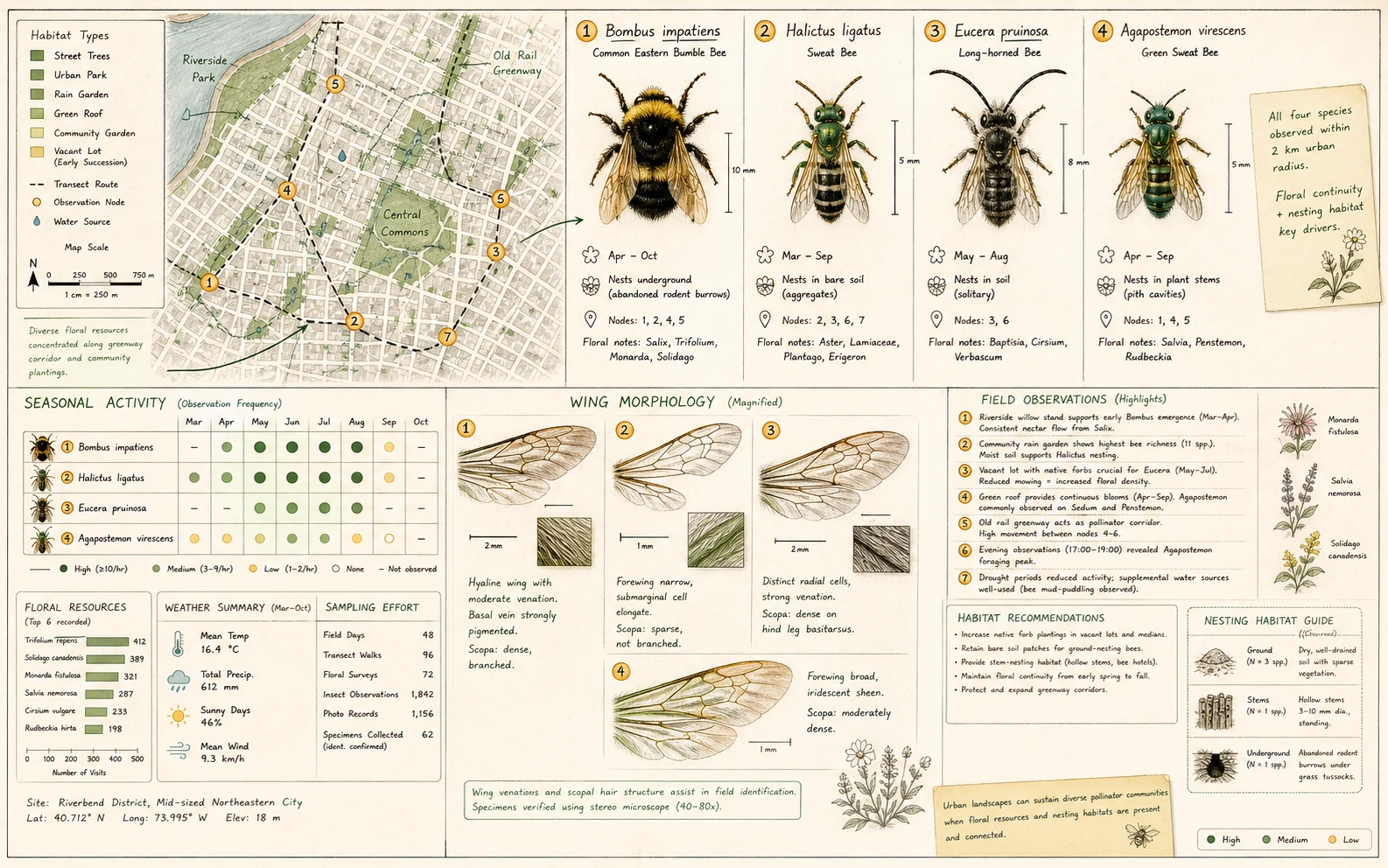
Qwen Image 3.0
Production-ready layouts
Use for dense layouts, multilingual text, realistic detail, and image edits.
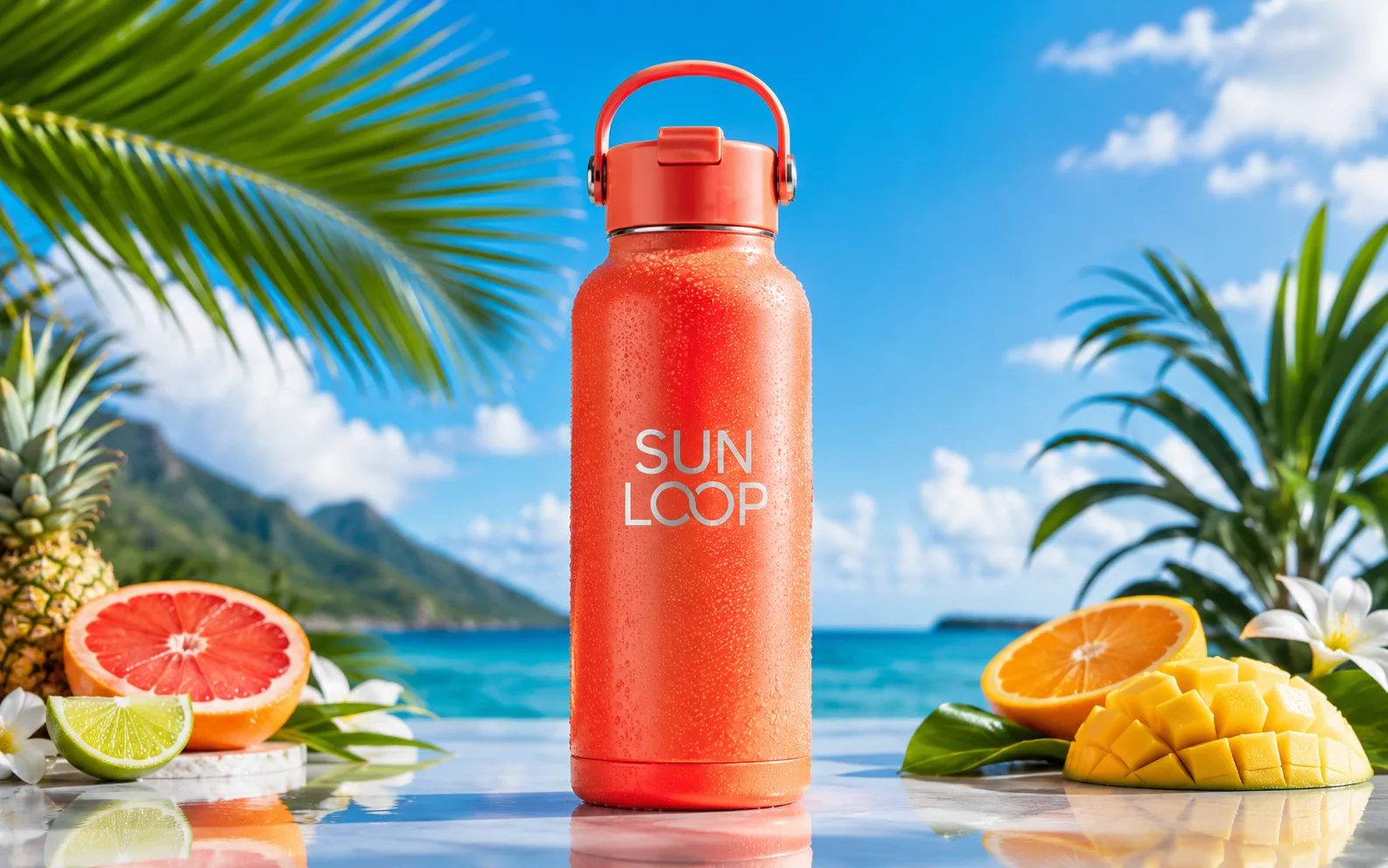
Nano Banana Pro
More control
Use for detailed prompts and readable text.
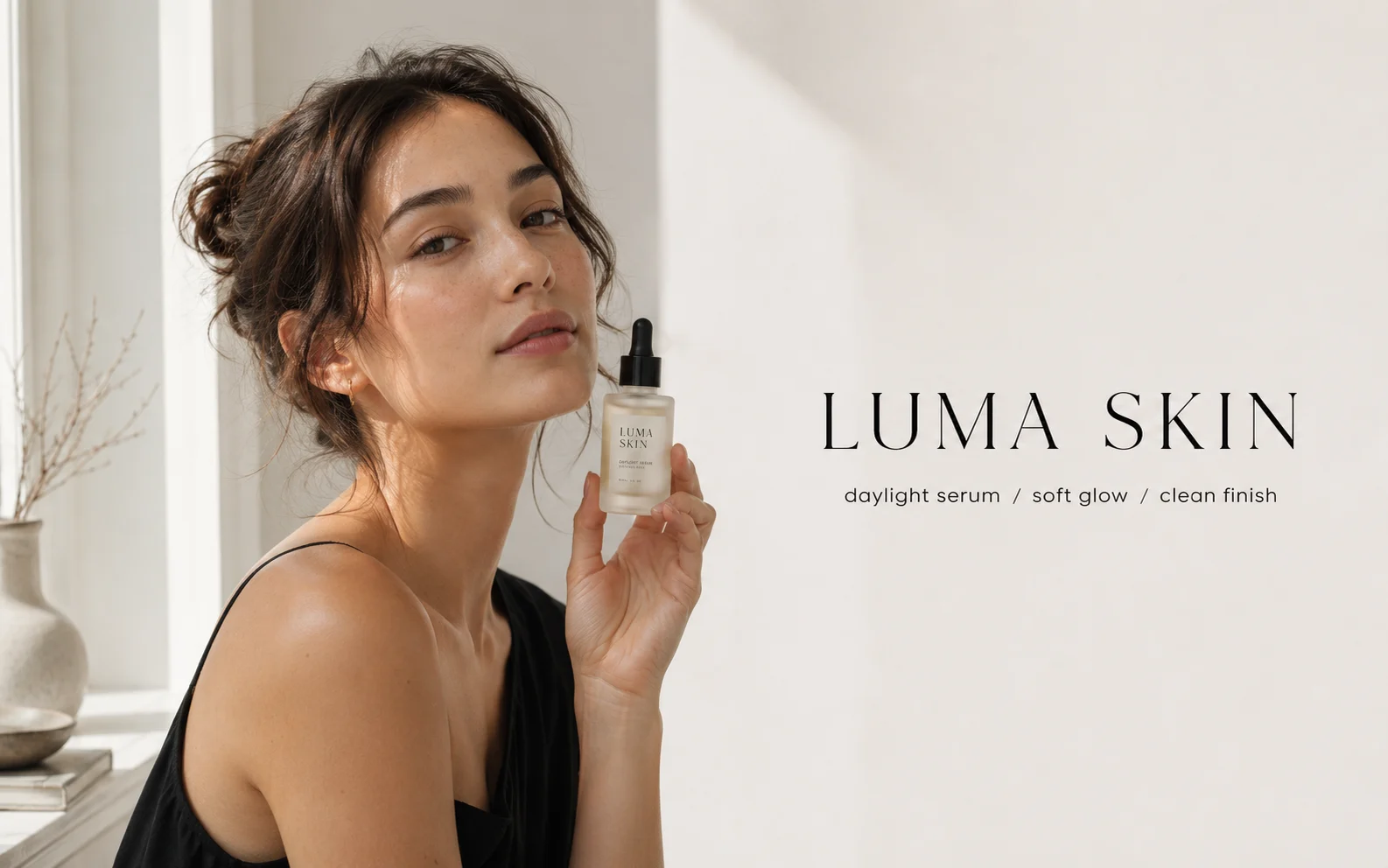
GPT Image 2
Polished visuals
Use for ads, product shots, and clean edits.

Nano Banana 2
Balanced image creation
Use for higher-resolution images, multiple references, and longer edit chains.
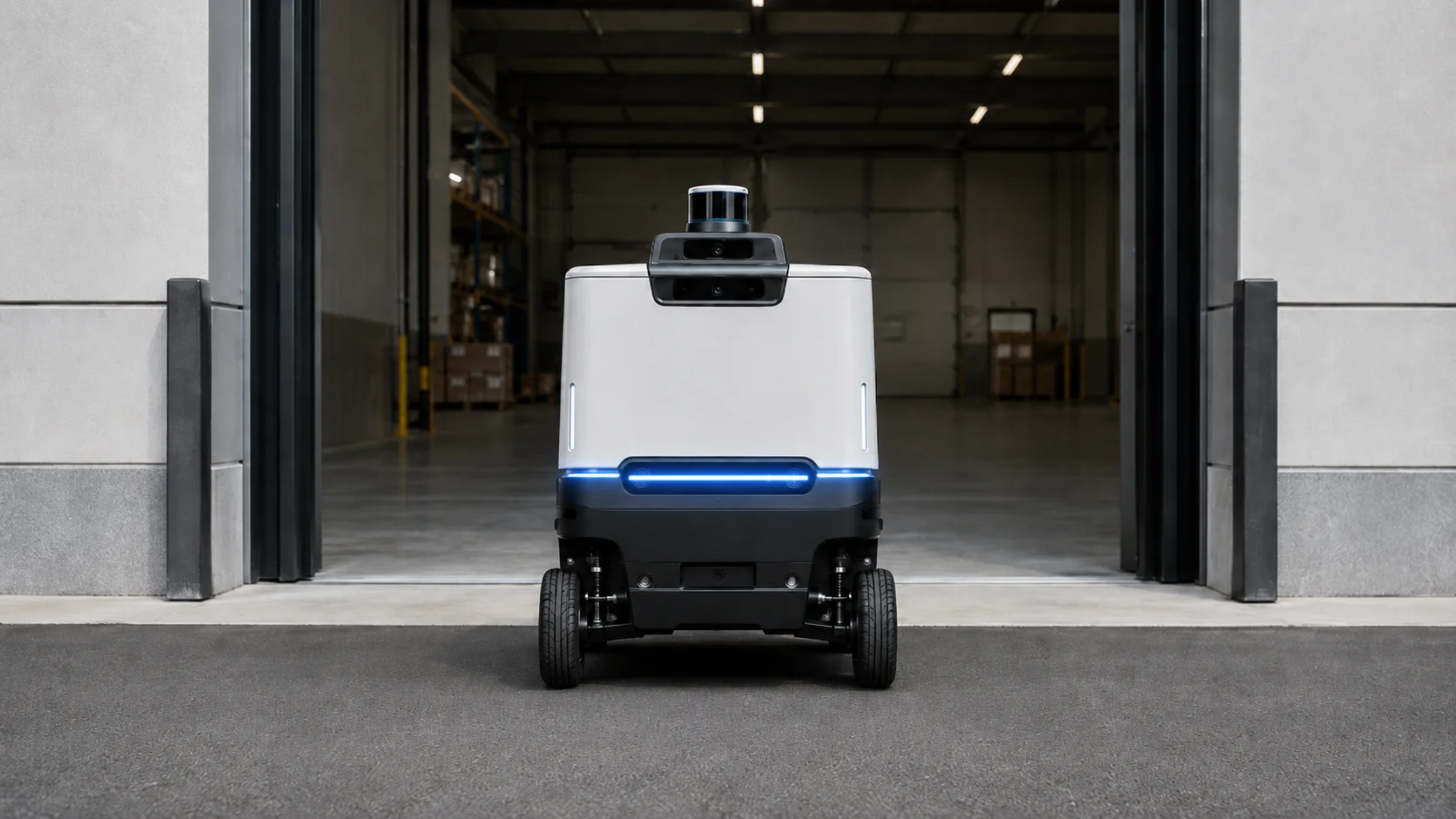
Wan Image
Video-ready frames
Use when the image may move next.
GPT Image
Quick OpenAI drafts
Use for quick concepts and simple edits.
AI models
Compare models
Choose a better fit before you generate.
AI image tools
Create or edit images
Make, clean up, or upscale stills.
AI video tools
Turn images into motion
Animate a still or create a clip.
Qwen Image 3.0
Production-ready layouts
Use for dense layouts, multilingual text, realistic detail, and image edits.