
Hide Face in Photo Online
Upload one photo, choose blur, pixelate, or emoji cover, and keep the rest of the image ready to share.
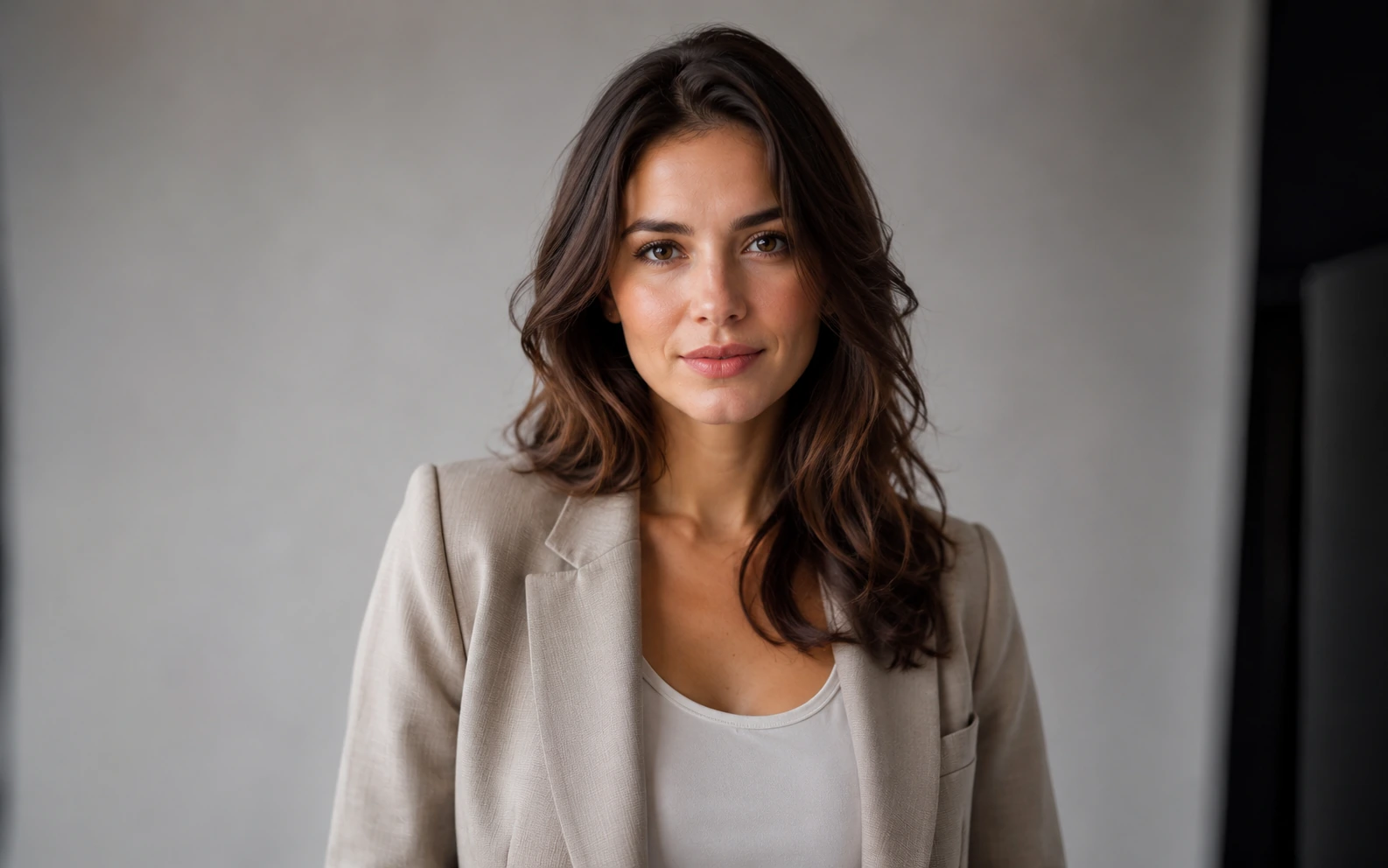
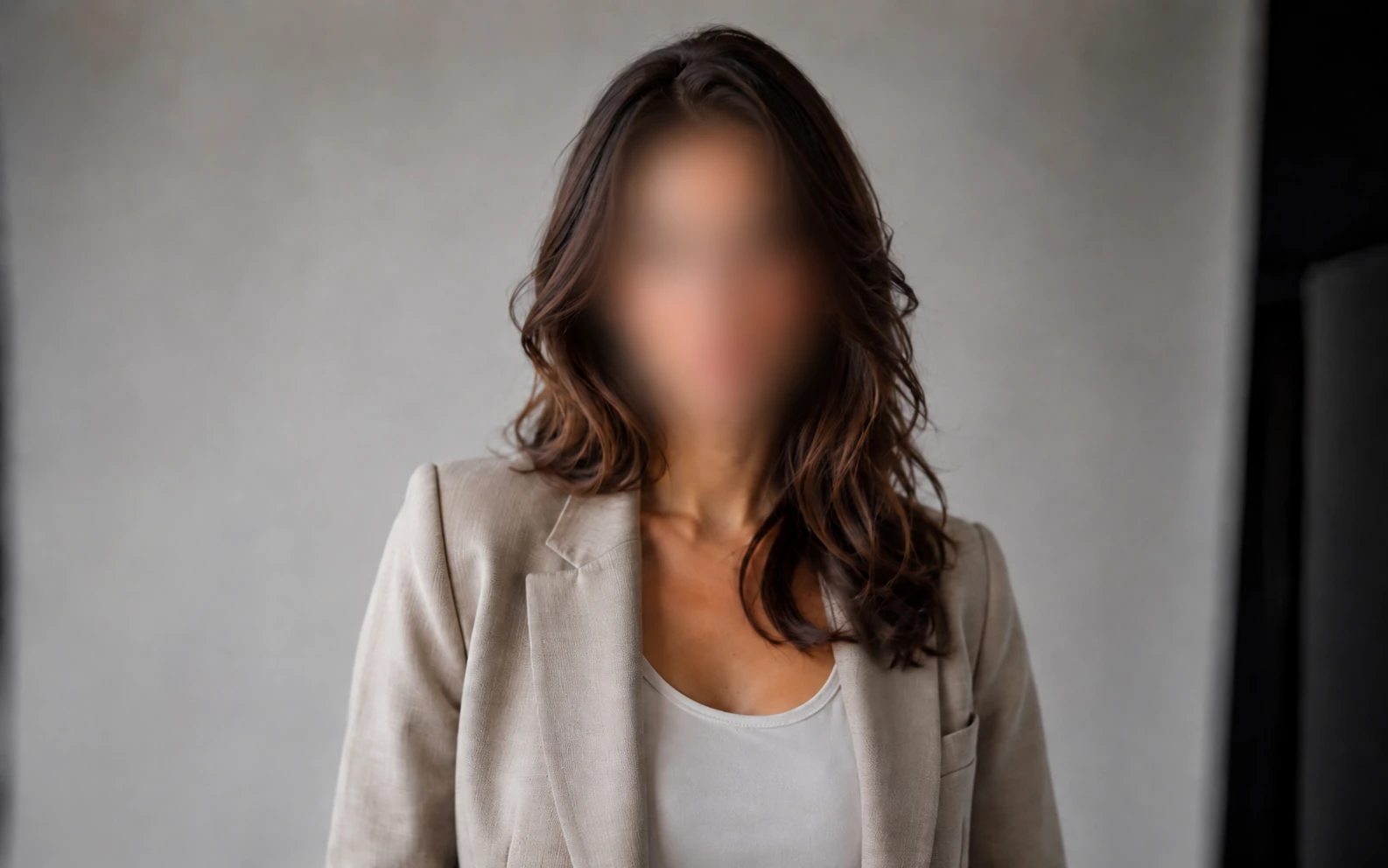
Hide faces in four quick steps
Upload a photo, choose the cover style, then review the result before you post, send, or save it.
- 01
Upload the photo
Add a PNG, JPG, WEBP, or GIF with the faces you want to cover.
- 02
Pick the cover style
Choose blur, pixelate, or emoji cover. The tool applies that style across detected faces in the photo.
- 03
Review the result
Zoom in on the main subject and any small background faces before you download.
- 04
Download the new image
Save the edited photo when the faces are covered and the rest of the scene still looks right.
See how the edit holds up in different photos
These examples show how a privacy edit can keep the photo usable while making the person harder to identify.

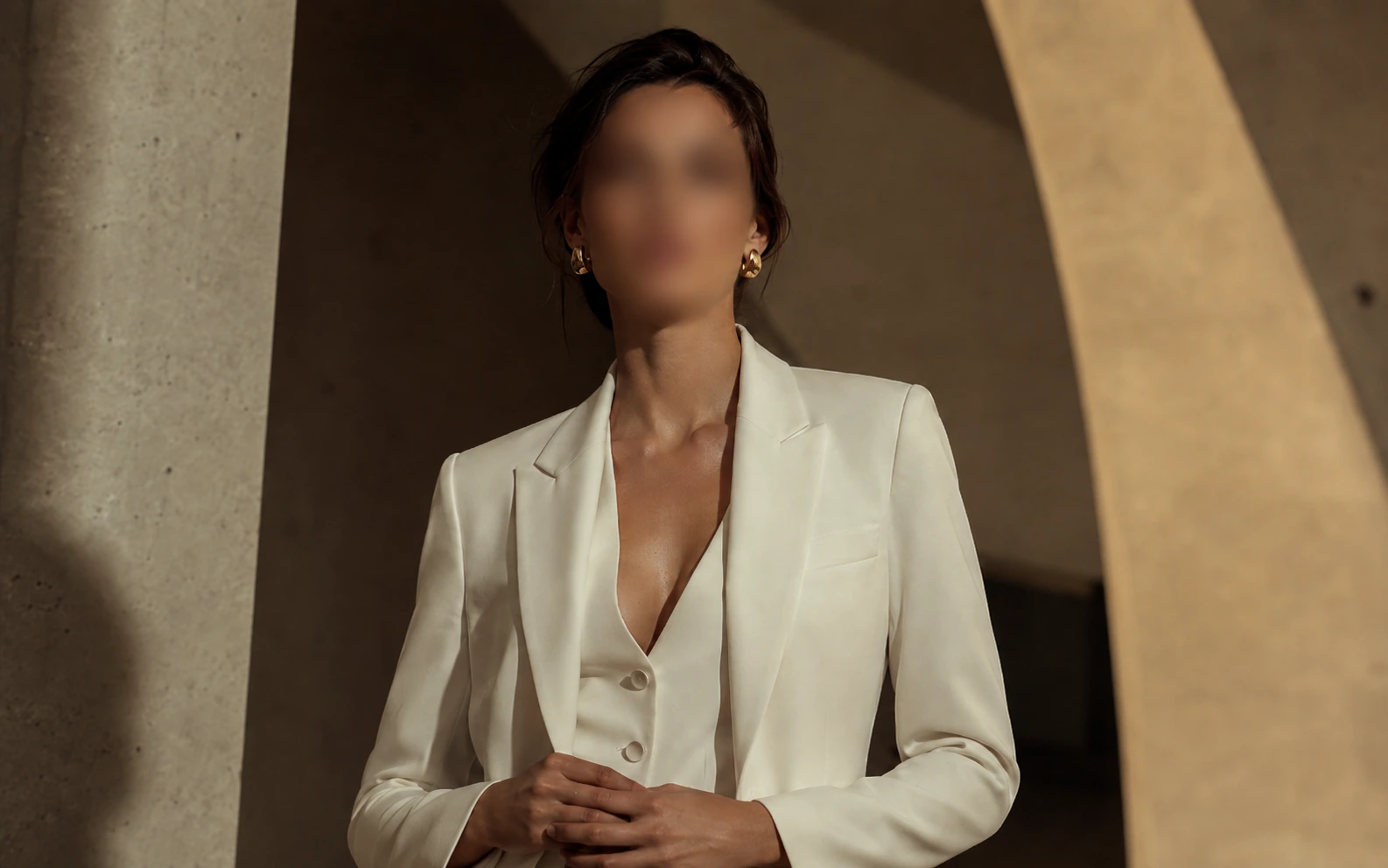
Professional portraits
A soft blur hides identity while keeping the outfit, pose, and lighting easy to read.
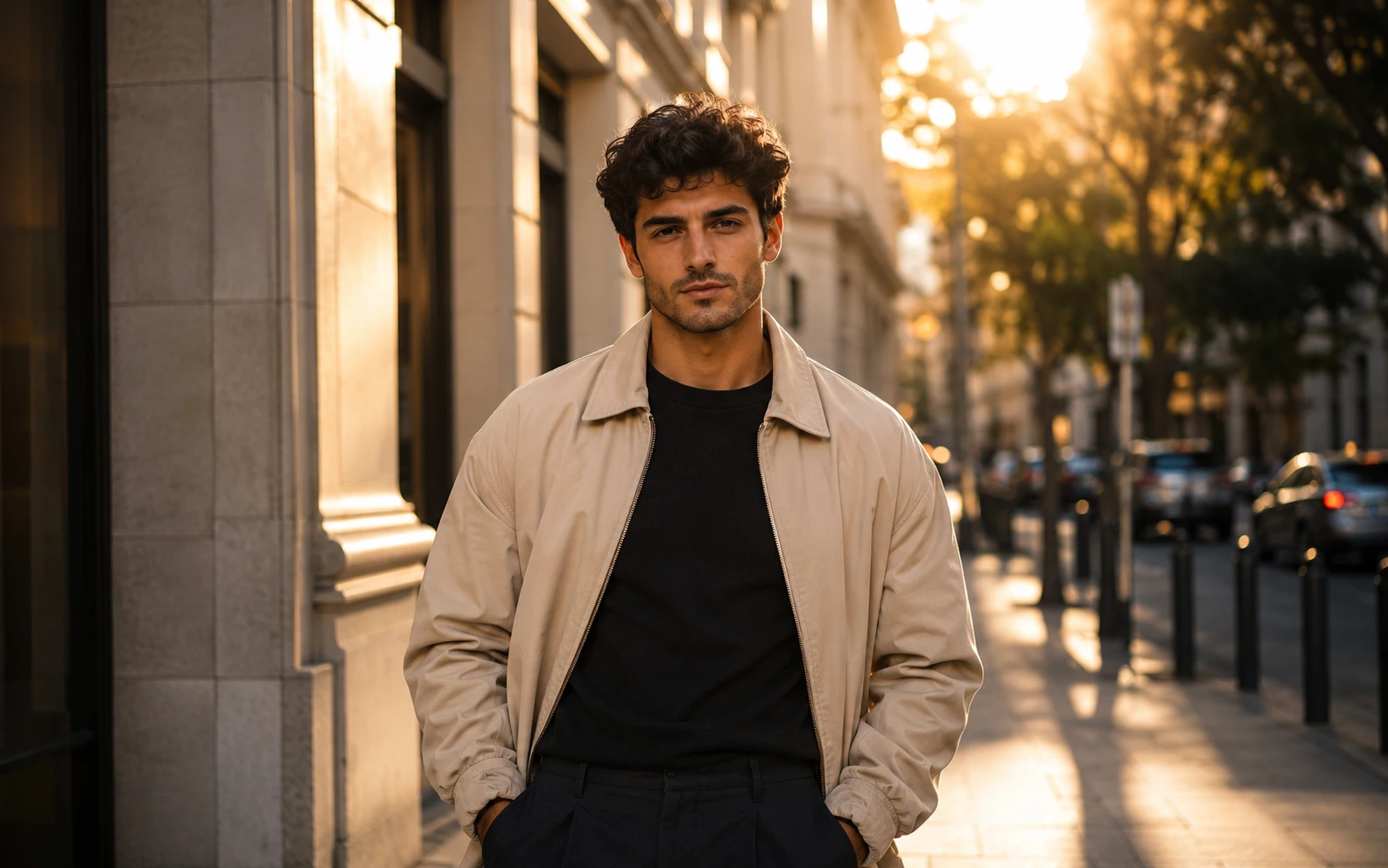
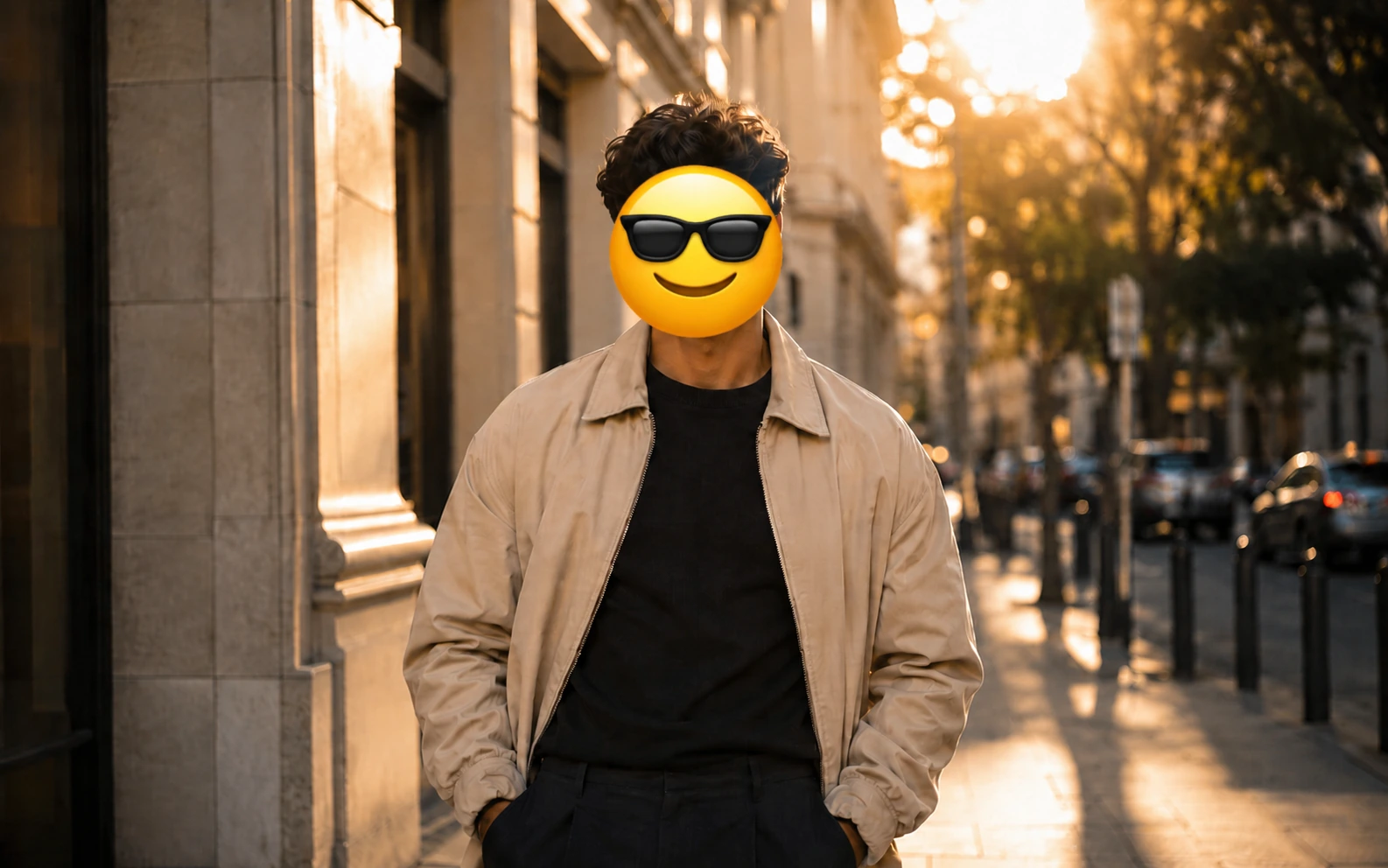
Street and lifestyle shots
An emoji cover makes the privacy edit obvious at a glance while the setting and body language stay easy to read.
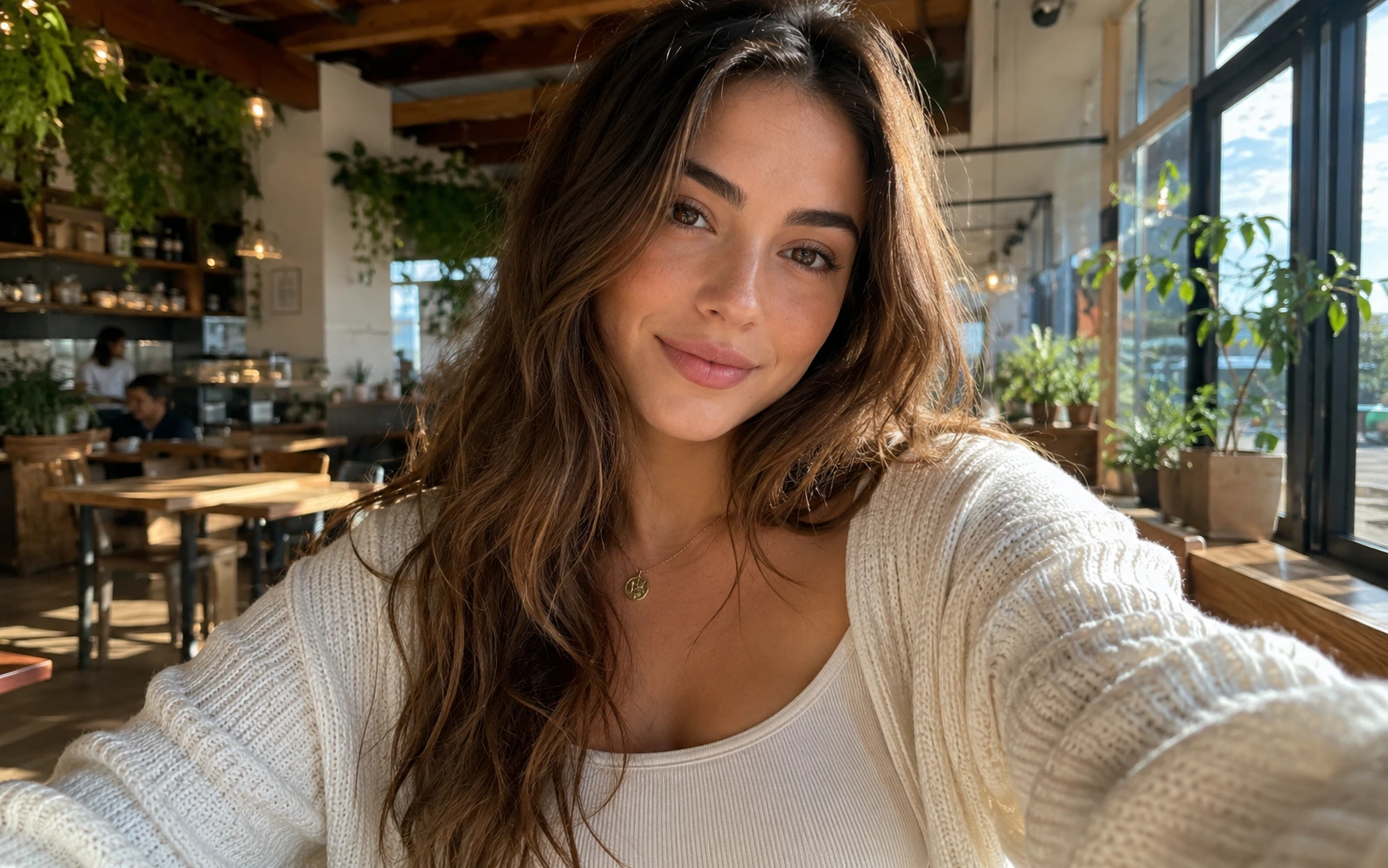
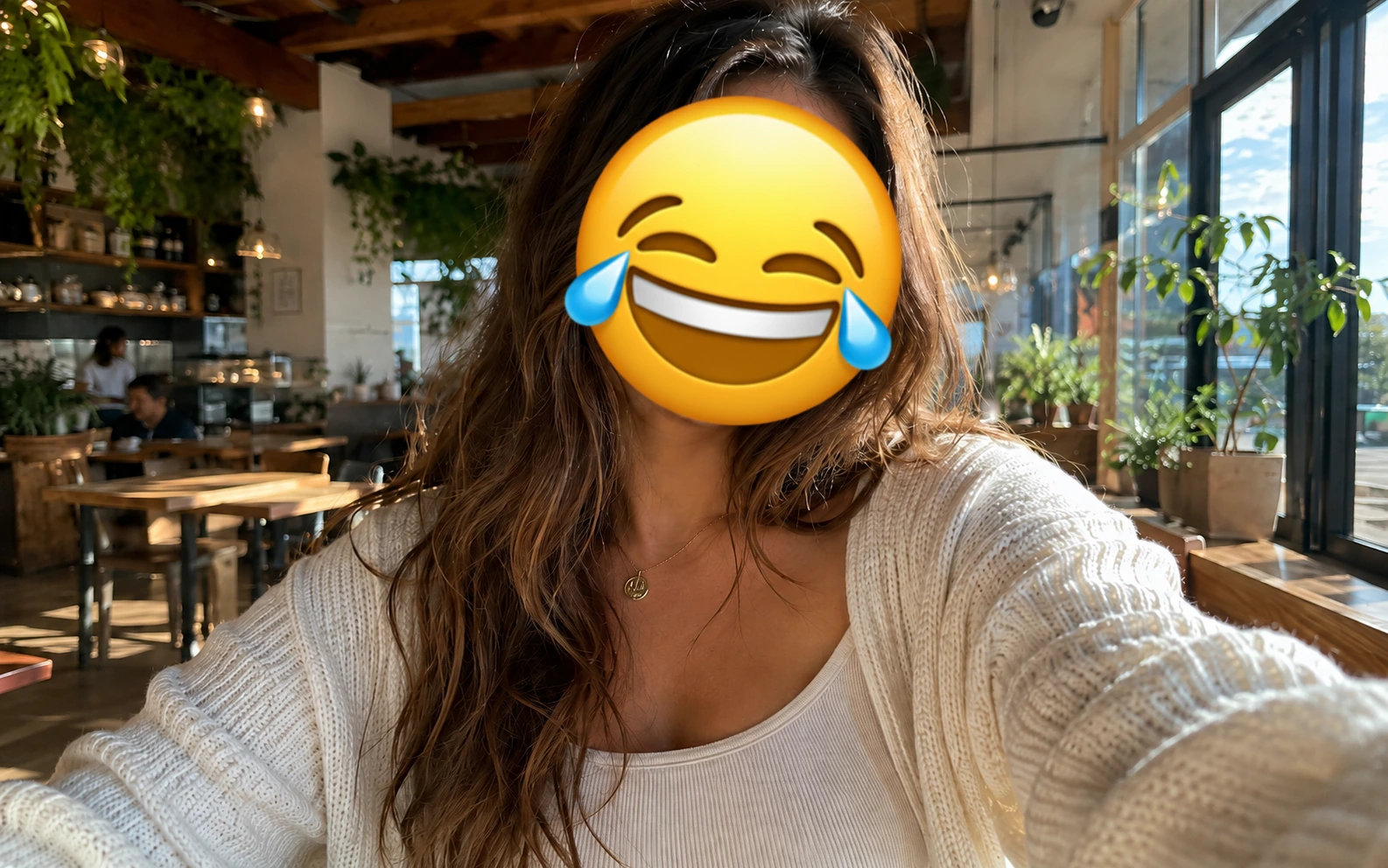
Casual selfies
A playful emoji works well for chat posts, stories, and other informal shares where the mood can stay light.
Cleaner source photos make better privacy edits
If the face is tiny, dark, noisy, or soft, improve the photo first so the cover looks more reliable.
Start with a photo where faces are easy to see
Front-facing, well-lit faces are easier to cover cleanly than tiny or heavily shadowed ones.
Enhance dark or noisy shots first
If the image needs cleanup before face hiding, use Image Enhancer first.
Fix soft focus before you cover faces
If motion blur or missed focus is the problem, try Unblur Image first.
Use AI Image Editor for extra cleanup
If you want to keep editing after the face cover is applied, move into AI Image Editor .
Ready to share it safely
Cover the faces and keep the photo usable.
Upload one image, choose the face cover style, and download a version that is ready for posts, albums, or internal sharing.
Hide Face in Photo FAQ
Answers about hiding styles, multiple faces, mobile use, and what to expect in the final image.
What does Hide Face in Photo do?
It covers detected faces in a photo with blur, pixelation, or emoji so you can share the image with less personal detail.
Which face-hiding styles can I use?
You can choose blur, pixelate, or emoji cover, depending on how subtle or obvious you want the privacy edit to look.
Can it hide more than one face?
Yes. It is designed to cover every detected face in the photo, not just one person.
Can I use it on phone?
Yes. It works in your browser on desktop or mobile, so you can upload, edit, and download from either.
Will the rest of the photo stay visible?
Yes. The goal is to cover faces while keeping clothing, background, and the rest of the scene readable.
More to try
Explore your next creative step
Try another image tool, compare image models, or animate an image concept.

AI image tools
More image tools
Create, edit, clean up, or upscale stills.

AI models
Compare image models
Pick a better model before making more versions.
AI video tools
Make it move
Animate a still or turn it into a clip.

AI Image Generator
Start from any idea
Create a fresh image from a prompt.
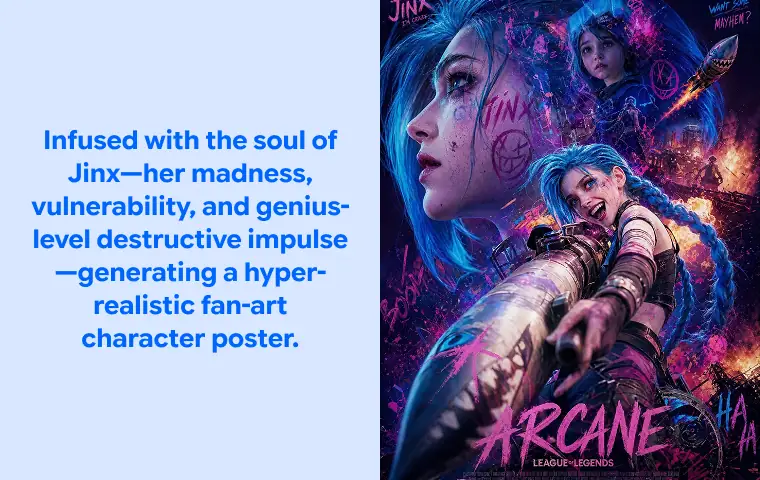
Text to Image
Prompt-first creation
Turn a written idea into an image.

Image to Image
Use a reference
Restyle or revise an existing image.
Image to Prompt
Describe a reference
Turn visible image details into a reusable AI prompt.

AI Logo Generator
Brand marks
Create logo ideas from a short brief.
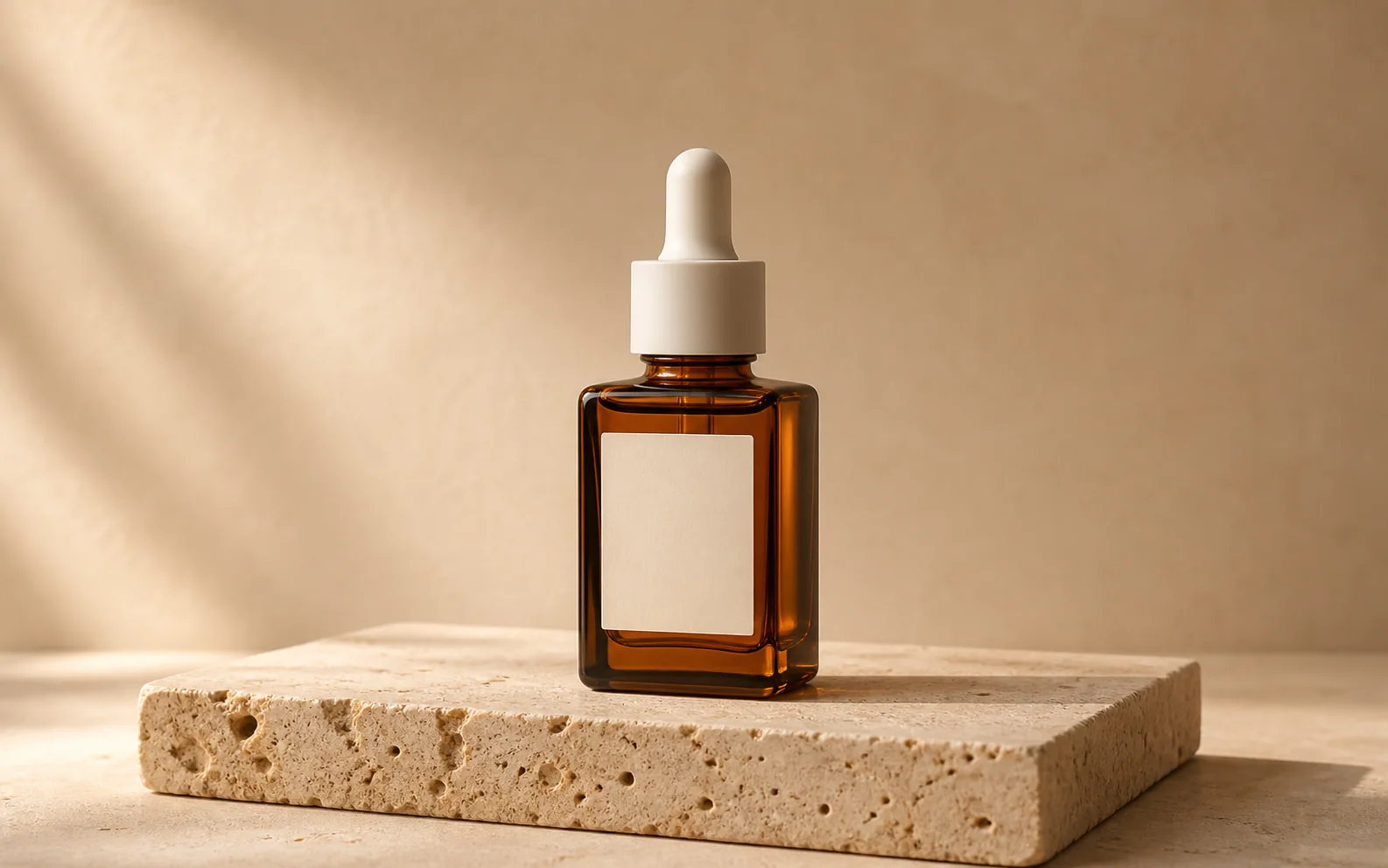
Product Picture Generator
Product visuals
Create polished product photos and campaign scenes.