
Seedance 2 comes from ByteDance Seed
Seedance 2.0 is presented by ByteDance Seed as part of the Seedance video generation model line.
Use Seedance 2 on Ezier for prompt, first-frame, reference, and audio-aware video drafts. Choose Pro or Fast, attach supported inputs, check credits, then generate a clip you can judge quickly.
Use Seedance 2 when the clip starts from more than a text prompt: a first frame, a reference look, a source input, or an audio cue that should shape the motion.
Create a 6-second cinematic fantasy transformation video. Start on a quiet subway platform at night with a woman in a silver raincoat, then let the floor reflections ripple into an underwater crystal tunnel. Sync each wave of transformation to a distant bass beat, keep the face consistent, and end on one clean final frame.
Open Select Model and choose the Seedance option that fits the job. Use Seedance 2 Pro when references, audio, or scene detail need more direction; use Fast when you mainly need quick comparisons.
Start the prompt with the input type: text-to-video draft, first-frame animation, reference-led scene, or audio-aware clip. Then add the subject, action, timing, camera movement, and ending frame.
Use the upload control when the selected Seedance option accepts source images, reference material, or audio. If no upload control appears, describe the look, motion, and sound cue directly in the prompt.
The Generate button shows the credit estimate before submission. After generation, inspect subject stability, scene continuity, camera movement, audio fit, and whether the ending frame supports the next edit.
A stronger Seedance prompt tells the model where the input comes from, what should move, what should stay recognizable, and how sound or timing should guide the scene.
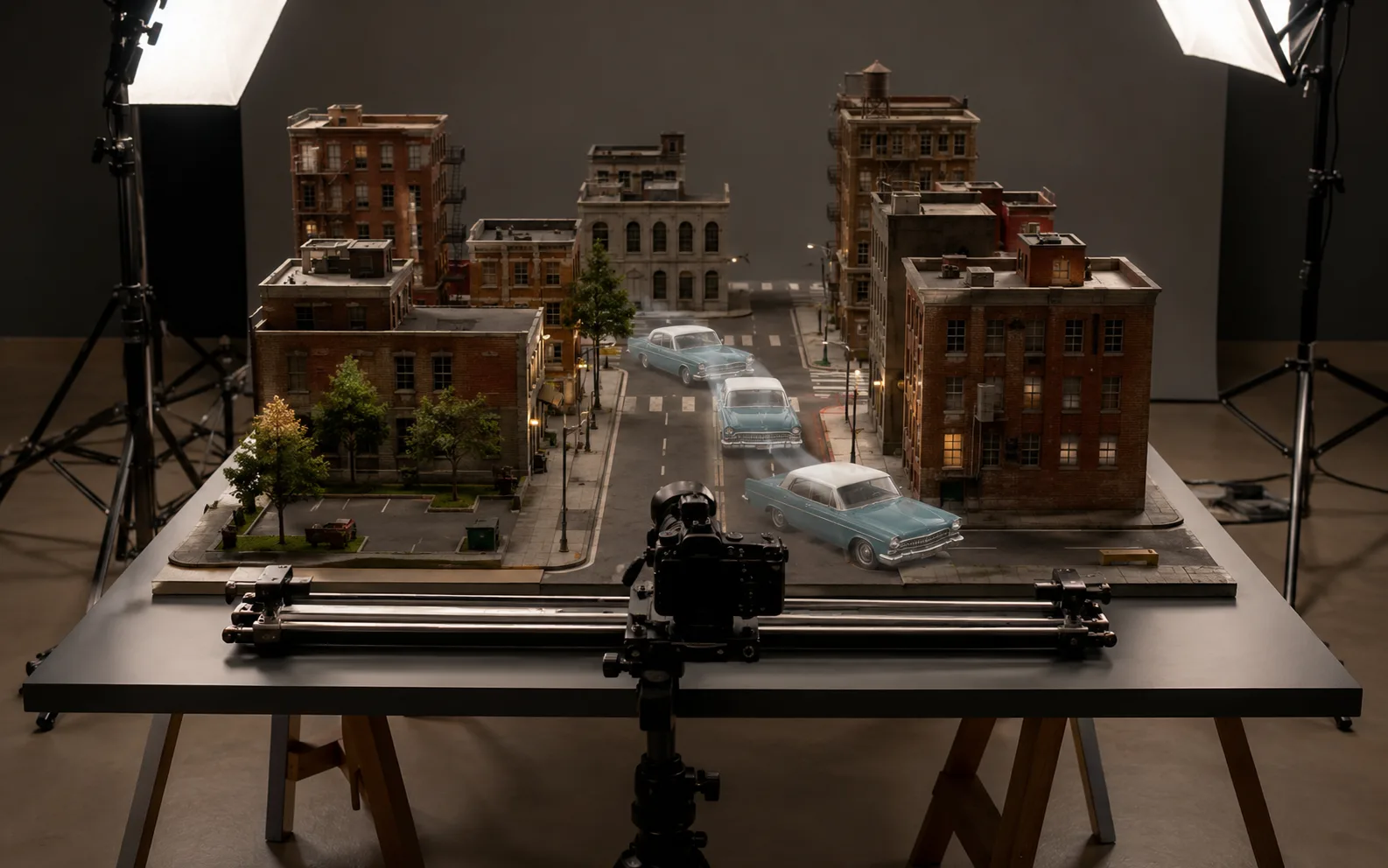
For early passes, keep the brief compact: subject, action, camera move, duration, and the reason you are testing the scene. A clear draft is easier to compare than a crowded prompt.
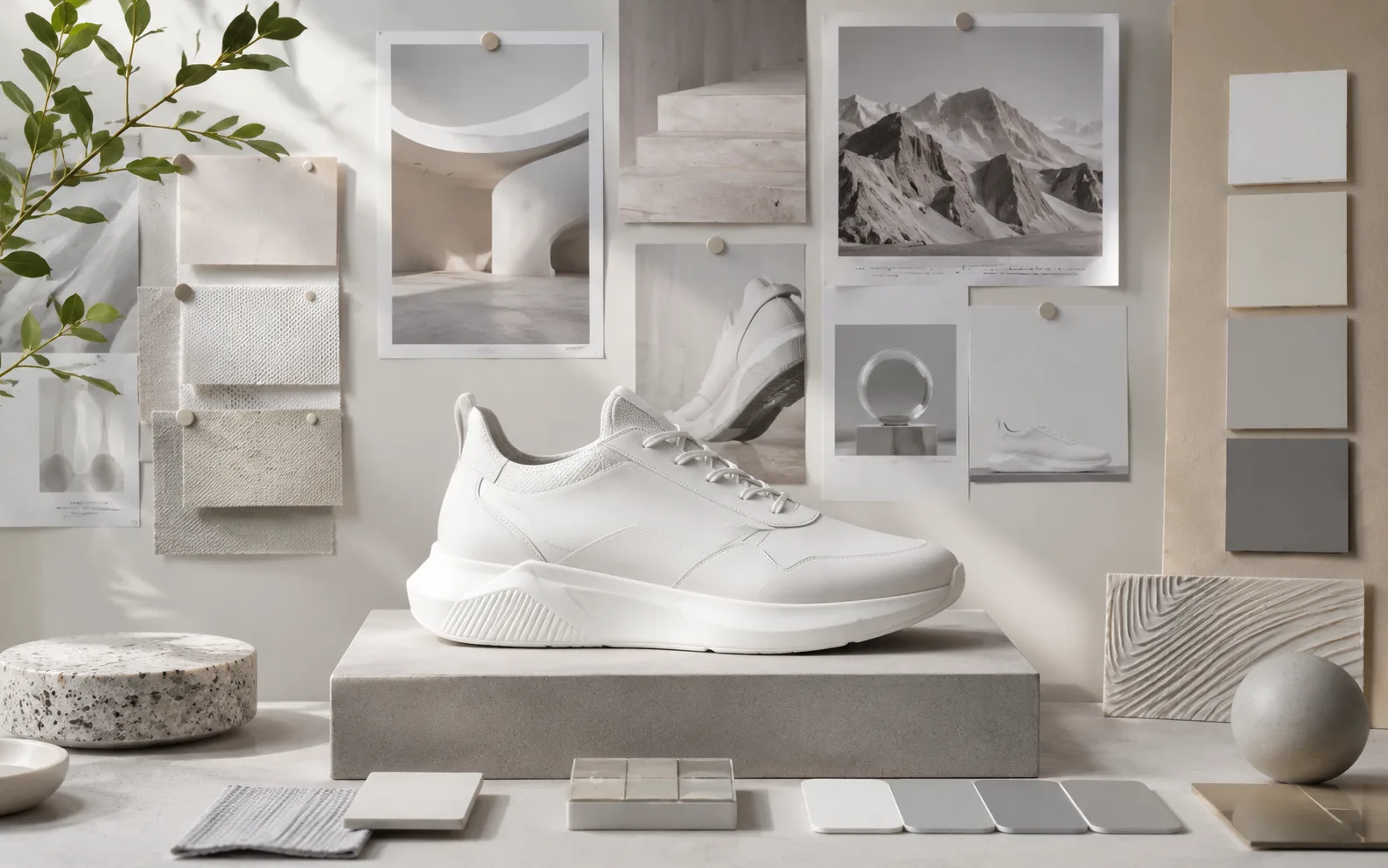
When uploads are available, use references to protect product shape, lighting, character direction, or scene context. Then spend the prompt on what should move and what should stay stable.

Audio-aware generation works better when sound has a visible source: footsteps, room tone, a music beat, machine hum, or dialogue timing. Tie the sound to action in the frame so the clip feels intentional.
Before generating, confirm the Seedance model, upload availability, and the credit estimate. Those choices decide whether the next pass should be a quick comparison or a more directed clip.
A short video draft should not carry every idea. Use one primary movement goal: reveal, follow, orbit, drift, transform, or one timed action.
Attach references when they protect the subject, style, or source frame. Skip unrelated inspiration if the scene only needs one stable visual direction.
Use audio notes like soft footsteps, hinge clicks, room tone, crowd ambience, or a steady beat. Avoid asking for generic cinematic audio without a visible source.
Check subject stability, camera movement, timing, and audio fit before spending credits on another pass. Refine the strongest direction, not every draft.
ByteDance Seed describes Seedance 2.0 around multimodal audio-video generation, reference control, motion stability, and camera movement. In Ezier, those facts are useful when they help you choose inputs and write a better brief.
Seedance 2.0 is presented by ByteDance Seed as part of the Seedance video generation model line.
ByteDance Seed describes Seedance 2.0 as a unified multimodal audio-video generation model that supports text, image, audio, and video inputs.
In Ezier, focus on Select Model, the prompt box, upload availability, audio-aware direction, the credit estimate, and Generate.
Review subject stability, reference consistency, camera movement, audio fit, and the ending frame before choosing what to improve next.
Seedance 2 in Ezier
Write one scene, attach references when the selected Seedance option supports them, choose the right speed, check credits, then review motion, audio fit, and the ending frame before refining.
Practical answers for choosing Pro or Fast, writing Seedance prompts, using references, planning audio, checking credits, and reviewing the generated clip.
Write the video brief in the prompt box, choose a Seedance model from Select Model, attach supported references or audio when the selected option supports upload, check the credit estimate on Generate, then submit the clip.
Name the input type, subject, action, camera movement, timing, sound cue, and ending frame. For example: first-frame animation, slow camera drift, stable product shape, soft hinge clicks, and one clean final frame.
Choose Seedance 2 Pro when the clip depends on richer reference direction, audio-aware planning, or a more careful pass. Choose Fast when you are comparing ideas and need quicker feedback before refining.
Seedance 2 is designed for multimodal workflows. In Ezier, use uploads when the selected model shows the upload control; if it does not, describe the visual reference, source input, or sound cue directly in the prompt.
Yes. Use Seedance 2 when a starting image, product frame, character pose, or style reference should guide the motion. Tell the model what must stay stable and what should change across the clip.
Check subject stability, reference consistency, scene continuity, camera movement, audio timing, and the final frame. If the strongest issue is clear, refine that part instead of rewriting the whole prompt.
Choose Seedance 2 when fast multimodal drafting, first-frame direction, references, or audio-aware iteration are central. Choose Veo when cinematic prompt control is the priority, and Kling when action continuity or story pacing matters more.
Keep testing
Compare a nearby model, finish the clip with tools, or rebuild the source for another render.

AI models
Compare models
Choose a better fit before you generate.

AI video tools
Turn images into motion
Animate a still or create a clip.

AI image tools
Create or edit images
Make, clean up, or upscale stills.
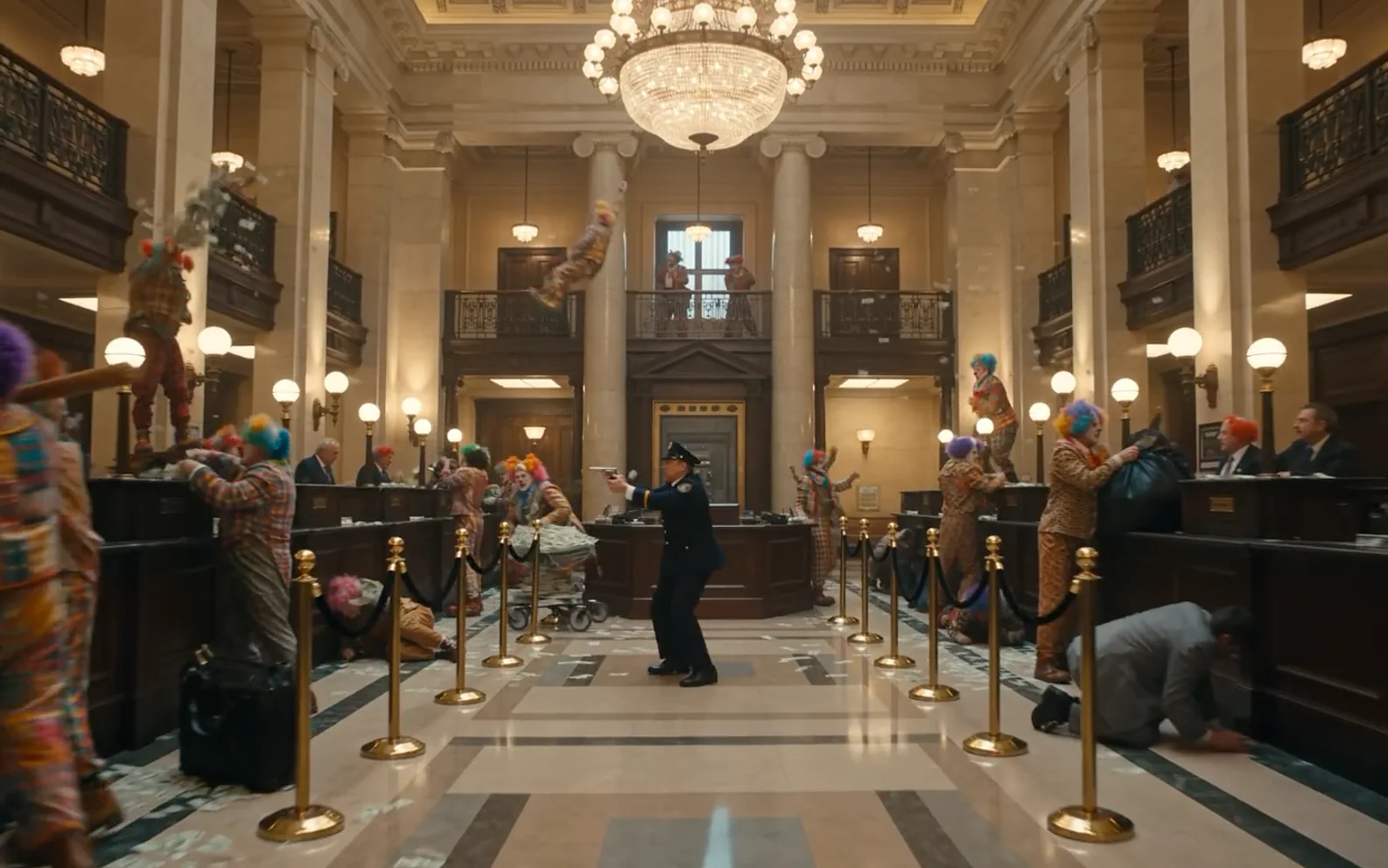
Seedance 2.5
Longer reference-led video
Use for longer scenes with richer reference direction.
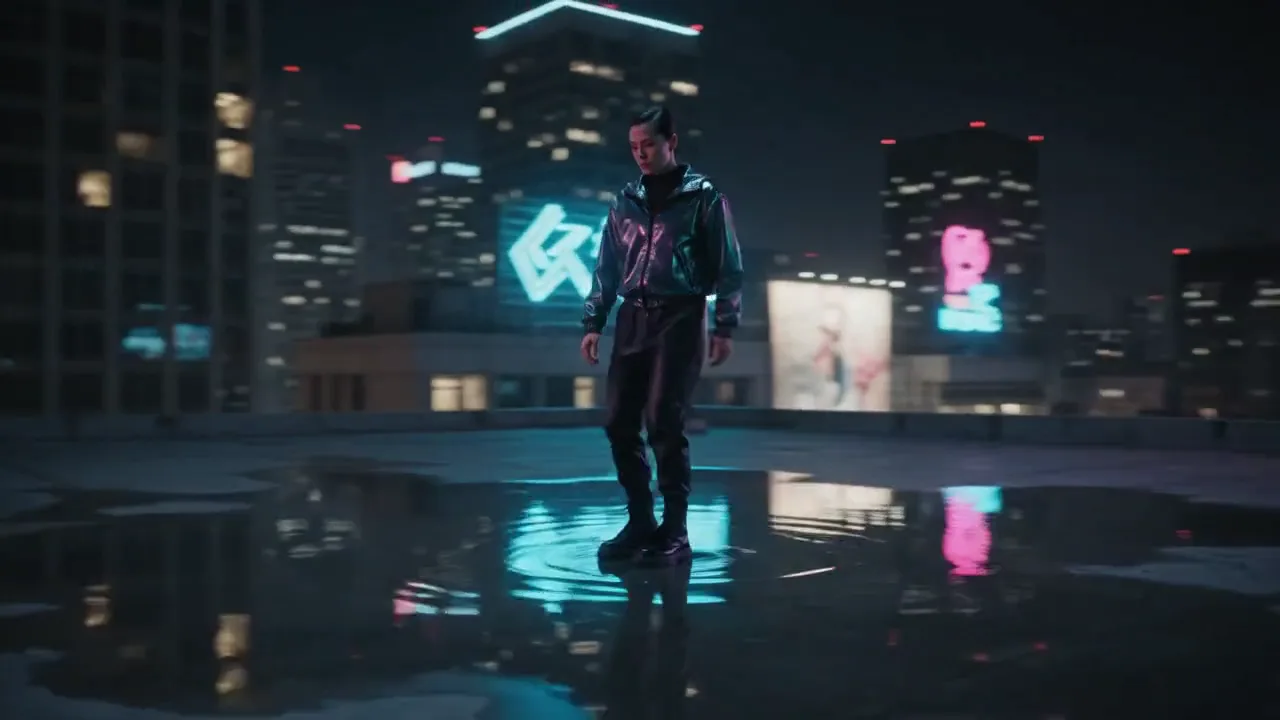
Seedance AI
Seedance family
Explore more Seedance video options.
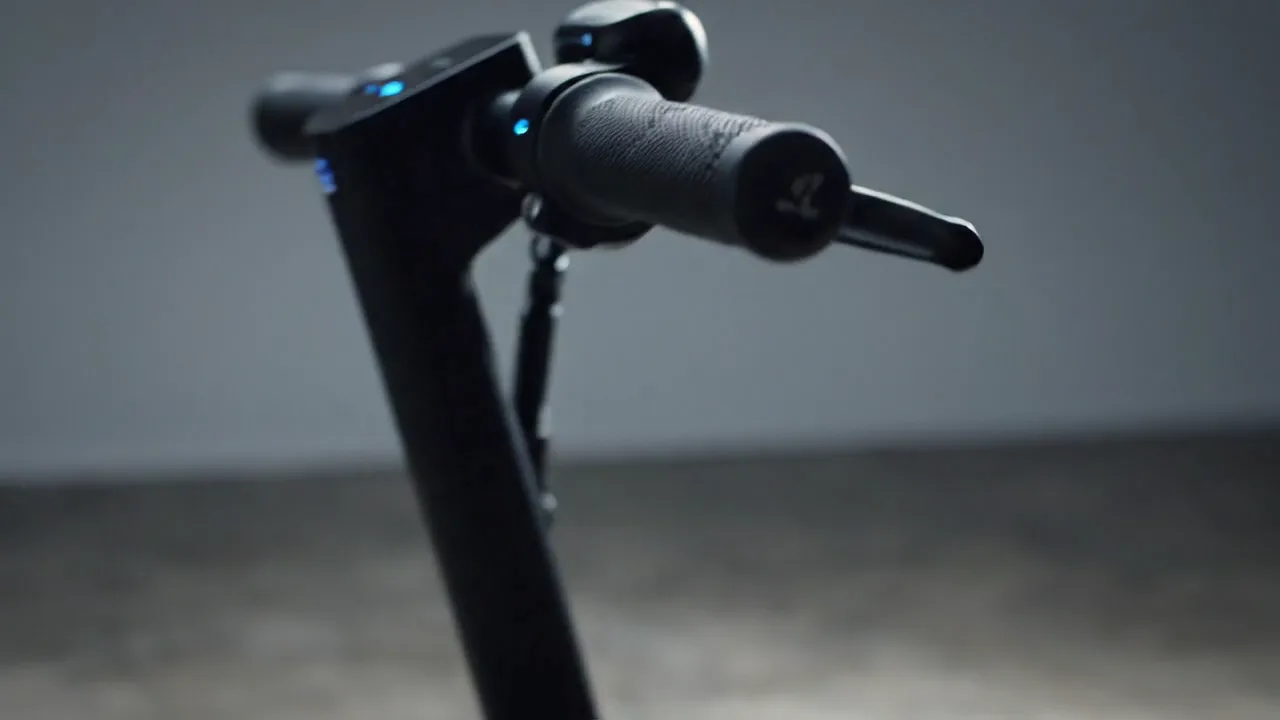
Veo 3.1
Cinematic control
Use for cinematic shots and camera moves.
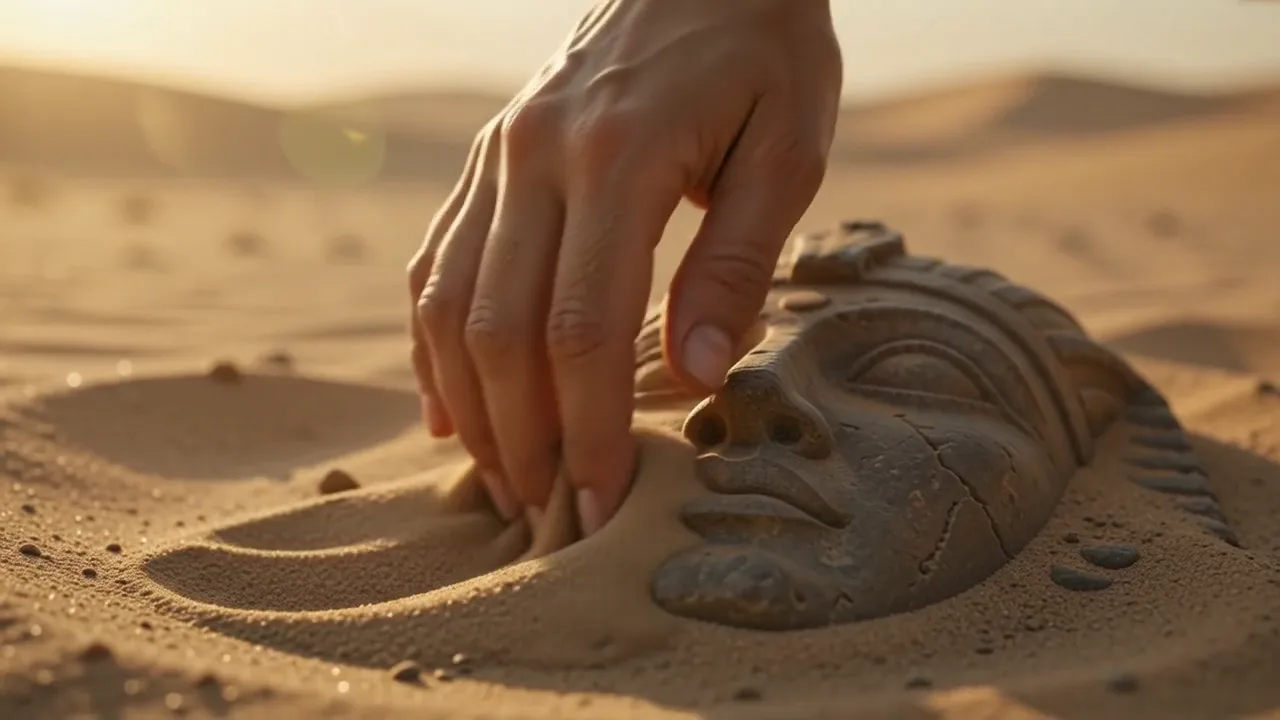
Kling 3.0
Action and motion
Use for action, motion, and story beats.

HappyHorse AI
Short video hooks
Use for short hooks and stylized clips.
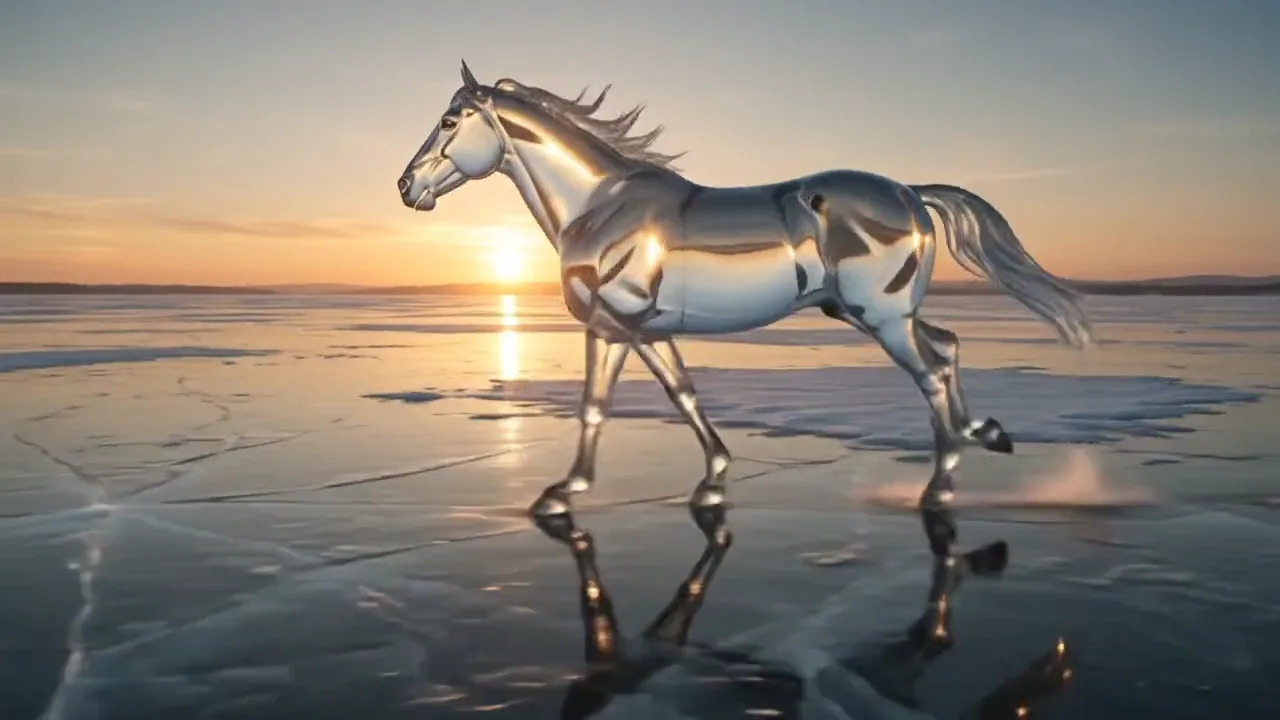
Hailuo AI
Physical motion
Use for fabric, liquid, and physical motion.
AI models
Compare models
Choose a better fit before you generate.
AI video tools
Turn images into motion
Animate a still or create a clip.
AI image tools
Create or edit images
Make, clean up, or upscale stills.
Seedance 2.5
Longer reference-led video
Use for longer scenes with richer reference direction.