
Upload Image
Buzz Cut Filter to Preview Your Short-Hair Look
Upload a clear portrait to see how a buzz cut could look around your hairline, sides, and neckline before you visit the barber.
Samples
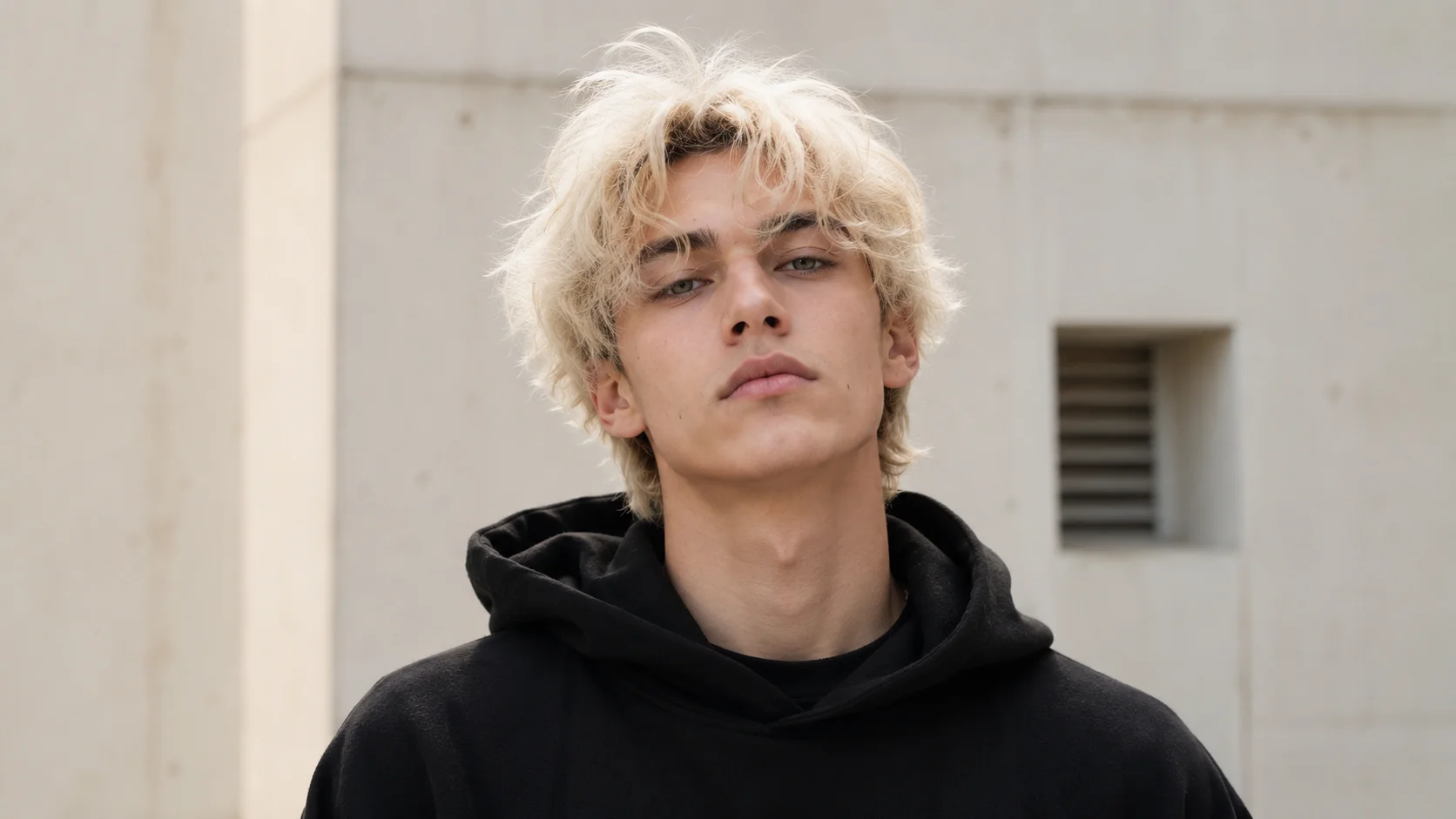
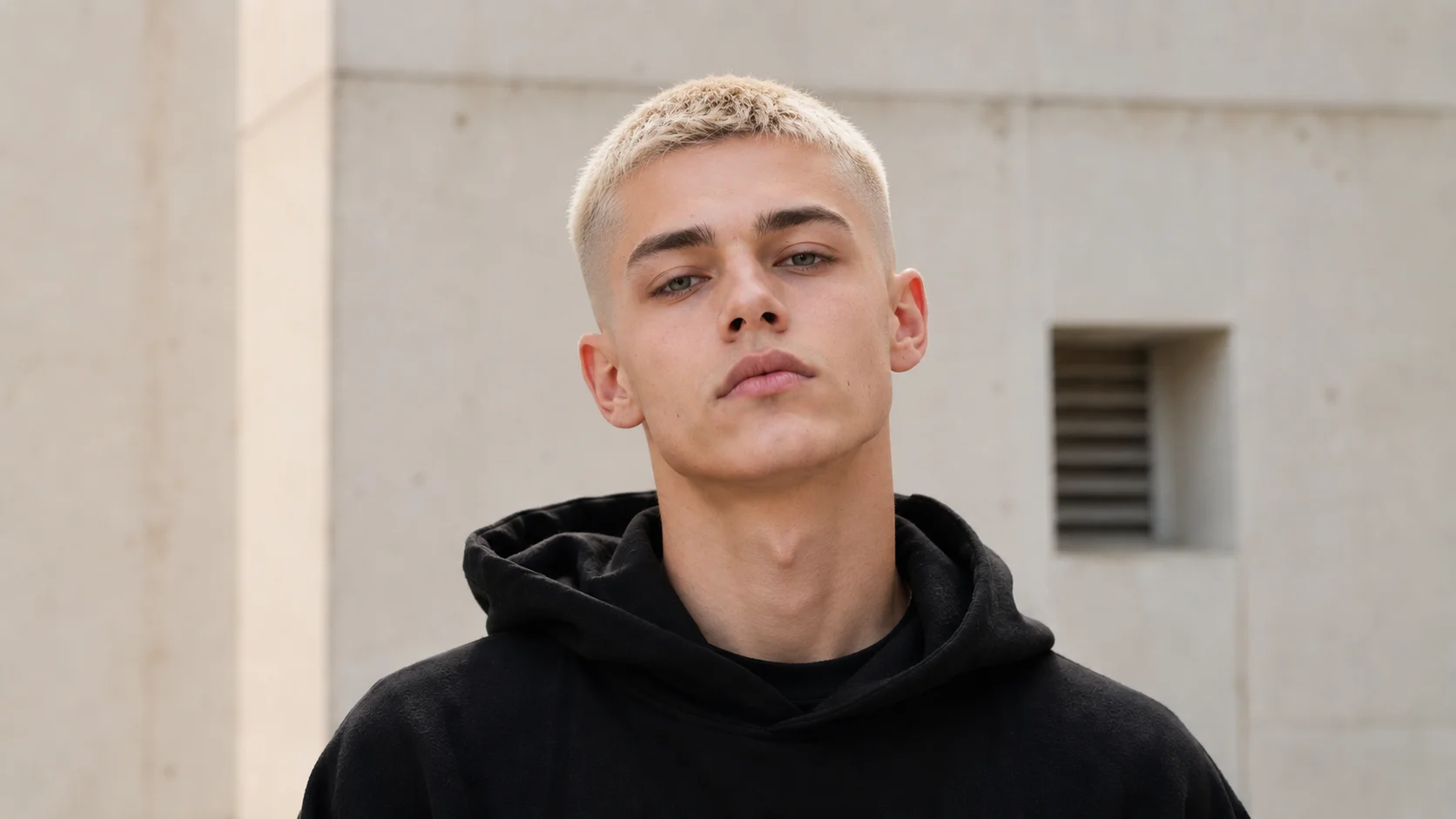
Preview the cut before you book
Use Buzz Cut Filter to test a close-cropped look from one portrait, then inspect the details that make the result feel natural.
- 01
Upload a clear portrait
Choose a front-facing selfie or portrait with the hairline, temples, and ears visible.
- 02
Generate the preview
Select Preview Buzz Cut and let Ezier create a short-hair version of the photo.
- 03
Inspect the result
Check the forehead, sides, ears, and neckline before you decide whether the look works.
- 04
Download or try again
Save the preview, or upload a different portrait if the lighting or angle makes the result hard to judge.
See the Buzz Cut Filter in action
Browse three quick transformations to see how the filter changes hair shape, hairline, and overall look.
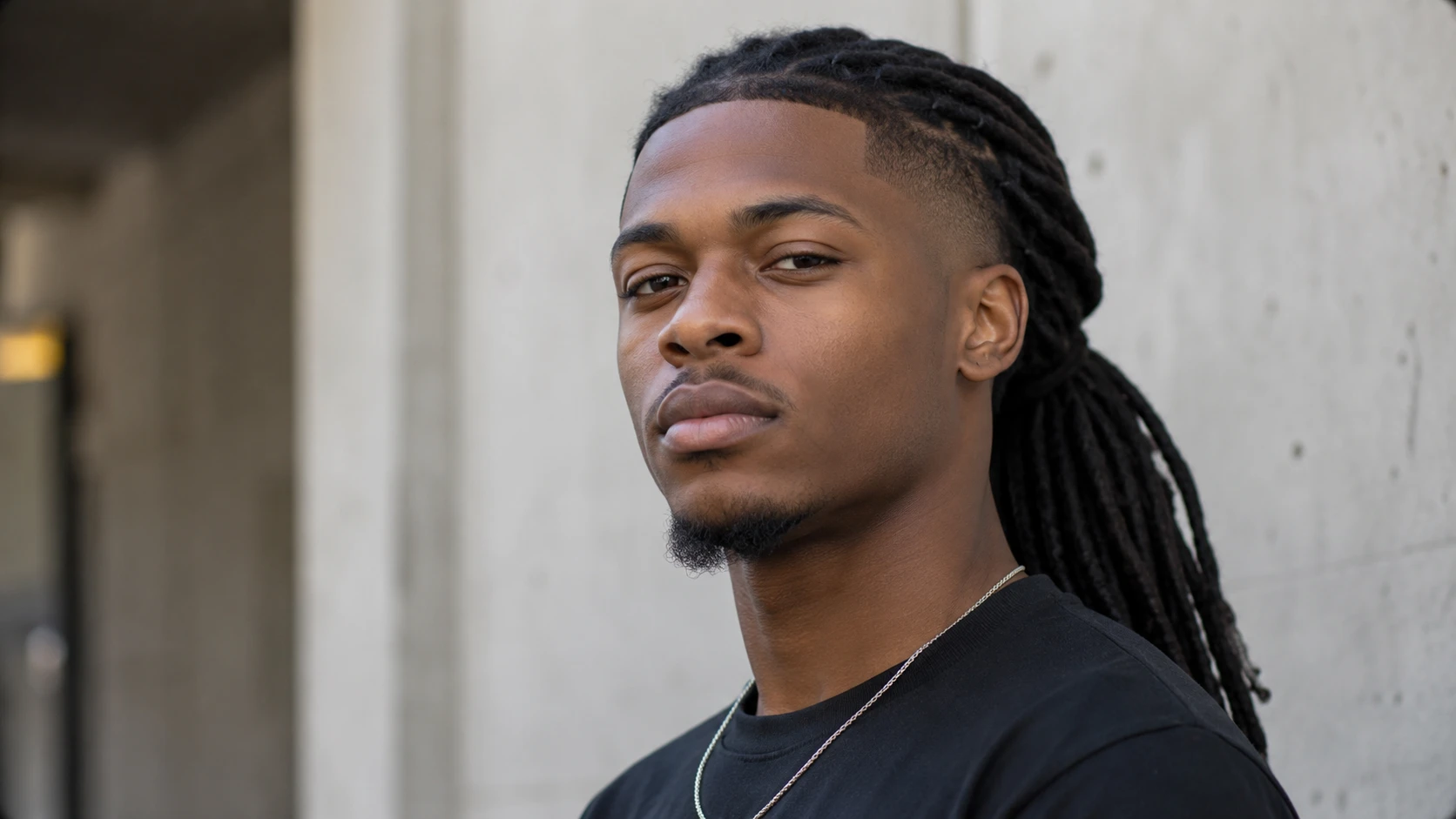
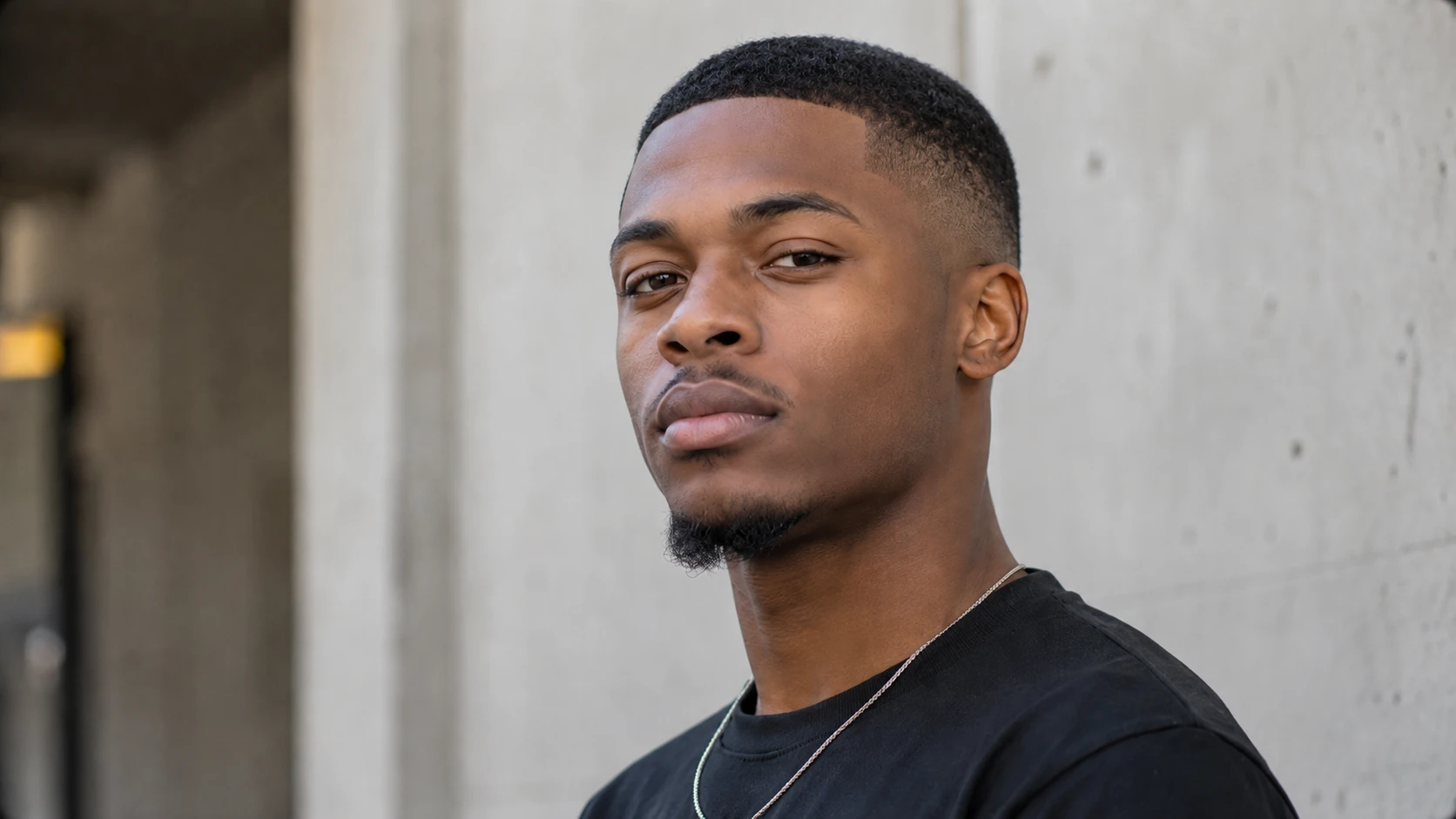
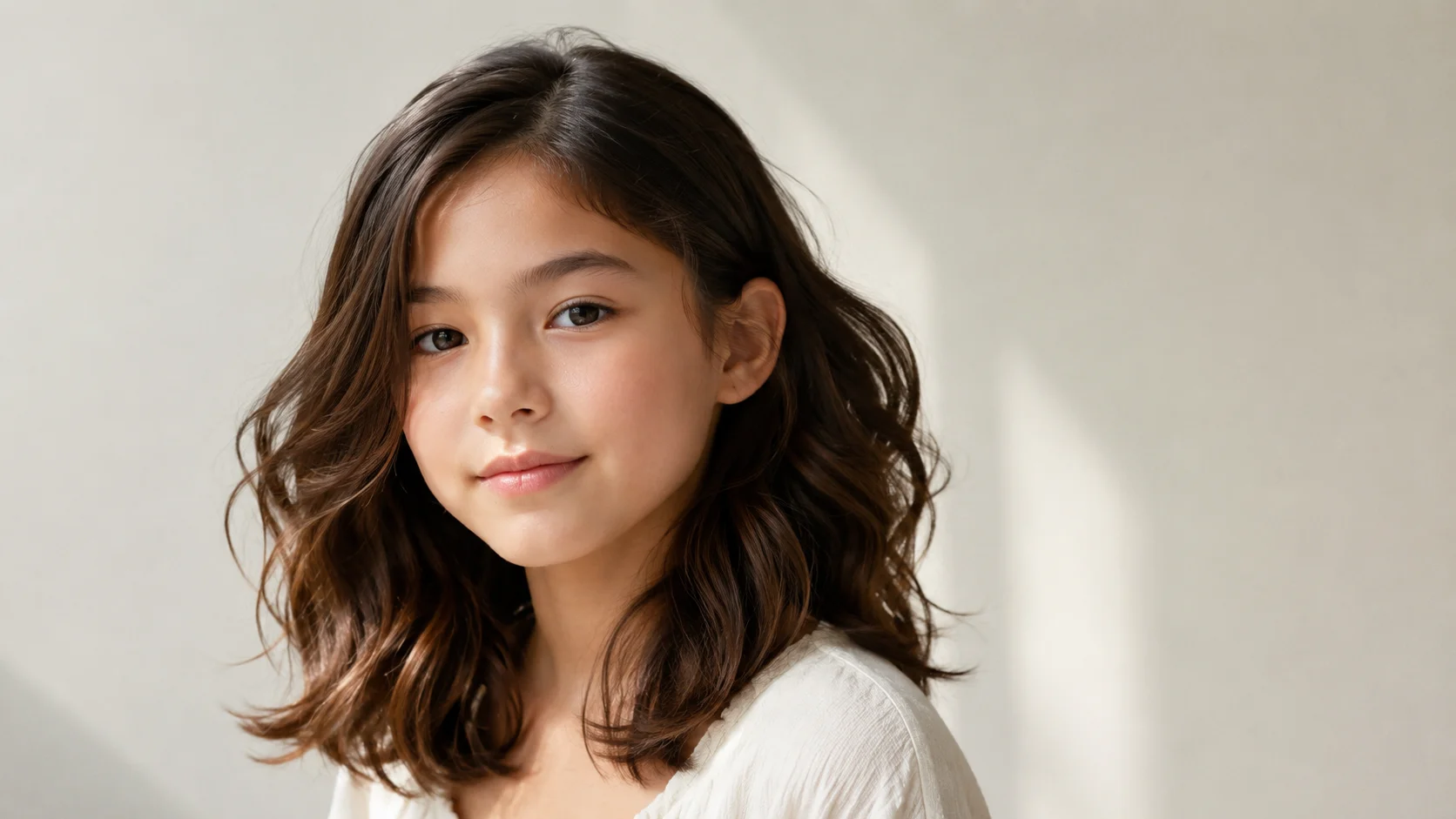
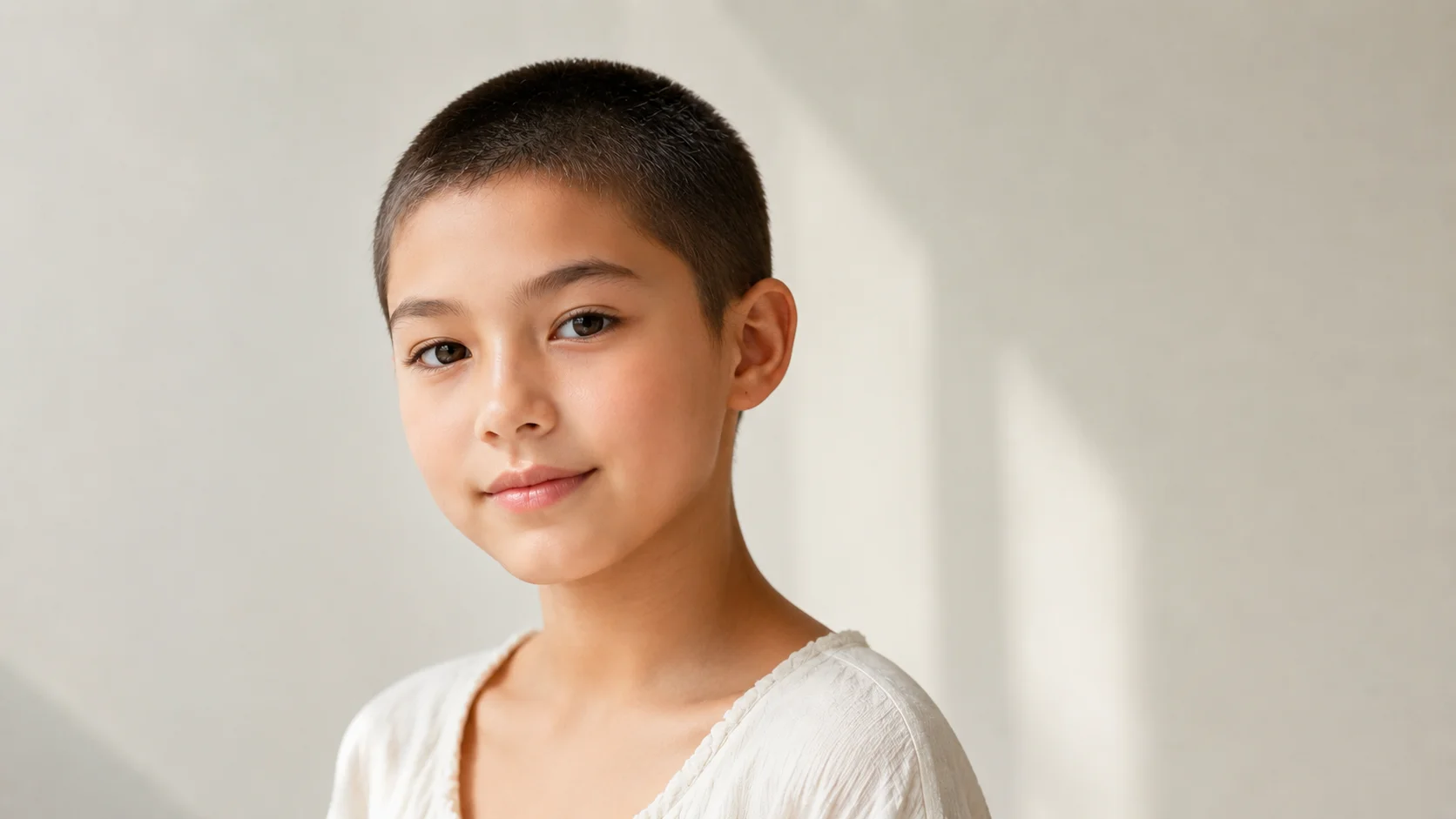
Long Waves to Close Crop
See longer waves shift into a neat short cut while the sides stay natural.
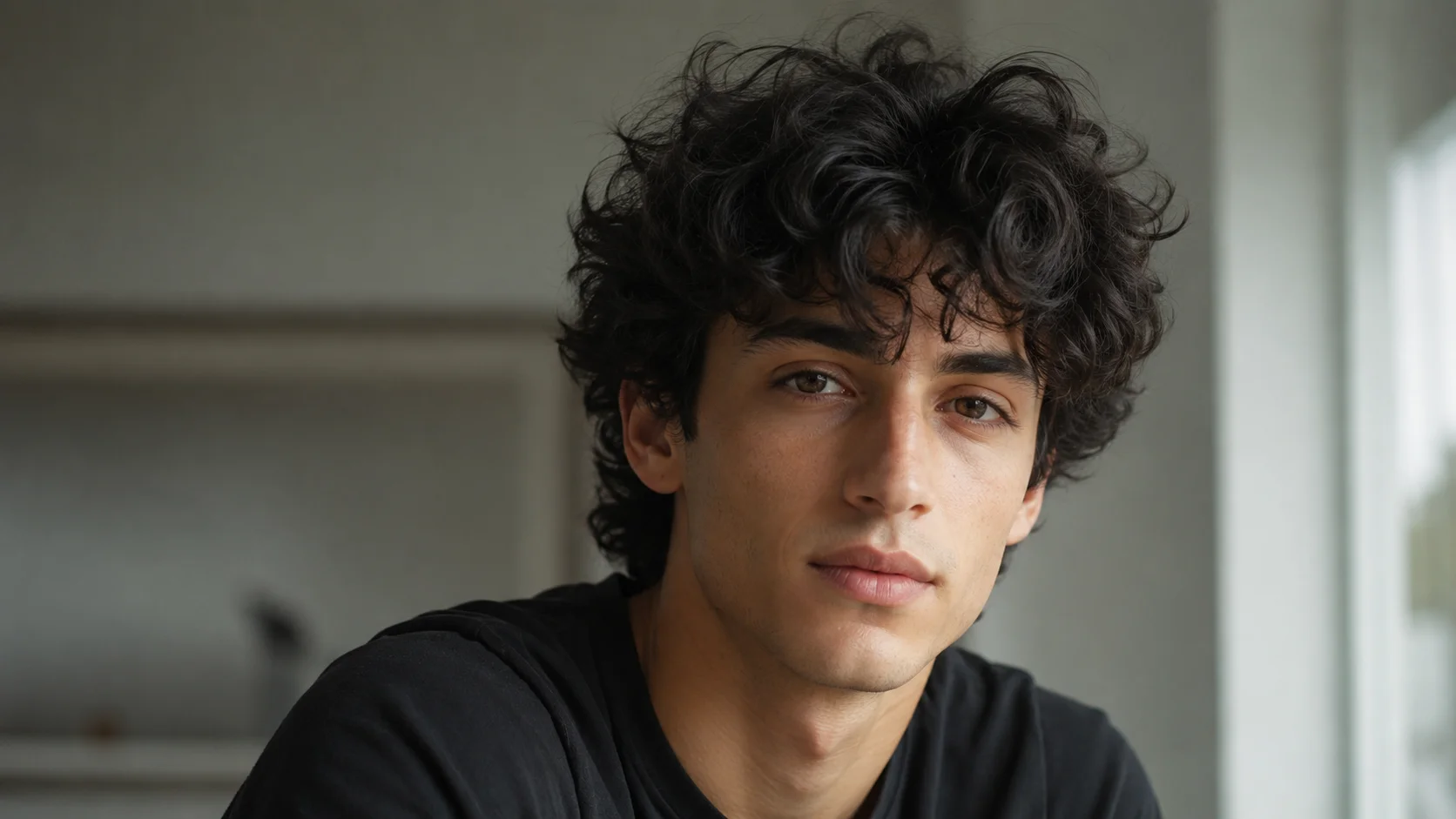
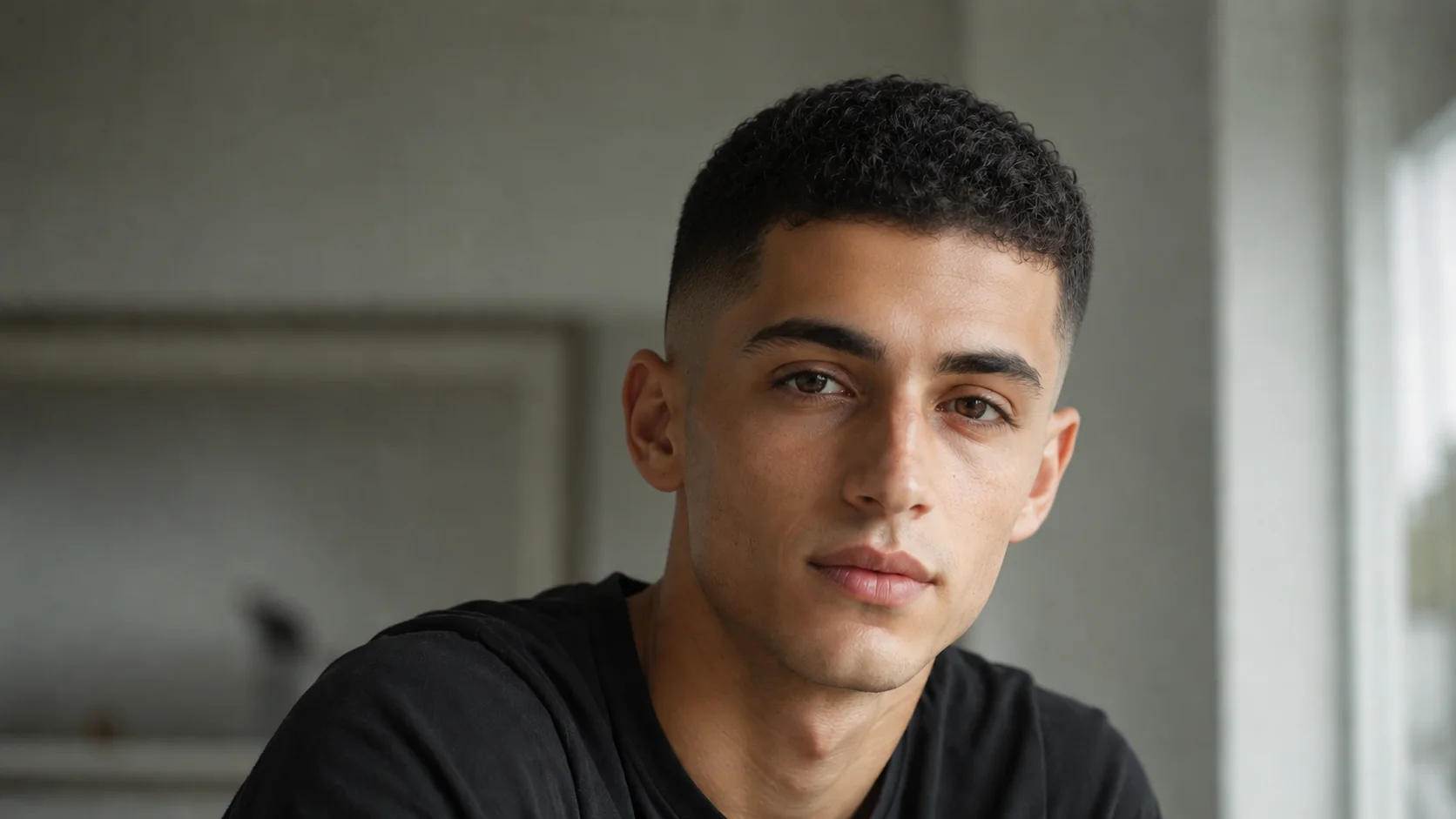
Curls to Clean Crop
Watch loose curls become a sharper short-hair look with more face shape visible.
Hairline Shape Check
Use the front-facing example to see how the forehead, temples, and neckline change.
Get a more realistic buzz cut preview
Photo quality matters most when the tool needs to redraw hair close to the face.
Clean the selfie first
If the photo is dark or compressed, use Image Enhancer so the hairline, forehead, and sideburns read more clearly.
Use a broader restyle when you need more freedom
If the haircut is part of a bigger transformation, try Image to Image for a broader restyle.
Keep the portrait simple
A centered face, visible hairline, and even lighting help the buzz cut preview look more natural.
Check the edges that affect realism
Temples, ears, neckline, and stray hair strands are the places most likely to need a second look before you save or share.
Ready to check the look
Preview your buzz cut from one portrait
Upload a clear photo, generate the preview, then download the result or try another portrait before you decide.
Buzz Cut Filter FAQ
Answers about photo quality, preview limits, and when to choose a broader edit tool.
What is Buzz Cut Filter?
Buzz Cut Filter is a portrait edit that turns one uploaded photo into a short-hair preview so you can judge the look before making the cut.
Do I need to upload a selfie?
A clear portrait works best. Use a front-facing photo with the hairline, temples, ears, and neckline visible.
Can I choose different buzz cut lengths?
Not in this focused tool. It creates a quick buzz cut preview from one portrait. Use Image to Image if you want a custom length, fade, beard change, or broader restyle.
What happens after I run the filter?
If you are signed in and have enough credits, the preview appears on the page with a Download Result option.
Will it work on long hair?
It can, but photos with less hair covering the face usually produce the cleanest short-hair preview.
Should I use Image to Image instead?
Use Image to Image when you want a wider style change or a more specific instruction. Use Buzz Cut Filter when the goal is a quick short-hair preview.
Keep creating
Keep working from here
Continue with image edits, compare model quality, or send the result into a video workflow.
AI image tools
More image tools
Create, edit, clean up, or upscale stills.

AI models
Compare image models
Pick a better model before making more versions.
AI video tools
Make it move
Animate a still or turn it into a clip.
AI Image Generator
Start from any idea
Create a fresh image from a prompt.
Text to Image
Prompt-first creation
Turn a written idea into an image.

Image to Image
Use a reference
Restyle or revise an existing image.
Image to Prompt
Describe a reference
Turn visible image details into a reusable AI prompt.
AI Logo Generator
Brand marks
Create logo ideas from a short brief.

Product Picture Generator
Product visuals
Create polished product photos and campaign scenes.
AI image tools
More image tools
Create, edit, clean up, or upscale stills.
AI models
Compare image models
Pick a better model before making more versions.
AI video tools
Make it move
Animate a still or turn it into a clip.
AI Image Generator
Start from any idea
Create a fresh image from a prompt.