
Isometric Miniature
Create a miniature look with local tilt-shift blur. For a new isometric interpretation, explicitly choose the separate AI redraw mode.
Sign in to use this tool. Processing runs on your device without server uploads or credits.
Example
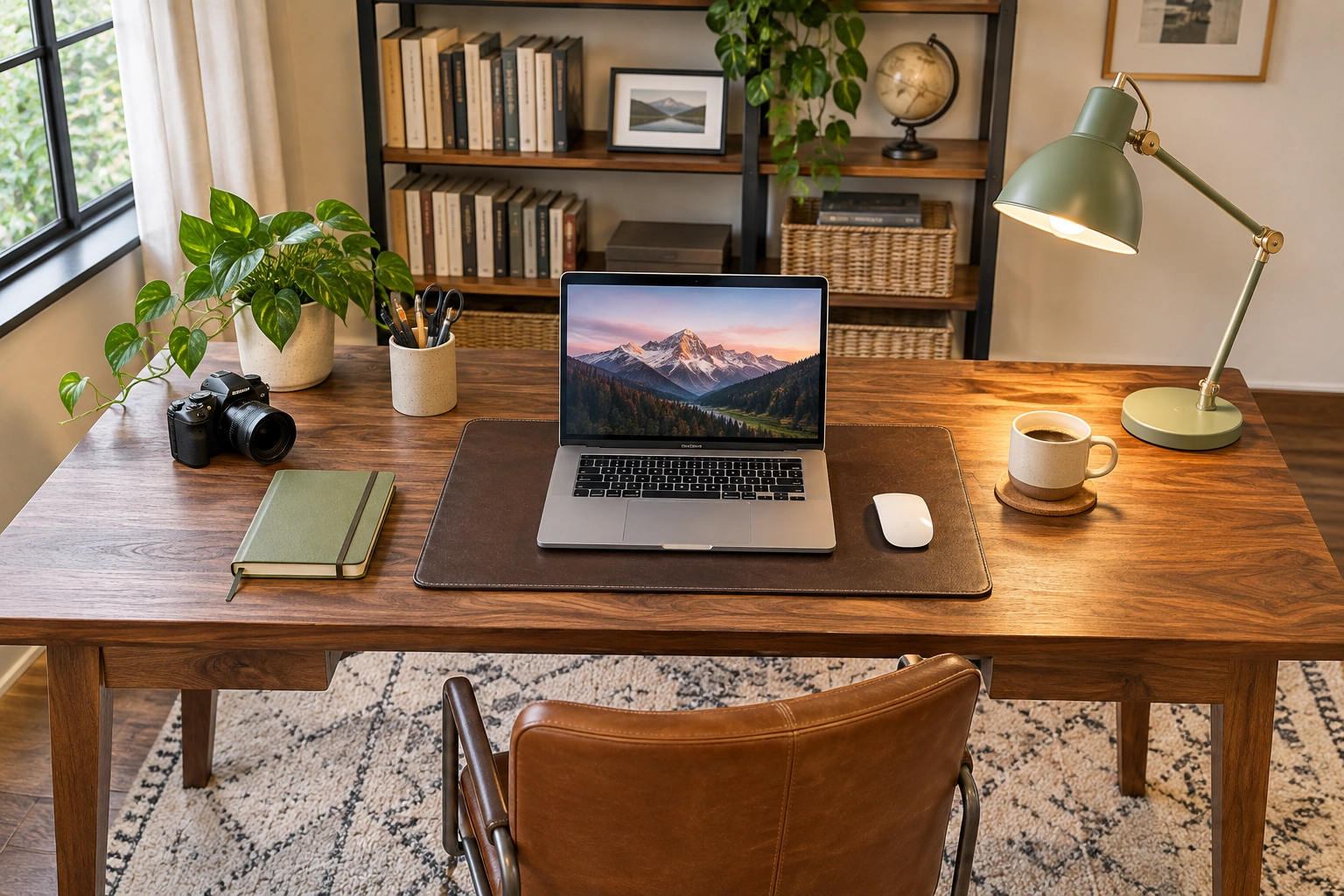
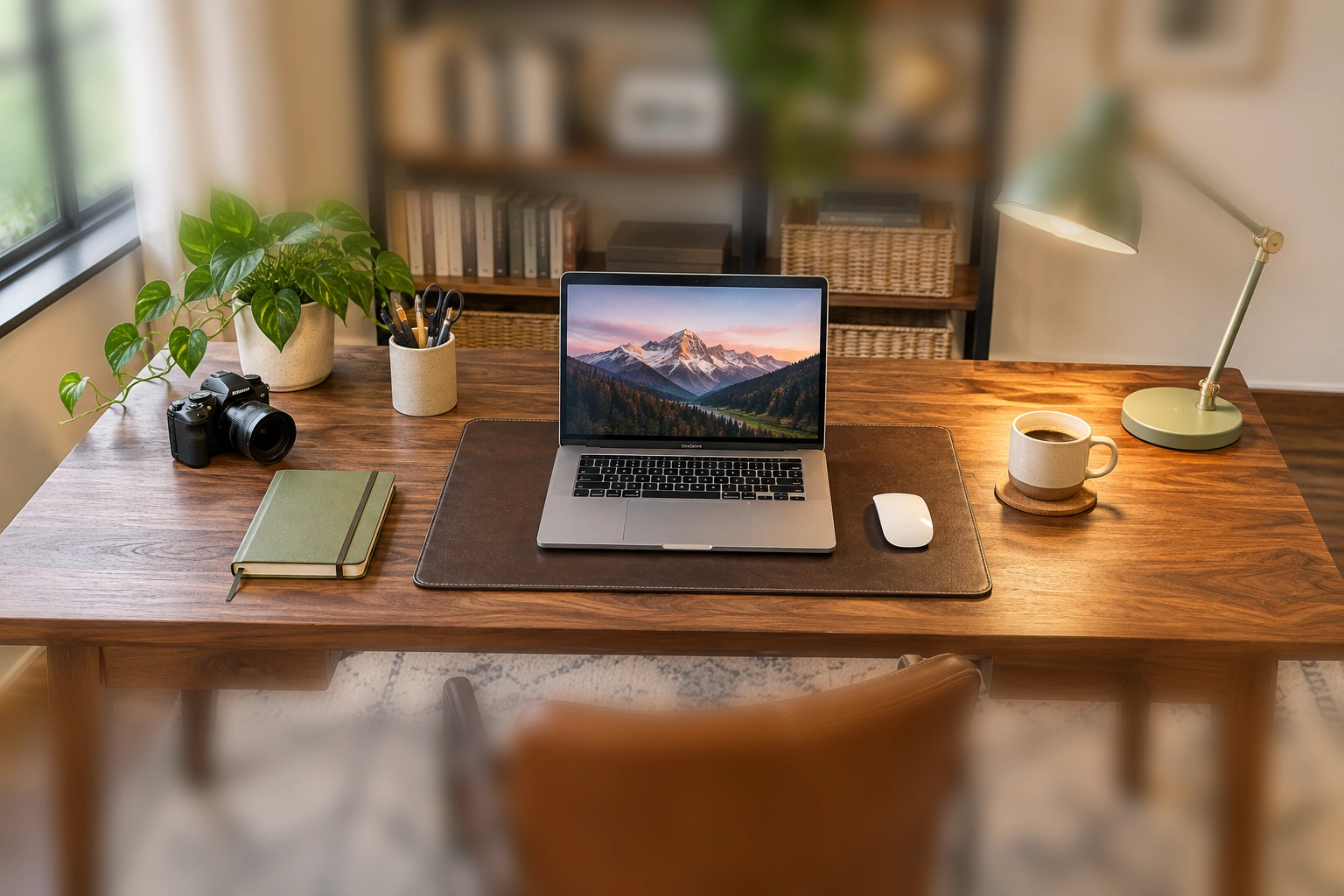
OriginalProcessed
Local processing example
Focus a desktop product arrangement
How to use Isometric Miniature
The default Miniature blur mode keeps your scene and adds a shallow-focus appearance. Adjust the clear band to keep the important subject sharp.
- 01
Upload a scene or product photo
Choose one JPG, PNG or WebP. Elevated views and scenes with visible depth often make the miniature effect easier to read.
- 02
Choose the processing mode
For local Miniature blur, adjust strength and the clear band position and width. Select AI isometric redraw explicitly if you want a generated perspective.
- 03
Check the focal area
Drag the comparison handle to inspect the original and miniature effect. Keep the main subject within the clear band. For AI redraw, also review objects, layout and small details against your source.
- 04
Download the finished image
Save the PNG and check its displayed dimensions. Sign-in is required for both modes. Local blur uses no credits; AI redraw uses credits.
Give a scene a miniature depth-of-field look
Local blur changes depth-of-field appearance, not perspective or geometry. AI isometric redraw is a separate paid option that can reinterpret objects, text and layout; neither mode exports a three-dimensional model.
Each example names the processing used. Review the result before using it in your project.
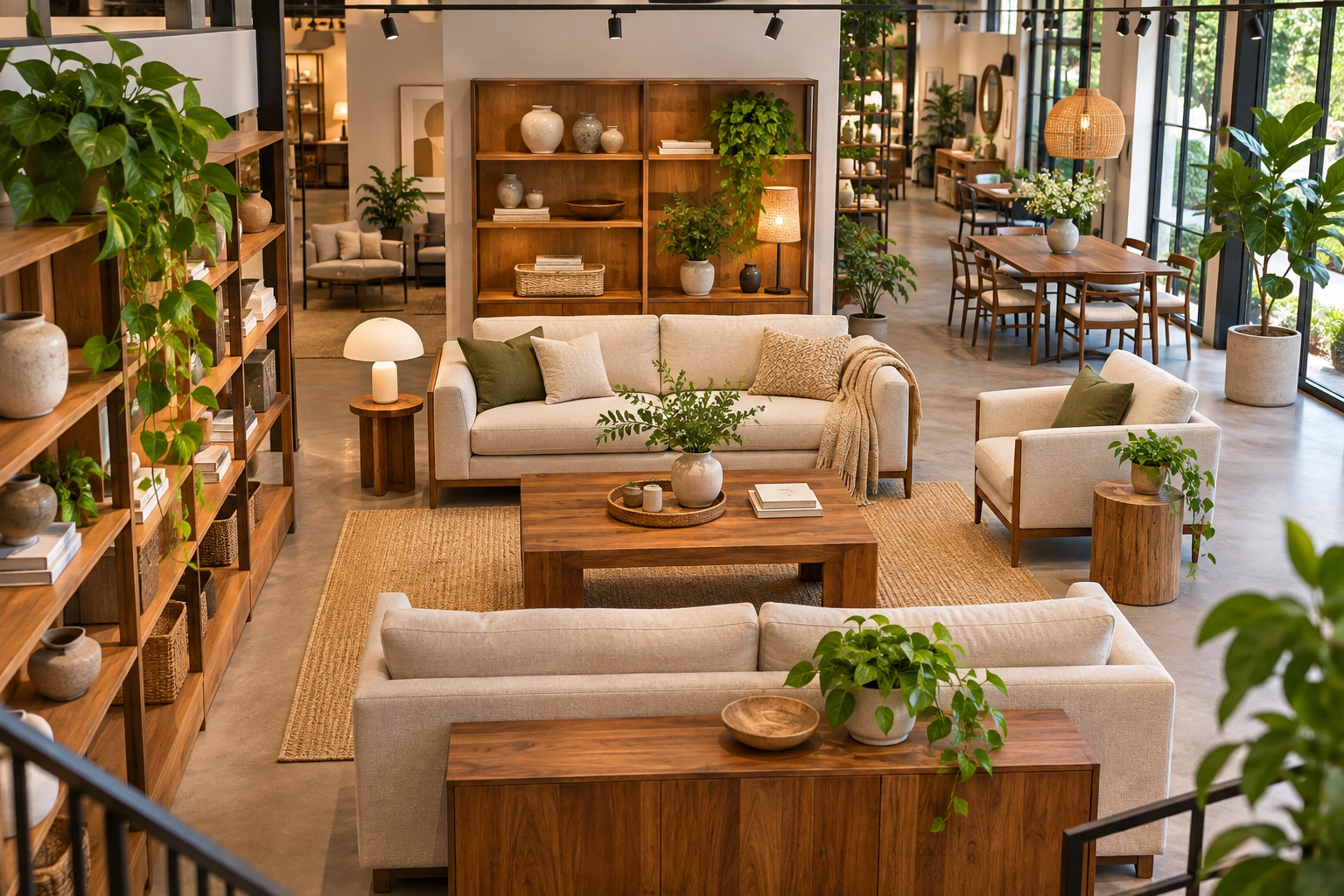
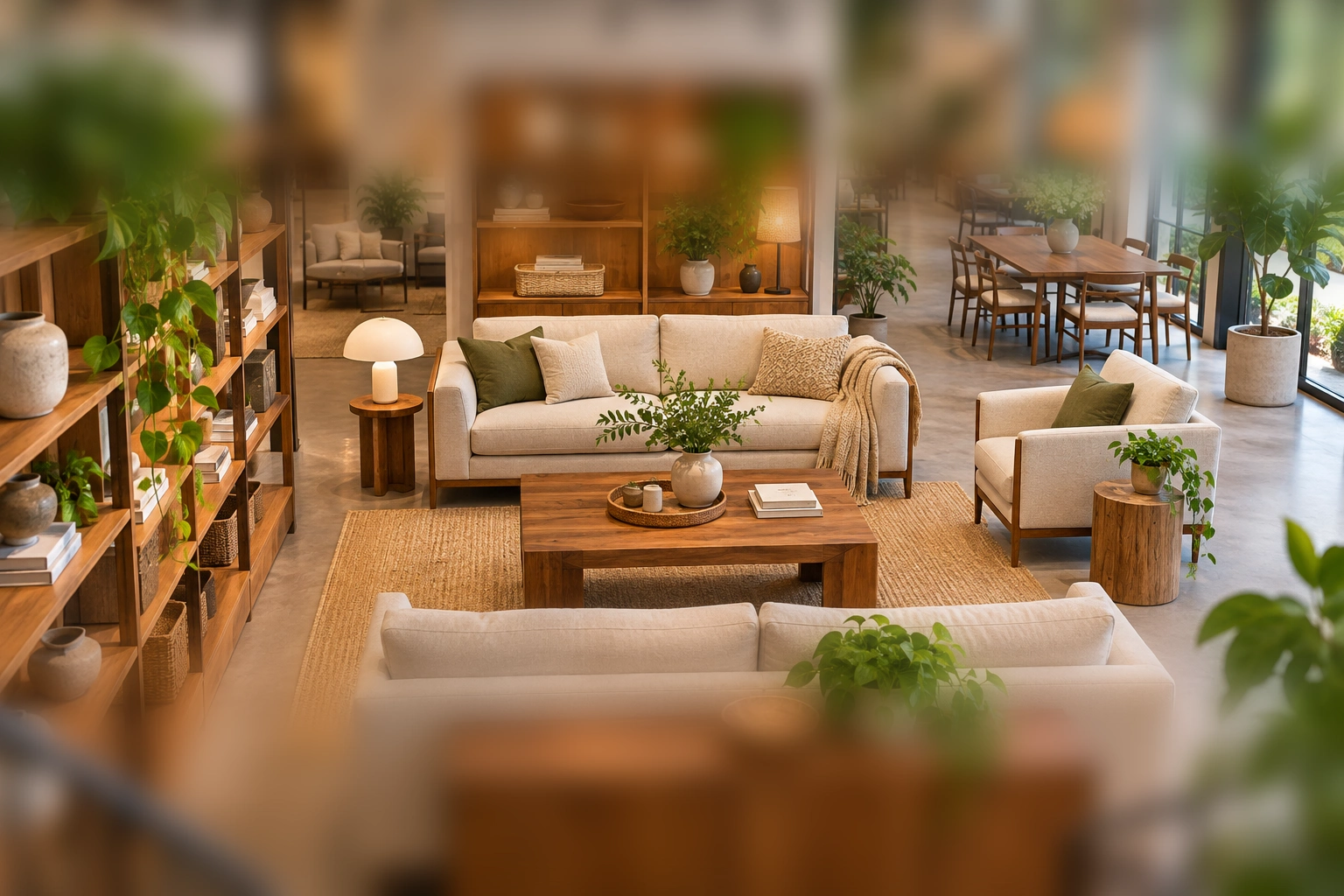
Local processing example
Select a clear band through a display
Move the band to the shelf or product you want to emphasize. The effect depends on screen position rather than measured scene depth, so objects at the same height in the image may receive similar blur.
Local processing example
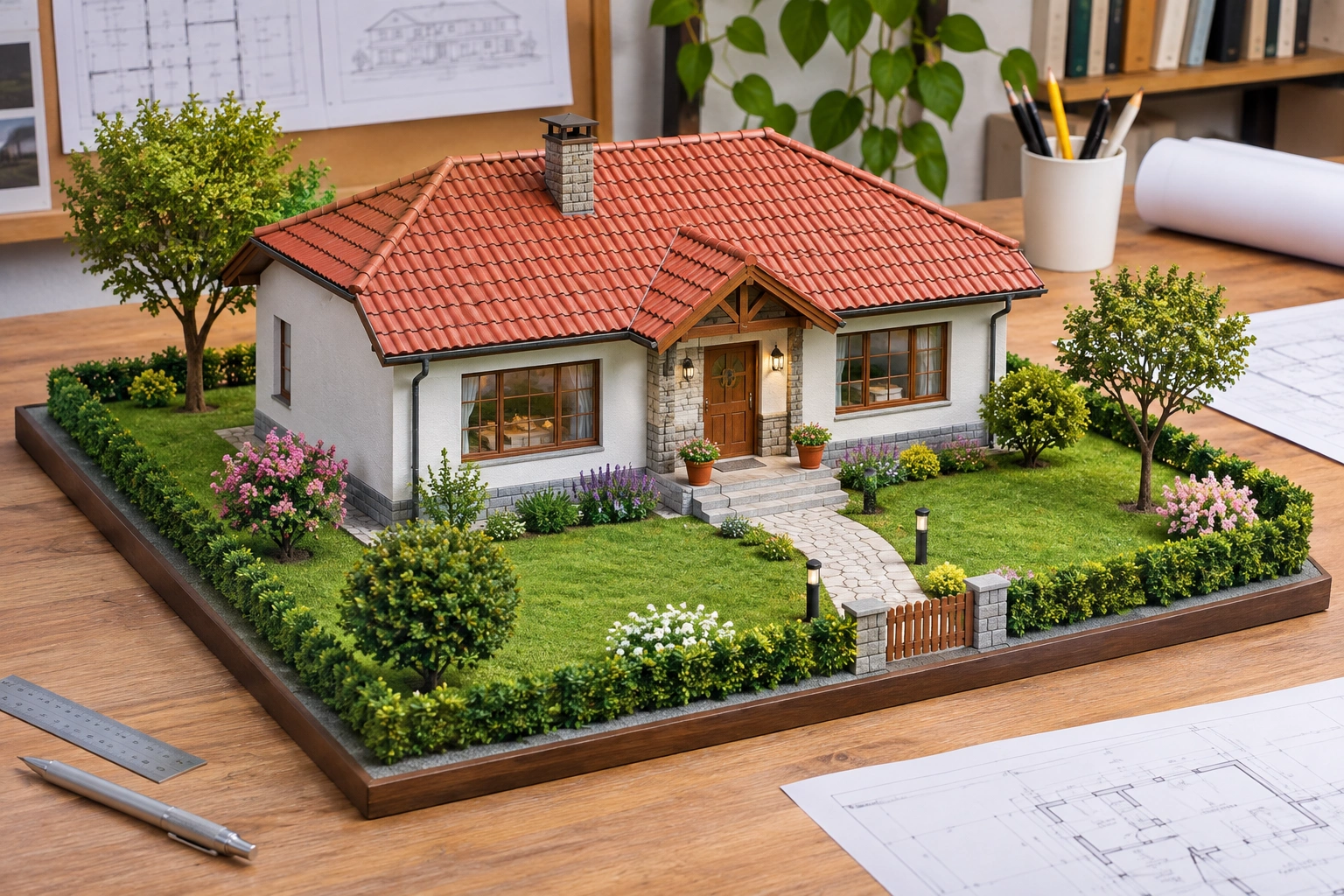
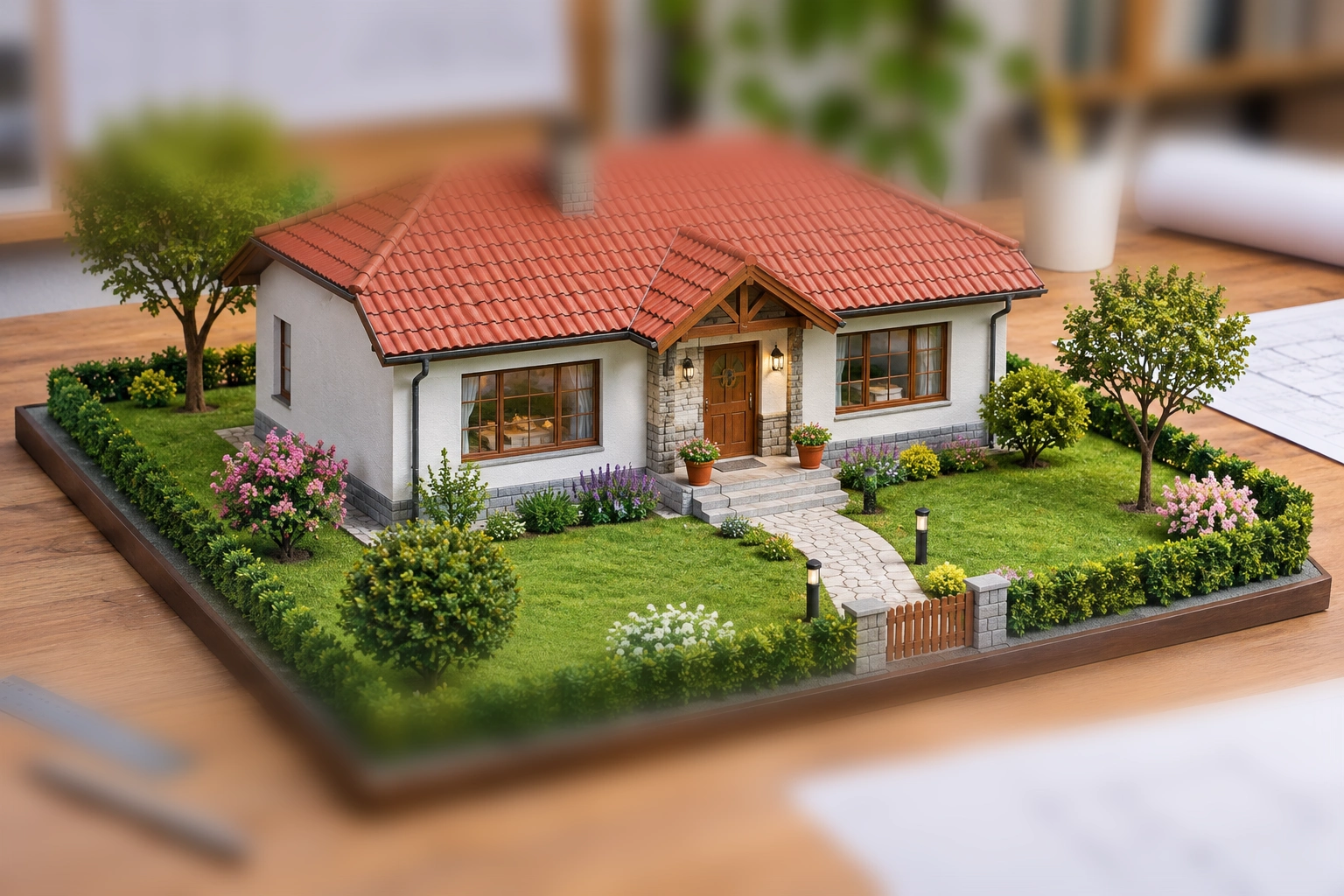
Keep an architectural model readable
Use a wider clear area when several building features matter. Local processing retains the original perspective and outlines; it does not turn a photograph into a rotatable architectural model.
Local processing example
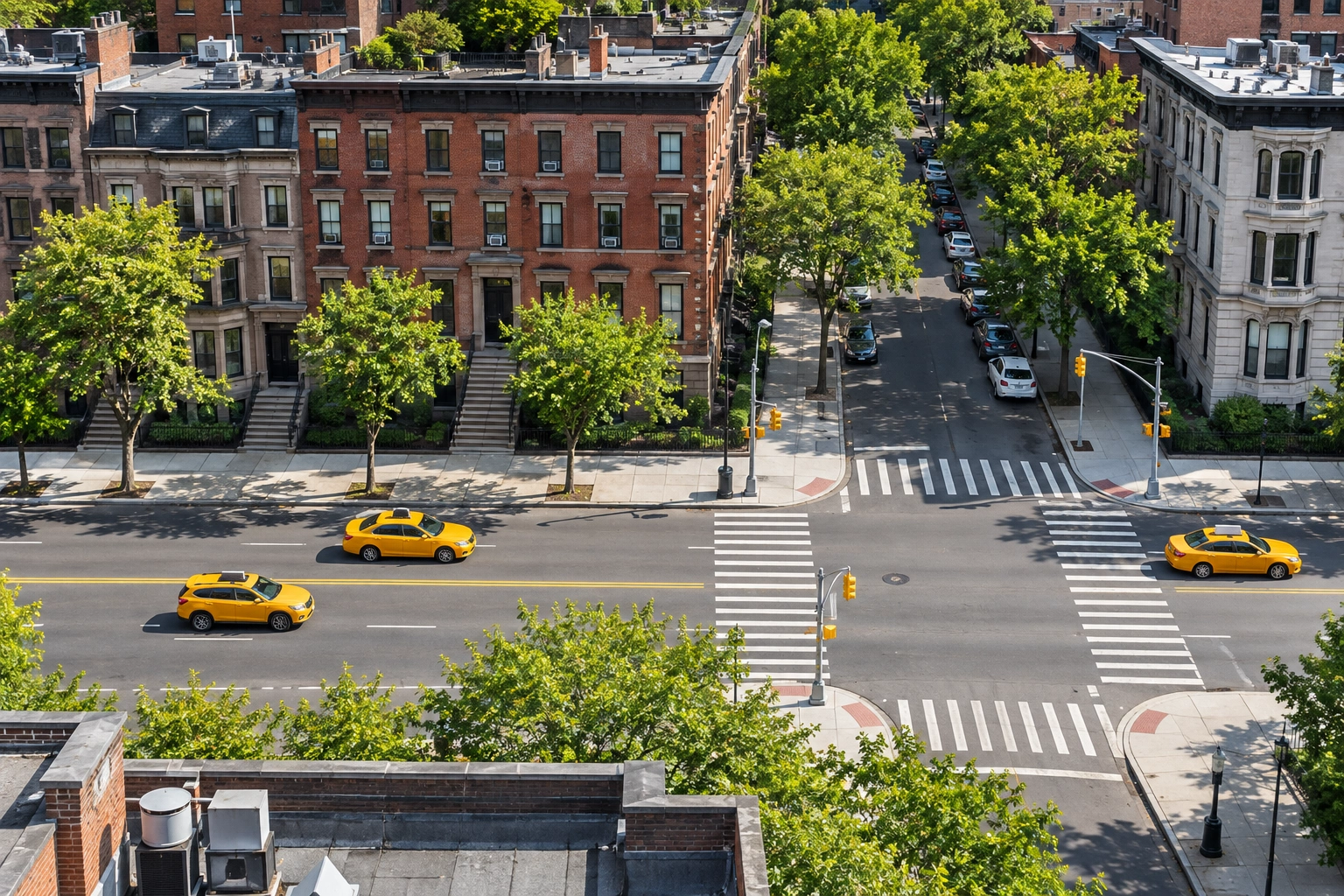
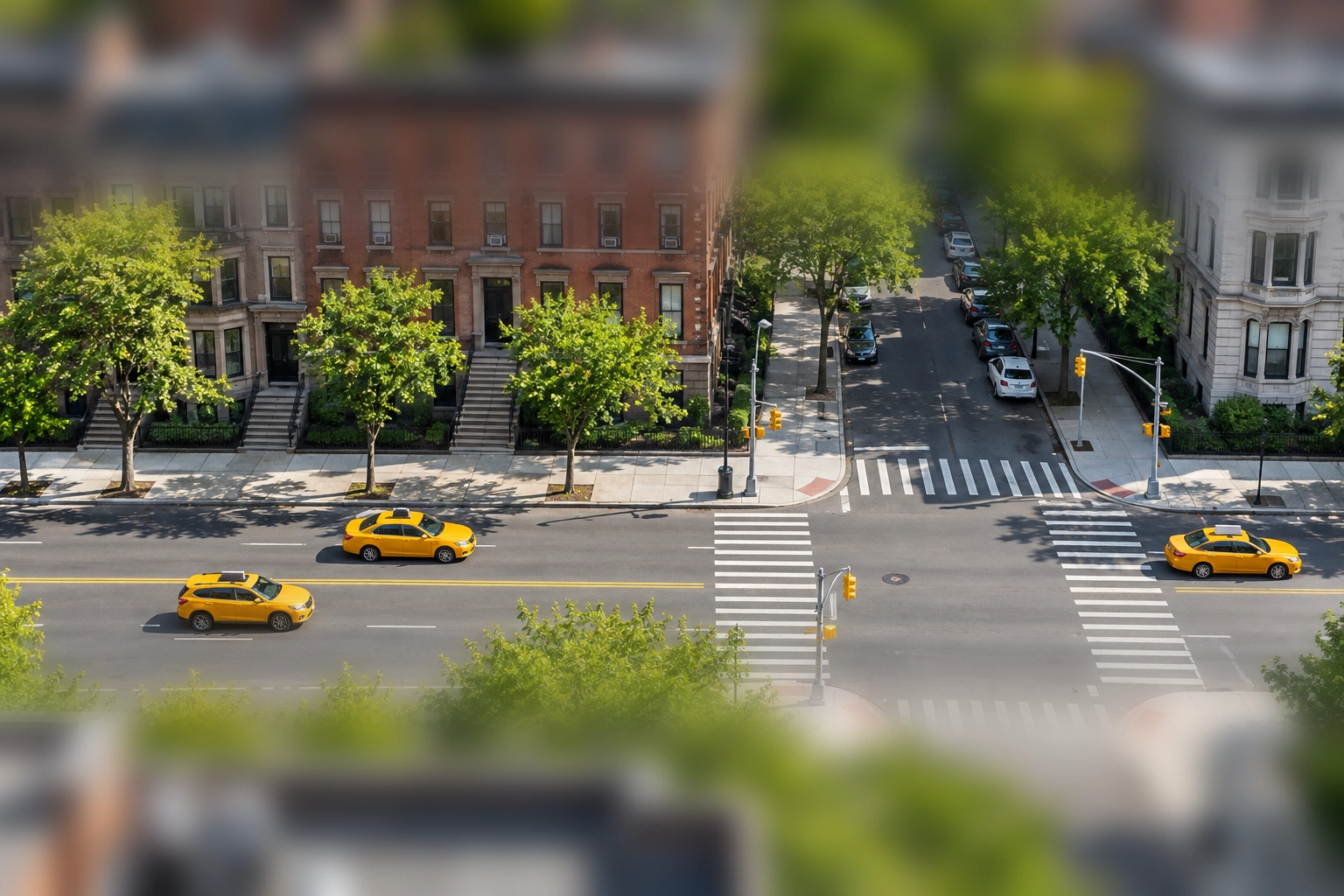
Bring attention to a street scene
An elevated street view can read as a small-scale scene when foreground and distance soften. Adjust the focal position rather than leaving the center sharp when the main action is elsewhere.
Choose between focus and reinterpretation
Use local blur when the existing composition matters. Choose AI redraw consciously when a different isometric interpretation is useful.
Keep the existing composition
Local Miniature blur changes the focus appearance while retaining the source geometry and viewpoint.
Move focus onto your subject
Set the clear band position and width for off-center subjects. Check tall objects that cross both sharp and blurred areas.
Make the AI choice explicit
AI isometric redraw starts a separate generation task. It can change details and needs credits. Both local processing and AI redraw require sign-in.
Know what the image represents
A tilt-shift appearance is a two-dimensional photo effect. AI redraw is also a still image; neither creates real three-dimensional geometry or a rotatable scene.
Ready to try it?
Find the focus in your next miniature scene.
Upload a photo and place the clear band over your subject. Choose AI redraw only when you want a generated interpretation.
Isometric Miniature FAQ
Answers about source photos, supported edits, reviewing details and downloading your image.
Does the default mode create isometric perspective?
No. Miniature blur is local tilt-shift-style processing. It changes depth-of-field appearance while keeping the original perspective and geometry.
What does AI isometric redraw do?
It uses the source as a reference for a newly generated isometric miniature interpretation. It can alter objects, text and layout, and requires login and credits.
Can I move the sharp area?
Yes. Adjust the clear band position and width, together with effect strength. Keep the important subject inside the clear area and inspect transitions across tall objects.
Which files work best?
Use one JPG, PNG or WebP, up to 10 MB and 32 megapixels in either mode. Clear elevated scenes with foreground and distance often make the effect easier to see.
Can I rotate or export a 3D model?
No. Both modes output a still image. They do not create editable geometry, a rotatable scene or a three-dimensional model file.
How can I compare and download the result?
Drag the comparison handle to inspect the original and processed scene, then download a PNG. Local blur requires sign-in and uses no credits. Large images may be resized; check output dimensions. AI redraw is a separate paid task.
Related paths
Explore related image tools
Explore another image step, check model options, or make the output move.

AI Sticker Generator
Another product-photo task
Create cartoon, hand-drawn or framed photo stickers for social posts and scrapbooks.
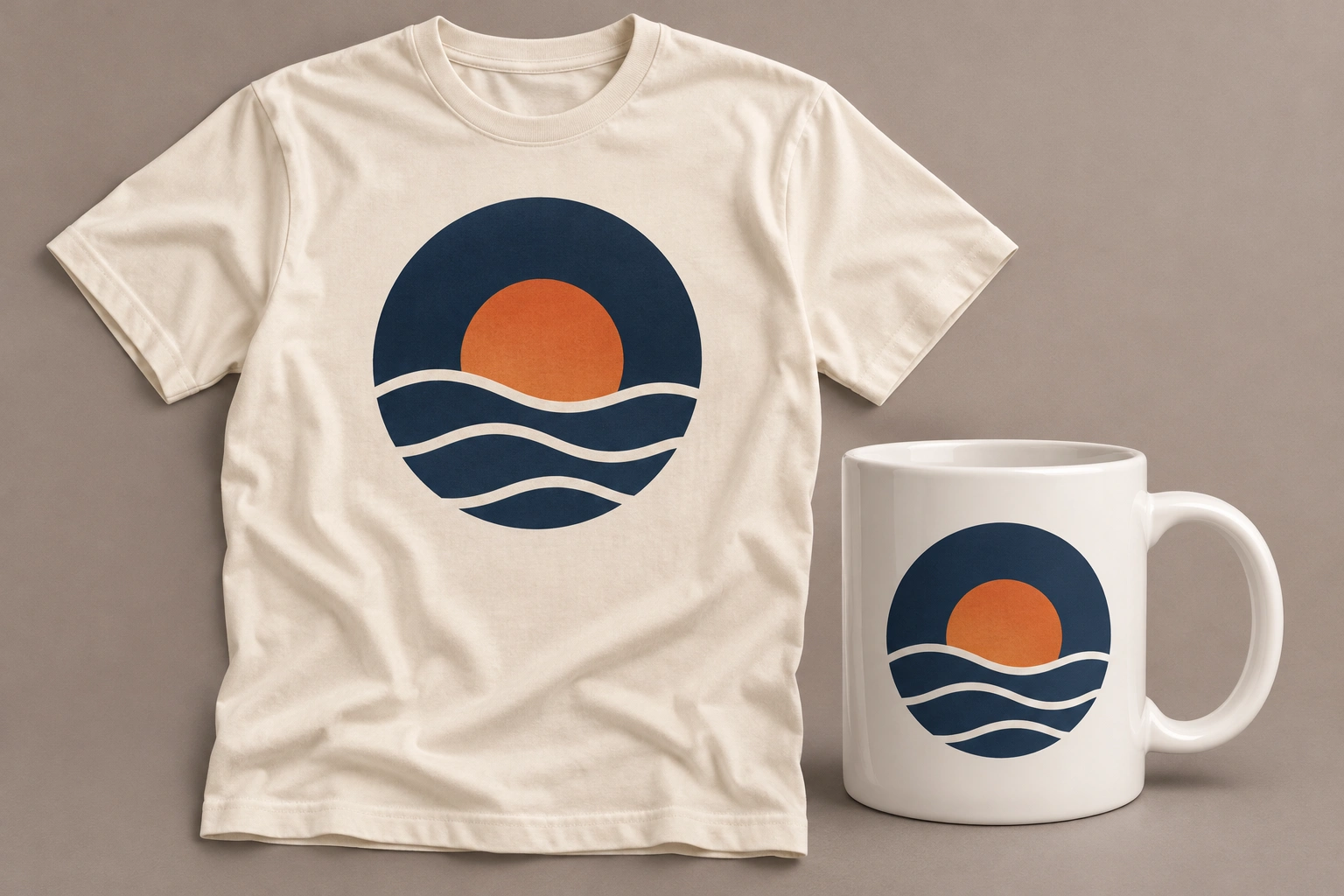
Product Mockup Generator
Another product-photo task
Place your design on a T-shirt, mug, phone case, tote bag or poster. Fixed templates keep your artwork in the printable area, with product light and shade.
Product Shadow & Reflection Adder
Another product-photo task
Ground a transparent product cutout with a drop shadow, contact shadow or fading reflection. Adjust the strength and choose a background.
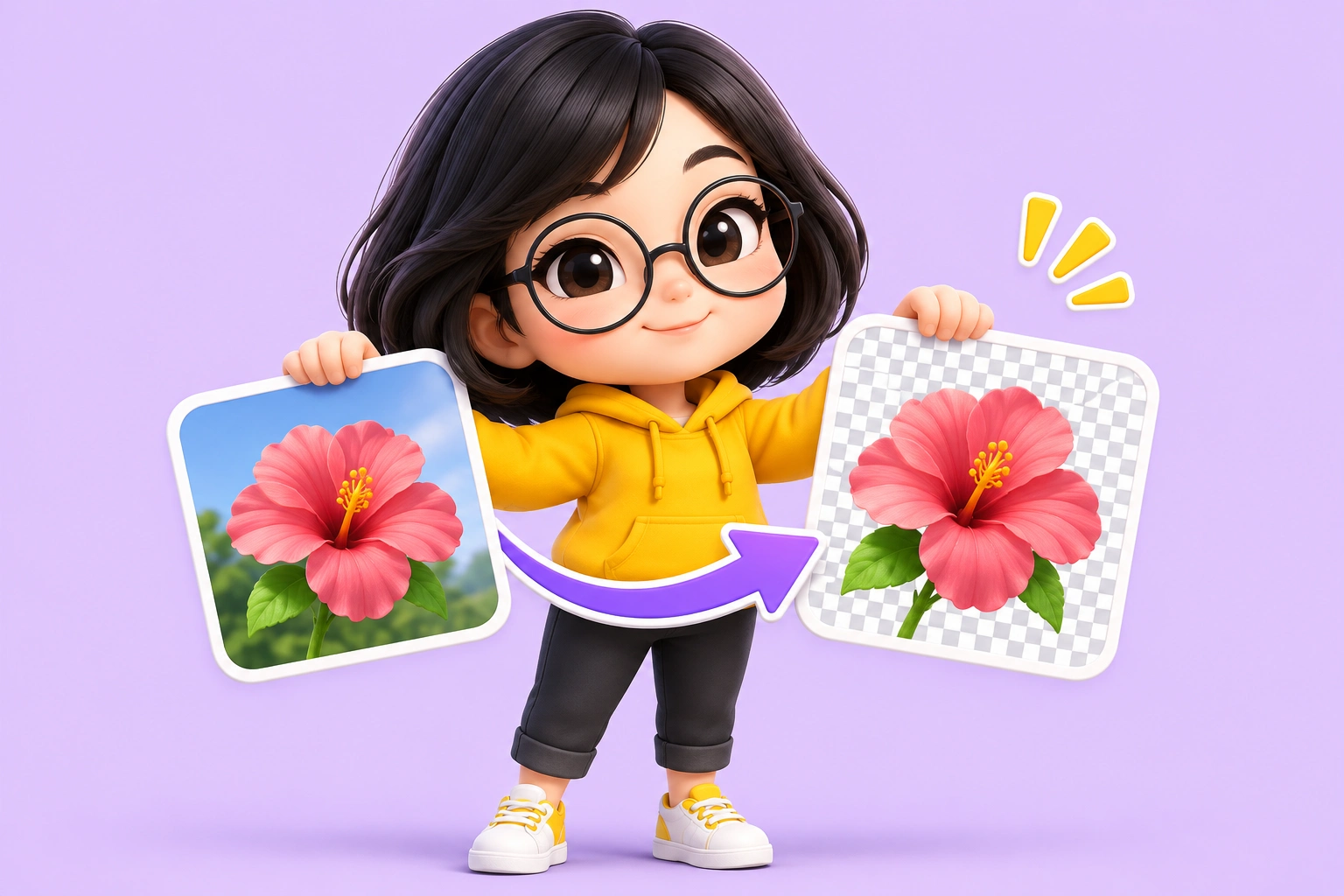
Big Head Effect
Another product-photo task
Turn a single-person photo into a big-head character. Choose Chibi, Cartoon or Hand-drawn and review the face, outfit and proportions.
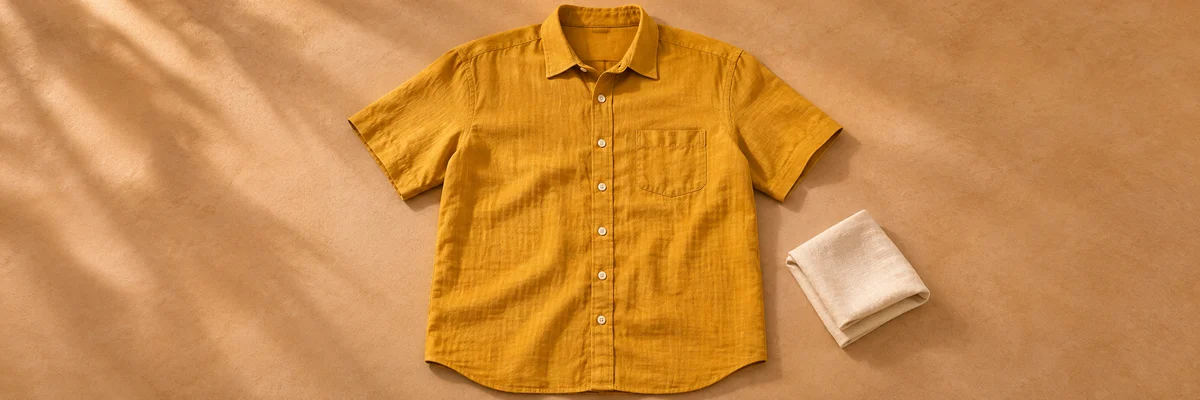
Clothing Flat Lay Generator
Another product-photo task
Turn a front-facing clothing photo into a clean top-down flat lay. Keep your garment in focus, from collar to cuffs.
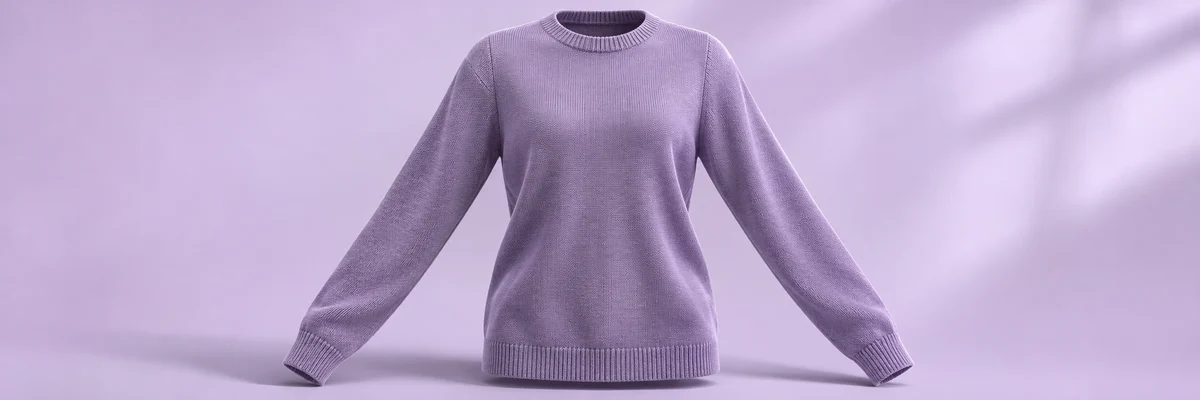
Ghost Mannequin
Another product-photo task
Remove the wearer or mannequin while keeping your garment’s three-dimensional shape and natural drape.
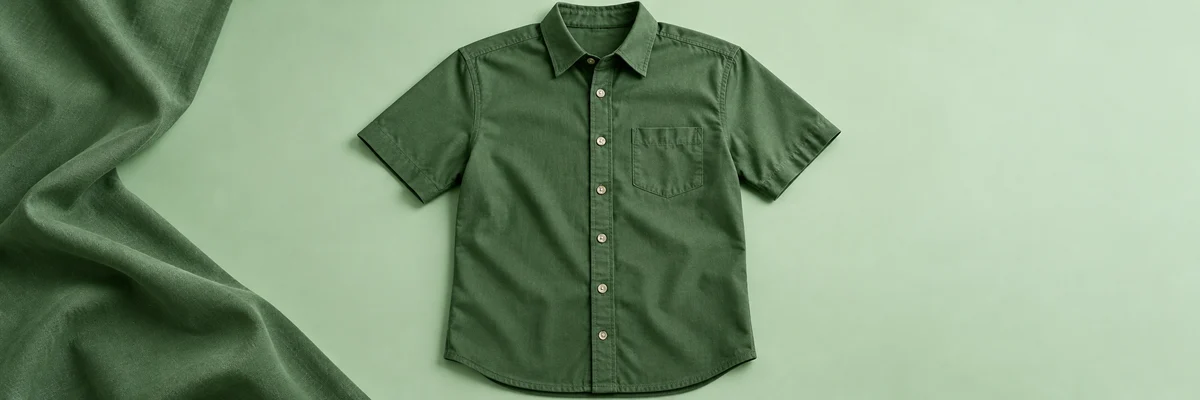
Clothes Wrinkle Remover
Another product-photo task
Reduce distracting creases in a clothing photo while keeping fabric texture, seams and natural shape.
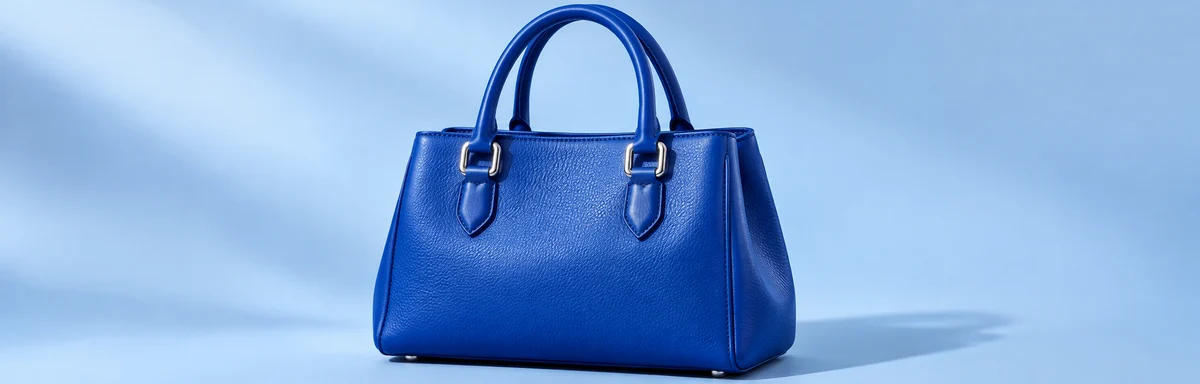
Product Recolor
Another product-photo task
Try a new color on one product while keeping its texture, shape, lighting and surroundings.
AI Image Editor
Describe a different edit
Use a written instruction when your photo needs another kind of change.