
Wan 3.0 is currently presented as a beta workflow
Public Wan 3.0 specifications are still developing. Ezier therefore describes only the controls available in the current product instead of repeating unverified third-party parameter claims.
Use Wan 3.0 on Ezier to create 2-30-second videos from text or one start image, choose 480P, 720P, or 1080P, and generate audio with the current beta controls.
Use the longer beta runtime for a scene with a beginning, development, and finish. Give every action a clear order, keep the camera path readable, and place sound cues where they belong in the picture.
Create a 5-second cinematic farm-to-table produce montage in warm natural daylight. Open with an extreme macro shot of two hands gently twisting a ripe red tomato from a healthy green vine, preserving the water droplets, fine stem hairs, and soft garden background. Use a clean match cut into a bright kitchen where the same hands guide a stainless-steel chef knife through a fresh cucumber on a wooden board, ending on a precise stack of thin round slices. Keep the hand appearance, sunlight direction, fresh-produce texture, and shallow depth of field consistent across the transition. Use crisp tactile detail, slow controlled motion, and realistic contact between fingers, fruit, knife, and board. Add soft leaves, a natural stem snap, a clean knife rhythm, and quiet kitchen ambience. No text, logos, deformed fingers, floating produce, unsafe knife handling, crushed ingredients, or abrupt color changes.
Confirm that Wan 3.0 is active in the model selector before choosing resolution, duration, ratio, or generated audio.
Begin from a prompt, or upload one image when the opening composition, subject design, product geometry, or lighting must be anchored.
Describe the opening, action beats, camera movement, sound sources, continuity rules, and final frame in the order viewers should experience them.
Choose 2-30 seconds, 480P, 720P, or 1080P, a supported aspect ratio, seed when useful, and generated audio. Review the credit estimate, then generate.
A longer clip needs more than a longer prompt. Define the sequence in chronological beats, protect the opening composition when using an image, and connect every sound to a visible source or space.
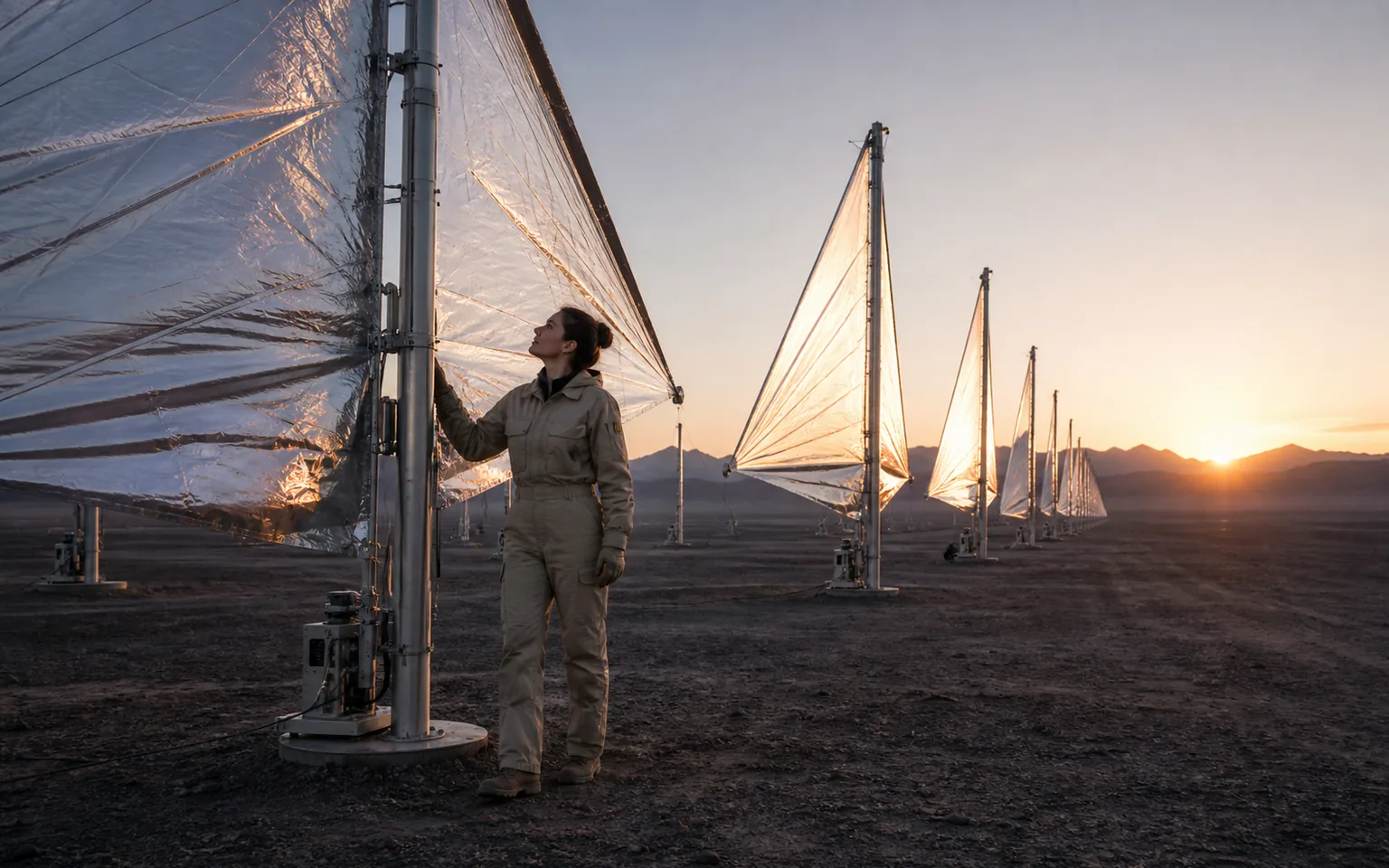
The current Ezier beta control extends to 30 seconds. Spend that time on connected beats—a setup, a change, and a finish—instead of stretching one action without development.

Use image-to-video when exact shape, color, framing, or lighting matters at the start. Describe what should move, what must remain unchanged, and where the final frame should settle.
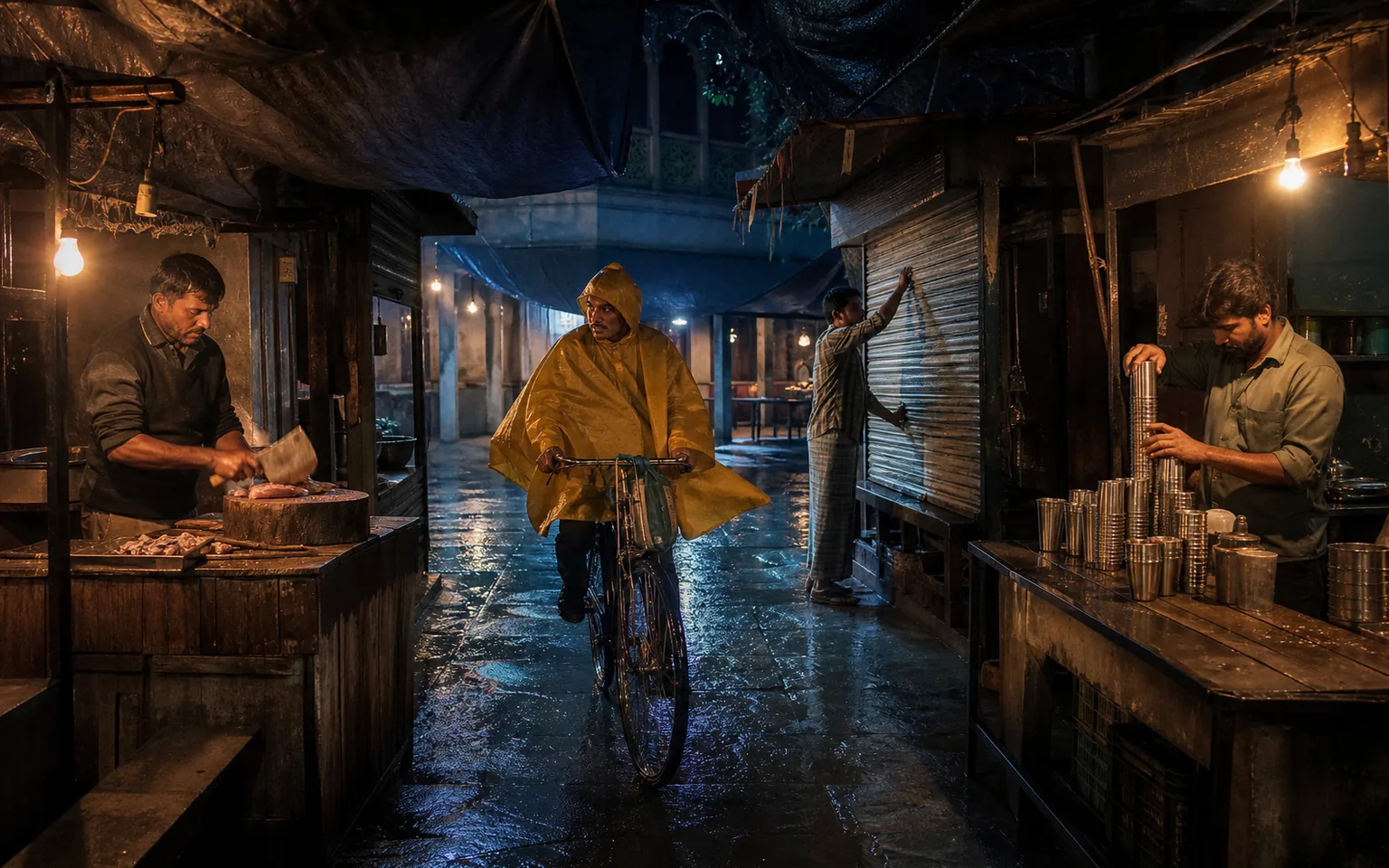
Name the sound source, timing, distance, and environment. Visible causes such as footsteps, machinery, water, doors, or instruments give the audio plan a structure that can be reviewed with the motion.
These are the controls currently exposed by Ezier for Wan 3.0. Because the model is in beta and public specifications are still developing, use the workbench as the source of truth for each generation.
Use 480P or 720P to confirm the action order, framing, and camera path. Move to 1080P after the sequence itself is worth keeping.
Each beat should introduce information, change the action, or deliver the finish. Remove repeated shots that do not move the sequence forward.
Name the exact geometry, colors, lighting, and framing to preserve. Then describe motion separately so the model is not asked to redesign and animate at once.
Check whether each effect starts with the visible action, stays in the correct space, and ends naturally instead of evaluating the soundtrack as a separate layer.
Ezier keeps the beta workflow focused on two clear starting points: describe a scene from text or animate one opening image, then choose the output settings you can review now.
Public Wan 3.0 specifications are still developing. Ezier therefore describes only the controls available in the current product instead of repeating unverified third-party parameter claims.
Start from a written brief or attach one opening image. The current Ezier upload schema does not expose video, audio, document, slide, or multi-image reference uploads for Wan 3.0.
Ezier exposes durations from 2 to 30 seconds and resolution choices of 480P, 720P, and 1080P. The selected quality and duration affect the displayed credit estimate.
Use the Generate audio switch when effects, ambience, or music matter to the result, and write those sounds into the same chronological plan as the visuals.
Wan 3.0 in Ezier
Start with one sequence you can review from beginning to end
Write the scene in order, add a start image only when the opening composition matters, choose duration and resolution, then generate and review motion, continuity, framing, and sound together.
Answers about beta access, duration, resolution, image-to-video, generated audio, aspect ratios, prompts, and the controls currently available in Ezier.
Wan 3.0 is a Wan video generation model currently available in Ezier as a beta workflow. The current page supports text-to-video and image-to-video with 2-30-second duration, up to 1080P output, and generated audio.
Select Wan 3.0, write the scene in chronological order, optionally upload one start image, choose duration, resolution, aspect ratio, seed, and generated audio, review the credit estimate, then select Generate.
The current Ezier beta control supports durations from 2 to 30 seconds. Use shorter runs to test one action and longer runs for connected beats with a clear ending.
Ezier currently exposes 480P, 720P, and 1080P. Use a lower resolution for direction tests and 1080P after the motion and framing are ready for a higher-resolution review.
Yes. The current Ezier workflow accepts one optional start image. Describe what the image should preserve, what should move, and how the final frame should differ from the opening.
Yes. Ezier currently provides a Generate audio switch for Wan 3.0. Include effects, ambience, or music in the prompt and connect each important sound to a visible event or location.
The current controls include Auto, 21:9, 16:9, 4:3, 1:1, 3:4, and 9:16. Choose the format based on where the final video will be used.
Not in the current Ezier Wan 3.0 upload schema. It exposes one optional start image. Because the model is in beta, use the controls visible in the workbench as the source of truth.
Keep testing
Compare a nearby model, finish the clip with tools, or rebuild the source for another render.

AI models
Compare models
Choose a better fit before you generate.

AI video tools
Turn images into motion
Animate a still or create a clip.

AI image tools
Create or edit images
Make, clean up, or upscale stills.

MiniMax H3
2K multimodal video
Use for 2K clips with multi-image direction and generated audio.
Seedance 2.5
Longer reference-led video
Use for longer scenes with richer reference direction.
Veo 3.1
Cinematic control
Use for cinematic shots and camera moves.
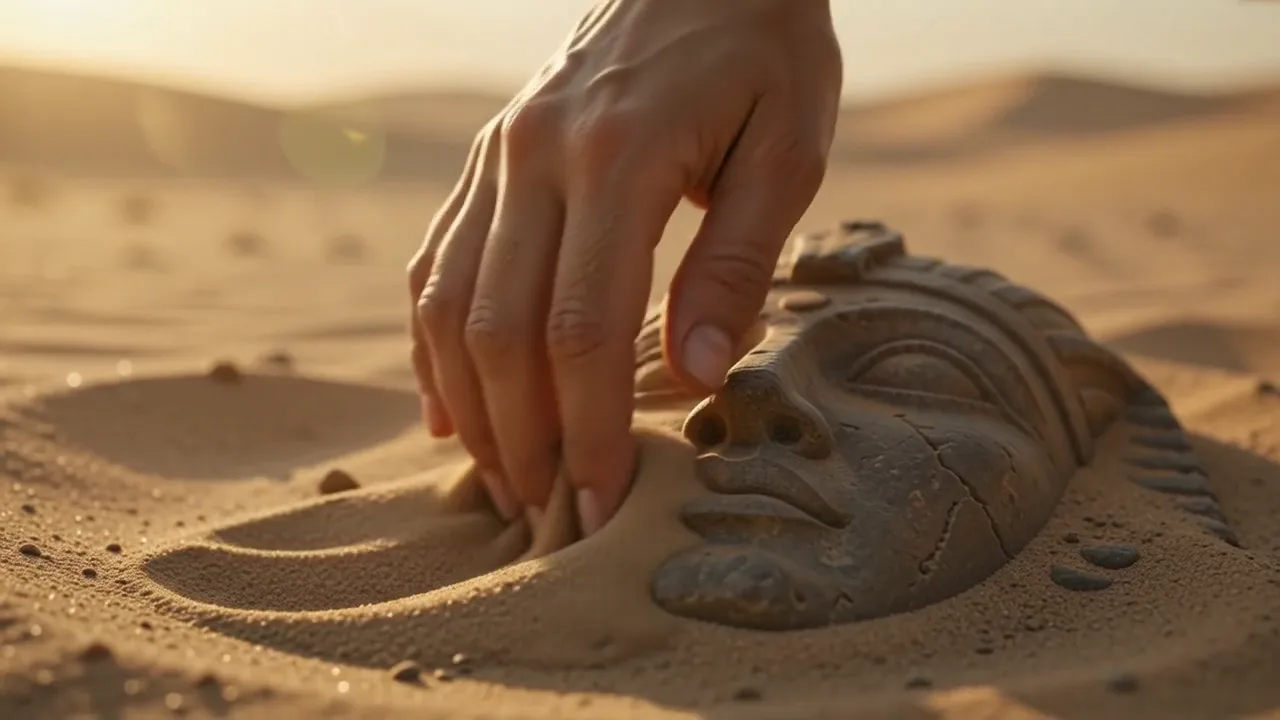
Kling 3.0
Action and motion
Use for action, motion, and story beats.
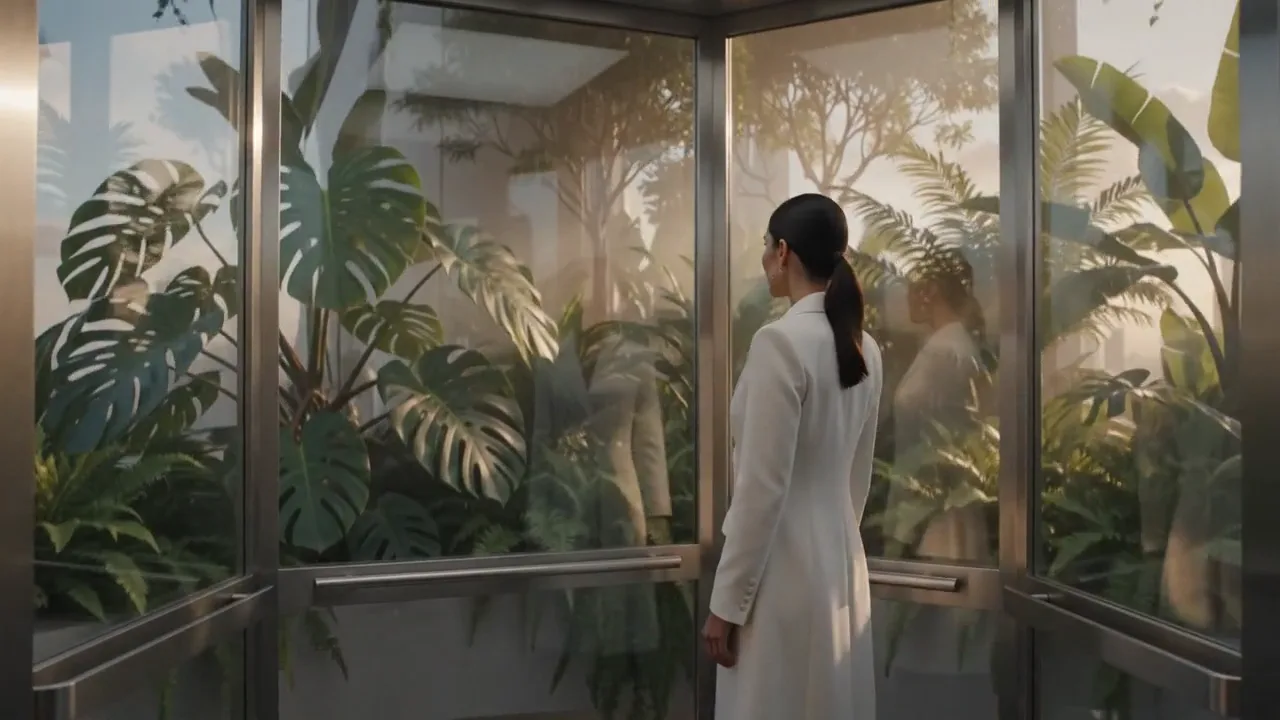
Omni Flash
Conversational editing
Use for short video generation and conversational edits.
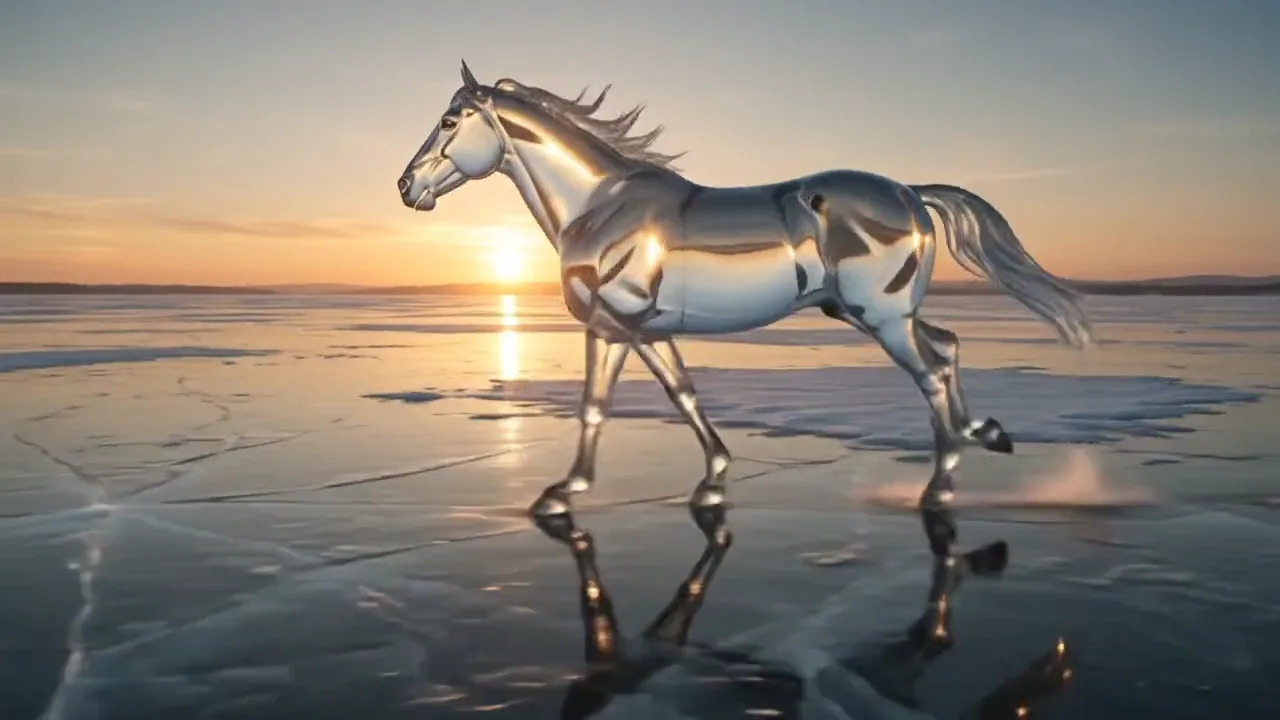
Hailuo AI
Physical motion
Use for fabric, liquid, and physical motion.
AI models
Compare models
Choose a better fit before you generate.
AI video tools
Turn images into motion
Animate a still or create a clip.
AI image tools
Create or edit images
Make, clean up, or upscale stills.
MiniMax H3
2K multimodal video
Use for 2K clips with multi-image direction and generated audio.