
Request one continuous shot
Omni Flash may add cuts by default. Add "single continuous shot" or "no scene cuts" when continuity matters.
Turn text, an image, or a clip into a 3-10-second video. Then refine it with plain-language instructions.
Play three ways to use it: reveal a product, animate a still, or restyle a clip. Copy any prompt to make it your own.
Create a 10-second 16:10 product reveal. Bring a black cylindrical product into view against a clean studio backdrop, keep its shape stable, add a slow camera push, and end on a polished hero frame.
Name the subject and action, then add the setting, style, camera move, and ending.
Attach an image to guide the look or a video to restyle what already exists.
Pick 3 to 10 seconds, check the credit cost, and generate your first version.
Keep the strongest parts and ask for one clear change at a time.
Create cinematic portraits, controlled restyles, and motion-rich scenes from a prompt or source image.
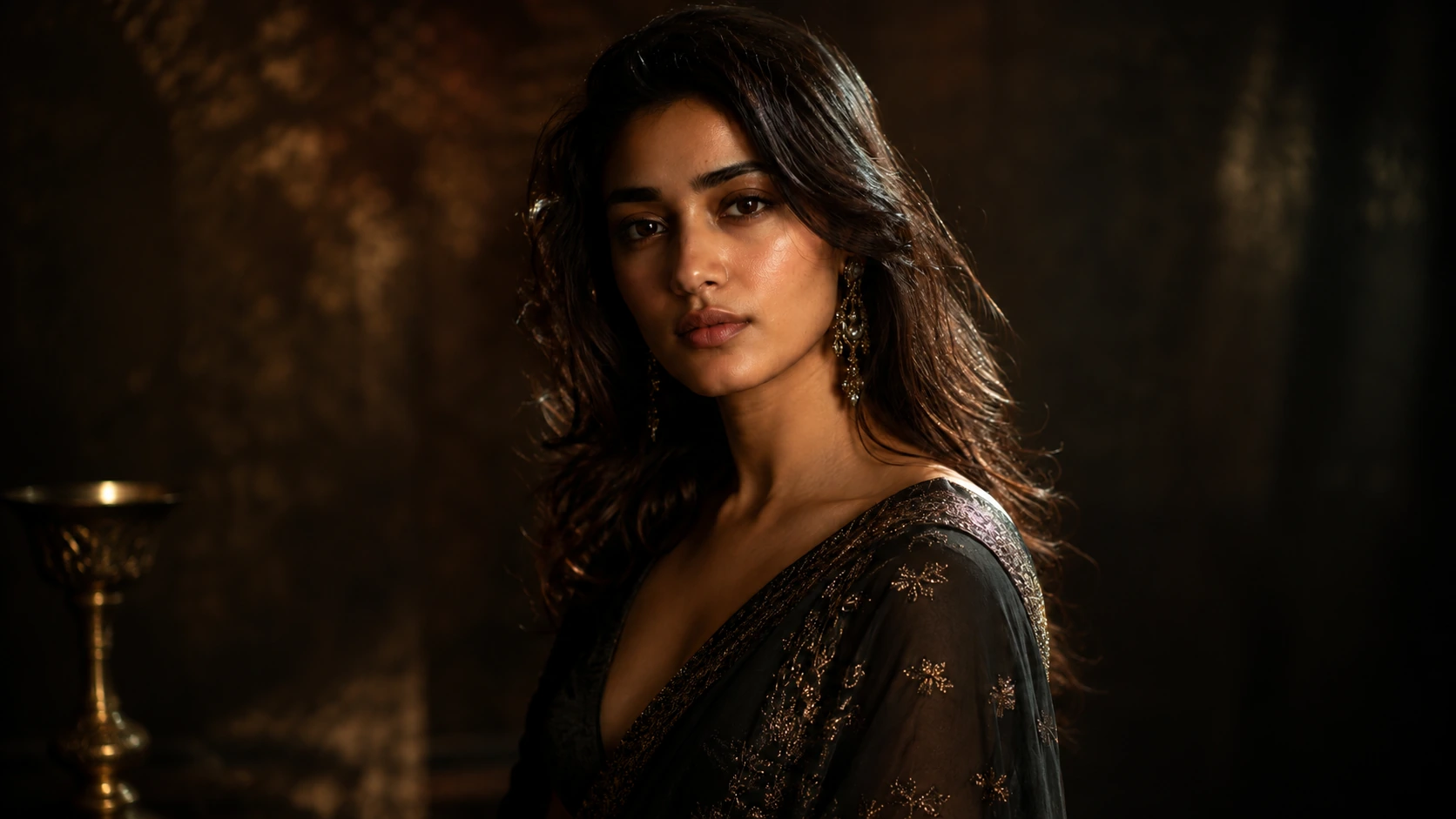
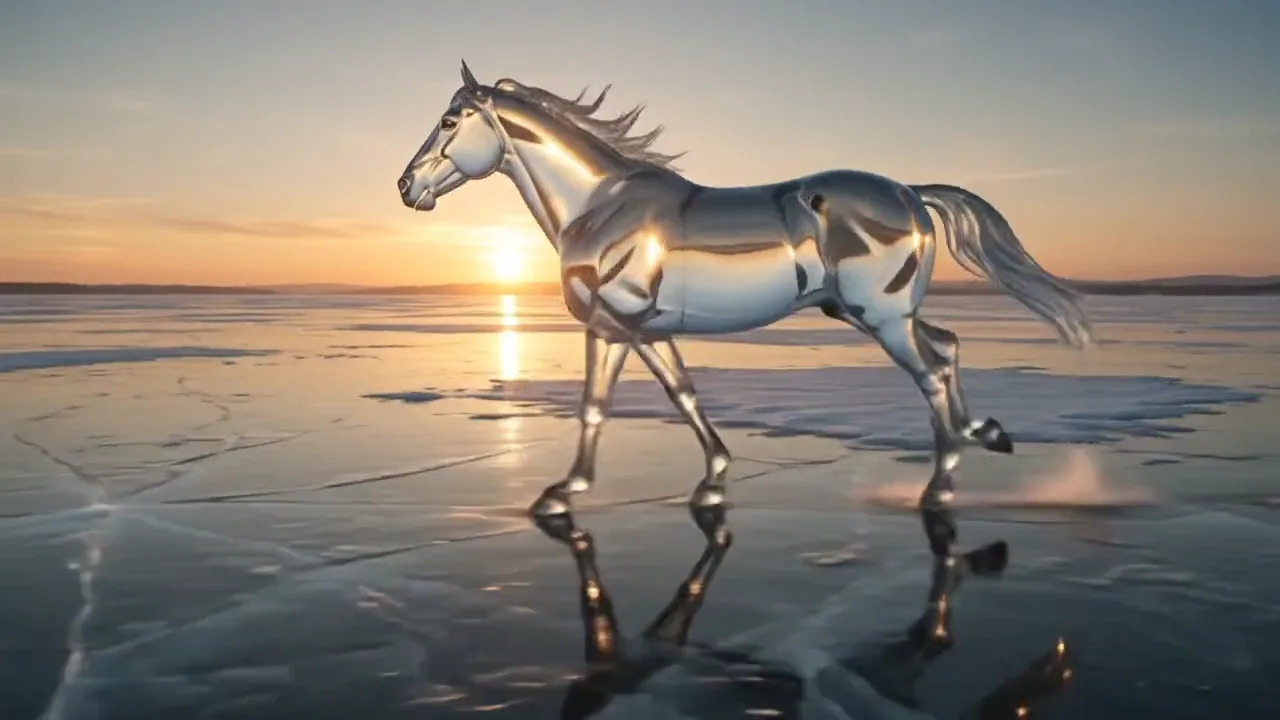
Use subtle movement, lighting, and atmosphere to give a polished portrait a cinematic feel.
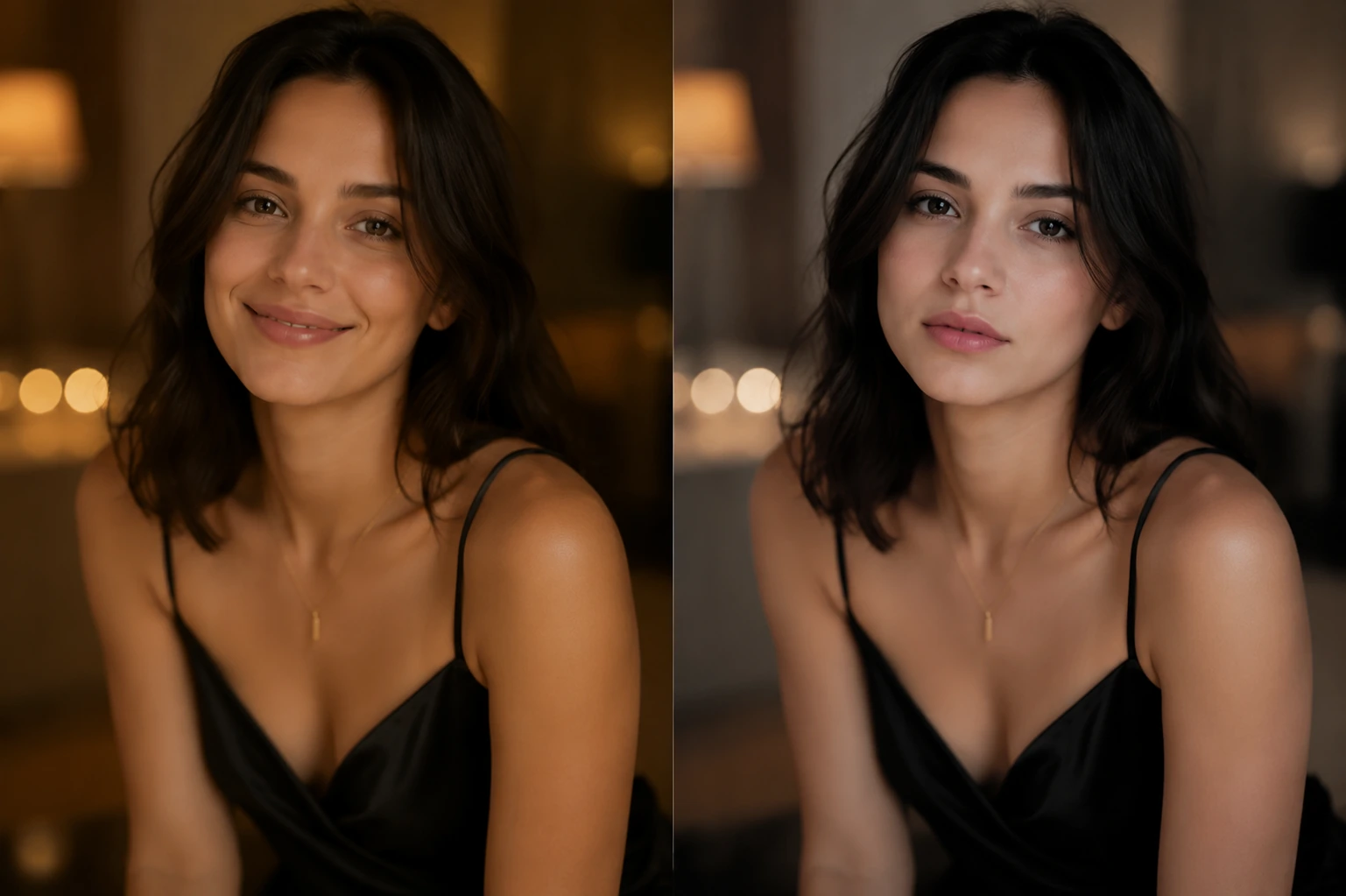
Shift the lighting, color, or mood while keeping the person and composition recognizable.
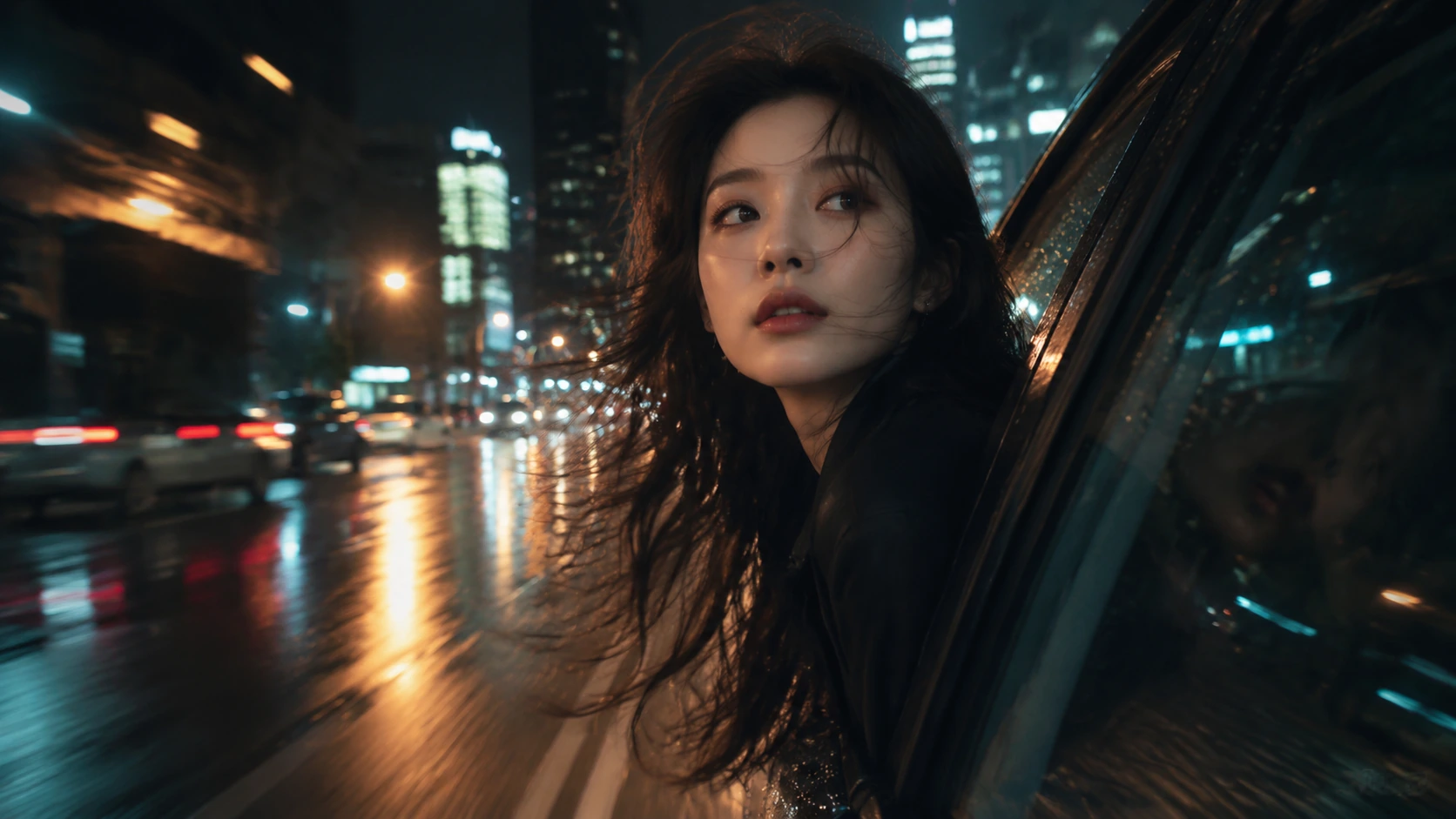
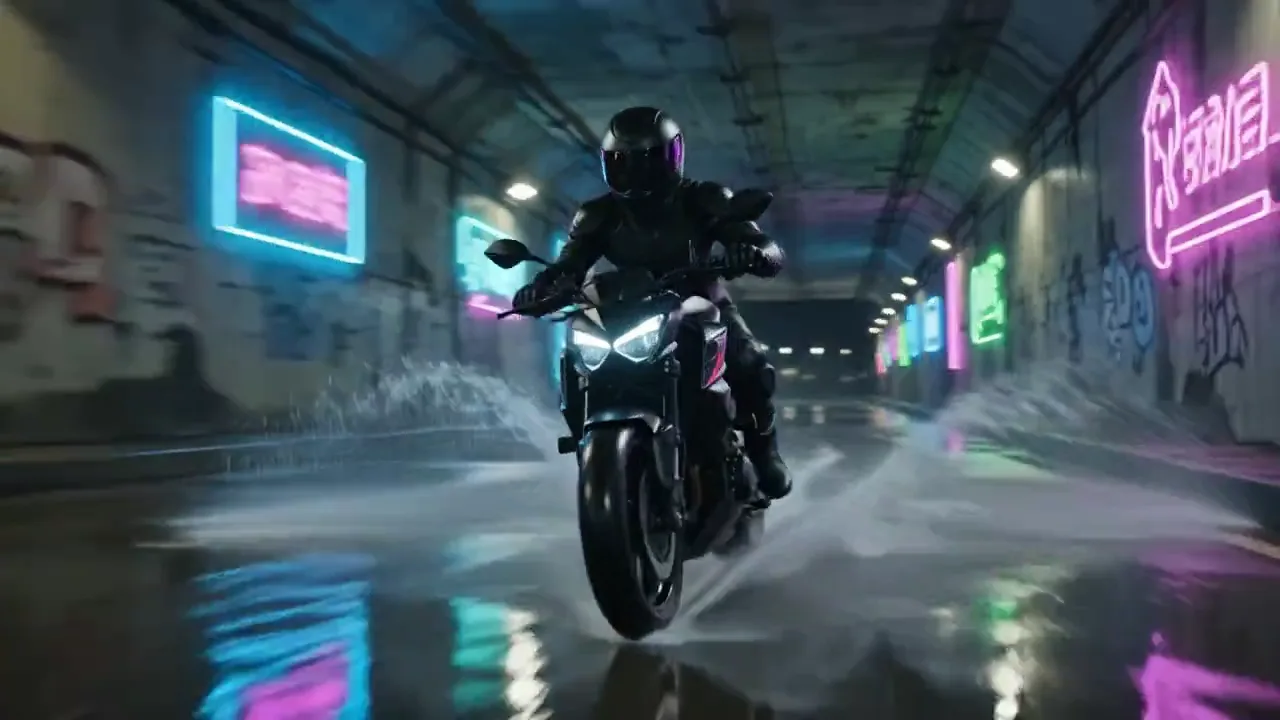
Use wind, traffic, or camera direction to shape motion that fits the scene.
See the limits, strengths, and tradeoffs that matter before you generate.
In Google's internal tests, Omni Flash led on overall preference and instruction following for video edits.
Across 1,003 MovieGenBench prompts, Google reports first place for overall preference and instruction following.
In Google's VBench comparison, Omni Flash tied with Grok Imagine Video and Kling.
Google lists consistency across edits, complex motion, and perfectly accurate text as known limits.
Use these techniques to control the shot and limit unwanted changes.
Omni Flash may add cuts by default. Add "single continuous shot" or "no scene cuts" when continuity matters.
Name the change plainly, then add "Keep everything else the same."
For a staged 10-second clip, use ranges such as [0-3s], [3-6s], and [6-10s].
There is no separate negative prompt. Add "No dialogue" or "No extra sound effects" to the main prompt.
Ready to create?
Start with a prompt or source, then keep the parts you like and change the rest.
Answers about inputs, clip length, editing, prompts, and when to choose Omni Flash.
Omni Flash is a strong fit for 3-10-second videos that you expect to revise. Start from text, an image, or a source clip, then use follow-up instructions to change the result.
Yes. Upload a source clip up to 10 seconds and describe the edit. Add "Keep everything else the same" when only one part should change.
Yes. Use an image to preserve the subject, composition, or starting look. Say whether it should guide the first frame, style, or identity.
Choose from 3 to 10 seconds. Use the shortest duration that gives the action enough time to read.
For a new video, describe the subject, action, setting, camera move, and ending. For an edit, keep it shorter: name the change and what should stay the same.
Choose Omni Flash for conversational editing or when you already have an image or clip to build from. Compare Veo AI when the selected Veo model offers the resolution, audio, or camera controls your shot needs.
Related paths
Use another model for a different motion style, edit the clip, or improve the source asset.

AI models
Compare models
Choose a better fit before you generate.
AI video tools
Turn images into motion
Animate a still or create a clip.

AI image tools
Create or edit images
Make, clean up, or upscale stills.
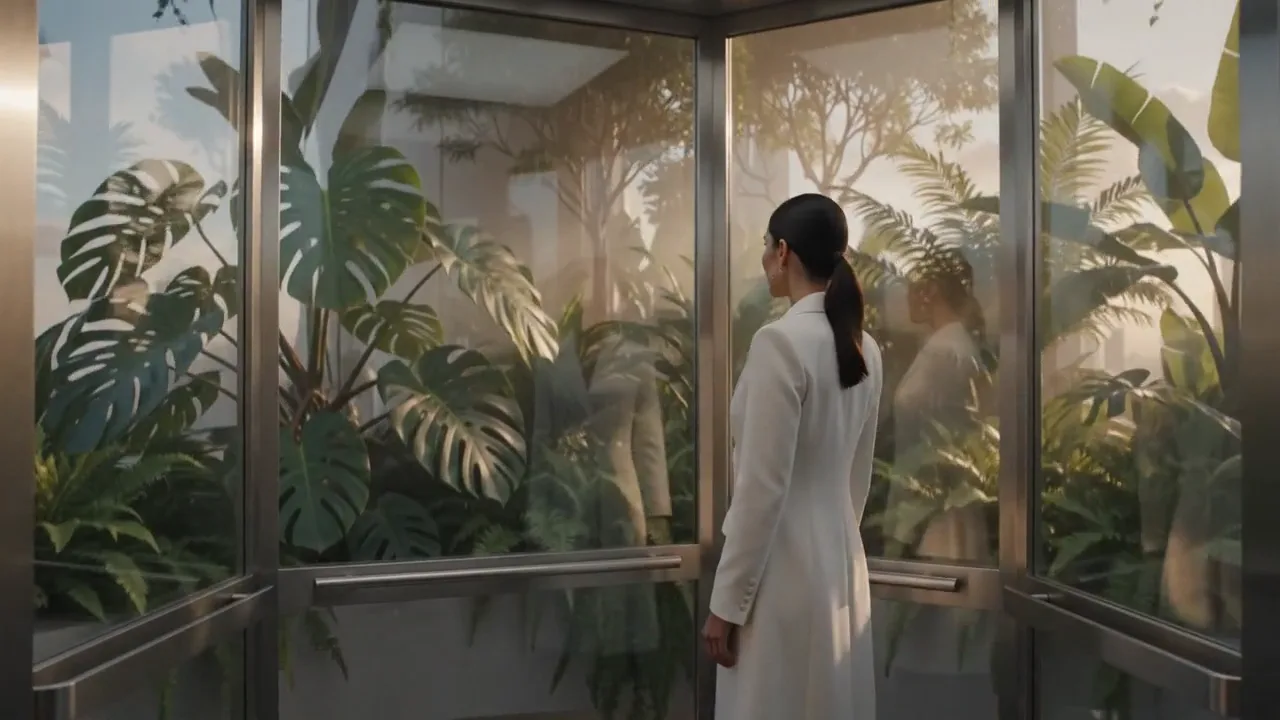
Veo AI
Veo family
Explore more Google Veo options.
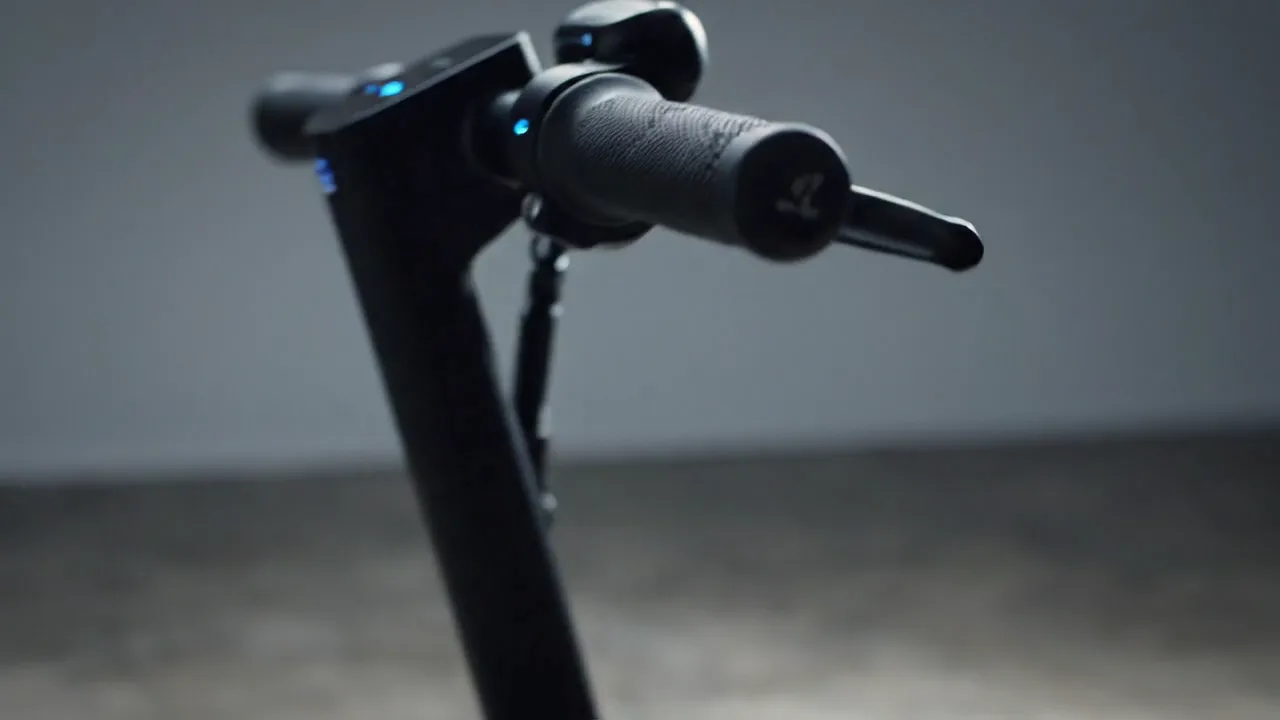
Veo 3.1
Cinematic control
Use for cinematic shots and camera moves.
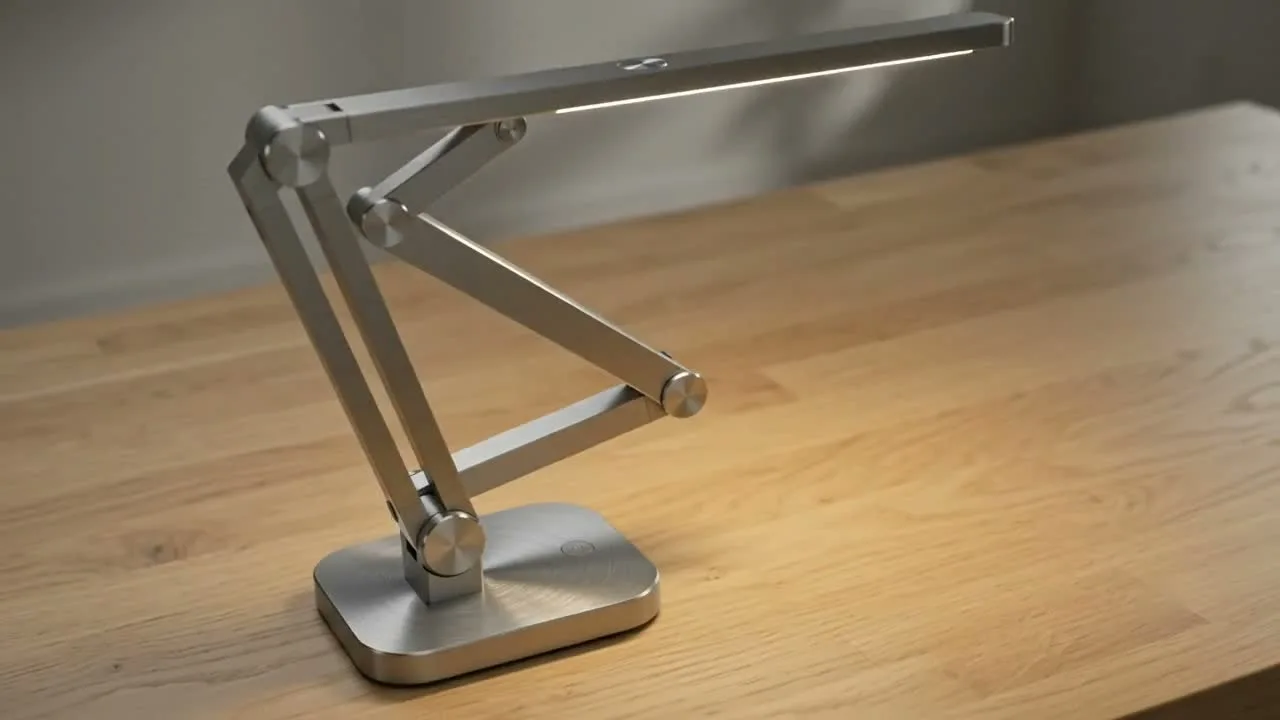
Seedance 2
Reference-led video
Use for fast motion drafts from references.
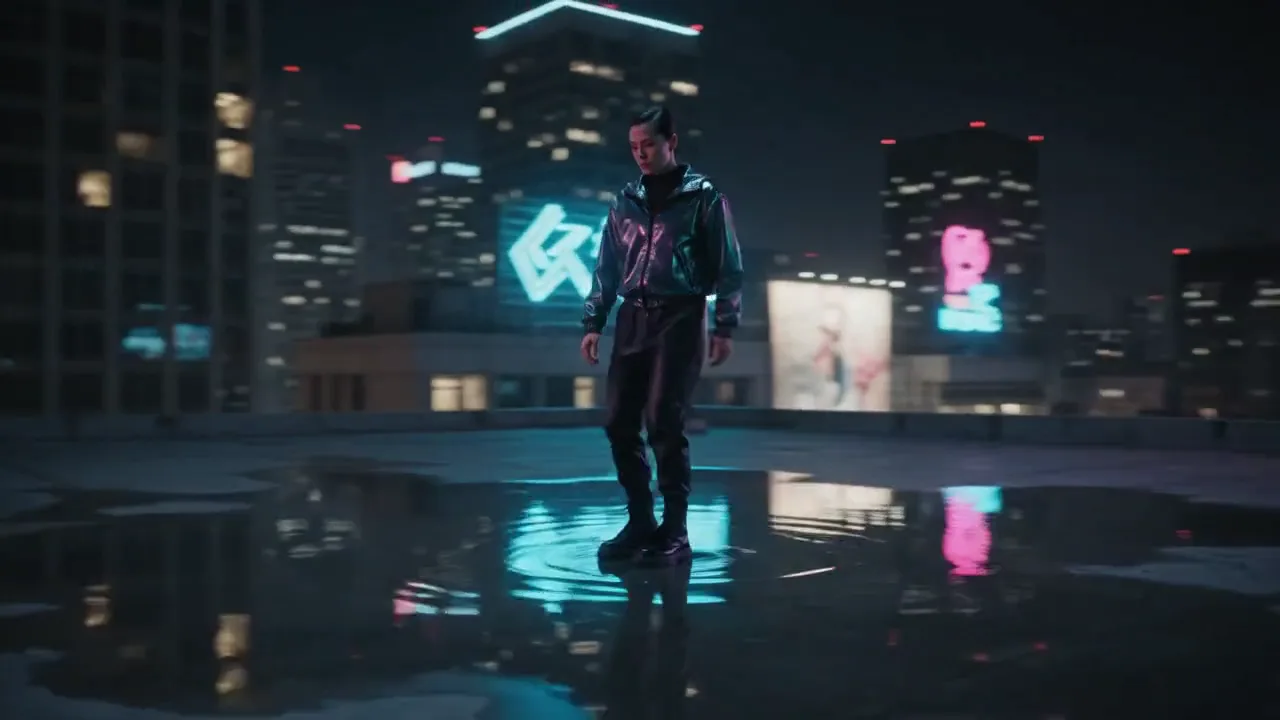
Seedance AI
Seedance family
Explore more Seedance video options.
Kling AI
Kling family
Explore more Kling video options.
Hailuo AI
Physical motion
Use for fabric, liquid, and physical motion.
AI models
Compare models
Choose a better fit before you generate.
AI video tools
Turn images into motion
Animate a still or create a clip.
AI image tools
Create or edit images
Make, clean up, or upscale stills.
Veo AI
Veo family
Explore more Google Veo options.