
Video to Video AI for Restyling Existing Clips
Upload an existing clip, describe the new visual direction, and generate a restyled version that keeps the source motion, timing, and shot structure.
Restyle an existing clip without reshooting
Use Video to Video AI when the source motion, framing, or performance already works, but the visual direction needs to change. Upload a clip, describe the new look, and test variations without rebuilding the shot from scratch.
Use the source overhead beauty selfie as the reference. Keep the woman reaching up toward the camera, the top-down lens angle, pink glasses, checkerboard floor, and scattered makeup props, then transform the clip into a glossy stylized 3D animation with smooth skin shading, toy-like cosmetics, brighter pastel colors, and a clean fashion-commercial finish.
How to use Video to Video AI in Ezier
- 01
Upload the clip you want to restyle
Start with the exact video whose motion, timing, or camera path should stay. Short, clear clips give the model fewer details to rebuild.
- 02
Pick a video model
Choose a model before generating so the first test has a clear baseline. You can compare models later with the same source clip and prompt direction.
- 03
Describe the new visual direction
Name the look you want, such as animation style, cinematic lighting, product-render polish, or a new world, then state what should stay recognizable.
- 04
Review the result against the source
Compare the output with the original clip. If the style is weak, sharpen the prompt. If motion drifts, shorten the source or test another model.
What Video to Video AI can change in a clip
Use Video to Video AI when the source clip already has the right action, framing, or performance. Change the scene world, genre, lighting, or production finish while keeping the motion recognizable.
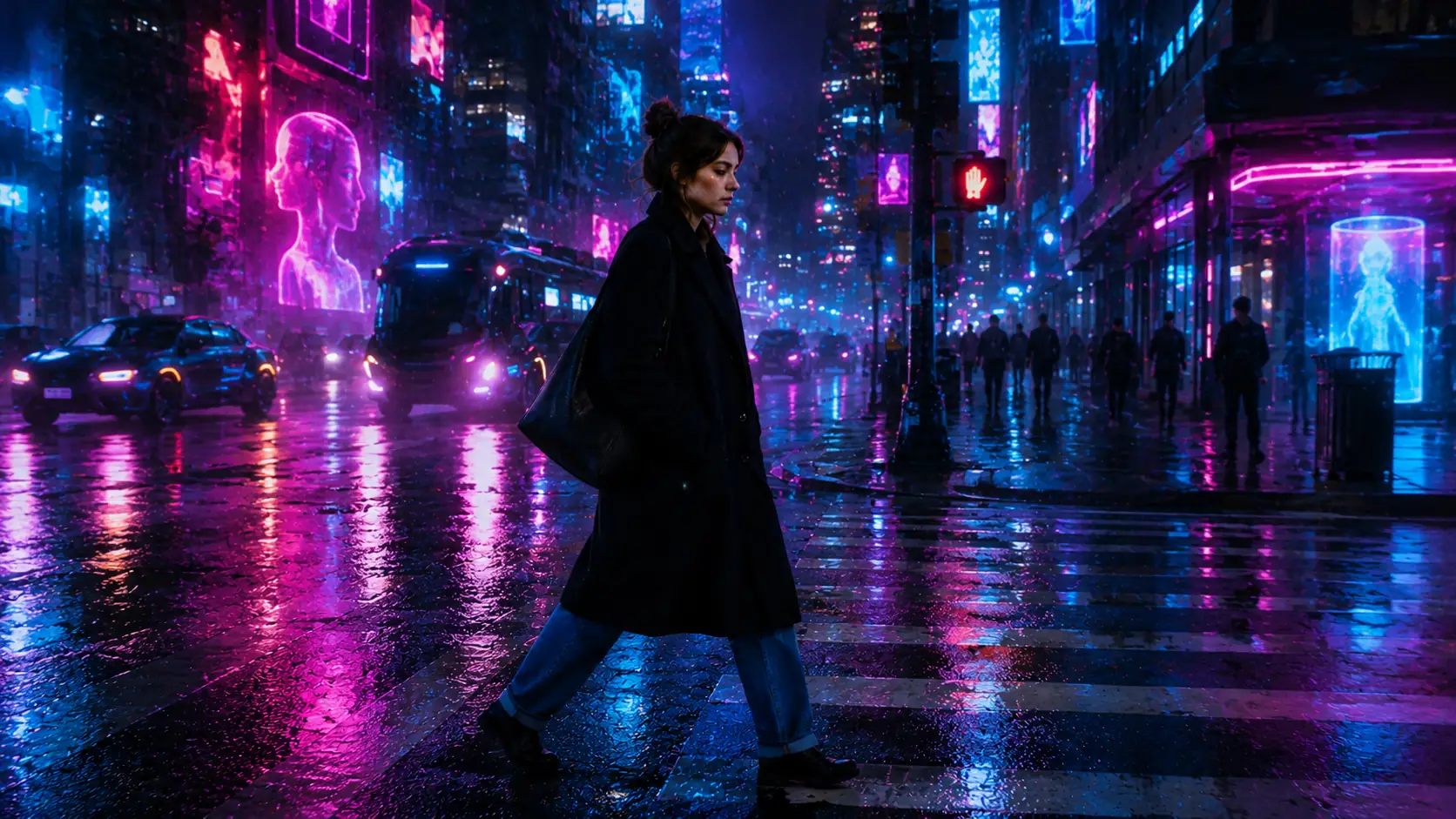
Change the scene world
Move a walking shot into a neon city, fantasy ruin, anime frame, or other visual world while keeping the subject path and camera feel readable.
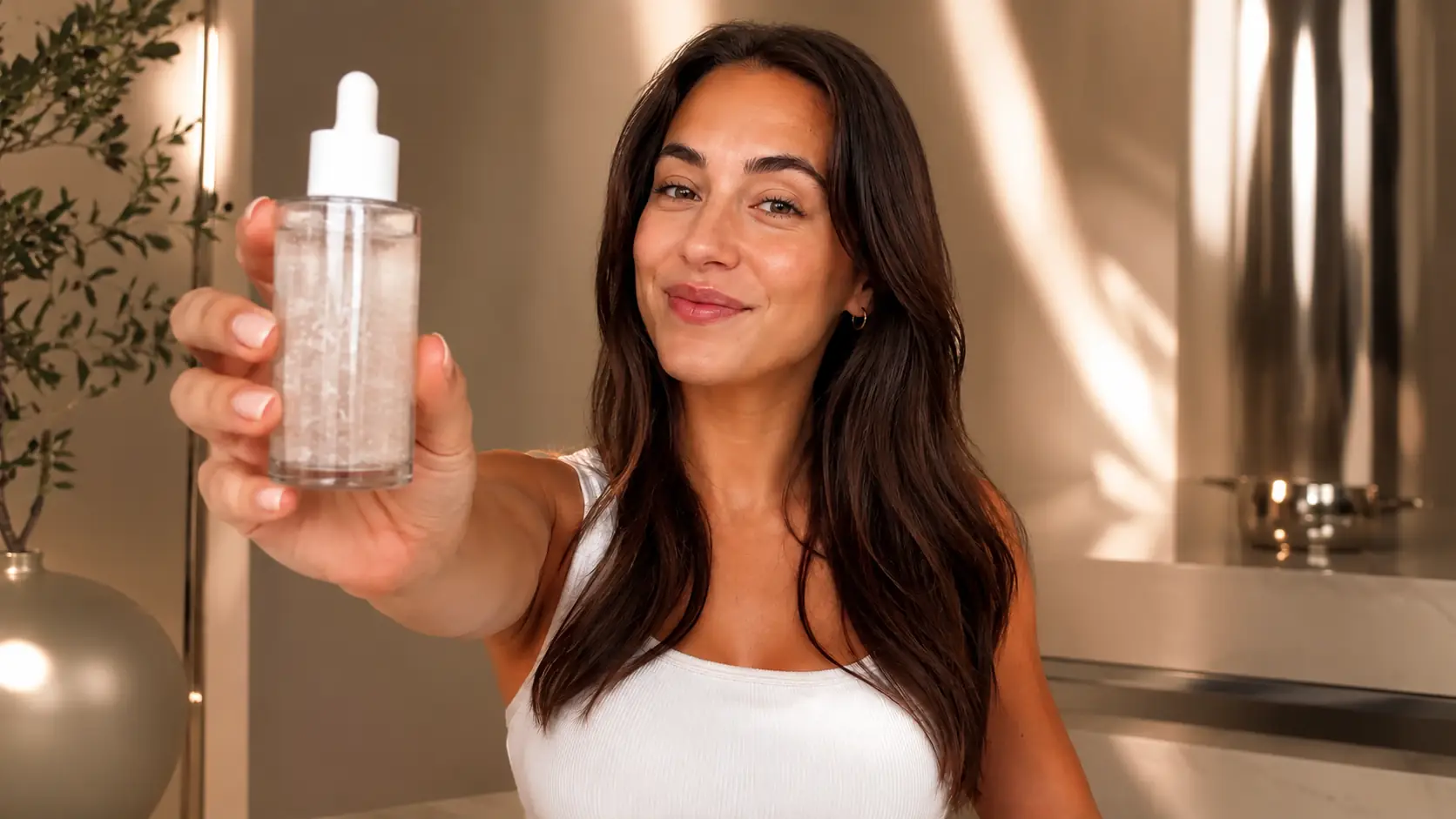
Keep product and performance beats
Restyle beauty, talking, or product clips while preserving the handoff, pose, expression, and on-camera timing that make the source footage useful.
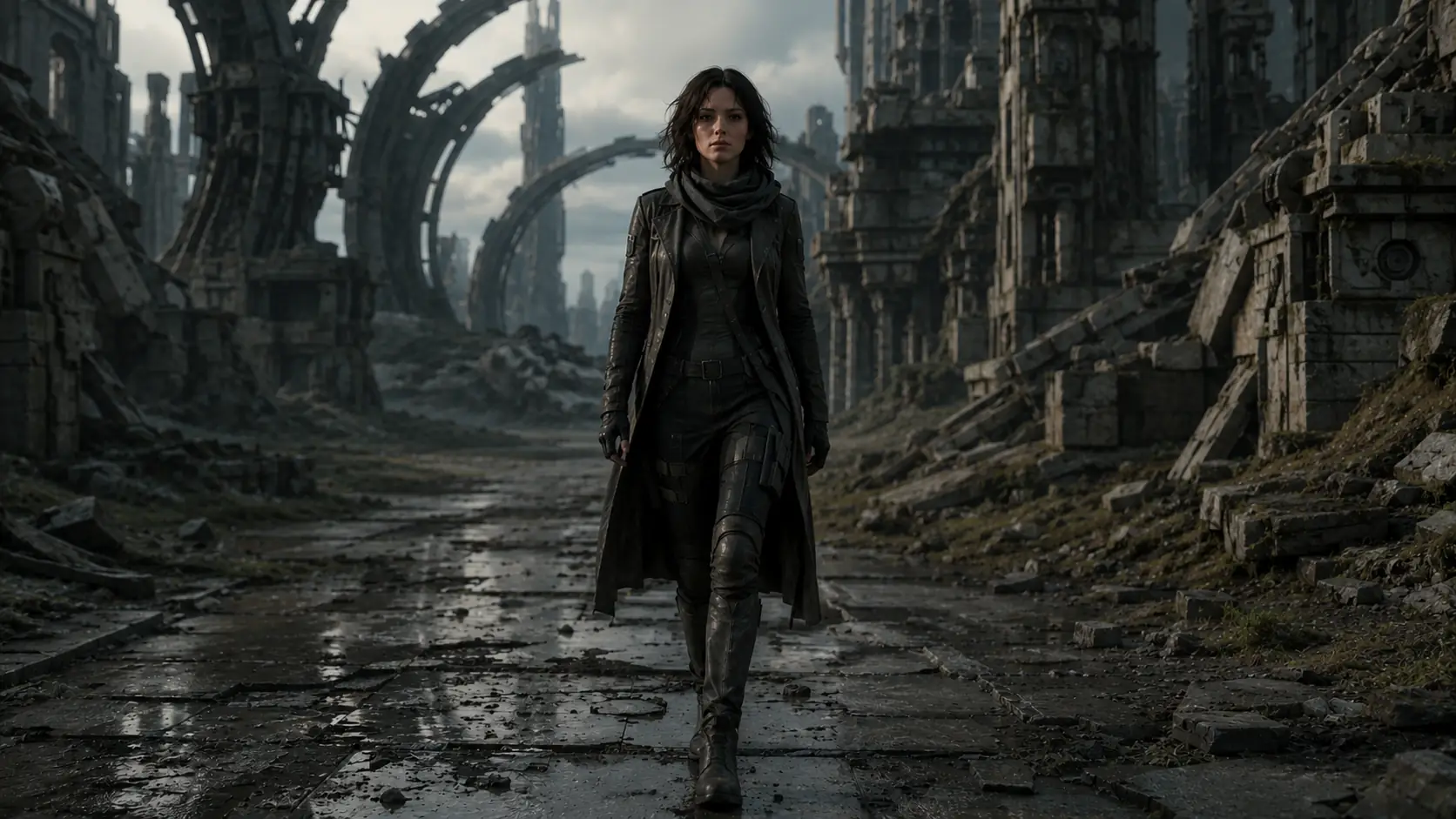
Shift the genre and finish
Push usable footage toward cinematic, game, manga, or commercial treatments without asking the model to invent a new shot from scratch.
Keep the restyled video close to the source
A strong Video to Video result should feel visually new without losing the source clip underneath. Use these checks when the first version is close, but still needs more control.
Start with one readable motion
Clips with one clear action, camera move, or product handoff are easier to restyle than footage with fast cuts, crowded scenes, or competing movement.
Protect what cannot change
Name the anchors that matter: face, product shape, outfit, pose, hand position, camera angle, or timing. The prompt should tell the model what to preserve, not only what to transform.
Check the full clip, not the first frame
A restyle can look strong at the start and drift later. Watch for changes in faces, hands, products, edges, backgrounds, and subject identity across the whole output.
Change one thing per rerun
If the style is weak, revise the prompt. If motion breaks, shorten the source. If the same issue repeats, switch models instead of changing every setting at once.
Ready for a first restyle
Restyle the clip you already have.
Upload the source video, describe the new look, and generate a version that keeps the original action under a different style. If you need more runtime instead, use AI Video Extender.
Video to Video FAQ
Quick answers about source clips, prompts, tool boundaries, and motion drift.
What does Video to Video AI do?
Video to Video AI uses an uploaded clip as the source and generates a new version with a different visual treatment. It is for restyling existing footage while keeping the motion, timing, and shot structure recognizable.
How is Video to Video different from Text to Video or Image to Video?
Use Video to Video when you already have moving footage and want to preserve its action. Use Text to Video for a shot created from a written prompt, and Image to Video when a still image should become the first frame of a clip.
What source clips usually work best for Video to Video?
Short clips with clear subject motion, readable framing, and one main action are usually easier to restyle. Fast cuts, heavy occlusion, crowded scenes, and multiple competing motions are more likely to drift.
What should I write in a Video to Video prompt?
Write the new visual direction first, then name what should stay recognizable from the source clip. For example, describe the target style, lighting, world, or finish, plus anchors like subject identity, product shape, pose, or camera rhythm.
Can Video to Video preserve a face, product, or outfit?
It can help keep important visual anchors, but the result still needs review. Mention the face, product shape, outfit, logo area, or pose in the prompt, then check the whole clip for identity or detail drift.
Can Video to Video fix blur, noise, or low resolution?
That is not the main job of this page. Video to Video is better for changing the look of footage that is already usable. If the real issue is softness, noise, blur, or low resolution, use a repair-focused video tool before a creative restyle.
When should I use Video to Video instead of AI Video Extender?
Use Video to Video when the goal is changing the look of the clip while keeping the existing motion. Use AI Video Extender when the goal is continuing the same shot for more time instead of restyling it.
Why does a restyled clip drift over time?
Longer or more complex clips give the model more chances to lose consistency. If the output changes too much, try a shorter source clip, clearer preserve instructions, simpler motion, or another available model.
Keep creating
Set up the next pass
Continue with generation, editing, model choice, or source preparation without starting from the sidebar.

AI video tools
More video tools
Generate, edit, clean up, or improve clips.

AI models
Compare video models
Pick a better model before rendering again.

AI image tools
Prepare source images
Create a stronger still for the next video run.
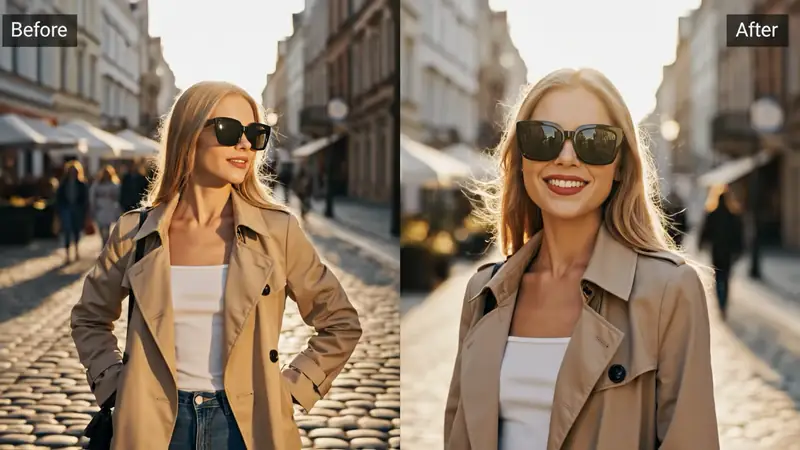
AI Video Editor
Edit with prompts
Revise a clip without a timeline.
AI Video Generator
Start a video
Create a clip from a prompt or image.
Image to Video
Animate a still
Turn an image into a short clip.
Video Enhancer
Improve quality
Sharpen, denoise, and restore clips.
Video Upscaler
Make it larger
Upscale clips for bigger screens.

Remove Object from Video
Clean distractions
Remove unwanted objects from footage.
AI video tools
More video tools
Generate, edit, clean up, or improve clips.
AI models
Compare video models
Pick a better model before rendering again.
AI image tools
Prepare source images
Create a stronger still for the next video run.
AI Video Editor
Edit with prompts
Revise a clip without a timeline.