
Upload Image
Background Remover for Clean Cutouts
Upload a product photo, portrait, pet photo, or graphic and remove the backdrop in one pass. Export a cutout you can reuse in listings, thumbnails, ads, and designs.
Samples
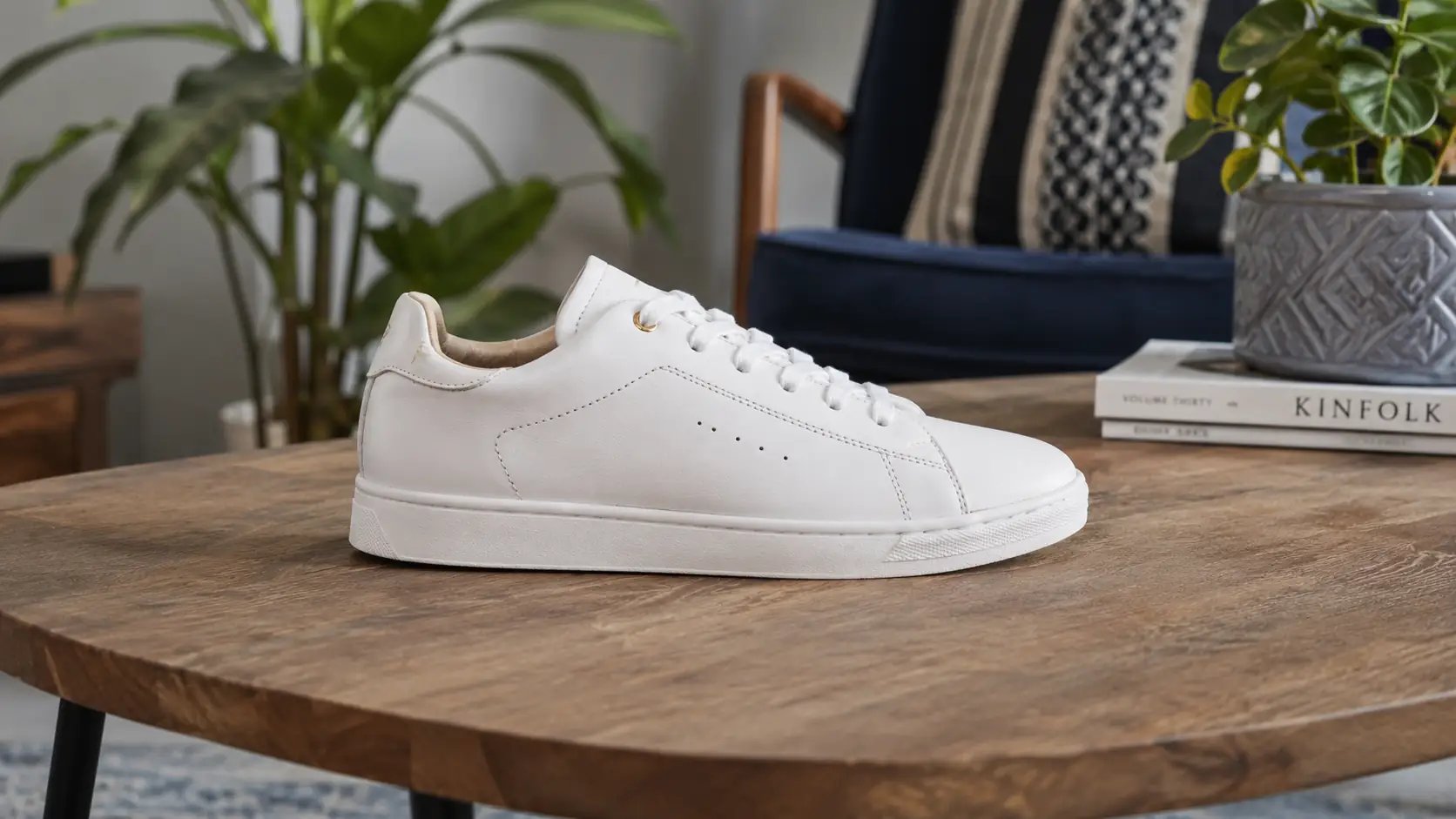
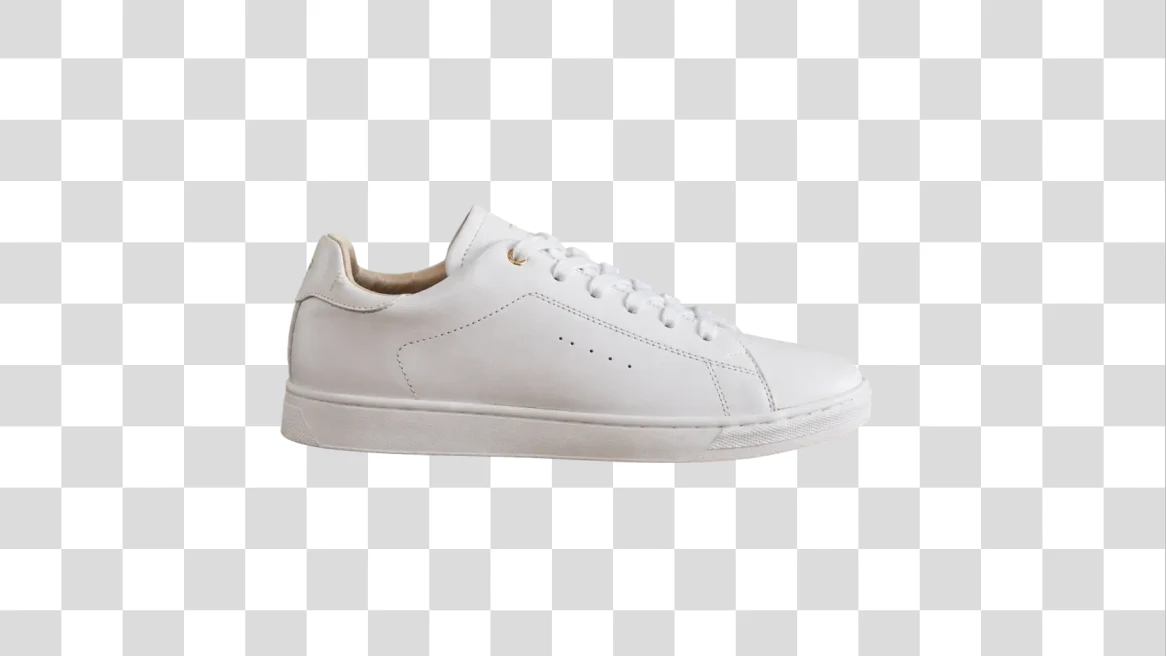
Remove the whole background in one pass
Use Background Remover when you want to keep the subject and remove everything behind it.
- 01
Upload one image
Choose a PNG, JPG, WEBP, or GIF with a subject you want to keep.
- 02
Select Remove Background
Run the removal pass so Ezier can separate the subject from the scene behind it.
- 03
Review the cutout
Check hair, hands, straps, shadows, glass, and product corners before you download.
- 04
Download the result
Keep the cutout transparent when you need to place it into another layout.
Create cutouts for products, people, and layouts
Use it for ecommerce images, profile assets, thumbnails, ads, and design layouts where the subject needs to stand on its own.
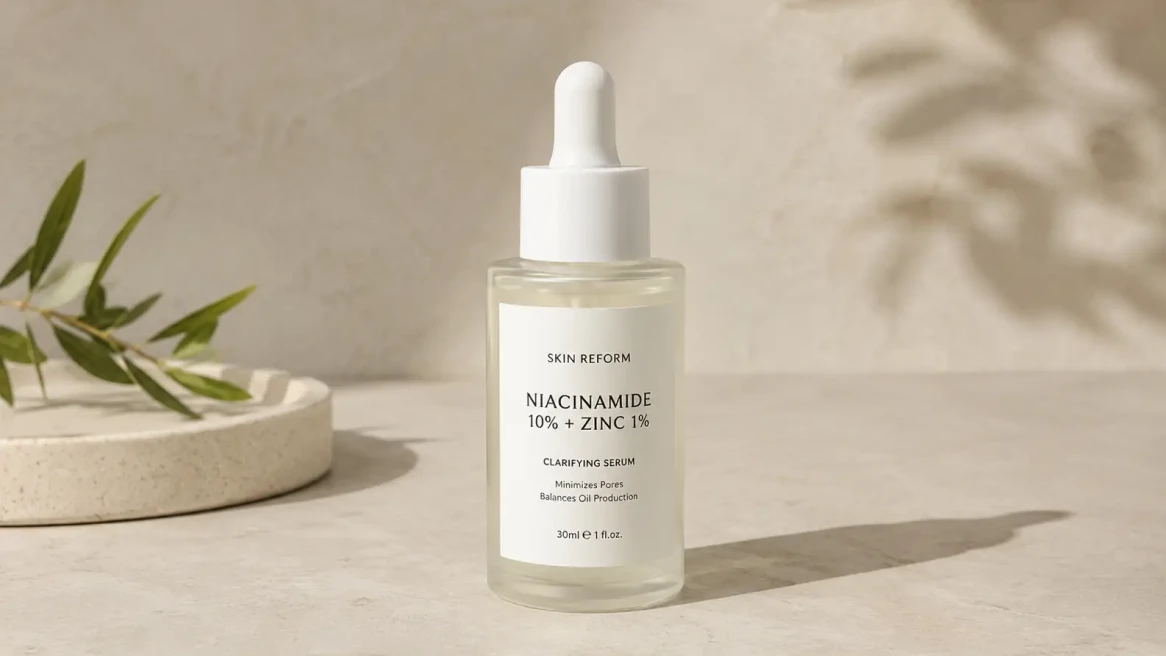
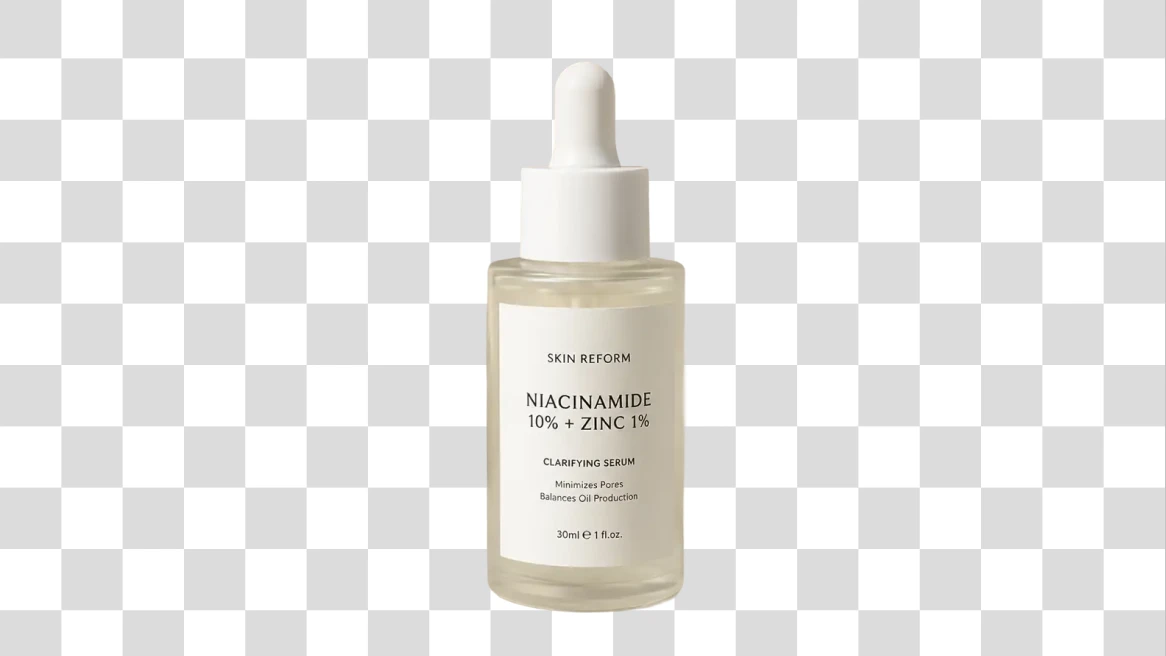
Product cutouts for stores and catalogs
Remove tables, walls, shelves, or lifestyle scenes so the product can fit listing pages, catalog grids, and ad layouts.
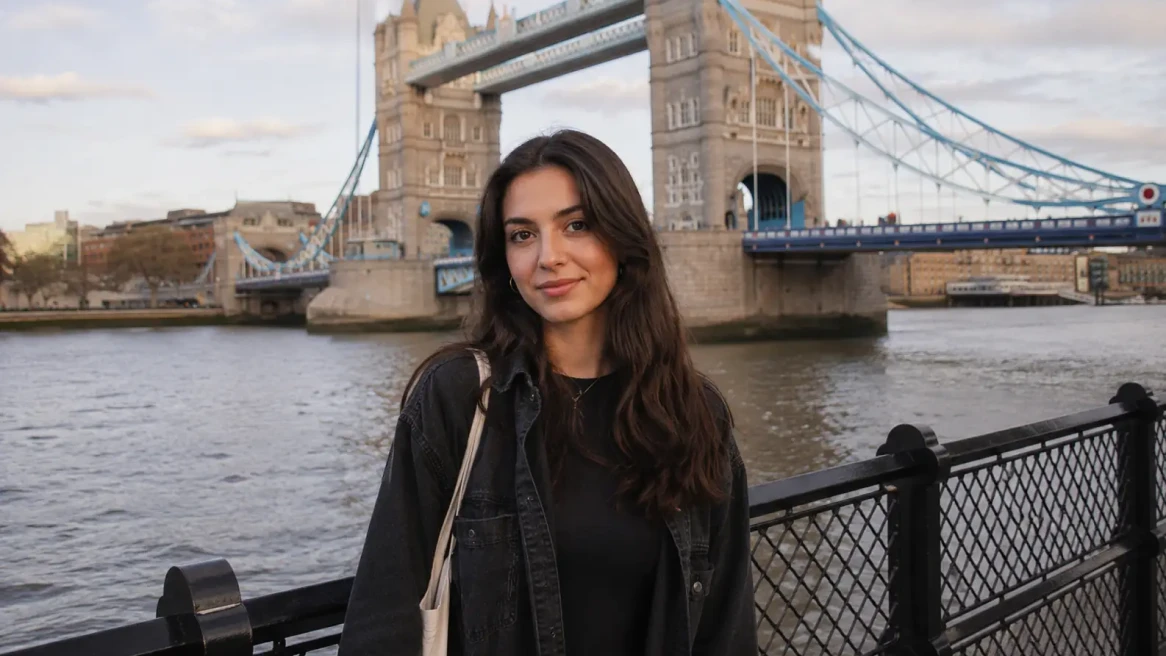
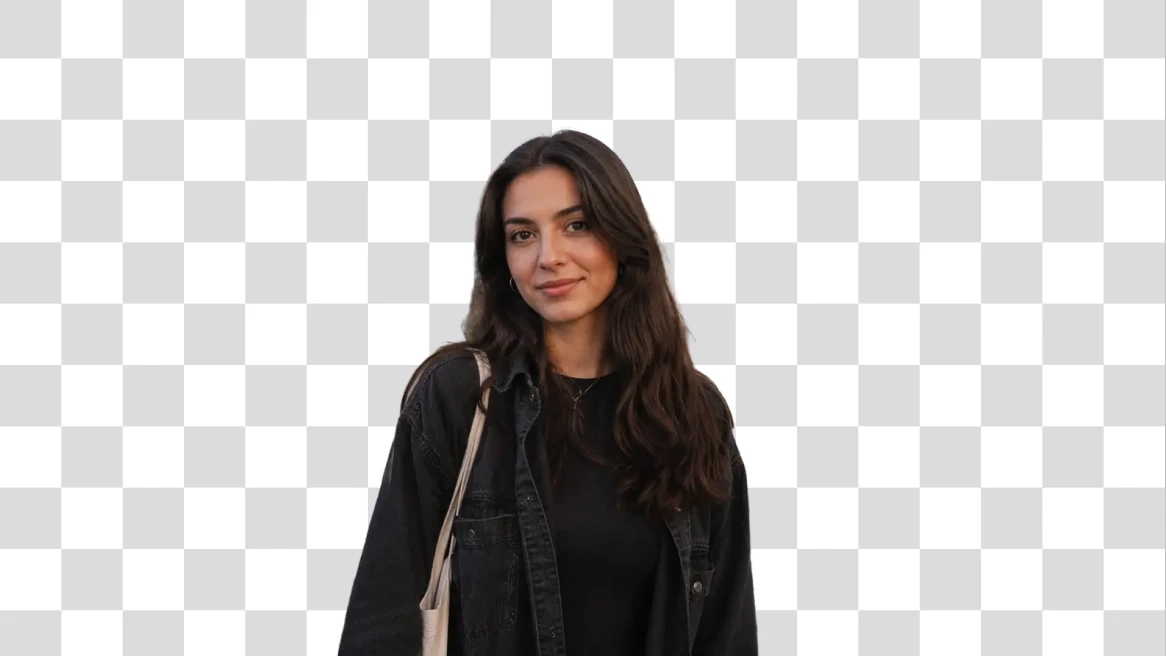
Portrait cutouts for profiles and campaigns
Separate a person from a busy location so the same portrait can work in profile images, banners, presentations, or campaign graphics.

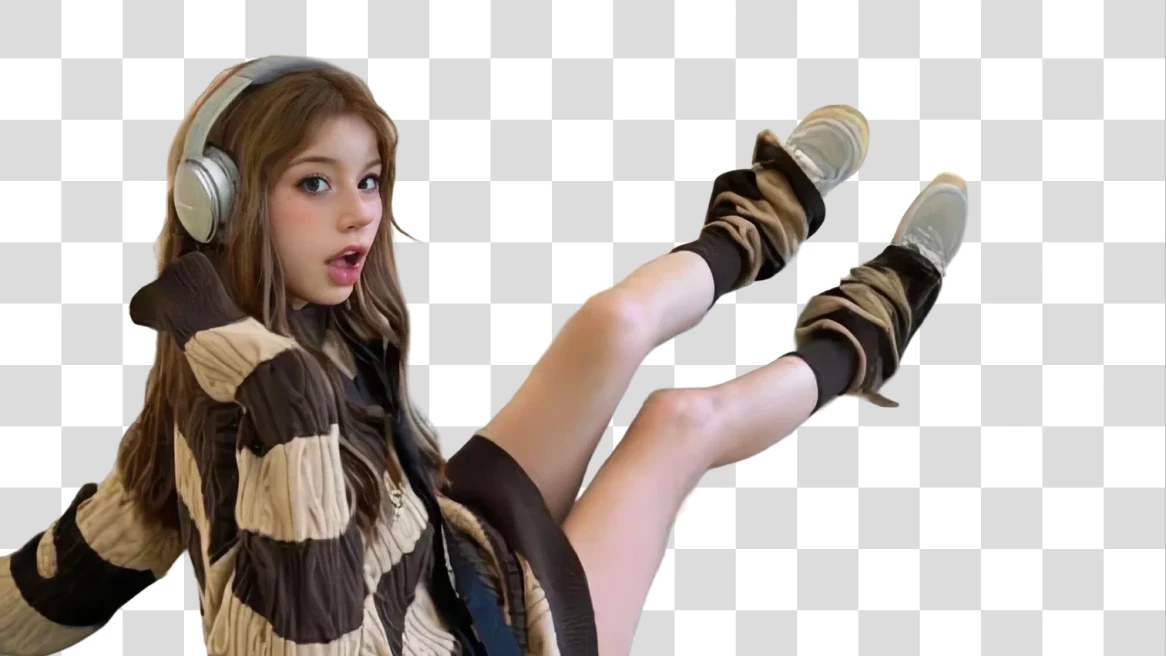
People cutouts from indoor photos
Turn a casual indoor photo into a cleaner subject asset for cards, thumbnails, course materials, or social graphics.
Get cleaner cutout edges
The best results start with a clear subject and enough contrast around hair, fabric, glass, straps, and product edges.
Improve low-quality images first
If the image is dark or compressed, use Image Enhancer before removing the background so the subject edge is easier to detect.
Choose the right remover
If one object is the problem and the background should stay, use Object Remover instead.
Check fine edges before publishing
Hair, fur, fingers, straps, glass, and shadows are the areas most likely to need a second look.
Keep transparency until the layout is final
Download the cutout first, then flatten it only after you know the background, crop, and placement work.
Ready for your next layout
Remove the backdrop and keep the subject.
Upload the image, run the background remover, then check the cutout before you place it into a listing, post, ad, or design.
Background Remover FAQ
Answers about transparent exports, edge quality, and when to choose a different cleanup tool.
When should I use Background Remover?
Use it when the subject should stay and the entire backdrop should disappear, such as product photos, portraits, pet photos, thumbnails, and layout assets.
Do I need to write a prompt?
No. Upload one image and select Remove Background. You do not need to write an edit prompt for this tool.
How do I get cleaner edges?
Use an image where the subject is clear and separated from the background. Check hair, fur, fingers, straps, glass, and shadows before publishing.
What file types can I upload?
The current uploader accepts PNG, JPG, WEBP, and GIF files up to 20MB.
Should I use Object Remover instead?
Use Object Remover when one object is the problem and the background should stay. Use Background Remover when you want the whole backdrop gone.
More to try
Explore your next creative step
Try another image tool, compare image models, or animate an image concept.

AI image tools
More image tools
Create, edit, clean up, or upscale stills.

AI models
Compare image models
Pick a better model before making more versions.

AI video tools
Make it move
Animate a still or turn it into a clip.

Object Remover
Clean distractions
Remove unwanted objects or people.

AI Image Editor
Prompt-based edits
Change an image without starting over.

Image to Image
Use a reference
Restyle or revise an existing image.

Image Enhancer
Improve quality
Recover detail, color, and clarity.

Image Upscaler
Make it larger
Increase size for export or reuse.

Watermark Remover
Remove marks
Clean visible watermarks or logos.
AI image tools
More image tools
Create, edit, clean up, or upscale stills.
AI models
Compare image models
Pick a better model before making more versions.
AI video tools
Make it move
Animate a still or turn it into a clip.
Object Remover
Clean distractions
Remove unwanted objects or people.