
Unblur Video for Blurry or Out-of-Focus Clips
Upload an MP4 or MOV to reduce motion blur, focus blur, and compression softness while keeping the original shot and timing.
Create
Original Video
Sample videos
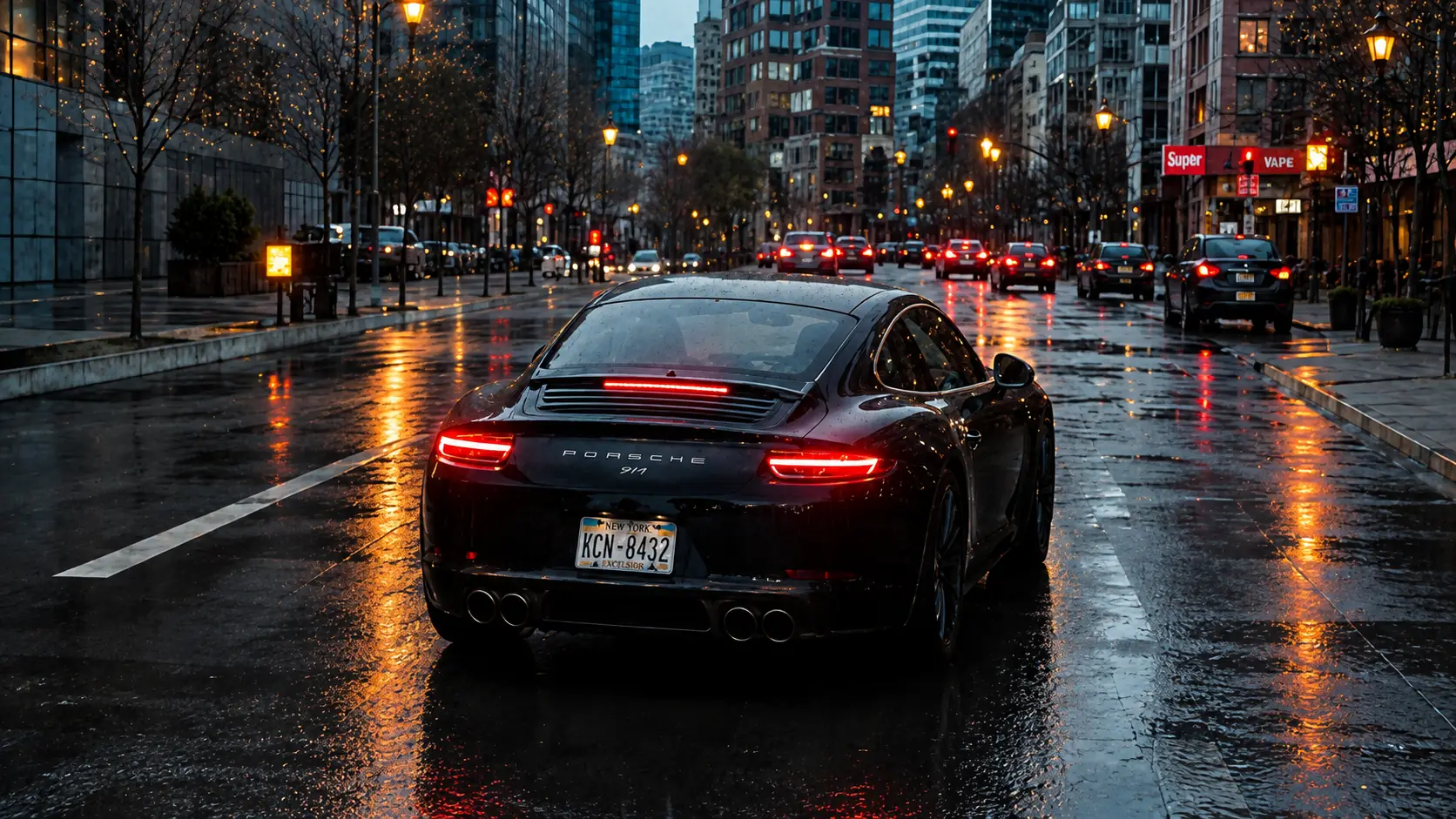
How to unblur a video in Ezier
- 01
Upload the video you want to unblur
Add one MP4 or MOV with motion blur, out-of-focus detail, or compression softness. Start with the clearest source file you have.
- 02
Wait until the file is ready
Let the upload finish before you run the tool. Once the file is ready, the Create button becomes available.
- 03
Create the clearer version
Click Create to process the uploaded video. This workflow runs directly, so you do not need to write a prompt or choose a model first.
- 04
Review the result in motion
Play the result next to the original and check faces, text, edges, and fast movement. Download it when the important areas look clearer.
What Unblur Video can make clearer
See the kinds of detail Unblur Video is built to improve: moving subjects, slightly missed focus, and compression-softened edges. The goal is a clearer version of the same clip, not a new shot.
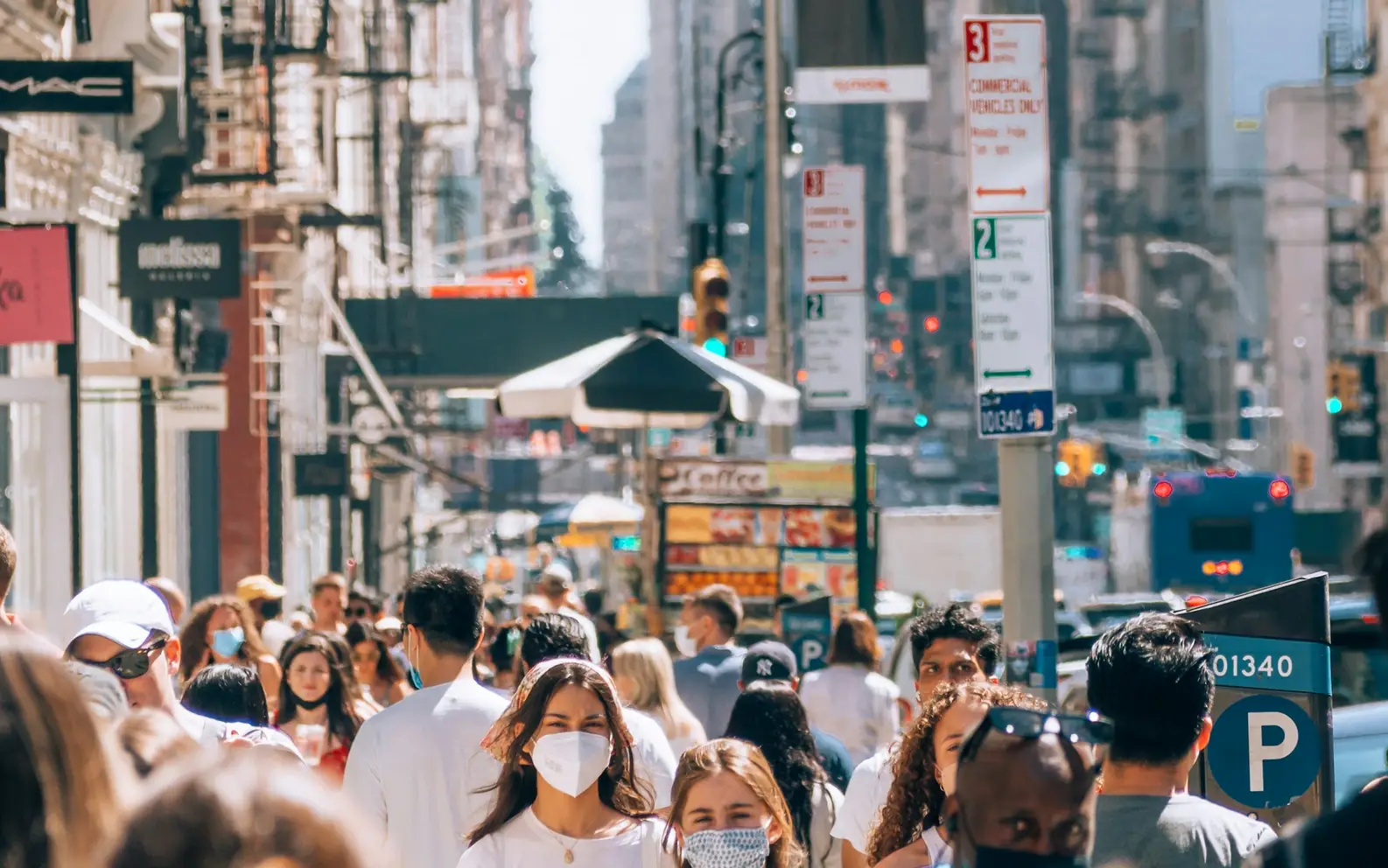
Clarify motion-blurred subjects
Use it on handheld or fast-moving clips where the subject is still visible but edges smear during movement. Unblur Video can make people, vehicles, signs, and scene detail easier to read in the same shot.
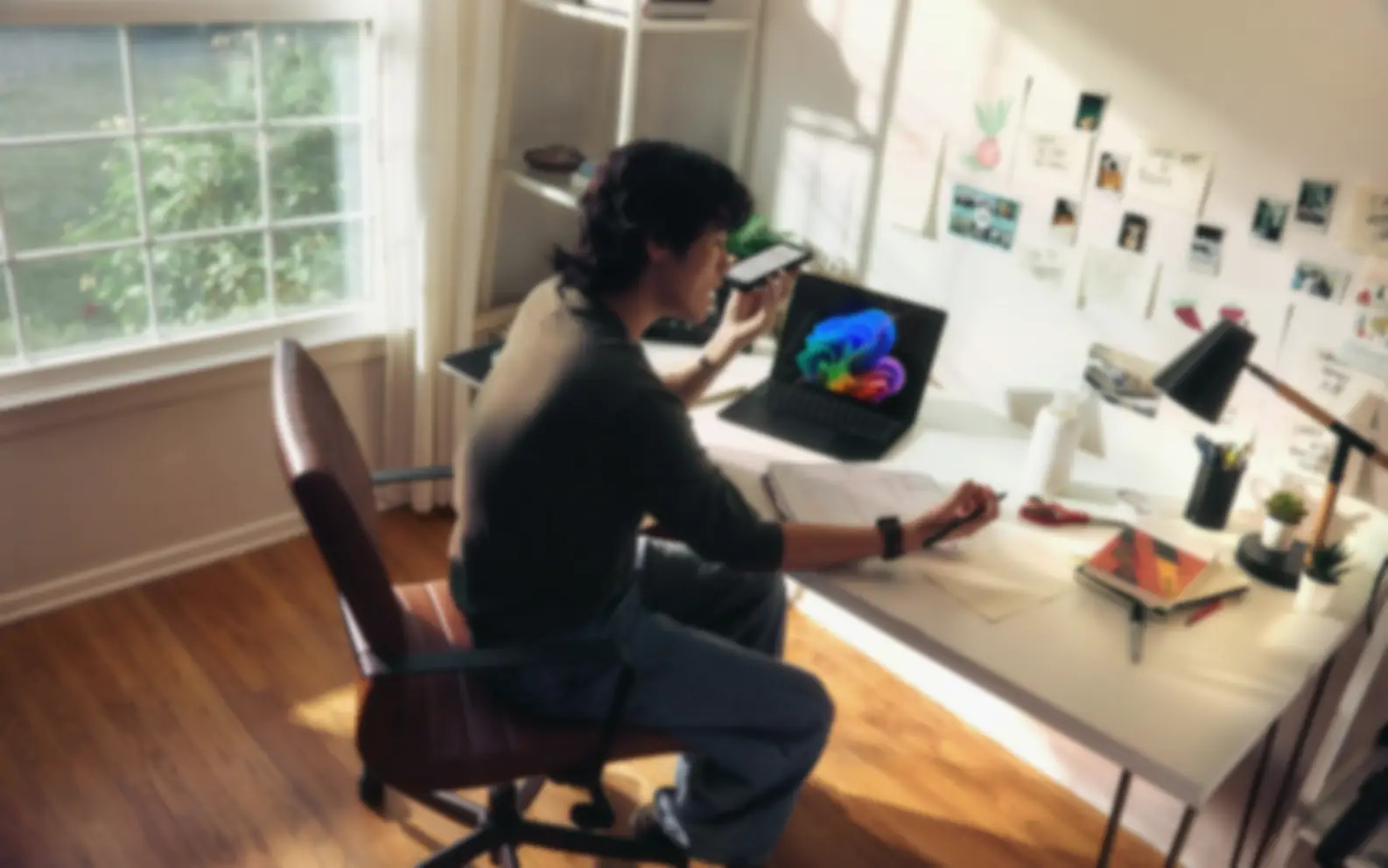
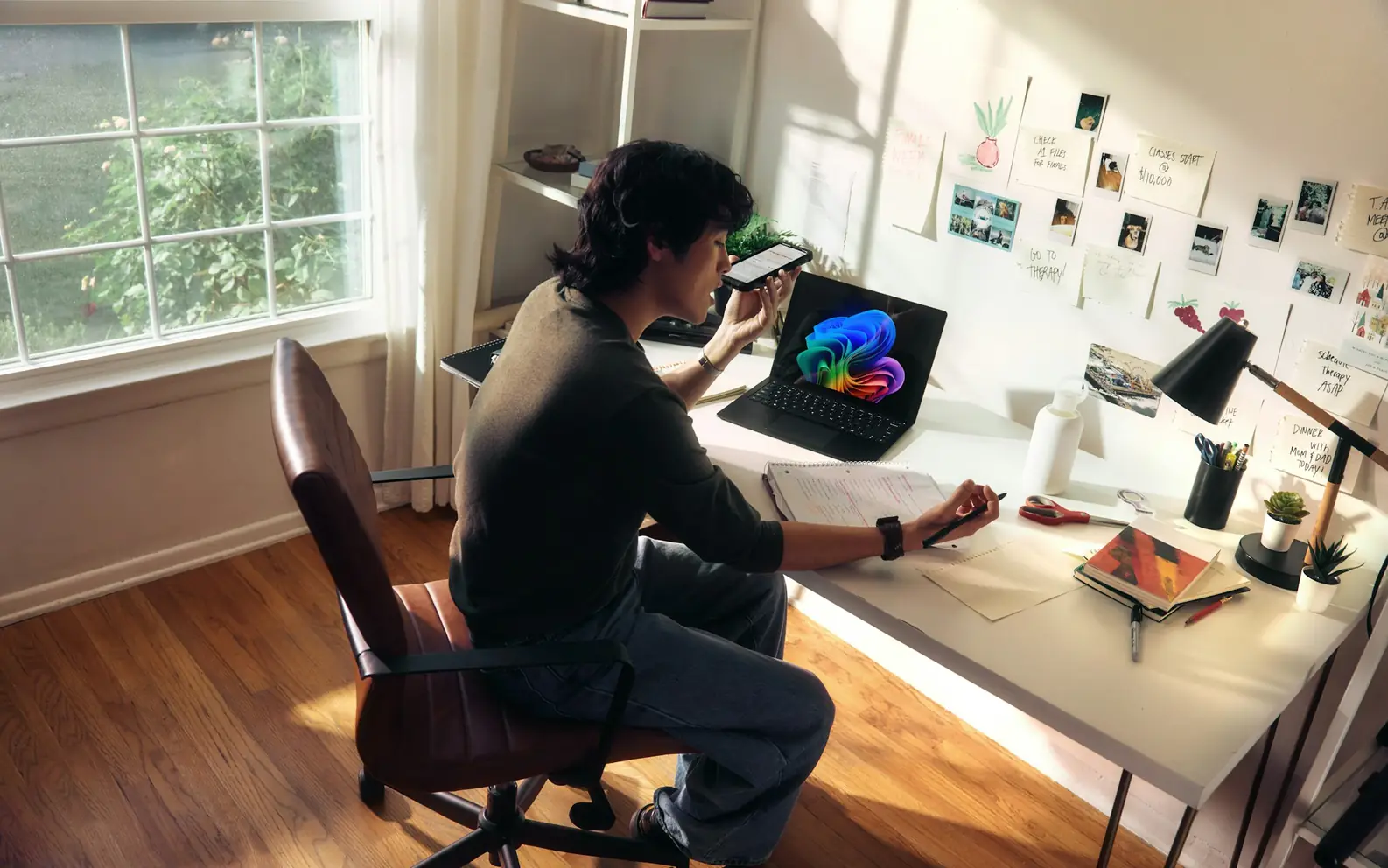
Improve out-of-focus detail
For clips that only missed focus slightly, Unblur Video can help faces, desk objects, product texture, or screen detail look more legible without changing the scene.


Clarify compression-softened details
Repeated exports, messaging apps, and social reposts can make labels, packaging, faces, and object edges lose definition. Unblur Video helps those details look clearer before you reuse the clip.
Get better Unblur Video results
Start with a source where the subject is still readable, then judge the result while the video plays. Unblur Video works best when blur is the main problem, not when the whole clip needs a full quality repair.
Use the cleanest source clip
Upload the least-compressed version you have. An original phone export, camera file, or screen recording gives the unblur pass more real detail than a reposted copy.
Make sure blur is the main problem
If the clip mostly looks noisy, dim, or washed out, start with Video Enhancer . Use Unblur Video when faces, text, objects, or edges are visible but blurred.
Review the moving parts
A paused frame can look fine while the clip still feels unstable. Watch faces, hands, product edges, text, and fast movement before you decide the result is ready.
Upscale only after clarity improves
If the result is clearer but still too small for delivery, continue with Video Upscaler . Enlarging first can make blur and compression artifacts easier to notice.
Unblur Video in Ezier
Try a clearer version of the same clip.
Upload one MP4 or MOV, run Unblur Video, and compare the result in motion before you download.
Unblur Video FAQ
Practical answers about blur recovery, source quality, and when another video tool is the better fit.
What can Unblur Video improve?
Unblur Video can reduce common blur problems in short MP4 or MOV clips, including motion blur, out-of-focus detail, and compression softness. It is for making the same shot clearer, not changing the scene.
Can it fix a severely blurry or badly out-of-focus video?
Not always. Unblur Video works best when the subject is still recognizable and the clip has detail to recover. It can improve moderate blur, but it cannot perfectly recreate faces, labels, or tiny text that were never clear in the original frames.
Is Unblur Video different from Video Enhancer?
Yes. Unblur Video focuses on blur and out-of-focus detail. Video Enhancer is the broader choice when the clip mainly needs denoising, color recovery, brightness correction, contrast improvement, or general quality cleanup.
Should I unblur a video before upscaling it?
Usually, yes. Reduce blur before increasing resolution so the upscaler has cleaner frames to enlarge. Use Video Upscaler after Unblur Video if the clip looks clearer but still needs a larger export.
Do I need to write a prompt or choose a model here?
No. This page runs as a direct unblur workflow. Upload the clip, wait for the file to finish, then start the pass from the Create button.
What source videos work best?
Use the cleanest version of the clip you have, preferably the original export instead of a reposted or heavily compressed copy. Results are strongest when the subject is visible and the blur is moderate.
Can it make small text readable again?
It can help when interface text, labels, or captions became slightly blurred after motion, focus miss, or compression. It is not a guarantee for text that was tiny, blocked, or unreadable in the original video.
What files can I upload on this page?
The uploader accepts MP4 and MOV video files. Use one source clip per run so you can compare the repaired result clearly before moving to another video.
What should I check before downloading the result?
Play the repaired clip instead of judging a single frame. Check faces, text, thin edges, and fast movement. If those areas look clearer and stable enough in motion, the clip is ready to download.
Next up
Choose what to improve next
Move to a focused video tool, compare models, or prepare stronger source media for the next run.

AI video tools
More video tools
Generate, edit, clean up, or improve clips.

AI models
Compare video models
Pick a better model before rendering again.

AI image tools
Prepare source images
Create a stronger still for the next video run.
Video Enhancer
Improve quality
Sharpen, denoise, and restore clips.
Video Upscaler
Make it larger
Upscale clips for bigger screens.
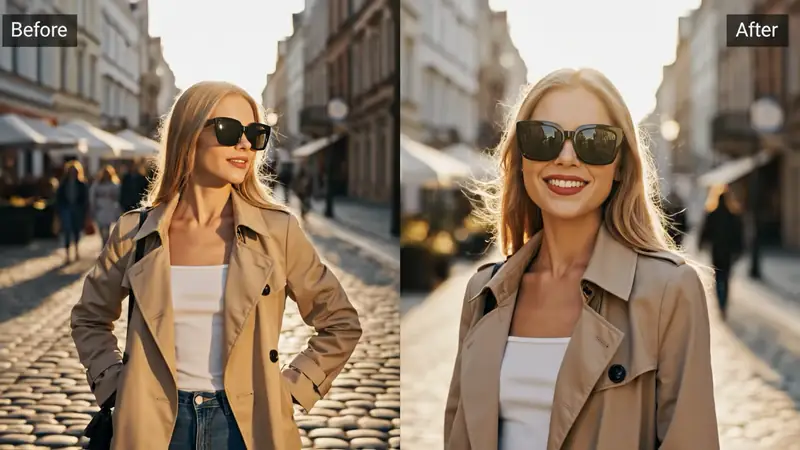
AI Video Editor
Edit with prompts
Revise a clip without a timeline.
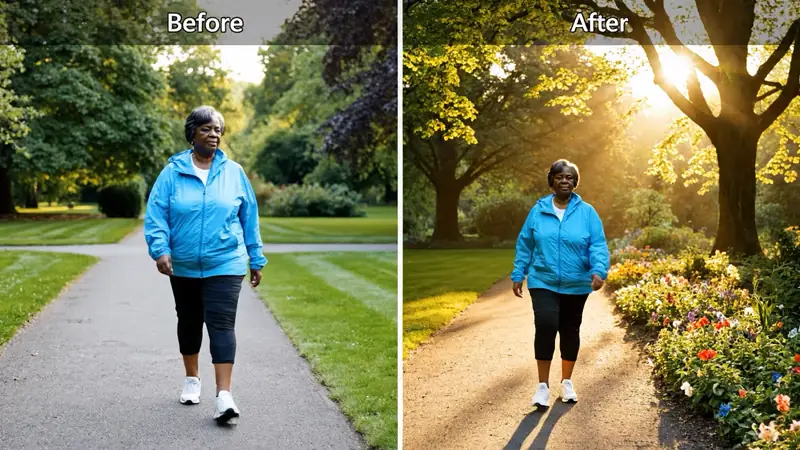
Video to Video
Restyle footage
Change the look of an existing clip.

Remove Object from Video
Clean distractions
Remove unwanted objects from footage.
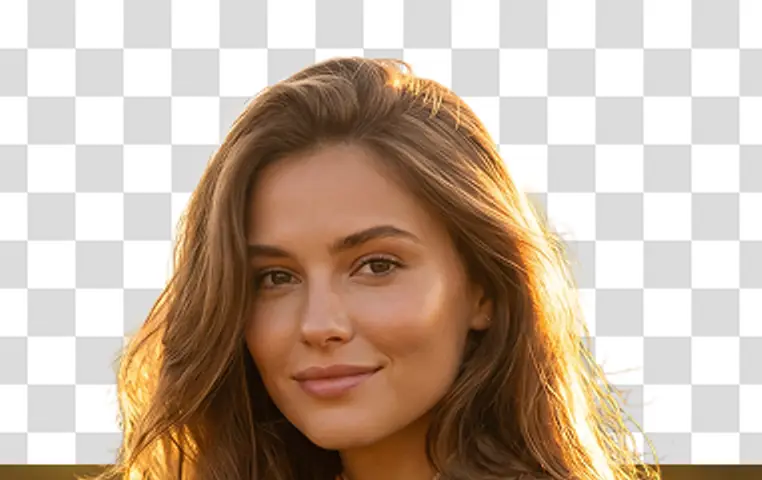
Video Background Remover
Remove backgrounds
Isolate a subject across a clip.
AI video tools
More video tools
Generate, edit, clean up, or improve clips.
AI models
Compare video models
Pick a better model before rendering again.
AI image tools
Prepare source images
Create a stronger still for the next video run.
Video Enhancer
Improve quality
Sharpen, denoise, and restore clips.