
Create Useful, Information-Rich Images with Qwen Image 3.0
Use Qwen Image 3.0 on Ezier to generate or edit complex layouts, multilingual graphics, realistic product visuals, and detail-rich images from one structured brief.
Turn a detailed brief into a useful visual
Qwen Image 3.0 is built for information-rich work: structured pages, precise on-image text, realistic details, multilingual graphics, and reference-led edits.
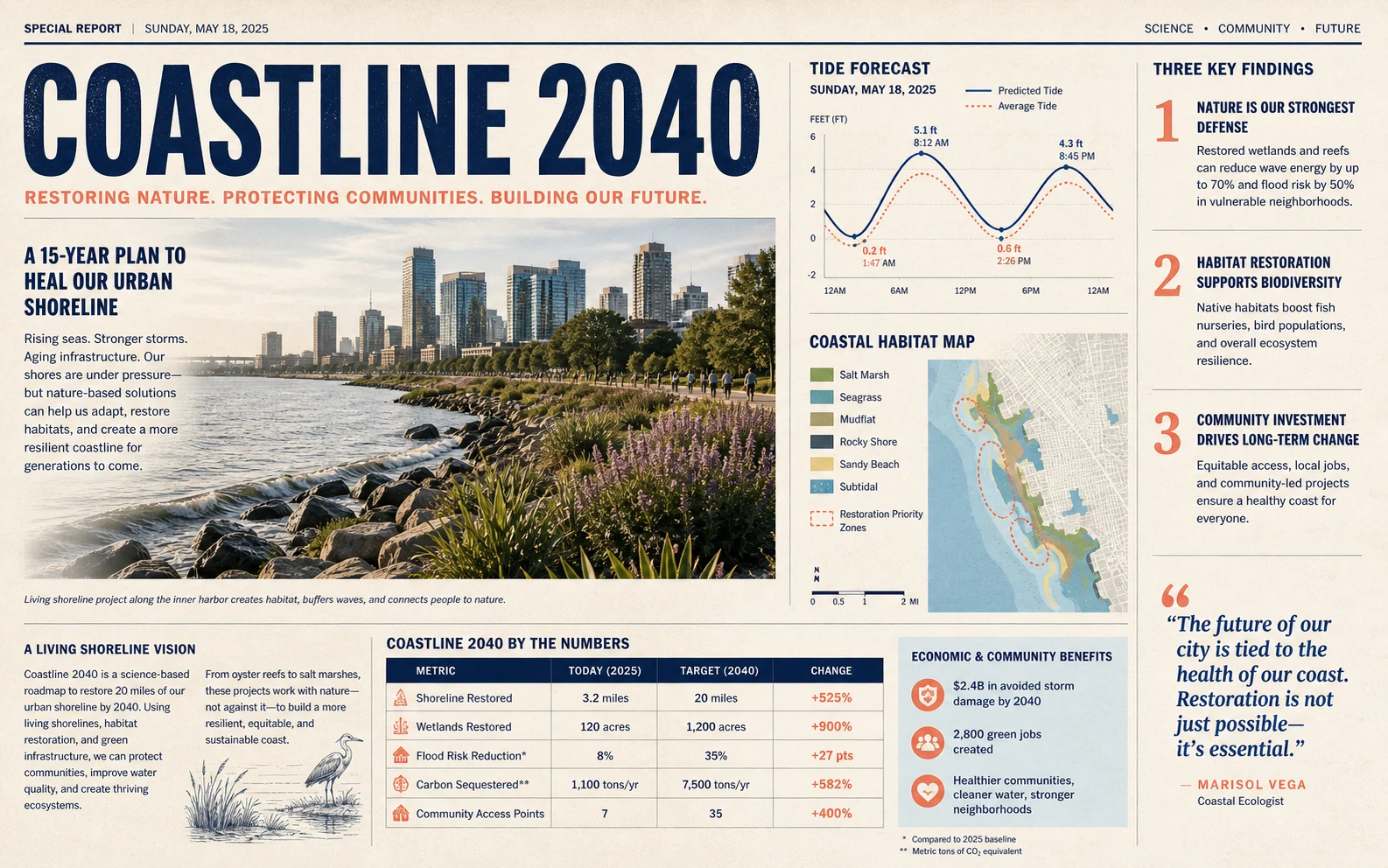
Create a landscape editorial newspaper spread titled "COASTLINE 2040" about restoring an urban shoreline. Include a hero photograph, a small tide chart, a habitat map, three numbered findings, one pull quote, and a compact data table. Use navy, sand, and coral accents with realistic newsprint texture and disciplined column spacing.
How to use Qwen Image 3.0 in Ezier
- 01
Select Qwen Image 3.0
Confirm Qwen Image 3.0 in the model selector so the prompt, upload, aspect ratio, image count, negative prompt, and seed are sent with the intended model.
- 02
Structure the brief by content block
Name the canvas, sections, exact strings, reading order, materials, lighting, and style. Longer briefs are most useful when every sentence gives one element a clear job.
- 03
Add a reference for image editing
Upload a source image when the subject, layout, product, or composition should guide the result. State what should remain recognizable and describe the requested change separately.
- 04
Choose output settings and generate
Select 1:1, 16:9, 9:16, 4:3, or 3:4, choose one, two, or four variations, add exclusions or a seed when useful, review the credit estimate, and generate.
What Qwen Image 3.0 brings to the canvas
The third-generation model is designed to keep more information, finer detail, and visual knowledge coherent inside a single image.
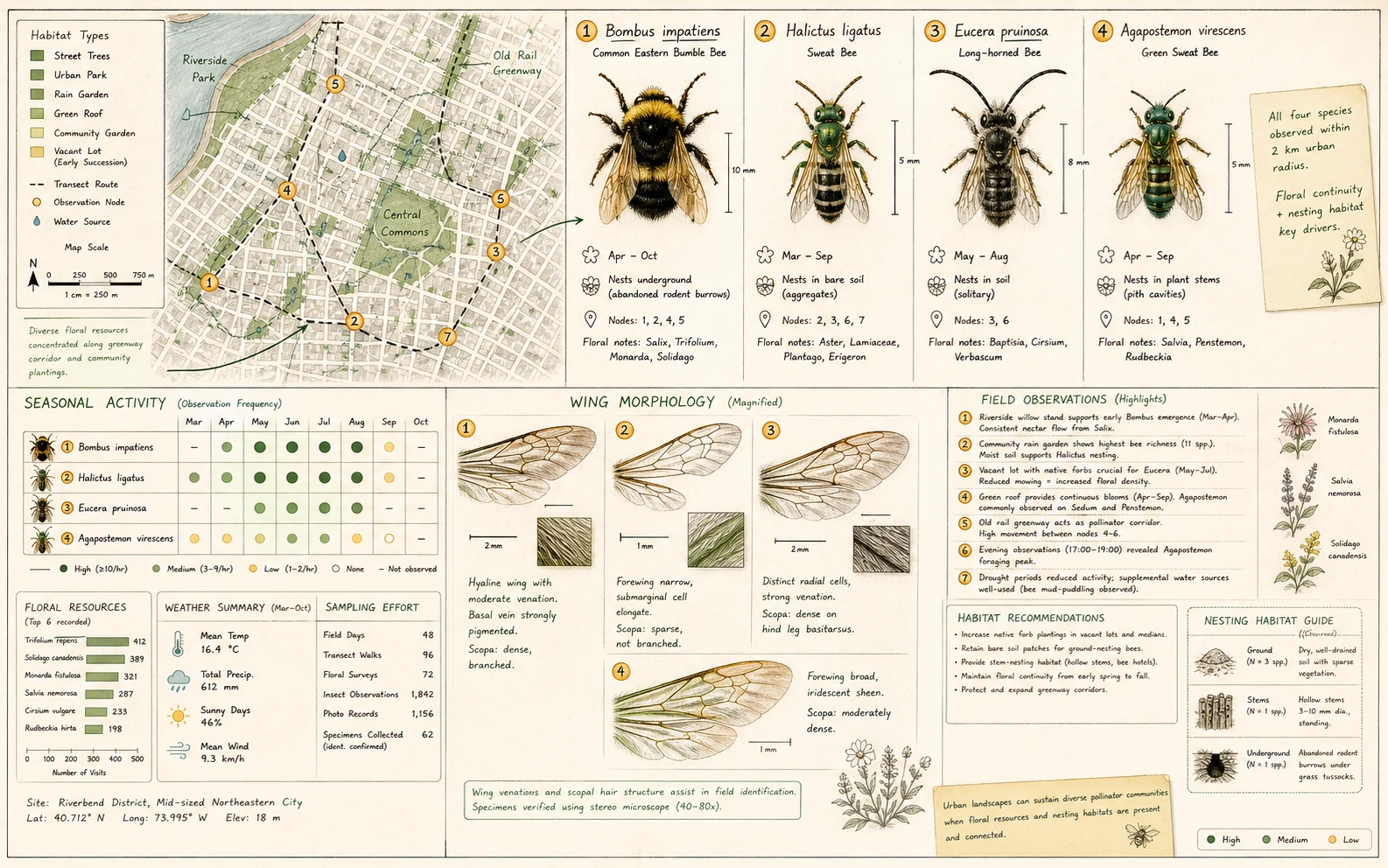
Organize dense content in one composition
Qwen Image 3.0 accepts prompts up to about 4.5K tokens, giving complex pages room for multiple panels, nested visuals, formulas, annotations, and a deliberate reading path. Describe the shared grid first, then define each region in order.

Preserve authentic, inspection-level detail
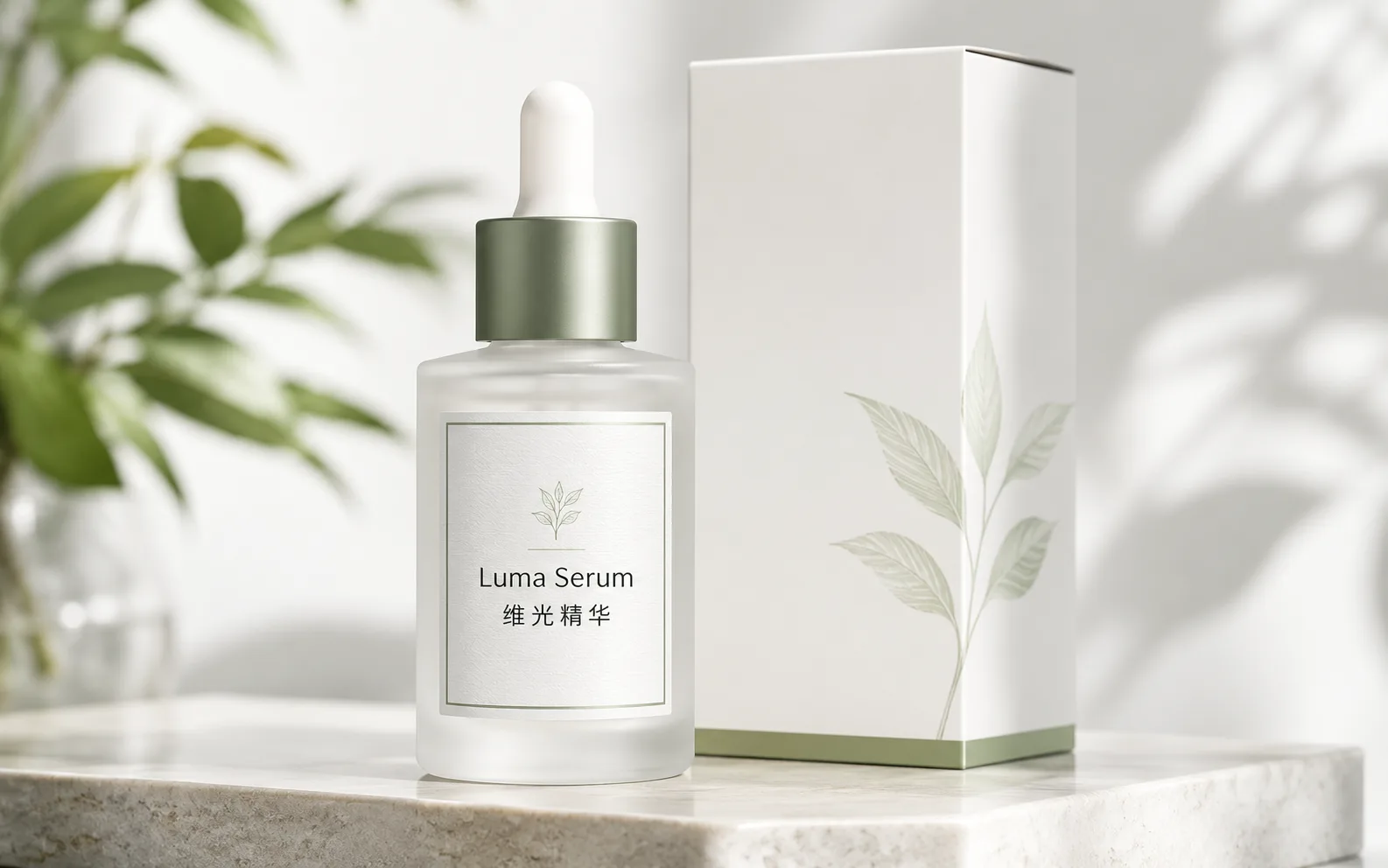
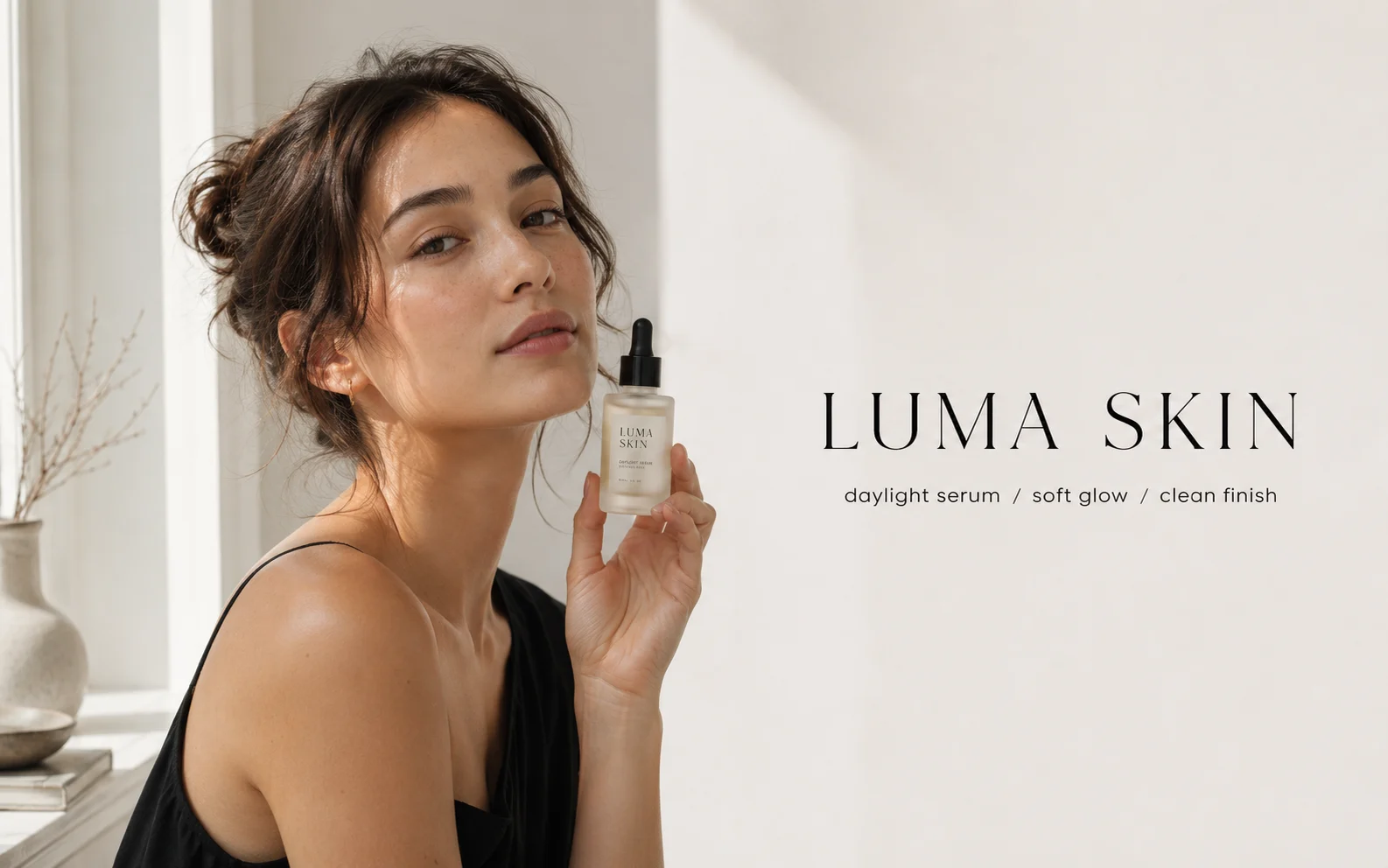
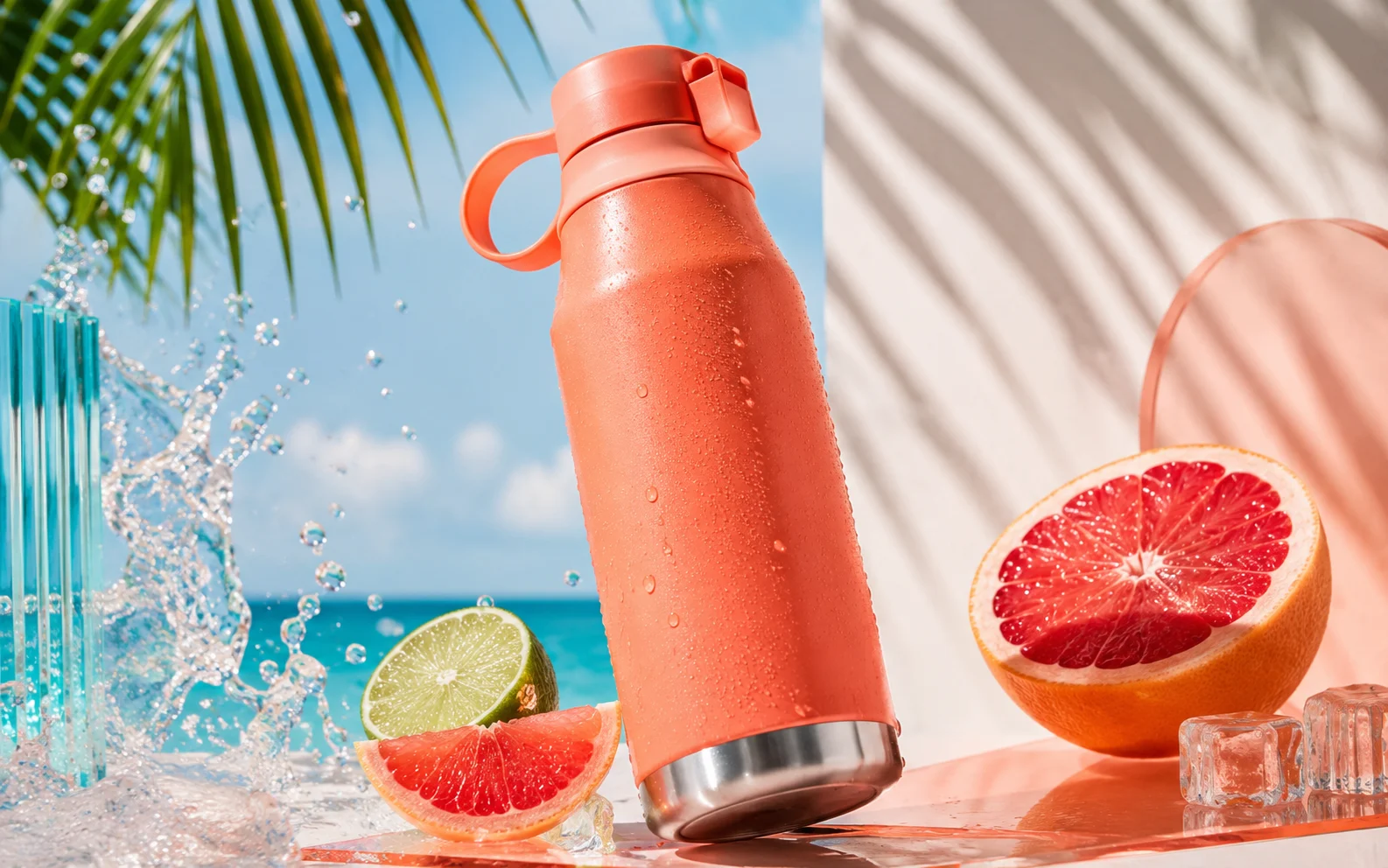
The model targets fine typography near 10 pixels alongside subtle skin, hair, paper, glass, metal, and fabric detail. Pair the subject with exact materials, scale, light direction, and camera distance to make those details purposeful.
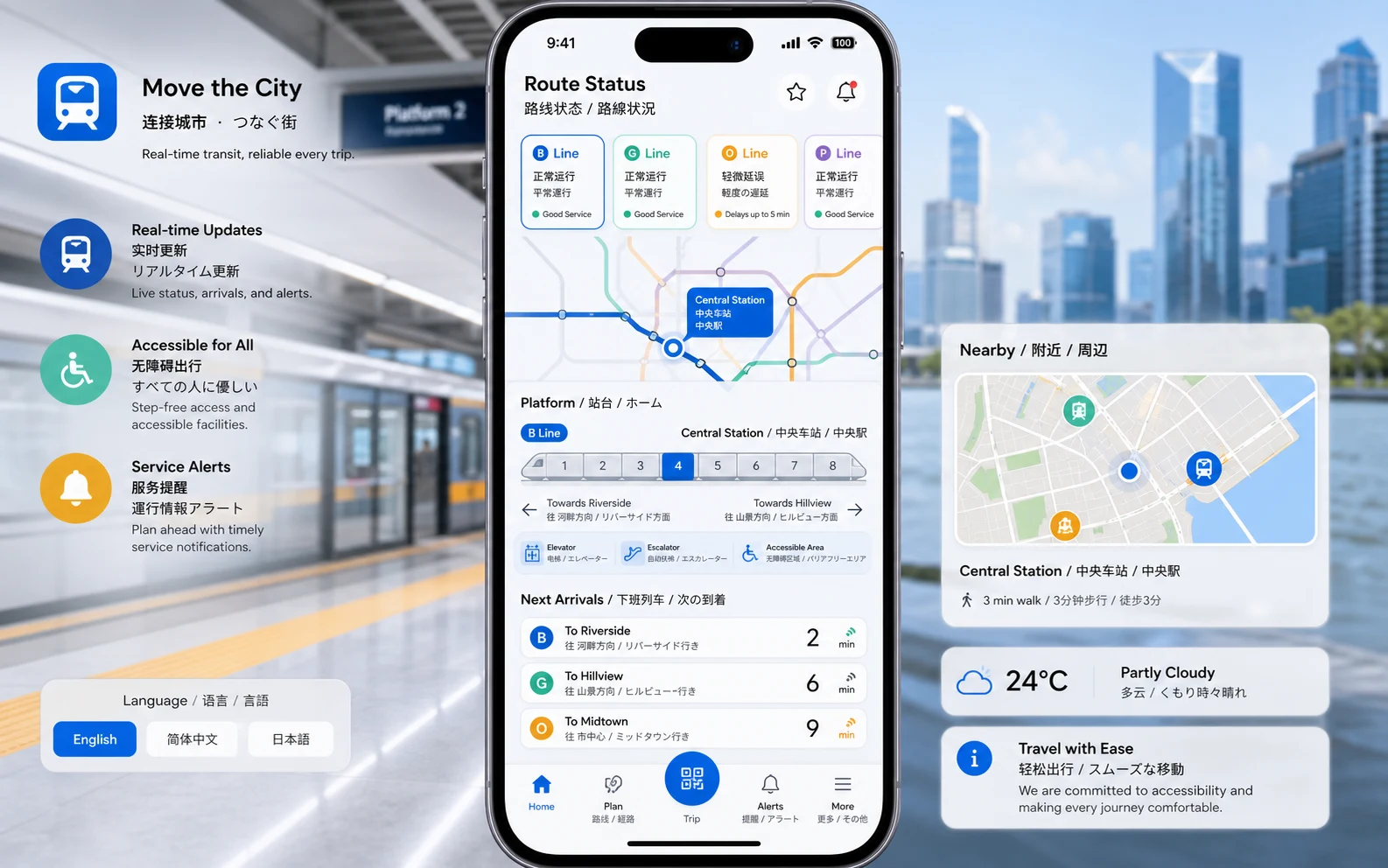
Combine multilingual text with visual knowledge
Native rendering across 12 languages and stronger world knowledge suit interface mockups, educational diagrams, maps, livestream frames, and other convention-heavy visuals. Quote exact copy and state which language leads the hierarchy.
Qwen Image 3.0 settings worth checking
Match the canvas and variation count to the job, use a reference image when editing, and keep negative instructions separate from the main brief.
- 4.5K
- Prompt contextOfficial launch materials describe support for prompts up to about 4.5K tokens, suited to newspapers, storyboards, exam pages, and multi-panel information design.
- ~10px
- Small-text targetQwen highlights precise rendering of text near 10 pixels, alongside fine surface and photographic detail. Important production copy should still be reviewed in the result.
- 12
- Native text languagesOfficial materials describe native rendering across 12 languages, useful for multilingual layouts, interfaces, signs, packaging, and educational content.
Write the layout before the styling
Start with canvas orientation, grid, panel count, and reading order. Add palette, lighting, materials, and art direction only after the information structure is clear.
Quote every critical string
Put headlines, labels, prices, formulas, and bilingual copy in quotation marks. Identify primary, secondary, and small supporting text so hierarchy is part of the instruction.
Use the reference as an editing anchor
For image-to-image work, assign the reference a role: preserve the product silhouette, retain the person, keep the camera angle, or reuse the spatial layout while changing the finish.
Separate unwanted details
Use the negative prompt for exclusions such as duplicated objects, stray marks, warped frames, low contrast, or unwanted styles instead of weakening the main creative brief.
Choose ratios by reading pattern
Use 16:9 for dashboards and spreads, 9:16 for mobile stories, 1:1 for balanced product layouts, and 4:3 or 3:4 for editorial pages and portraits.
Compare variants, then refine one variable
Generate multiple options when layout or typography is open. Keep the strongest structure, then revise one item at a time—copy, spacing, material, light, or camera—for a more controlled next pass.
Qwen Image 3.0 in Ezier
Build the whole visual from one structured brief
Define the content blocks, exact copy, visual hierarchy, materials, and final format. Then generate, inspect the result, and refine the brief where precision matters most.
Qwen Image 3.0 FAQ
Answers about generation, editing, long prompts, multilingual text, image size, variations, and useful prompt structure.
What is Qwen Image 3.0?
Qwen Image 3.0 is the third-generation Qwen image model. Its official release centers on rich content, authentic detail, and deep knowledge for practical outputs such as newspapers, storyboards, educational pages, realistic images, and complex interfaces.
How do I use Qwen Image 3.0 in Ezier?
Select Qwen Image 3.0, describe the image and its layout, attach a reference when editing, choose the aspect ratio and variation count, add a negative prompt or seed when useful, review the credits, and generate.
Can Qwen Image 3.0 generate and edit images?
Yes. Official Alibaba Cloud documentation lists both text-to-image generation and image editing for Qwen Image 3.0. The editing model accepts one to three input images and can fuse multiple references into a new result.
How long can a Qwen Image 3.0 prompt be?
Official launch materials describe support for prompts up to about 4.5K tokens. Use that space for named sections, exact copy, hierarchy, relationships, materials, and visual constraints rather than repeating broad style words.
Does Qwen Image 3.0 render small or multilingual text?
Qwen highlights text rendering near 10 pixels and native text rendering across 12 languages. Quote critical strings, separate language lines, define hierarchy, and inspect spelling and numerals before publishing.
What resolution and image count does Qwen Image 3.0 support?
Official Alibaba Cloud documentation lists resolutions up to 2048×2048 and up to six outputs per call. In Ezier, choose the aspect ratio and the variation count shown in the settings before generating.
What prompts work best for Qwen Image 3.0?
Structured prompts work best: define the asset type, canvas, content blocks, exact text, reading order, subject details, materials, lighting, and exclusions. For editing, also state what the reference must preserve.
When should I use a negative prompt or seed?
Use a negative prompt to exclude specific visual problems or unwanted styles. Use a seed when you want a more repeatable starting point while changing a limited part of the prompt or output setup.
What is Qwen Image 3.0 best suited for?
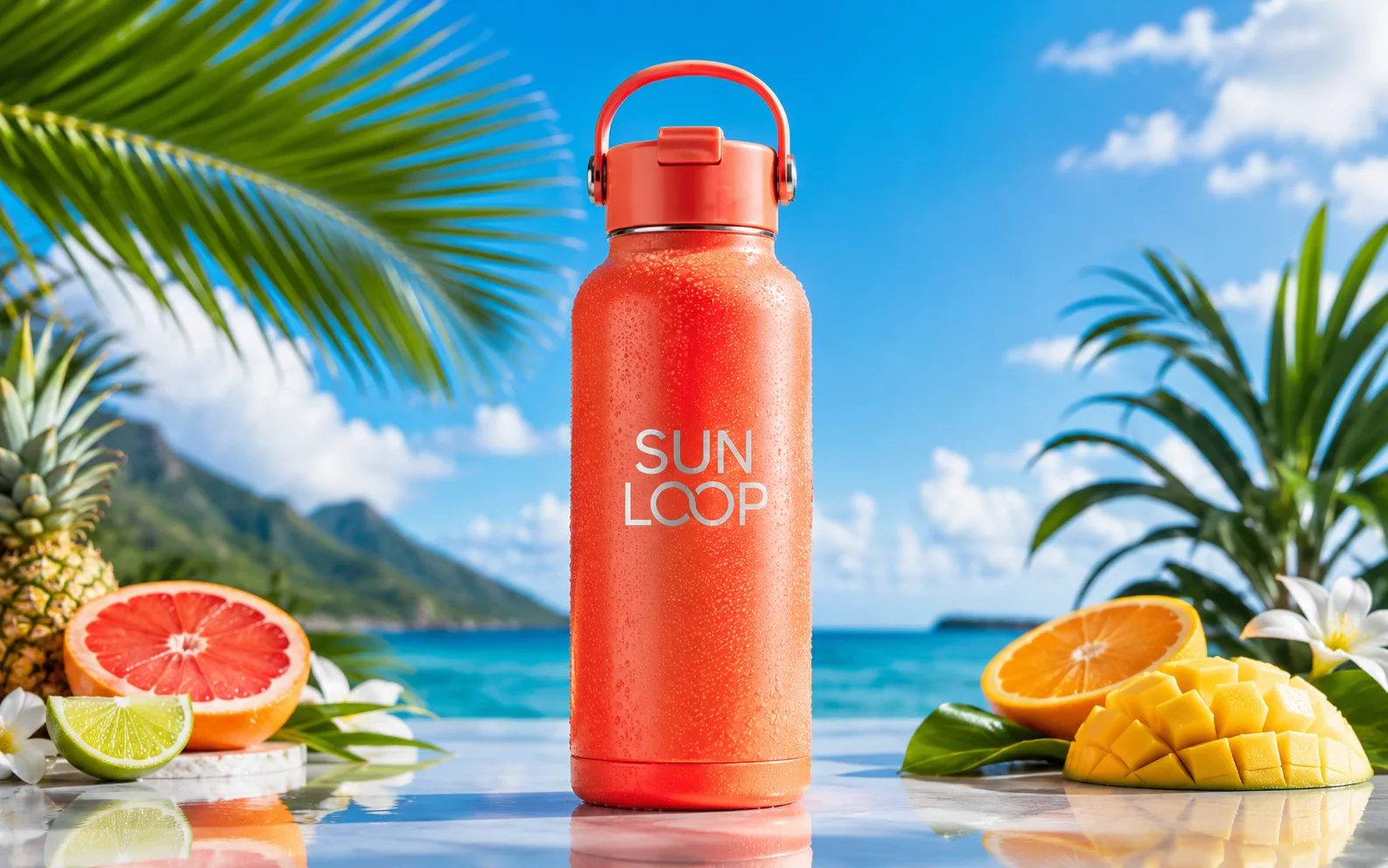
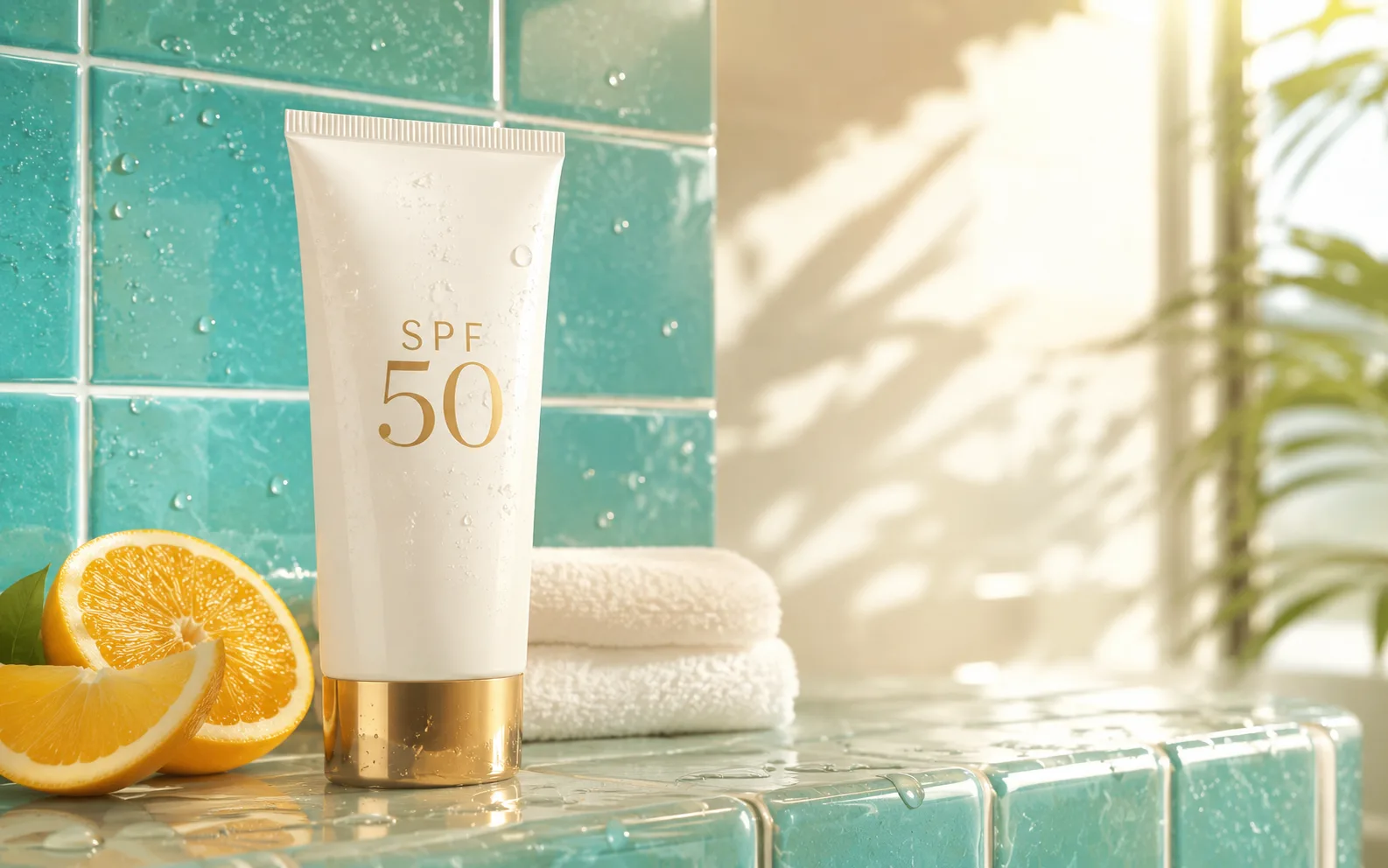
It is especially useful for dense editorial pages, posters, storyboards, interfaces, educational graphics, multilingual layouts, product images, realistic portraits, annotated research visuals, and reference-based edits.
Next up
Create more with Qwen Image 3.0
Try a nearby image model, open image tools, or animate the best result.

AI models
Compare models
Choose a better fit before you generate.

AI image tools
Create or edit images
Make, clean up, or upscale stills.
AI video tools
Turn images into motion
Animate a still or create a clip.
Qwen Image
Readable text
Use for labels, posters, and diagrams.
GPT Image 2
Polished visuals
Use for ads, product shots, and clean edits.
Nano Banana Pro
More control
Use for detailed prompts and readable text.
Nano Banana 2
Balanced image creation
Use for higher-resolution images, multiple references, and longer edit chains.
GPT Image
Quick OpenAI drafts
Use for quick concepts and simple edits.
Wan Image
Video-ready frames
Use when the image may move next.
AI models
Compare models
Choose a better fit before you generate.
AI image tools
Create or edit images
Make, clean up, or upscale stills.
AI video tools
Turn images into motion
Animate a still or create a clip.
Qwen Image
Readable text
Use for labels, posters, and diagrams.