
Bead Pattern Generator
Turn a photo or artwork into a numbered bead grid, a color key and a materials list. No prompt needed. Your image stays in your browser.
Sign in to use this tool. Processing stays on your device; no server upload or credits.
Example
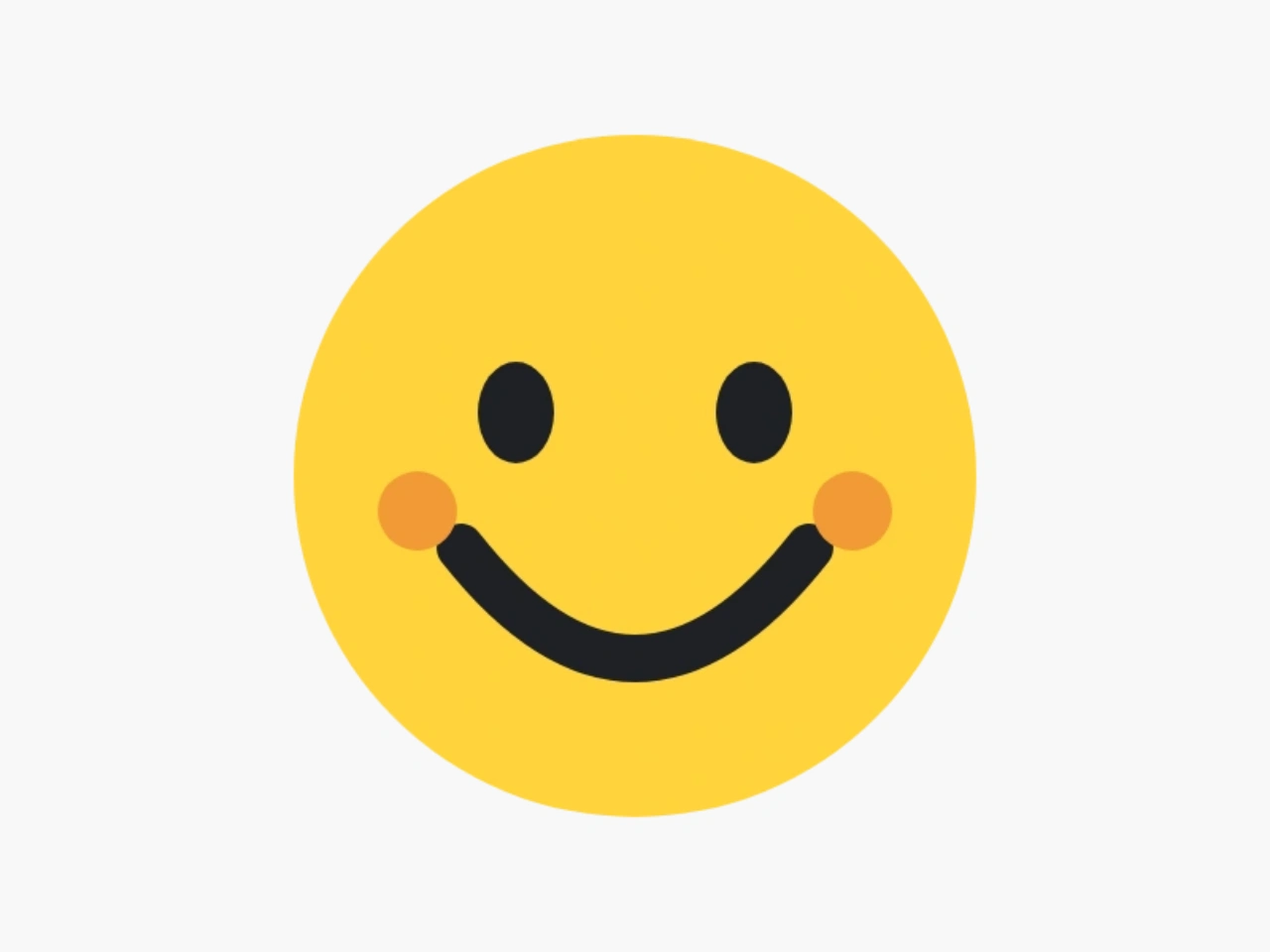
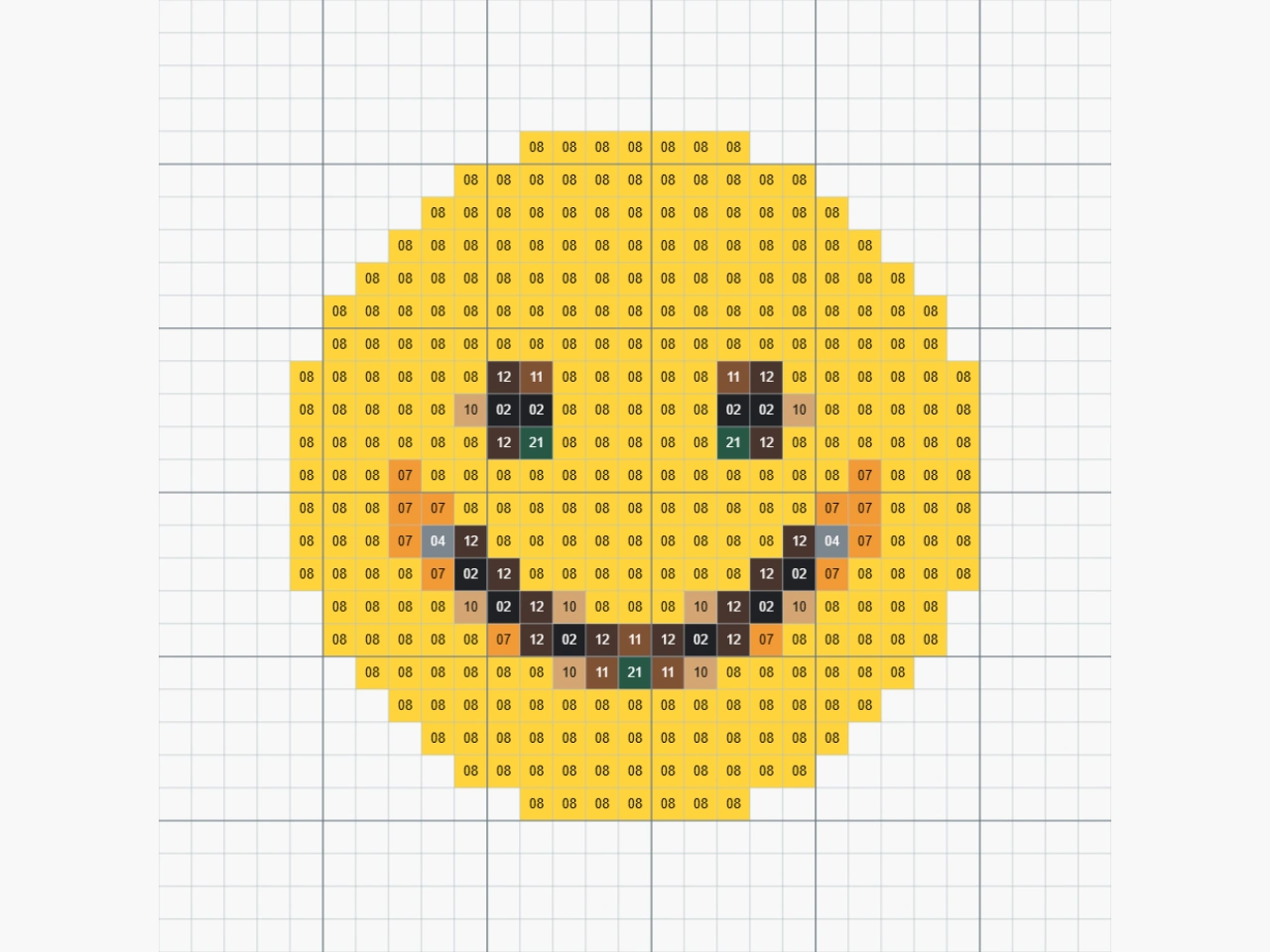
Reference artworkActual 29×29 pattern
Build from a photo in four steps
Choose your reference, limit the colors and get a grid you can count from.
- 01
Upload a reference
Add a JPG, PNG or WebP, or load a sample. The image is read on your device and is not sent to a server for processing.
- 02
Pick a bead board
Choose a 14×14, 29×29 or 58×58 square. Circle mode uses a circular boundary on a square grid; check that it suits your physical board.
- 03
Choose a color scheme
Use Standard 24 or Extended 32. These are tool palettes with internal IDs, so compare the displayed swatches with the beads you own.
- 04
Generate, check and download
Inspect the grid, zoom into the numbers and review the bead counts. Download a PNG with its color key, save the CSV materials list or print.
See the pattern take shape
Three more references, converted with this generator. Compare each reference with its numbered 29×29 grid.
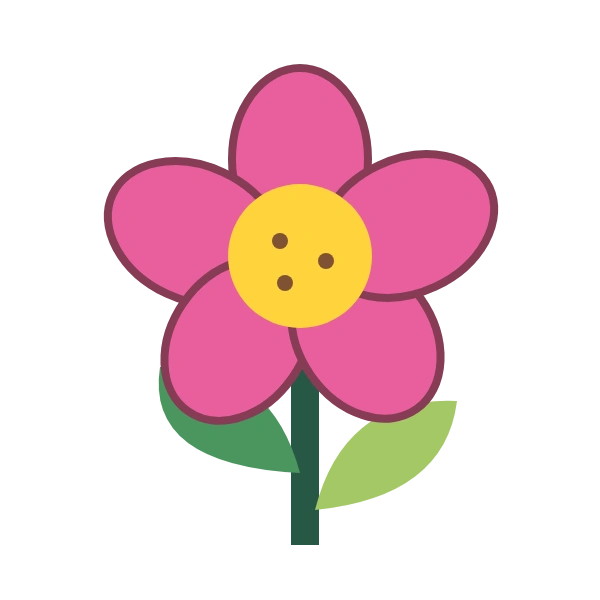
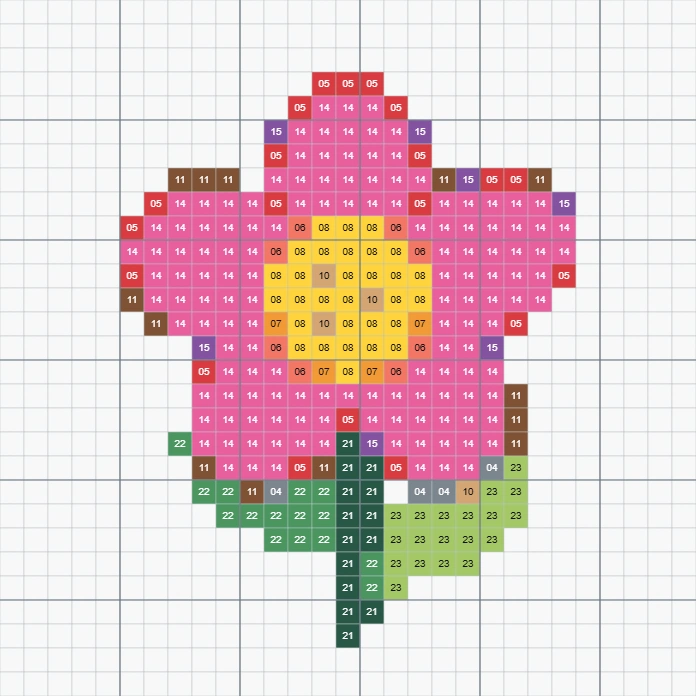
Keep a small motif easy to follow
Broad petals and clear leaves make a useful starting point for a small board. Follow the row and column markers, and use the color key to tell similar pinks apart. A larger board can retain more detail.
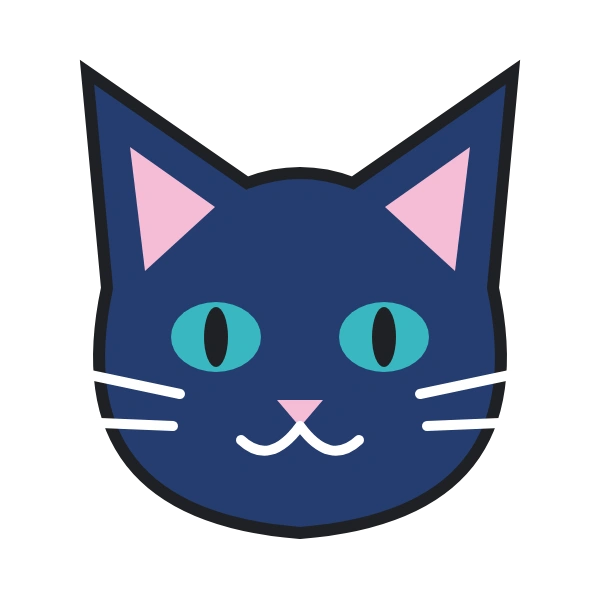
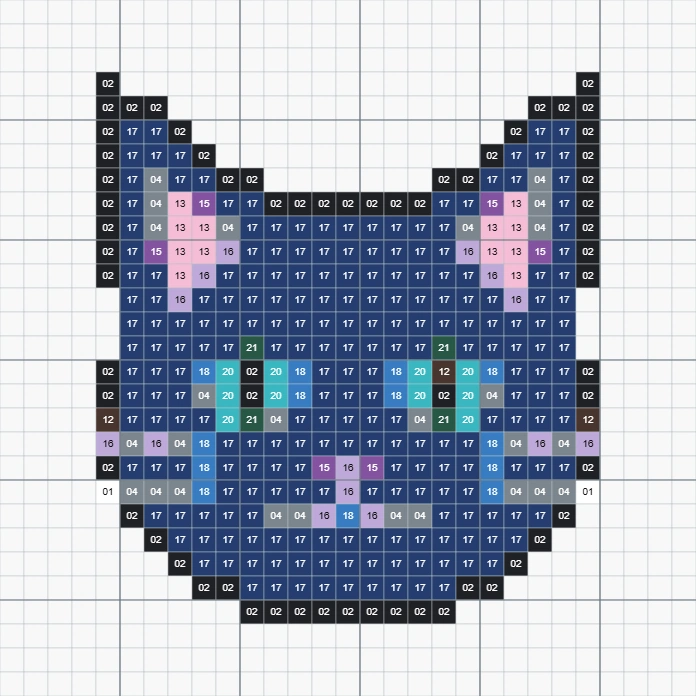
Check the details that give a character its expression
Eyes, ears and whiskers can change when a picture is reduced to a grid. Compare the reference with the pattern before building. If a feature becomes too small, try 58×58 or start with simpler artwork.

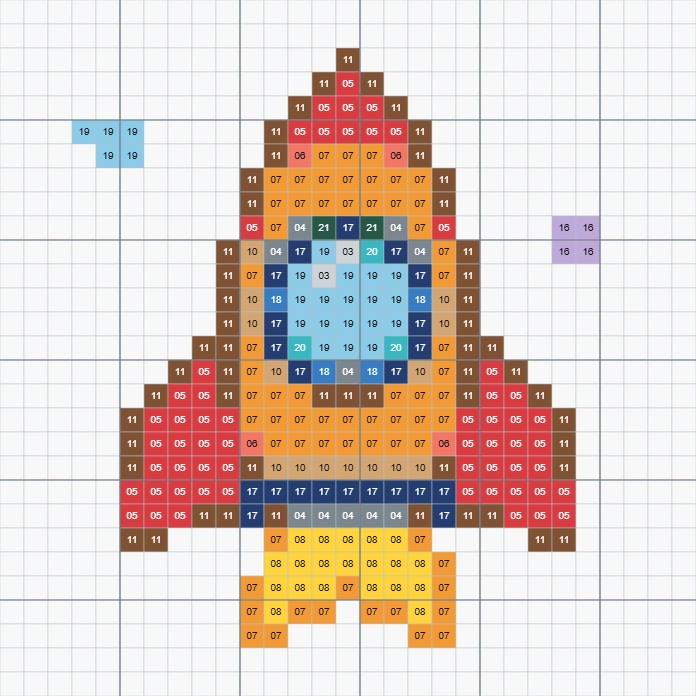
Plan the colors before placing the first bead
Separate the body, window and flame using a limited palette. The materials list counts the actual occupied cells, so transparent space around the rocket does not add beads. Screen swatches are a guide rather than a brand color match.
A clearer starting point for your next bead project
Use the pattern to plan your materials, then check the small details before you start placing beads.
Keep your reference on your device
The conversion runs in your browser without a model request or server upload. Sign in to use the tool; conversion uses no credits.
Work within a smaller color set
Map the picture to 24 or 32 fixed colors. Extended colors retain the same first 24 IDs, making it easier to compare the schemes without renumbering the shared palette.
Count from a consistent grid
Each occupied cell represents one bead. The visible color key and CSV use the same grid as the PNG, so the totals refer to the pattern you actually download.
Take a practical plan to your craft table
Download the numbered pattern with its legend or print it. Check board compatibility and your physical bead colors first; the printout is a guide, not a life-size peg placement template.
Ready to try it?
Turn a small idea into a bead-by-bead plan
Start with your own picture or a sample. Choose a board, check the numbered colors and download your pattern.
Bead Pattern Generator FAQ
Is this free, and do I need an account?
The bead pattern conversion is free and runs locally in your browser. Sign in to use the tool. No credits or AI model is needed. Your reference is not uploaded for processing.
Which images can I use?
Choose one JPG, PNG or WebP up to 10 MB and 32 megapixels. Clear shapes with a few distinct colors usually translate better on small grids than detailed photographs. The complete image is fitted without stretching.
Which boards are supported?
Square grids are available at 14×14, 29×29 and 58×58. Circle mode applies a circular boundary to a square grid at 29×29 or 58×58. It does not reproduce the concentric peg layout of some circular boards. Check your board before building.
Are the numbers real bead-brand color codes?
No. Standard 24 and Extended 32 use fixed tool palettes and internal IDs. They are not manufacturer codes. Match the shown swatches to your bead collection; screen colors and physical colors may differ.
How are transparent areas and white backgrounds handled?
Transparent areas and padding outside the fitted image remain empty and are excluded from the counts. An opaque white background becomes white or another nearby palette color; this tool does not automatically remove backgrounds. Circle mode excludes cells outside its boundary.
What can I download, and will it match my preview?
Download a PNG containing the grid, color key and bead counts, or a CSV of the materials. You can toggle the grid numbers and print the pattern. Downloads use the generated result; if your reference or settings change, generate again. Print size is not calibrated to physical bead dimensions.
More to try
Find the right next tool
Prepare a simpler reference, clean up the background or explore another image tool.

AI image tools
More image tools
Create, edit, clean up, or upscale stills.

AI models
Compare image models
Pick a better model before making more versions.

AI video tools
Make it move
Animate a still or turn it into a clip.

AI Image Generator
Start from any idea
Create a fresh image from a prompt.

Text to Image
Prompt-first creation
Turn a written idea into an image.

Image to Image
Use a reference
Restyle or revise an existing image.
Image to Prompt
Describe a reference
Turn visible image details into a reusable AI prompt.

AI Logo Generator
Brand marks
Create logo ideas from a short brief.
Product Picture Generator
Product visuals
Create polished product photos and campaign scenes.