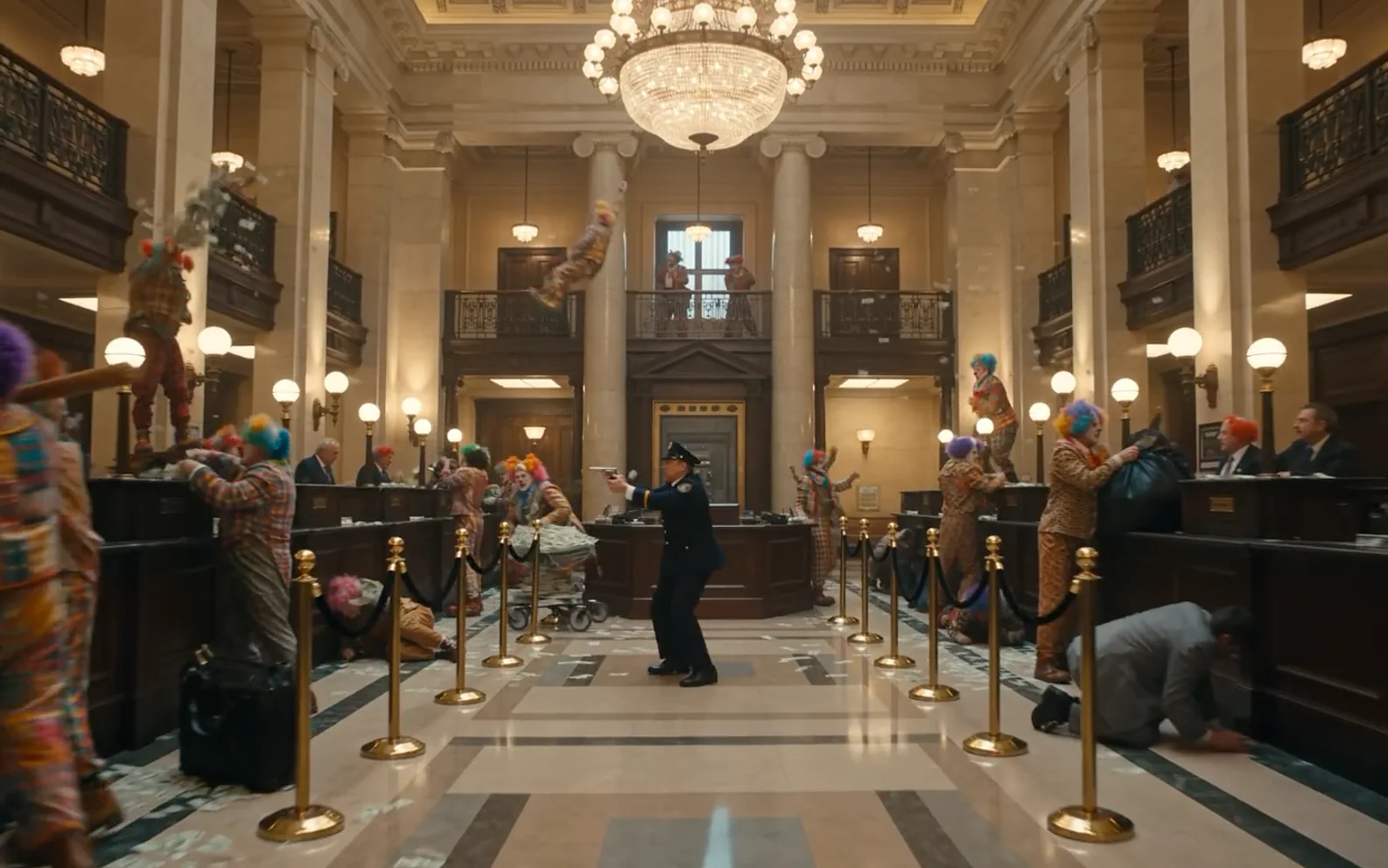
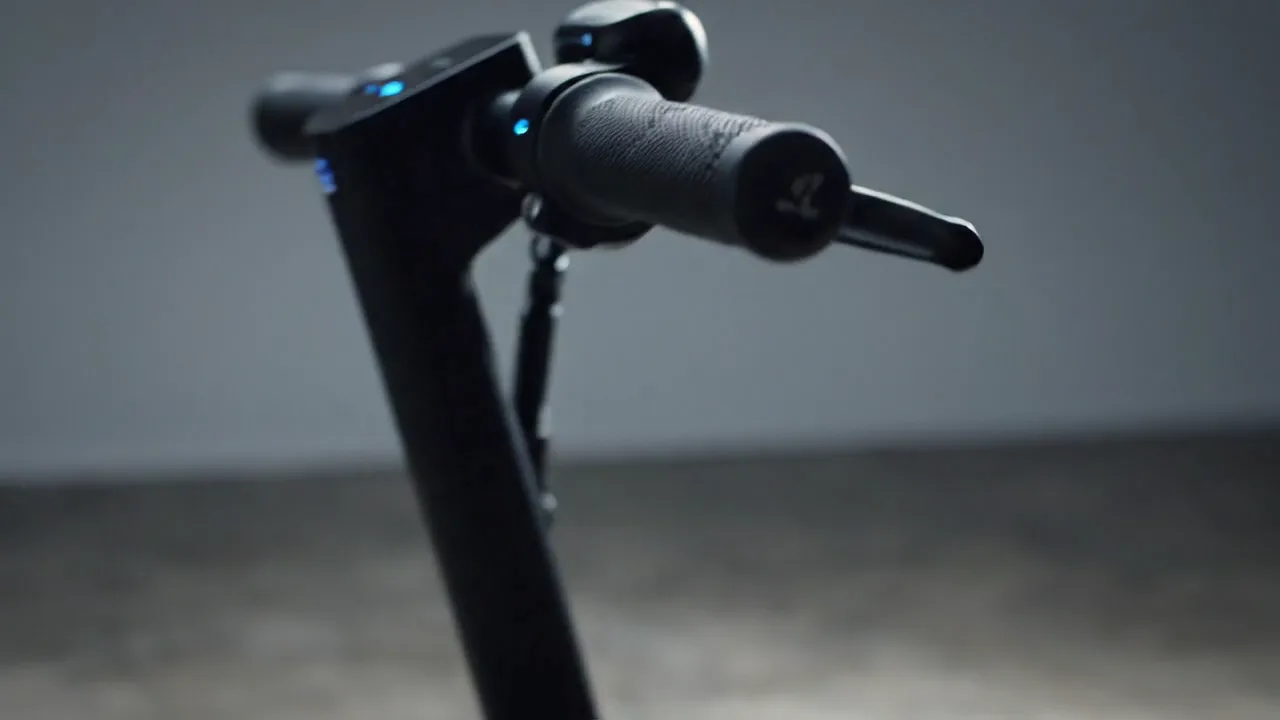
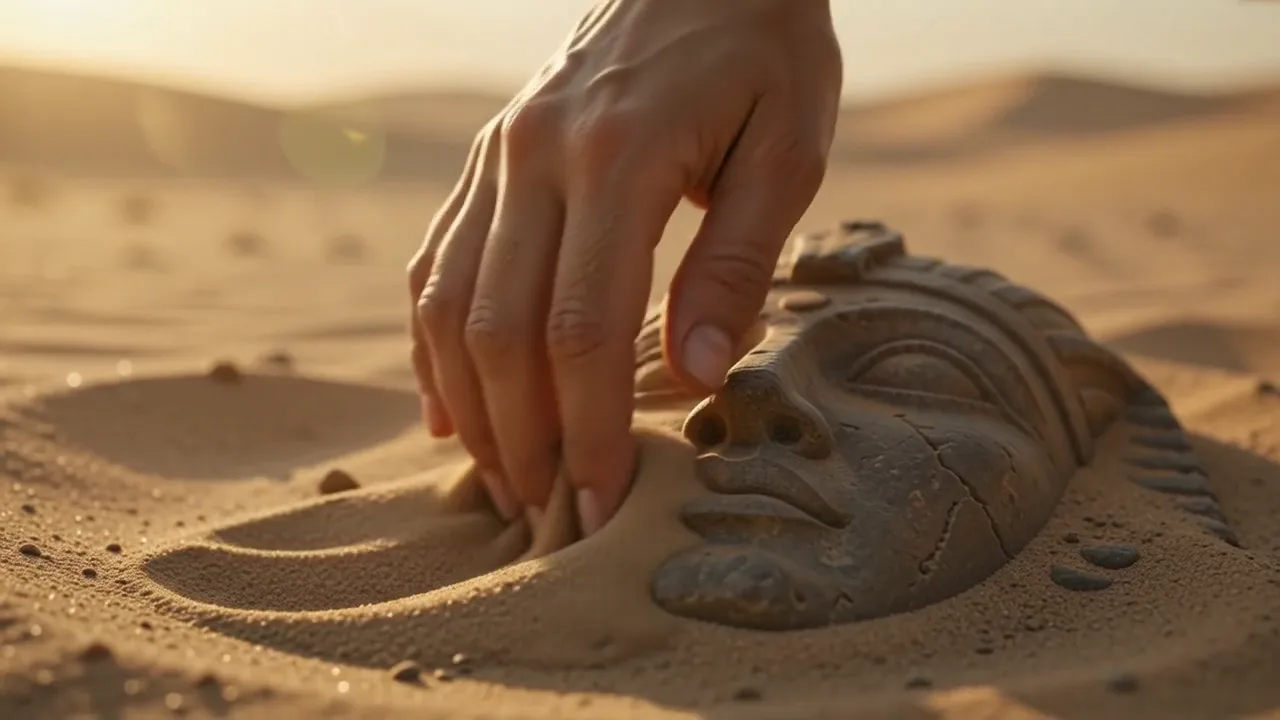
Use MiniMax H3 on Ezier to turn a prompt, start image, or up to nine reference images into a 2-15-second 1080p or 2K video with generated audio.
Shape a complete 15-second MiniMax H3 sequence
Plan the shots, assign each reference image a job, and describe sound at the moment it should happen. MiniMax H3 can then treat the picture and soundtrack as one brief instead of separate production steps.
Prompt example
Create a 15-second cinematic 3D fantasy sequence centered on the same young warrior with black hair, silver-gray eyes, a sculpted silver headpiece, and a dark indigo robe embroidered with fine metallic patterns. Begin with an extreme macro close-up as reflected light moves across his eyes and he looks toward the sky. Pull out into a vast storm-cloud realm where a radiant golden celestial formation opens overhead: concentric rings, flowing runes, and fragments of light rotating around a bright center. Let energy travel through the clouds without obscuring their depth. Return to an intimate three-quarter close-up of the warrior as snow-like particles cross the frame and his expression hardens with resolve. Preserve his face, hair, headpiece, robe, eye color, and lighting direction across every shot. Add deep wind, distant thunder, layered choral texture, and a controlled rising impact timed to the portal. No subtitles, logos, modern objects, costume changes, extra characters, or unstable facial details.
How to use MiniMax H3 in Ezier
01
Select MiniMax H3
Confirm that MiniMax H3 is active before choosing the duration, resolution, or generated-audio setting.
02
Choose the right visual inputs
Start from text, add one start image, or attach up to nine supported reference images. Give every reference a specific job instead of treating them as a loose mood board.
03
Write shots and sound together
Describe the shot order, camera movement, continuity rules, dialogue, effects, ambience, and final frame. Tie every important sound to a visible action or location.
04
Set the output and generate
Choose a 2-15-second duration, 1080p or 2K resolution, aspect ratio, seed when useful, and generated audio preference. Check the displayed credit estimate, then generate.
Give detail, references, and sound a clear role
H3 responds best when the brief says what must stay exact, what may change between shots, and which visible action should produce each sound.
Use 2K where fine detail carries the shot
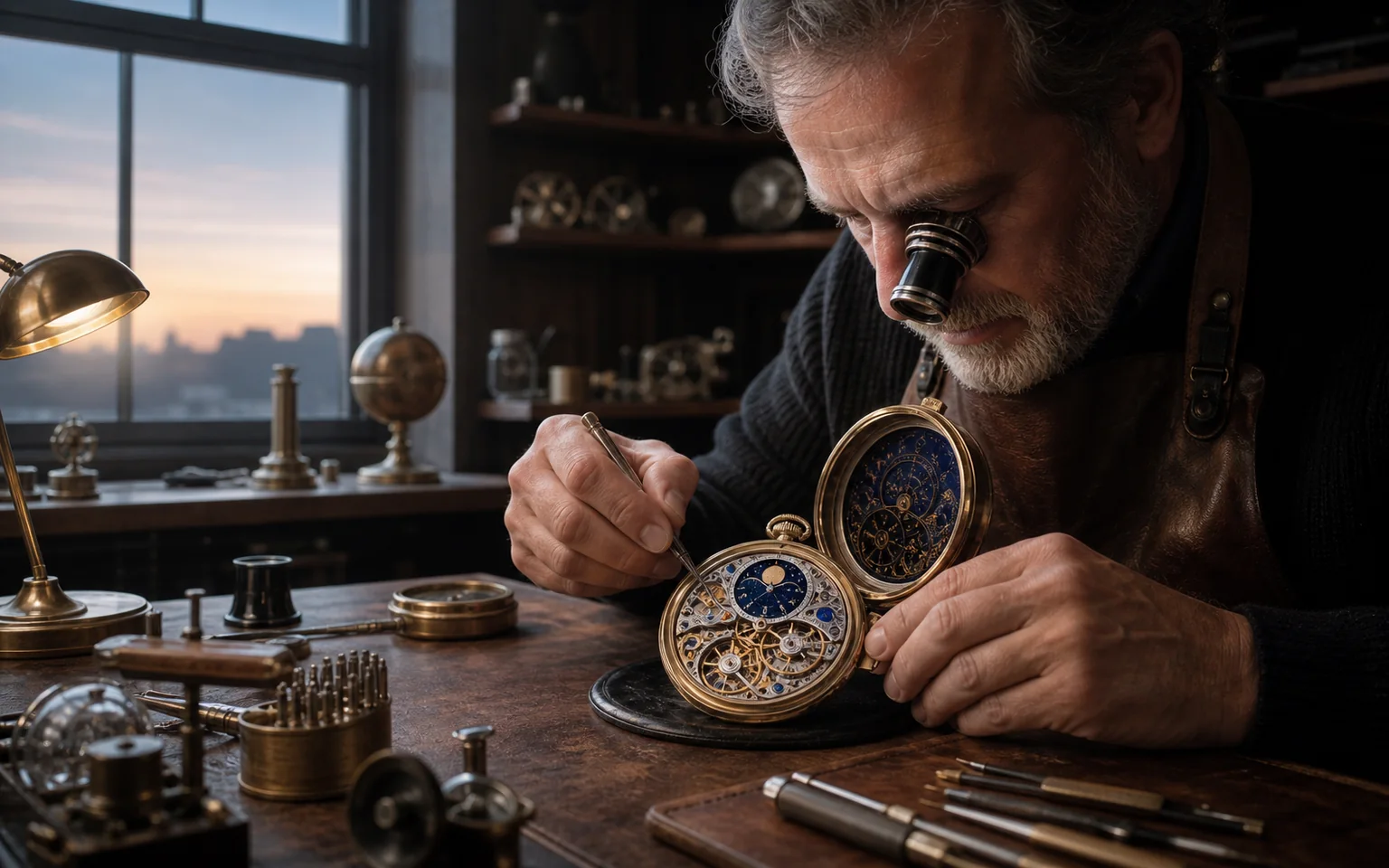
Choose 2K when viewers need to inspect materials, mechanisms, surface finish, product edges, or small production details. Still prompt for controlled light and a readable focal point; resolution cannot rescue an unfocused brief.
Turn nine images into one reference system
Use separate images for identity, front and rear geometry, materials, wardrobe, location, lighting, and camera angle. Name those roles in the prompt so the model knows what each input should preserve.
Direct the soundtrack from visible causes
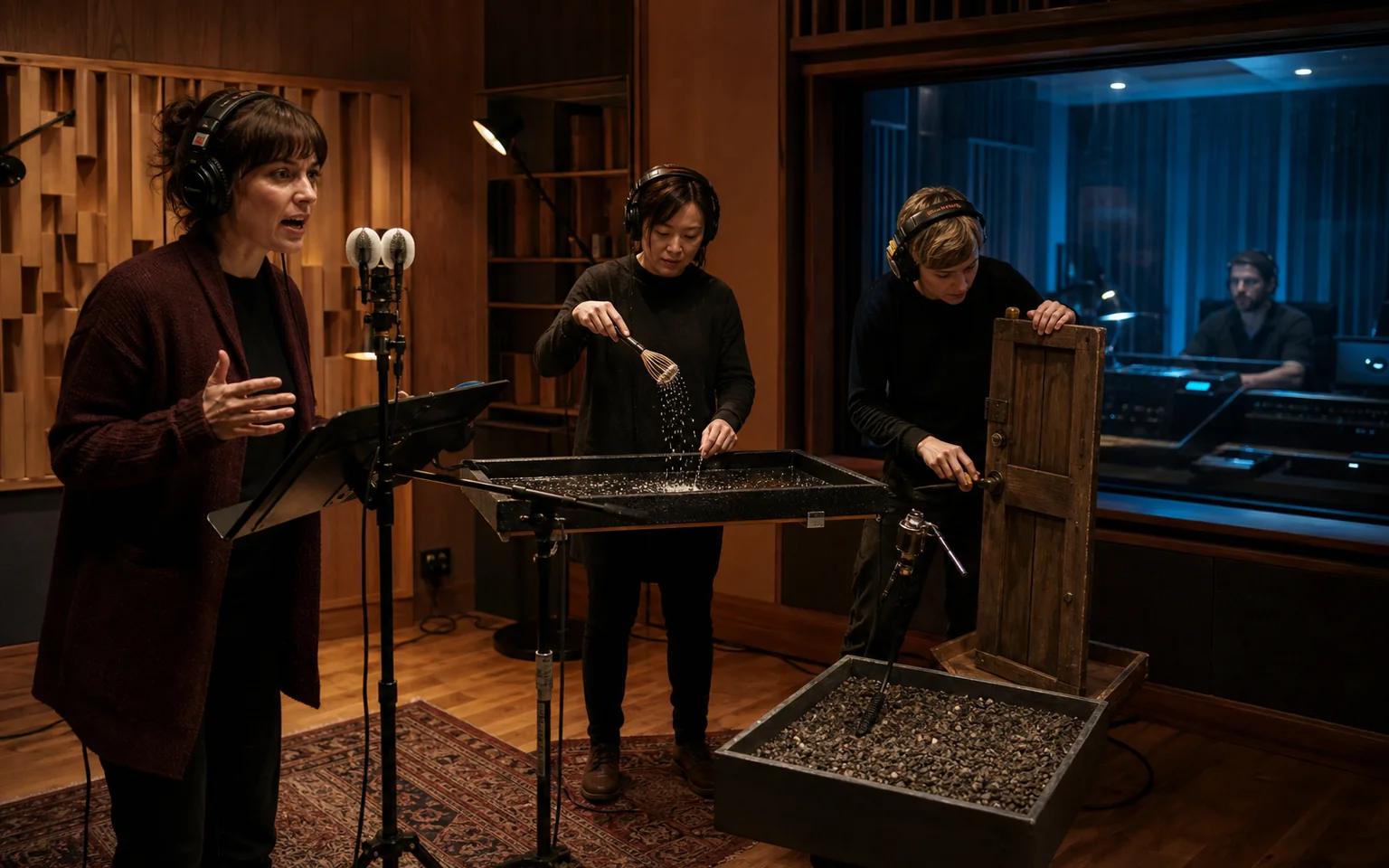
Describe where dialogue, effects, ambience, and music sit in the scene. A door movement, passing object, changing room, or off-screen source gives H3 a clearer basis for timing and stereo placement.
MiniMax H3 settings available in Ezier
These controls reflect the model configuration Ezier can deliver now. Use the workbench, rather than specifications from another platform, as the source of truth for each generation.
2-15s
Duration in EzierUse a short run to test one motion. Use the full window when the idea needs more than one connected shot or a complete narrative beat.
1080p / 2K
ResolutionChoose 1080p for faster direction tests or 2K when surface detail and final presentation matter more.
9 images
Reference allowanceAttach up to nine reference images in the current Ezier workflow, plus a start image when the opening composition must be fixed.
Inspect the details you asked 2K to protect
Review hands, faces, small mechanisms, product seams, patterns, and material edges at full size rather than judging only the overall composition.
Check every reference against its assigned role
Confirm that identity came from the identity reference, materials from the detail reference, and framing from the camera reference. Remove inputs that compete with one another.
Keep shot changes motivated
A cut should reveal new information, change scale, or move the action forward. If two shots do the same job, simplify the sequence before spending another generation.
Listen beyond the dialogue
Review room tone, effects, left-right placement, transitions, and the relationship between sound and motion. A convincing soundtrack needs more than a readable voice.
What MiniMax H3 adds to the workflow
The practical value is not one isolated feature. It is the ability to brief visual fidelity, reference consistency, shot progression, and generated sound together.
MiniMax H3 is a general-purpose multimodal video model
MiniMax designed H3 to understand creative context across several input types and generate picture and sound together. Ezier currently exposes text, start-image, multi-image reference, and generated-audio controls.
Ezier offers output up to 15 seconds at 2K
The current workbench supports 2-15-second clips at 1080p or 2K, with Auto plus 21:9, 16:9, 4:3, 1:1, 3:4, and 9:16 framing.
Reference images can form a production brief
Up to nine image references give enough room to separate subject identity, product geometry, materials, location, lighting, and camera language instead of forcing one image to explain everything.
Generated audio belongs in the shot plan
Turn on Generate audio when dialogue, effects, or ambience contribute to the result. Describe their timing and source so they can be evaluated with the visual sequence.
MiniMax H3 in Ezier
Start with one 15-second sequence worth reviewing
Define the shot order, add only the references that protect the idea, choose 1080p or 2K, then review the result for detail, continuity, and sound timing.
MiniMax H3 FAQ
Answers about duration, 2K output, reference images, generated audio, prompts, and the controls currently available in Ezier.
What is MiniMax H3?
MiniMax H3 is MiniMax's general-purpose multimodal video generation model. In Ezier, it can generate 2-15-second video from a prompt, a start image, or supported reference images, with 1080p or 2K output and optional generated audio.
How do I use MiniMax H3 in Ezier?
Open the MiniMax H3 page, write the shot sequence, add a start image or up to nine reference images when useful, choose duration, resolution, aspect ratio, seed, and audio, check credits, then select Generate.
How long can a MiniMax H3 video be in Ezier?
The current Ezier control supports durations from 2 to 15 seconds. Use a shorter clip for one controlled action and a longer clip for connected shots or a complete story beat.
Does MiniMax H3 support 2K video?
Yes. Ezier currently exposes 1080p and 2K output for MiniMax H3. Choose 2K when fine material, product, costume, or environmental detail is important to the review.
How many MiniMax H3 reference images can I upload?
The current Ezier model schema accepts up to nine reference images, plus a separate optional start image. Tell the prompt what each reference should control or preserve.
Can MiniMax H3 generate audio?
Yes. The MiniMax H3 controls in Ezier include a Generate audio switch. Describe dialogue, sound effects, ambience, and their timing in relation to visible actions.
Can I upload reference video or audio in Ezier?
Not in the current MiniMax H3 upload schema. The model has broader multimodal capabilities, but this Ezier page currently exposes image-based inputs and generated audio. Use the controls shown in the workbench as the source of truth.
How is MiniMax H3 different from Hailuo 2.3?
In the current Ezier setup, MiniMax H3 raises the available ceiling to 15 seconds and 2K, adds generated audio, and accepts a larger image-reference set. Hailuo 2.3 remains useful when its shorter motion-focused workflow better matches the job and budget.
Keep testing
More routes from MiniMax H3
Compare a nearby model, finish the clip with tools, or rebuild the source for another render.