
Create and Refine Images with Grok Imagine Image 2.0
Use Grok Imagine Image 2.0 on Ezier to create photorealistic scenes, product visuals, illustrations, concept art, and marketing images with flexible formats and 1K or 2K output.
Move from a sentence to a finished visual direction
Grok Imagine Image 2.0 turns natural-language briefs into photorealistic scenes, product campaigns, illustrations, concept art, and polished marketing visuals.
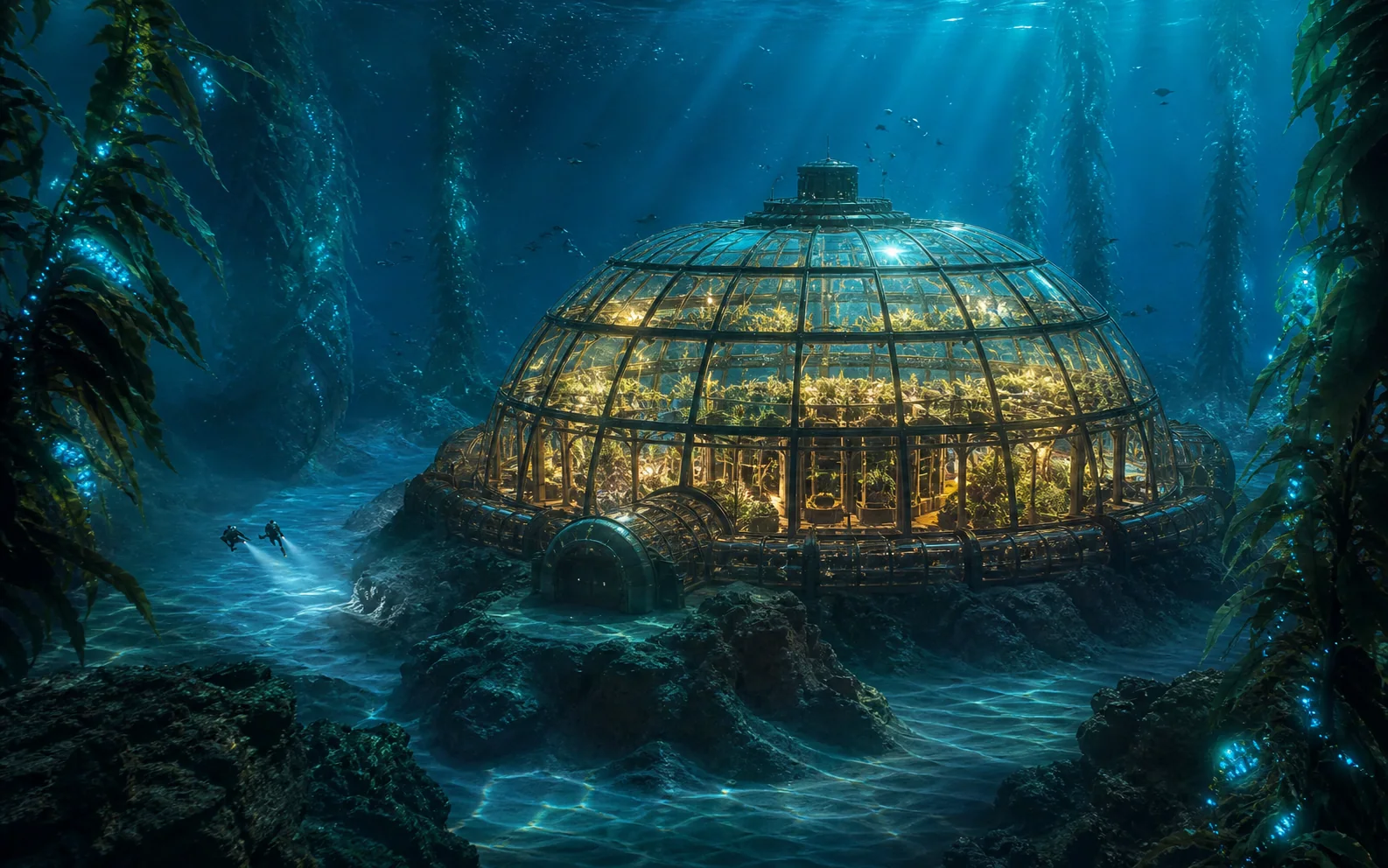
Create a cinematic wide concept image of an underwater research greenhouse inside a ribbed glass dome on the ocean floor. Show two small divers outside, bioluminescent kelp gardens, realistic water caustics, suspended particles, teal shadows, and warm horticultural lights. Keep the architecture plausible and the composition calm, expansive, and text-free.
How to use Grok Imagine Image 2.0 in Ezier
- 01
Select Grok Imagine Image 2.0
Confirm Grok Imagine Image 2.0 in the model selector so the prompt, format, resolution, and image count use the intended model configuration.
- 02
Describe the visual decisions
Name the subject, action, environment, camera, lighting, materials, mood, and composition. For edits, add the source image and state what must remain recognizable.
- 03
Set the canvas and finish
Choose the aspect ratio for the final placement, select 1K or 2K output, and use the quality setting that matches a quick direction pass or a polished result.
- 04
Generate variations and refine
Create one, two, or four options, compare the overall composition, and continue with focused natural-language edits to evolve the strongest image.
What Grok Imagine Image 2.0 adds to the workflow
Use one model to establish a visual direction, render fine material detail, and evolve a source image through natural-language edits.
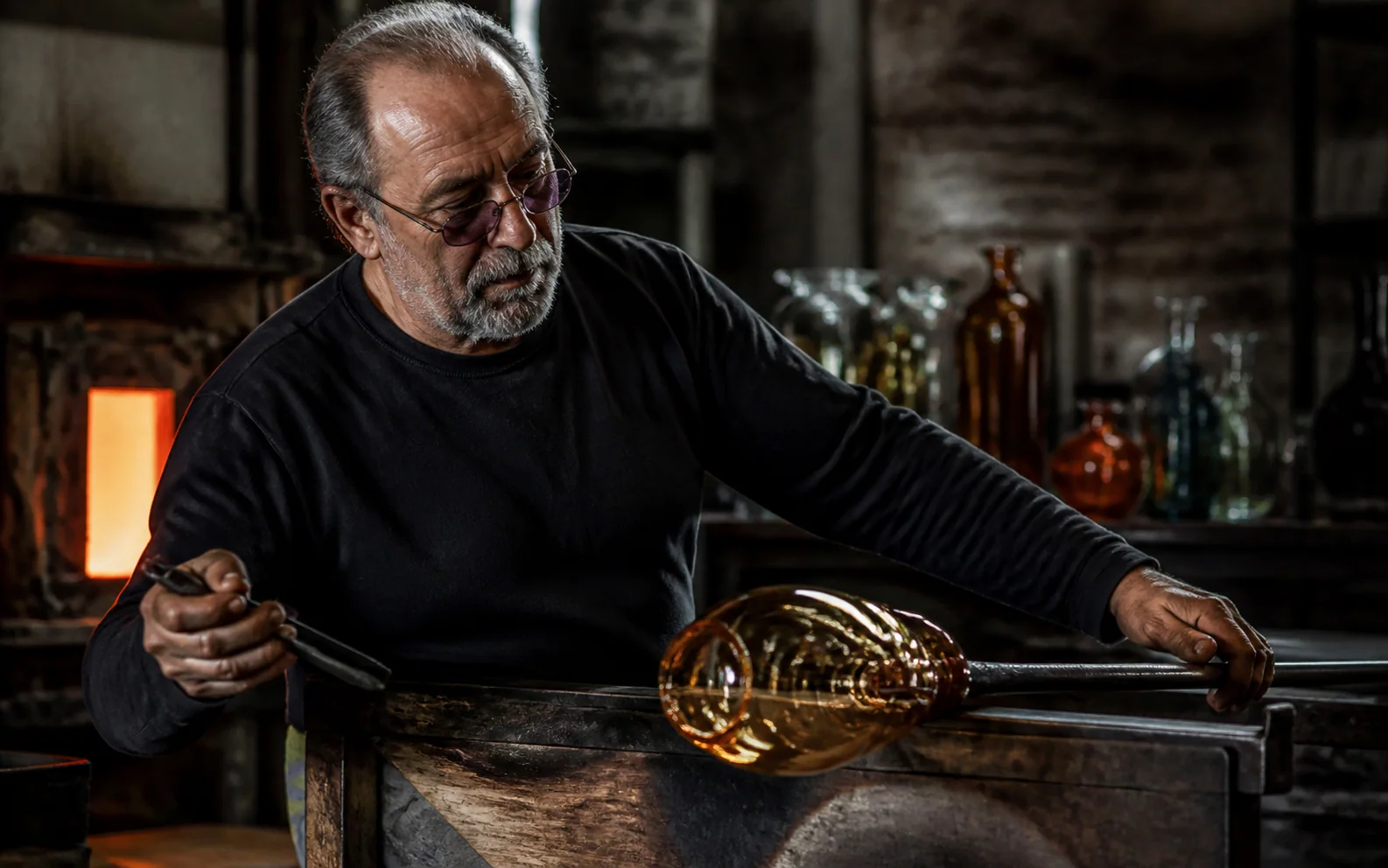
Direct the composition in natural language
Describe the subject together with lens distance, light direction, palette, materials, atmosphere, and spatial relationships. The same direct language works across photorealistic scenes, editorial illustrations, product mockups, and concept art.
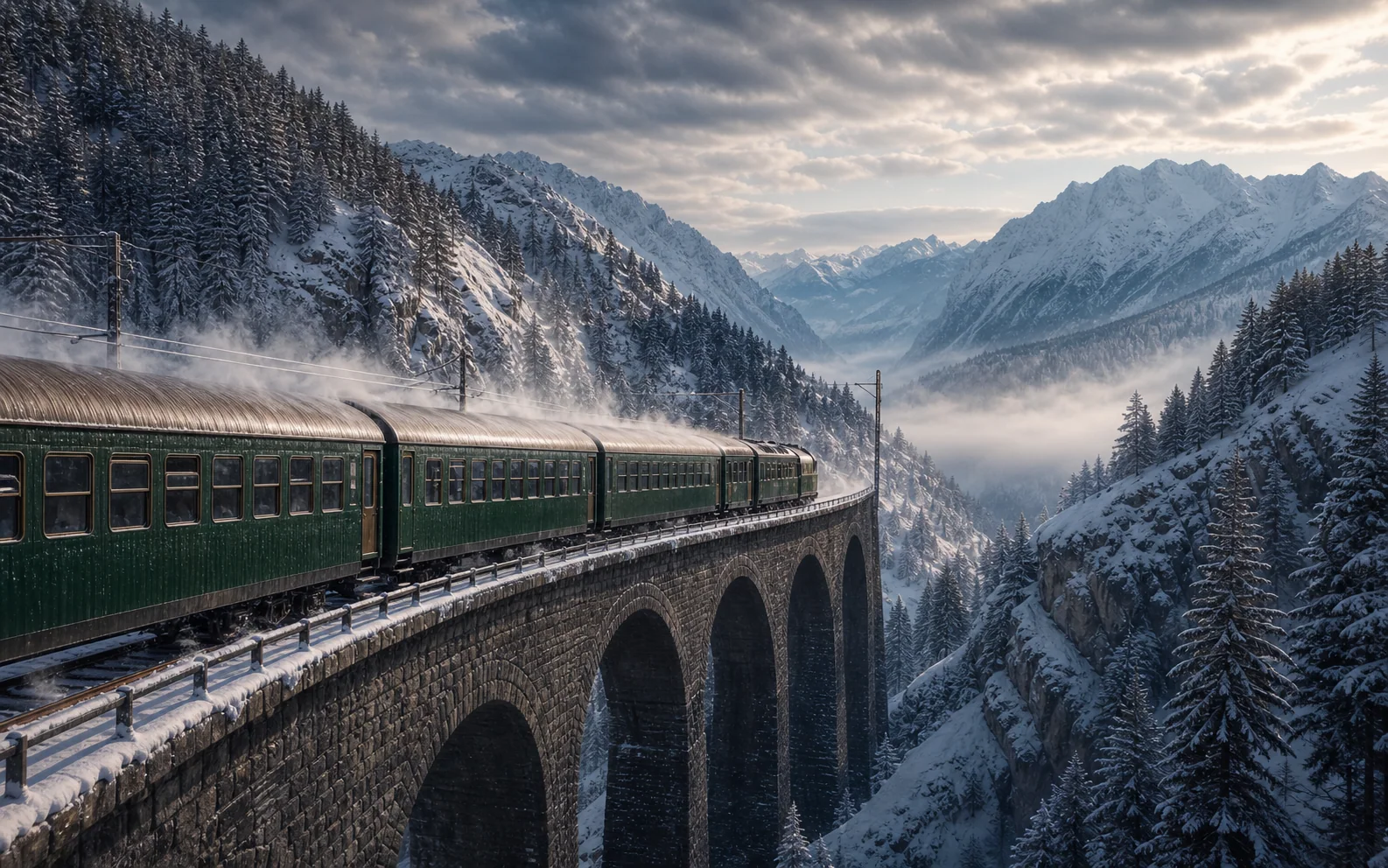
Render fine surfaces at 2K
Grok Imagine Image 2.0 supports 1K and 2K output. Use 2K when fabric weave, glass reflections, product finishes, snow, foliage, or architectural surfaces need more room to resolve cleanly.
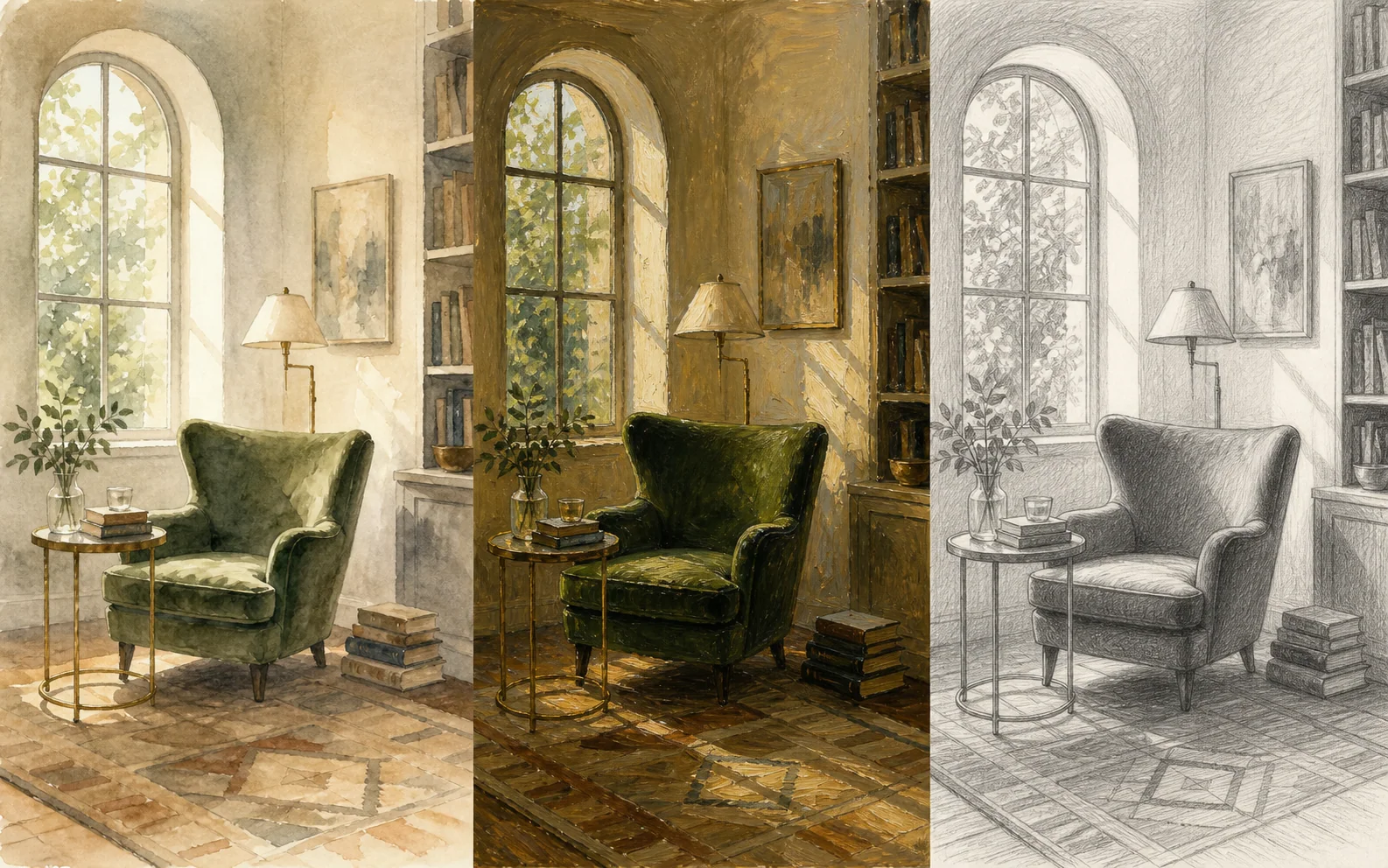
Transform a source image without losing its role
Image editing and multi-turn refinement let a source remain the anchor while you change its style, color, material, setting, or composition. Name what to preserve first, then give each requested transformation a specific job.
Grok Imagine Image 2.0 settings worth checking
Choose the canvas for its destination, match resolution to the level of finish, and generate enough variations to compare composition rather than surface style alone.
- 1K / 2K
- Resolution controlUse 1K for quicker creative exploration and 2K for final images that benefit from finer surface and environmental detail.
- 1–4
- Variations per requestGenerate one focused result or compare two to four alternatives when composition, styling, or product direction is still open.
- Low / Medium
- Quality modesOfficial model controls include low and medium quality, with medium as the default for a stronger balance of finish and generation time.
Lead with subject and action
Open with the main subject, what it is doing, and where it belongs. This establishes the scene before lighting and style details compete for attention.
Make camera and light concrete
Specify close-up, wide, overhead, low-angle, or eye-level framing, then name the light source, direction, contrast, and time of day.
Choose the ratio for its destination
Use a wide format for banners and environments, portrait formats for mobile and editorial work, and square canvases for balanced product or social compositions.
Use 2K where detail earns its place
Raise the resolution for intricate materials, dense environments, close product views, or images likely to be cropped. Use 1K while the broad direction is still changing.
Preserve first, transform second
For editing, list the source-image qualities that must stay intact—identity, silhouette, camera angle, layout, or palette—before describing the new treatment.
Change one variable per refinement
Keep the strongest image and adjust a single dimension such as lens, material, palette, weather, or styling. Focused iterations make the effect of each instruction easier to judge.
Grok Imagine Image 2.0 in Ezier
Build the first image, then keep the direction moving
Start with the subject and composition, choose the format and resolution, then refine the strongest result with focused instructions for light, materials, styling, or layout.
Grok Imagine Image 2.0 FAQ
Answers about image generation, editing, resolution, aspect ratios, variations, quality, and prompt structure.
What is Grok Imagine Image 2.0?
Grok Imagine Image 2.0 is xAI’s image generation and editing model. It creates new images from natural-language prompts and can refine source images through conversational instructions.
How do I use Grok Imagine Image 2.0 in Ezier?
Select Grok Imagine Image 2.0, describe the subject and visual direction, attach a source image when editing, choose the aspect ratio, resolution, quality, and number of images, review the credit estimate, and generate.
Can Grok Imagine Image 2.0 generate and edit images?
Yes. Official xAI documentation lists both text-to-image generation and image editing for Grok Imagine Image 2.0, including multi-turn editing that builds on previous results.
Which resolutions does Grok Imagine Image 2.0 support?
The official model supports 1K and 2K resolution. Use 1K for faster exploration and 2K when the final image needs finer textures, surfaces, and environmental detail.
Which aspect ratios can Grok Imagine Image 2.0 create?
The model supports square, landscape, portrait, wide-screen, mobile, and automatic aspect ratios. In Ezier, choose from the formats shown in the aspect-ratio control for the model.
Can Grok Imagine Image 2.0 create multiple images?
Yes. It supports batch generation. In Ezier, choose one, two, or four outputs to focus on a single direction or compare several visual interpretations of the same brief.
What do the Grok Imagine Image 2.0 quality modes mean?
Official model controls include low and medium quality, with medium as the default. Low is useful for faster direction finding, while medium is suited to more polished visual work.
What prompts work best for Grok Imagine Image 2.0?
Use a clear sequence: subject and action, environment, composition, camera, lighting, materials, palette, mood, and final format. For edits, state what the source must preserve before describing the change.
What is Grok Imagine Image 2.0 best suited for?
It is useful for photorealistic scenes, product mockups, marketing visuals, social graphics, illustrations, concept art, style exploration, and natural-language image editing.
More to try
Compare what works with Grok Imagine Image 2.0
Check related image models, refine the output with tools, or turn the idea into video.

AI models
Compare models
Choose a better fit before you generate.
AI image tools
Create or edit images
Make, clean up, or upscale stills.
AI video tools
Turn images into motion
Animate a still or create a clip.
Qwen Image 3.0
Production-ready layouts
Use for dense layouts, multilingual text, realistic detail, and image edits.
GPT Image 2
Polished visuals
Use for ads, product shots, and clean edits.
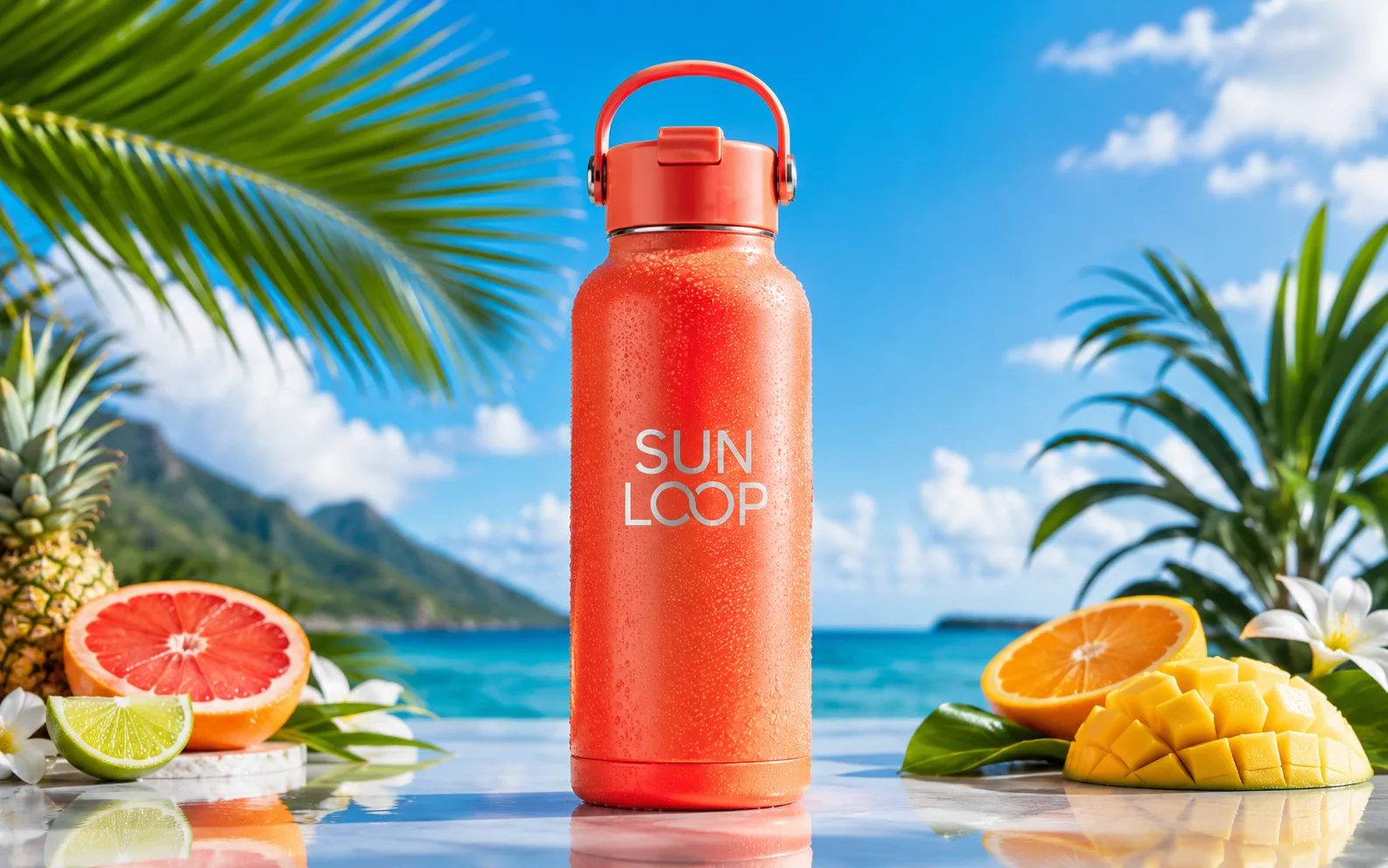
Nano Banana Pro
More control
Use for detailed prompts and readable text.
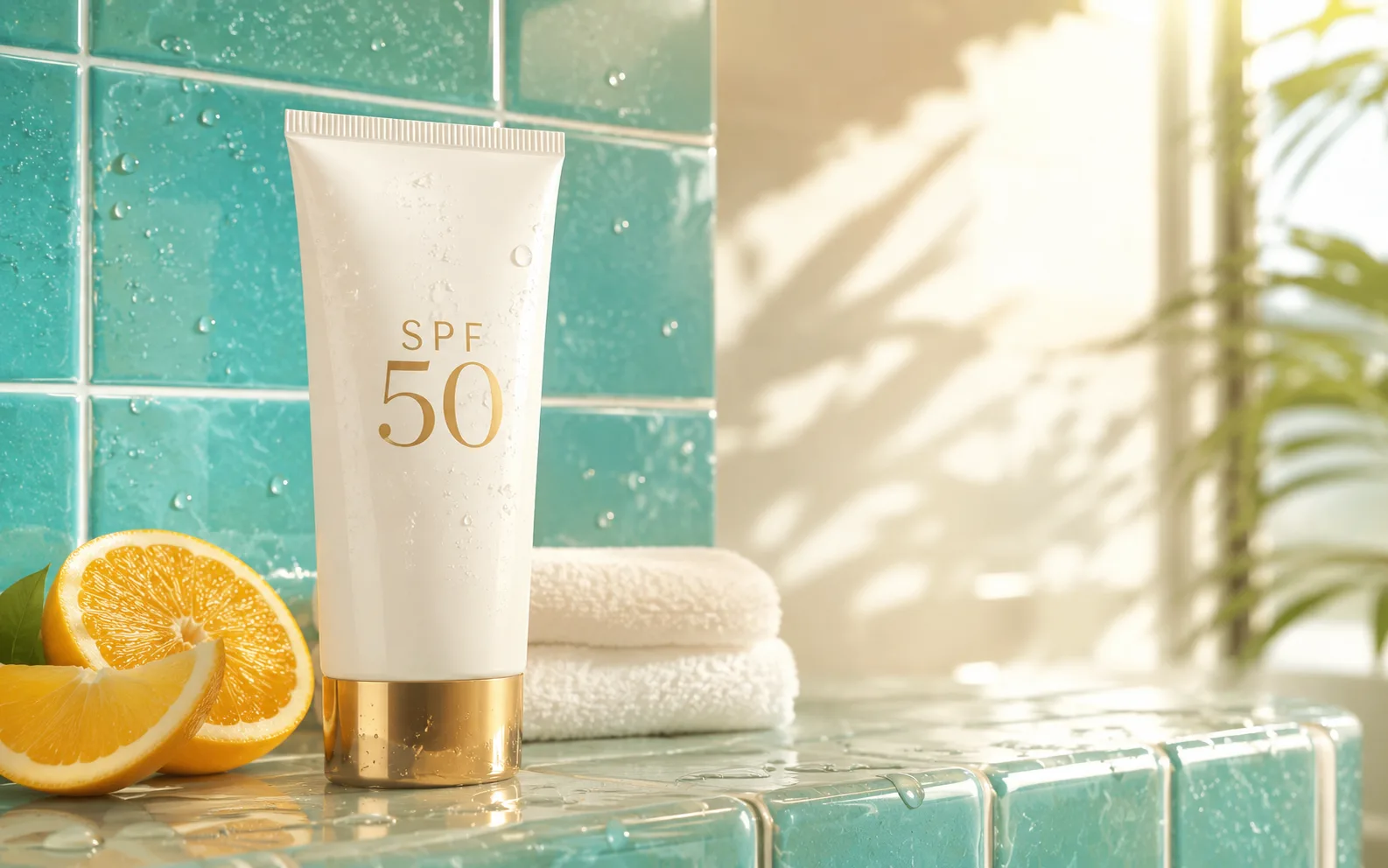
Nano Banana 2
Balanced image creation
Use for higher-resolution images, multiple references, and longer edit chains.
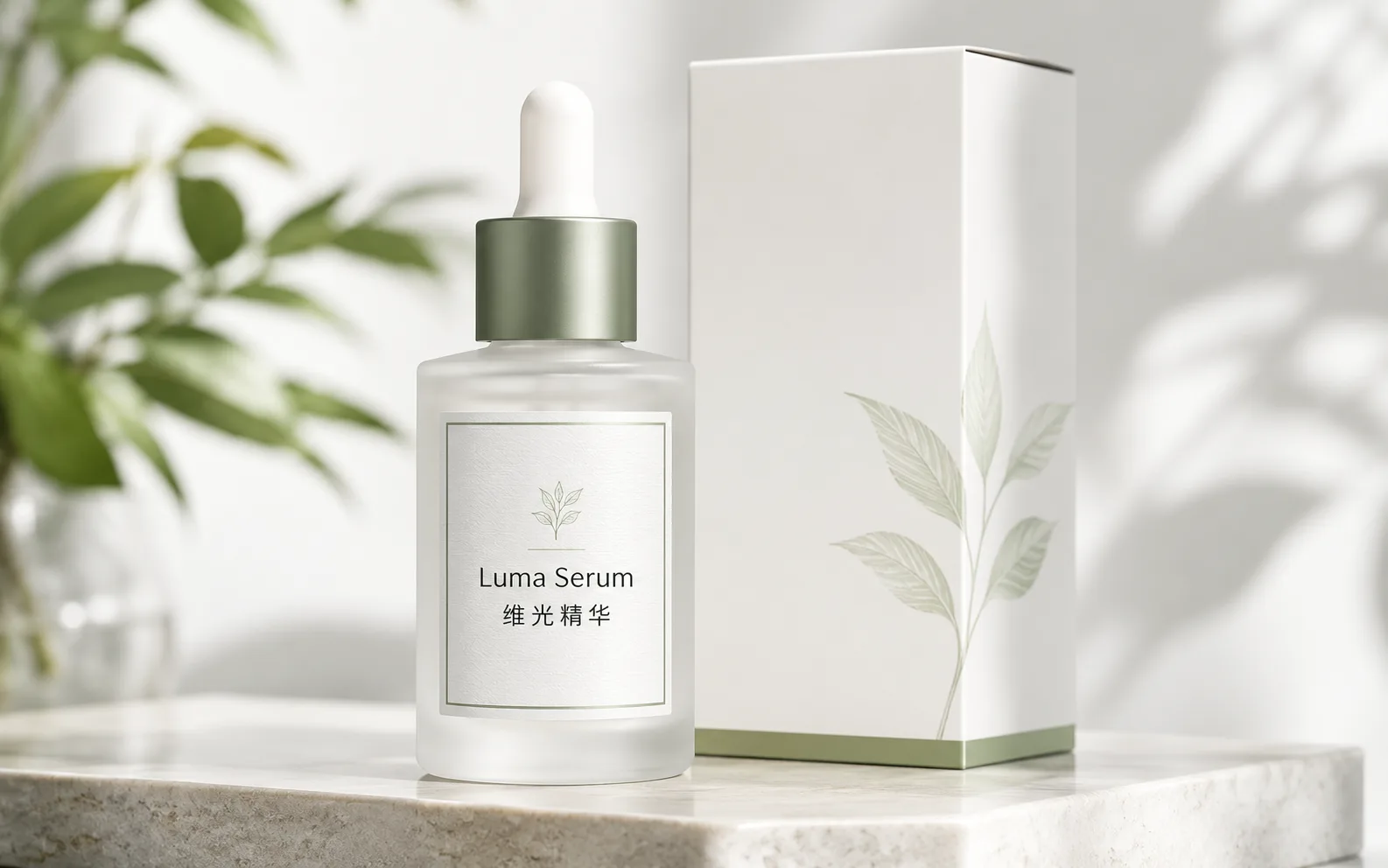
Qwen Image
Readable text
Use for labels, posters, and diagrams.
AI models
Compare models
Choose a better fit before you generate.
AI image tools
Create or edit images
Make, clean up, or upscale stills.
AI video tools
Turn images into motion
Animate a still or create a clip.
Qwen Image 3.0
Production-ready layouts
Use for dense layouts, multilingual text, realistic detail, and image edits.