Build your video prompt
Start with the idea. Add only the details you want the final prompt to control.
Loading prompt settings...

Turn a rough idea into a structured video prompt with subject, motion, setting, camera, lighting, style, model, and duration details.
Build your video prompt
Start with the idea. Add only the details you want the final prompt to control.
Prompt-ready video examples
Create a 10-second video in which an astronaut walks on Mars.
The AI video prompt generator turns a rough concept into a structured direction for the subject, motion, scene, camera, lighting, style, and timing.
Write one or two sentences about the scene you want. A clear subject and visible action are enough to start.
Define the subject, motion, setting, camera move, lighting, mood, or visual style when you need tighter control.
Tailor the prompt for Seedance, Kling, Veo, Hailuo, or a general workflow, with a duration from 3 to 30 seconds.
Review the generated prompt, make any final edits, copy it, or send it directly to Text to Video.
Strong video prompts describe what viewers should see and how the shot should move. These examples show three directions you can plan with the generator.
Prompt: “Make it dynamic with realistic features.” Even a short direction can help the model prioritize natural movement and grounded visual detail.
Prompt: “Nova kiss in party night.” Naming the subject, action, and setting gives the model the essential story beat before you refine lighting or camera movement.
Prompt: “I want a loopable video to use for my app that is for tips tracking for servers.” State the destination and playback behavior when the clip needs to serve a specific UI or product purpose.
You only need a short idea to begin. Add optional details when they protect something important about the shot or help a target video model interpret your intent.
Describe what changes during the shot: a person turns, fabric catches the wind, a train arrives, or the camera reveals a product.
Choose a static shot, dolly, pan, orbit, handheld follow, or crane move. Avoid combining several camera moves unless the sequence needs them.
You do not need to fill every field. Add a detail when leaving it open would change the story, composition, pace, or brand treatment.
A short clip needs one readable beat. Longer durations can support a setup and reveal, but too many actions still compete for screen time.
From rough idea to usable direction
Generate the prompt here, edit any detail, and carry the final text directly into the Text to Video generator .
Answers about starting ideas, optional fields, supported target models, prompt reuse, duration, and generation cost.
An AI video prompt generator turns a rough scene idea into a more structured prompt that describes the subject, action, setting, camera, lighting, mood, style, model, and duration.
Start with one or two sentences describing who or what appears, what happens, and the kind of scene you want. You can use the optional fields to refine specific details.
No. The idea is required, while the other fields are optional creative controls. Fill them only when you want the generated prompt to preserve a specific choice.
The current tool can tailor prompt structure for Seedance, Kling, Veo, Hailuo, or a general video-generation workflow.
Yes. After generation, use the Generate video button to carry the editable prompt directly into Ezier AI’s Text to Video page.
The duration control currently supports 3 to 30 seconds. Choose a duration that gives the main action enough time without overloading the shot.
The Generate prompt button displays the live cost returned by the tool before you run it, including when the current prompt generation is marked free.
More to try
Find the next tool for generation, restyling, cleanup, extension, or model comparison.
AI video tools
More video tools
Generate, edit, clean up, or improve clips.

AI models
Compare video models
Pick a better model before rendering again.

AI image tools
Prepare source images
Create a stronger still for the next video run.
AI Video Generator
Start a video
Create a clip from a prompt or image.
Text to Video
Prompt-first video
Turn a written scene into motion.
Image to Video
Animate a still
Turn an image into a short clip.
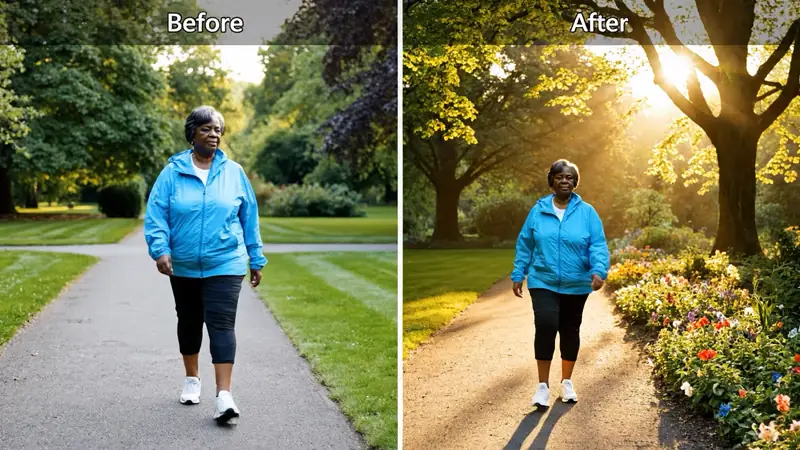
Video to Video
Restyle footage
Change the look of an existing clip.
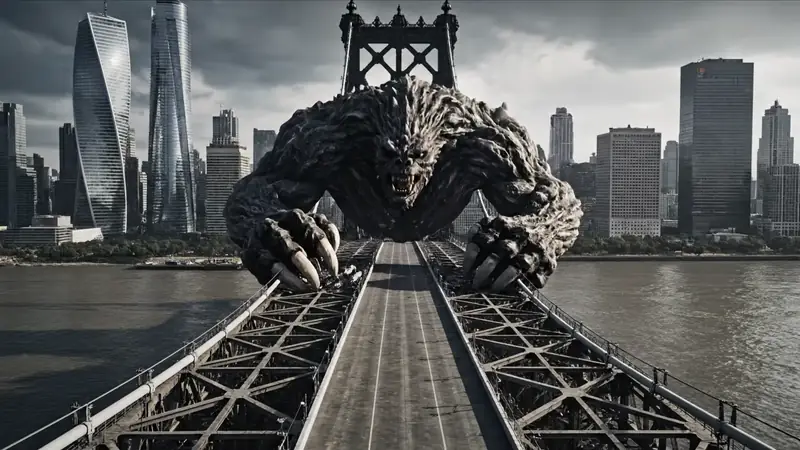
AI Video Extender
Extend a clip
Continue a short video into a longer scene.
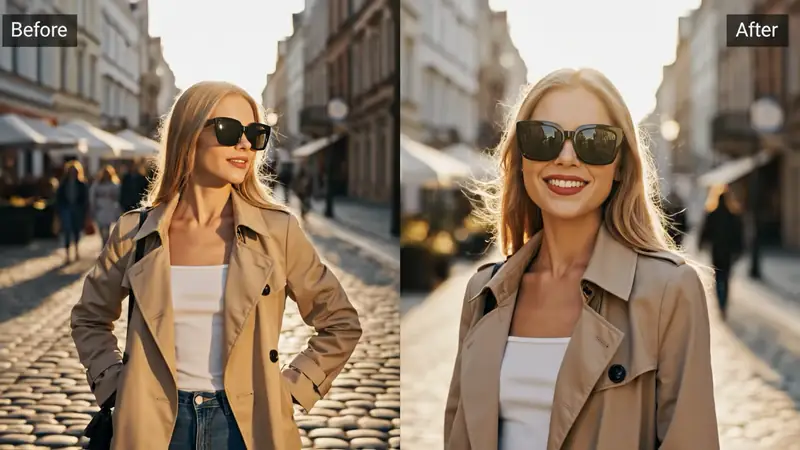
AI Video Editor
Edit with prompts
Revise a clip without a timeline.