
Text to Image AI Generator for Visual Ideas
Start with words alone and shape scenes, portraits, covers, and concepts before moving the best direction into your workspace.
See how far words can take an image
A cliffside temple, an editorial portrait, a rain-lit cover idea. Each prompt gives the model a subject, a mood, and a frame to build from.
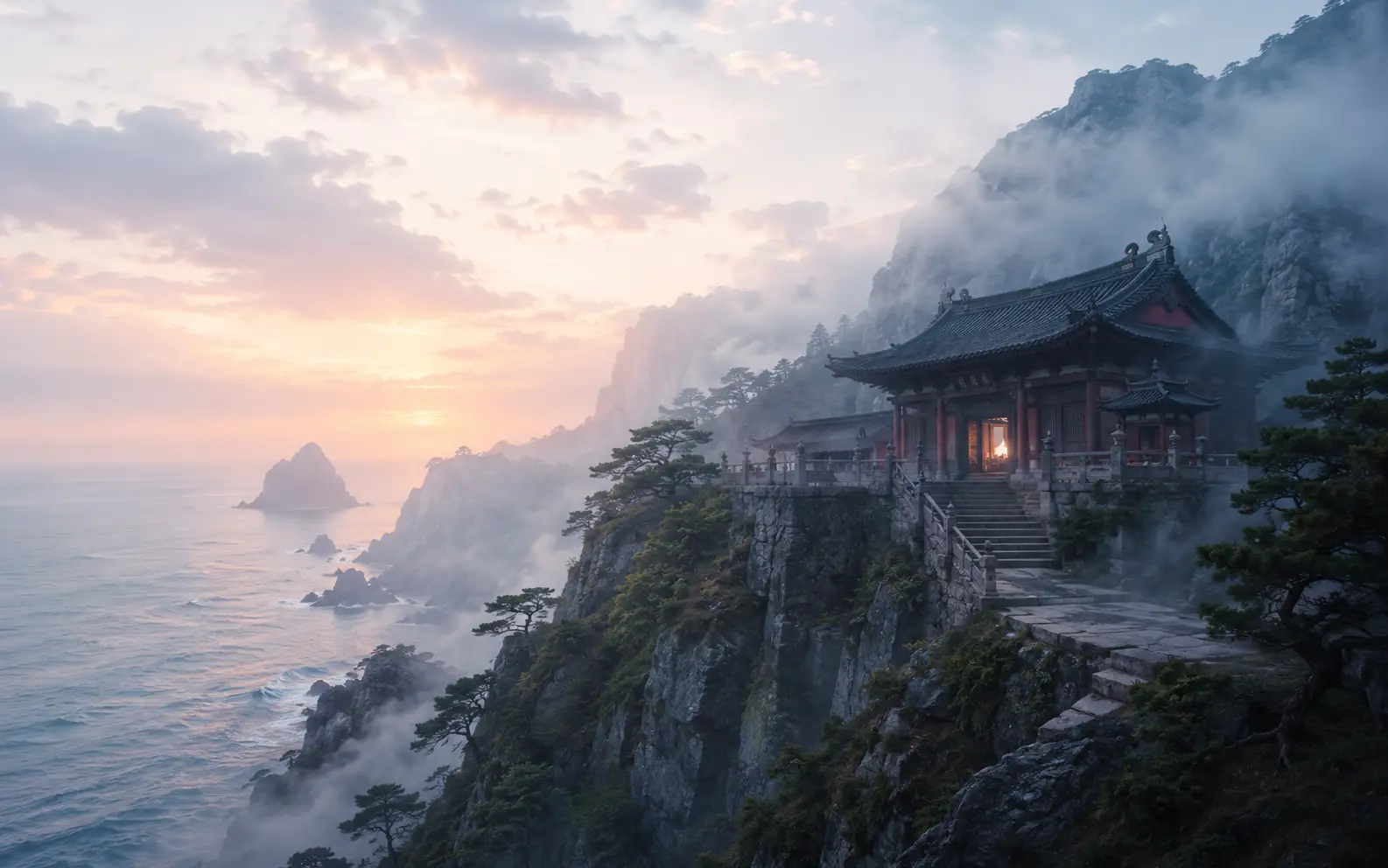
Quiet cliffside temple above the sea at dawn, drifting mist, warm light glowing from the doorway, pine trees on dark rock, soft cinematic atmosphere, wide 16:10 composition
Shape the first version before you generate
The prompt starts the image, but the model and output settings decide how the first draft arrives.
- 01
Write the core idea
Describe the scene, person, object, or world you want the image to create.
- 02
Choose a model
Pick the image model that fits the style, realism, speed, or text handling you need.
- 03
Set the output frame
Choose the ratio, resolution, and image count before you generate.
- 04
Review the first draft
Open the result in your workspace, then refine the prompt or settings from the strongest version.
When the image starts as words
Use Text to Image for places that do not exist yet, portraits without a reference, and concept frames that need room to evolve.
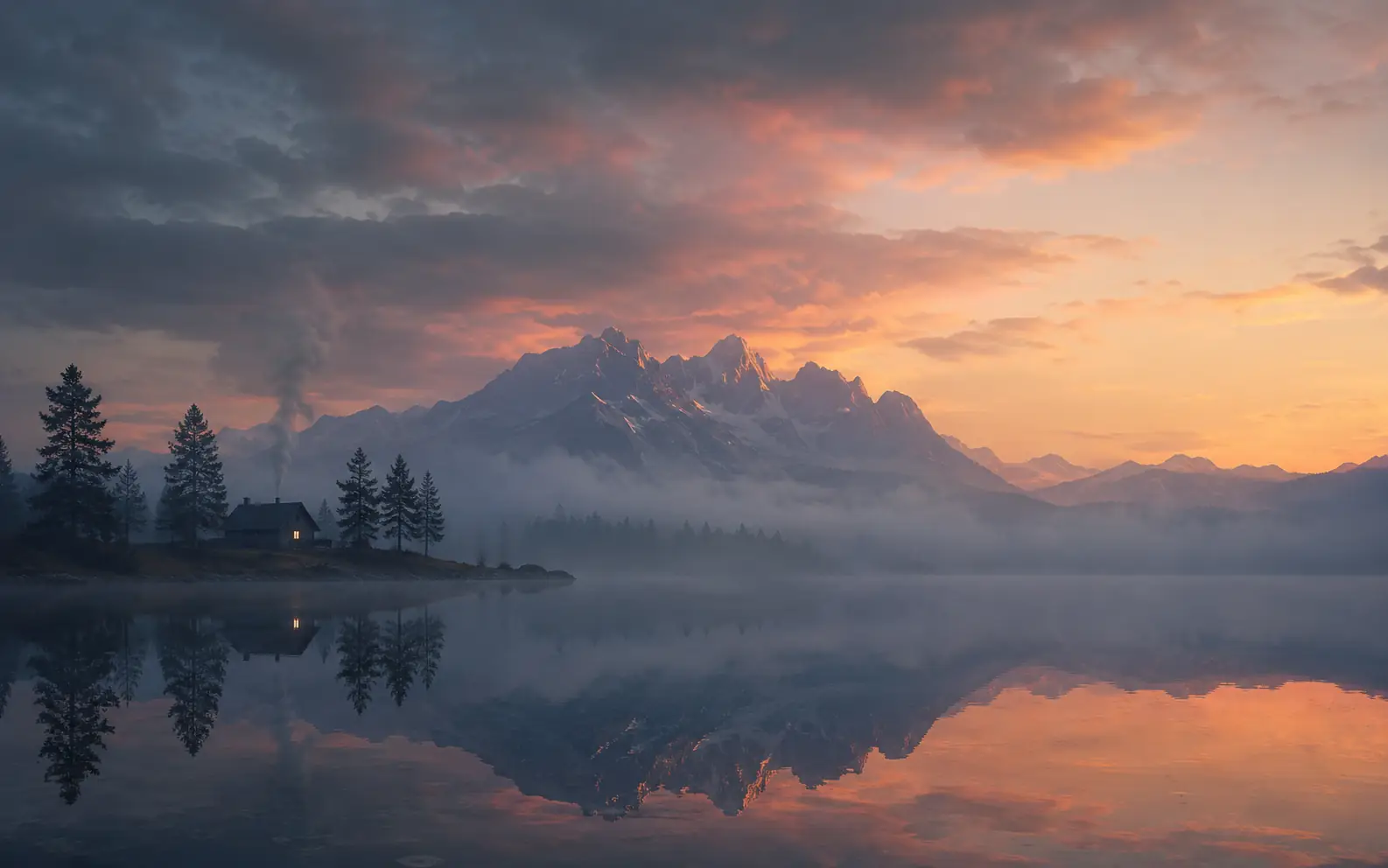
Atmospheric scenes from scratch
Build places, landscapes, interiors, and cinematic scenes when you do not have a source image yet.
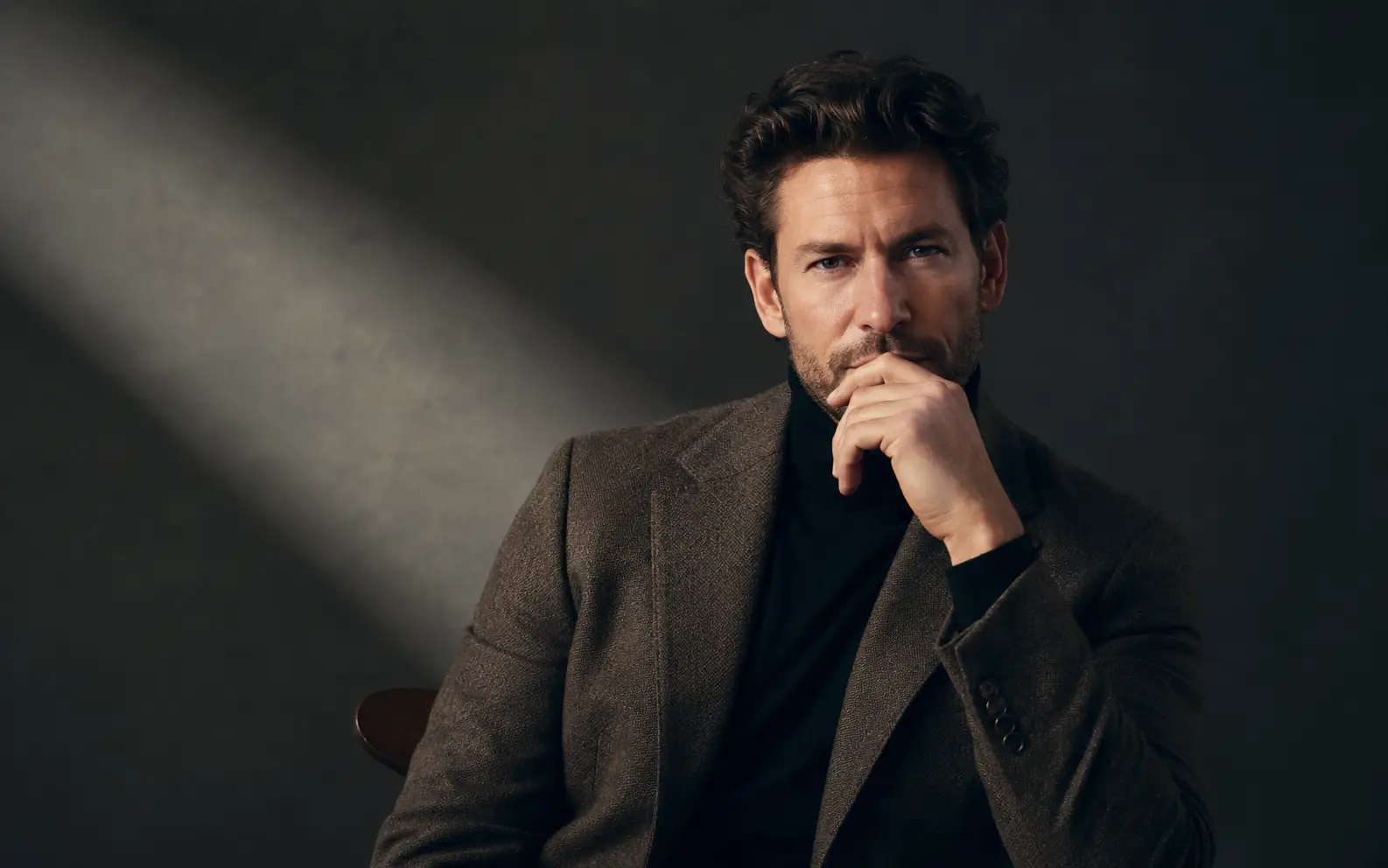
Portraits without a reference
Describe the expression, wardrobe, lighting, and setting when the character can be invented from words.
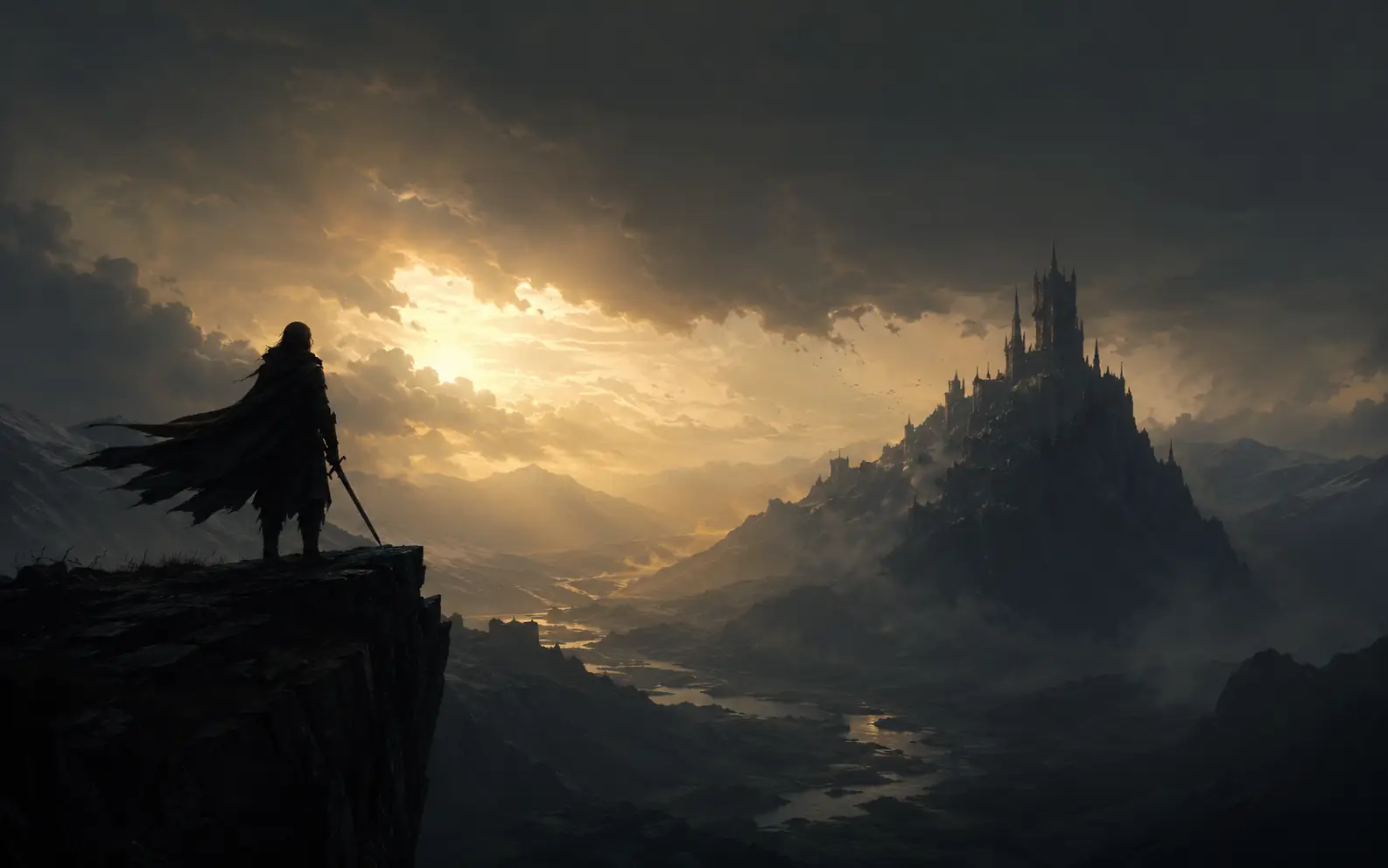
Concept frames and covers
Explore story worlds, dramatic silhouettes, album-style covers, and early visual directions before final polish.
Make the prompt less generic
A stronger prompt gives the model a job, not a pile of adjectives. Add one clear decision at a time so each version is easier to judge.
Give the image a role
Say whether it is a cover, portrait, scene, poster, mood board, or background.
Use fewer style words
Choose a few useful style cues instead of stacking every visual adjective you can think of.
Name the composition
Add framing such as close portrait, wide landscape, centered subject, or open space for text.
Change one decision at a time
If the result is close, adjust one thing: subject, lighting, style, frame, or background.
Text to Image in Ezier
Turn a blank prompt into a first image.
Describe what you see in your head, choose the frame, and generate a first version you can keep shaping in Ezier.
Text to Image FAQ
Practical answers about starting from words, choosing settings, and knowing when another image tool fits better.
What is text to image AI?
Text to image AI creates a new image from written instructions. You describe the subject, style, lighting, composition, and use case, then the model generates a visual from those words.
Do I need a reference image?
No. Text to Image is useful when you want to start from words alone. If you already have a source image that should guide the result, Image to Image is usually the better tool.
What should I include in a text to image prompt?
Include the image type, subject, mood, style, composition, lighting, and where the image will be used. Keep the first prompt focused so the next version is easy to improve.
How do I choose the right format?
Choose the aspect ratio and resolution based on where the image will appear. Wide frames work well for scenes and covers, while square or vertical formats fit posts, portraits, and mobile surfaces.
Should I use text to image or image to image?
Use text to image when you are starting from a written idea and no strong visual reference exists yet. Use image to image when you already have a base image and want to refine it.
Why does my text to image result still feel generic?
Generic outputs often come from prompts that lack a clear image type, subject, mood, or publishing context. Narrowing the brief usually helps more than adding extra adjectives.
What should I do with the first result?
Use it as the baseline. If the subject or mood is wrong, revise the prompt. If the shape is wrong, change the ratio or model before generating again.
More to try
Explore your next creative step
Try another image tool, compare image models, or animate an image concept.

AI image tools
More image tools
Create, edit, clean up, or upscale stills.

AI models
Compare image models
Pick a better model before making more versions.

AI video tools
Make it move
Animate a still or turn it into a clip.
AI Image Generator
Start from any idea
Create a fresh image from a prompt.
Image to Image
Use a reference
Restyle or revise an existing image.
Image to Prompt
Describe a reference
Turn visible image details into a reusable AI prompt.
Infographic Generator
Visual explanations
Turn processes, comparisons, timelines, and facts into structured visuals.
Product Picture Generator
Product visuals
Create polished product photos and campaign scenes.
AI Logo Generator
Brand marks
Create logo ideas from a short brief.
AI image tools
More image tools
Create, edit, clean up, or upscale stills.
AI models
Compare image models
Pick a better model before making more versions.
AI video tools
Make it move
Animate a still or turn it into a clip.
AI Image Generator
Start from any idea
Create a fresh image from a prompt.