
Upload Image
What should be removed? *
Upload a photo, name the object that should disappear, and keep the rest of the scene intact. Clean up bags, cars, passersby, props, marks, and small distractions.
What should be removed? *
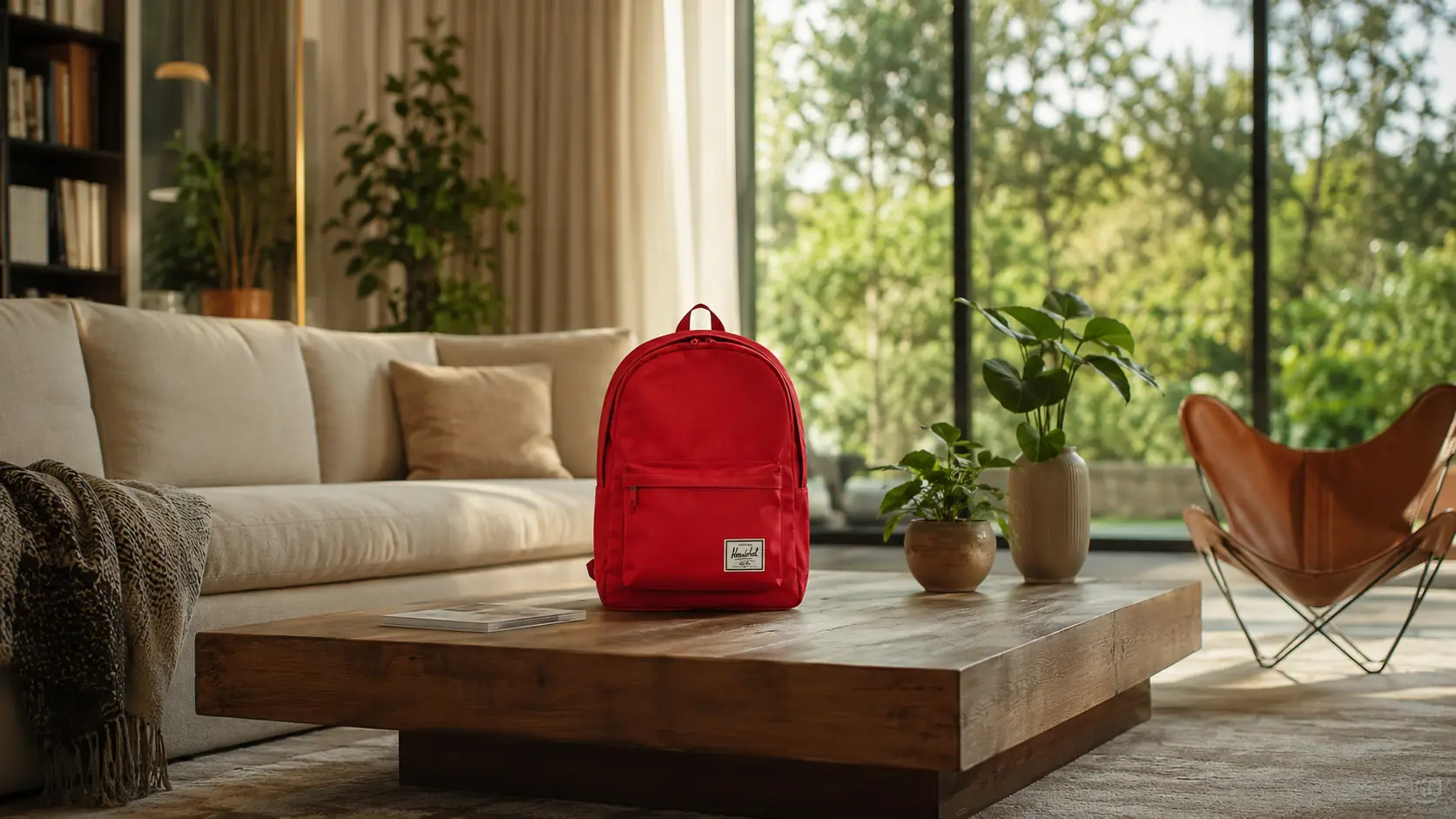
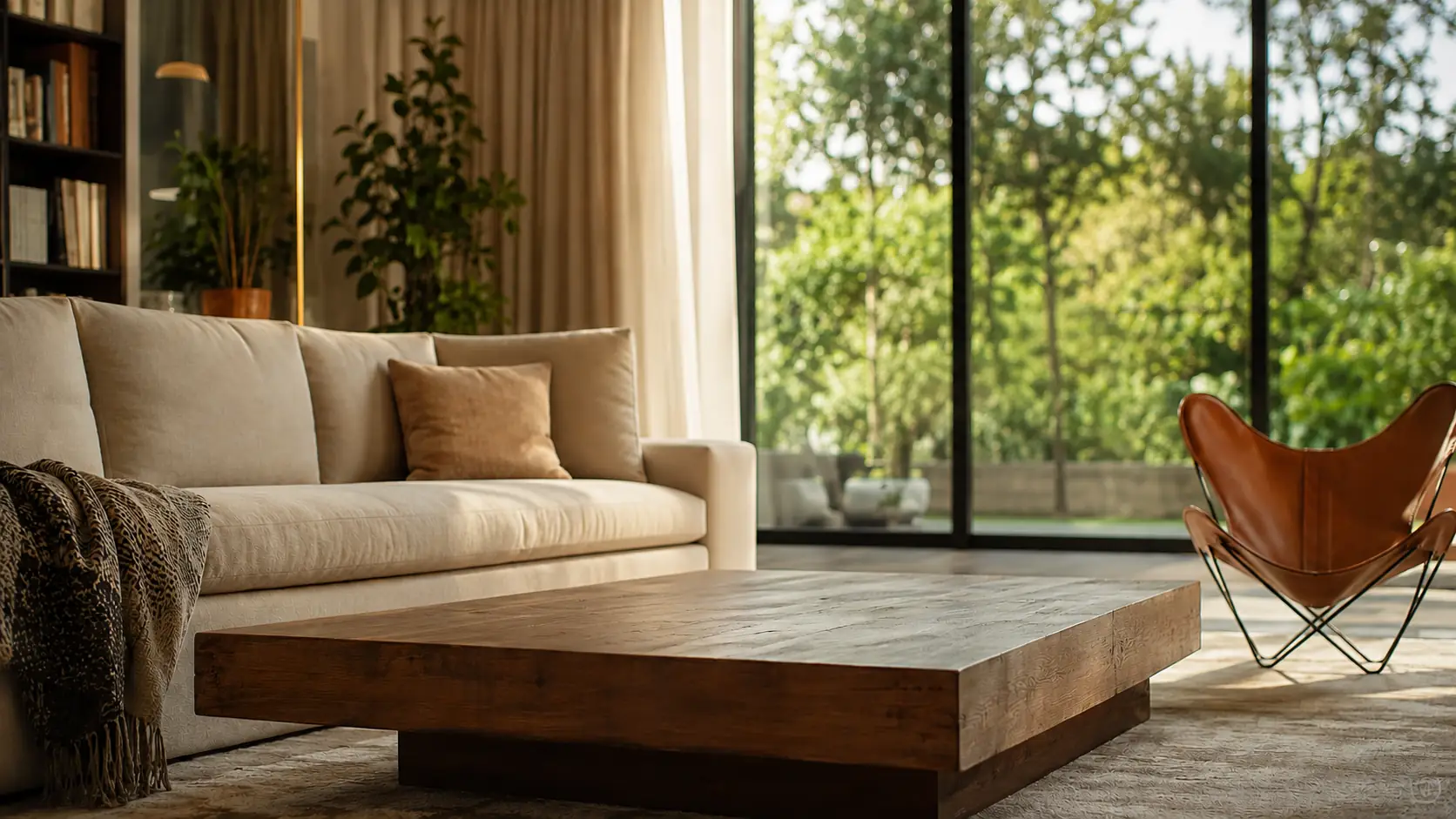
Use AI Object Remover when the photo already works and one visible distraction needs to go.
Choose a PNG, JPG, WEBP, or GIF with a clear object, person, mark, logo, or prop to remove.
Describe what should disappear and where it appears in the frame.
Run the edit so Ezier can remove the target and rebuild the surrounding area.
Check edges, shadows, reflections, and repeating patterns before you download.
Use it for photo cleanup when the background should stay. If the whole backdrop should disappear, Background Remover is the better tool.
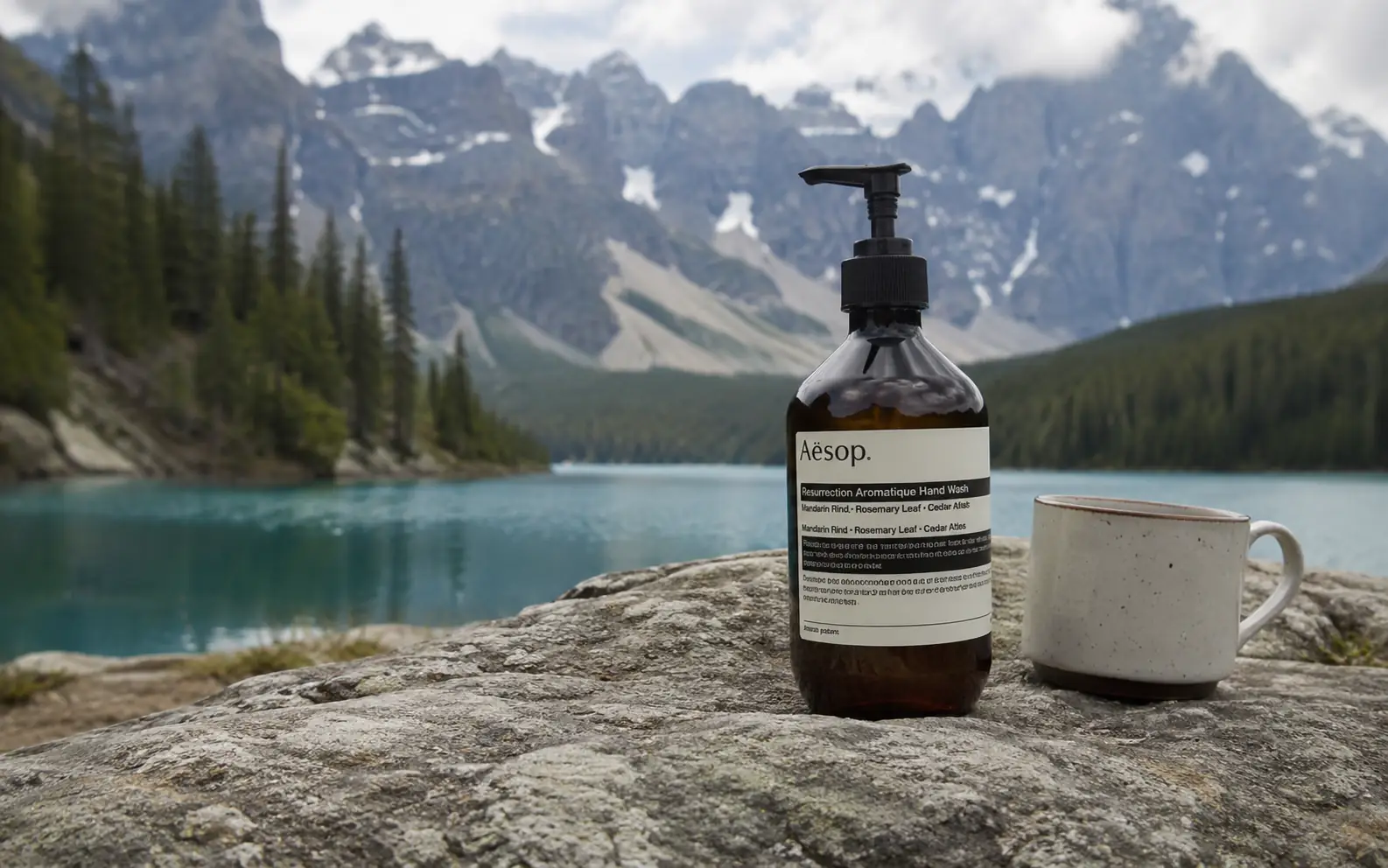
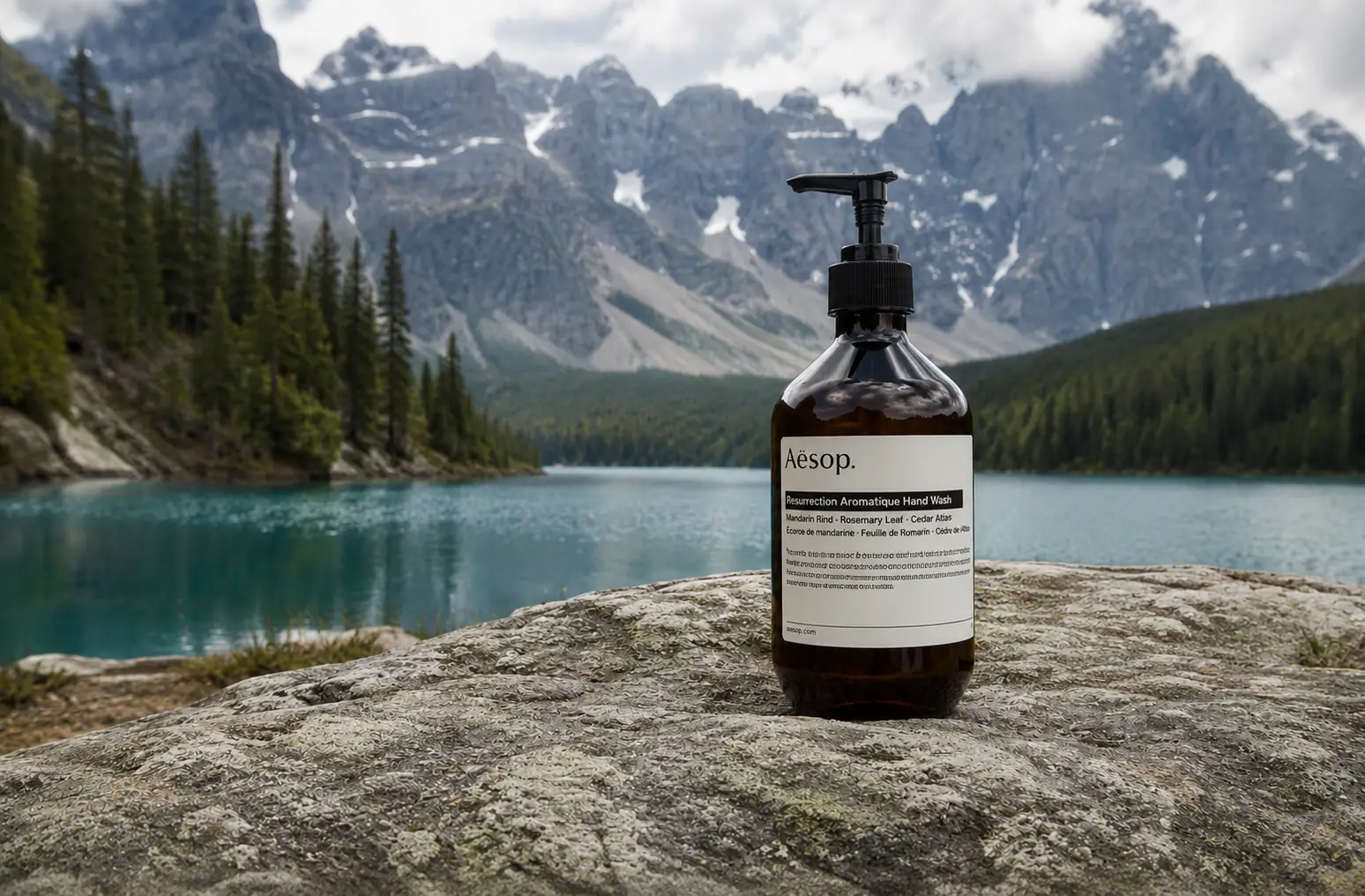
Take out a bottle, bag, sign, or other unwanted item while keeping the landscape, surface, shadows, and background intact.
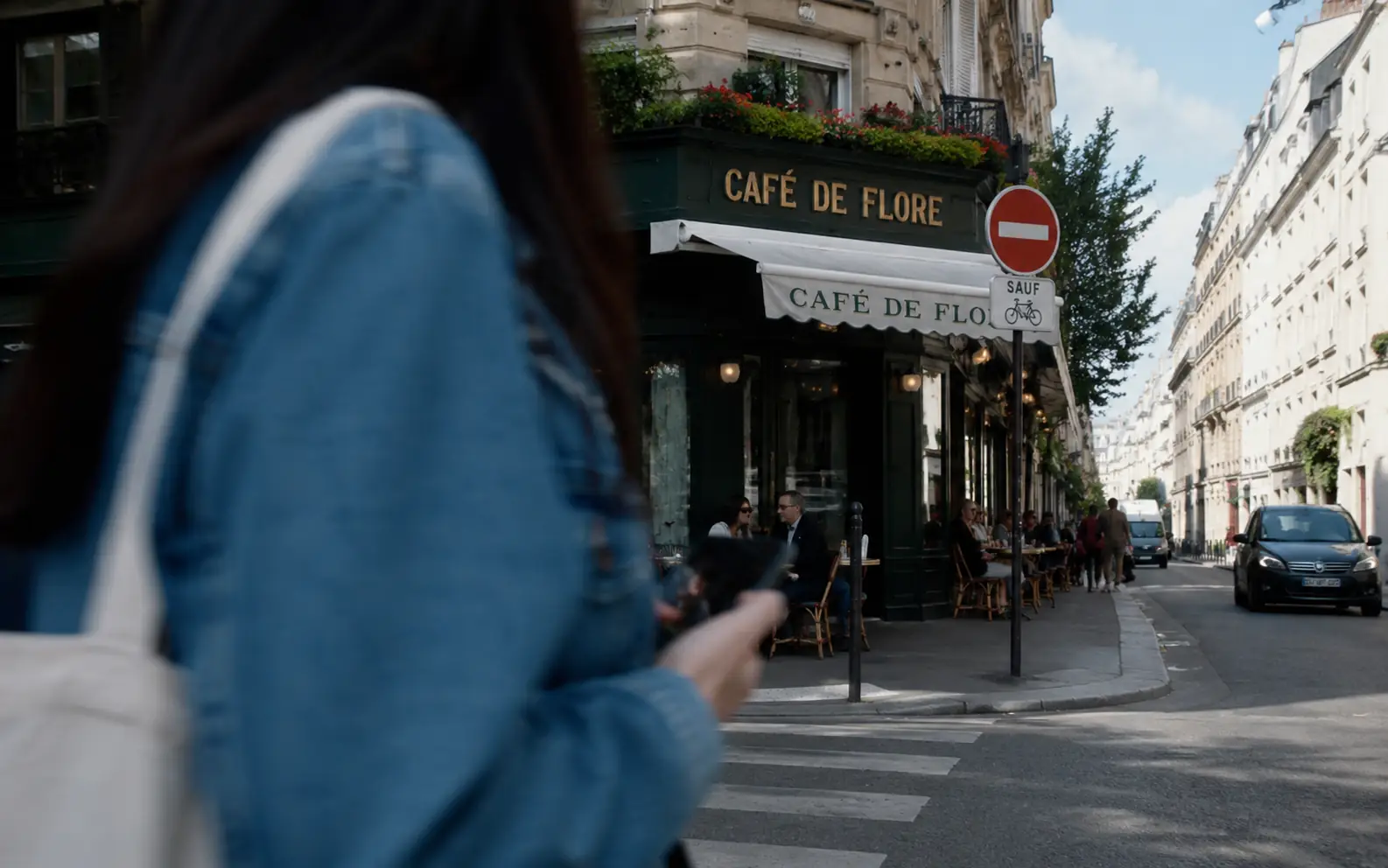
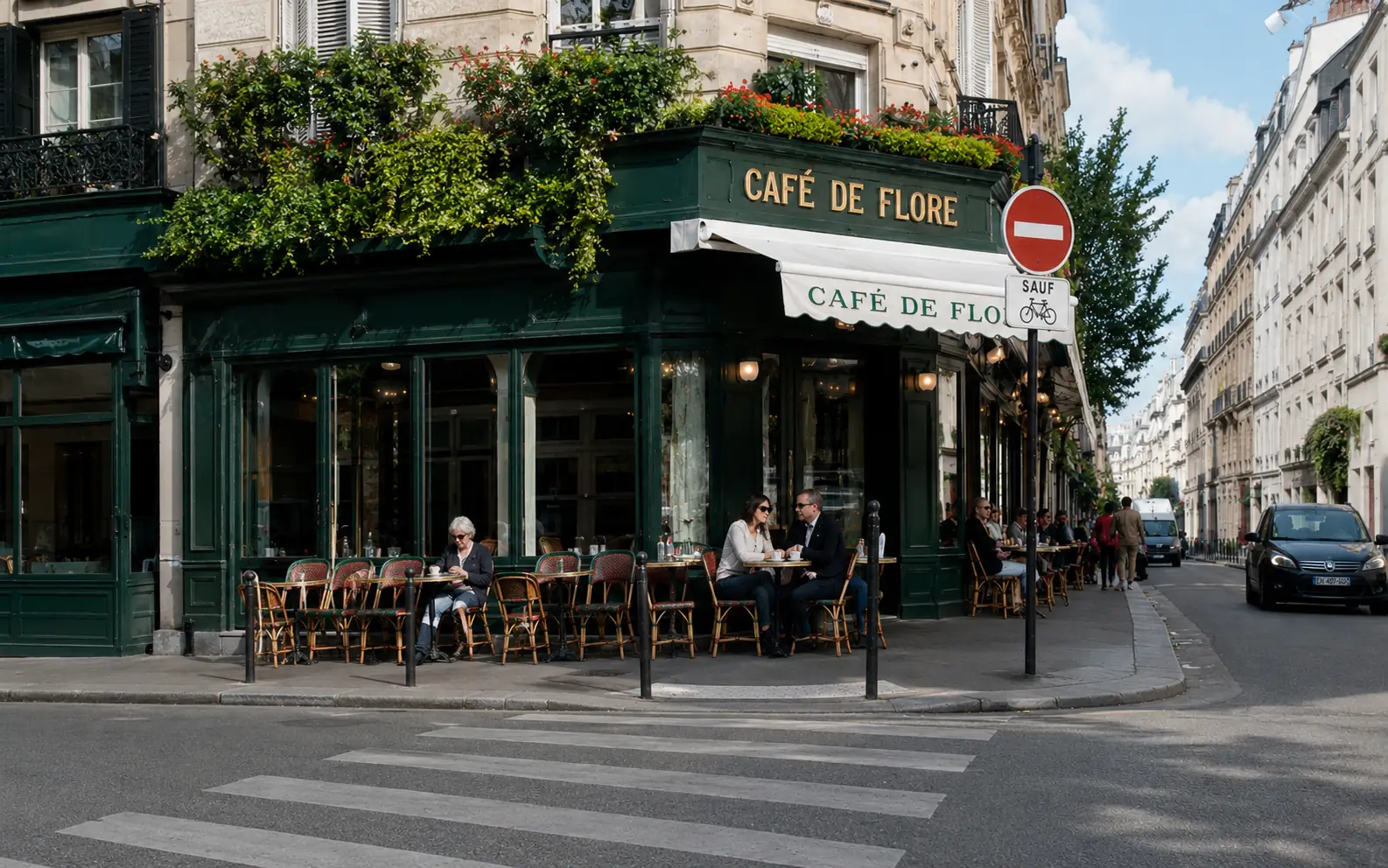
Clean travel, street, and venue photos when a passerby or foreground person covers the scene you meant to capture.
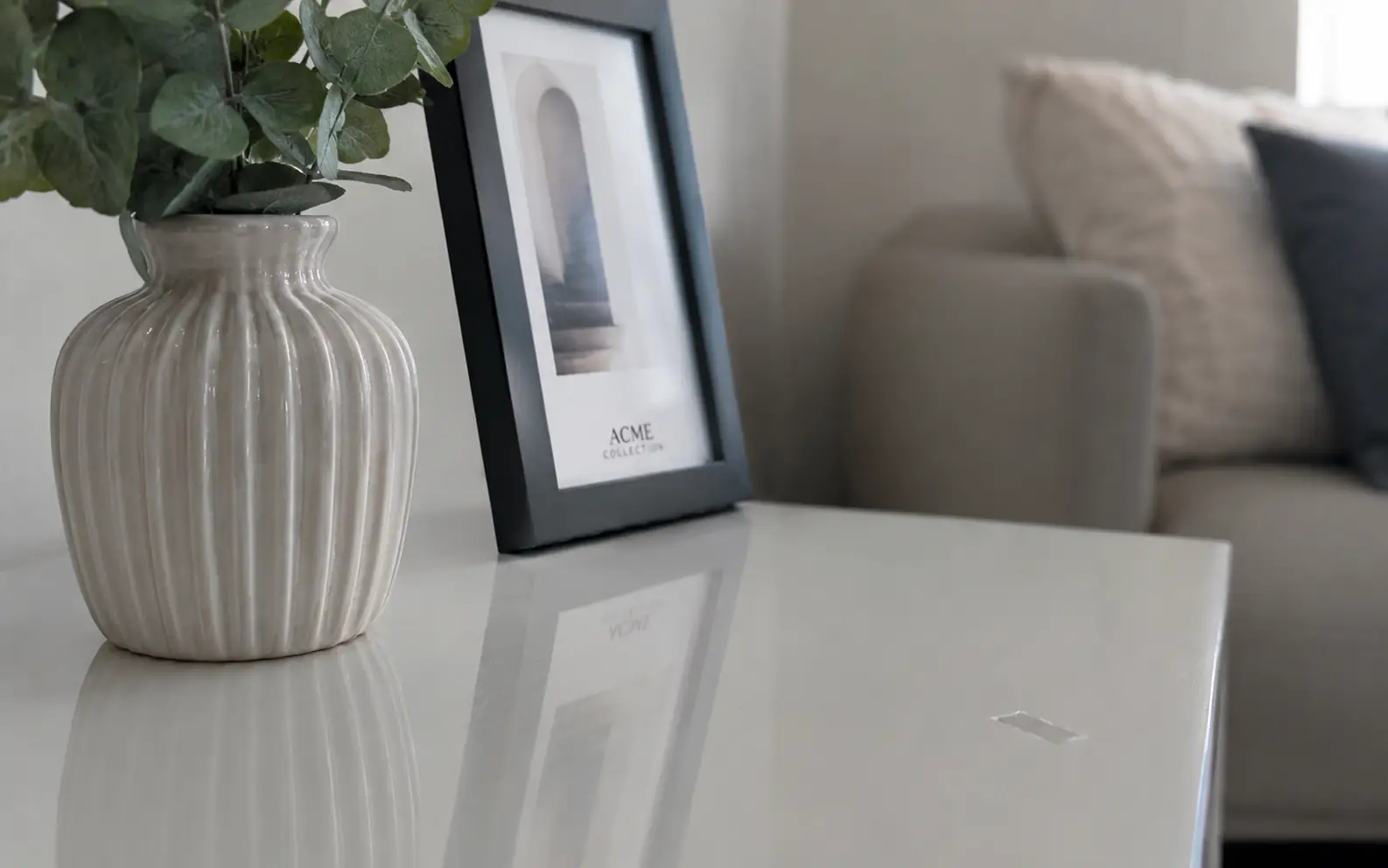
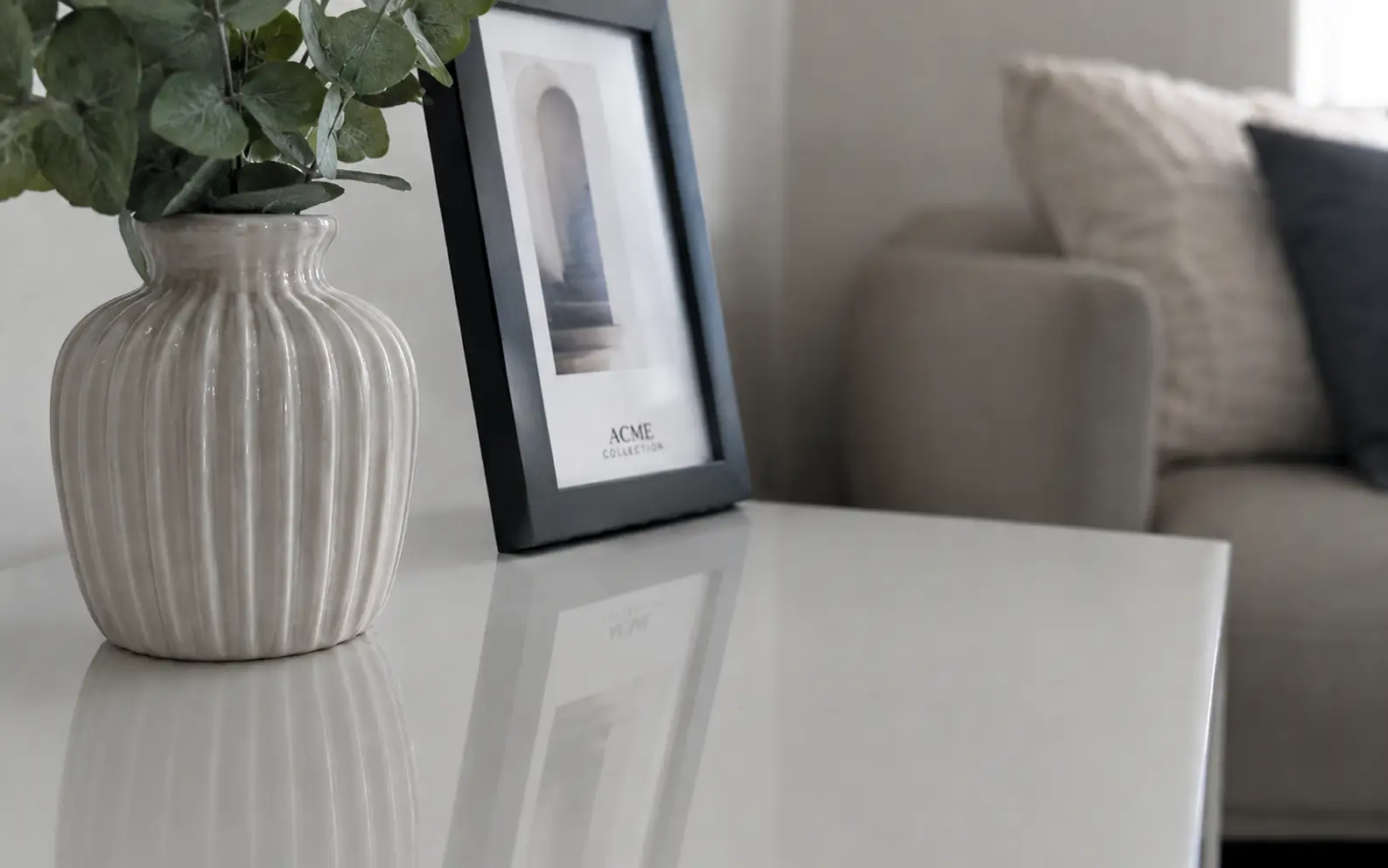
Remove tape, spots, stickers, or small blemishes when the surrounding table, wall, fabric, or floor texture is clear enough to rebuild.
Name the object, say where it is, and check the repaired area for shadows, texture, and repeated patterns.
Write "remove the red backpack on the table" instead of "clean this image."
If the image also needs tone cleanup, use Image Enhancer before you remove the object.
If the entire backdrop should disappear and only the subject should remain, use Background Remover instead.
Floors, fabric, reflections, signs, and cast shadows are the areas most likely to reveal the edit.
Target one distraction
Upload the image, describe what should disappear, then review the repaired area before you download.
Answers about removing people, props, reflections, and other single distractions from a photo.
AI Object Remover repairs one selected distraction inside the photo. Background Remover removes the entire backdrop so only the subject remains.
Name the target, give its location, and mention anything that should stay untouched, such as the table surface, wall texture, road markings, or nearby people.
You can describe more than one target, but one clear removal is easier to judge. For cleaner results, remove the most distracting item first, then run another pass if needed.
Look at the repaired texture, shadows, reflections, straight lines, and repeated patterns. These areas show whether the edit blends into the original photo.
The edit is harder when the object hides faces, hands, text, product details, or complex patterns. Try a narrower target first, then decide whether the image needs a manual edit or a new source photo.
Next up
Try a nearby image workflow, compare models, or turn your result into video.

AI image tools
More image tools
Create, edit, clean up, or upscale stills.

AI models
Compare image models
Pick a better model before making more versions.

AI video tools
Make it move
Animate a still or turn it into a clip.
Background Remover
Cut out subjects
Remove the background from an image.
Remove Text from Image
Clean text overlays
Remove captions, labels, or text marks.

Watermark Remover
Remove marks
Clean visible watermarks or logos.
AI Image Editor
Prompt-based edits
Change an image without starting over.

Image Enhancer
Improve quality
Recover detail, color, and clarity.

Image to Image
Use a reference
Restyle or revise an existing image.
AI image tools
More image tools
Create, edit, clean up, or upscale stills.
AI models
Compare image models
Pick a better model before making more versions.
AI video tools
Make it move
Animate a still or turn it into a clip.
Background Remover
Cut out subjects
Remove the background from an image.