Product voiceover
0:00 / 0:00
Transcript
Meet Ezier, your all-in-one AI audio toolkit. Turn text into natural speech, create audio in seconds, and bring every idea to life with ease.

Use audio to text when speech already exists in a recording. Upload a meeting, interview, podcast, lesson, or voice memo, choose how the transcript should be organized, then review the words before copying or downloading them. For cross-language output, use Audio Translator.
Choose the audio file that contains the speech you want to transcribe.
Use automatic detection or select the language spoken in the recording.
Add speaker labels and timestamps when the conversation or edit needs them.
Check names, numbers, and specialist terms, then copy the transcript or download a text file.
Upload an existing recording, control how the transcript is organized, and review the text in one workspace.
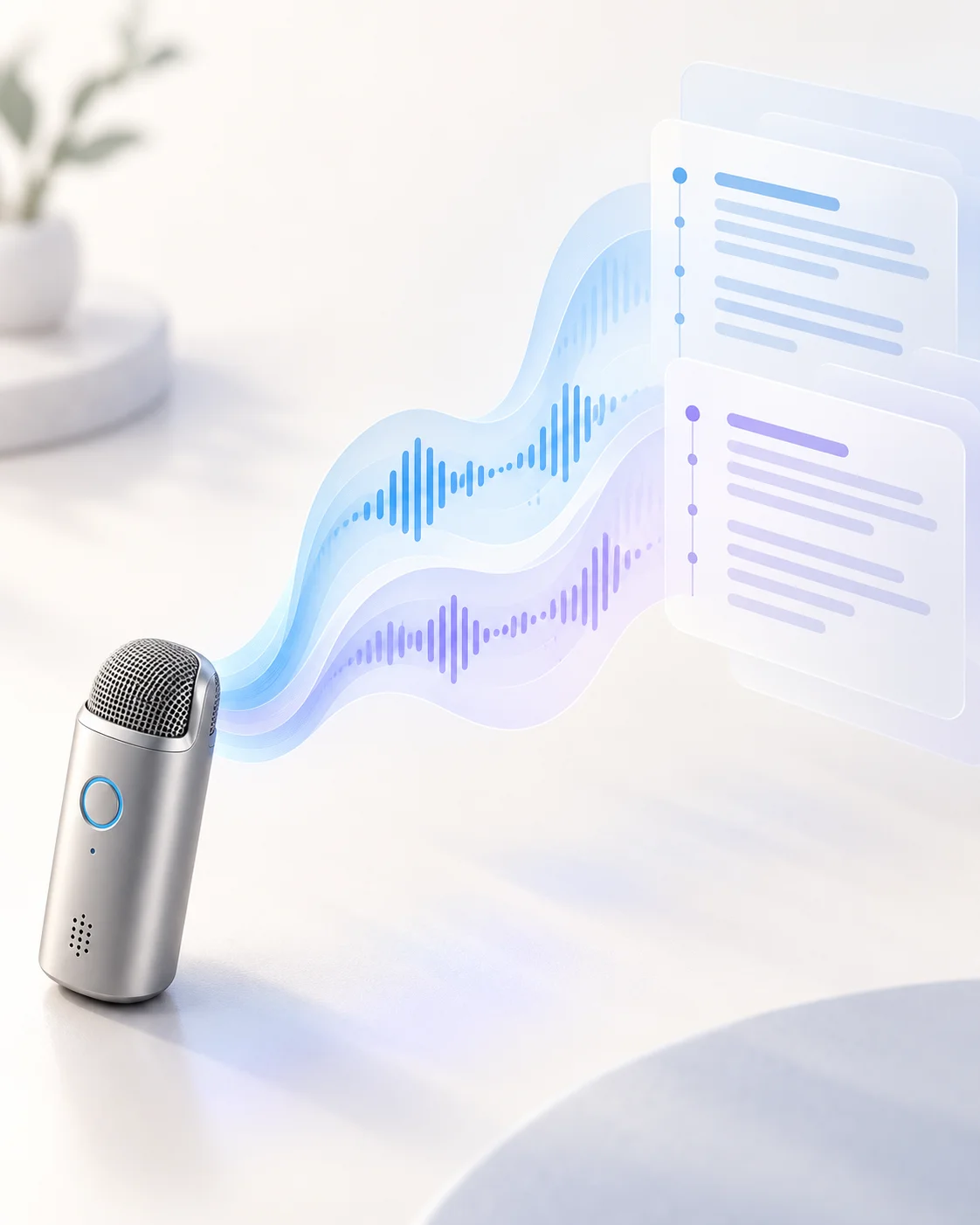
Transcribe an existing meeting, interview, podcast, lesson, or voice memo instead of using live dictation.
Review the complete text in the workspace before copying or downloading it.
Request speaker labels and timestamps when the recording needs more structure.
Convert a file first or move to Audio Translator when the output needs another language.
Play each recording and compare it with the transcript shown underneath.
Transcript
Meet Ezier, your all-in-one AI audio toolkit. Turn text into natural speech, create audio in seconds, and bring every idea to life with ease.
Transcript
Welcome to this lesson from Ezier. In the next few minutes, you'll learn key concepts clearly and efficiently through AI-powered audio narration.
Transcript
Hey, have you tried Ezier yet? Just type your text, choose a voice, and let Ezier turn your words into natural-sounding audio in seconds.
Recording quality, language selection, and a short list of uncommon terms can improve the text you receive.
Use the original recording when possible. Heavy compression, background music, and distant speakers make words harder to distinguish.
Add people, brands, acronyms, and specialist vocabulary in the context field before transcription.
Turn labels on for interviews and meetings, and leave them off for a single-speaker narration.
Review names, numbers, quoted language, and any section where speakers overlap before publishing or creating subtitles.
Upload a recording, choose its spoken language, select speaker and timestamp options, then start transcription. Review the returned text before copying or downloading it.
Audio to text on this page handles an uploaded recording. Speech to text can also describe live dictation captured directly from a microphone.
You can choose MP3, WAV, M4A, AAC, OGG, or FLAC files in the current uploader.
Yes. Turn on speaker labels for conversations and timestamps when you need to locate a passage in the recording.
Accuracy depends on the recording. Clear speech, low background noise, limited overlap, and the correct spoken language usually produce a cleaner transcript.
No. Credits are only deducted when a transcription completes successfully. If a job fails, nothing is charged and you can retry for free.
More audio workflows
Translate the spoken audio, convert its format, extract sound from video, or turn an edited script into a voiceover.
Text to Speech
Create new narration
Turn any script into natural spoken audio.
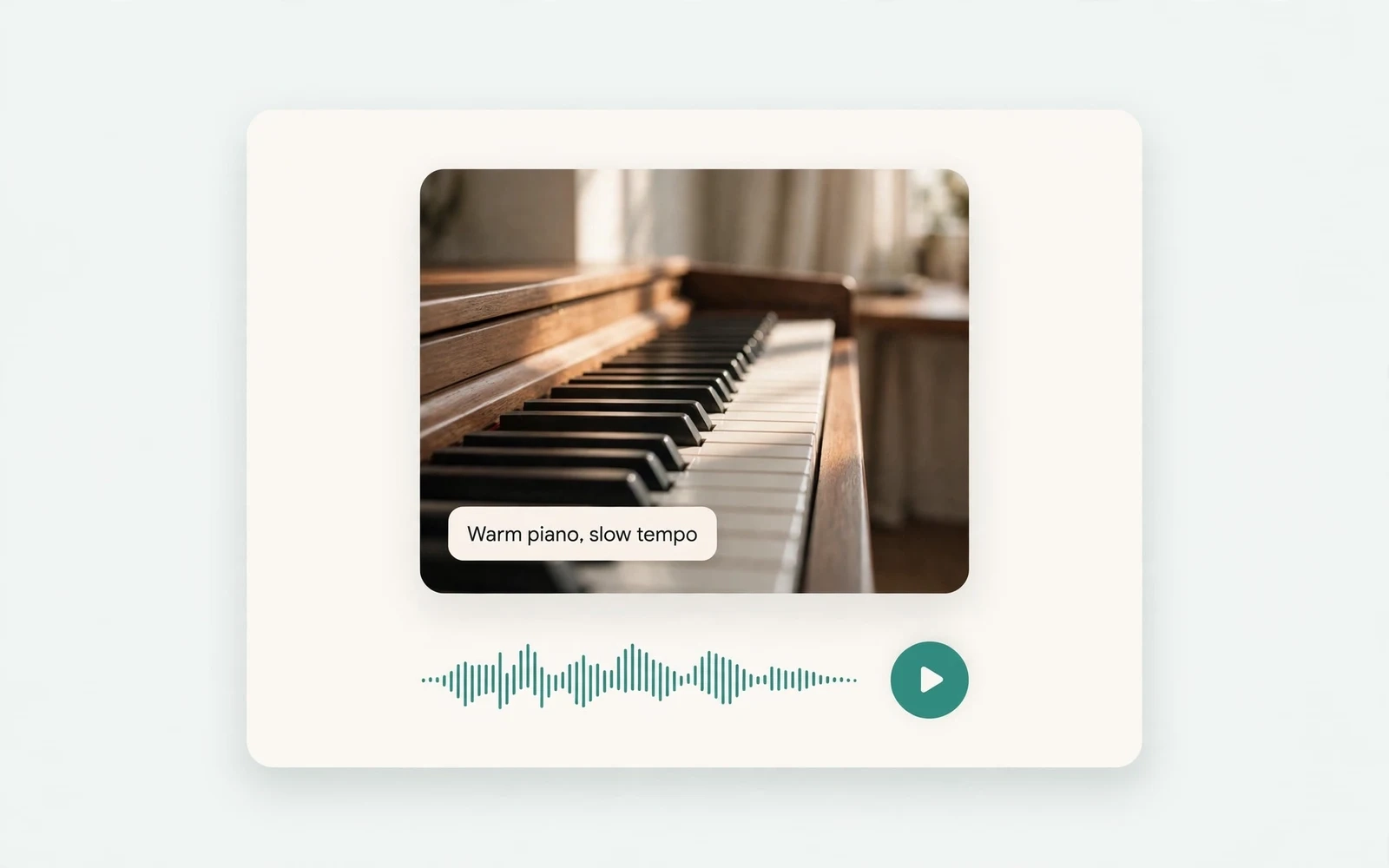
AI Music Generator
Generate instrumental music
Create instrumental tracks from a text prompt.
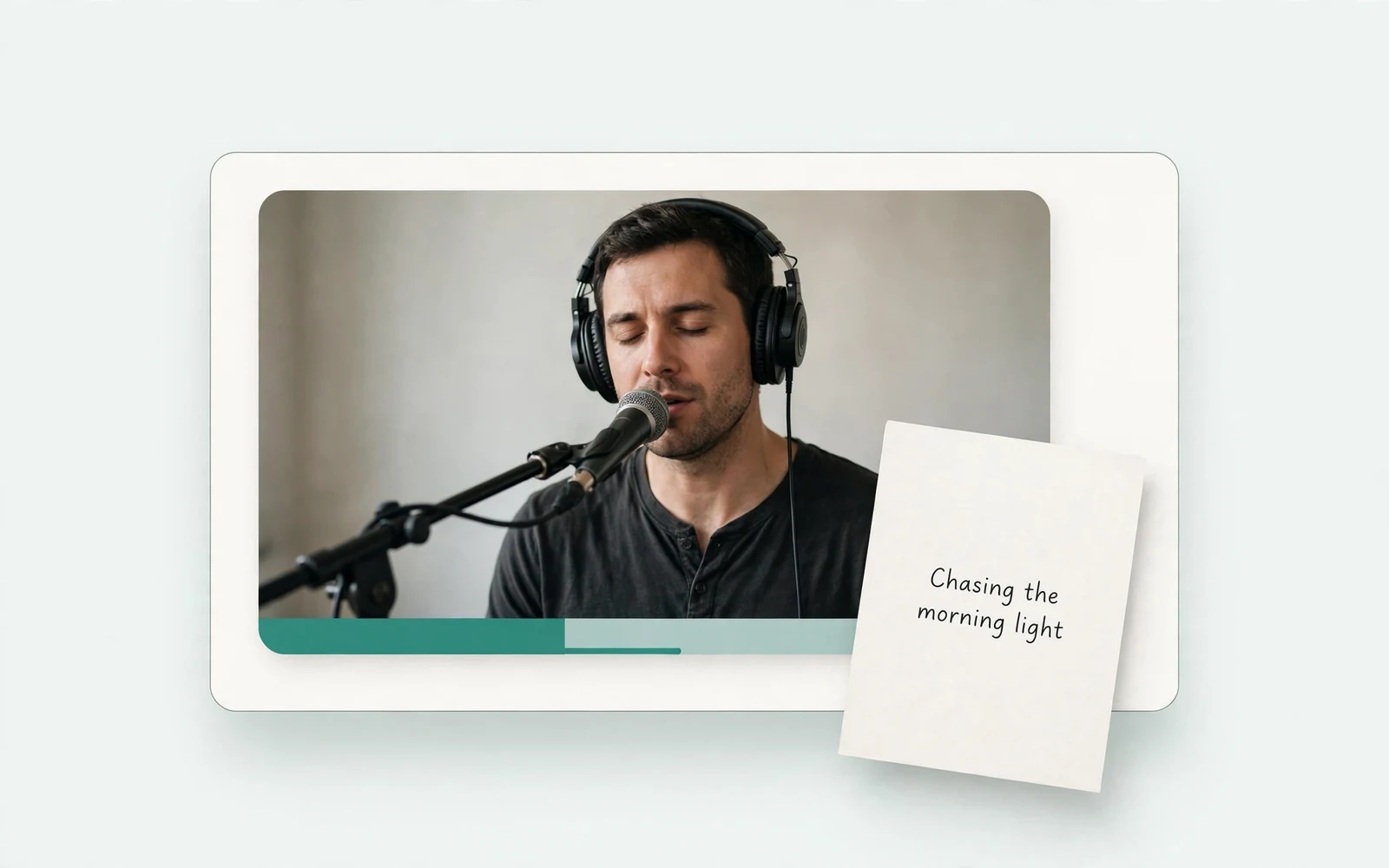
AI Song Generator
Add lyrics and vocals
Turn lyrics and ideas into complete songs.
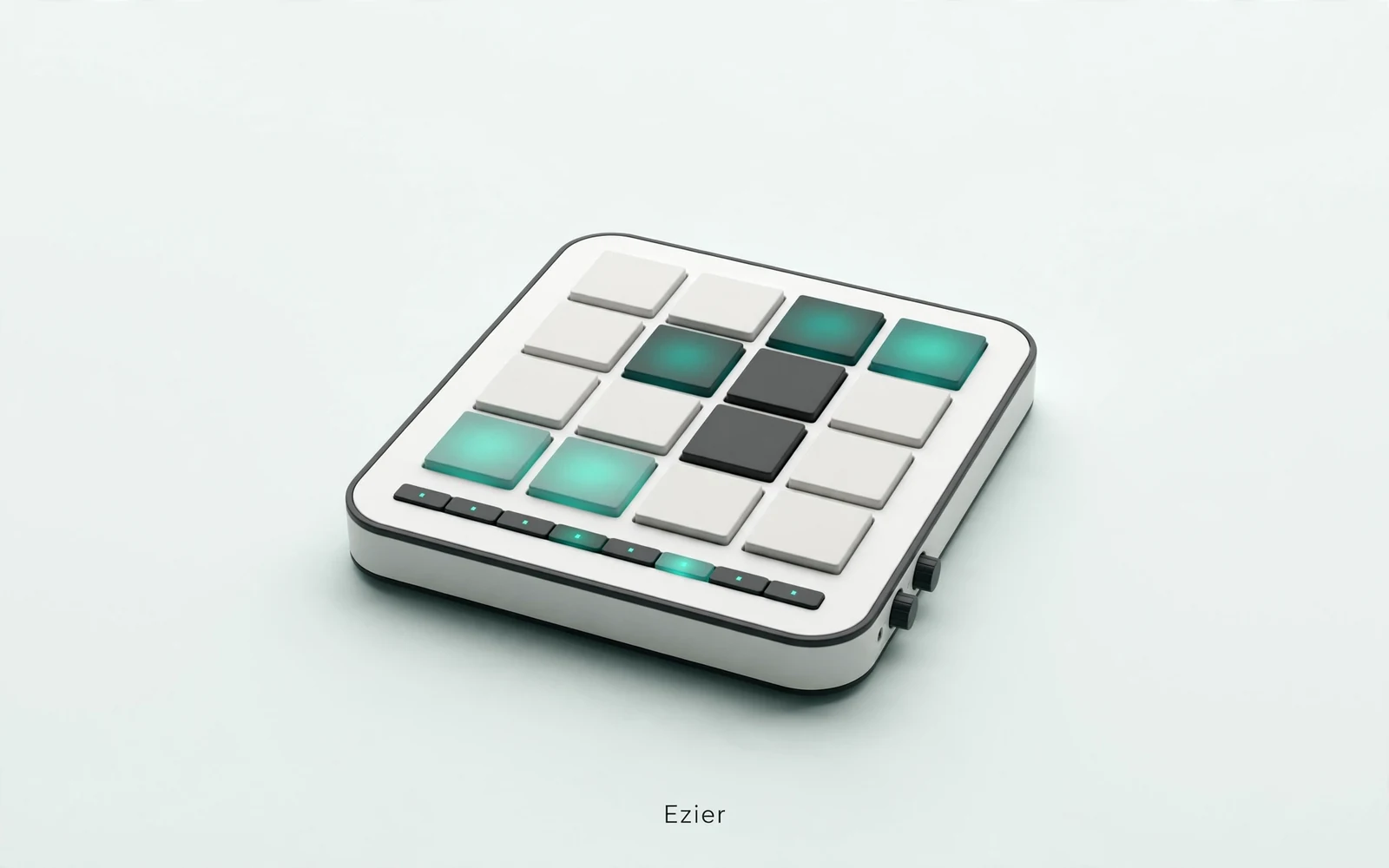
AI Beat Maker
Build a beat
Build beats and grooves from a short prompt.
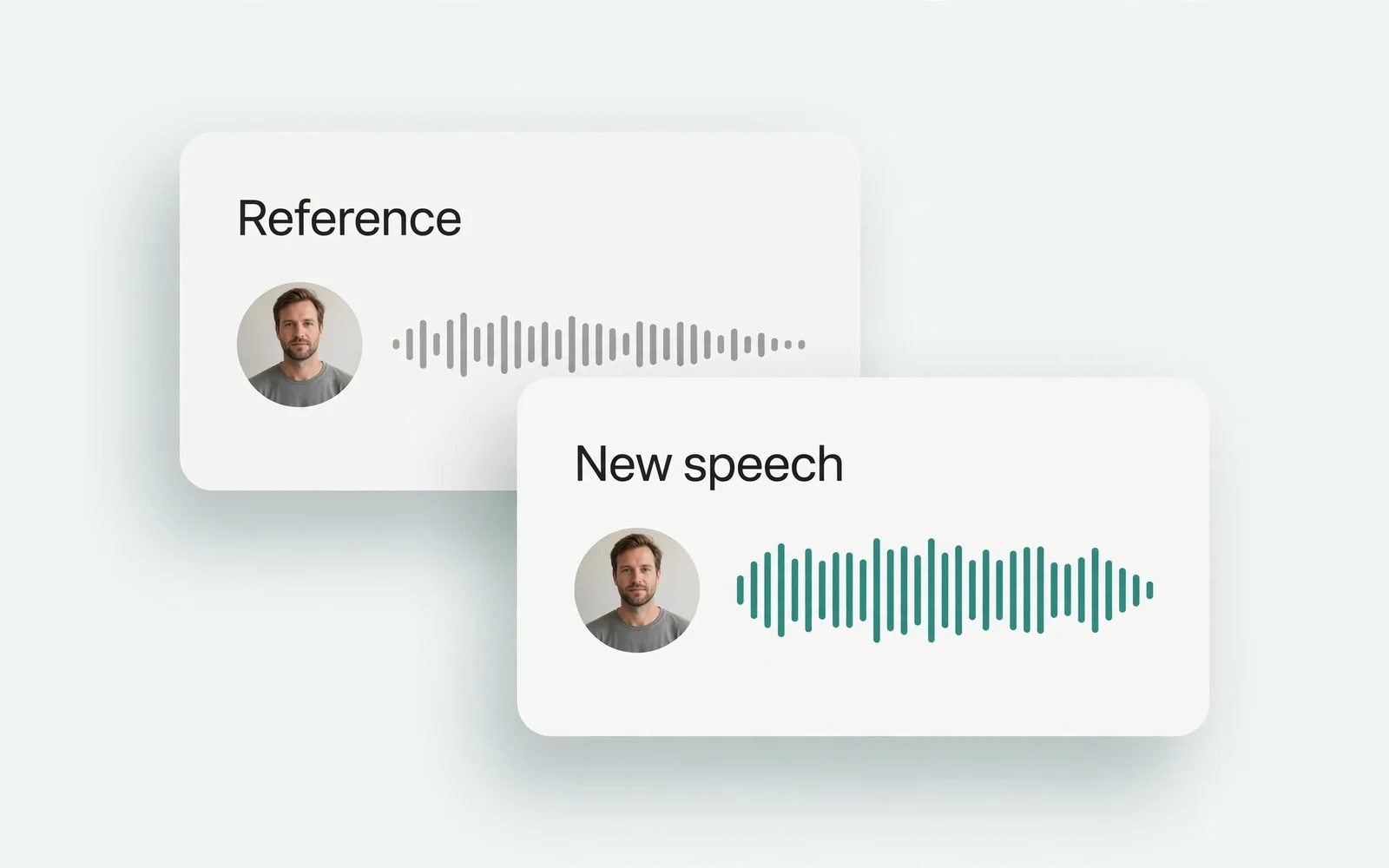
AI Voice Cloning
Create a custom voice
Replicate a specific real voice from a sample.
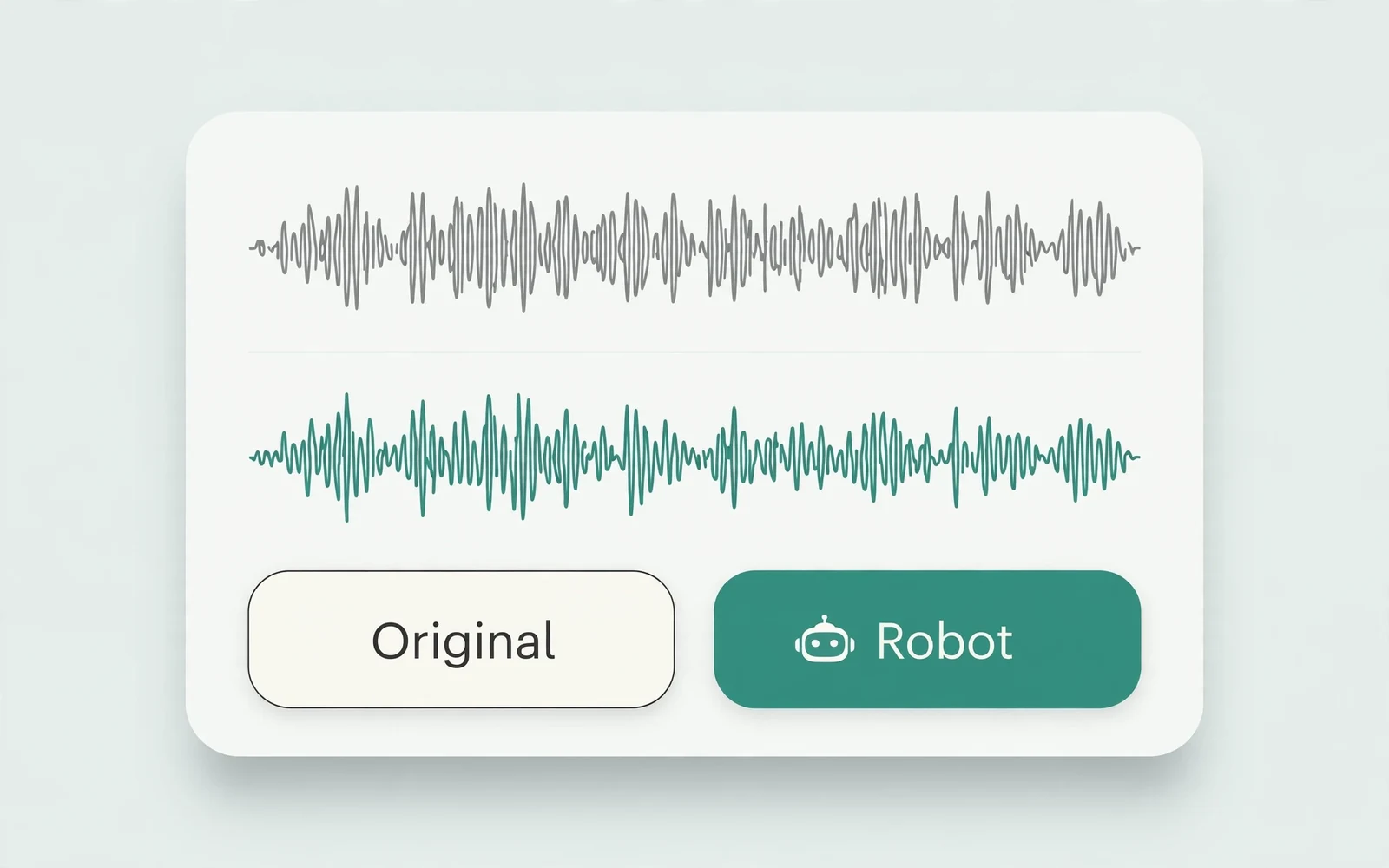
AI Voice Changer
Transform recorded audio
Transform a recording into a different voice.
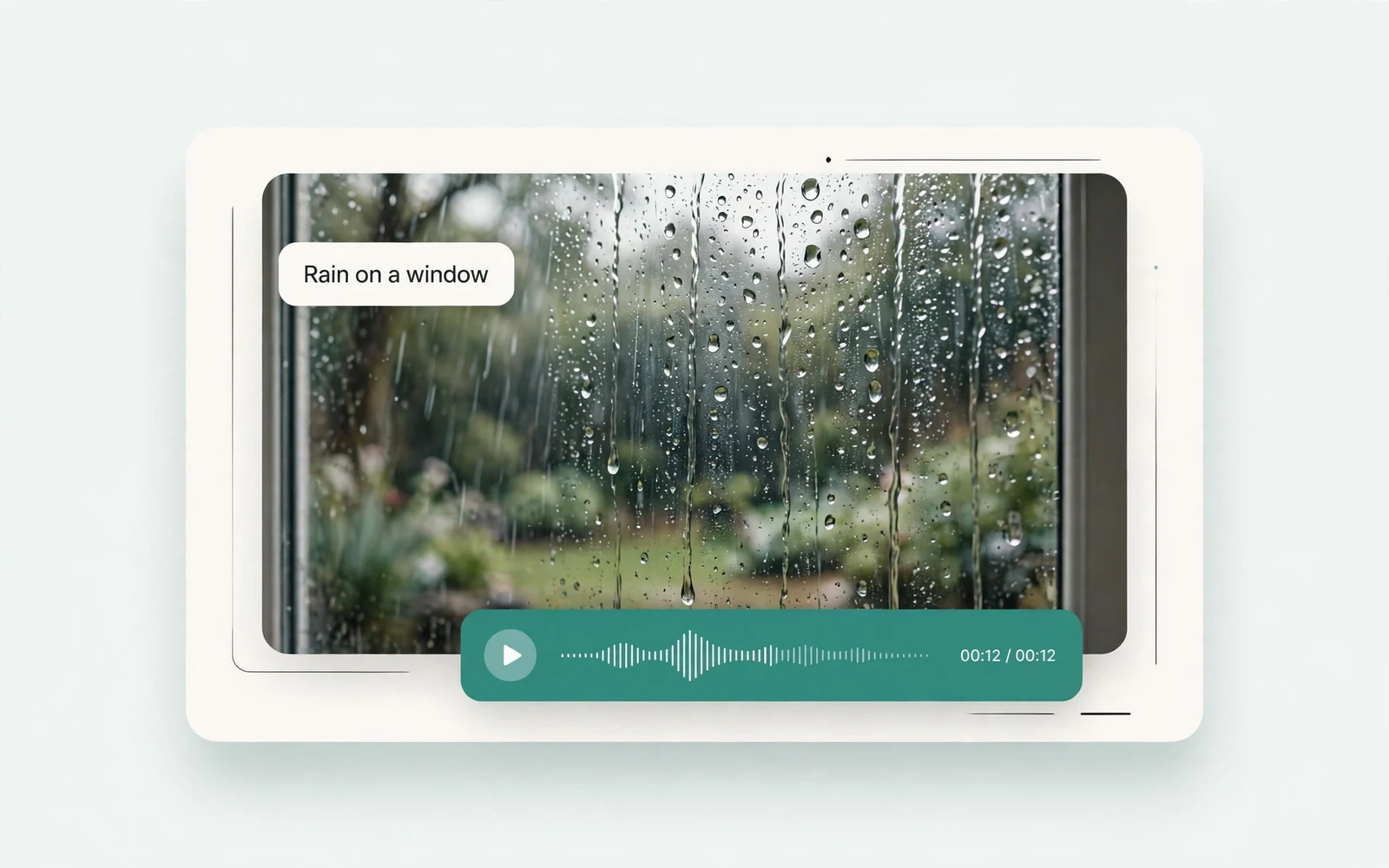
AI Sound Effects Generator
Generate a sound effect
Generate any sound effect from a description.
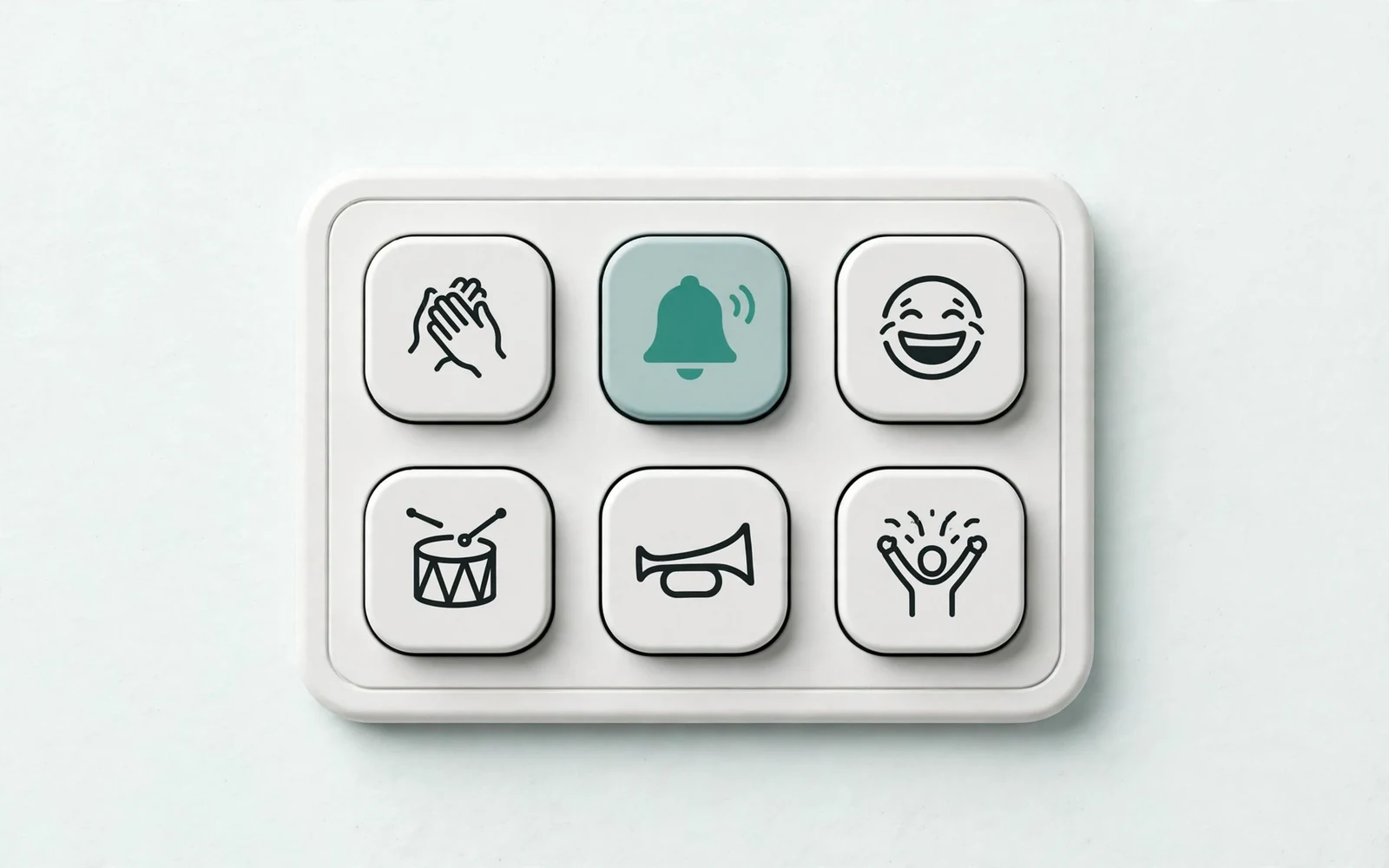
Soundboard
Play sounds instantly
Trigger instant sound effects from a soundboard.
AI Voice Over
Narration workflows
Produce voiceovers for video and presentations.
Voice Over Advert
Ad and promo voiceovers
Create voiceovers tuned for ads and promos.
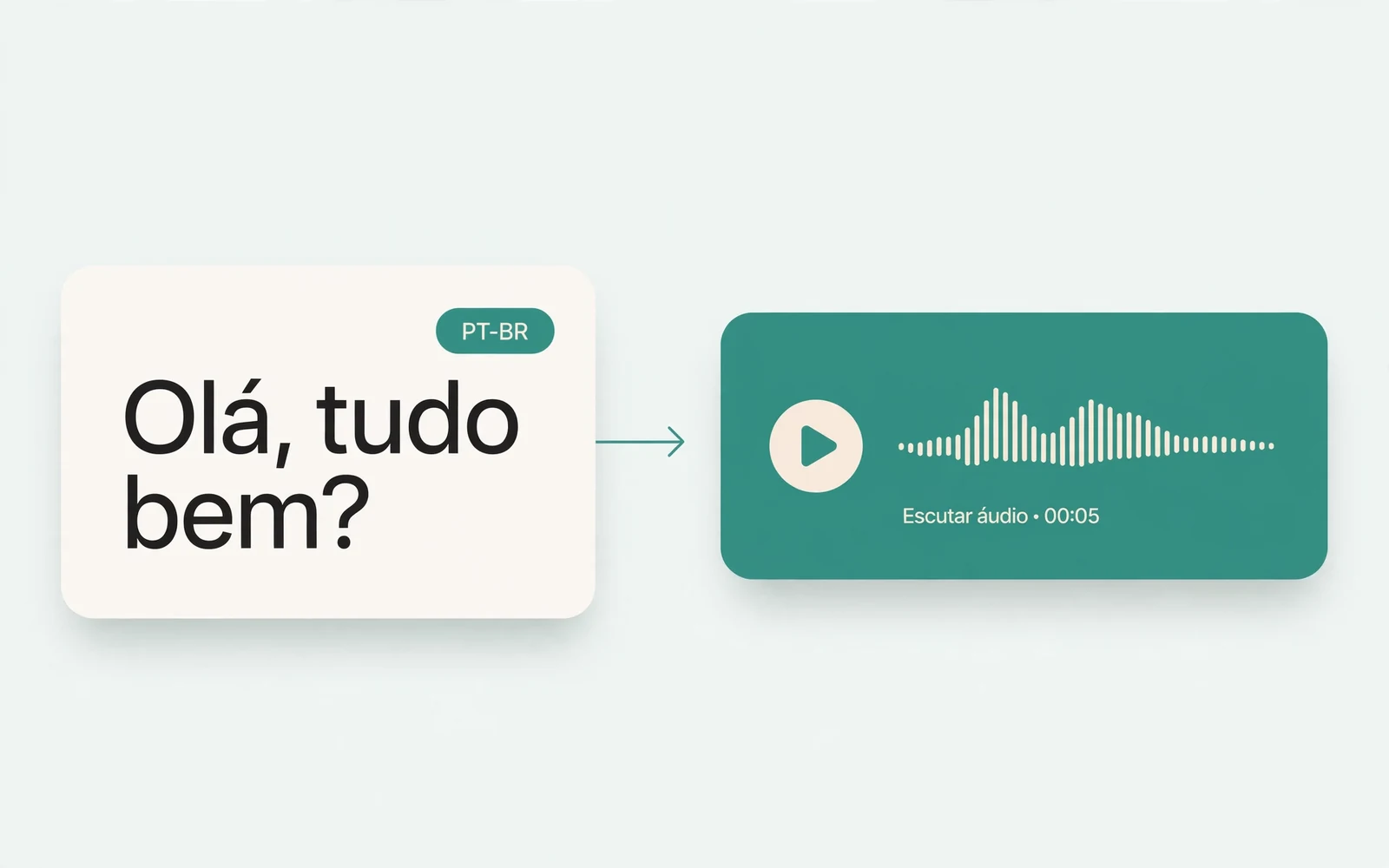
Portuguese Text to Speech
Portuguese speech
Generate natural Brazilian Portuguese speech.
British Accent Generator
British English voices
Convert text to British-accented English speech.
Anime Voice Changer
Anime character voices
Restyle a recording with an anime character voice.
Girl Voice Changer
Young feminine voices
Convert a recording into a young feminine voice.
Audio Converter
Convert an audio file
Convert audio files between formats.
MP4 to MP3 Converter
Extract audio from MP4
Extract the audio track from an MP4 video.
MOV to MP3 Converter
Extract audio from MOV
Extract the audio track from a MOV video.
Audio Translator
Translate spoken audio
Translate spoken audio into another language.
English to Hindi Voice Translator
English to Hindi audio
Turn English speech into Hindi audio.
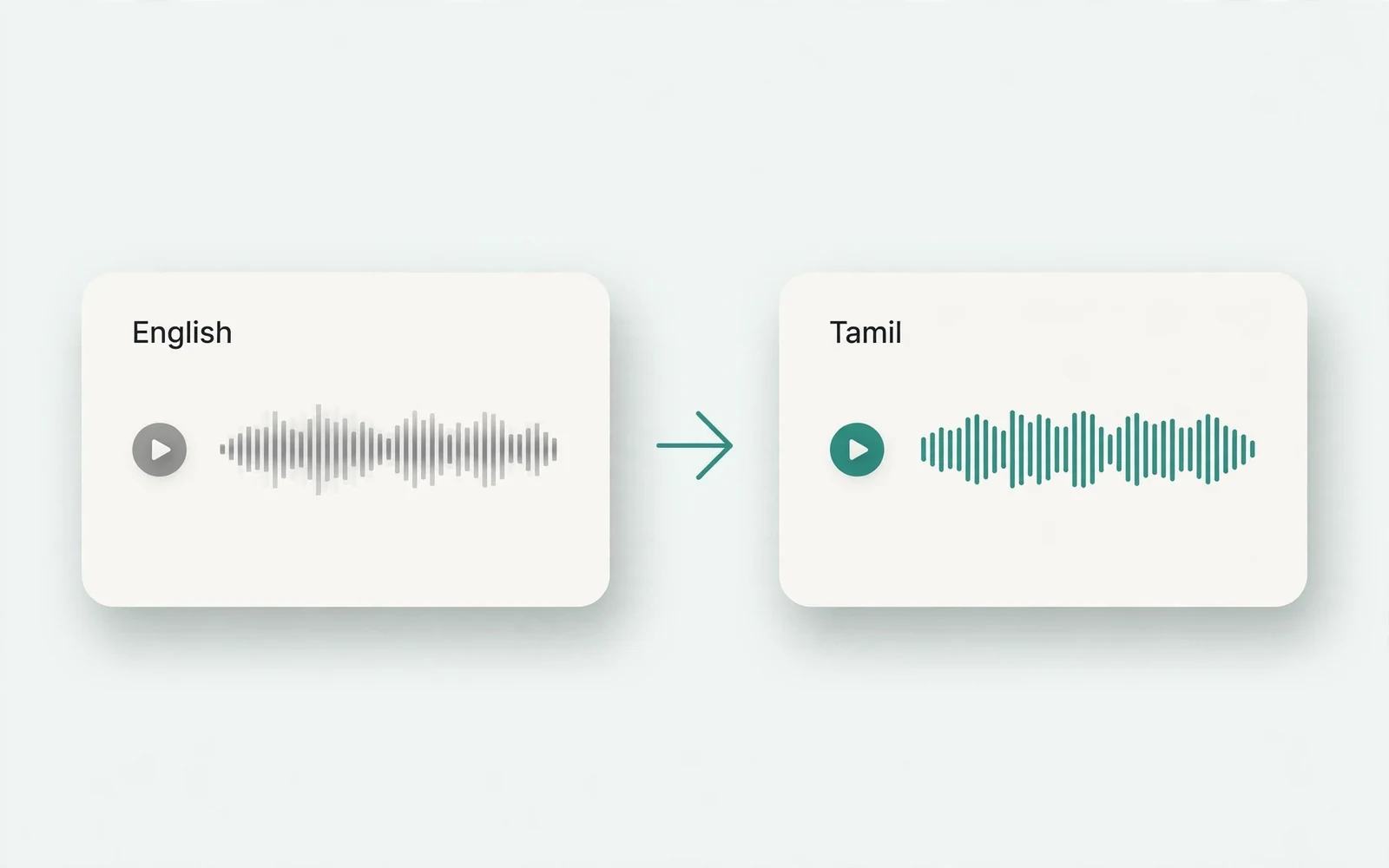
Translate English to Tamil Audio
English to Tamil audio
Turn English speech into Tamil audio.
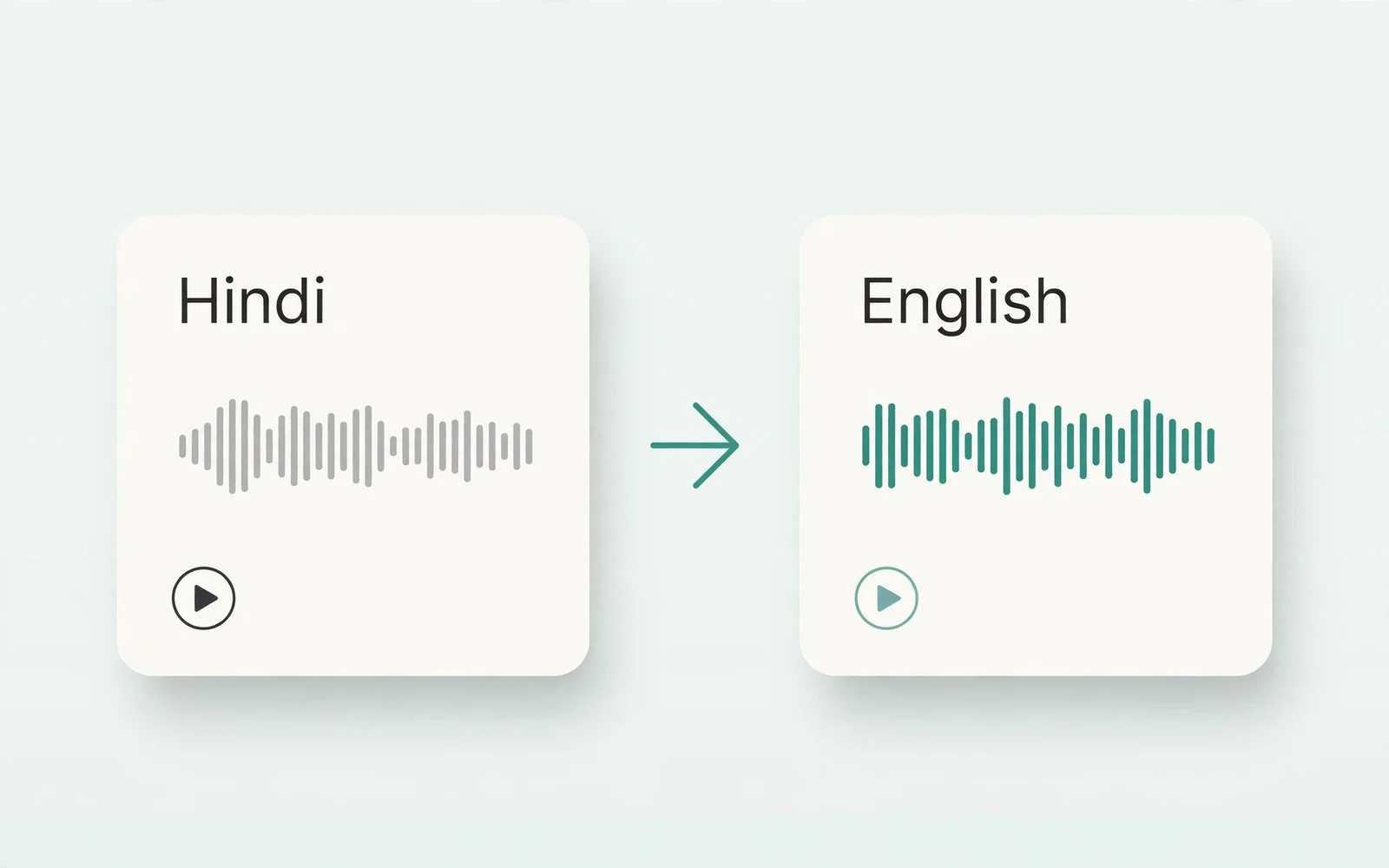
Hindi to English Voice Translation
Hindi to English audio
Turn Hindi speech into English audio.
AI Voice Generator
Design a new voice
Design a brand-new voice from a description.