
AI Eye Zoom Video Generator From One Portrait
Upload one clear portrait and create a short video that pushes from the face toward the eye for a dramatic close-up.
Create
Upload Image
Sample videos
Create an AI eye zoom video in four steps
Start with one clear portrait. The tool builds the camera move toward the eye without keyframes or manual tracking.
- 01
Upload one portrait
Choose a sharp face photo with one obvious subject and both eyes visible whenever possible.
- 02
Check the available settings
Review any controls supplied by the effect and confirm the source image has finished uploading.
- 03
Create the eye zoom
Generate a short video that pushes from the portrait toward the eye as the focal point.
- 04
Review and download
Watch the transition for face and eye consistency, then download the result or try another portrait.
Build a dramatic close-up from one portrait
Use the AI eye zoom effect when the eye is the visual payoff. A readable face and steady composition help the transition feel intentional.
Eye detail that becomes the focal point
A sharp iris and direct gaze give the camera move a strong endpoint. This works especially well for beauty portraits, profile reveals, and visual transitions.
Warm light for a cinematic reveal
Directional light and visible eye detail can make the move feel more cinematic while keeping the face recognizable during the transition.
A focused effect for bold portraits
High-contrast creator and editorial portraits can produce a striking close-up when one face and one clear eye target dominate the frame.
Choose a portrait with a clear eye target
The starting image defines the face, framing, and details the generated camera move needs to preserve.
Keep one face easy to identify
Group photos create competing targets. Use a portrait with one main person so the zoom has an unambiguous destination.
Show the eyes clearly
Avoid heavy blur, deep shadow, sunglasses, or hair covering the eye area. Visible detail gives the effect a stronger endpoint.
Use even, front-facing light
Balanced light across the face helps the camera move hold onto the person as it approaches the eye.
Leave room around the portrait
A little space around the head gives the opening frame more context and makes the move from portrait to close-up easier to read.
Ready for the close-up?
Turn one portrait into an AI eye zoom video
Upload a clear face photo, create the eye-focused camera move, then review the full clip before downloading it.
AI Eye Zoom FAQ
Answers about source portraits, the generated camera move, output review, and credits.
What is an AI eye zoom effect?
It is an AI-generated video effect that turns one portrait into a short camera move from the person toward a close view of the eye.
What image works best for an AI eye zoom video?
Use a sharp, well-lit portrait with one face, visible eyes, and enough space around the head for a readable opening frame.
Do I need to track the eye manually?
No. Upload one source portrait and the tool creates the eye-focused motion without manual keyframes or tracking.
Can I use a selfie or character portrait?
Yes. Selfies, creator photos, avatars, and stylized character portraits can work when the face and eye area are clearly visible.
Will the generated eye match my source photo exactly?
AI-generated motion can change small facial or eye details. Review the close-up carefully before publishing or using the clip in a final edit.
Does the AI eye zoom tool use credits?
Yes. The current credit estimate appears on the Create video button before you generate.
Next up
Choose what to improve next
Move to a focused video tool, compare models, or prepare stronger source media for the next run.
AI video tools
More video tools
Generate, edit, clean up, or improve clips.

AI models
Compare video models
Pick a better model before rendering again.
AI image tools
Prepare source images
Create a stronger still for the next video run.
AI Video Generator
Start a video
Create a clip from a prompt or image.
Text to Video
Prompt-first video
Turn a written scene into motion.
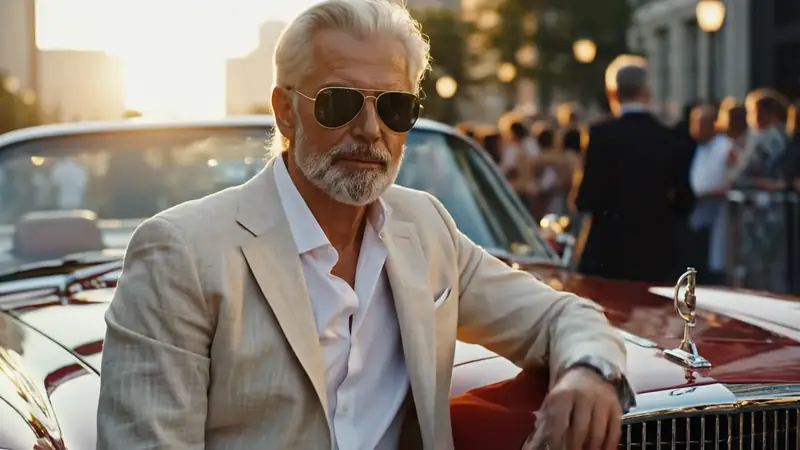
Image to Video
Animate a still
Turn an image into a short clip.
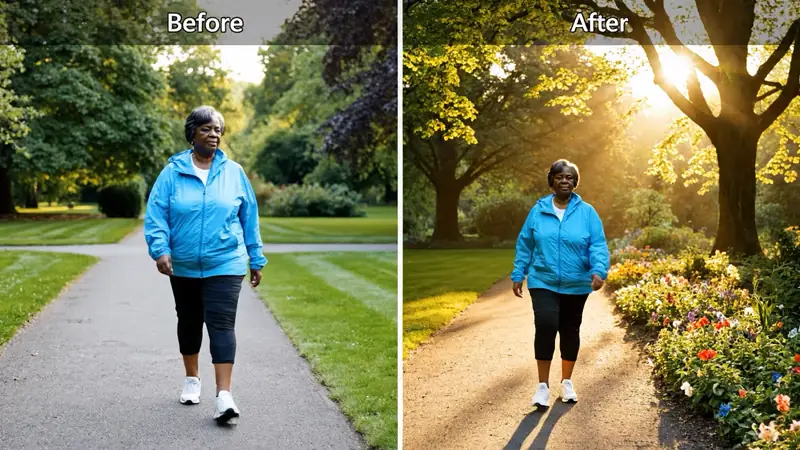
Video to Video
Restyle footage
Change the look of an existing clip.
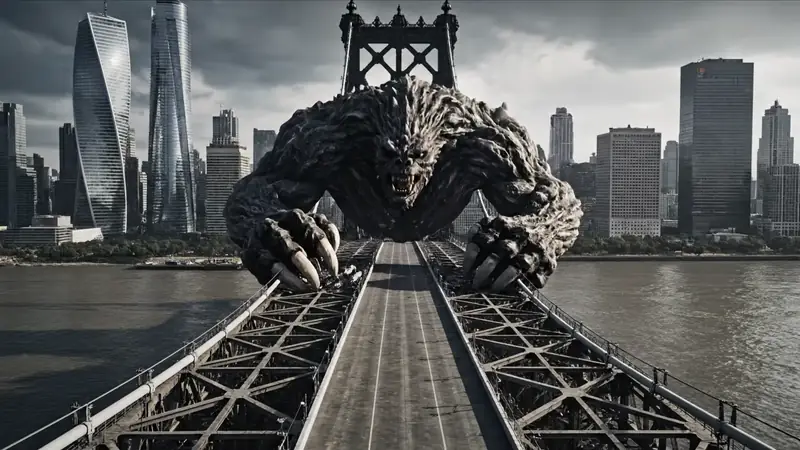
AI Video Extender
Extend a clip
Continue a short video into a longer scene.
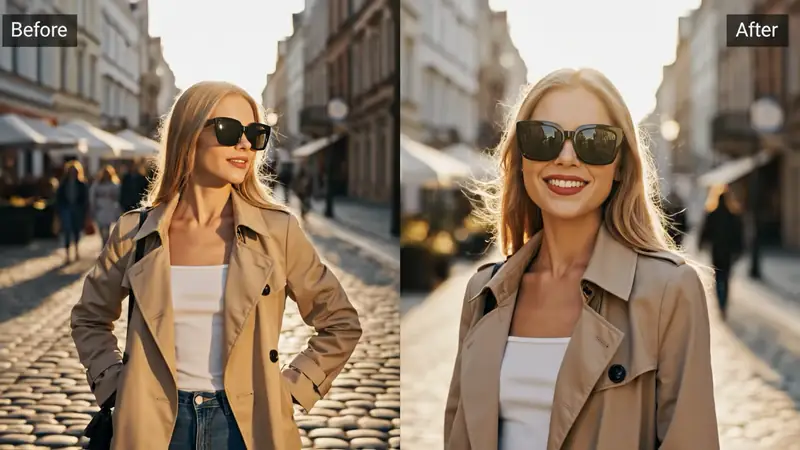
AI Video Editor
Edit with prompts
Revise a clip without a timeline.