Crackling fireplace
0:00 / 0:00

Describe any sound in words — rain on a tent at night, a UI click, a cinematic whoosh — and get back multiple AI-generated variations to preview. Pick the take that fits, download it, and drop it into your video, game, or stream. Previews are free; downloads and commercial use follow your plan. For ready-made clips, browse the sound effects library instead.
Write what you hear: the source, the setting, the timing, and the mood. "Rain on a tent at night, distant thunder" beats "rain sound".
One description returns several takes. Compare them side by side instead of settling for the first render.
Play every variation free in your browser. Keep the one that sits right in your mix.
Download your pick in high quality, and review your plan’s commercial-use terms before publishing.
Describe the sound in words, compare variations, and keep preview and download in one workspace.
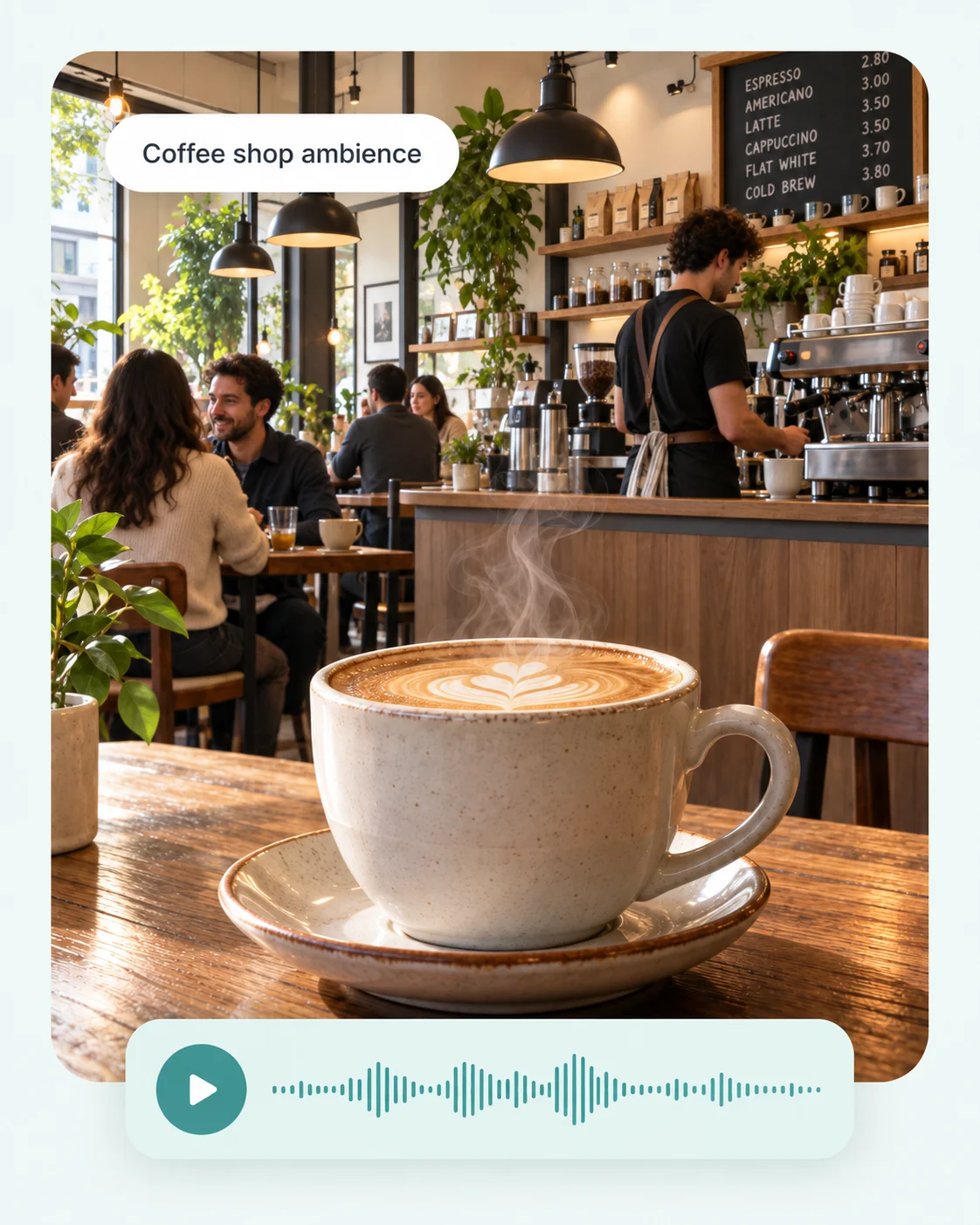
Describe the effect in plain words; the AI synthesizes matching audio instead of making you dig through sample packs.
Every description returns multiple versions so you can choose the timing and texture that fits.
Short clips up to 30 seconds with a loop mode for seamless ambience, mastered at consistent loudness.
Play everything before you commit. Downloads and commercial use follow your plan’s terms, stated up front.
Play finished effects before choosing the take for your scene.
Describe the setting, the timing, and the movement — not just the sound.
‘Rain on a tent at night’ gives the AI more to work with than ‘rain’ — setting and timing shape the texture.
Whooshes, risers, and impacts land harder when you describe the motion: ‘a fast cinematic whoosh that ends in a deep boom’.
Generate ambience, foley, and stingers separately, then mix them. One perfect layer beats one crowded clip.
For ambience that runs under a scene, generate with loop mode so the end flows back into the start without a click.
Describe the sound — ‘rain on a tent at night’ — and the AI synthesizes a matching effect you can preview and download.
Impacts, whooshes, ambience, UI sounds, nature, creatures and more — if you can describe it, it can try.
Yes, cleared for commercial use under your plan.
The library has ready-made effects; the generator creates custom ones from your description.
You can preview everything for free. Downloads and commercial use depend on your plan — the exact limits are listed above before you generate.
Up to 30 seconds per clip, with a loop mode for seamless repeating backgrounds.
More AI audio tools
Browse ready-made effects, trigger a soundboard, make background music, or review commercial-use terms.
Text to Speech
Create new narration
Turn any script into natural spoken audio.
AI Music Generator
Generate instrumental music
Create instrumental tracks from a text prompt.
AI Song Generator
Add lyrics and vocals
Turn lyrics and ideas into complete songs.
AI Beat Maker
Build a beat
Build beats and grooves from a short prompt.
AI Voice Cloning
Create a custom voice
Replicate a specific real voice from a sample.
AI Voice Changer
Transform recorded audio
Transform a recording into a different voice.
Soundboard
Play sounds instantly
Trigger instant sound effects from a soundboard.
AI Voice Over
Narration workflows
Produce voiceovers for video and presentations.
Voice Over Advert
Ad and promo voiceovers
Create voiceovers tuned for ads and promos.
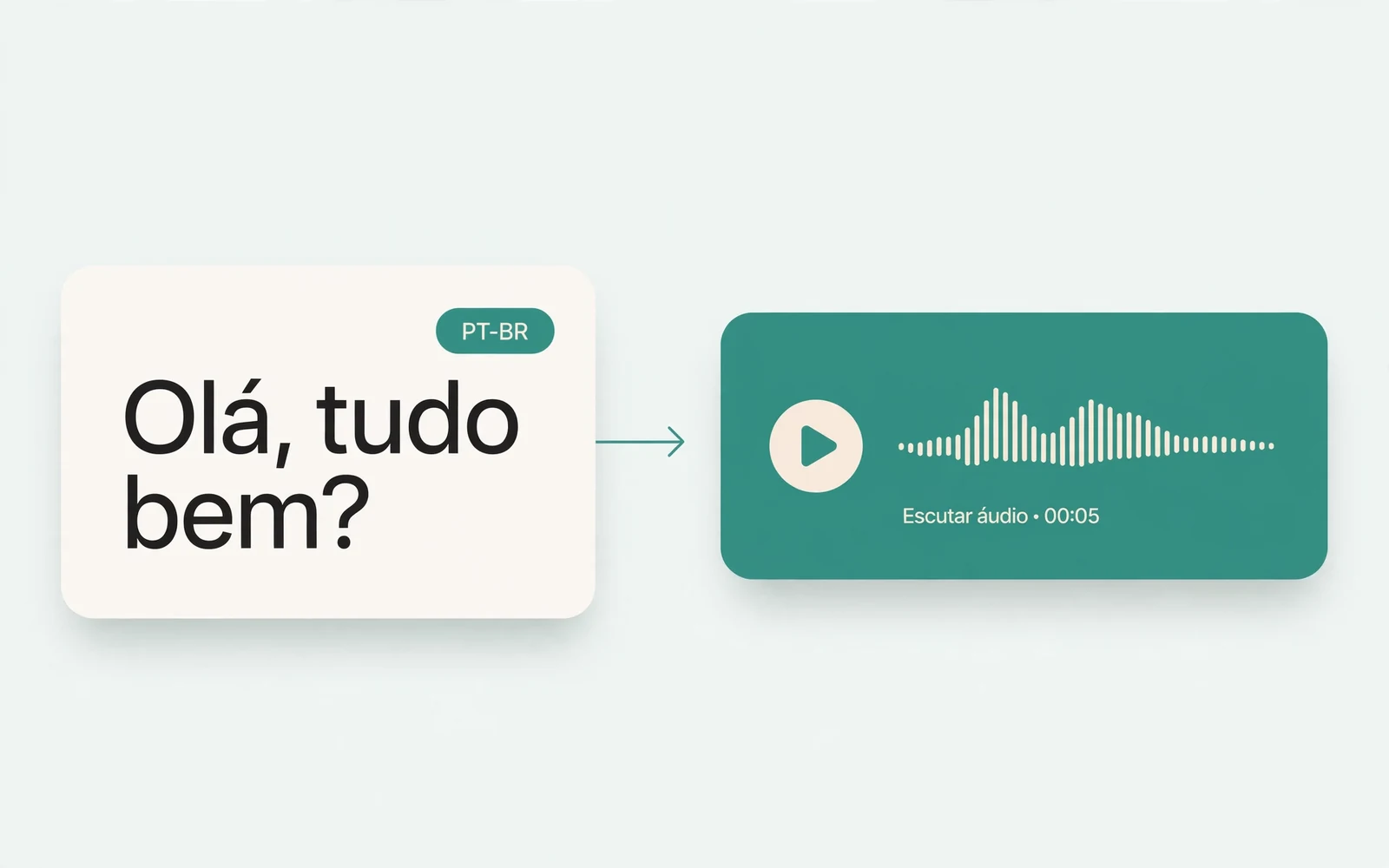
Portuguese Text to Speech
Portuguese speech
Generate natural Brazilian Portuguese speech.
British Accent Generator
British English voices
Convert text to British-accented English speech.
Anime Voice Changer
Anime character voices
Restyle a recording with an anime character voice.
Girl Voice Changer
Young feminine voices
Convert a recording into a young feminine voice.
Audio Converter
Convert an audio file
Convert audio files between formats.
MP4 to MP3 Converter
Extract audio from MP4
Extract the audio track from an MP4 video.
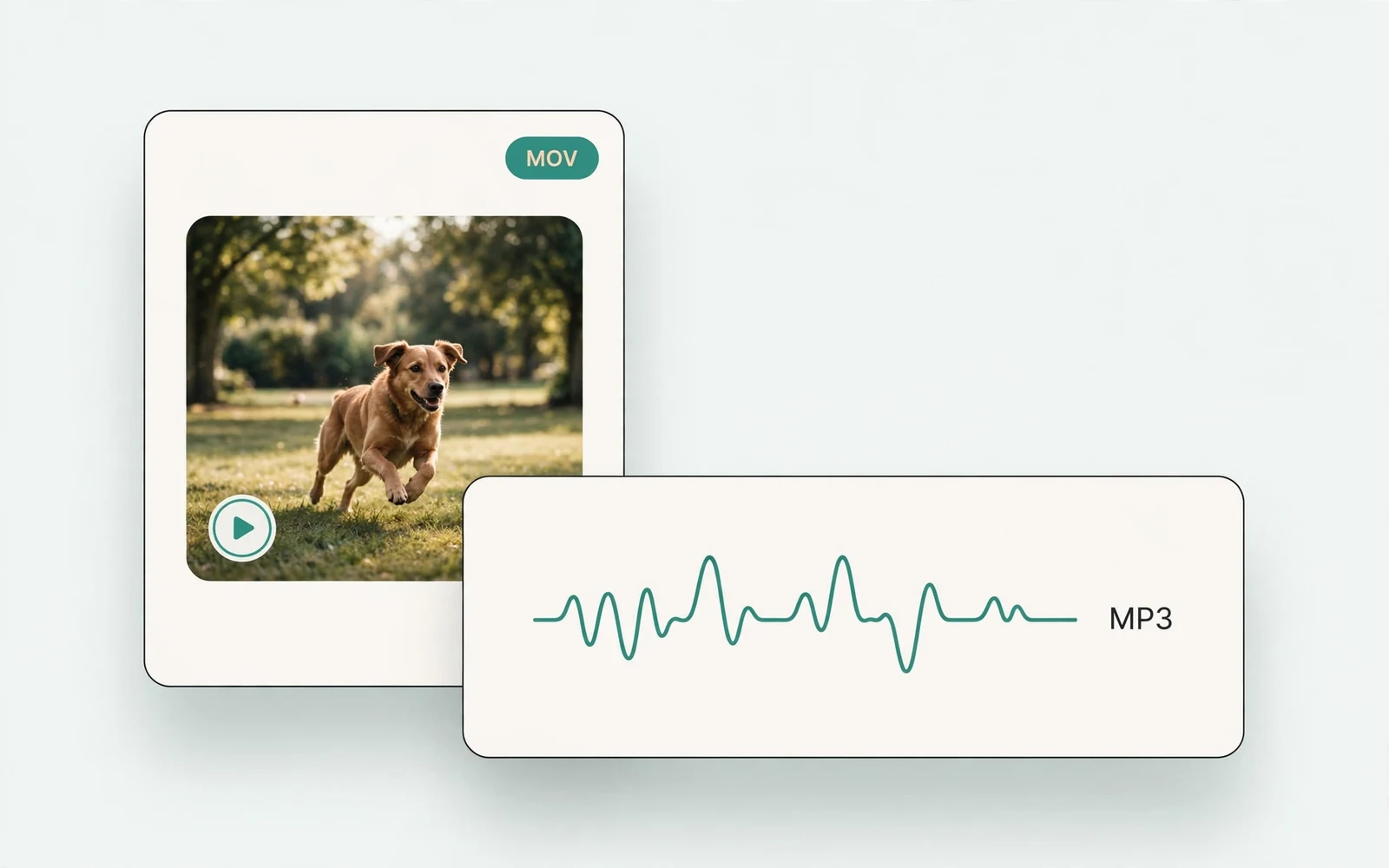
MOV to MP3 Converter
Extract audio from MOV
Extract the audio track from a MOV video.
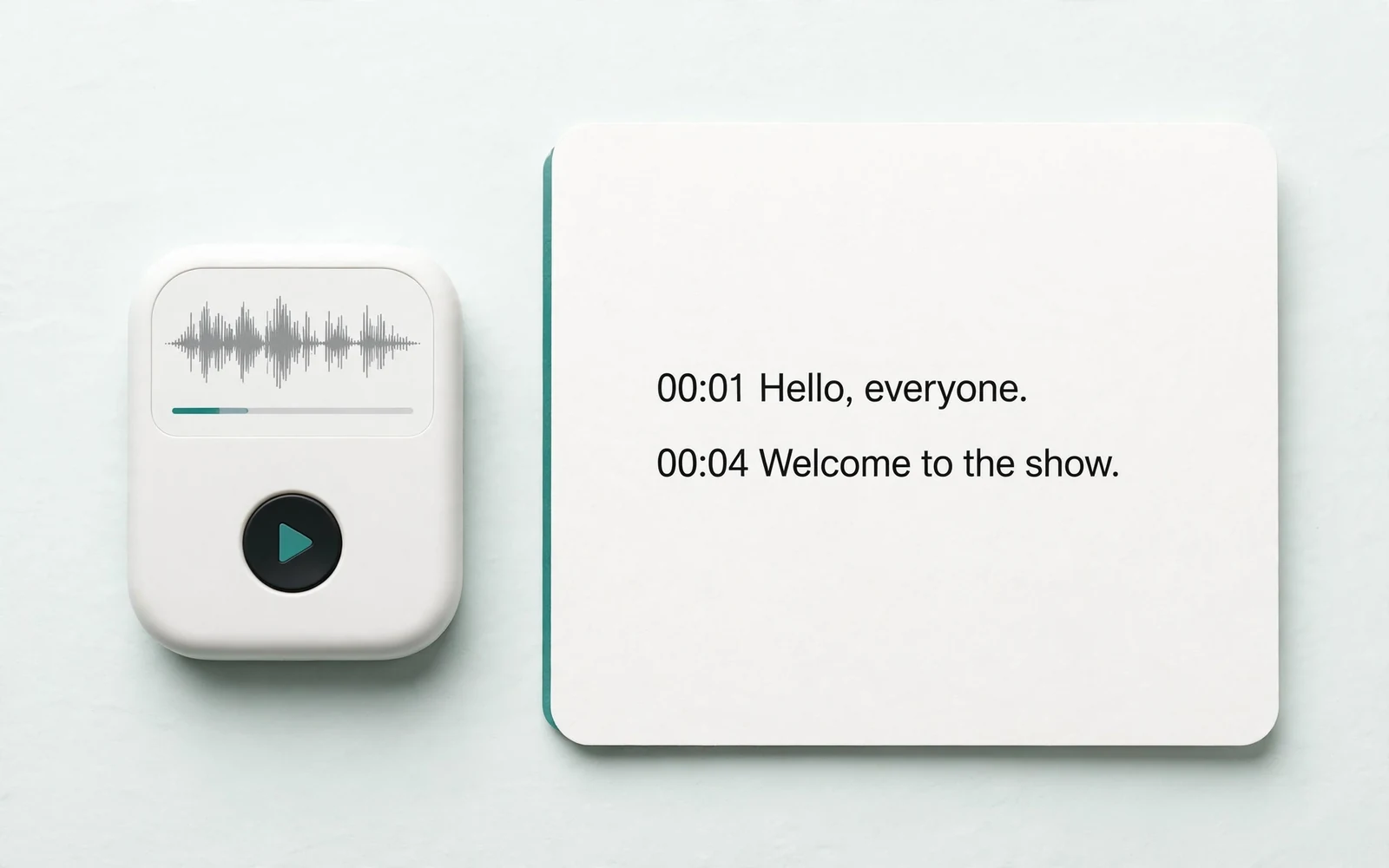
Audio to Text
Transcribe a recording
Transcribe any recording into text.
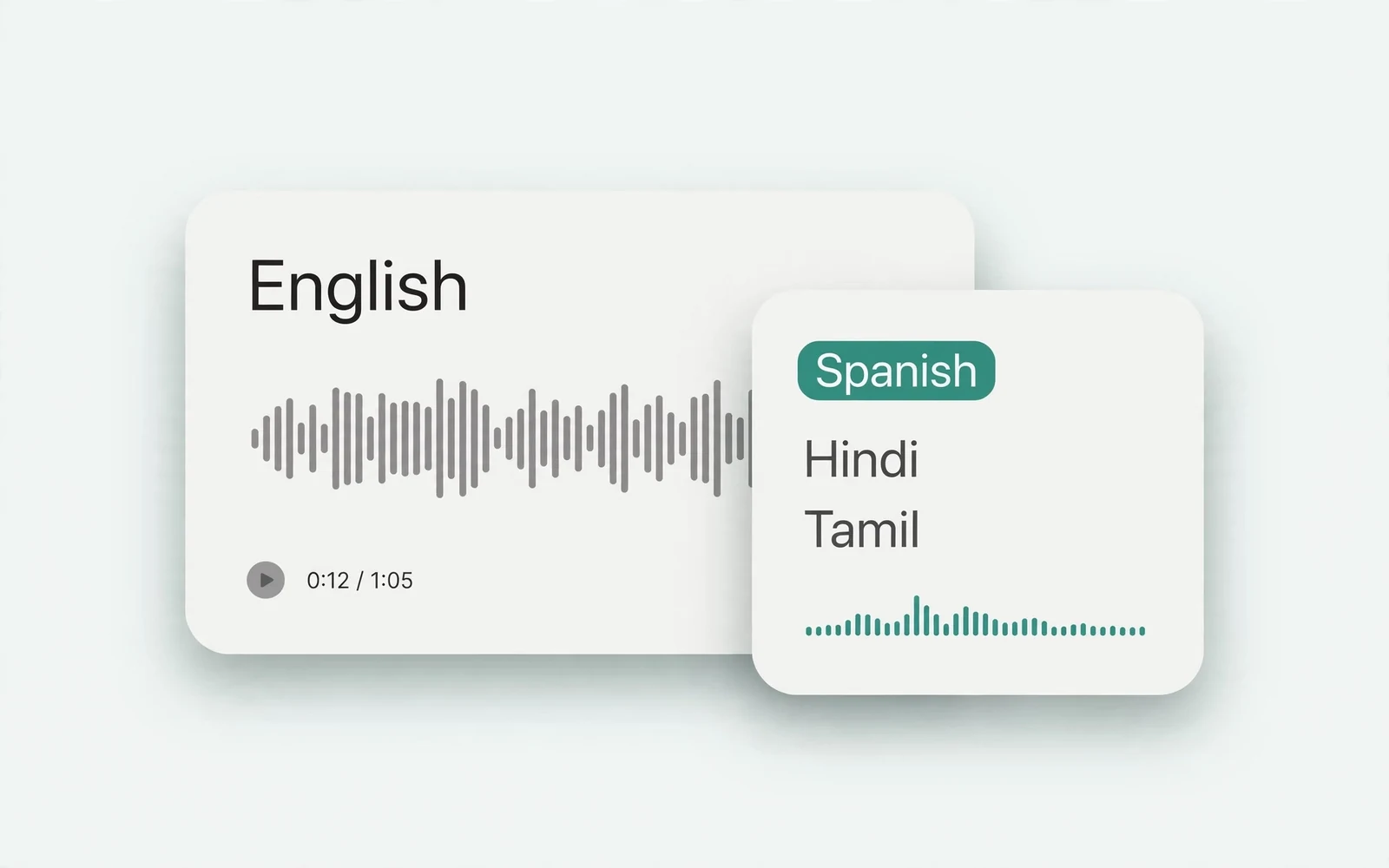
Audio Translator
Translate spoken audio
Translate spoken audio into another language.
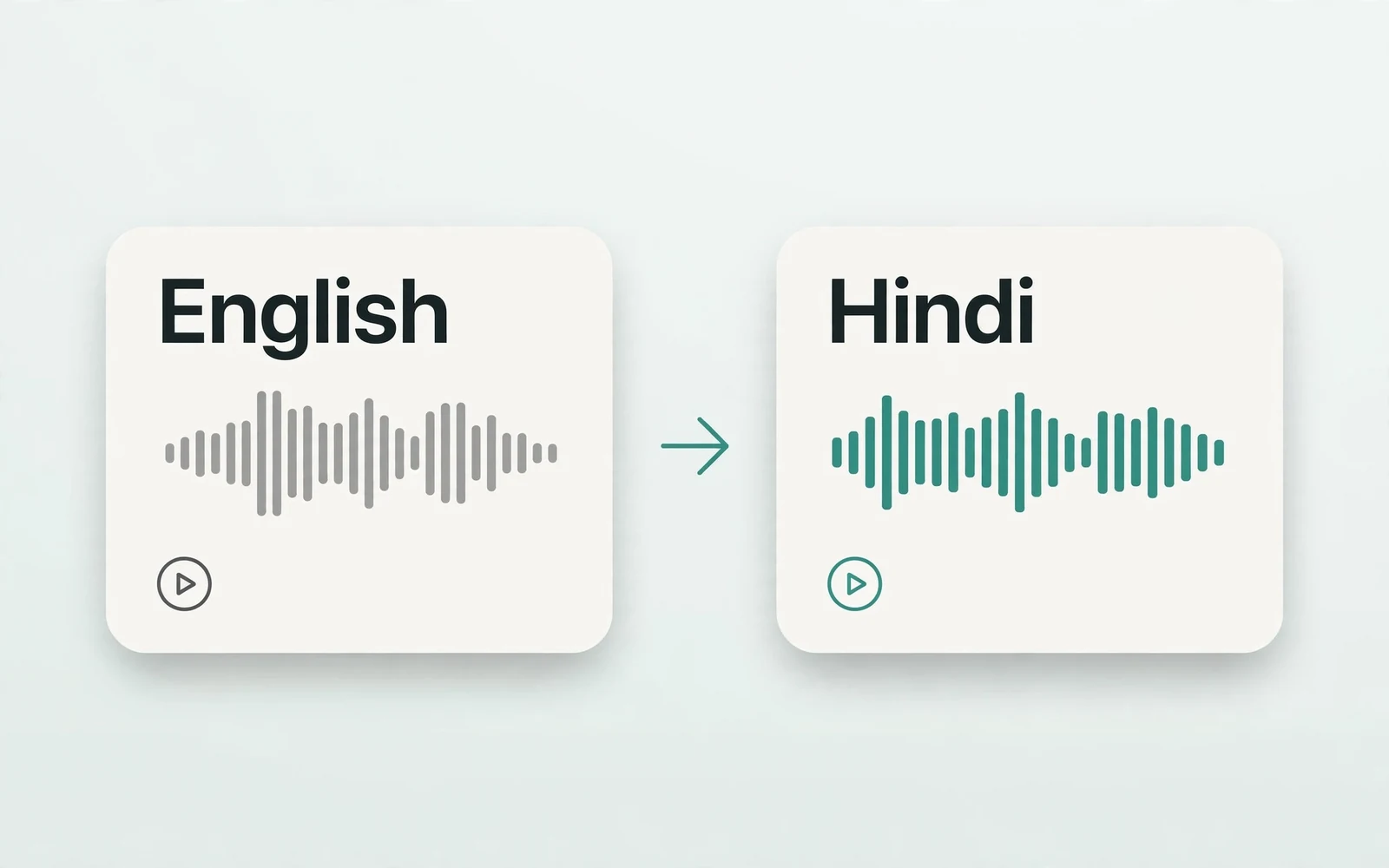
English to Hindi Voice Translator
English to Hindi audio
Turn English speech into Hindi audio.
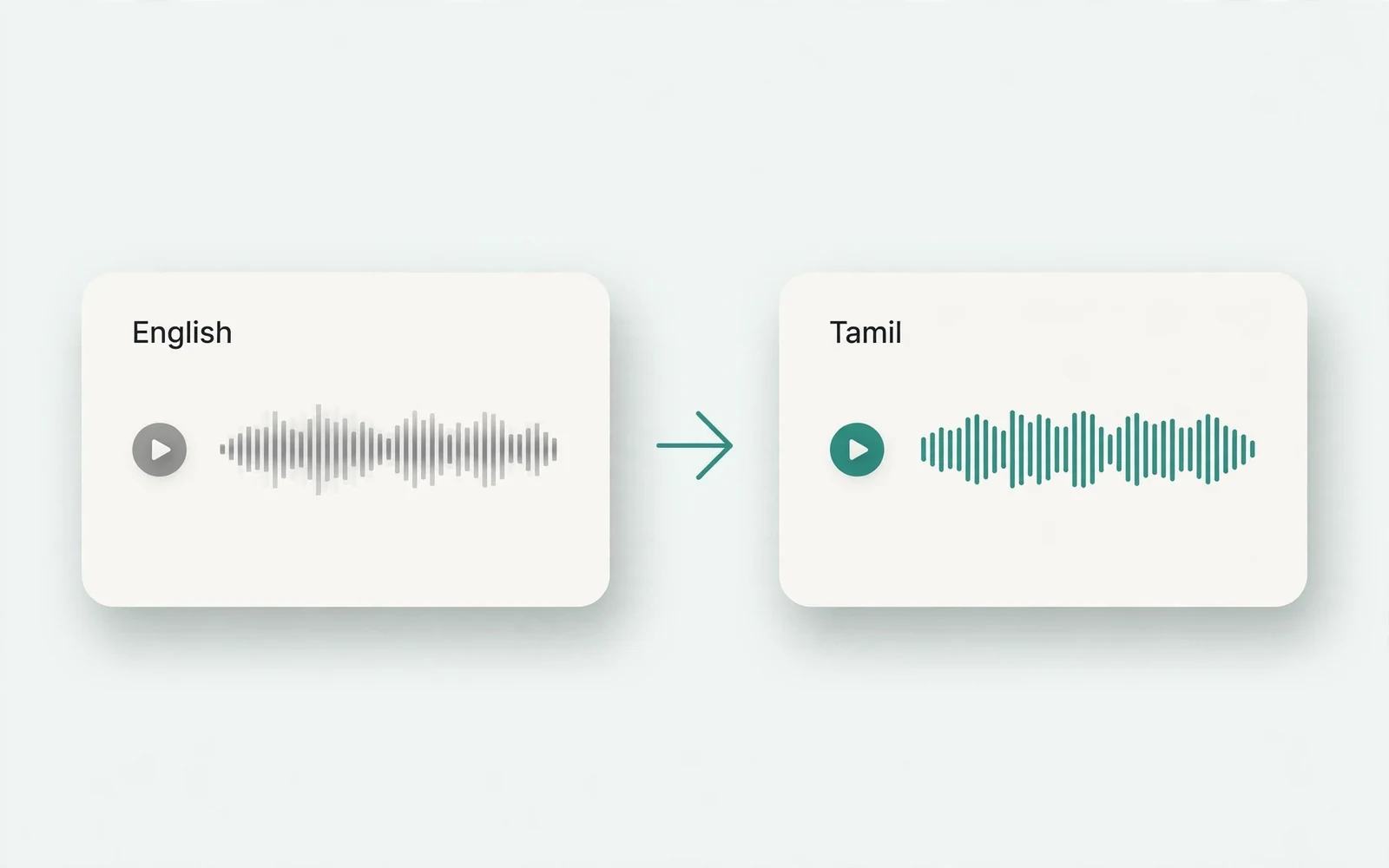
Translate English to Tamil Audio
English to Tamil audio
Turn English speech into Tamil audio.
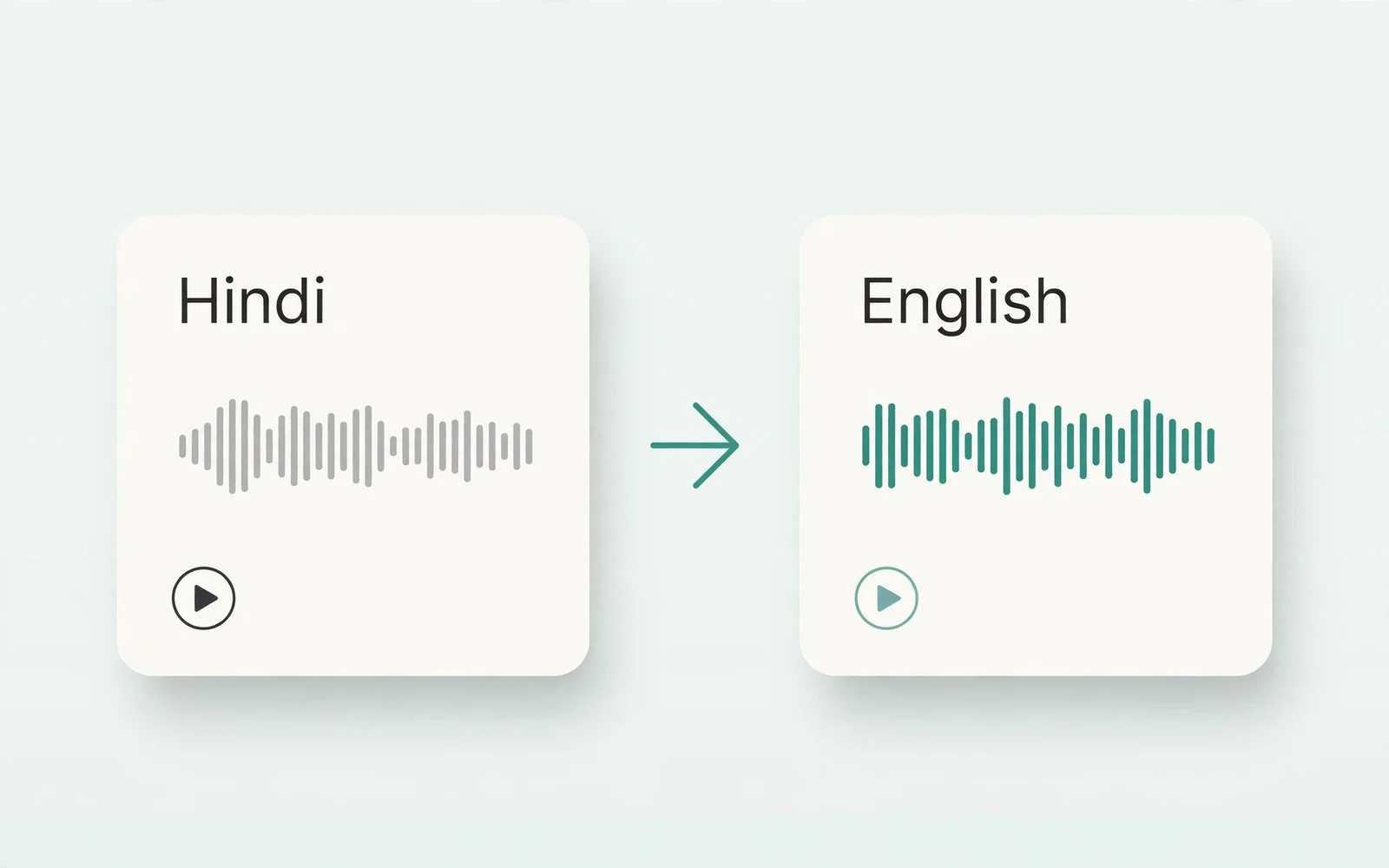
Hindi to English Voice Translation
Hindi to English audio
Turn Hindi speech into English audio.
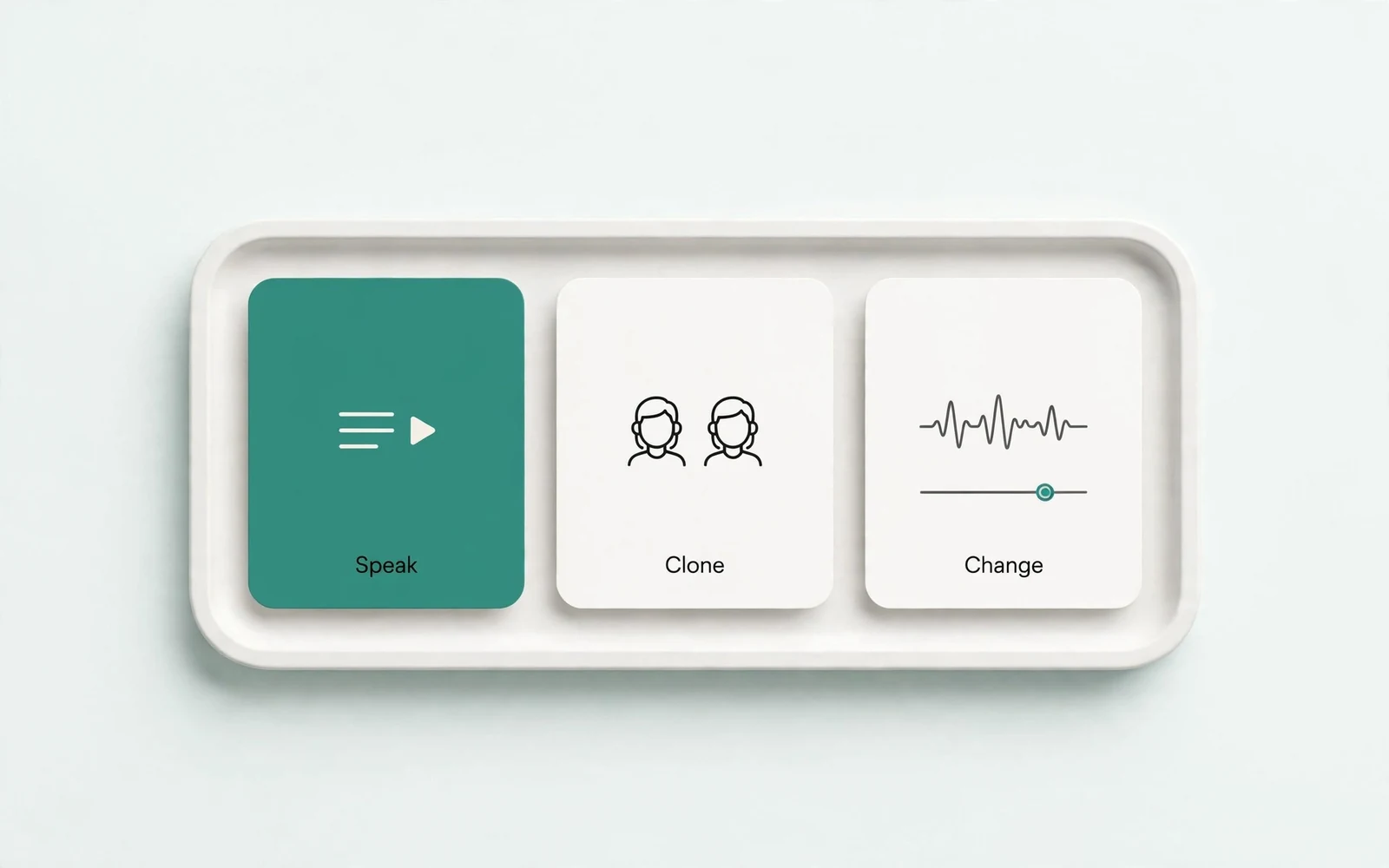
AI Voice Generator
Design a new voice
Design a brand-new voice from a description.