
Create and Edit Images with GPT Image 2.5
Create realistic scenes, posters, and product photos. Start with a prompt or reference, then refine the details.
Explore what you can create with GPT Image 2.5
Create lifelike portraits, tactile product photos, or a poster with clear text. Start with the image you need.
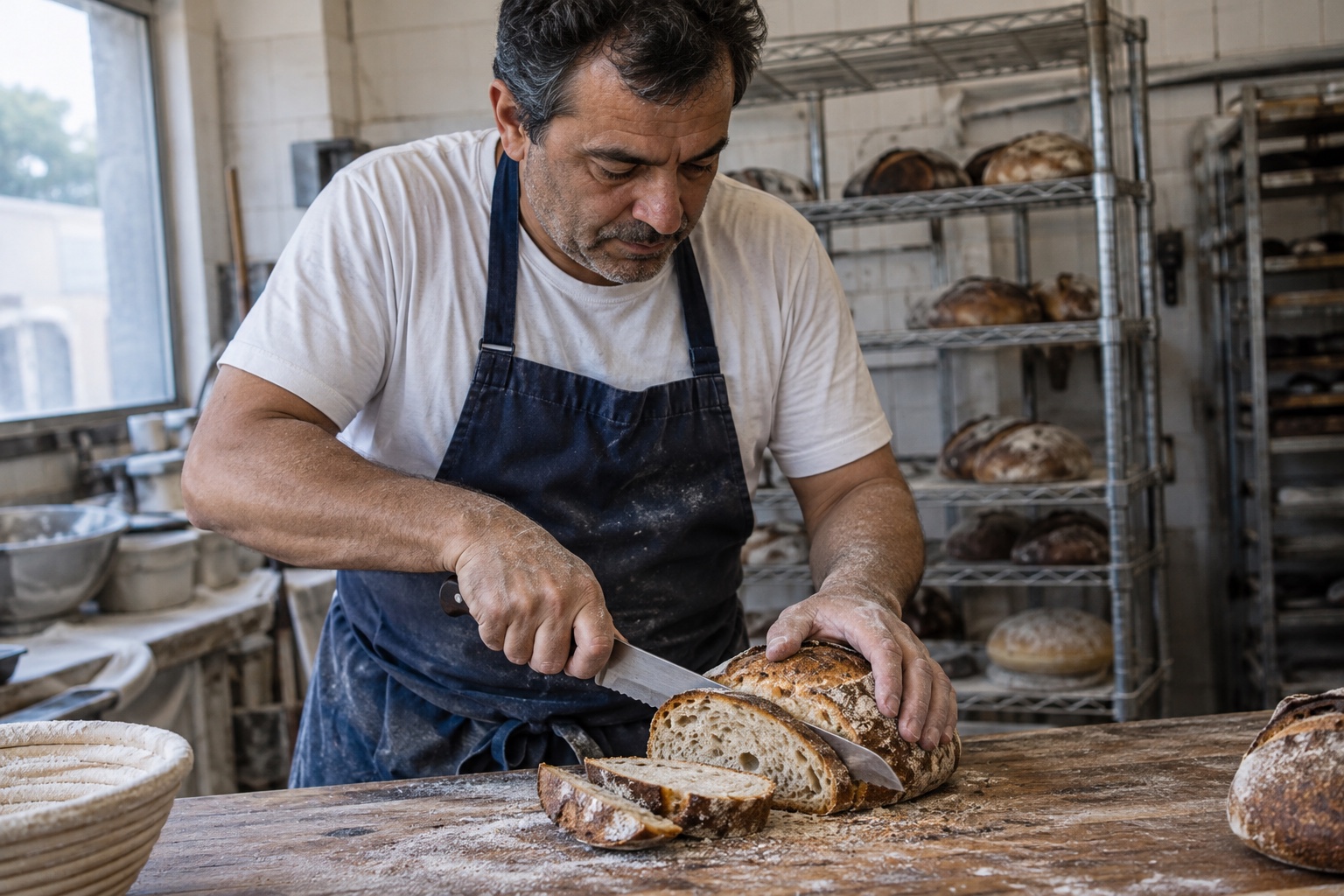
Prompt to try
Create a photo-like documentary photograph of a baker slicing sourdough in a working bakery. Resolve natural skin texture, flour-dusted hands, cotton fabric, and bread crumb. Use soft overcast window light, normal exposure, and realistic colors. No cinematic lighting, painting effects, retouching, or text.
Illustrative examples created in ChatGPT. Results in Ezier depend on the selected model and settings.
How to use GPT Image 2.5 on Ezier
- 01
Describe the image you need
Name the final asset: a photograph, poster, diagram, or illustration. Add the subject, setting, composition, and visual style.
- 02
Add a photo for edits
Upload the source you want to work from. Describe the change and the details to keep, such as the subject, colors, or camera angle.
- 03
Check model, settings, and credits
Confirm GPT Image 2.5 in the selector. Choose from the available image settings and review the credit estimate before submitting.
- 04
Review and refine
Inspect the result at full size. For another edit, reuse the image as a reference and focus on one change at a time.
More control over the details that matter
Use references for continuity, clear labels for information, and a focused brief for each revision.

Change one detail, keep the rest
Replace a chair’s upholstery while preserving the room, lighting, and camera angle. Define the change and the details to keep, then compare the original photo with the edit.
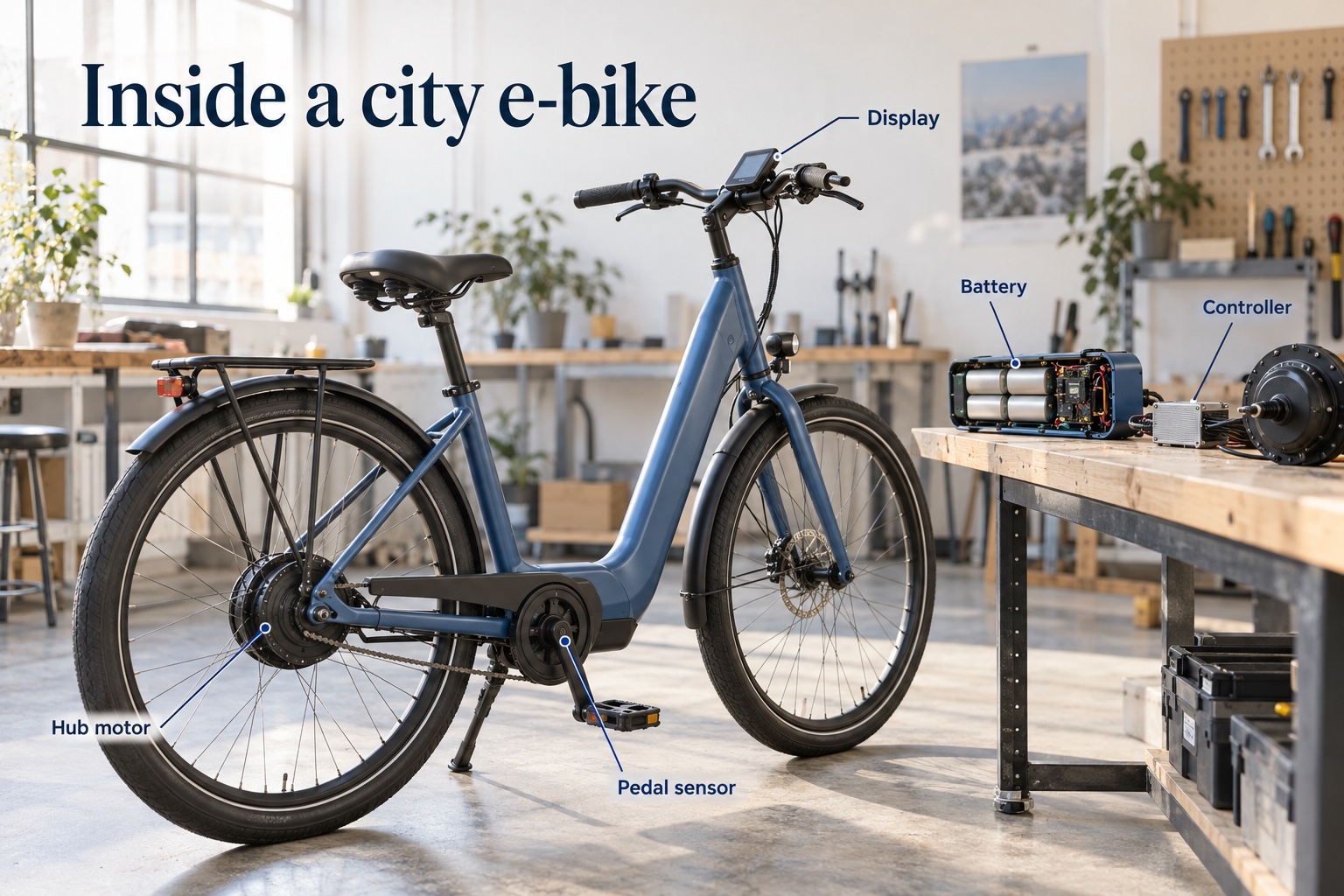
Make information easier to see
Create a labeled diagram, illustrated process, or visual explainer. Supply the actual words and information you need. Review spelling, connections, and factual accuracy before sharing.
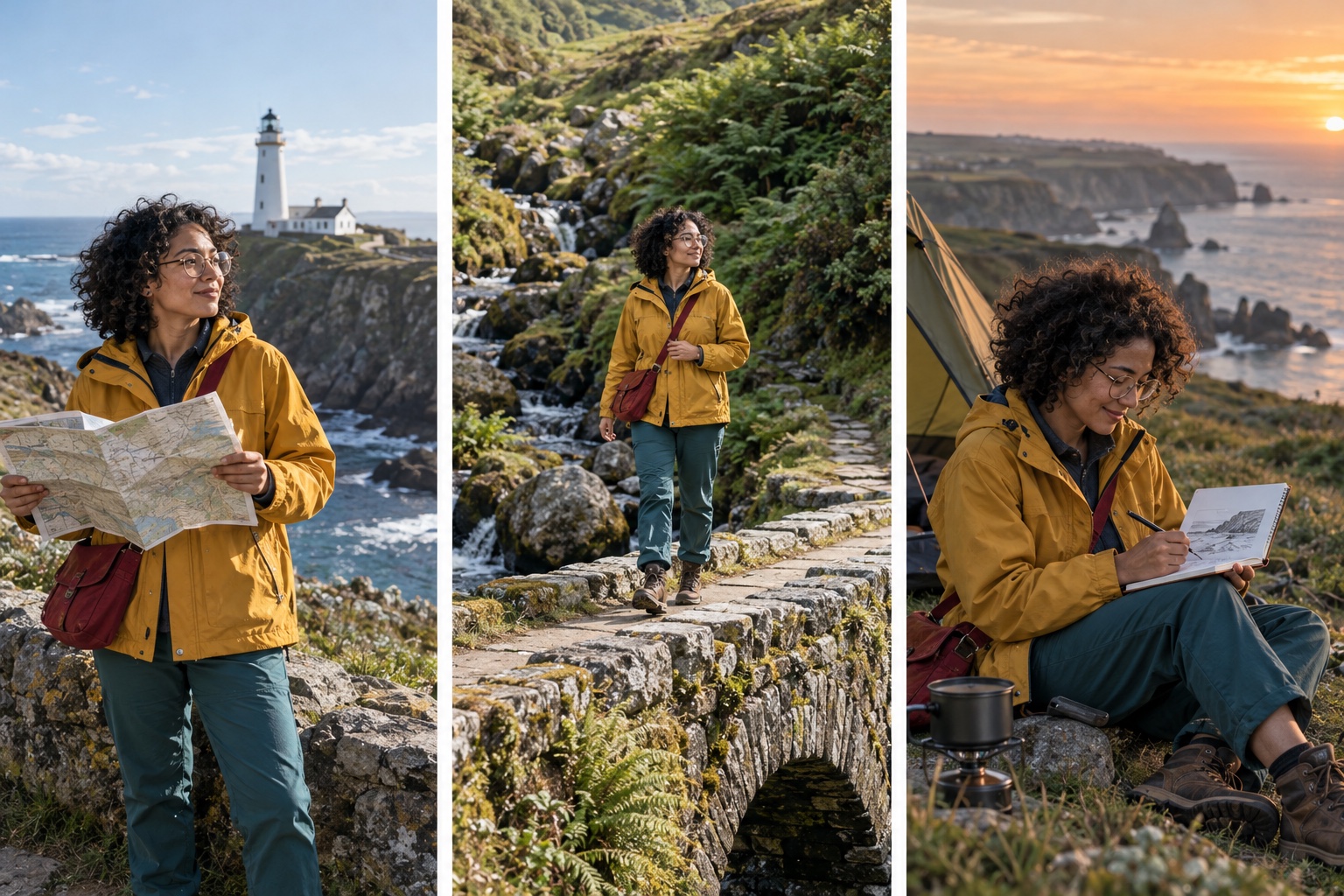
Carry a subject across scenes
Plan a photographic storyboard around one recognizable person. Use a reference and repeat their defining features: face, clothing, proportions, and palette. Check continuity across the finished images.
Bring your next image idea into focus
Start with a prompt, add a reference when it helps, and check the credit estimate before you generate.
GPT Image 2.5 FAQ
What is GPT Image 2.5?
GPT Image 2.5 is OpenAI’s image generation and editing model family. On Ezier, you can start with a text prompt or add reference photos for image edits.
How is GPT Image 2.5 different from GPT Image 2?
GPT Image 2.5 improves precise editing and subject preservation. Flare prioritizes speed, while Sunburst prioritizes image quality. The best choice depends on your brief, references, and settings.
Can I edit an existing photo?
Yes. Add your source photo, describe what to change, and list the details to preserve. Repeated edits can still alter those details, so compare each result with the original.
Can GPT Image 2.5 generate readable text?
It can create images containing text, including posters, labels, and diagrams. Provide the exact wording and placement, then check spelling and legibility in the result.
How many credits does a generation use?
Use the credit estimate shown in Ezier before submitting. Your selected model, settings, image count, and account benefits determine the charge.
Do I need an OpenAI API key?
No. Use GPT Image 2.5 through Ezier in your browser. Sign in when prompted to generate an image.
Model guidance: OpenAI image prompting guide.
Next up
Explore other image models and tools
Compare image models, explore image tools, or turn an image into video.

AI models
Compare models
Choose a better fit before you generate.
AI image tools
Create or edit images
Make, clean up, or upscale stills.
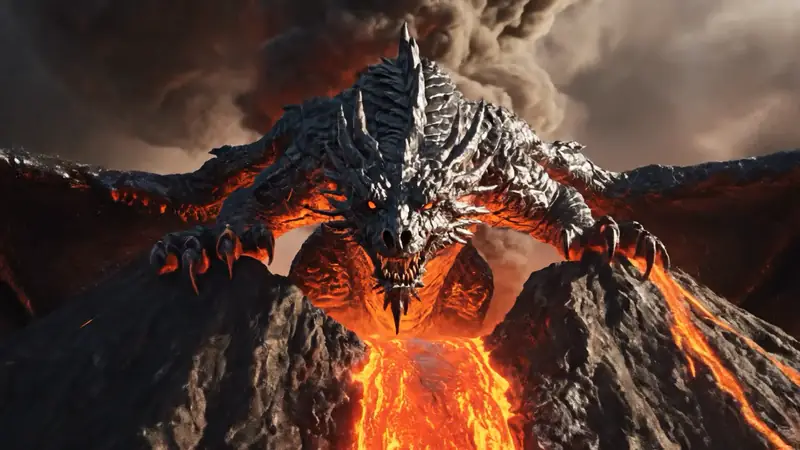
AI video tools
Turn images into motion
Animate a still or create a clip.
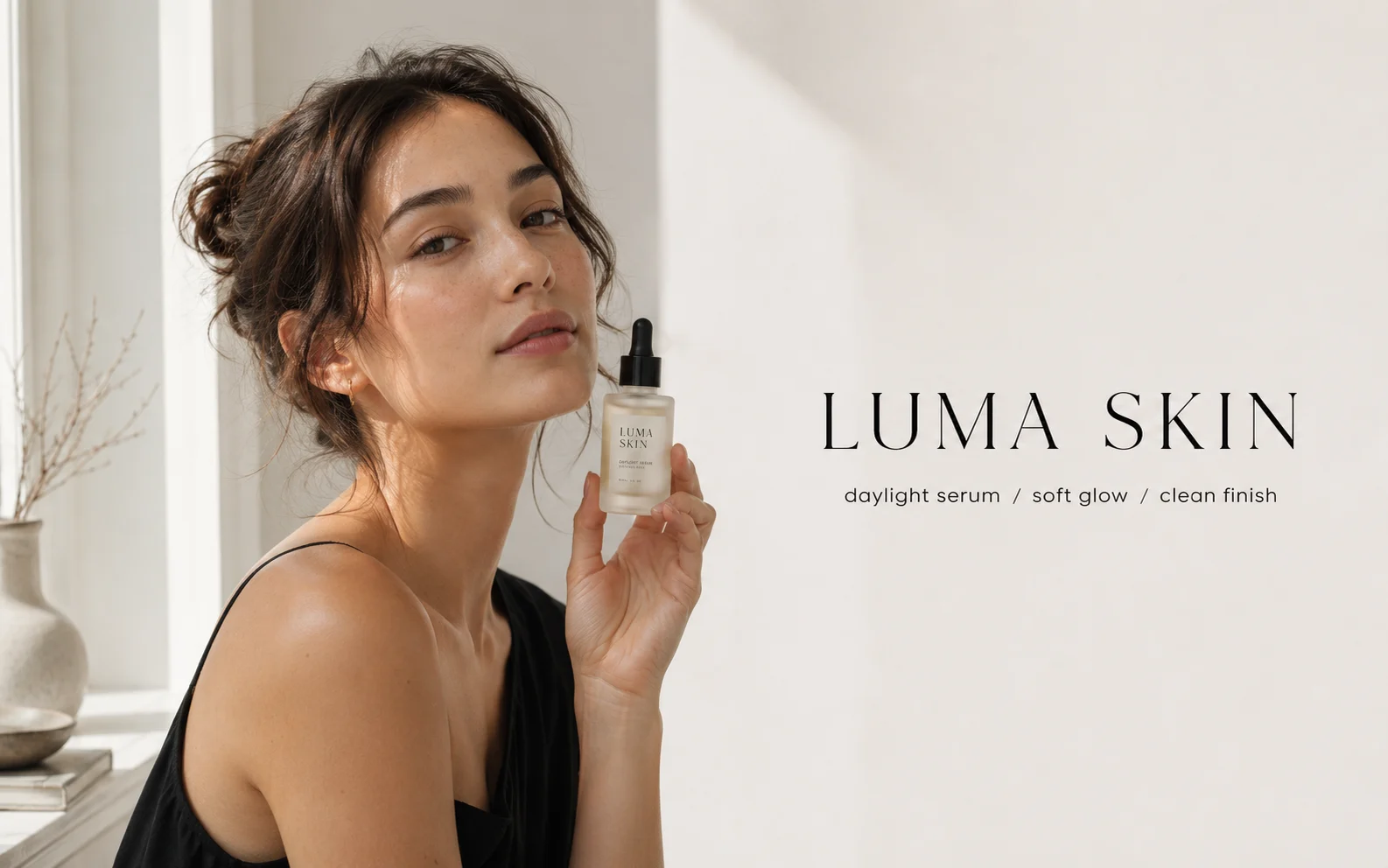
GPT Image 2
Polished visuals
Use for ads, product shots, and clean edits.
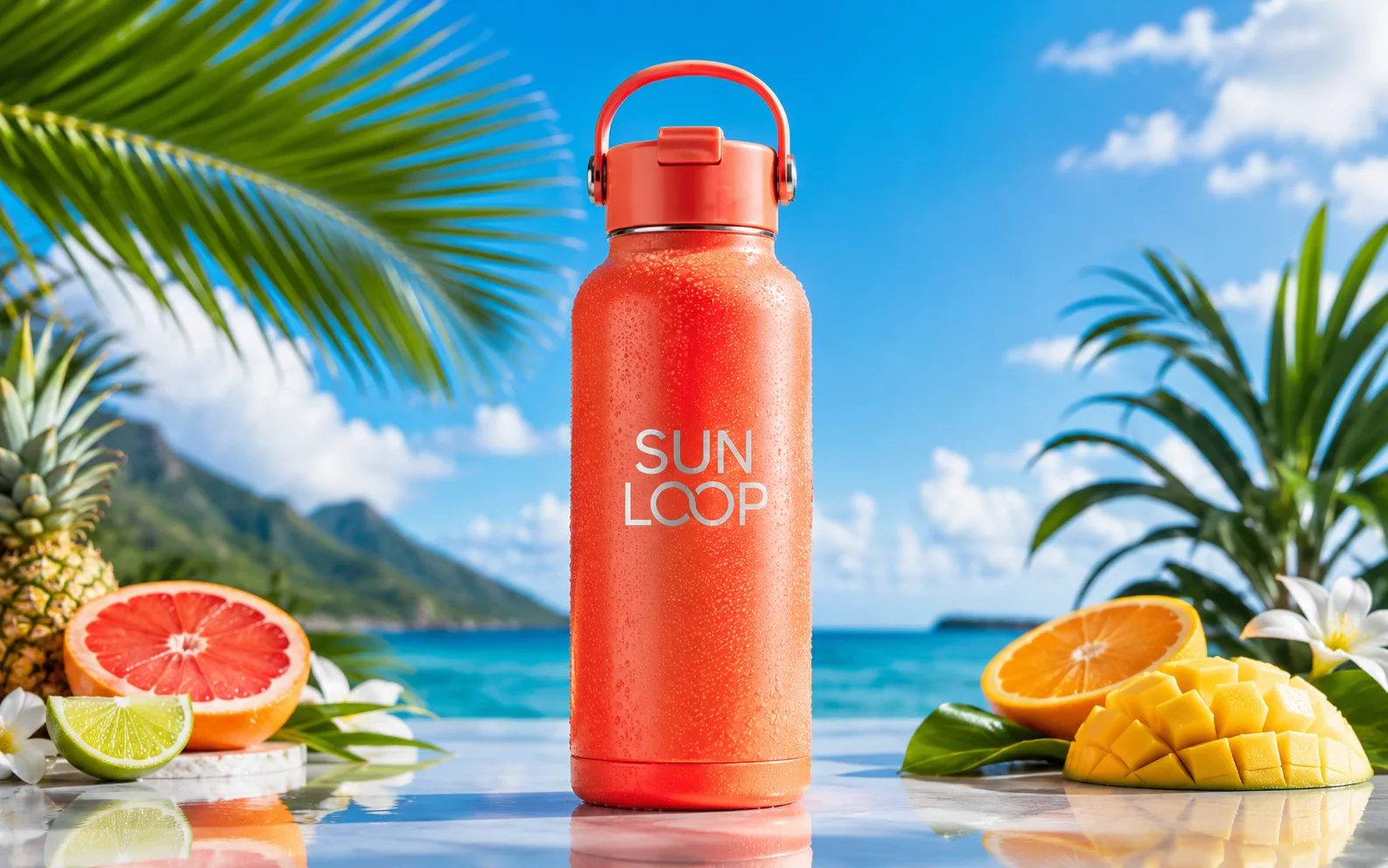
Nano Banana Pro
More control
Use for detailed prompts and readable text.
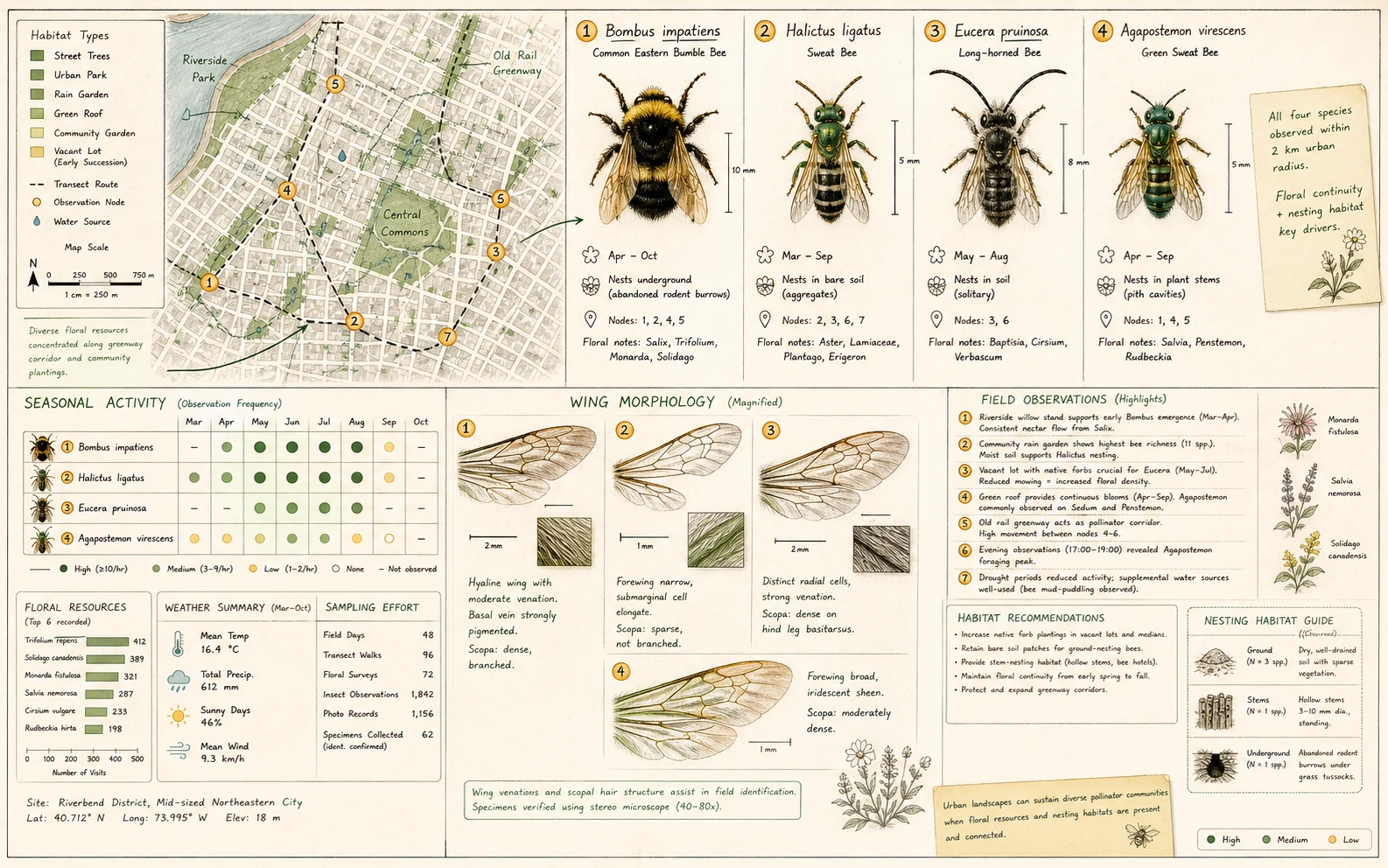
Qwen Image 3.0
Production-ready layouts
Use for dense layouts, multilingual text, realistic detail, and image edits.
Seedream 5.0 Pro
Controlled design and editing
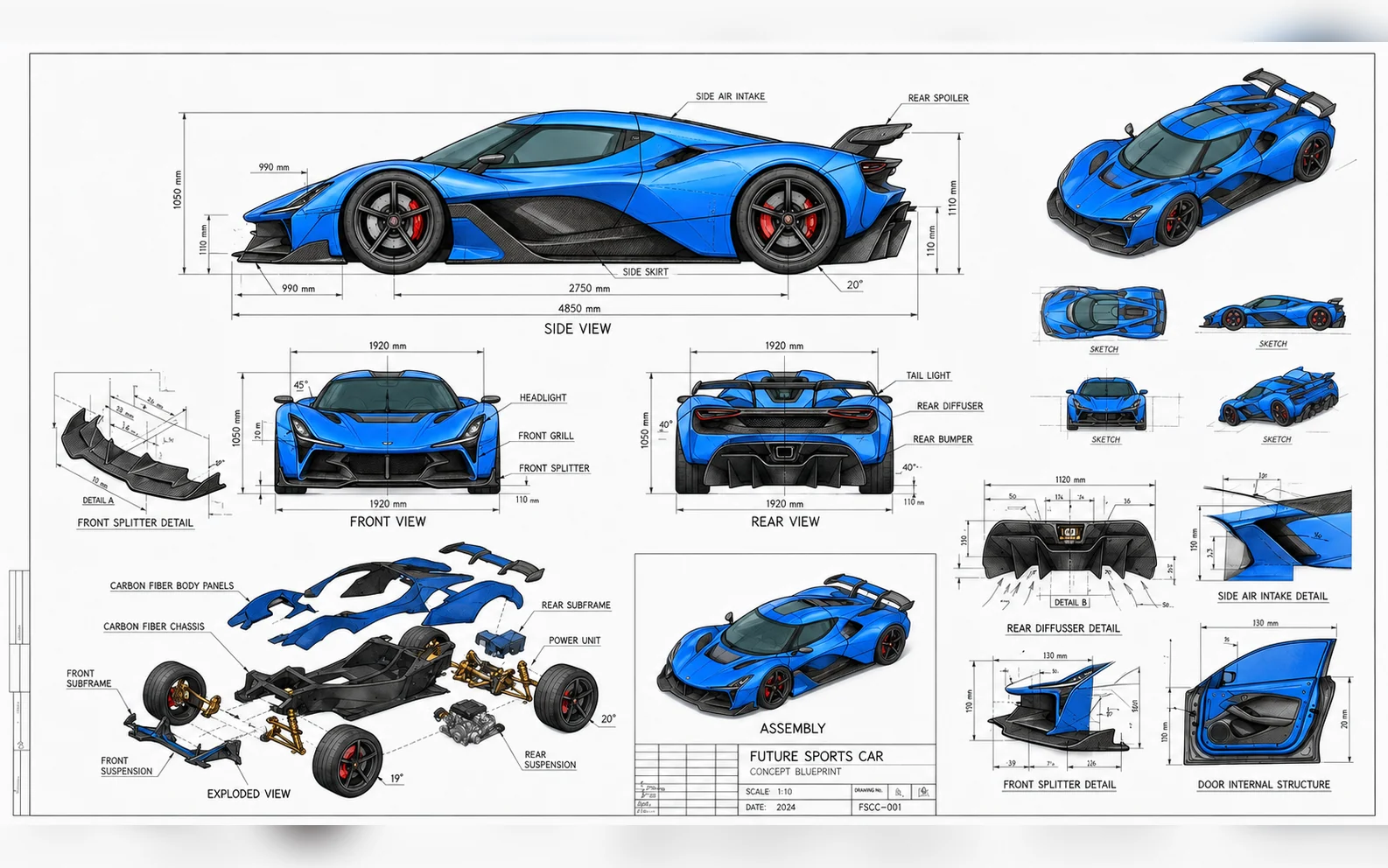
Use for information-dense design, multilingual text, reference composition, precise edits, and reusable layers.
Grok Imagine Image 2.0
High-fidelity generation and edits
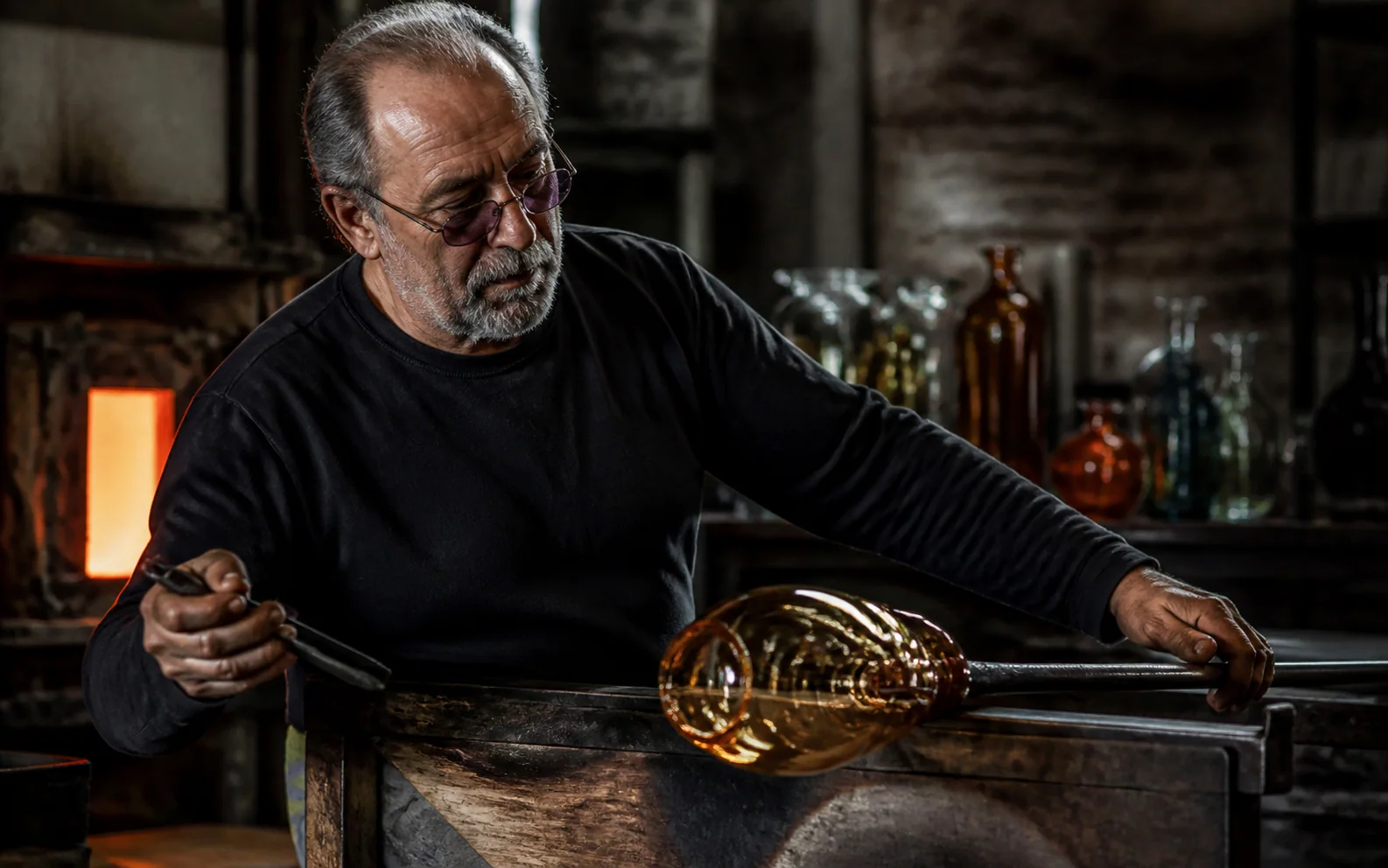
Use for high-fidelity scenes, flexible formats, image edits, and 1K or 2K output.
Nano Banana 2
Balanced image creation
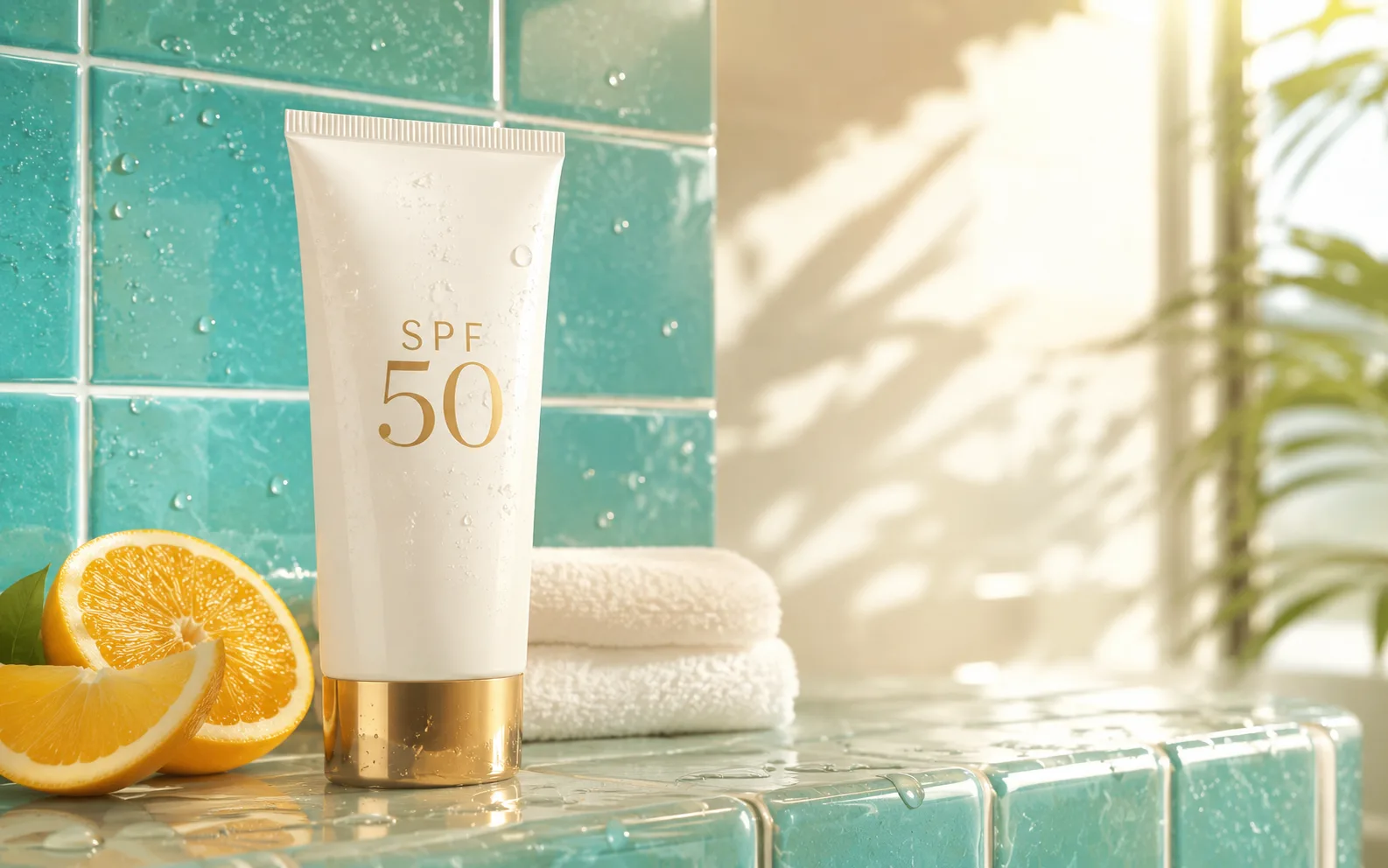
Use for higher-resolution images, multiple references, and longer edit chains.