
A multimodal Seedance model line
ByteDance Seed describes Seedance 2.0 as a multimodal audio-video generation model that can work from text, images, audio, and video context.
Use Seedance AI on Ezier to test quick motion ideas, animate first frames, guide clips with references, or plan audio-aware video drafts before you spend credits.
Use Seedance AI when you want quick motion tests, reference-led clips, first-frame animation, or audio-aware video drafts without guessing which Seedance option fits the job.
Create a short Seedance AI concept pass for a surreal streetwear runway. Keep one model centered, use a smooth forward camera drift, change the background in one clear wave, preserve the outfit shape, and end on a clean frame that is easy to compare with another style direction.
Open the model picker and choose the Seedance option that matches the pass. Use Fast for quick comparisons, Pro when references or audio need more care, and Seedance 1.5 Pro when that option fits the brief.
Start with the input type: text-to-video draft, first-frame animation, reference-led scene, or audio-aware clip. Then add the subject, action, timing, camera movement, and final frame.
Use upload when the selected Seedance option accepts a source image, reference, or audio input. A good reference protects shape, identity, lighting, timing, or style, not just mood.
Check the Generate credit estimate before submitting. After generation, review subject stability, scene continuity, camera movement, audio fit, and whether the ending frame is worth another pass.
Seedance works best when the prompt tells it what kind of pass you need: a fast comparison, a Pro-quality reference pass, a first-frame animation, or an audio-aware scene.
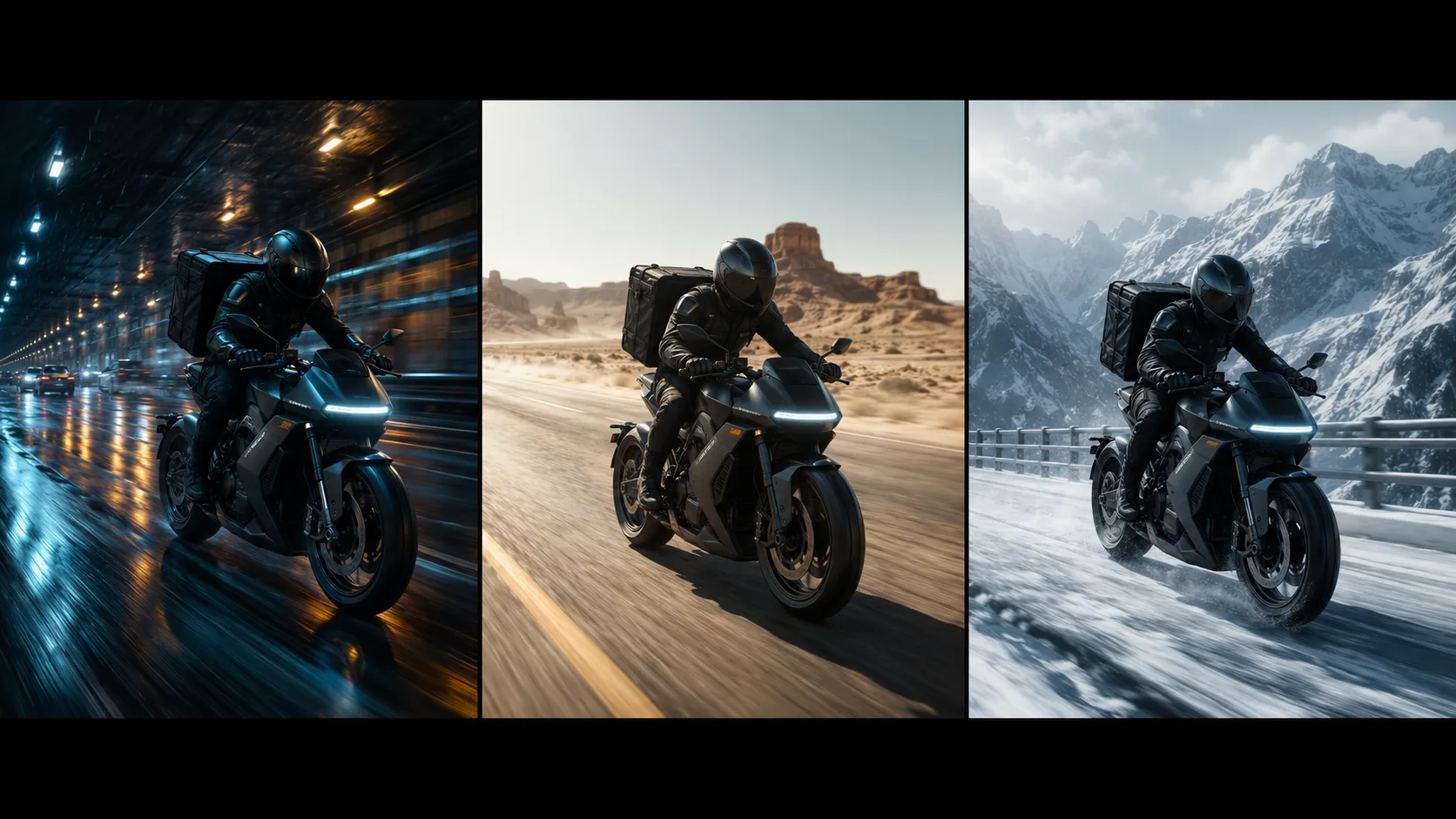
Fast is the right first move when you are testing several hooks, styles, or motion paths. Keep the brief lean so each output is easy to compare.

Use a more directed Seedance pass when the product shape, character look, first frame, or scene style needs to stay recognizable while the camera and motion change.

Audio works harder when it has a visible cause: a footstep, machine hum, door click, crowd swell, or beat change. Tie the cue to motion so the clip feels intentional.
Before generating, check the Seedance model, upload support, and credit estimate. A quick comparison pass should not cost or behave like a more directed Pro run.
A short video draft should not carry every idea. Pick one primary movement: reveal, follow, orbit, drift, transform, or one timed action.
Tell Seedance what must stay stable: face, product shape, logo, costume, floor marks, lighting, or first-frame composition.
Write sound as a cue: soft footsteps, hinge clicks, room tone, crowd ambience, or a steady beat. Avoid generic cinematic audio with no visible source.
Compare motion, timing, subject stability, and ending frame before spending credits again. Refine the winner, not every draft.
Public Seedance 2.0 material points to multimodal audio-video generation, reference inputs, motion stability, and camera control. In Ezier, turn those facts into practical choices before spending credits.
ByteDance Seed describes Seedance 2.0 as a multimodal audio-video generation model that can work from text, images, audio, and video context.
Ezier includes Seedance 2 Pro, Seedance 2 Fast, and Seedance 1.5 Pro, so the model picker is a real decision point rather than a label to ignore.
Review whether the clip kept the reference, followed the motion path, matched the audio cue, and ended on a frame you can reuse.
Use shorter prompts for Fast comparisons, then move the strongest direction into a more controlled Pro pass with clearer reference, camera, audio, and ending-frame notes.
Seedance AI in Ezier
Use Fast when you need quick comparisons, Pro when the reference or audio direction matters, then review motion, subject stability, and the final frame before refining.
Practical answers for choosing a Seedance option, writing prompts, using references, planning audio, checking credits, and reviewing the generated clip.
Write the video brief in the prompt box, choose the Seedance option that fits the pass, add supported references or audio when upload is available, check the Generate credit estimate, then submit the clip.
Name the input type, subject, action, camera move, timing, sound cue, and final frame. A good prompt says what should move, what should stay stable, and how the clip should end.
Choose Seedance 2 Pro when the clip depends on reference detail, audio direction, or a more careful pass. Choose Seedance 2 Fast when you are comparing ideas and need quicker feedback.
Use upload when the selected Seedance option supports the input you need. References help protect product shape, character look, starting frame, scene style, or audio timing.
Yes. Use Seedance AI when a starting image, product frame, character pose, or style reference should guide the motion. Tell the model what must stay fixed and what should change.
Check subject stability, reference consistency, scene continuity, camera movement, audio timing, and the final frame. If one direction is clearly stronger, refine that pass instead of rewriting everything.
Choose Seedance AI when speed, references, first-frame motion, or audio-aware iteration matter most. Choose Veo for cinematic prompt control, and Kling for action continuity or story pacing.
Keep testing
Compare a nearby model, finish the clip with tools, or rebuild the source for another render.

AI models
Compare models
Choose a better fit before you generate.

AI video tools
Turn images into motion
Animate a still or create a clip.

AI image tools
Create or edit images
Make, clean up, or upscale stills.
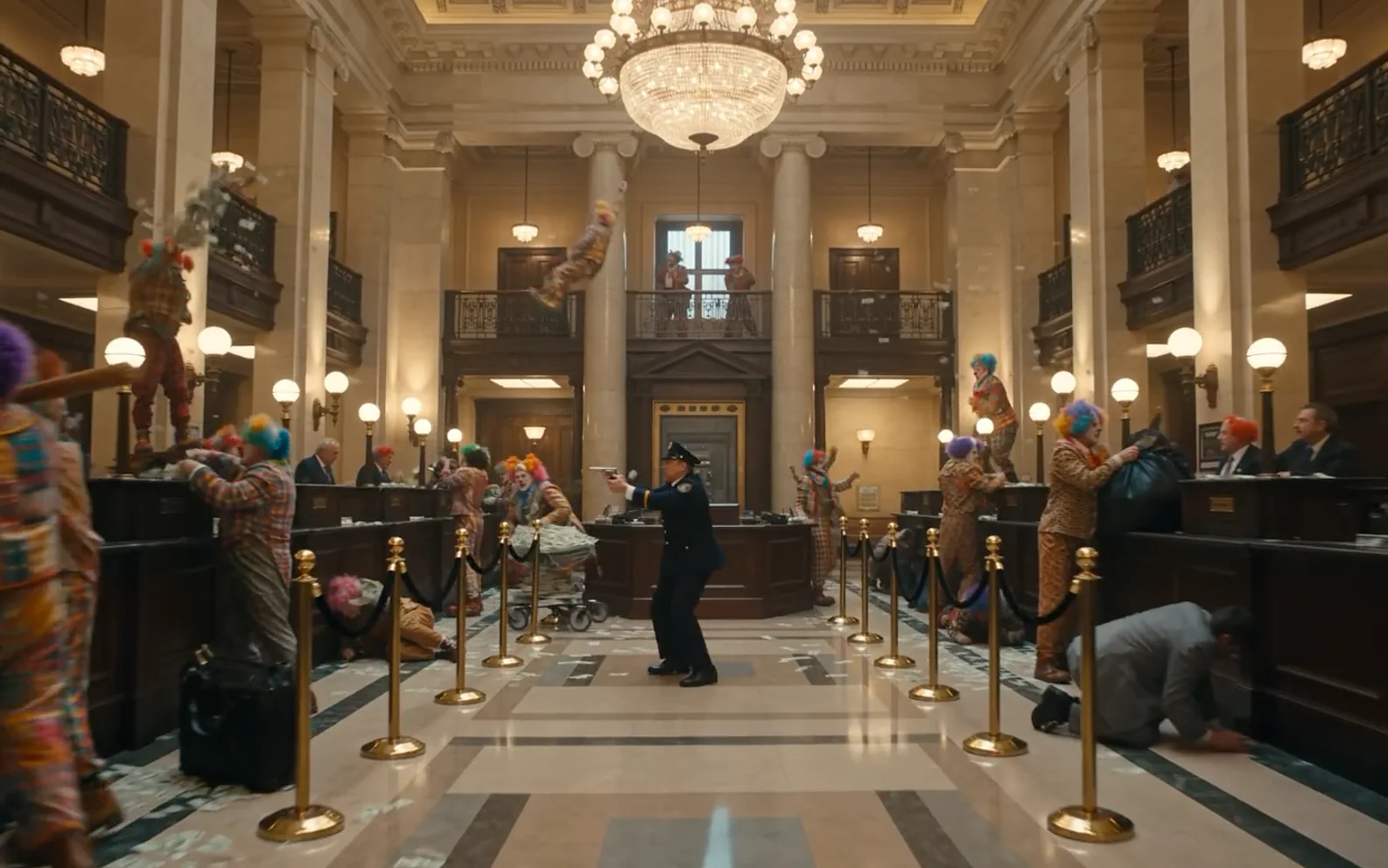
Seedance 2.5
Longer reference-led video
Use for longer scenes with richer reference direction.
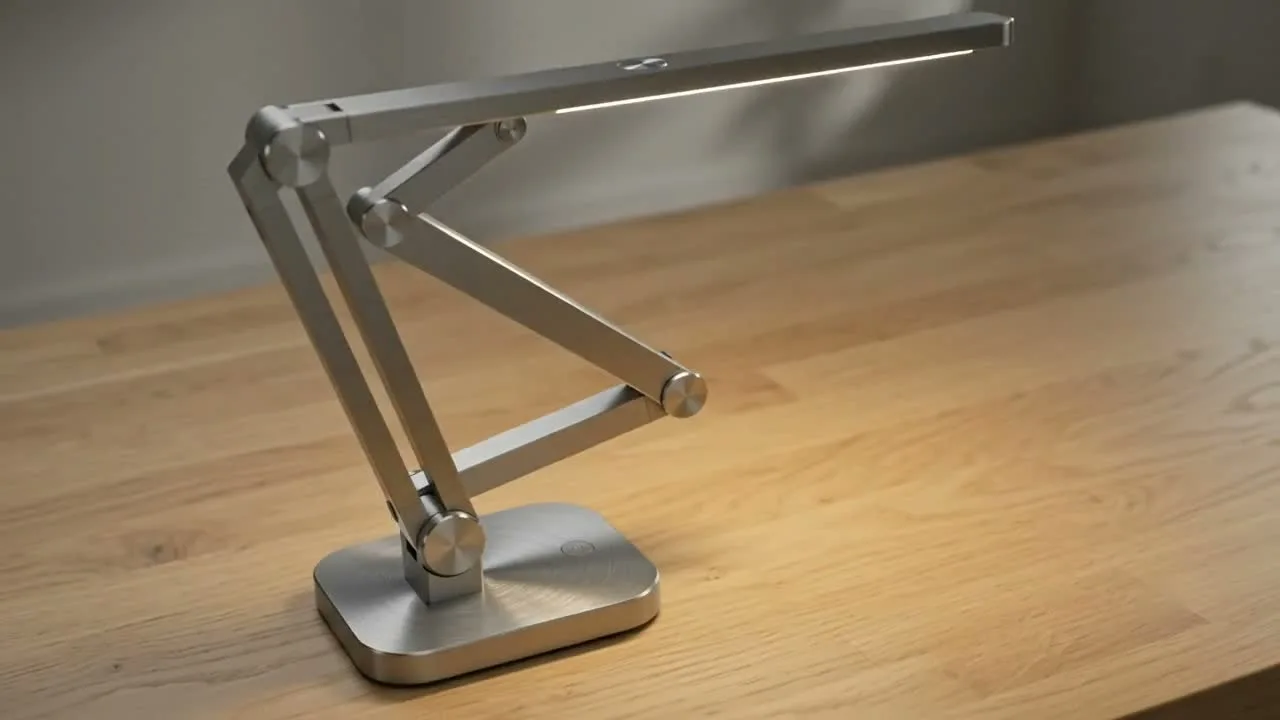
Seedance 2
Reference-led video
Use for fast motion drafts from references.
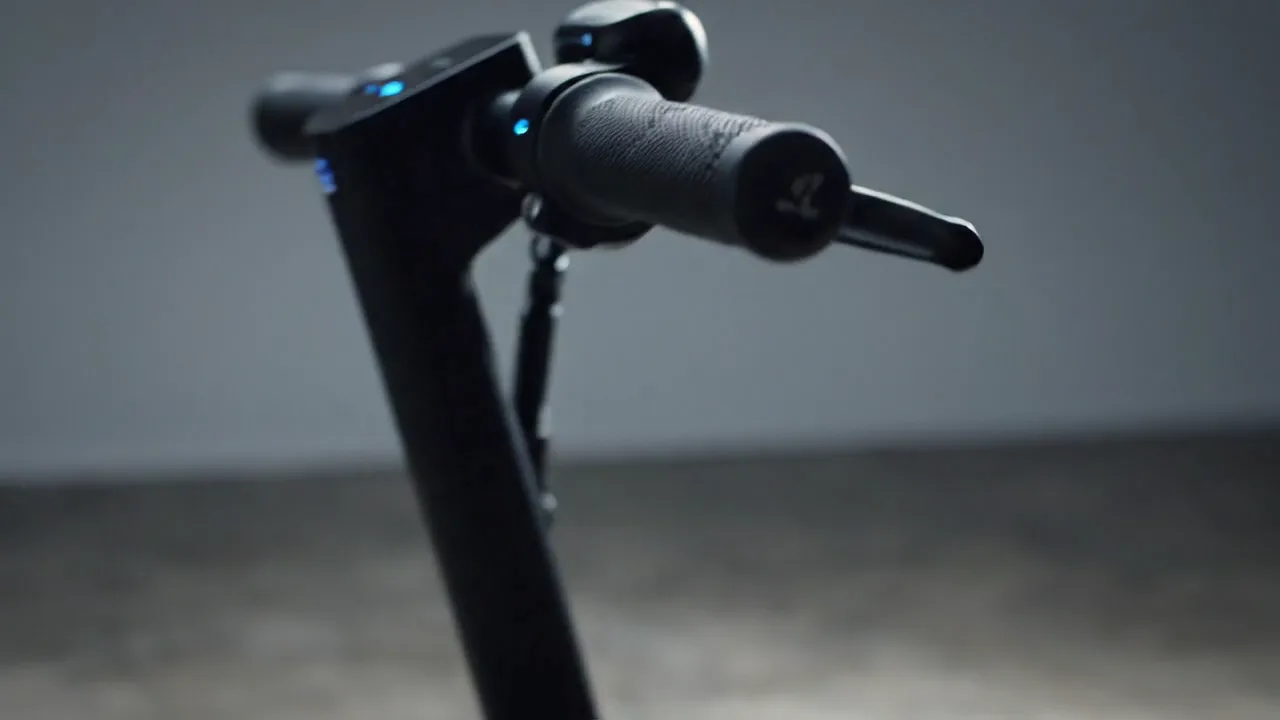
Veo 3.1
Cinematic control
Use for cinematic shots and camera moves.
Kling 3.0
Action and motion
Use for action, motion, and story beats.

HappyHorse AI
Short video hooks
Use for short hooks and stylized clips.
Hailuo AI
Physical motion
Use for fabric, liquid, and physical motion.
AI models
Compare models
Choose a better fit before you generate.
AI video tools
Turn images into motion
Animate a still or create a clip.
AI image tools
Create or edit images
Make, clean up, or upscale stills.
Seedance 2.5
Longer reference-led video
Use for longer scenes with richer reference direction.