
Text to Video for Scenes You Haven't Shot
Describe the subject, action, camera feel, and style, then compare video models by motion, pacing, and visual treatment.
See how text becomes video
Use these examples to inspect how a prompt becomes a moving scene: lifestyle footage, surreal scenes, action beats, product videos, portraits, and invented worlds. Text to Video is the right starting point when you want to create a video from a prompt instead of a source image or clip.
A stylish young woman walks slowly along a bright tropical shoreline in a cream bikini and flowing white cover-up. Sunlight glitters across the ocean, soft waves roll onto the sand, sea breeze moves her hair and fabric, and the camera holds a clean cinematic medium-wide fashion shot. Luxury travel editorial mood, realistic detail, warm natural light.
How to create a video from text
- 01
Describe the video you want to create
Start with the subject and action, then add the setting, camera movement, lighting, and mood. The prompt should make the scene easy to imagine before the model generates it.
- 02
Choose the model and available settings
Use the model picker before you generate. When the selected model offers controls such as aspect ratio, duration, or resolution, set them directly instead of burying every requirement in the prompt.
- 03
Generate a focused first video
Check the credit estimate, run the prompt, and review whether the subject, motion, camera logic, and style match the prompt closely enough to keep refining.
- 04
Decide what to change next
Tighten the prompt when the scene is wrong, simplify the motion when the output feels unstable, and try another model when the direction works but the rendering style does not.
Create different kinds of videos from text
Text to Video can turn a prompt into product motion, people-led scenes, cinematic concepts, or stylized worlds before you have source media. Use it when the video starts as an idea. If a fixed first frame matters, use Image to Video. If the source is already footage, use Video to Video.
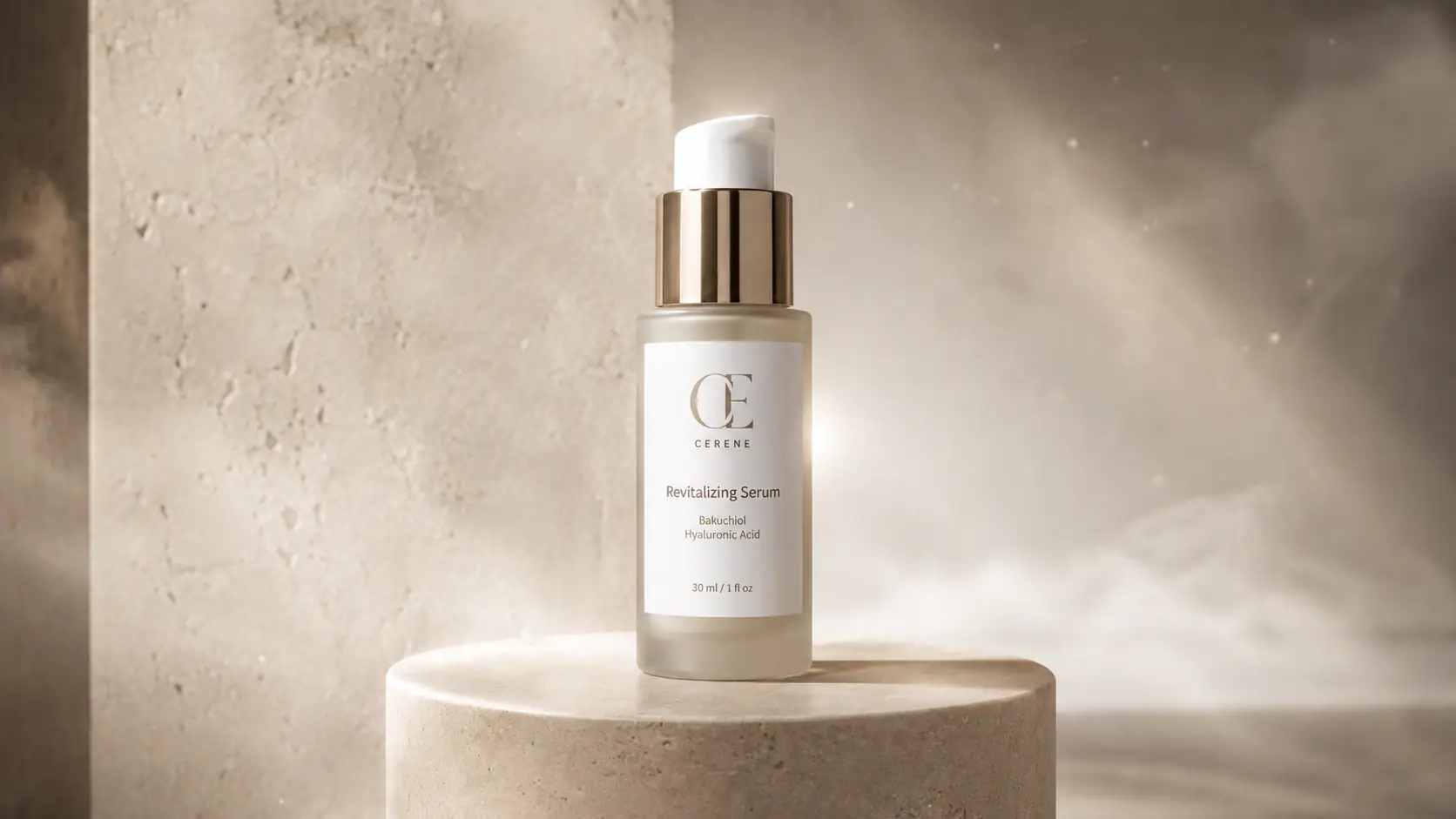
Create product videos from a prompt
Describe the product, surface, lighting, motion, and camera move when you need a polished product video without filming or uploading a reference image.
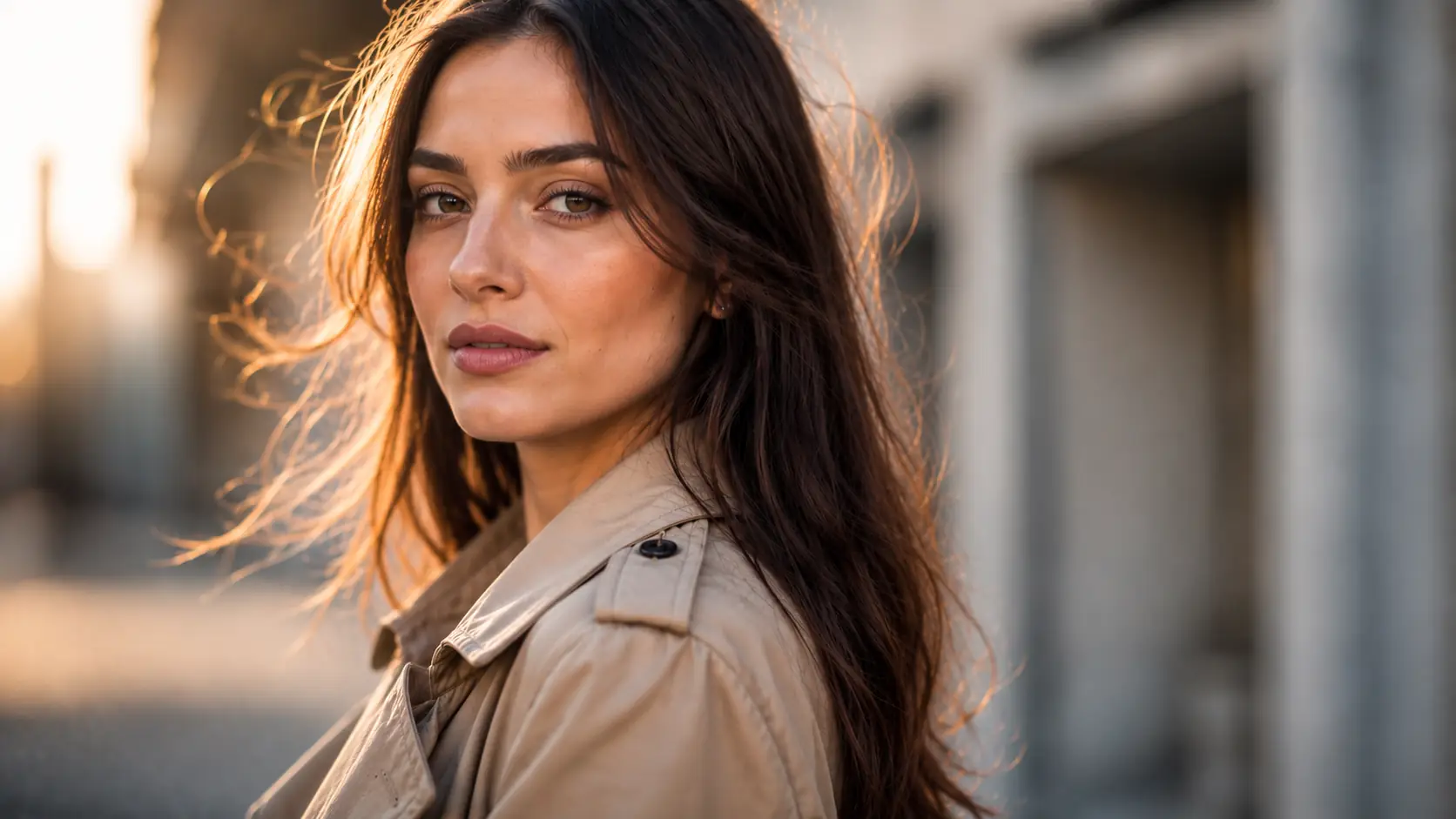
Generate people-led videos from text
Use the prompt to define the person, action, wardrobe, lighting, and camera feel when the video needs a human subject but no source clip exists.
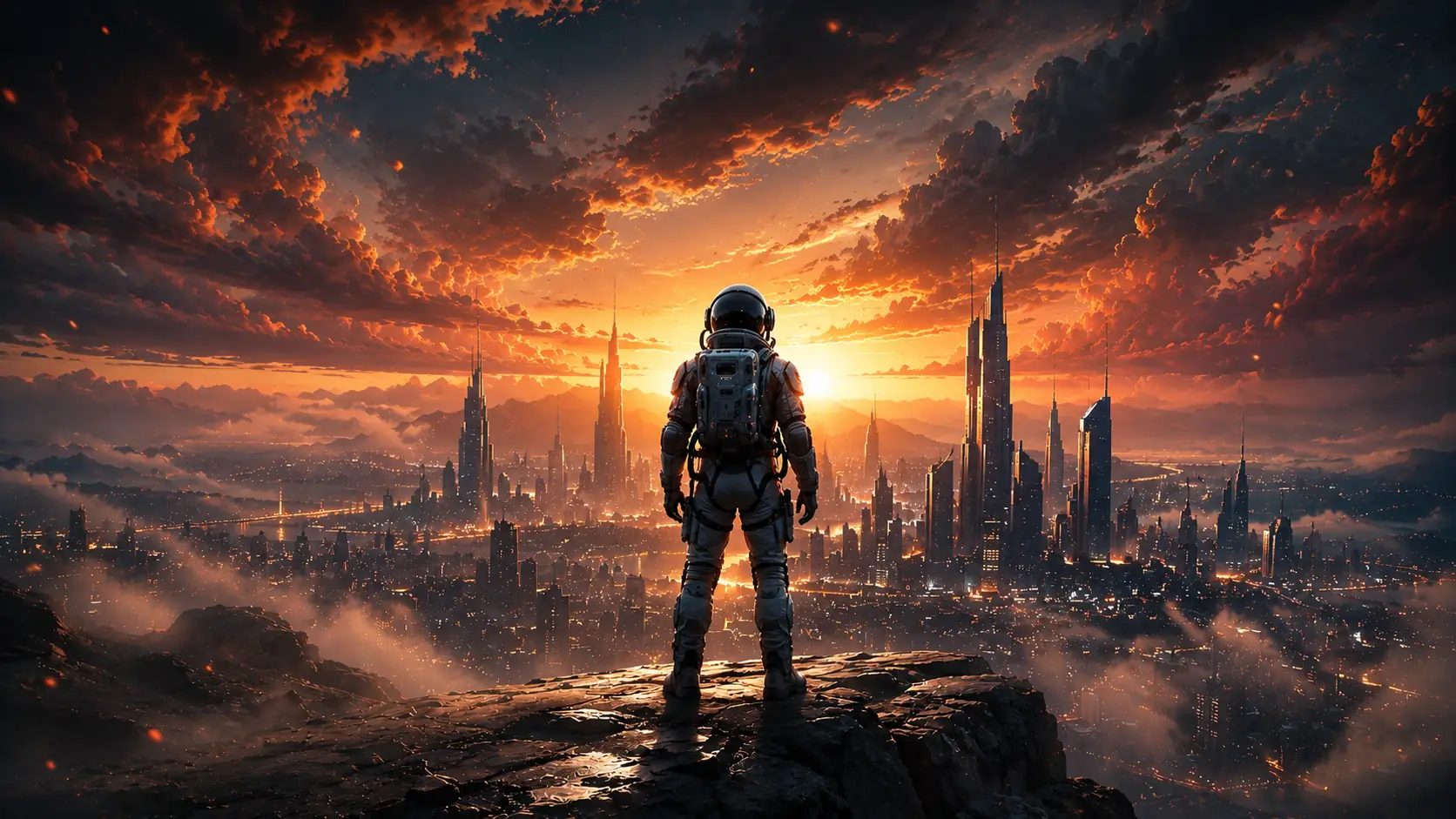
Turn prompts into cinematic worlds
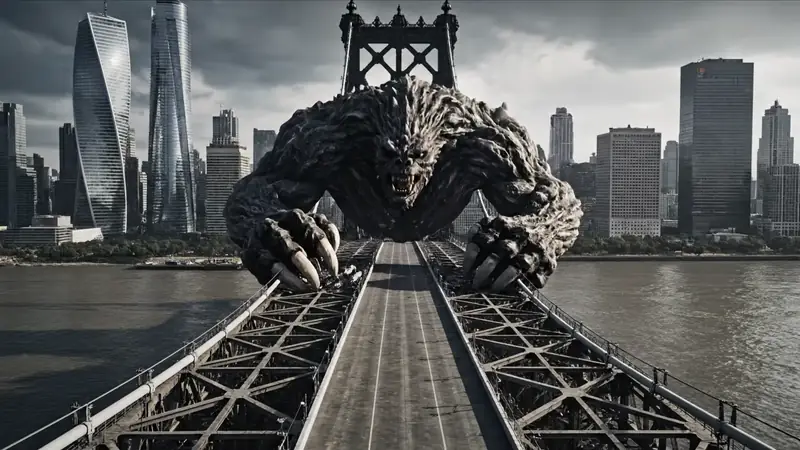
Describe the setting, scale, mood, and visual style when you want Text to Video to invent a larger scene instead of preserving an existing frame.
Review the first Text to Video draft
The first result should tell you what to change next. Check whether the video follows the prompt, whether the motion is readable, and whether the issue calls for a clearer prompt, simpler action, or a different model.
Check whether the video follows the prompt
Start with the basics: subject, action, setting, camera movement, and style. If one of those is missing or wrong, rewrite the prompt before changing models.
Look for readable motion
A usable text-to-video draft needs motion that is easy to follow. If the subject, camera, and background all fight for attention, simplify the next prompt around one main action.
Change the model for feel, not missing direction
Try another model when the prompt is clear but the motion feel, pacing, realism, or rendering style still does not fit. Use the same prompt when you compare models.
Switch tools when the source matters
If the next attempt needs to preserve a product image, character design, portrait, or illustration, go to Image to Video so the model starts from a fixed visual anchor instead of inventing the frame from text alone.
Text to Video in Ezier
Create a video from text in Ezier.
Start with a prompt when the video should be invented from scratch, then use the generator above to test the first direction.
Text to Video FAQ
Answers for creating video from text, choosing a model, and knowing when another video tool fits better.
What does Text to Video do?
Text to Video turns a written prompt into a generated video clip. You describe the scene, subject, motion, camera feel, and style, and the model creates the video without a source image or uploaded footage.
When should I use Text to Video instead of Image to Video or Video to Video?
Use Text to Video when the video should be created from language alone. Use Image to Video when a still image needs to stay recognizable, and use Video to Video when you already have a clip to restyle or transform.
Do I need to upload anything first?
No. Text to Video is the prompt-only path. Start with text when you want the model to invent the scene, then switch tools only if you need a still image or existing clip to guide the result.
What should I include in a Text to Video prompt?
Include the subject, action, setting, camera movement, lighting or style, and the output intent. For example, say whether you want a product reveal, social hook, cinematic action beat, portrait motion, or atmospheric B-roll.
Do all video models use the same settings?
No. Different models can offer different controls, such as aspect ratio, duration, resolution, or other generation options. Choose the model first, then set the available controls before you generate.
When should I change the model instead of rewriting the prompt?
Rewrite the prompt first when the scene logic is vague, missing, or contradictory. Change the model when the prompt is clear but the video still misses the motion feel, realism, pacing, or rendering style you need.
What should I check after the first result?
Check whether the video follows the prompt, whether the motion is readable, and whether the style fits the goal. That tells you whether to rewrite the prompt, simplify the action, or compare another model.
Can I use Text to Video for ads, social clips, or product demos?
Yes. Text to Video works well for early creative directions, social hooks, product mood clips, ad concepts, cinematic B-roll, and demo ideas before you have source media.
Can I compare models with the same text prompt?
Yes. Keep the prompt the same when you want a clean comparison. Then judge the outputs by motion, pacing, realism, style, and how closely each video follows the original prompt.
More to try
Find the right next tool
Find the next tool for generation, restyling, cleanup, extension, or model comparison.

AI video tools
More video tools
Generate, edit, clean up, or improve clips.

AI models
Compare video models
Pick a better model before rendering again.

AI image tools
Prepare source images
Create a stronger still for the next video run.
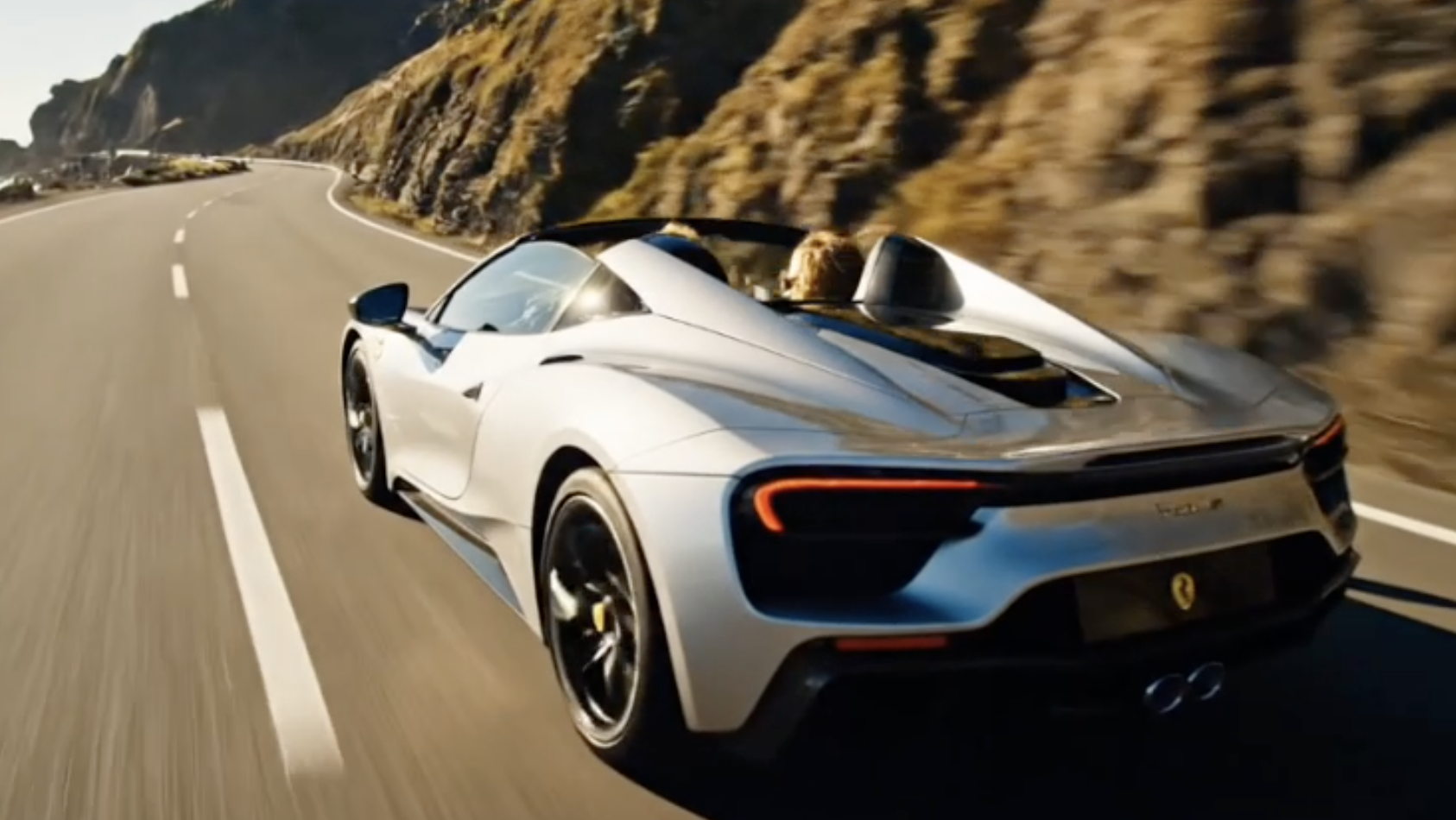
AI Video Generator
Start a video
Create a clip from a prompt or image.
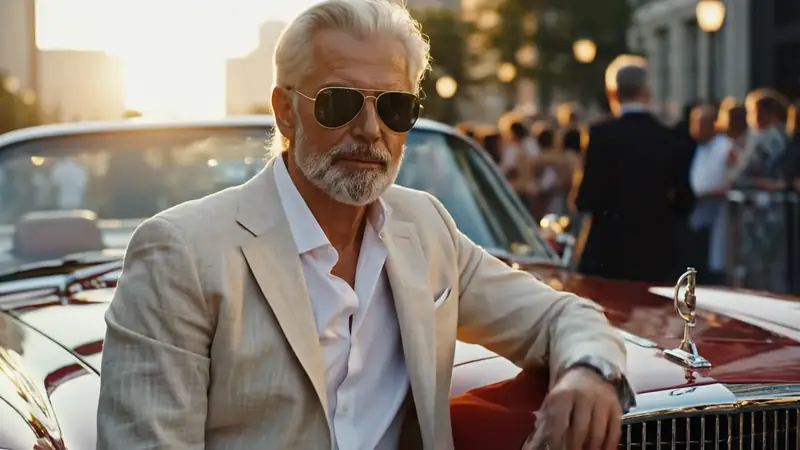
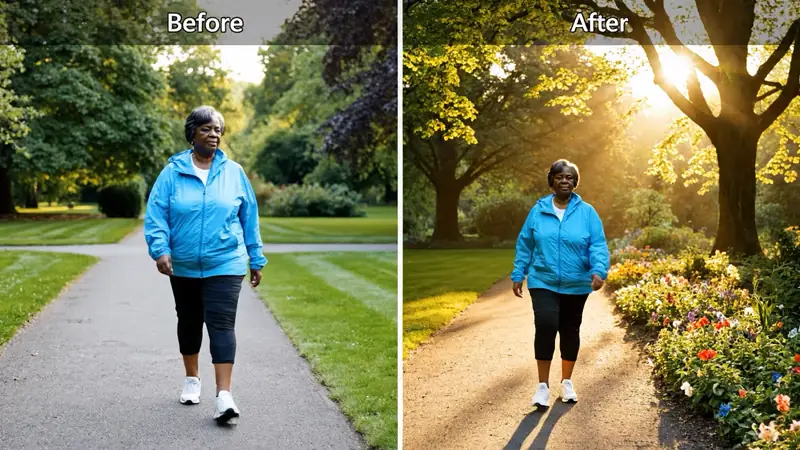
Image to Video
Animate a still
Turn an image into a short clip.
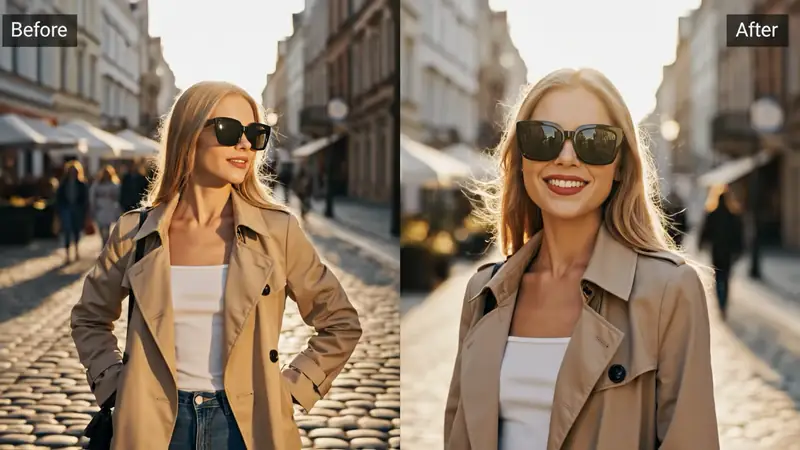
Video to Video
Restyle footage
Change the look of an existing clip.
AI Video Extender
Extend a clip
Continue a short video into a longer scene.
AI Video Editor
Edit with prompts
Revise a clip without a timeline.
Video Enhancer
Improve quality
Sharpen, denoise, and restore clips.
AI video tools
More video tools
Generate, edit, clean up, or improve clips.
AI models
Compare video models
Pick a better model before rendering again.
AI image tools
Prepare source images
Create a stronger still for the next video run.
AI Video Generator
Start a video
Create a clip from a prompt or image.