
Use Veo 3.1 when realism matters
Veo 3.1 is a strong fit for cinematic clips where prompt adherence, natural motion, audio direction, and believable scene detail all matter.
Use Veo 3.1 on Ezier for cinematic clips with clear action, camera movement, sound intent, ratio, duration, resolution, and credit checks.
Use Veo 3.1 for cinematic clips that need clear camera movement, audio cues, delivery format, and a final frame you can actually use.
Create an 8-second cinematic product reveal of a compact electric scooter in a quiet studio. Start with a close-up of the handlebar texture, dolly back to show the full silhouette, add soft motor hum and clean room tone, 16:9.
Start with the clip length, subject, action, camera movement, sound, and delivery format. Veo 3.1 prompts work better when the motion and audio intent are part of the same brief.
Use Select Model to choose the Veo 3.1 option that fits the job. Pick the audio-capable option when sound, dialogue, ambience, or effects matter to the final clip.
Use the settings chip to check aspect ratio, resolution, duration, audio, and supported seed control. For Veo 3.1, choose 16:9 or 9:16, 720p or 1080p, and 4s, 6s, or 8s clips.
The Generate button shows the credit estimate before submission. After generation, inspect camera continuity, subject shape, timing, audio fit, and the ending frame before saving or refining.
Treat the prompt like a short shot plan: subject action, camera movement, scene timing, sound, and the frame shape where the result will be used.
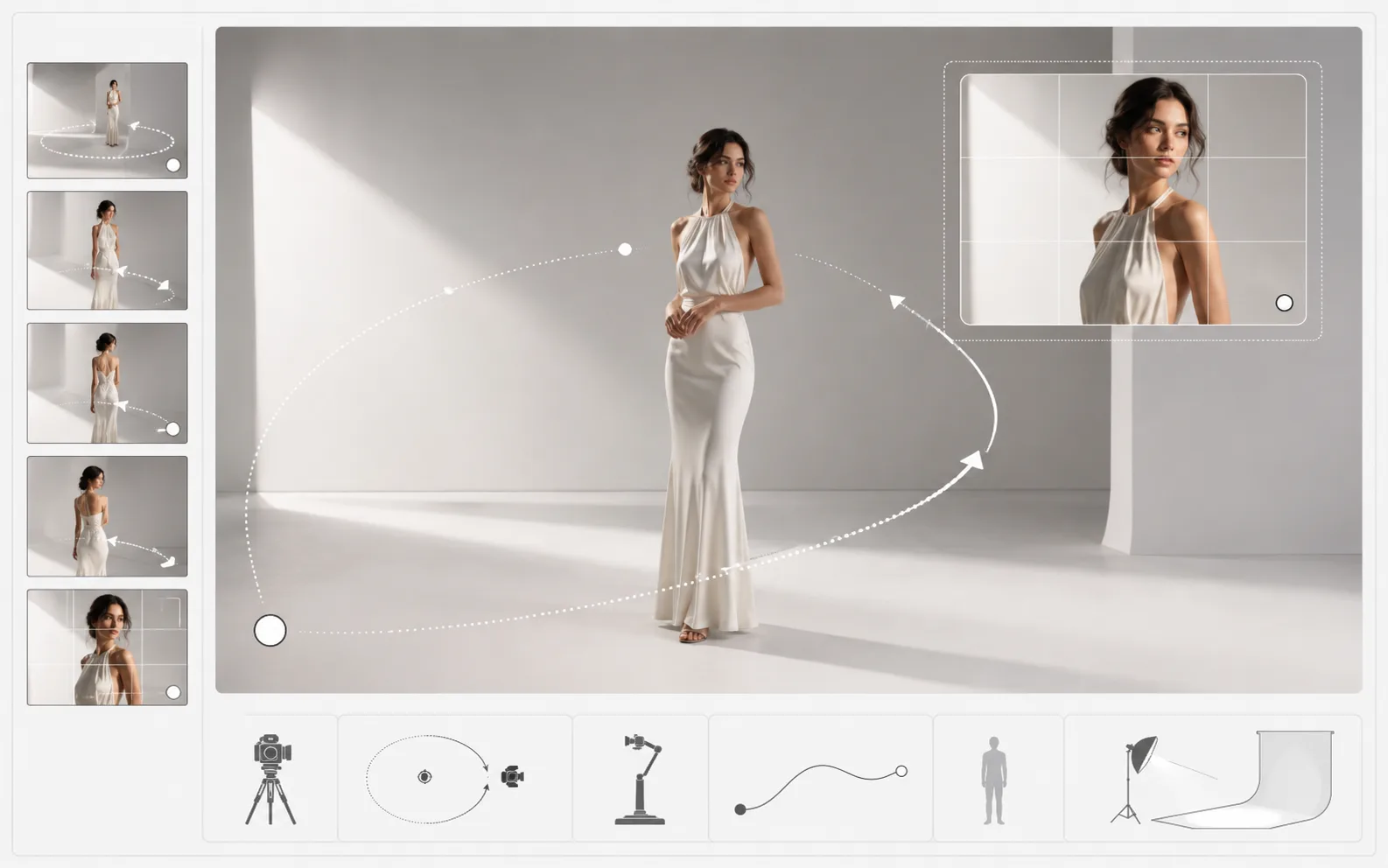
Veo 3.1 is strongest when the prompt connects motion and subject behavior: push in as the object turns, follow as the person crosses frame, or hold still while the environment changes.

Generated audio can carry ambience, effects, or speech, but it needs direction. Name the sound source and mood instead of adding a vague request for cinematic audio.
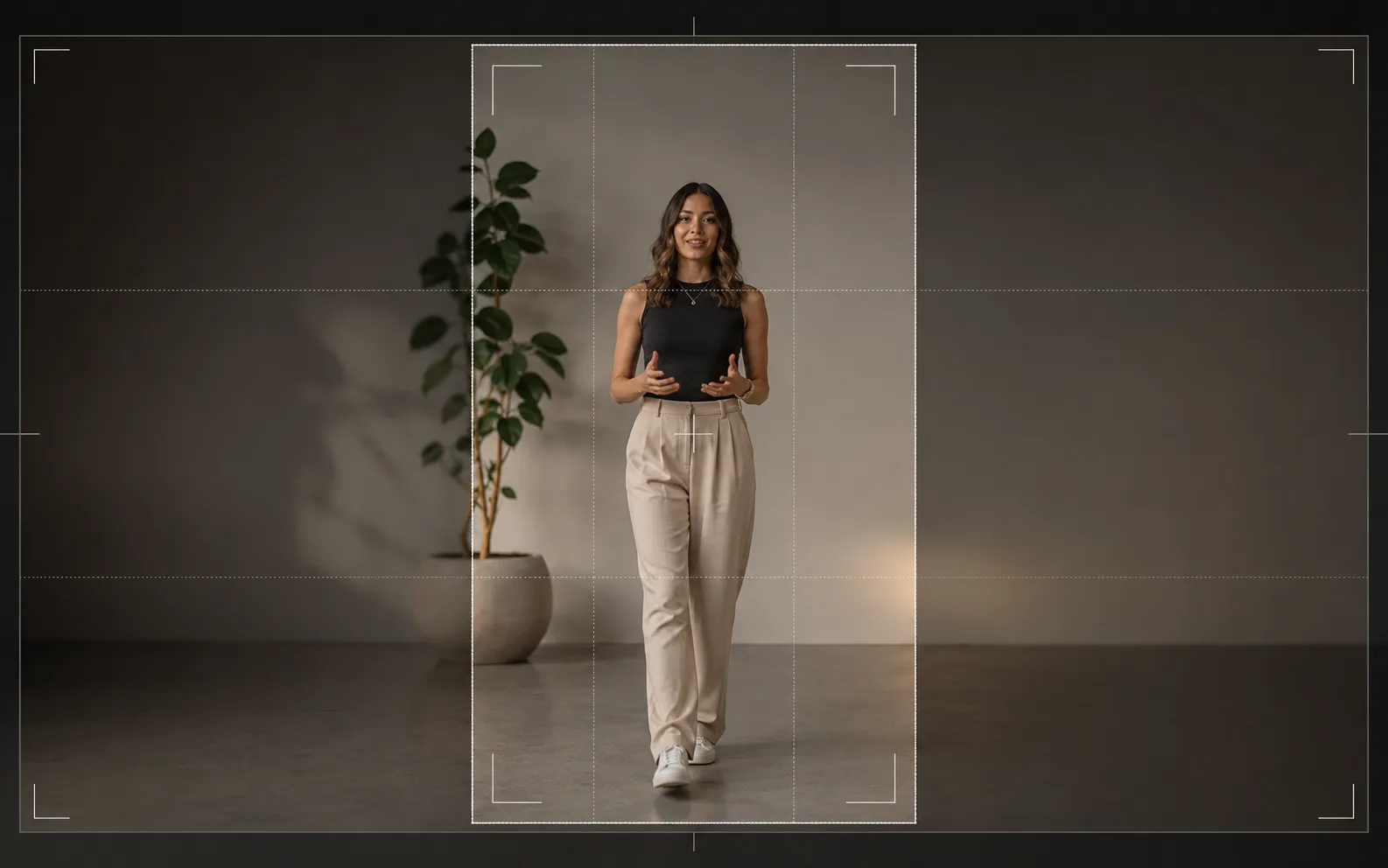
Choose 16:9 for wide scenes and 9:16 for short-form clips. Put the destination format in the prompt so the subject, motion, and negative space stay useful after generation.
Check format, duration, resolution, audio, and credits before you generate, so the prompt matches the clip you want to make.
Avoid asking for several camera moves, scene changes, and character beats in one short clip. A clear one-shot prompt is easier to inspect and refine.
For ads, explainers, and social clips, describe where the video should land: product centered, character paused, skyline revealed, or logo-safe empty space.
When the seed control is available, keep it steady while adjusting wording if you want to compare prompt changes without completely changing the shot direction.
If audio is enabled, review whether ambience, effects, and timing support the clip. Regenerate when the sound fights the visual action or distracts from the subject.
Vertical video needs more headroom and centered action. Wide video can carry more environment, but the prompt still needs to say where the viewer should look.
Check body motion, object edges, reflections, camera shake, and scene continuity before spending time on captions, voiceover, or downstream editing.
Use Veo 3.1 when the clip needs realism, camera control, audio-aware direction, and a format that matches where the video will be used.
Veo 3.1 is a strong fit for cinematic clips where prompt adherence, natural motion, audio direction, and believable scene detail all matter.
Describe whether the camera should push in, follow, pan, hold, or reveal. A specific camera task is easier to judge than a broad cinematic mood.
Choose ratio, duration, resolution, audio, and supported seed control before the prompt gets long, especially for vertical ads or wide cinematic scenes.
Check subject consistency, camera continuity, physics, audio timing, and the ending frame before moving the clip into captions or downstream edits.
Veo 3.1 in Ezier
Write the camera move, action, sound, timing, and delivery format in one prompt. Then check the model, settings, and credits before generating.
Practical answers for Veo 3.1 prompts, aspect ratio, duration, resolution, audio, seed, credits, and model choice in Ezier.
Write the video brief in the prompt box, choose a Veo 3.1 model from Select Model, open the settings chip for ratio, duration, resolution, audio, and supported seed control, check credits, then generate the clip.
Name the subject, action, camera movement, duration, sound intent, and final format. For example, write whether the camera should push in, follow, pan, hold, or reveal the scene.
Check aspect ratio, duration, resolution, audio, and credits. Use 16:9 for wide cinematic shots, 9:16 for vertical clips, and 4s, 6s, or 8s depending on how much action the clip needs.
The Veo 3.1 options in Ezier include audio-capable generation. Use audio when ambience, effects, dialogue, or scene timing matter, and review the sound after generation before publishing.
Use 4 seconds for one quick action or a simple product reveal. Use 8 seconds when the shot needs a beginning, camera move, and stable ending frame.
Use uploads when the selected Veo option shows an attach control. When no attach control is shown, write the visual direction directly into the prompt.
Look at subject consistency, camera continuity, physics, hands or object edges, audio timing, and whether the ending frame supports the next edit or publication format.
Choose Veo 3.1 when cinematic realism, prompt adherence, audio direction, and Google video generation are central to the job. Choose nearby models when their speed, style, or storytelling controls fit better.
Next up
Try a nearby video model, open video tools, or prepare a stronger source image.

AI models
Compare models
Choose a better fit before you generate.

AI video tools
Turn images into motion
Animate a still or create a clip.

AI image tools
Create or edit images
Make, clean up, or upscale stills.
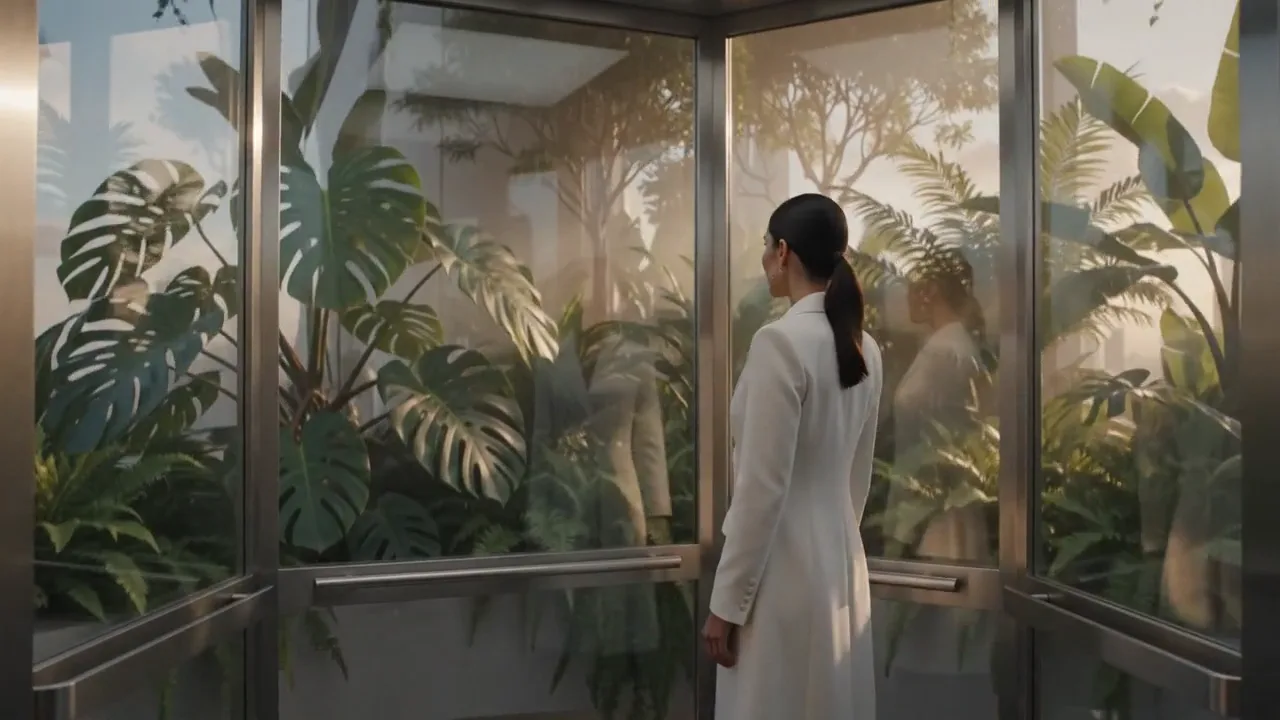
Veo AI
Veo family
Explore more Google Veo options.
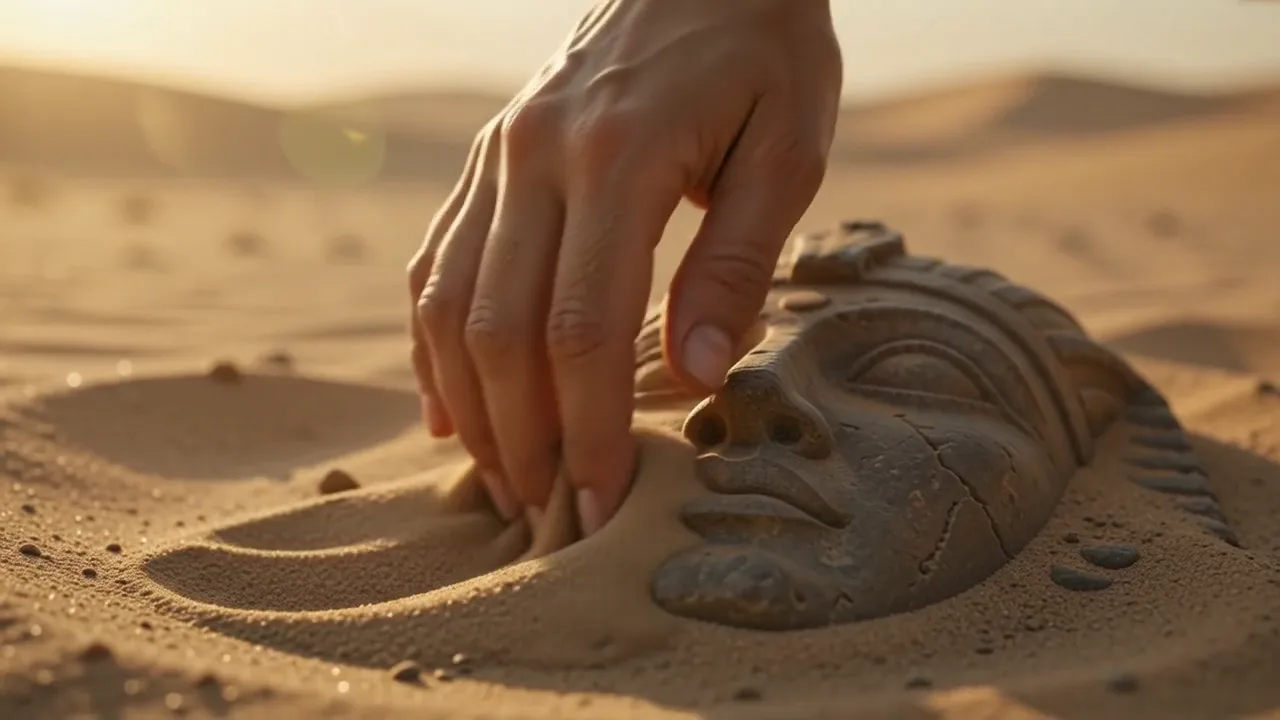
Kling 3.0
Action and motion
Use for action, motion, and story beats.
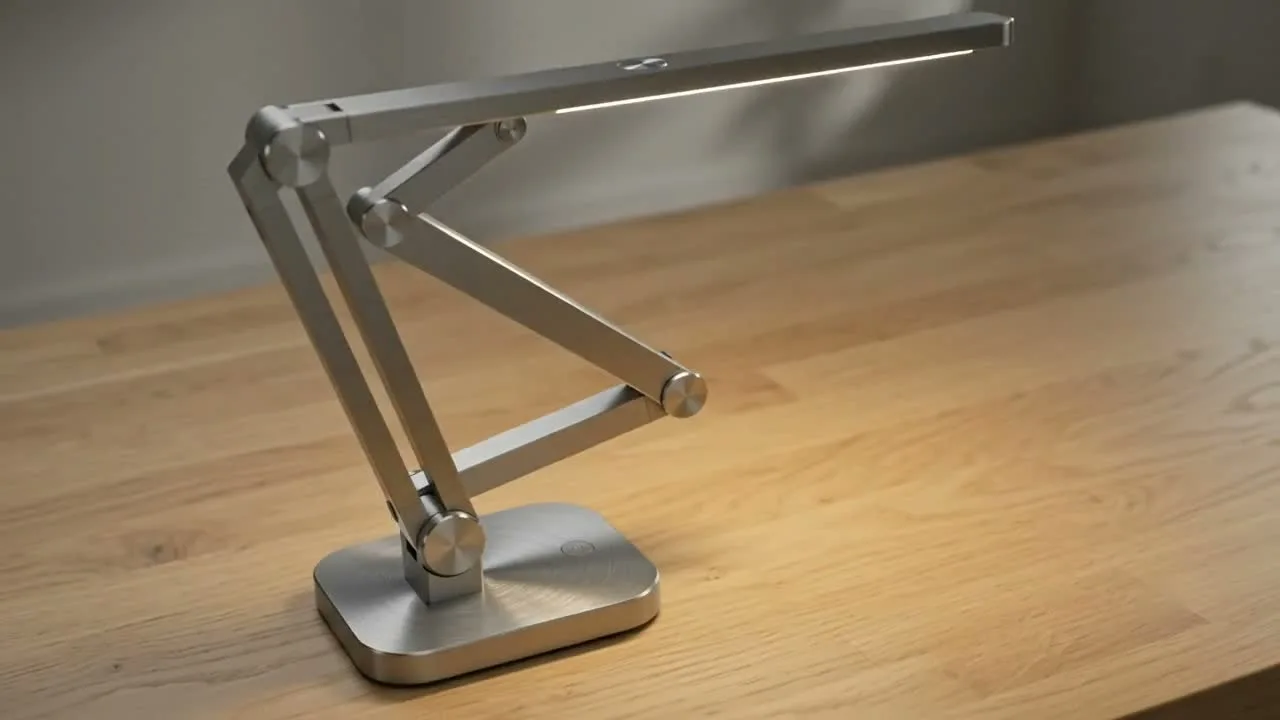
Seedance 2
Reference-led video
Use for fast motion drafts from references.
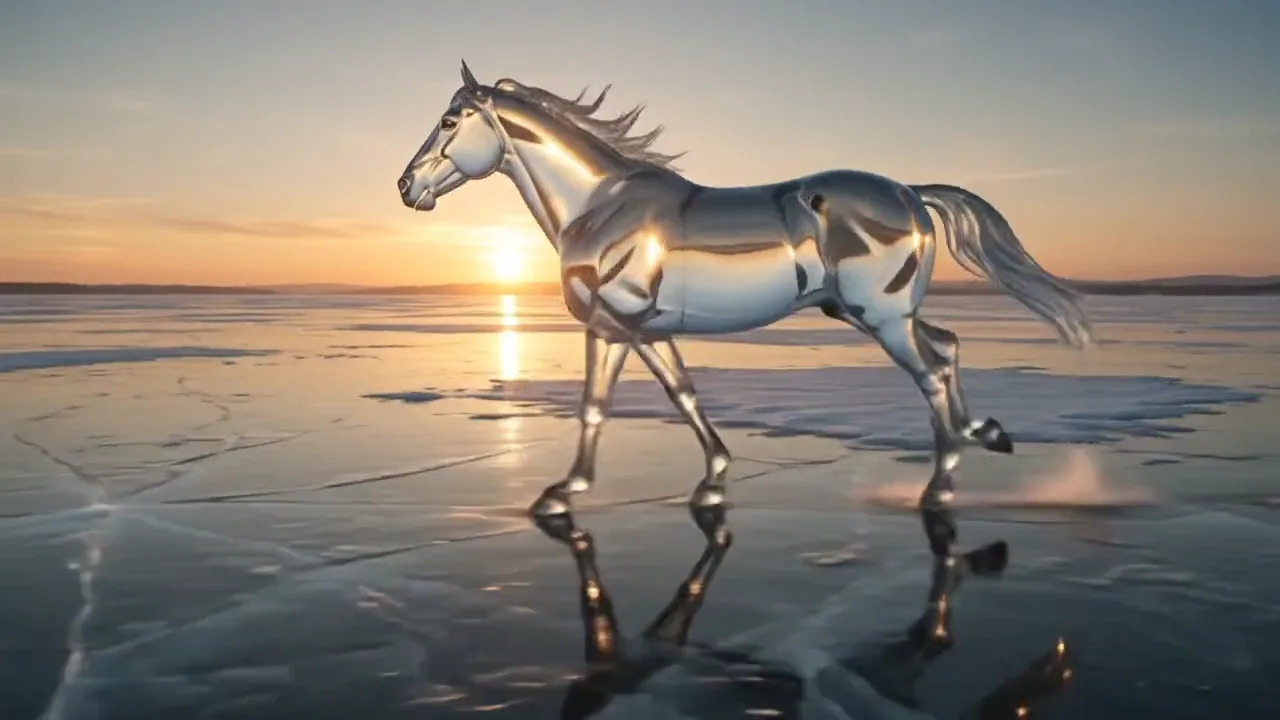
Hailuo AI
Physical motion
Use for fabric, liquid, and physical motion.
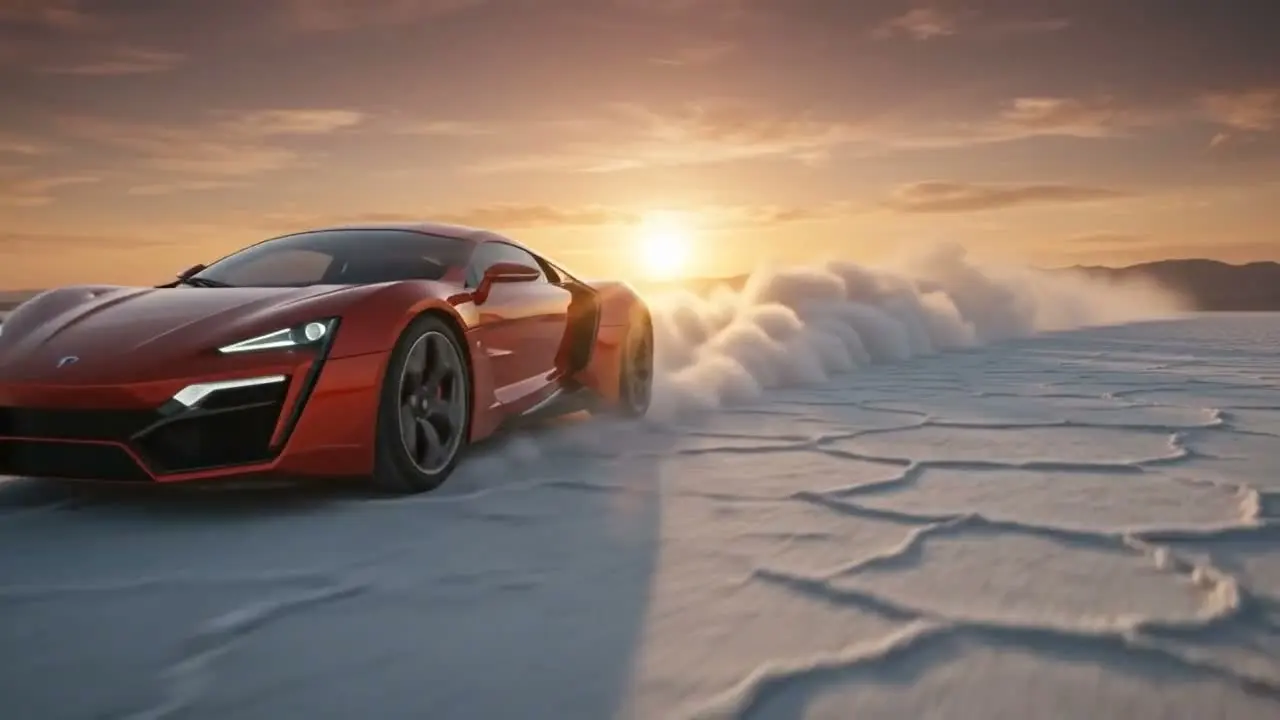
HappyHorse AI
Short video hooks
Use for short hooks and stylized clips.
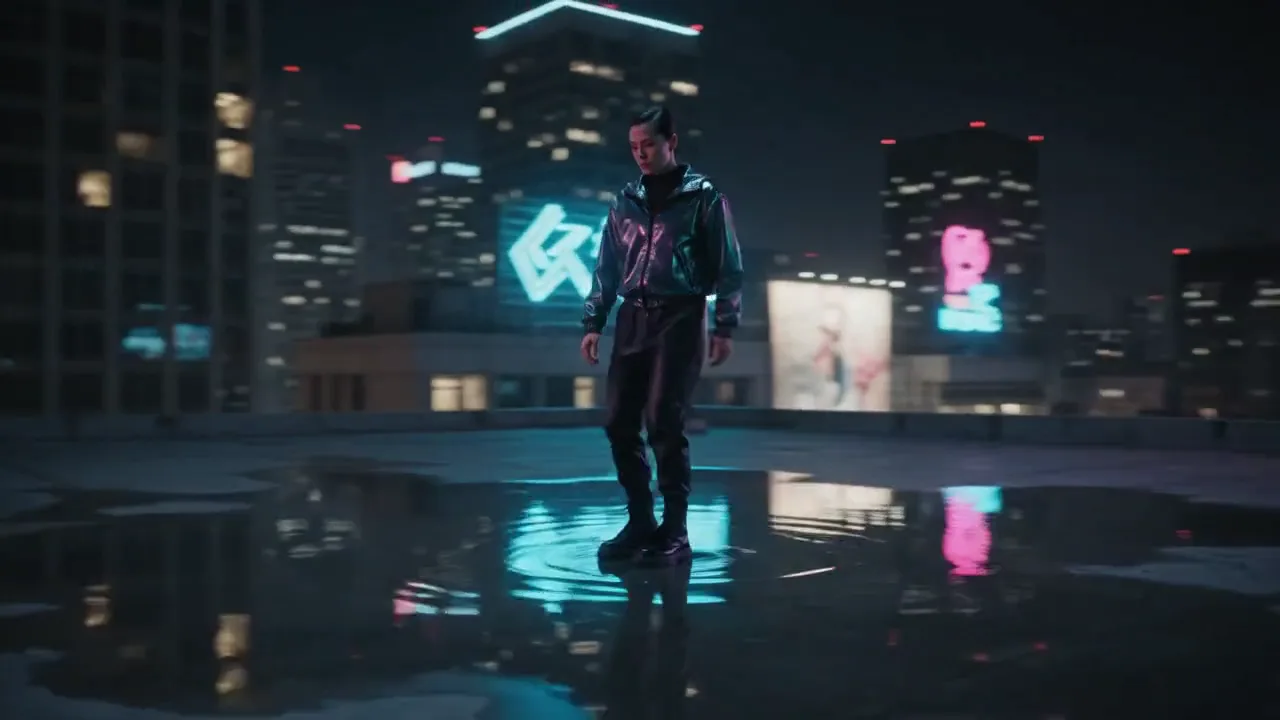
Seedance AI
Seedance family
Explore more Seedance video options.
AI models
Compare models
Choose a better fit before you generate.
AI video tools
Turn images into motion
Animate a still or create a clip.
AI image tools
Create or edit images
Make, clean up, or upscale stills.
Veo AI
Veo family
Explore more Google Veo options.