
Kling 3.0 is a motion-first choice
Use Kling 3.0 when the result depends on action, pacing, and short cinematic sequences rather than still-image editing.
Use Kling 3.0 on Ezier to draft action clips, creature reveals, and short cinematic scenes. Write a prompt, check settings and credits, then generate a clip you can review.
Use Kling 3.0 when a video idea needs a clear action arc: setup, movement, reveal, camera timing, and a final frame that proves the sequence worked.
Create a 6-second cinematic video in 16:9. A striking female assassin in a black glasslike coat walks through a hallway made of broken mirrors. Each mirror reflection shows her one second ahead in a different pose. The camera tracks backward smoothly, reflections snap into sync, shards float in slow motion, then the hallway folds into a single bright doorway. Keep her face and outfit stable, add sharp glass chimes and a low bass pulse, end on a clean hero frame.
Use Kling 3.0 for the first draft, then anchor the prompt around the action, story beat, or reveal you want to test.
Describe the starting frame, subject, movement path, camera move, scene change, sound cue, and final hold. Keep the first draft compact enough to judge.
Use upload when the control appears. If you are prompting only, describe the subject shape, costume, object details, lighting, motion path, and ending frame directly.
Use the Generate credit estimate before submitting. After generation, review continuity, camera pacing, subject stability, audio fit, and whether the ending frame is reusable.
Treat the prompt like a short director's note: define the subject, the movement path, the camera's job, the sound cue when it matters, and the frame where the clip should land.

Kling 3.0 is most useful when the viewer needs to understand how an action travels from start to finish. Name the path, timing, and the details that must stay stable.
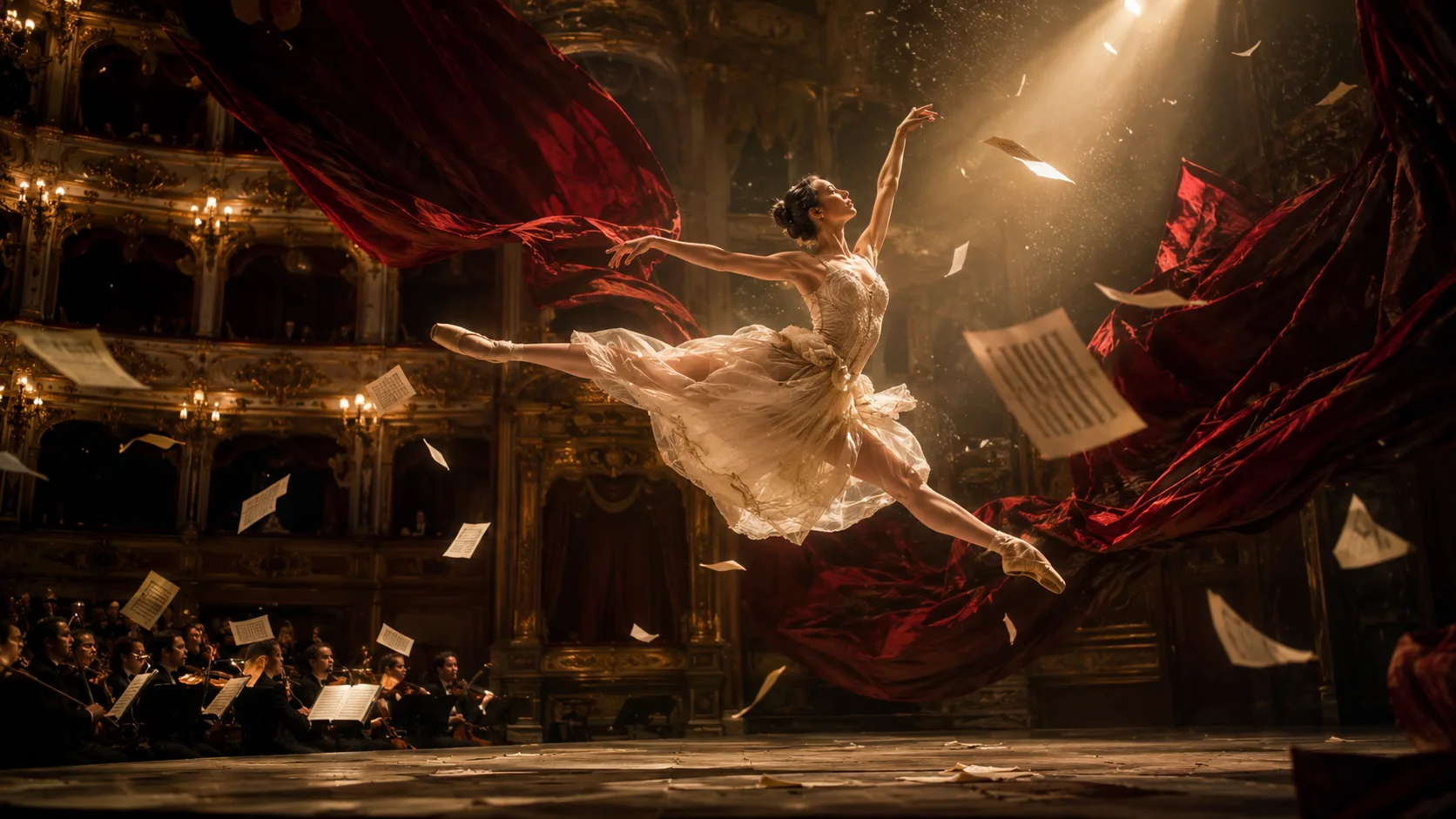
For multi-shot ideas, write one compact sequence rather than a full script. The result is easier to compare when the setup, transition, and ending are obvious.

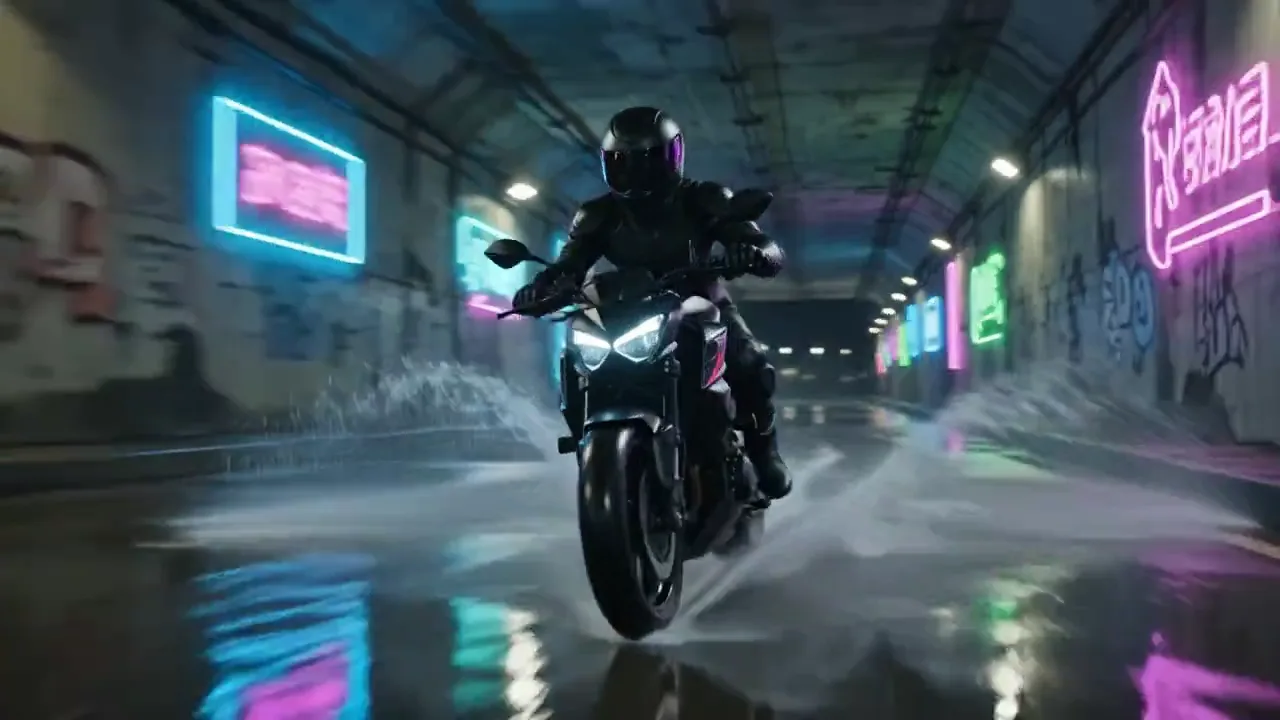
Because the Kling 3.0 setup is audio-capable in Ezier, sound should support the scene: a rumble, breath, tire spray, crowd swell, or beat change that helps the motion read.
Before generating, confirm the choices you can act on: Kling 3.0, the prompt box, upload availability, settings, credit estimate, and Generate.
Before judging texture or color, confirm the subject moves through the scene in a way the viewer can follow.
If the person, object, or creature changes shape between beats, tighten the next prompt around silhouette, costume, color, and distinctive details.
A camera move should clarify the action. If it distracts from the motion, simplify the track, pan, push-in, or reveal.
The final frame should work as a thumbnail, edit handoff, or next prompt reference. Ask for a clean hold when the ending matters.
Use the first result to decide what to tighten next: action continuity, scene rhythm, audio direction, subject stability, or the final frame.
Use Kling 3.0 when the result depends on action, pacing, and short cinematic sequences rather than still-image editing.
Write the subject, action path, camera job, sound cue, and ending frame so the model has concrete motion to follow.
Ezier lists Kling 3.0 as audio-capable and shows 6 credits per generation. Treat the settings chip and Generate estimate as the source of truth before each run.
Review generated clips for action continuity, character or object stability, scene rhythm, camera intent, audio fit, and a usable final frame before polishing style.
Kling 3.0 in Ezier
Start with a sharp subject, one movement goal, and a camera plan. Check the visible setup and credits, then review continuity, pacing, sound fit, and the ending frame.
Practical answers for Kling 3.0 prompts, action continuity, audio-aware direction, visible controls, credits, and result review in Ezier.
Write a compact video brief in the prompt box, use Kling 3.0 for the draft, add supported inputs when upload is available, check visible settings and credits, then generate.
Name the subject, starting frame, action path, camera move, scene change, sound cue when relevant, and final frame. A clear action board is easier to judge than a broad cinematic mood prompt.
Yes. Use Kling 3.0 when the draft needs readable motion, action continuity, scene pacing, or a short multi-shot feeling. Review whether the sequence stays coherent before refining style.
Ezier marks Kling 3.0 as audio-capable. Write sound intent in the prompt when it helps the scene, then confirm the visible setup and credit estimate before generating.
Use upload when the Kling 3.0 setup supports it. If the setup is prompt-only, describe the subject shape, costume, object details, environment, and motion path in the prompt.
Check whether the action is readable, the subject remains stable, the camera supports the movement, any audio direction fits, and the final frame can be reused for the next pass.
Use a different tool when the job mainly needs still-image editing, text rendering, or a model-specific control that Kling 3.0 does not provide in Ezier.
Related paths
Use another model for a different motion style, edit the clip, or improve the source asset.

AI models
Compare models
Choose a better fit before you generate.

AI video tools
Turn images into motion
Animate a still or create a clip.

AI image tools
Create or edit images
Make, clean up, or upscale stills.
Kling AI
Kling family
Explore more Kling video options.
Veo 3.1
Cinematic control
Use for cinematic shots and camera moves.

Hailuo AI
Physical motion
Use for fabric, liquid, and physical motion.
Seedance 2
Reference-led video
Use for fast motion drafts from references.

HappyHorse AI
Short video hooks
Use for short hooks and stylized clips.
Veo AI
Veo family
Explore more Google Veo options.
AI models
Compare models
Choose a better fit before you generate.
AI video tools
Turn images into motion
Animate a still or create a clip.
AI image tools
Create or edit images
Make, clean up, or upscale stills.
Kling AI
Kling family
Explore more Kling video options.