
Upload Image *
Old Photo Restoration for Faded and Damaged Pictures
Upload an old photo, choose the available repair options, and reduce scratches, fading, blur, and lost clarity while keeping the original composition recognizable.
Old photo restoration examples
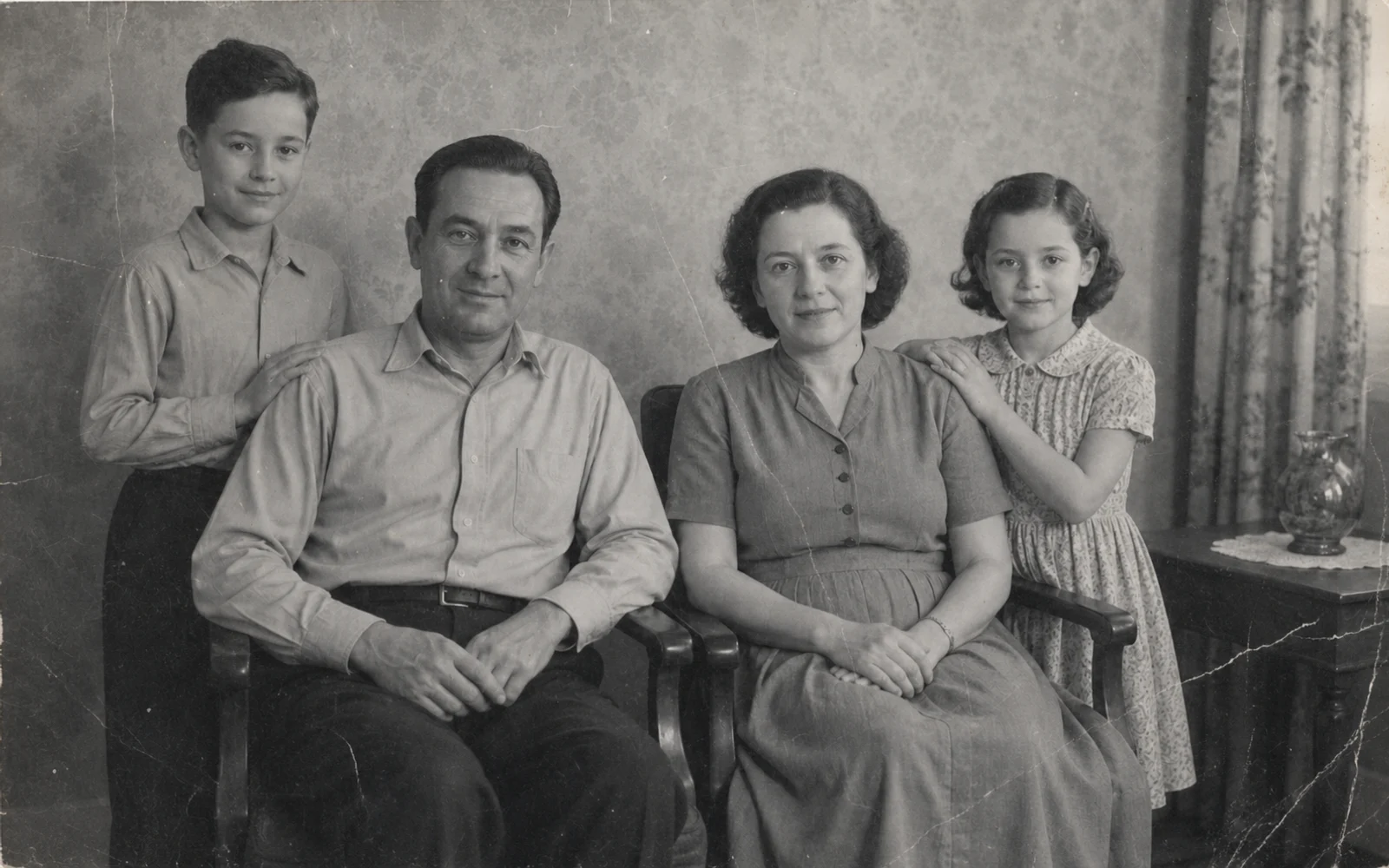
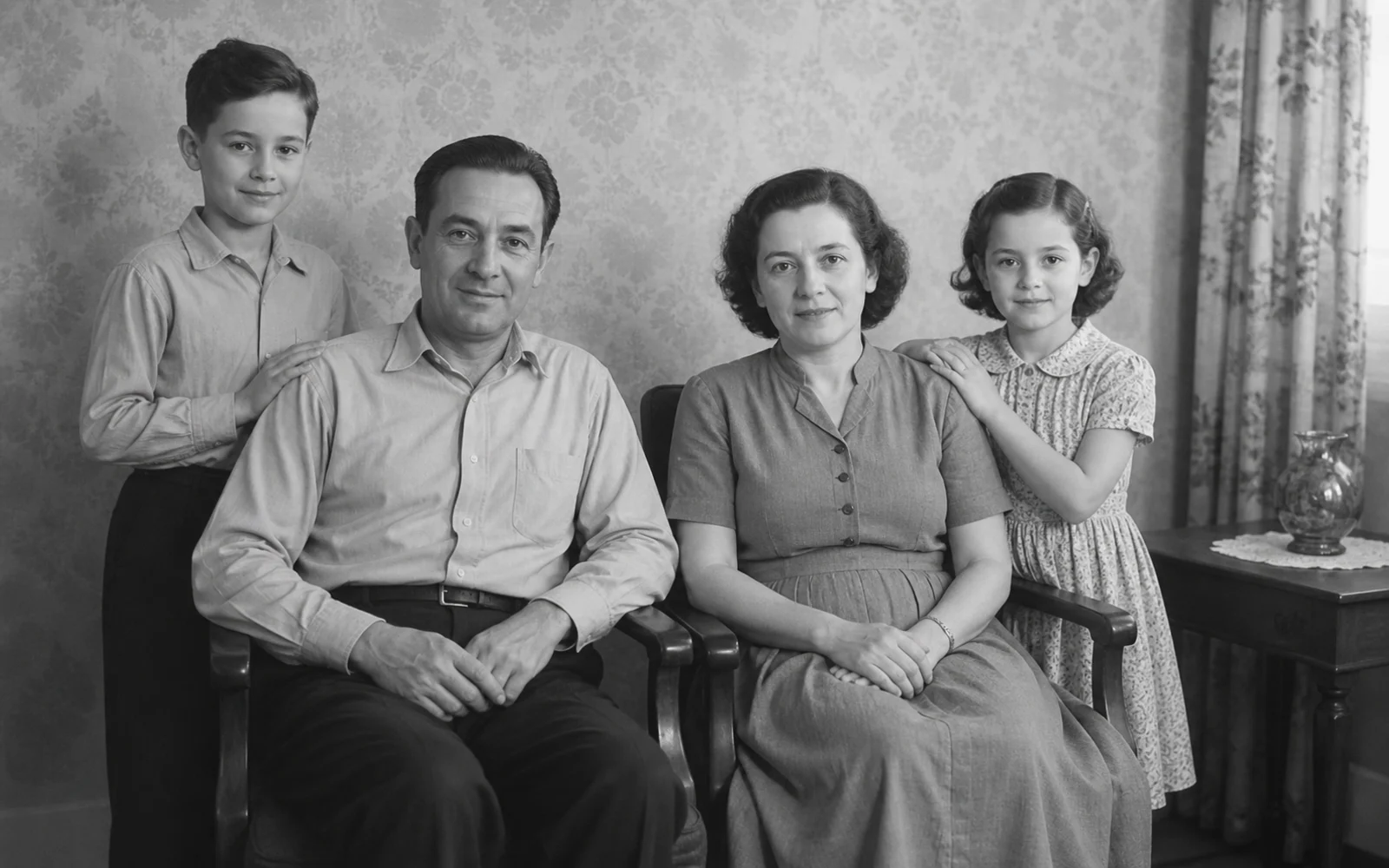
How to restore an old photo online
Start with the clearest scan you have, choose only the repairs the photo needs, and inspect the result before saving it.
- 01
Upload the clearest copy available
Use a high-quality scan or an evenly lit camera copy. Keep the original file unchanged so you always have an archival reference.
- 02
Choose the repairs the photo needs
Use the available switches for scratches, filters or color casts, blur, and quality enhancement instead of applying every change automatically.
- 03
Restore the old photo
Select Restore Old Photo and let the tool process the visible wear, tone, and clarity in one result.
- 04
Compare before downloading
Drag across the preview and inspect faces, hands, clothing, signs, and background geometry before saving the restored image.
Repair the damage that makes old photos hard to use
Different prints age in different ways. Select the repair options exposed by the tool, then compare faces, edges, color, and background detail.
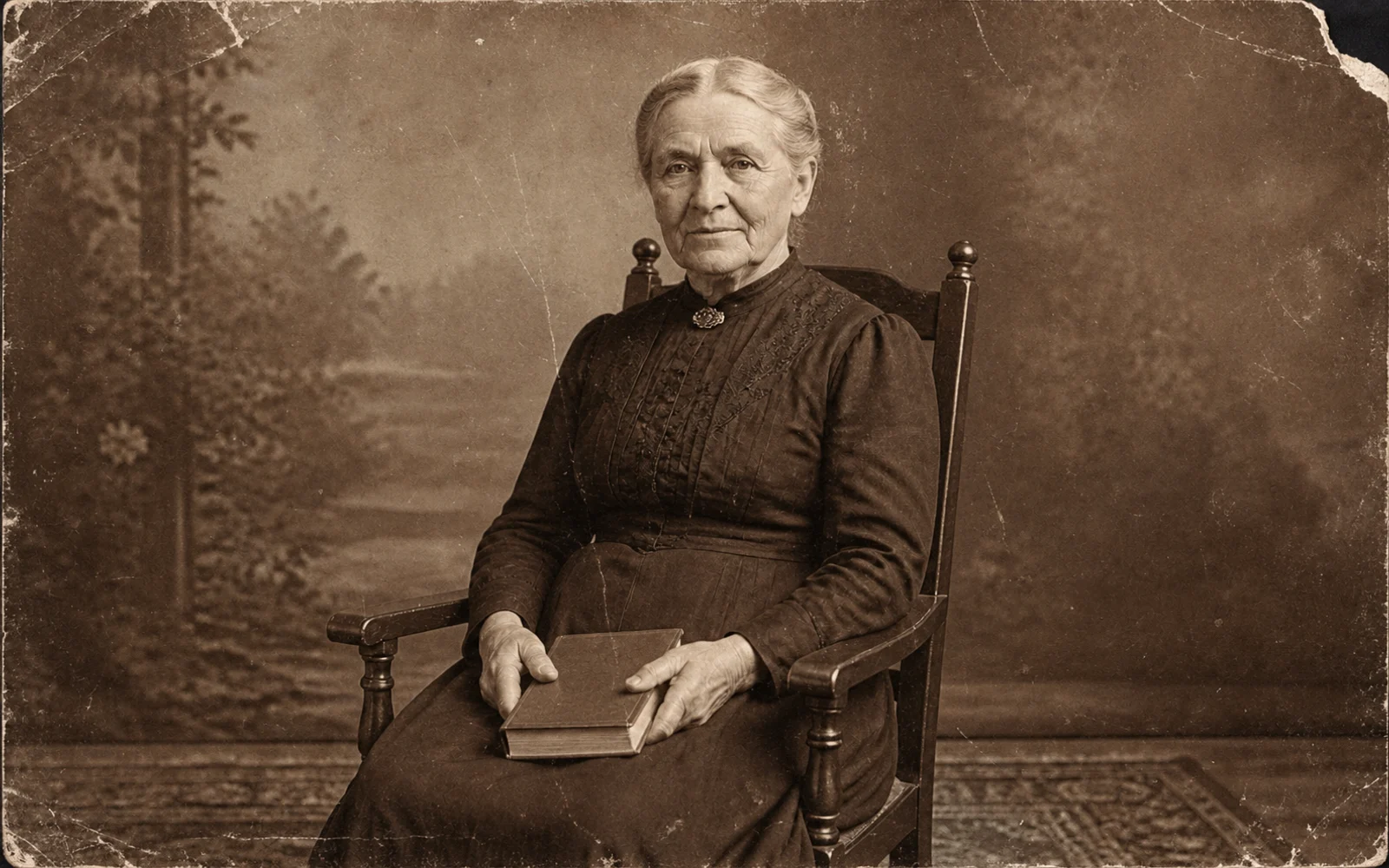
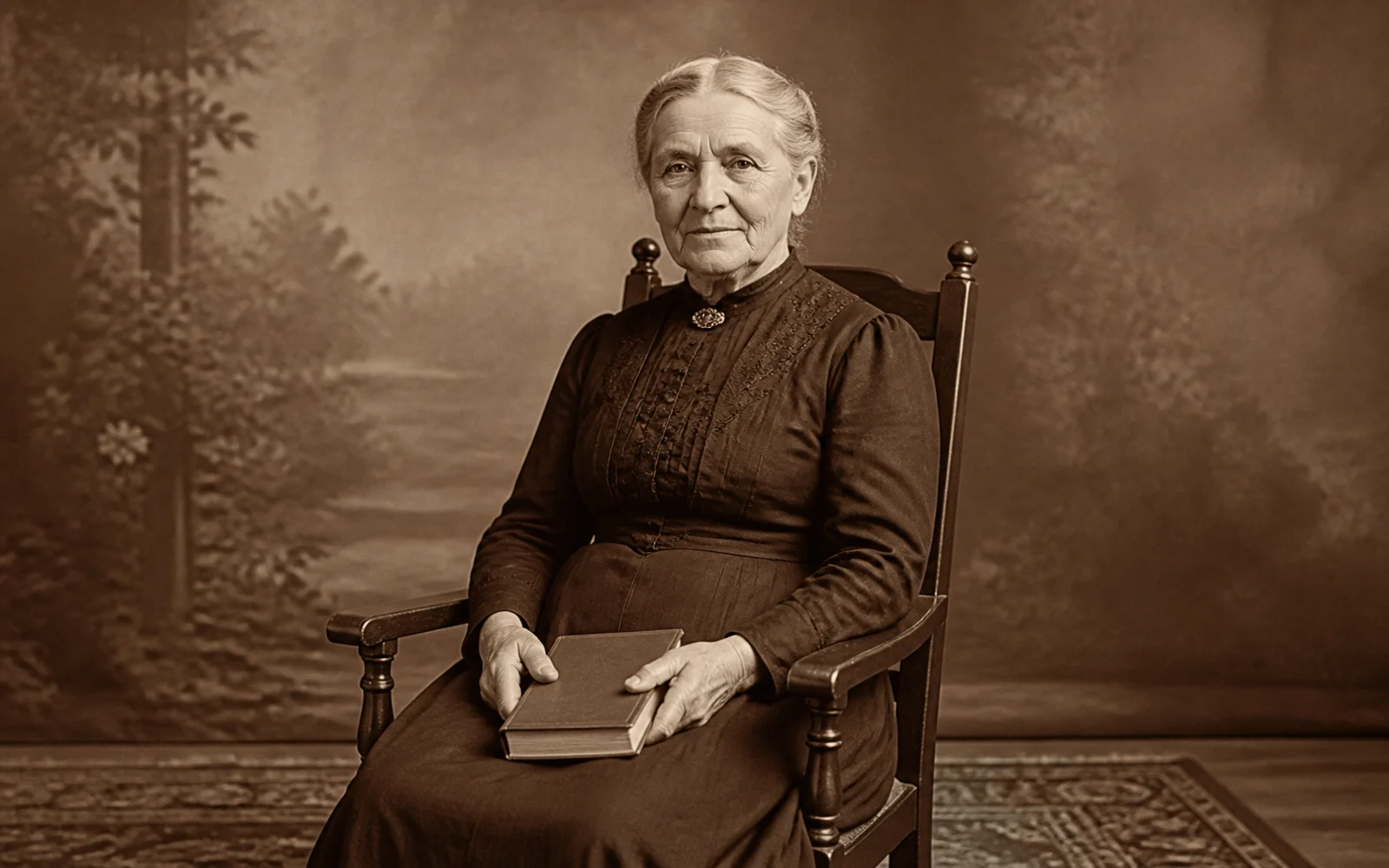
Reduce scratches, creases, and worn edges
Clean visible surface damage from portrait prints while keeping the subject, pose, clothing, and original framing familiar.
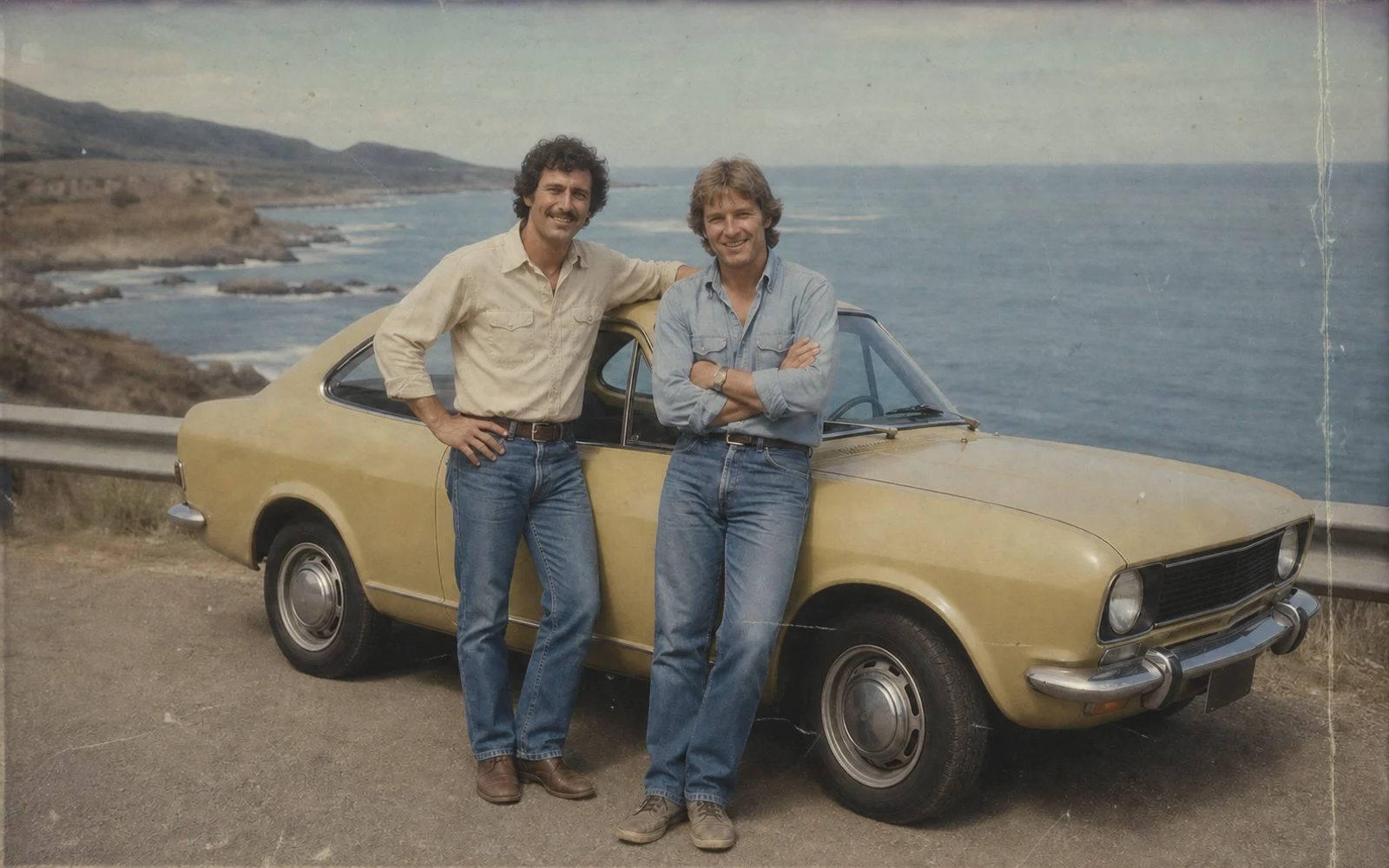
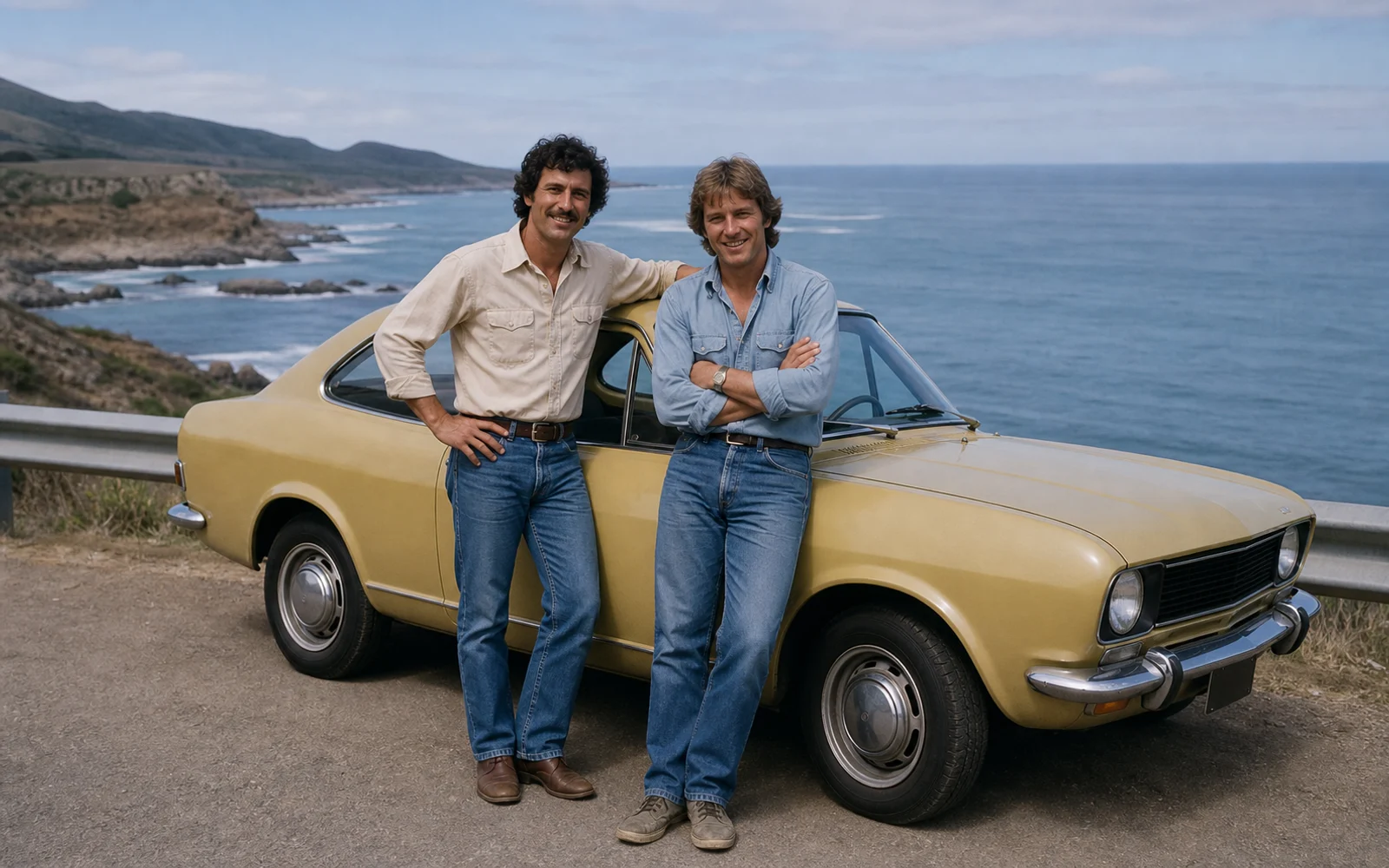
Recover faded color and contrast
Reduce aged color casts and flat contrast in older snapshots so skin, clothing, vehicles, and scenery are easier to distinguish.
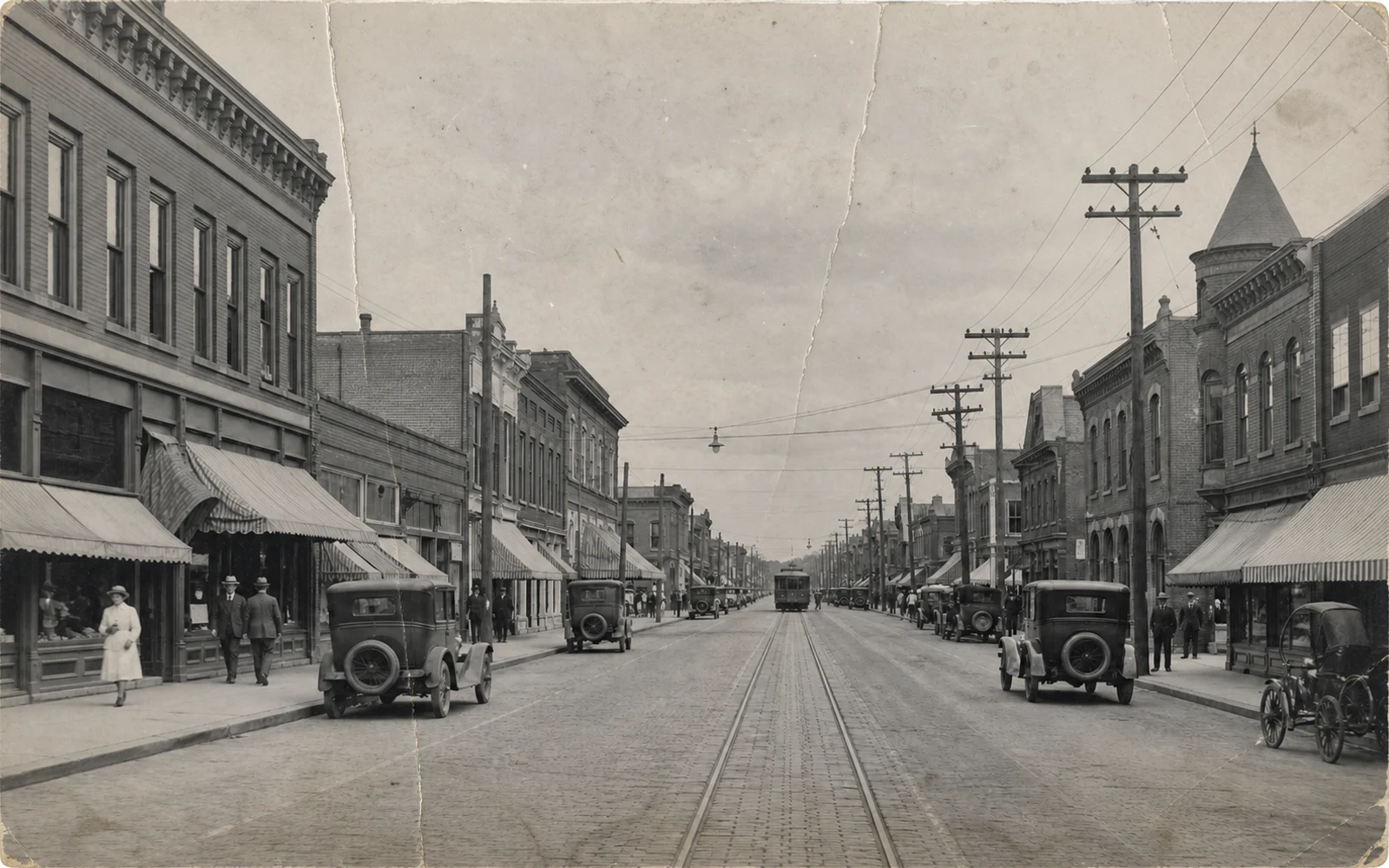
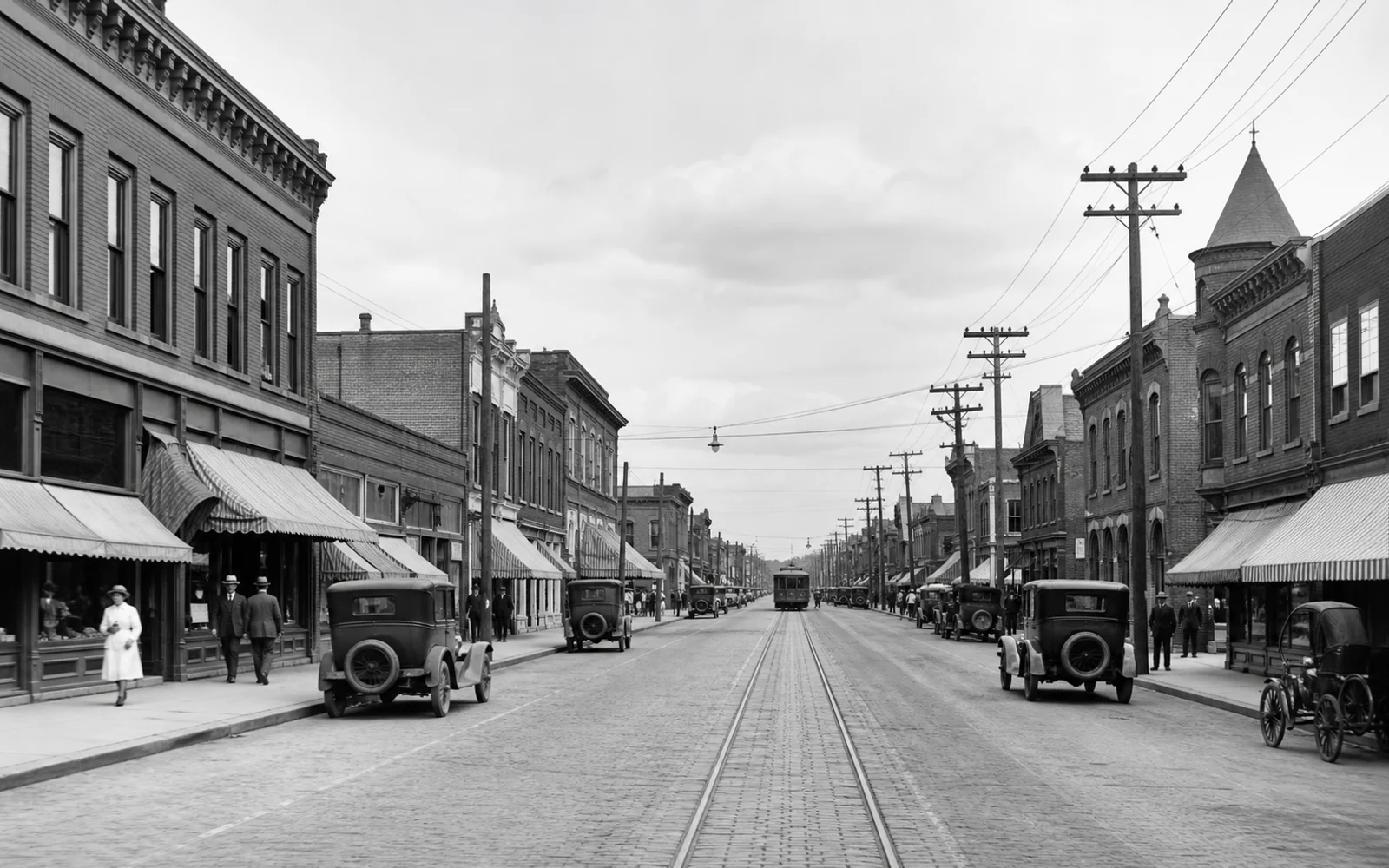
Clarify soft scans and background detail
Improve legibility in low-contrast scans without turning historic masonry, vehicles, or fine edges into an over-sharpened reconstruction.
Get a more believable restoration
A careful source scan and a close review matter as much as the selected repairs, especially for faces and historically important details.
Scan before you restore
Use the highest practical scan resolution, clean the scanner glass, and keep the print flat. A clear source gives the restoration more real detail to work from.
Select only the needed repairs
If the photo is sharp but scratched, leave blur correction off. Focused settings reduce the chance of smoothing details that were already intact.
Review faces and historical details
AI may interpret information hidden by severe damage. Compare facial features, handwriting, uniforms, buildings, and objects against the original before sharing the result as a record.
Use a focused follow-up tool when needed
For a clean photo that only needs more pixels, continue with Image Upscaler . If missed focus is the main issue, try Unblur Image instead.
Preserve the photo, not the damage
Make a faded family photo easier to view, share, or print.
Upload one image, select the repairs it needs, and compare the restored result with the original scan before you download.
Old Photo Restoration FAQ
Practical answers about damaged prints, black-and-white photos, facial detail, and realistic restoration limits.
What can old photo restoration repair?
It can reduce visible scratches, creases, dust, fading, color casts, blur, scan noise, and weak contrast. Results depend on the condition and resolution of the uploaded photo.
Will old photo restoration change a person's face?
The tool is intended to keep the person and composition recognizable, but severe damage may require AI to interpret missing information. Compare eyes, mouth, hairline, hands, and other identity details with the original scan.
Can I restore a black-and-white photo without colorizing it?
Yes. Restoration and colorization are different tasks. A black-and-white image can remain monochrome while scratches, fading, blur, and contrast are improved.
What is the best way to scan an old photo?
Scan the flattest, cleanest original at the highest practical resolution, avoid glare and shadows, and save an untouched archival copy before restoration.
Can AI recover details that are completely missing?
It cannot guarantee historically accurate recovery where the source contains no usable information. AI may create a plausible interpretation, so important faces, text, clothing, and objects should be checked against other references.
Should I enable every restoration option?
Not necessarily. Choose the repairs that match the visible damage. A sharp black-and-white print may only need scratch removal and quality enhancement, while a faded color scan may also need filter or color-cast reduction.
More to try
Explore your next creative step
Try another image tool, compare image models, or animate an image concept.
AI image tools
More image tools
Create, edit, clean up, or upscale stills.

AI models
Compare image models
Pick a better model before making more versions.
AI video tools
Make it move
Animate a still or turn it into a clip.

Image Enhancer
Improve quality
Recover detail, color, and clarity.

Remove Filter from Photo
Restore natural color
Reduce color casts and heavy filter effects.
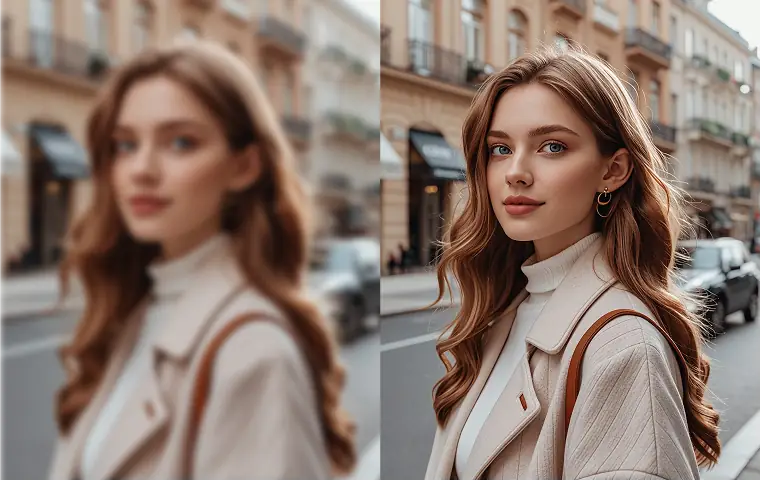
Unblur Image
Fix blur
Recover focus in blurry photos.
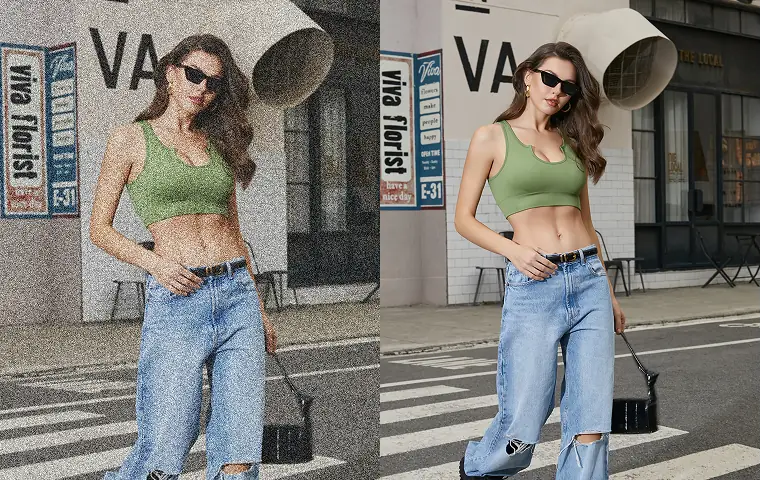
Image Sharpener
Sharpen detail
Make soft edges and small details clearer.

Image Upscaler
Make it larger
Increase size for export or reuse.
AI Image Editor
Prompt-based edits
Change an image without starting over.