
Talking Avatar From a Portrait Photo
Choose an avatar or upload a portrait, write what they should say, select a voice and video size, then create a speaking video.
Create
Portrait to talking video
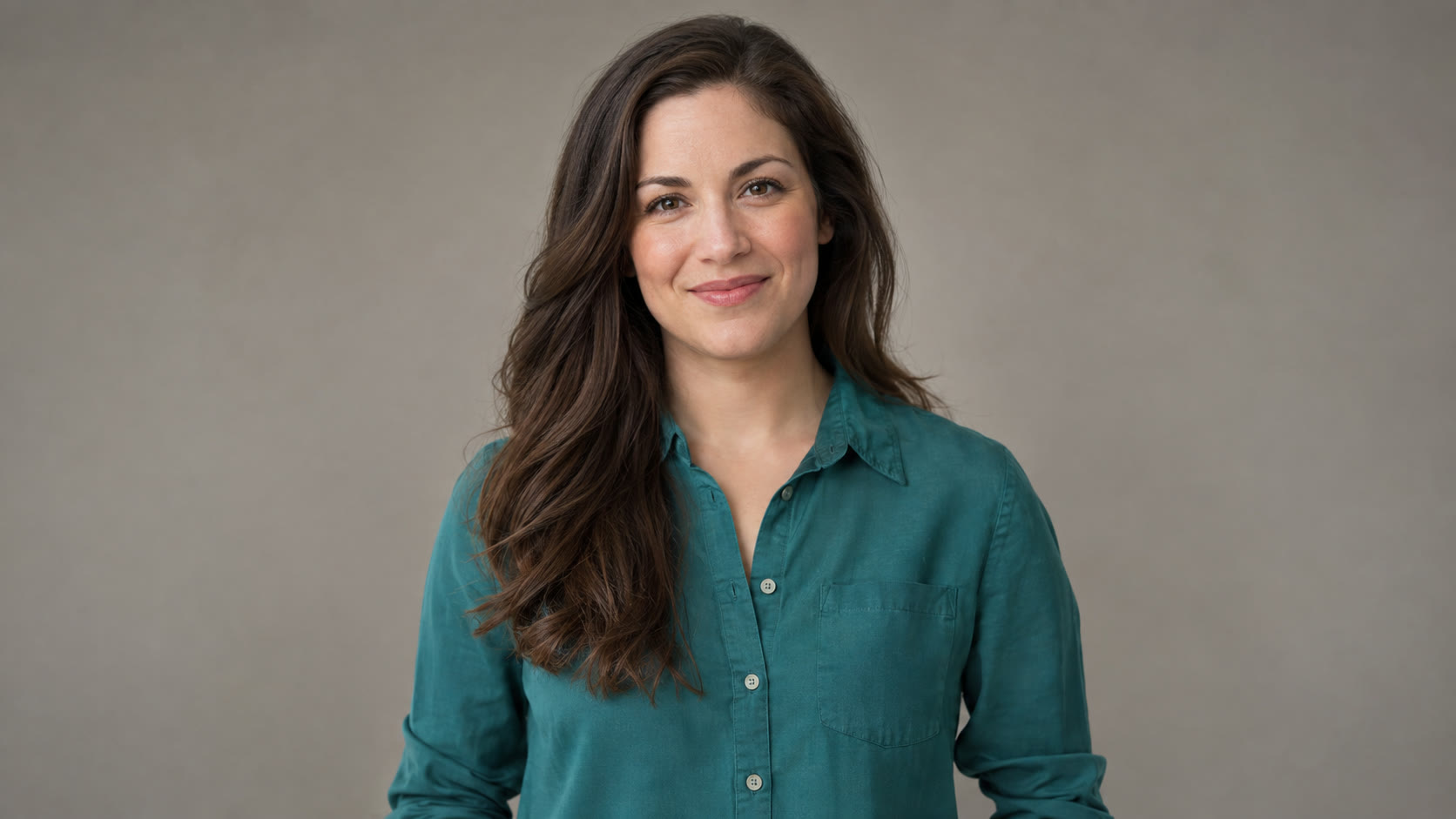
Turn on sound to hear the speaking video.
How to make a talking avatar in Ezier
Start with an avatar or your own portrait. Add the words, voice, and video size before creating your speaking clip.
- 01
Choose an avatar or photo
Pick a presenter, or upload a clear portrait you have permission to use.
- 02
Write the spoken lines
Enter a short script with natural punctuation so the message is easy to follow.
- 03
Set voice and video size
Choose a voice, then select landscape, portrait, or square framing.
- 04
Create and download
Review the speaking video and download the version you want to use.
A presenter for every message
Choose the face, write the lines, and pick the frame that fits where the video will play.
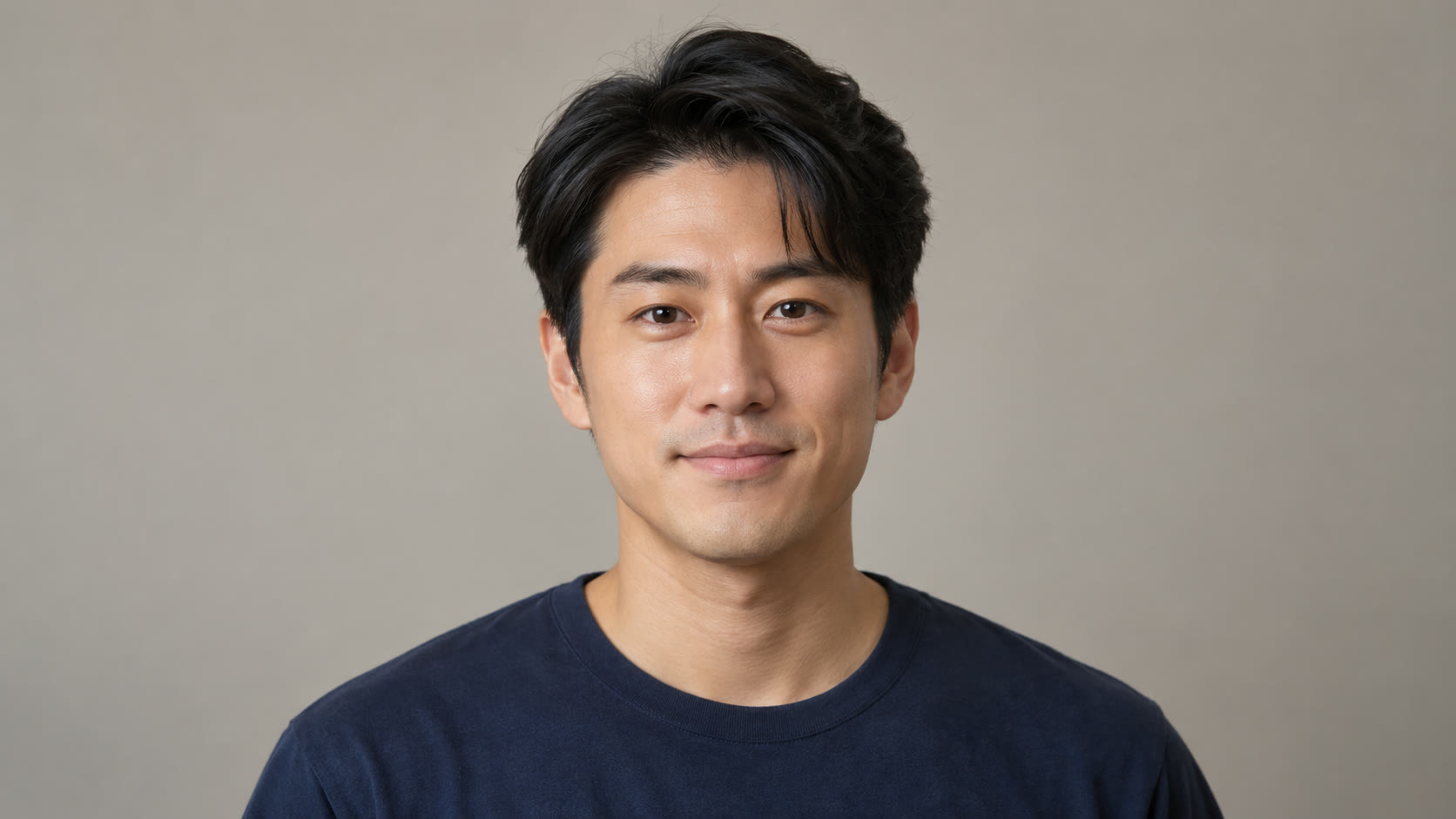
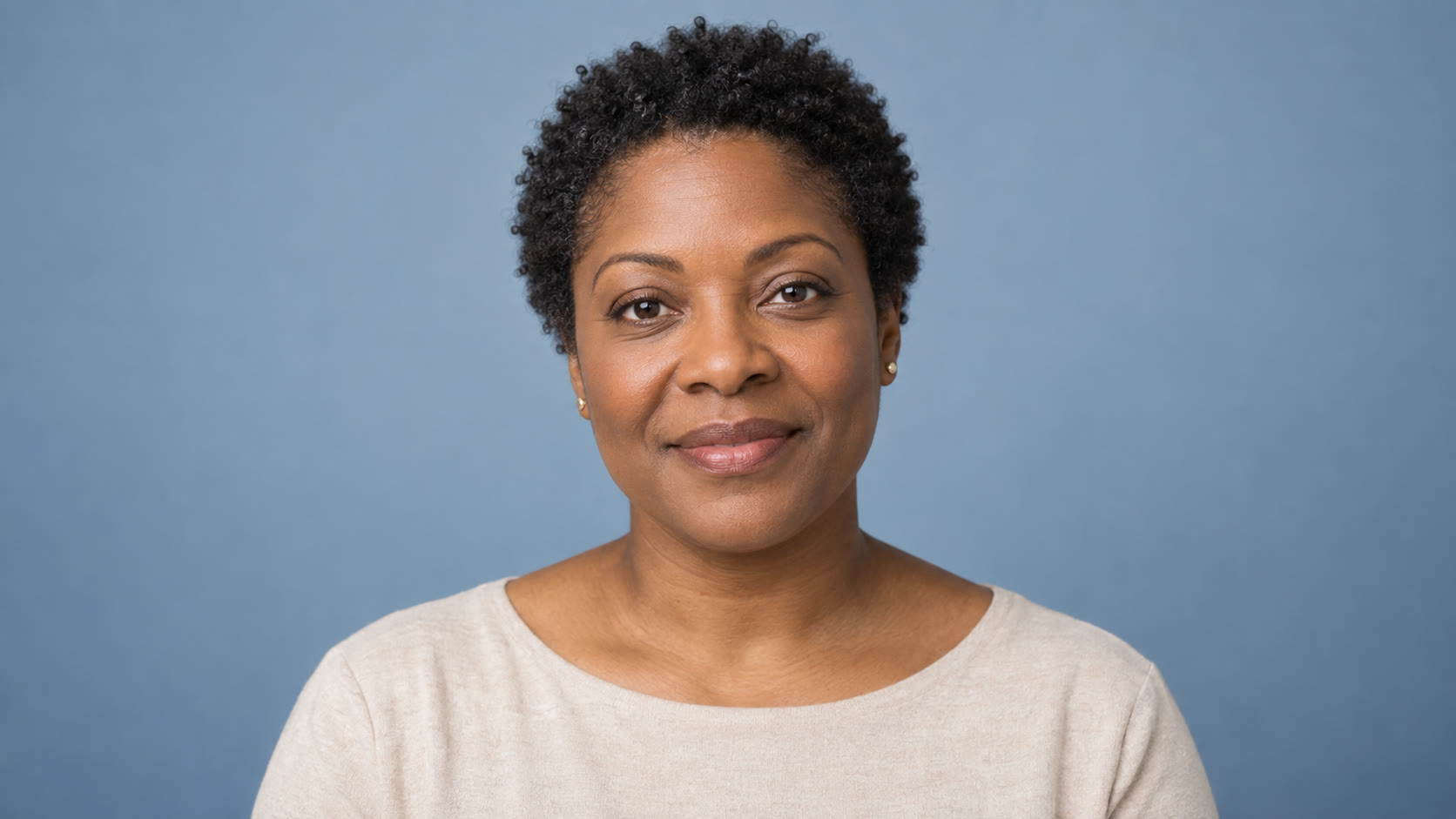
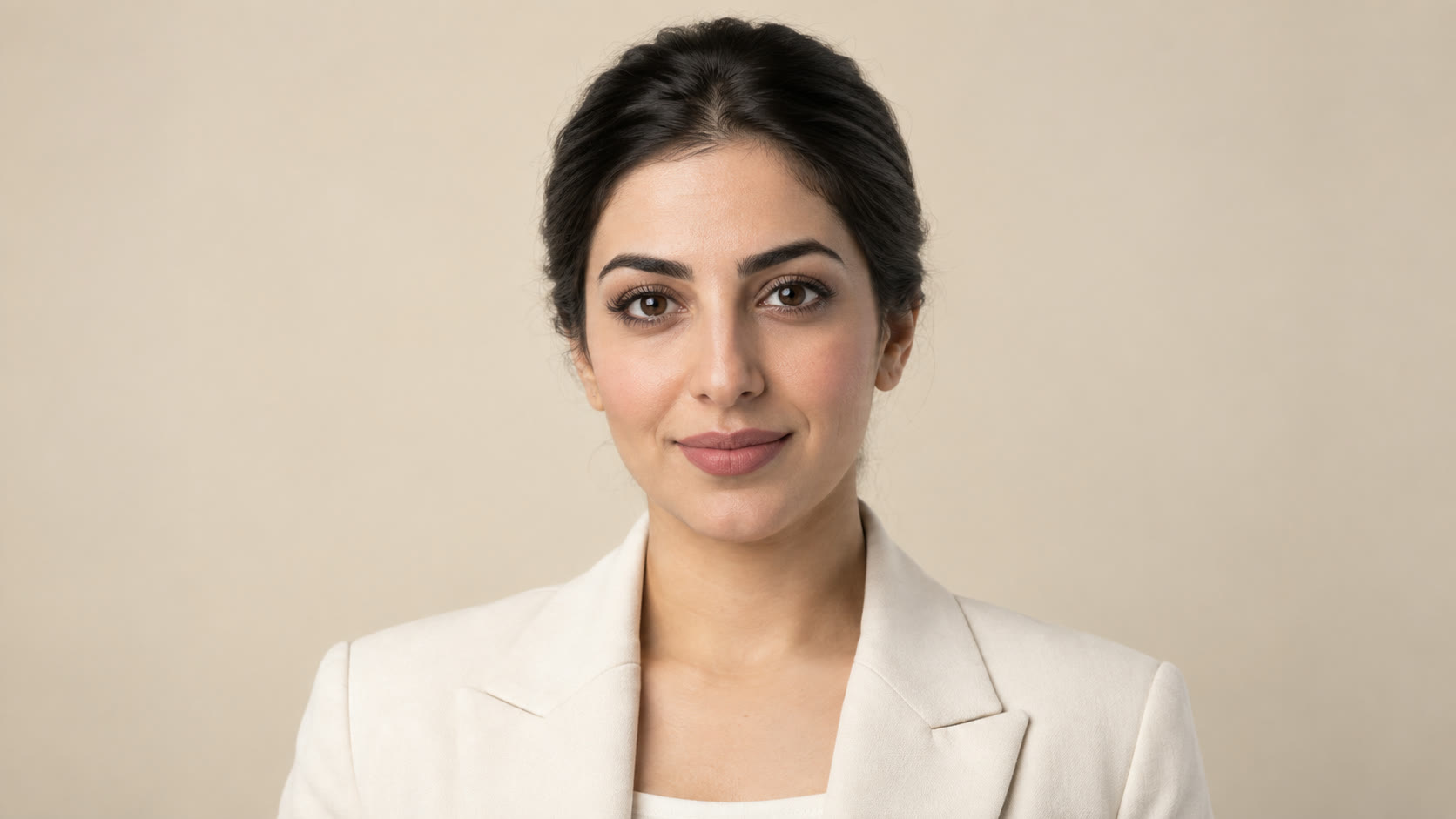
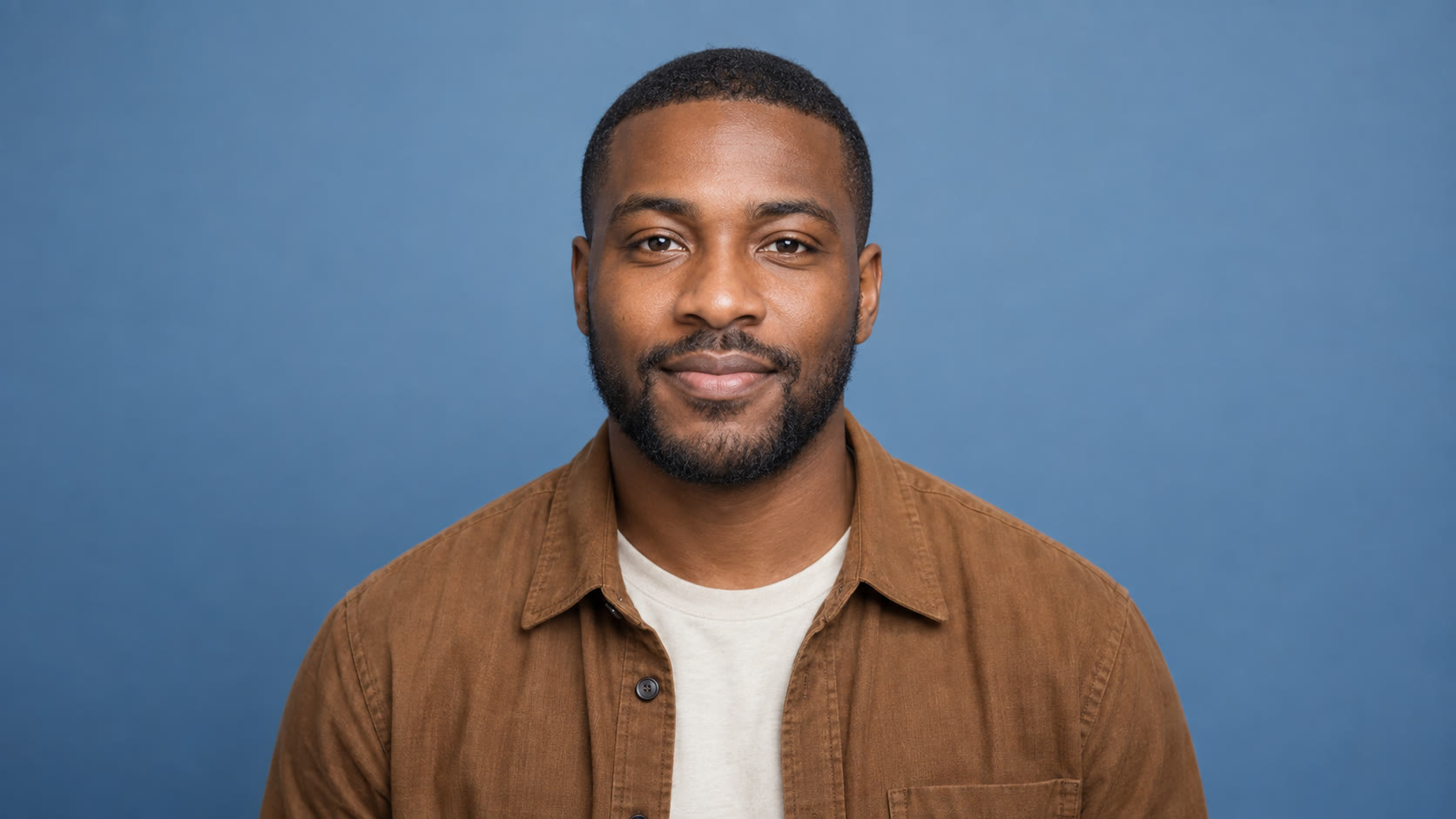
Find a face that fits the story
Choose a camera-ready adult avatar with a look that fits your message. Use your own portrait when the message needs a familiar face.
Make one portrait deliver your words
Start with a still face, add a short script and voice, and create a speaking video that keeps attention on the person.
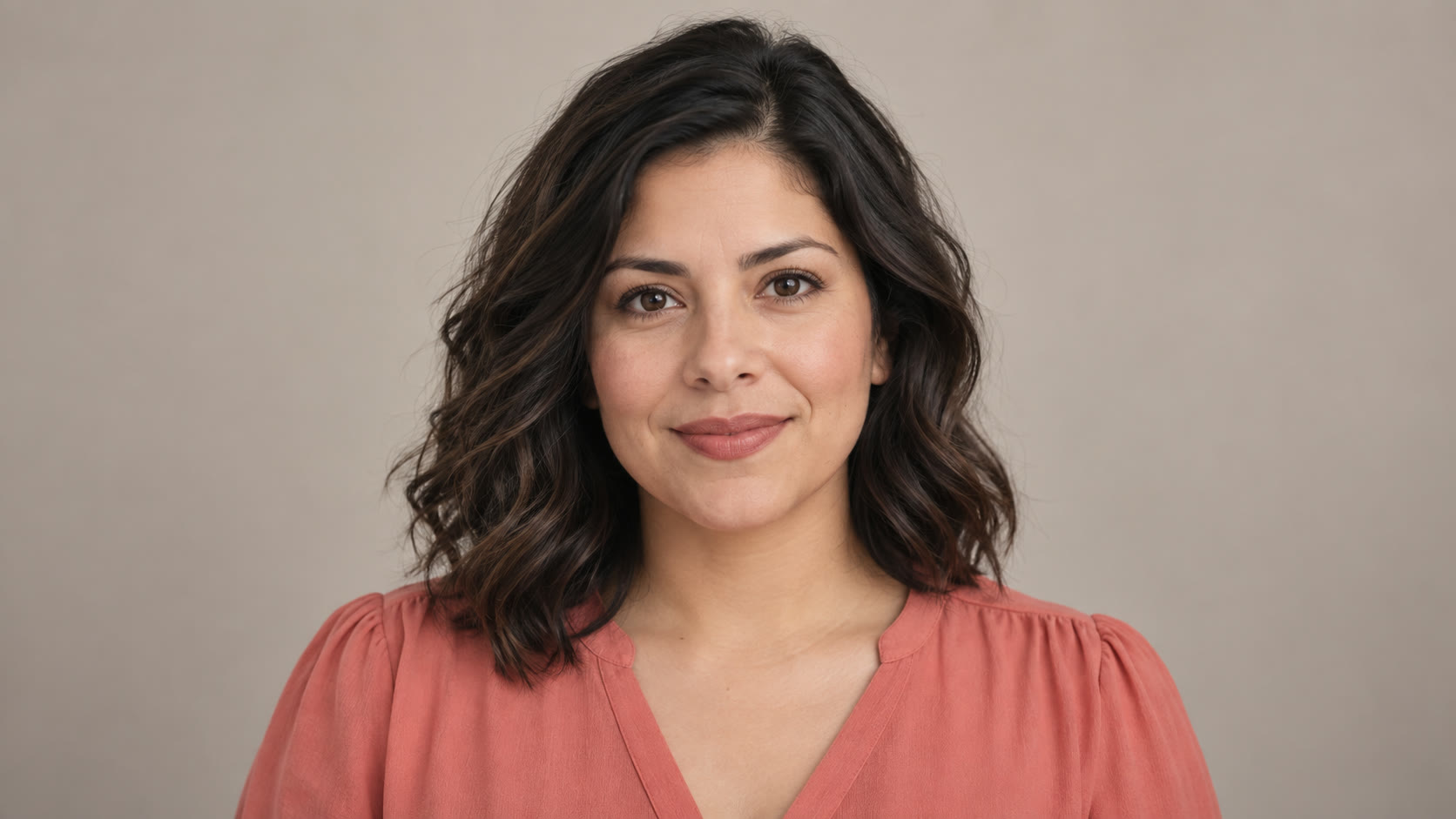
Fit the video to its destination
Choose 16:9 for a wide player, 9:16 for a vertical feed, or 1:1 for a square post before you create the video.
Tips for a clearer talking video
A clear face and a focused line give the video a strong starting point. Set the voice and frame for the way people will watch it.
Keep the face clear
Use a front-facing photo with even light and an unobstructed mouth. Avoid hands, microphones, and heavy shadows over the face.
Keep the script focused
A greeting, one lesson point, or one product message is easier to follow than several ideas packed into the same clip.
Match the voice to the message
Choose a voice that suits the presenter and the tone of the script. Read the lines aloud once before creating the video.
Use portraits with permission
Upload a person’s photo only when you have permission to use it for a speaking video.
Ready to give your portrait a voice?
Create a video from a single face and a short script
Choose an avatar or upload your own photo, then set the speech and video size in the tool above.
Talking Avatar FAQ
Answers about portraits, avatars, video sizes, and related video tools.
What is a talking avatar?
A talking avatar is a speaking video created from a still portrait, written lines, and a selected voice.
Can I use my own photo?
Yes. Upload a PNG, JPG, or WEBP portrait up to 20MB. You must have permission to use the person’s photo to create a speaking video.
Can I choose an avatar instead of uploading a photo?
Yes. Choose an avatar, then add your script and choose a voice and video size.
Which video sizes can I choose?
Choose landscape 16:9, portrait 9:16, or square 1:1.
How is Talking Avatar different from Lip Sync AI?
Talking Avatar starts with a still portrait and creates a new speaking video. Lip Sync AI starts with an existing video and updates its mouth movement to match new speech.
Is this the same as Image to Video?
Image to Video animates a still image with a motion prompt. Talking Avatar focuses on a person delivering a written script with a voice.
Related paths
Refine the clip another way
Try another video step when the next move is a new source, a different model, or a cleaner result.
AI video tools
More video tools
Generate, edit, clean up, or improve clips.

AI models
Compare video models
Pick a better model before rendering again.
AI image tools
Prepare source images
Create a stronger still for the next video run.
AI Video Generator
Start a video
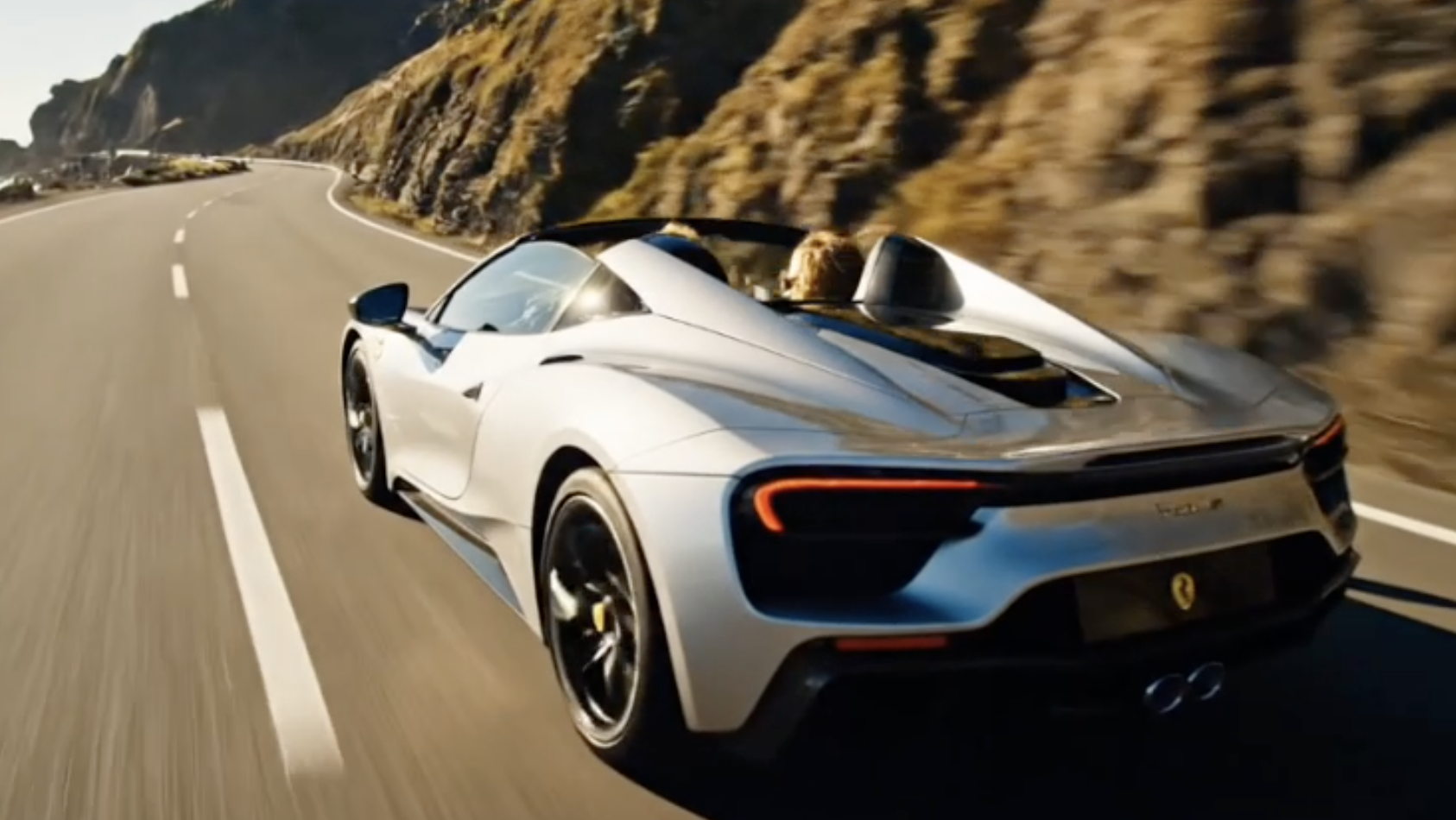
Create a clip from a prompt or image.
Text to Video
Prompt-first video
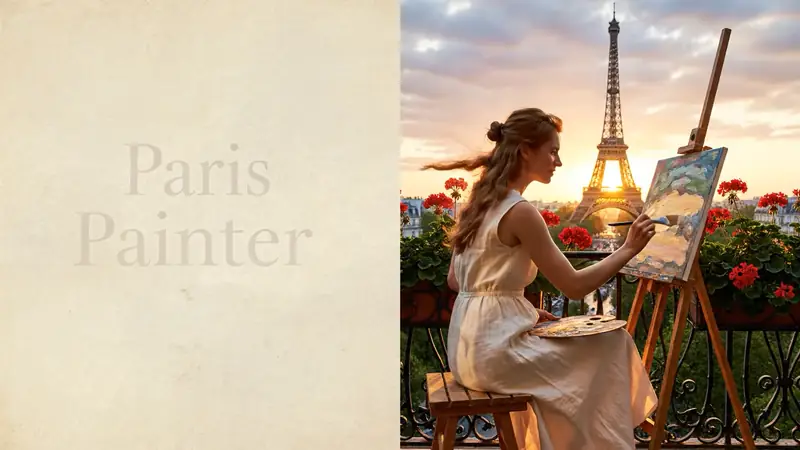
Turn a written scene into motion.
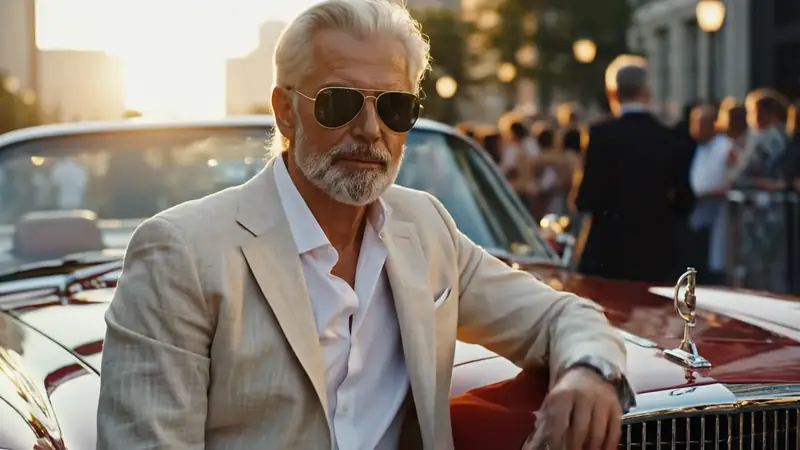
Image to Video
Animate a still
Turn an image into a short clip.
Video to Video
Restyle footage
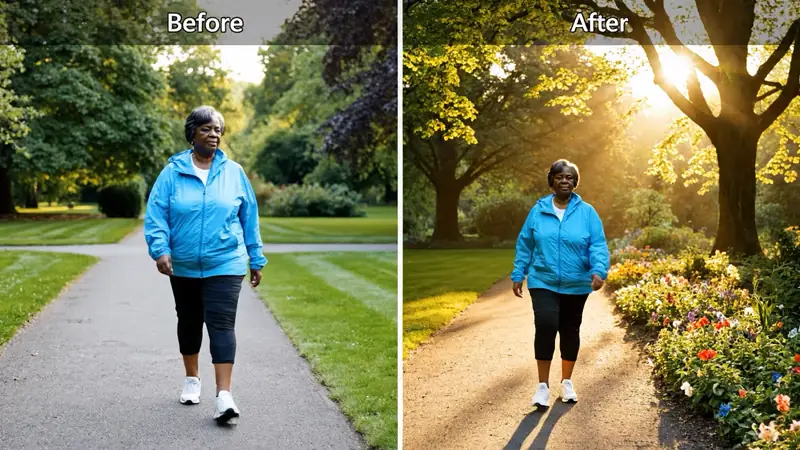
Change the look of an existing clip.
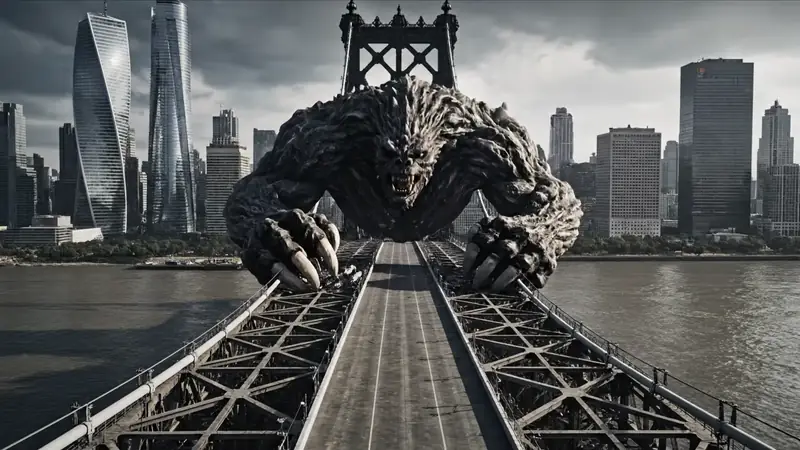
AI Video Extender
Extend a clip
Continue a short video into a longer scene.
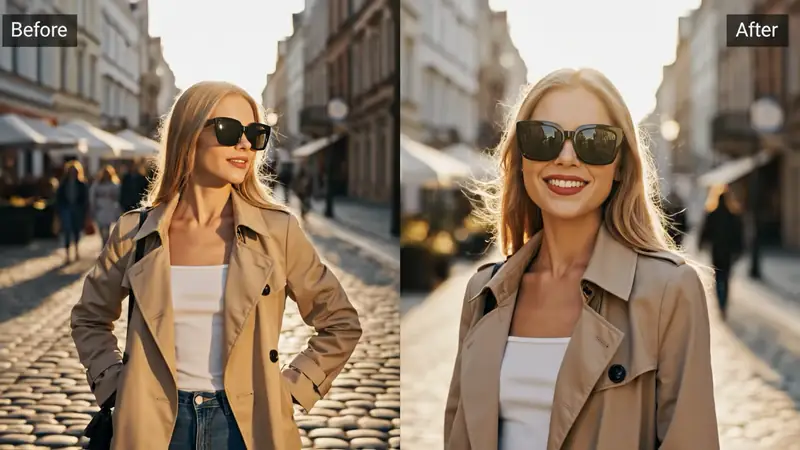
AI Video Editor
Edit with prompts
Revise a clip without a timeline.