
Product Recolor
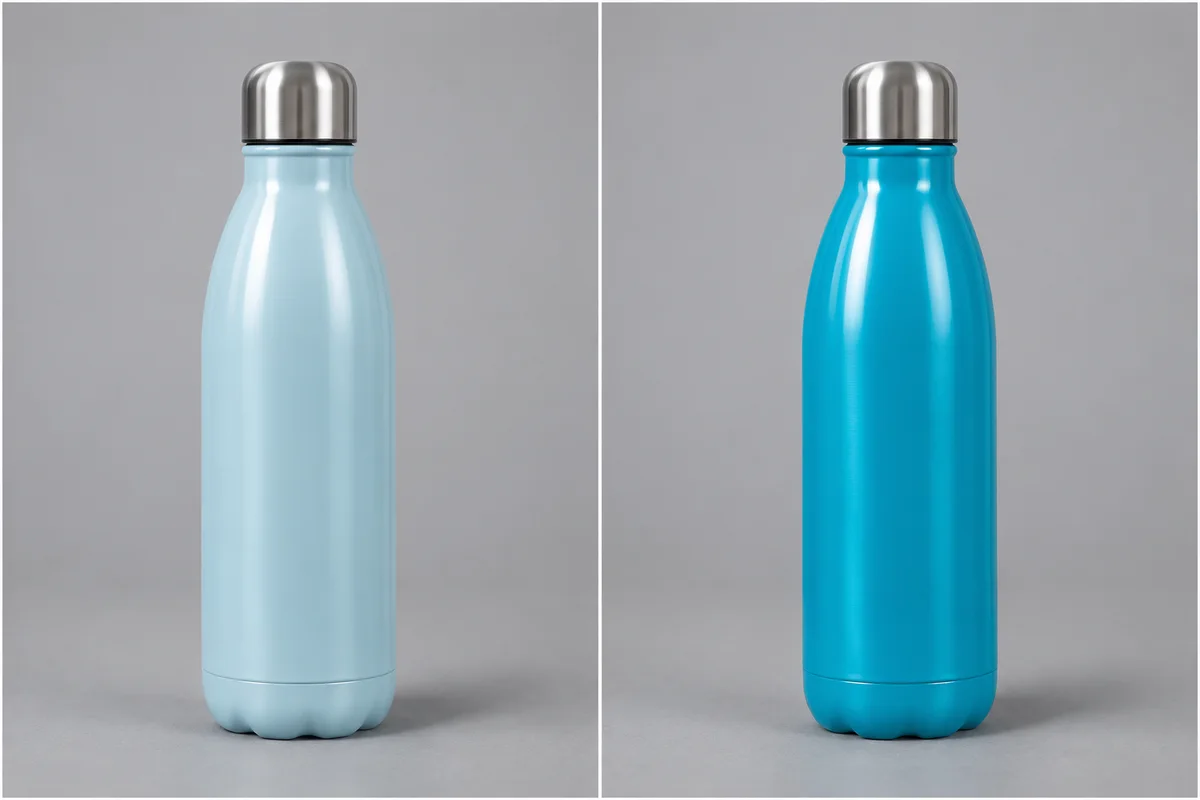
Try a new color on one product while keeping its texture, shape, lighting and surroundings.
How to use Product Recolor
Explore a different colorway from a single product photo. Choose one target color and review how it appears across the original material and lighting.
- 01
Upload one main product
Choose a clear photo with a single identifiable product and visible material detail.
- 02
Choose the target color
Use a suggested swatch, the color picker or a six-digit HEX value to describe one new color direction.
- 03
Recolor and compare
Select Recolor product, then inspect the material, highlights, logos, hardware and background alongside the original.
- 04
Download after checking
Save the image once the product details look suitable. Verify the color against the real product before using it as a customer reference.
Explore a new color on the same product
Use a photo with one clearly identifiable product. Logos, labels, hardware and the background should stay unchanged. The selected HEX value is a visual reference, not a promise of calibrated color accuracy.
Illustrative comparisons show the intended edit. They are not verified results from this tool.
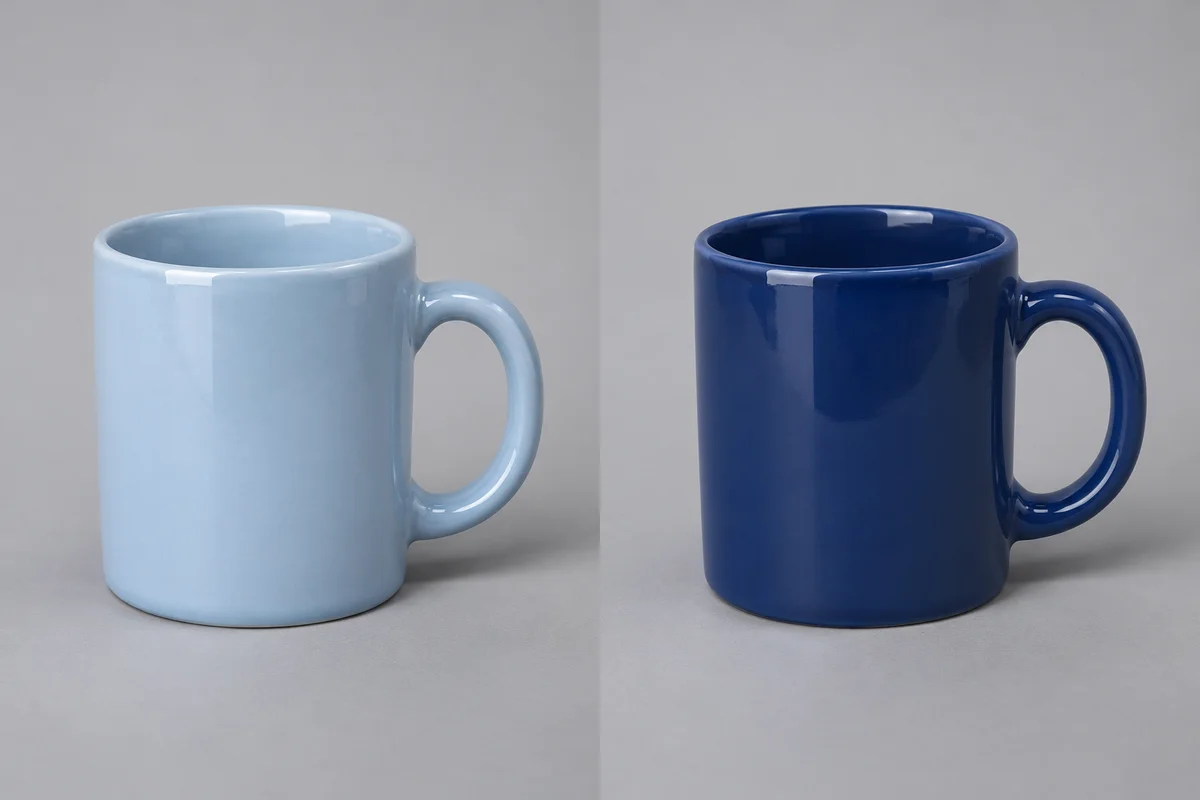
Try a new glaze color on ceramic
Use #243B6B as a blue reference while comparing the mug’s glaze and reflected light. Check the handle, rim and contact shadow; changing the color should not redesign the shape or remove the material’s highlights.
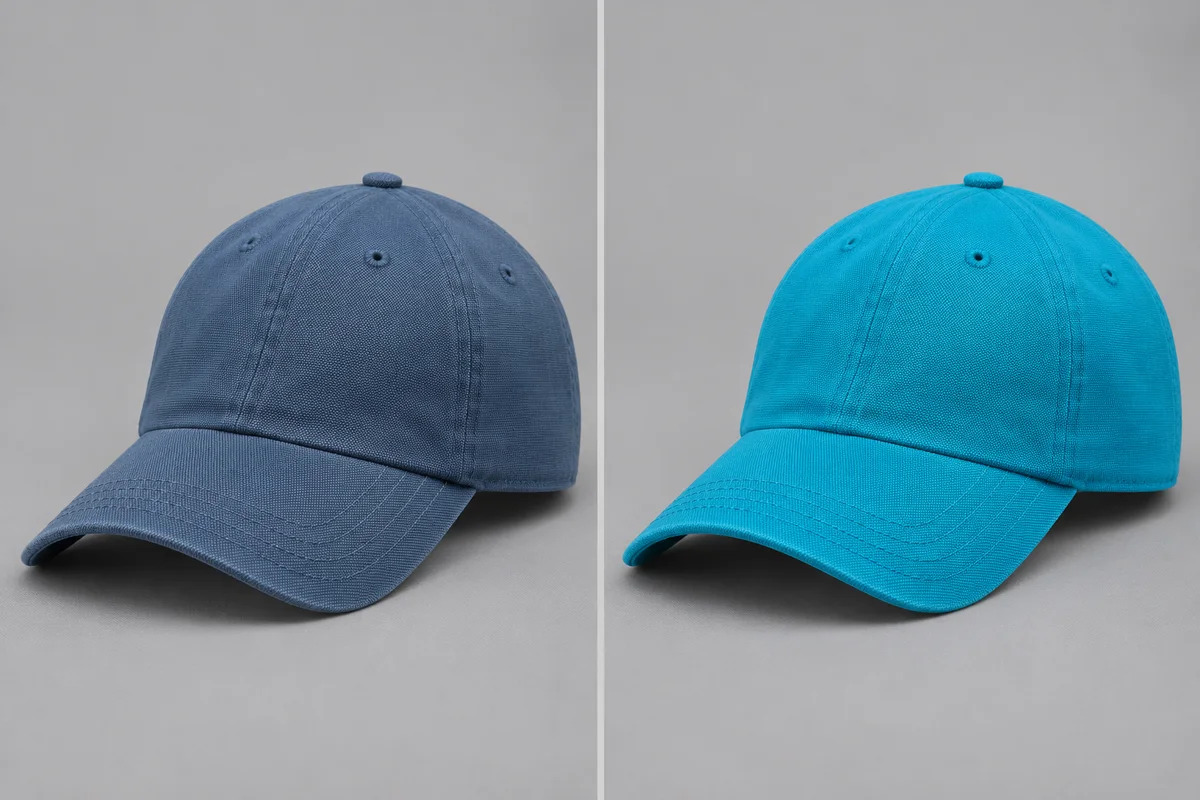
Keep canvas construction visible
Explore #149FC8 on the main canvas surface. Compare the panel seams, eyelets and curved visor, and check the weave rather than expecting the selected swatch to appear identically across every lit and shaded area.
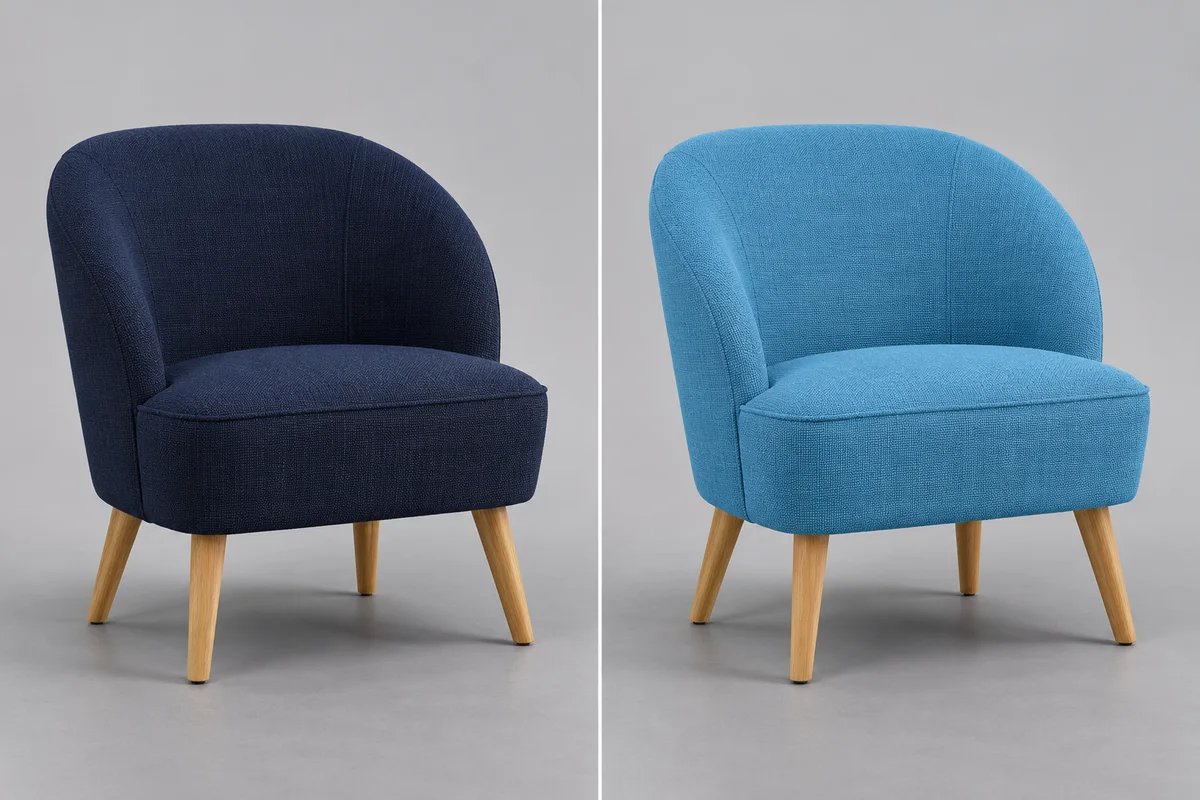
Separate upholstery from wooden details
Try #4FA6D8 on the upholstery while reviewing the fabric grain, seams and oak legs. The edit aims to retain secondary materials, but it does not provide a manual mask, so inspect the boundaries and floor shadow carefully.
Compare color directions before your next step
Use a recolored image to explore a direction, then verify the product details and the relationship to the real material.
Explore one color at a time
Try a focused colorway from an existing photo. Change the target color between requests to compare directions without changing the whole scene.
Keep material in the decision
A color reads differently on cotton, canvas and leather. Inspect texture, highlights and shadows rather than judging only the selected swatch.
Review the details that should stay
Logos, labels, fastenings, hardware and backgrounds should remain recognizable. Check these areas before sharing the edit.
Treat HEX as a reference
Lighting, material and displays influence the final appearance. The tool does not promise calibrated color matching or generate a complete SKU set in one request.
Ready to try it?
Try a different color on your next product photo.
Upload one product, choose a color reference, and review the material and details before saving.
Product Recolor FAQ
Answers about source photos, supported edits, reviewing details and downloading your image.
Can I enter a HEX color?
Yes. Pick a swatch, use the color picker or enter a six-digit HEX value such as #2F5D50. The controls describe one target color.
Will the output exactly match a physical color sample?
No. Material, lighting and display calibration affect the appearance. Verify against the real product before using an image as a color reference for customers.
Will it change logos and the background?
The edit aims to keep graphics, labels, hardware and surroundings unchanged. Inspect those areas because AI may introduce unintended changes.
Can I recolor several items or generate every SKU?
This version supports one main product and one target color per request. It does not include region selection or batch SKU generation.
Which image files can I use?
Upload one JPG, PNG or WEBP image up to 20 MB. Prefer a clear photo with one main product, visible texture and good separation from the surroundings.
Do I need a text prompt to recolor a product?
No. The product photo and selected target color are the inputs. Choose Recolor product, review the comparison and use Download Image to save the result.
Next up
Choose your next image step
Try a nearby image workflow, compare models, or turn your result into video.

AI Sticker Generator
Another product-photo task
Create cartoon, hand-drawn or framed photo stickers for social posts and scrapbooks.
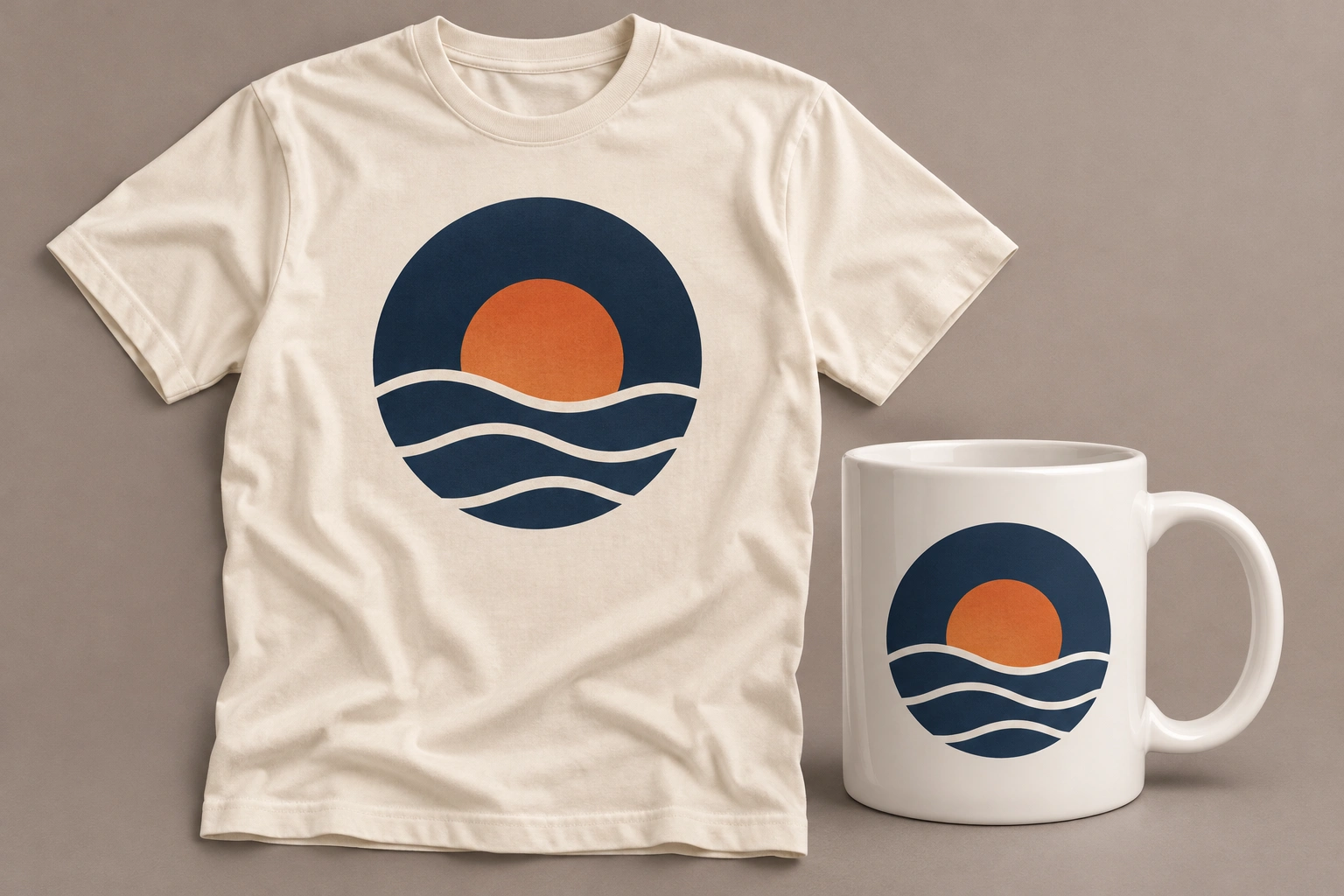
Product Mockup Generator
Another product-photo task
Place your design on a T-shirt, mug, phone case, tote bag or poster. Fixed templates keep your artwork in the printable area, with product light and shade.
Product Shadow & Reflection Adder
Another product-photo task
Ground a transparent product cutout with a drop shadow, contact shadow or fading reflection. Adjust the strength and choose a background.
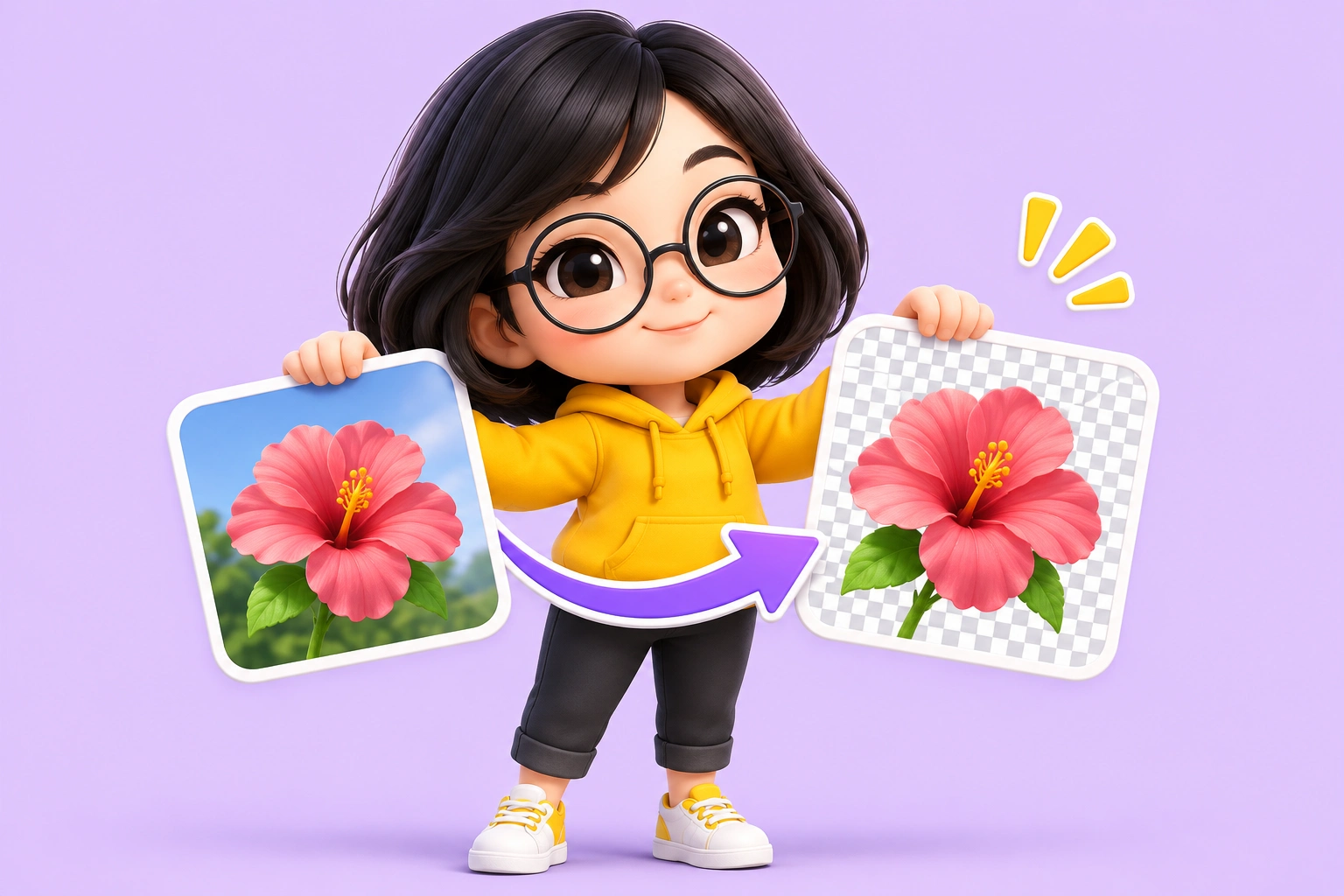
Big Head Effect
Another product-photo task
Turn a single-person photo into a big-head character. Choose Chibi, Cartoon or Hand-drawn and review the face, outfit and proportions.
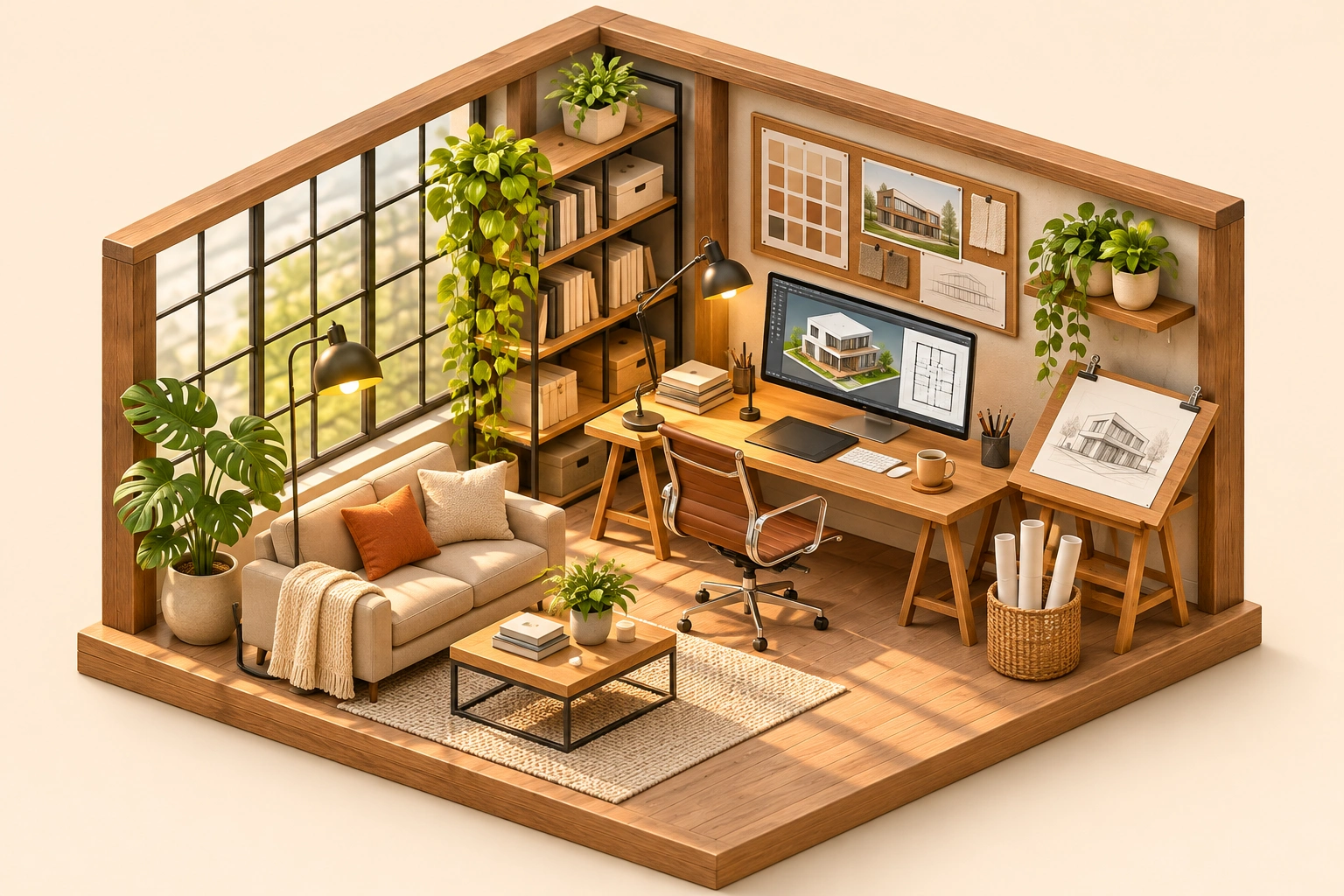
Isometric Miniature
Another product-photo task
Create a miniature look with local tilt-shift blur. For a new isometric interpretation, explicitly choose the separate AI redraw mode.
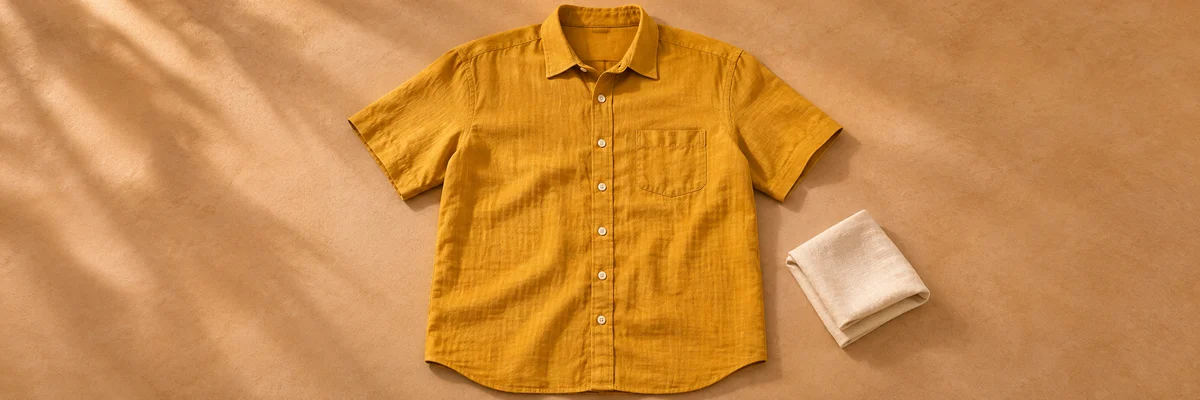
Clothing Flat Lay Generator
Another product-photo task
Turn a front-facing clothing photo into a clean top-down flat lay. Keep your garment in focus, from collar to cuffs.
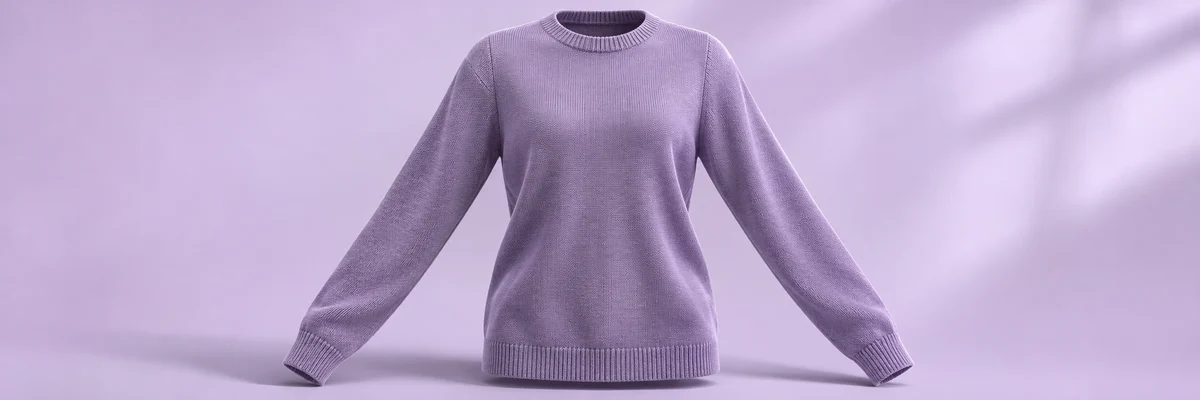
Ghost Mannequin
Another product-photo task
Remove the wearer or mannequin while keeping your garment’s three-dimensional shape and natural drape.
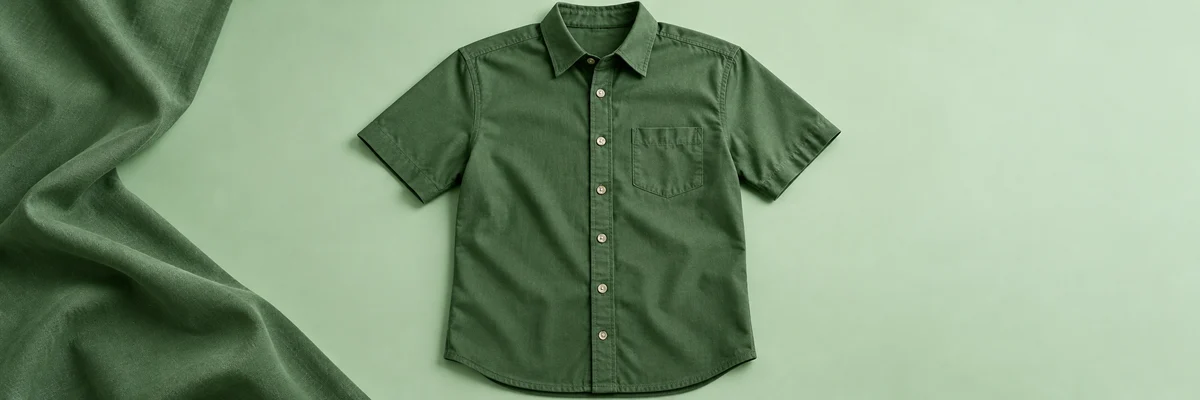
Clothes Wrinkle Remover
Another product-photo task
Reduce distracting creases in a clothing photo while keeping fabric texture, seams and natural shape.
AI Image Editor
Describe a different edit
Use a written instruction when your photo needs another kind of change.