
Social Ad Preview
Review a product ad in a feed or story-style layout with account name, caption, headline and action button.
AI generation requires sign-in and credits. Text and layout edits do not create a new AI request.
Illustrative examples
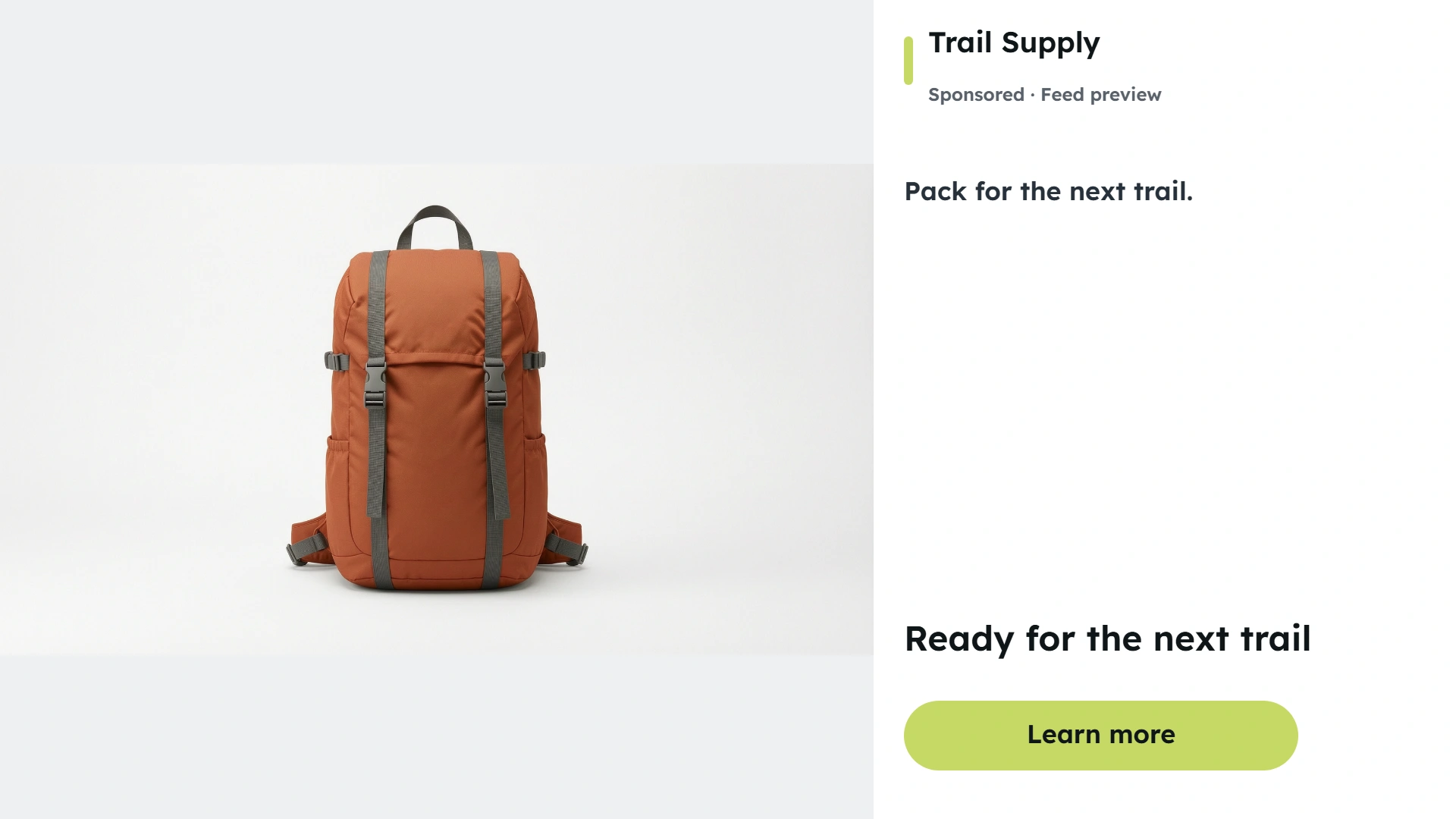
An outdoor backpack creative with account name and caption. Clean product ad · Landscape 16:9
How to use Social Ad Preview
Review a product ad in a feed or story-style layout with account name, caption, headline and action button. Choose the campaign style, generate your visual, then fine-tune the text and layout.
- 01
Choose your image
Choose one PNG, JPG or WebP. Use a clear product photo so the model can follow its shape, color and label.
- 02
Set up your layout
Choose Feed or Story preview. Add an ad headline, account name, caption and action button to review them together.
- 03
Generate and review
Sign in and generate an AI visual. Inspect product details, then adjust your text without another AI request.
- 04
Download your design
Save the completed preview as a PNG. Create another visual when you want a different scene.
Explore what you can make with Social Ad Preview
Choose your own text and image to make your next version.
AI visuals combined with your wording. Review generated product details and text layout before use.
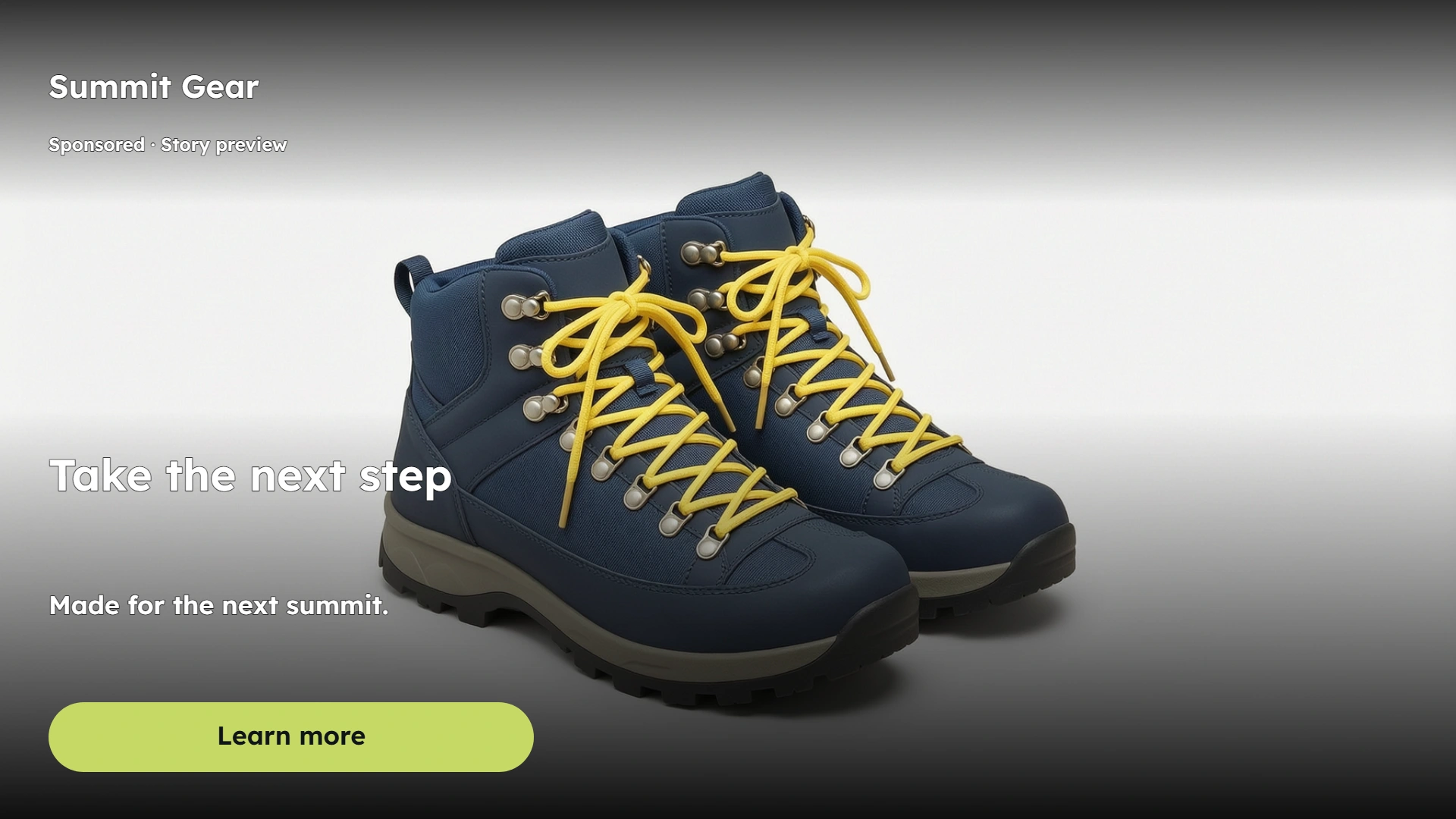
Hiking boots
An outdoor footwear creative for review.
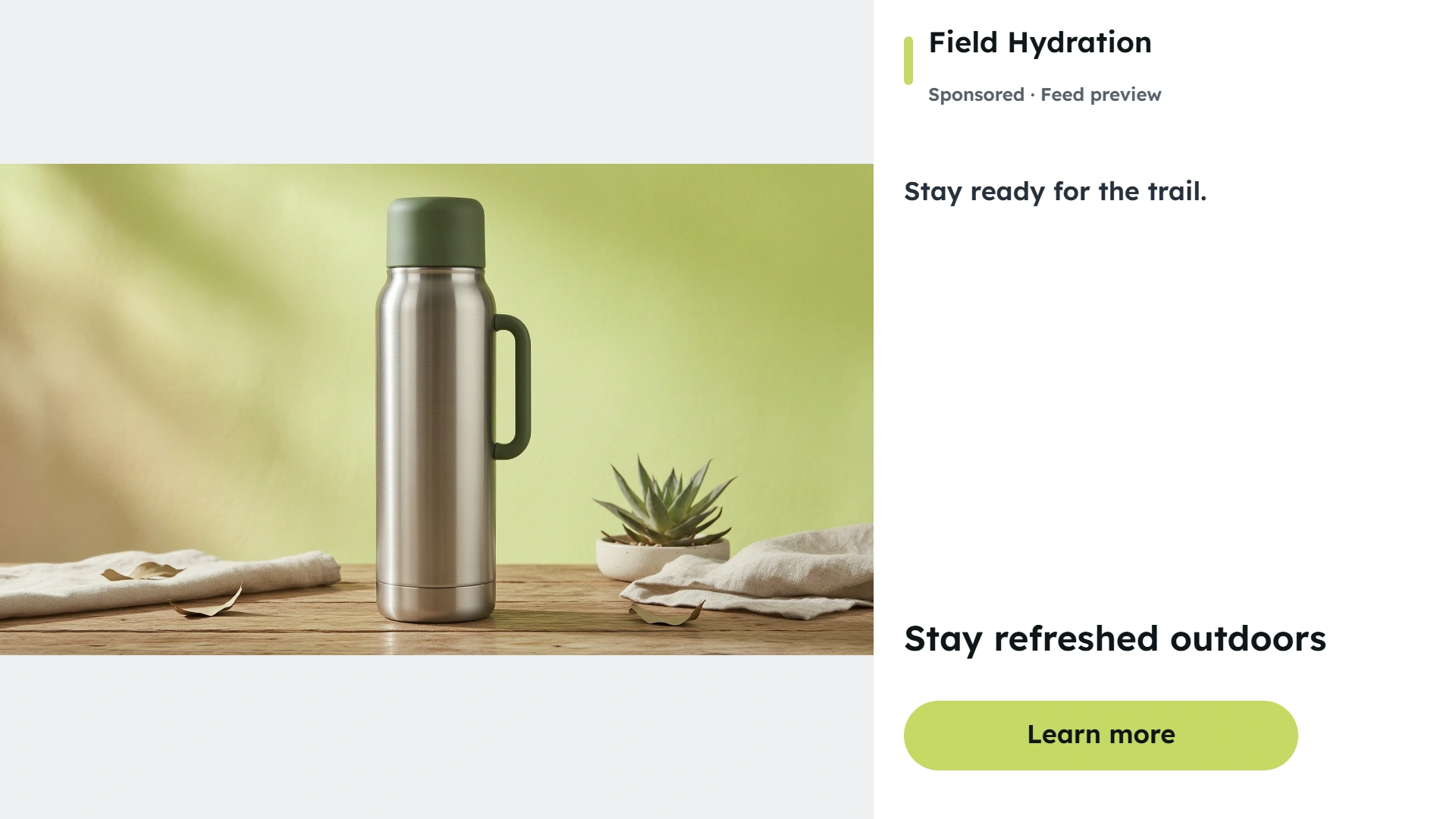
Insulated bottle
A hydration campaign with the caption and call to action.
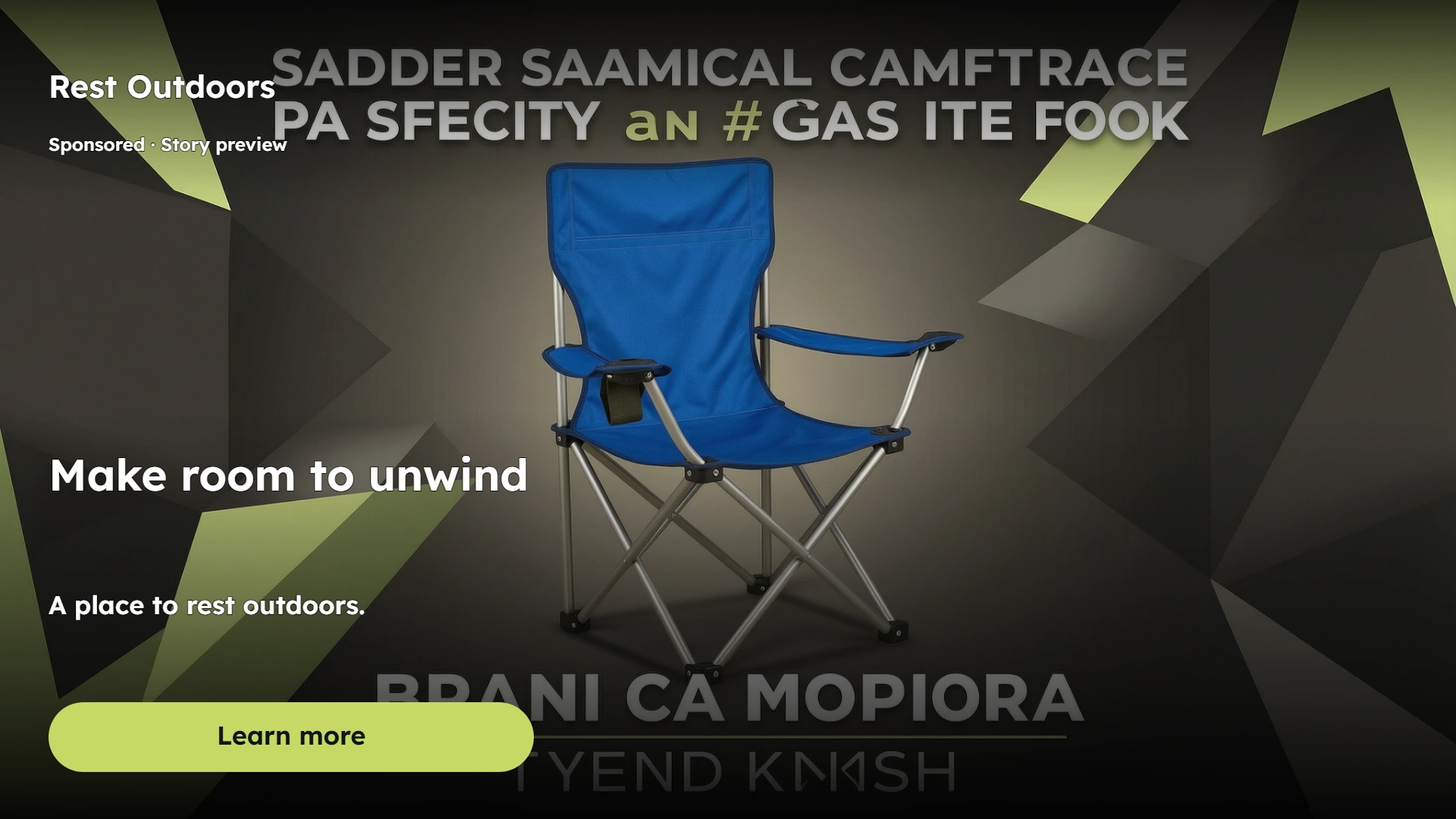
Camp chair
A static ad preview for a camping chair collection.
A simple way to prepare your next layout
Preview your content, review the details and save a complete image.
Review the placement
Feed keeps the copy outside the creative, while Story overlays it on the image. Compare these illustrative layouts before preparing your ad.
Keep your wording
Your headline and optional details appear as entered. Review line breaks and spelling before downloading.
Ready to share
Save a complete PNG with the background included, ready for your next announcement or creative review.
Refine without regenerating
Edit account name, caption or the call to action using the completed visual. Format changes reuse and may crop that visual. These edits do not create another AI request.
Ready to try it?
Create your next social ad preview
Review a product ad in a feed or story-style layout with account name, caption, headline and action button. Edit the preview and download your PNG when it is ready.
Social Ad Preview FAQ
Answers about AI visuals, text editing, supported formats, credits and downloading your design.
Does this publish an ad or reproduce a live platform?
Feed preview separates the account, caption, visual, headline and action button. Story preview places text over the visual. Changing placement selects a square or portrait format, which you can adjust. These are illustrative layouts, not exact platform replicas; they do not publish ads or connect to accounts.
Will AI keep every product detail unchanged?
AI can alter labels, small details or proportions. Use a clear reference and inspect the result before publishing. The tool does not guarantee an exact product reproduction.
Do text changes generate another AI image?
No. Account name, caption, headline and ad placement edits reuse the completed visual, as do call-to-action and format edits. Changing the visual style, brand color or scene direction or reference image requires a new visual. A different format may crop the existing visual.
What can I enter?
Choose one PNG, JPG or WebP up to 10 MB and 32 megapixels, then enter your text. Transparent and ordinary photos are supported. AI creates a new scene from the reference; inspect the product shape, label and details before use.
What file do I download?
Download one PNG with its background included: landscape 1920 × 1080, square 1080 × 1080 or portrait 1080 × 1920. The download matches the latest completed preview. It is a flattened image, without editable text layers.
Are my images uploaded or credits used?
Generating an AI visual sends your reference image for processing. AI generation requires sign-in and credits. Editing text, the call to action or the output format updates the completed visual locally without another AI request. Generate a new visual only when you want a different scene. Format changes can crop the existing visual.
Next up
Choose your next image step
Try a nearby image workflow, compare models, or turn your result into video.
Live Sale Cover
Another layout to try
Design a live event cover with your host, event time and a choice of cover or inset stream layout.
Promo Text Poster
Another layout to try
Build a text-led campaign poster with an eyebrow, headline and supporting text over AI artwork.

Product Promo Card
Another layout to try
Create a product offer card with its name, price and optional original price with an automatically calculated saving.
Product Picture Generator
Create a product scene
Create studio or lifestyle product photographs from a reference image.