
Ghost Mannequin
Remove the wearer or mannequin while keeping your garment’s three-dimensional shape and natural drape.
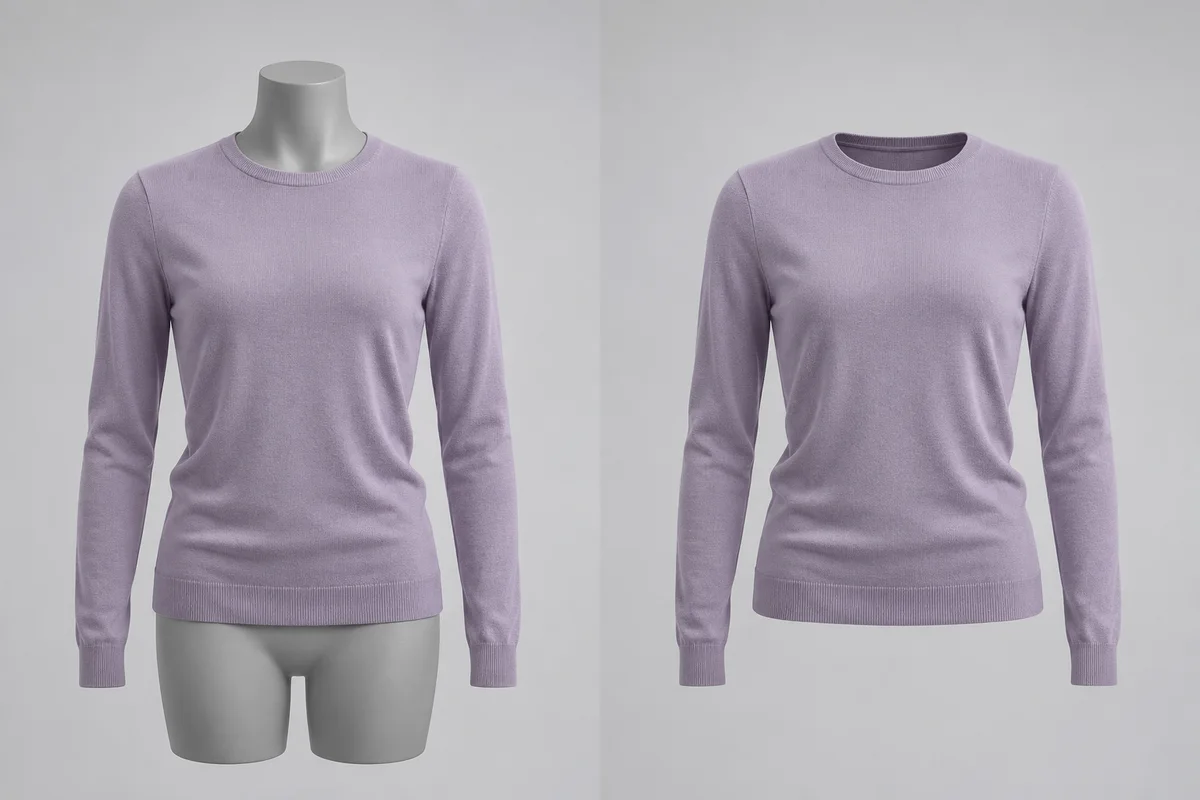
How to use Ghost Mannequin
Show the garment without the person or mannequin underneath. Unlike a simple background cutout, a ghost mannequin edit keeps the clothing’s worn shape.
- 01
Upload a worn garment photo
Choose a complete front view of one top on a person or mannequin, with the sleeves and hem visible.
- 02
Create the ghost mannequin view
Select Create ghost mannequin. The task removes the wearer while keeping the garment’s three-dimensional presentation.
- 03
Inspect newly exposed areas
Compare the collar, inner neckline, sleeve openings and edges. Check inferred fabric against the real garment.
- 04
Download after review
Save the edited product image when the silhouette, fastenings and visible garment details are suitable for your intended use.
Keep the worn shape, remove the mannequin
Use one complete front-facing top. Check the interior neckline and any areas revealed by removal: AI completes those regions rather than recovering hidden product information.
Illustrative comparisons show the intended edit. They are not verified results from this tool.
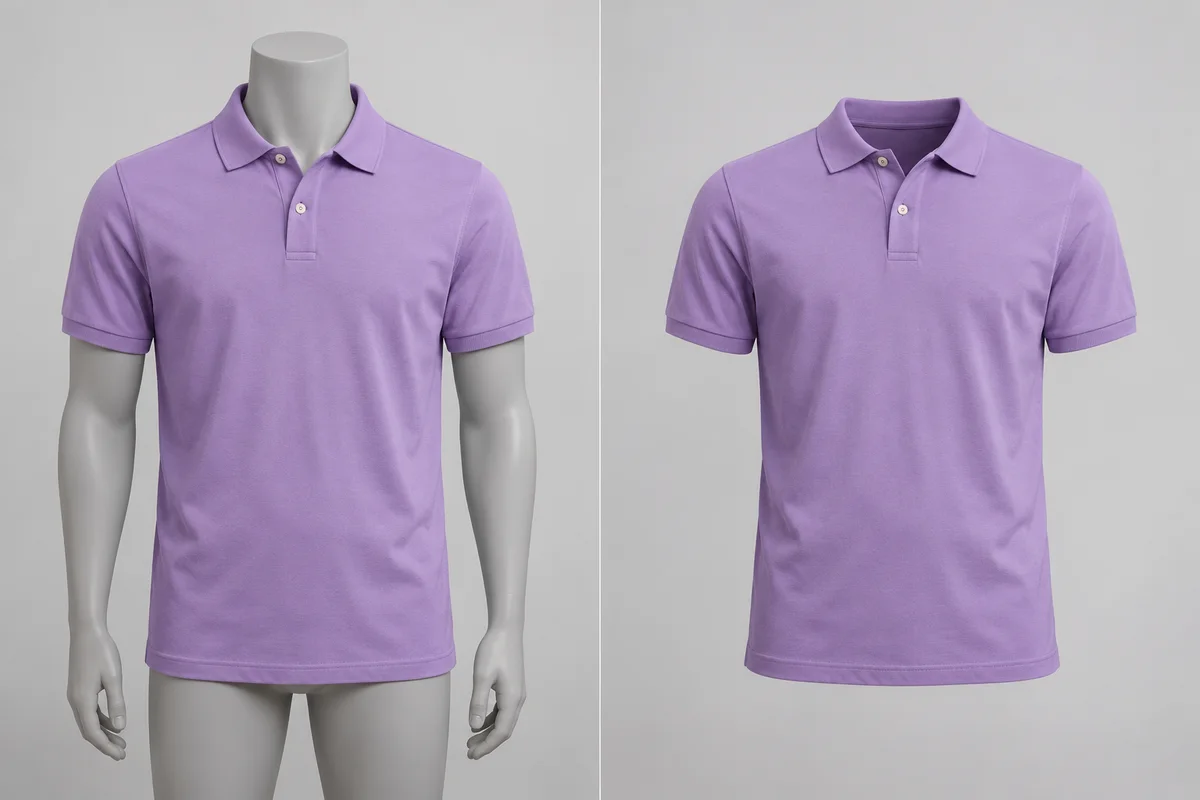
Present the collar and sleeves of a polo
A ghost view lets the polo keep a worn silhouette without the mannequin. Review the ribbed collar, short sleeves and placket, especially the interior fabric revealed when the supporting form disappears.
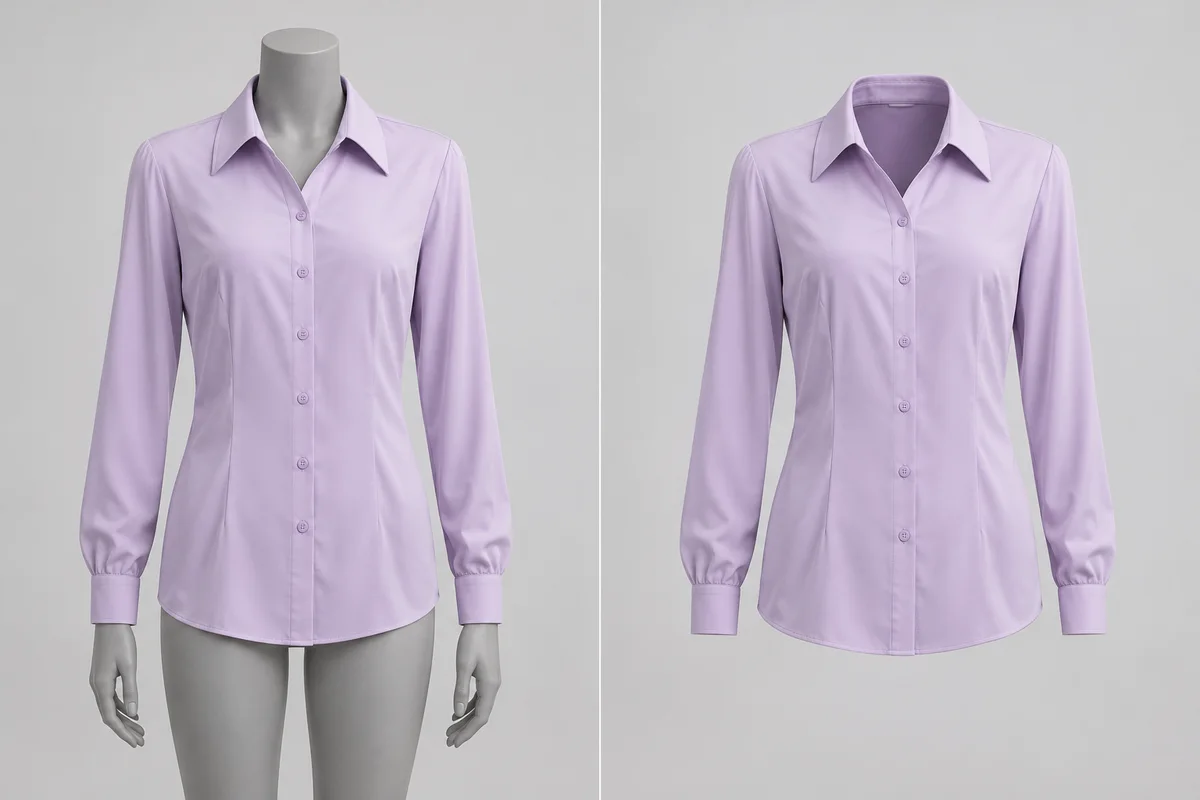
Retain the drape of a lightweight blouse
Lightweight clothing should keep believable volume around the shoulders and body. Compare the neckline, cuffs and front panels, and check any reconstructed interior against the actual blouse.
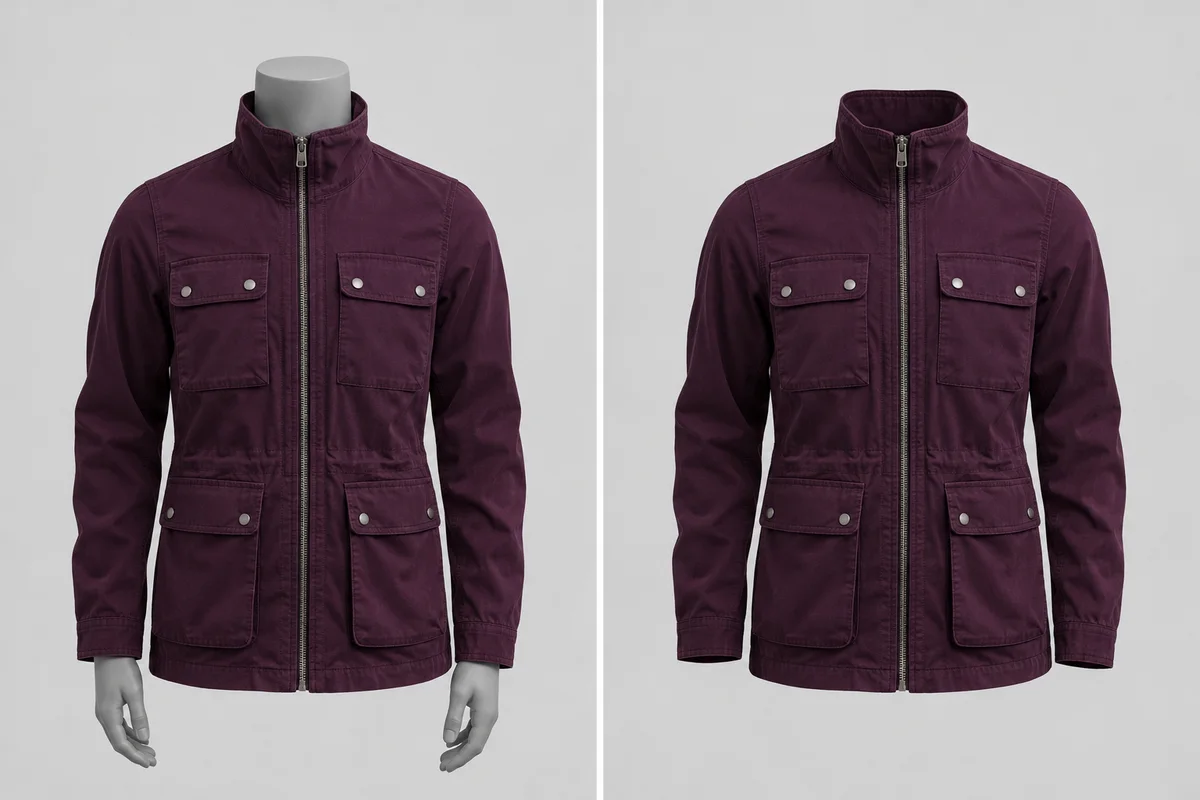
Show a field jacket without its display form
A structured jacket needs more than a clean outline. Inspect the collar, zipper, all four pockets and sleeve openings so removal does not replace construction details with invented ones.
Give clothing its own product view
Use the edit to explore a garment-focused presentation while keeping a clear review step for reconstructed areas.
Show volume and drape
A ghost mannequin view retains a worn form, which can communicate the shape of the body, shoulders and sleeves more clearly than a flat arrangement.
Reduce visual distractions
Removing the wearer lets customers concentrate on the garment. Check that hands, accessories or mannequin fragments have not been left behind.
Keep the source unobstructed
Prefer a front view without crossed arms, long hair or overlapping accessories. AI cannot recover factual product details hidden behind them.
Separate removal tasks
Choose Background Remover for a cutout of the whole subject, or Clothing Flat Lay Generator for an overhead garment arrangement.
Ready to try it?
Let the garment hold the frame.
Start with one clear worn top, remove the supporting form, and review the neckline and silhouette before saving.
Ghost Mannequin FAQ
Answers about source photos, supported edits, reviewing details and downloading your image.
Can I use a photo of someone wearing the garment?
Yes. Use a clear front view of a single top with as little obstruction as possible. Hands, crossed arms and overlapping accessories can hide details the edit must reconstruct.
Can it recover a hidden lining or label?
No. Hidden areas are inferred, not recovered. Check the neckline, inner fabric and edges against your actual product before publishing.
Does this just remove the background?
No. The task removes the wearer or mannequin and keeps a worn garment shape. Use Background Remover when you only need to cut out the entire subject.
Is the output a transparent PNG?
A transparent background is not promised by this tool. The output is a single product image; review its background and garment edges before downloading.
Which files and garments are supported?
Upload one JPG, PNG or WEBP image up to 20 MB. This version is intended for a single complete front-facing upper-body garment; outfits, trousers and batch edits are outside its supported scope.
Do I need to write a removal prompt?
No. Upload the worn garment photo and choose Create ghost mannequin. Compare the result with the source, inspect the reconstructed areas, and download after review.
Related paths
Explore related image tools
Explore another image step, check model options, or make the output move.
AI Sticker Generator
Another product-photo task
Create cartoon, hand-drawn or framed photo stickers for social posts and scrapbooks.
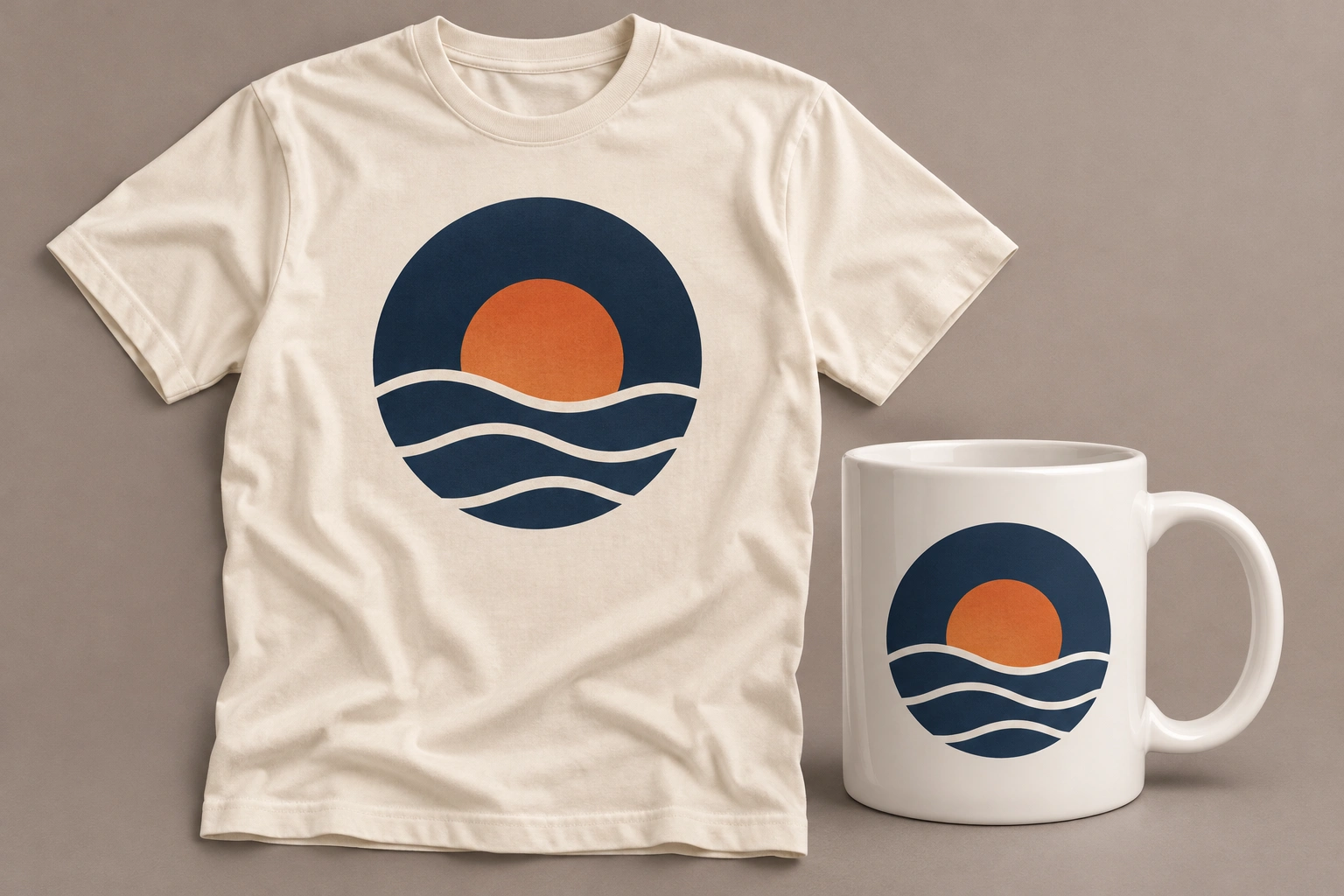
Product Mockup Generator
Another product-photo task
Place your design on a T-shirt, mug, phone case, tote bag or poster. Fixed templates keep your artwork in the printable area, with product light and shade.
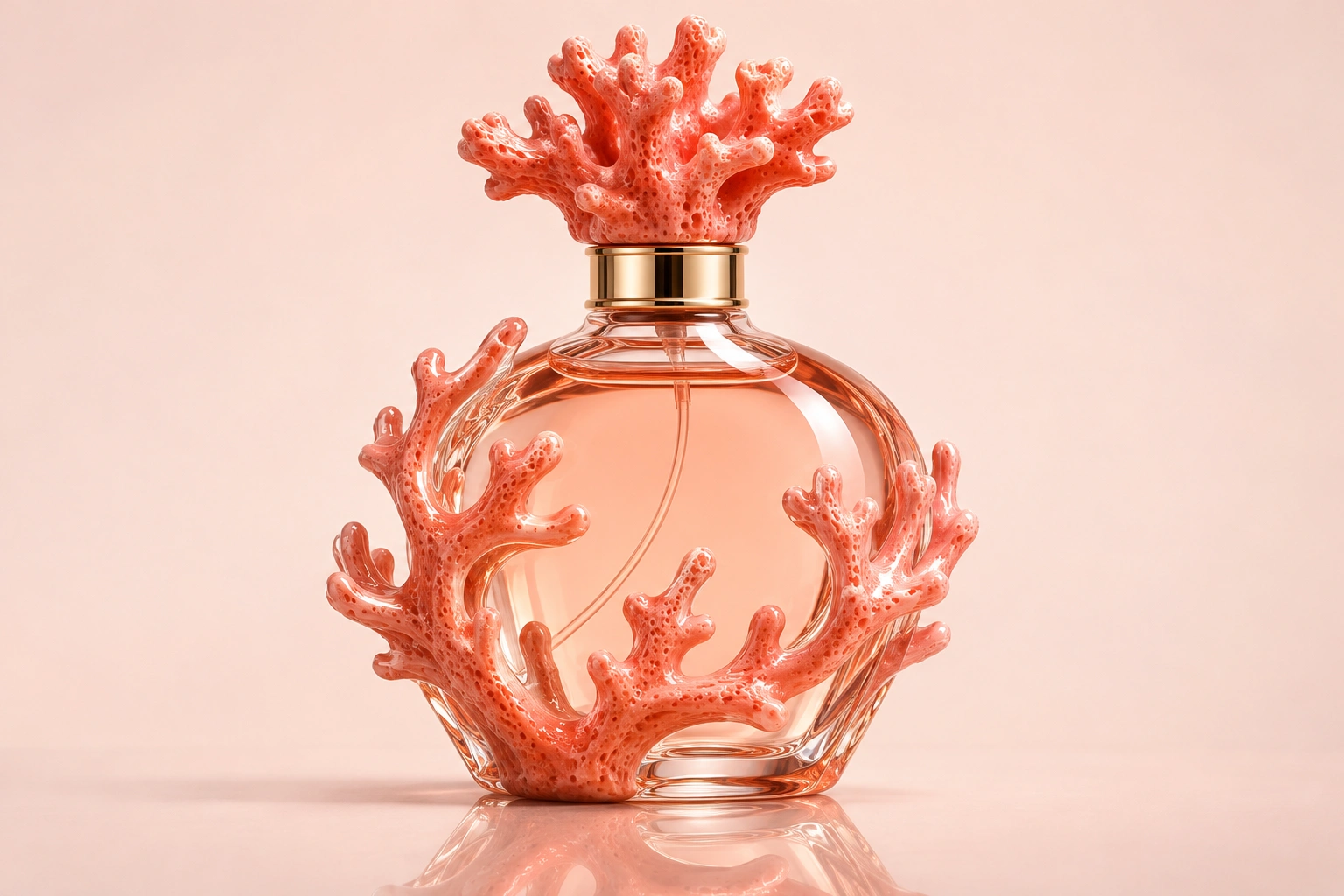
Product Shadow & Reflection Adder
Another product-photo task
Ground a transparent product cutout with a drop shadow, contact shadow or fading reflection. Adjust the strength and choose a background.
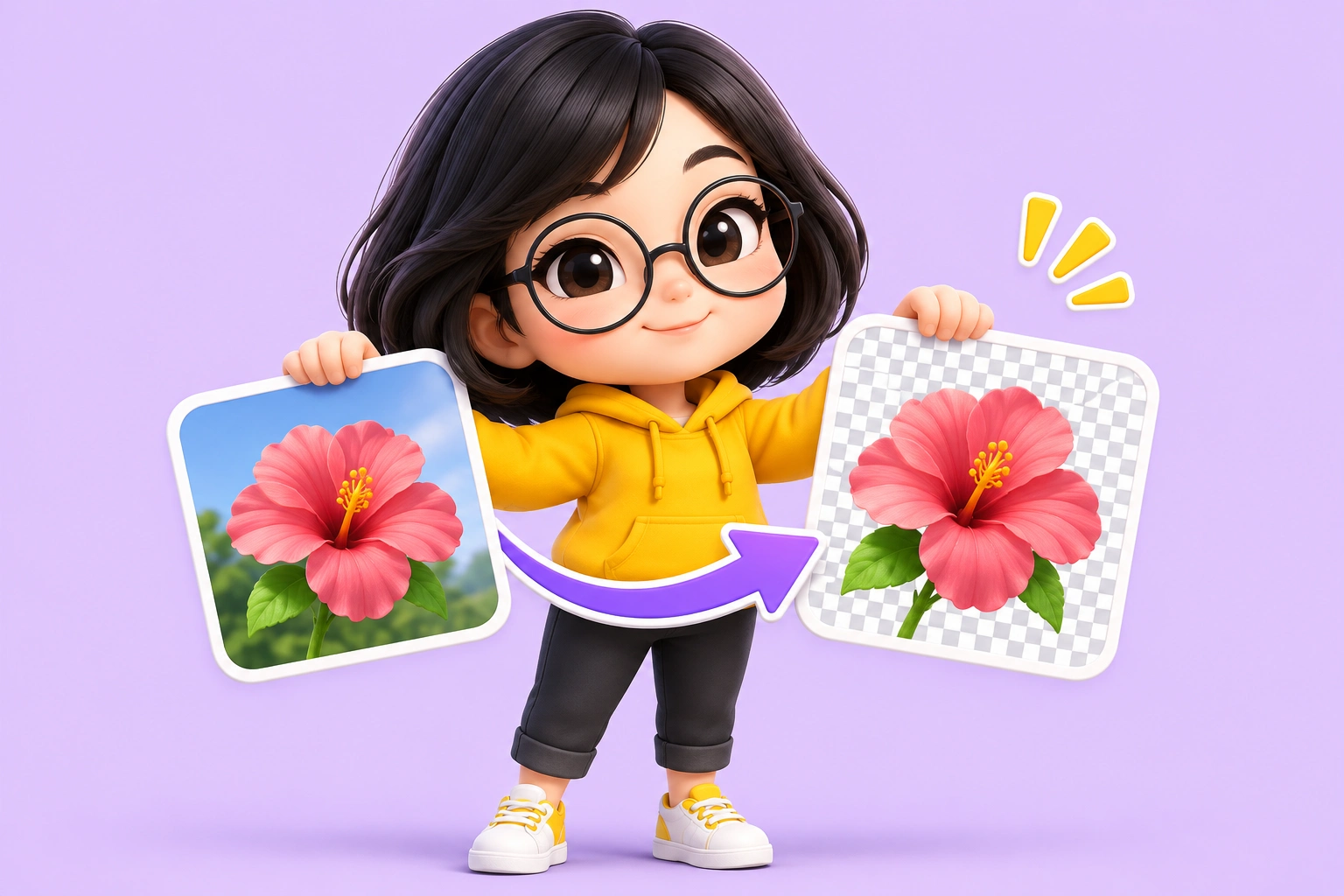
Big Head Effect
Another product-photo task
Turn a single-person photo into a big-head character. Choose Chibi, Cartoon or Hand-drawn and review the face, outfit and proportions.

Isometric Miniature
Another product-photo task
Create a miniature look with local tilt-shift blur. For a new isometric interpretation, explicitly choose the separate AI redraw mode.
Clothing Flat Lay Generator
Another product-photo task
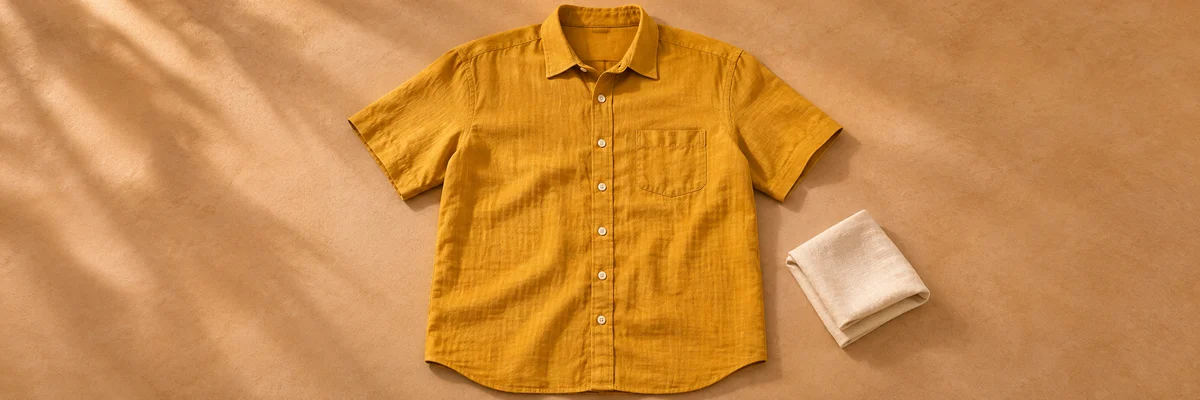
Turn a front-facing clothing photo into a clean top-down flat lay. Keep your garment in focus, from collar to cuffs.
Clothes Wrinkle Remover
Another product-photo task
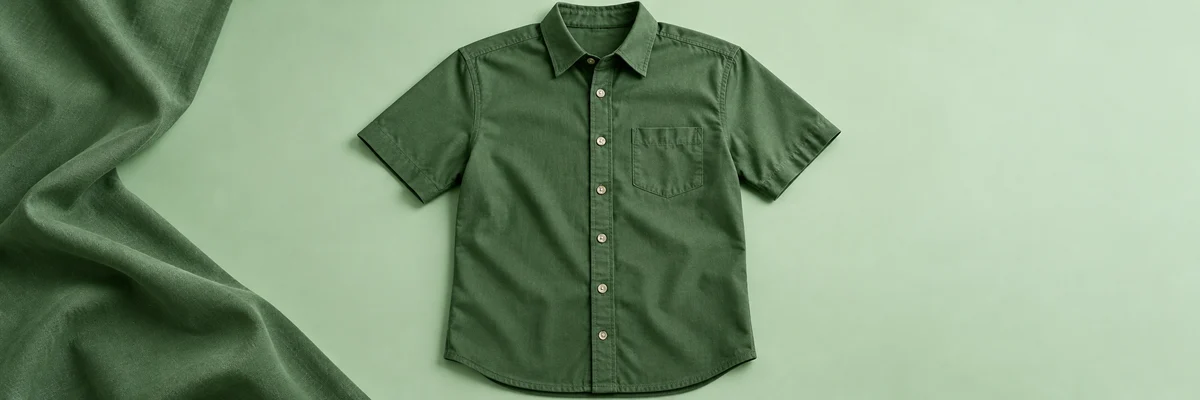
Reduce distracting creases in a clothing photo while keeping fabric texture, seams and natural shape.

Product Recolor
Another product-photo task
Try a new color on one product while keeping its texture, shape, lighting and surroundings.
AI Image Editor
Describe a different edit
Use a written instruction when your photo needs another kind of change.