
Audio Trimmer
Cut an audio recording to a time range, add optional fades and export as MP3, WAV or M4A.
Example
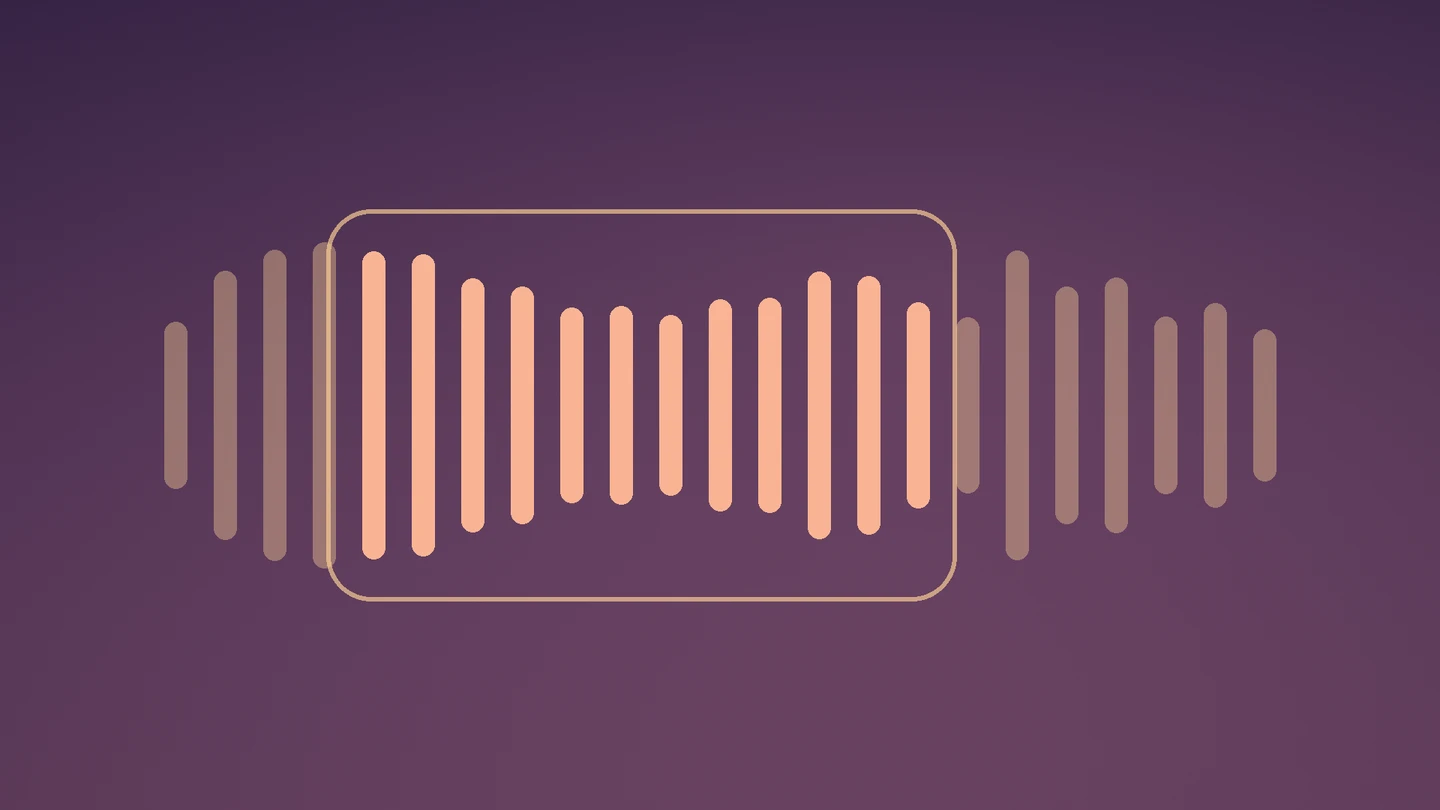
Original recording
Trimmed excerpt
Keep the part of a recording you need
Audio Trimmer cuts a selected time range from an MP3, WAV or M4A recording. Remove setup chatter, isolate a quote from an interview, or pull a music cue from a longer track. Enter start and end times in seconds and use the original player to find the point where speech, music or an effect begins.
A fade can soften an abrupt entrance or ending when a section is taken out of a larger recording. Apply it at the start, at the end, or both. Listen to the output before downloading it in the format your editor, publisher or player expects.
How to use Audio Trimmer
Load the original audio
Choose an MP3, WAV or M4A up to 50 MiB and 30 minutes. Listen or scrub to find the in and out points.
Enter the time range
Set the start just before the sound you want to keep and the end after it. Add a fade if the cut starts or ends abruptly, and select a format.
Listen before saving
Play both ends of the export to check for chopped words, clipped notes or unwanted silence. Download the excerpt once the timing sounds right.
Trim recordings without losing important audio
Leave room around spoken words
Place the start just before the first syllable and leave a little space after the last word. A sharp cut in the middle of a breath or consonant can make an otherwise clear quote sound unnatural.
Treat music differently from speech
For a cue, listen for a beat or phrase boundary and try a fade-out if the last note ends abruptly. For speech, use a fade only when it does not soften words that listeners need to understand.
Estimate the duration from the boundaries
Subtract the start from the end. For example, 12.5 to 18.0 seconds keeps about 5.5 seconds. The result display shows the measured duration of the exported file.
Match the format to the next step
MP3 works for lightweight sharing. WAV keeps a PCM copy that is convenient during editing, although it can be much larger. M4A uses AAC and suits players or workflows that accept that format.
Original recording
Trimmed excerpt
Fade into the opening percussion
The first three seconds fade in gradually.

Original recording
Trimmed excerpt
Fade out the end of a soundscape
The excerpt starts at two seconds and fades out at the original ending.

Original recording
Trimmed excerpt
Isolate an arpeggio without fades
The export preserves the section from 1.5 to 4.5 seconds.
Trim audio
Cut an audio recording to a time range, add optional fades and export as MP3, WAV or M4A.
Audio Trimmer FAQ
Which audio formats are supported?
Upload or export MP3, WAV or M4A.
Can I fade a short clip?
Yes. Each fade lasts up to 0.3 seconds. The tool shortens fades to fit very short excerpts.
How do I keep everything from a given point?
Set the start time and leave the end time at the end of the recording.
How can I cut the silence from the beginning and end?
Play the original recording, then set the start just before the first sound you want and the end just after the last. Preview the export to check the transitions.
Which export format should I pick?
Choose MP3 for sharing, WAV when you plan to keep editing the clip, or M4A for a compact AAC file in a compatible player.
What is the maximum recording size?
The source can be up to 50 MiB and 30 minutes. The result also has a 50 MiB limit, which can matter when exporting long WAV files.
Continue creating
Move from audio into image or video
Create cover art and still assets, then move into animation, lip sync, editing, or a finished video when your project needs visuals.

AI Image Tools
Image tools hub
Create, edit, enhance, and clean up still visuals.

AI Video Tools
Video tools hub
Generate, animate, edit, and improve clips.

AI Image Generator
Start from a prompt
Use the selected image model to create a first draft.

AI Image Editor
Refine an image
Change one part of an image without starting over.

Image Upscaler
Prepare for export
Increase image resolution after the concept works.

AI Video Generator
Create motion
Turn an idea or still image into a video draft.

Image to Video
Animate a still
Use a finished image as the source for motion.
AI Video Editor
Revise a clip
Edit an existing video with prompt-led changes.