
Product Size Annotation
Add your measurements to a product photo and save a full-resolution PNG.
Examples
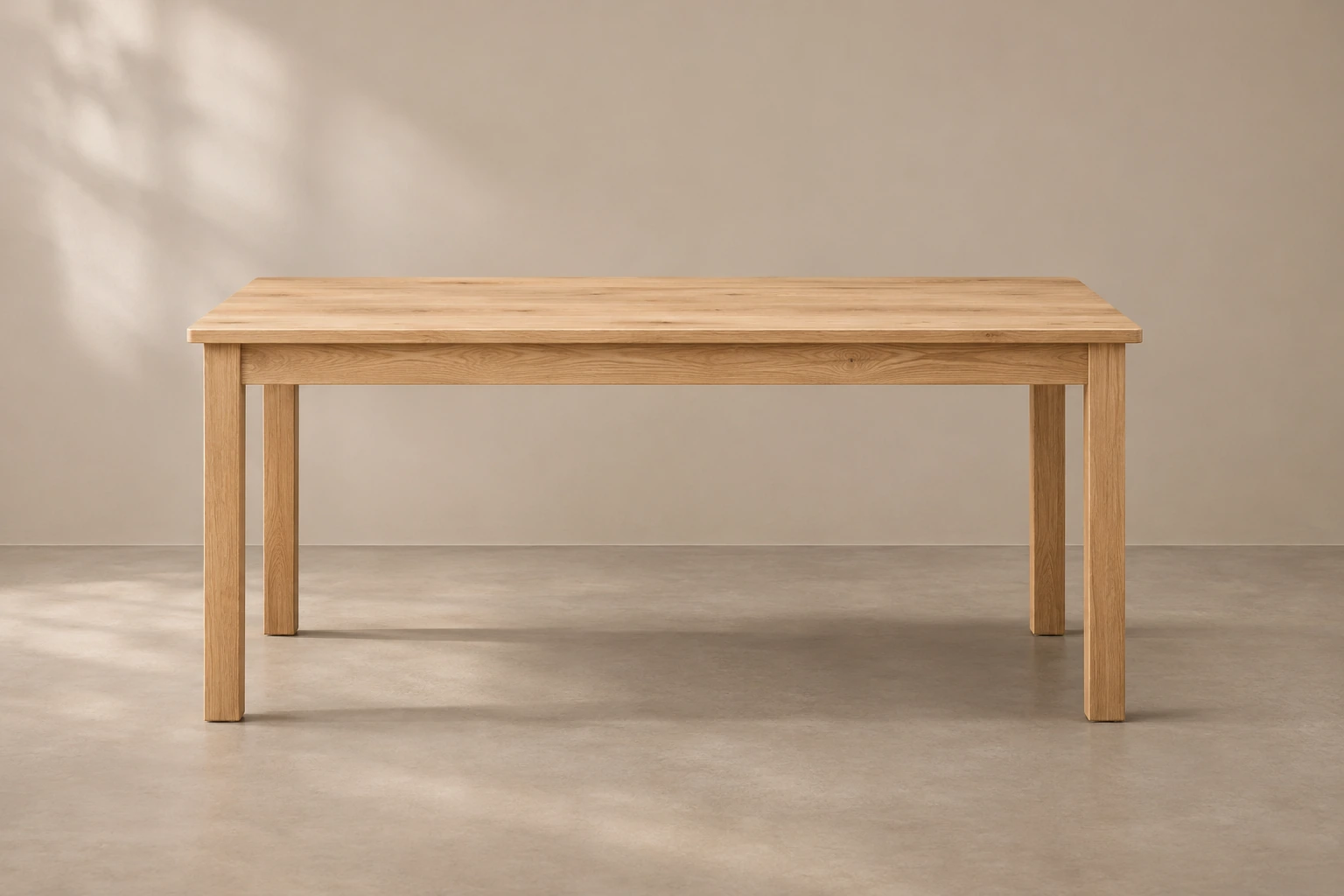
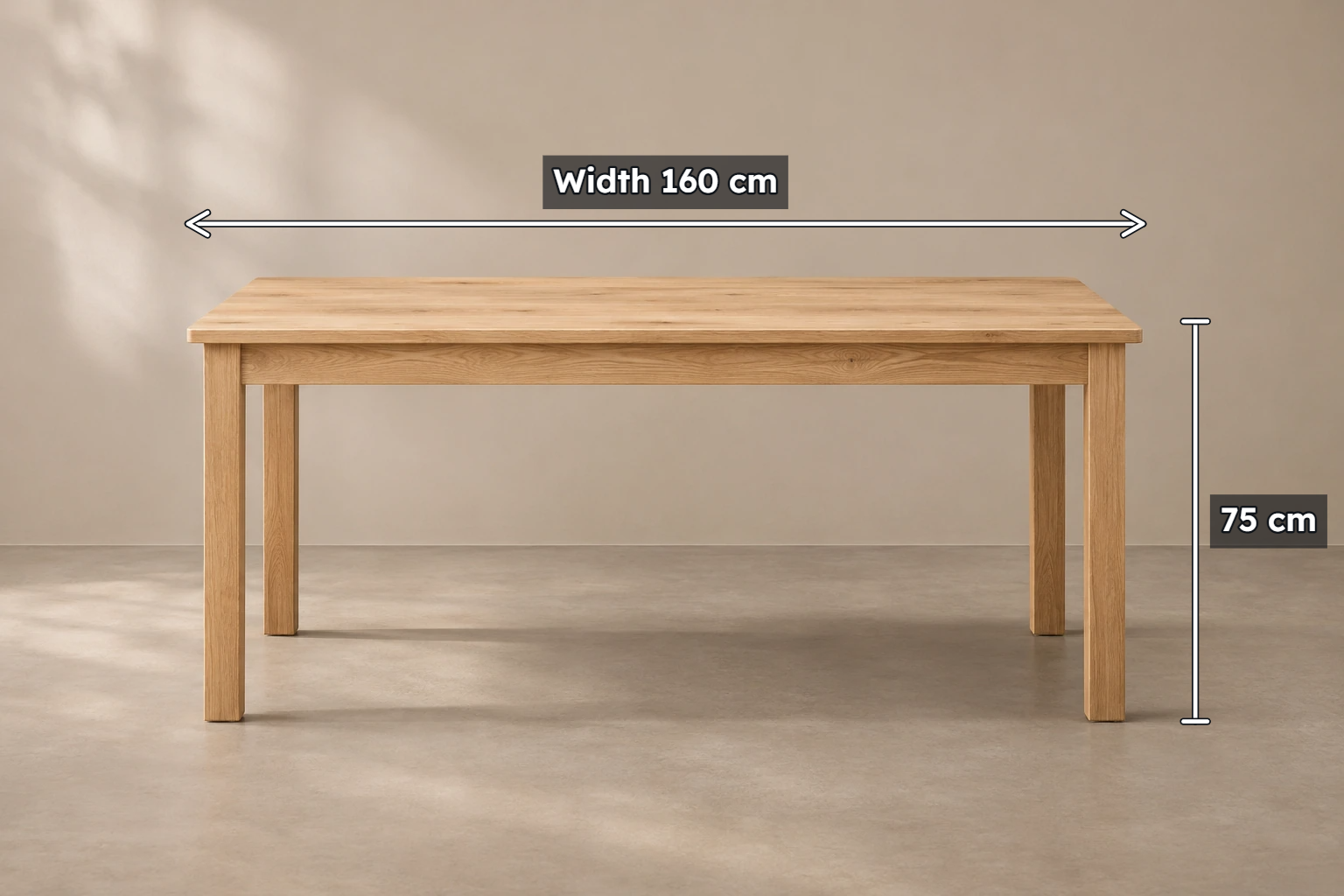
Add dimensions to a product image
Put verified width, height, depth or diameter directly on a product photo so shoppers can tell what each number covers. Use the image in a furniture listing, product size guide or specification sheet.
Draw a measurement line between two points
Drag across the photo to place both endpoints, then move either one to align it with the correct edge. Enter the measurement from your spec sheet, tape measure or listing data.
Display centimeters, inches or both
Add a name such as Width or Seat height when it helps. You can omit the name and display only the number and unit. For centimeters or inches, show both units on the same line if your store serves different markets.
Keep furniture details visible
Choose arrows, ticks or plain endpoints for each line. Adjust the color, line weight, dash pattern and label placement so markings stay out of the way of materials, handles and corners.
How to use Product Size Annotation
- 1
Upload a product photo
Choose a PNG, JPEG or WebP with enough empty space for labels.
- 2
Place a measurement line
Use Draw on photo to set both endpoints at once, or drag the endpoints individually.
- 3
Enter verified size and units
Enter the value and unit. Add a name or show both cm and in if useful.
- 4
Style and download
Set line and label styles, then save the annotated PNG at the original image resolution.
Product Size Annotation examples
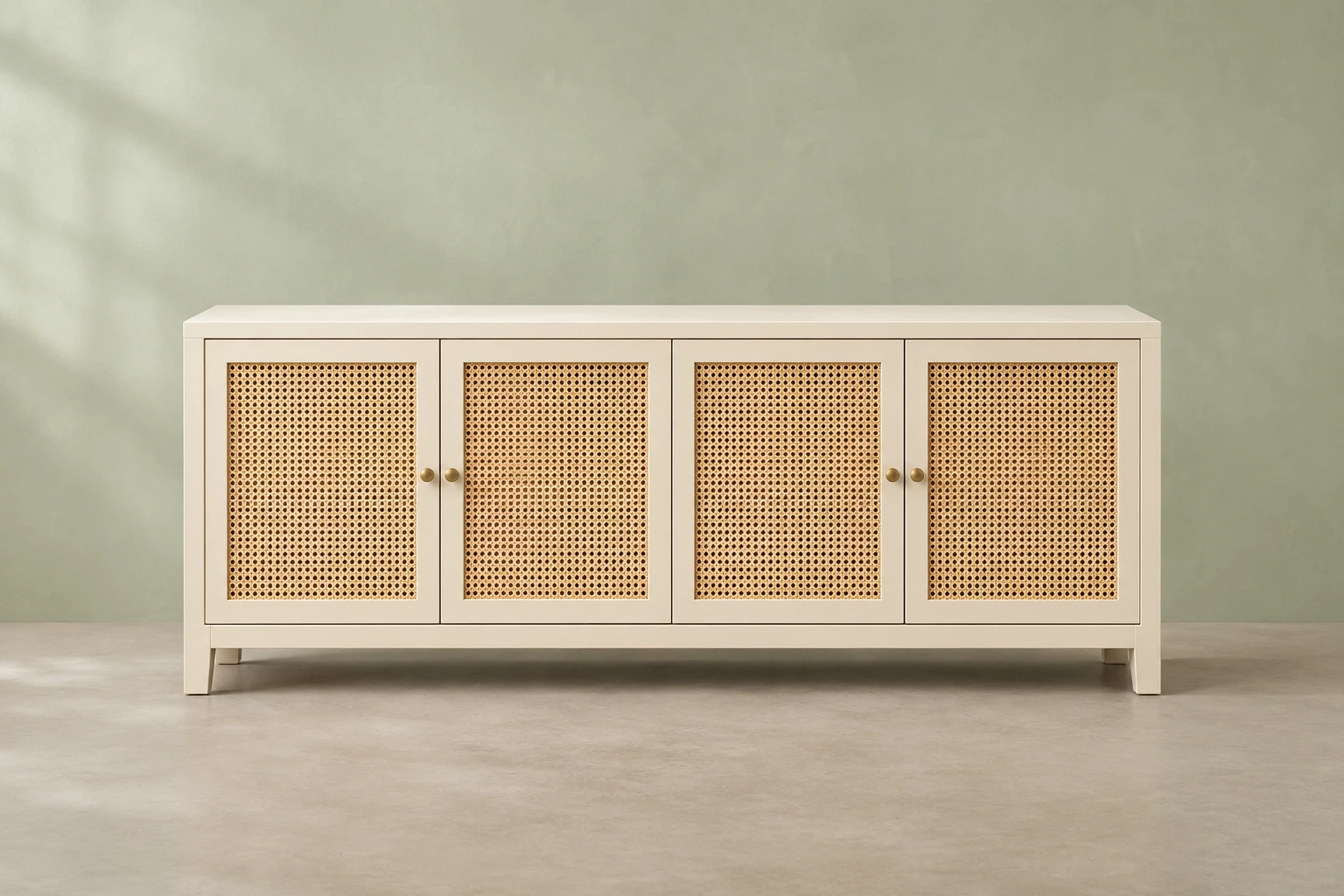
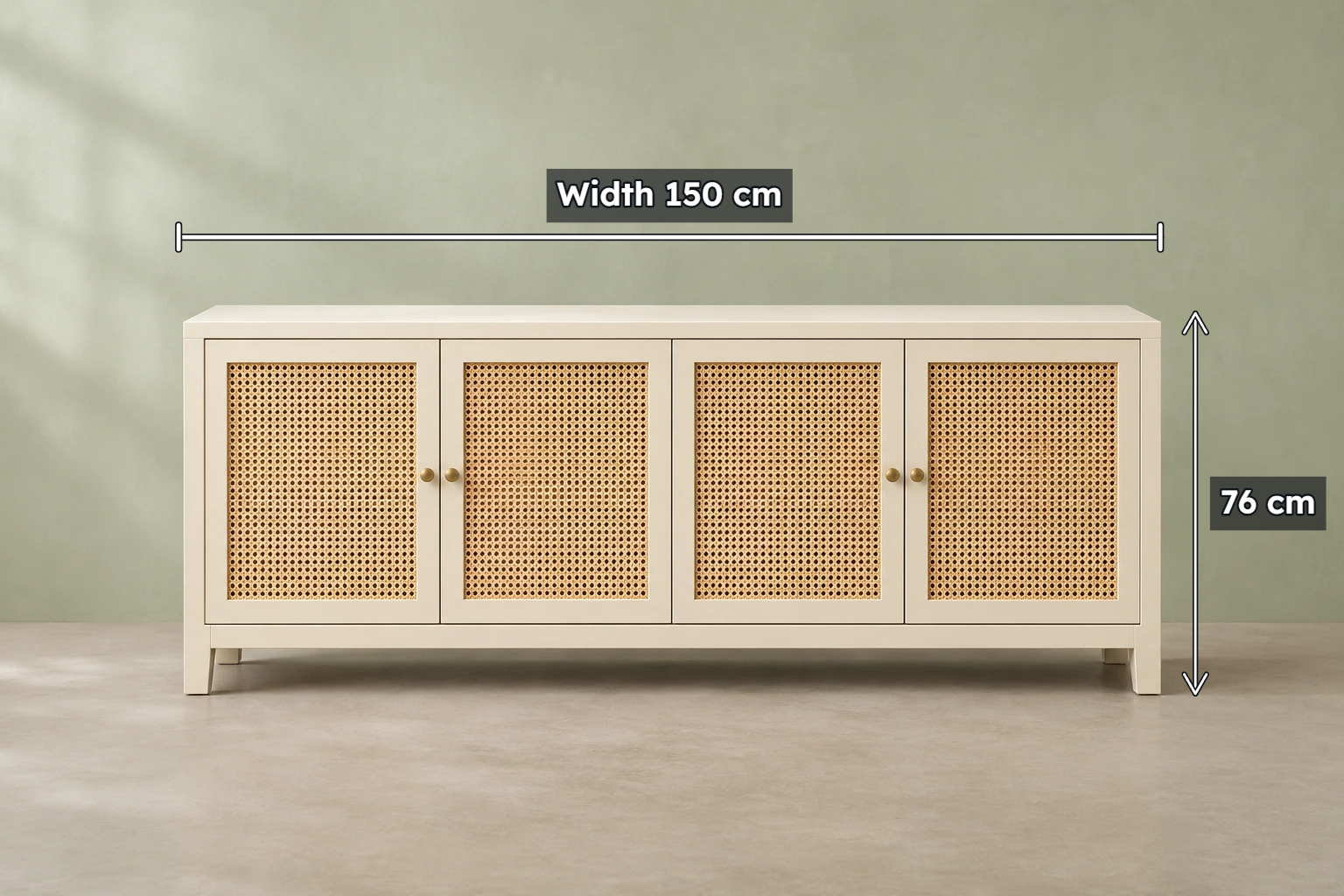
Console cabinet width and height
Place two labels outside the cabinet to keep the cane fronts and legs visible.
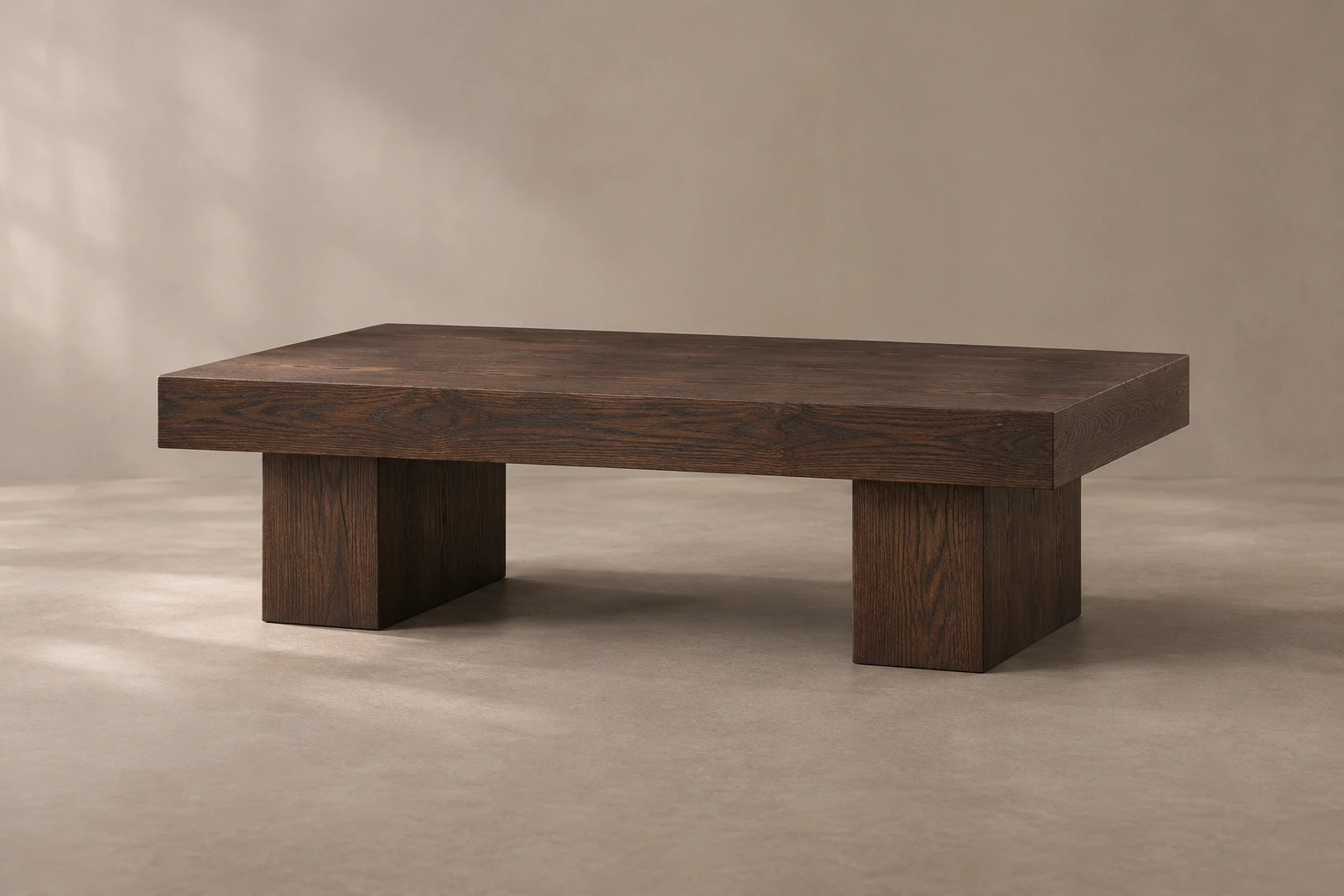
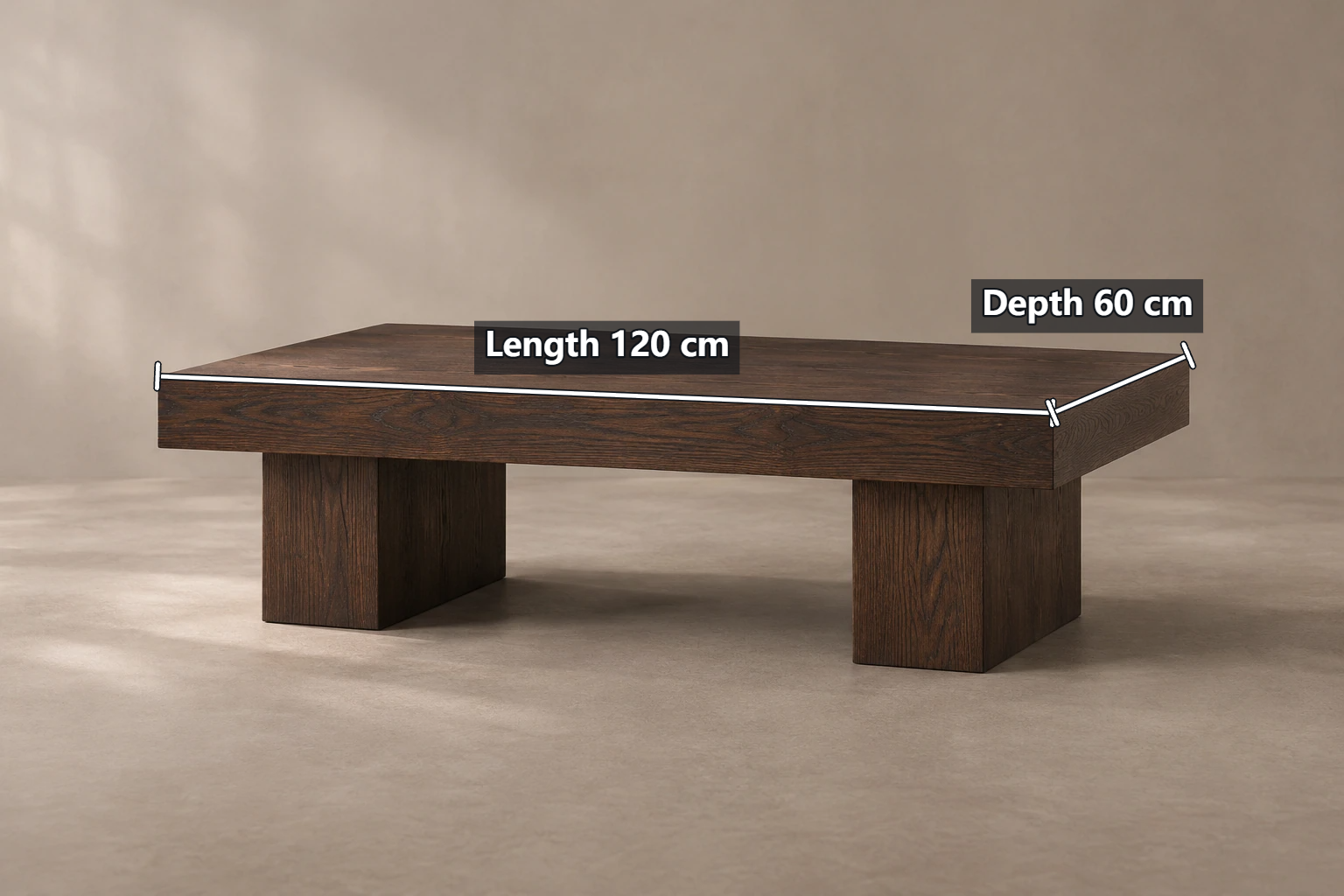
Coffee table length and depth
Use separate lines for the long front edge and the shorter side edge of the tabletop.
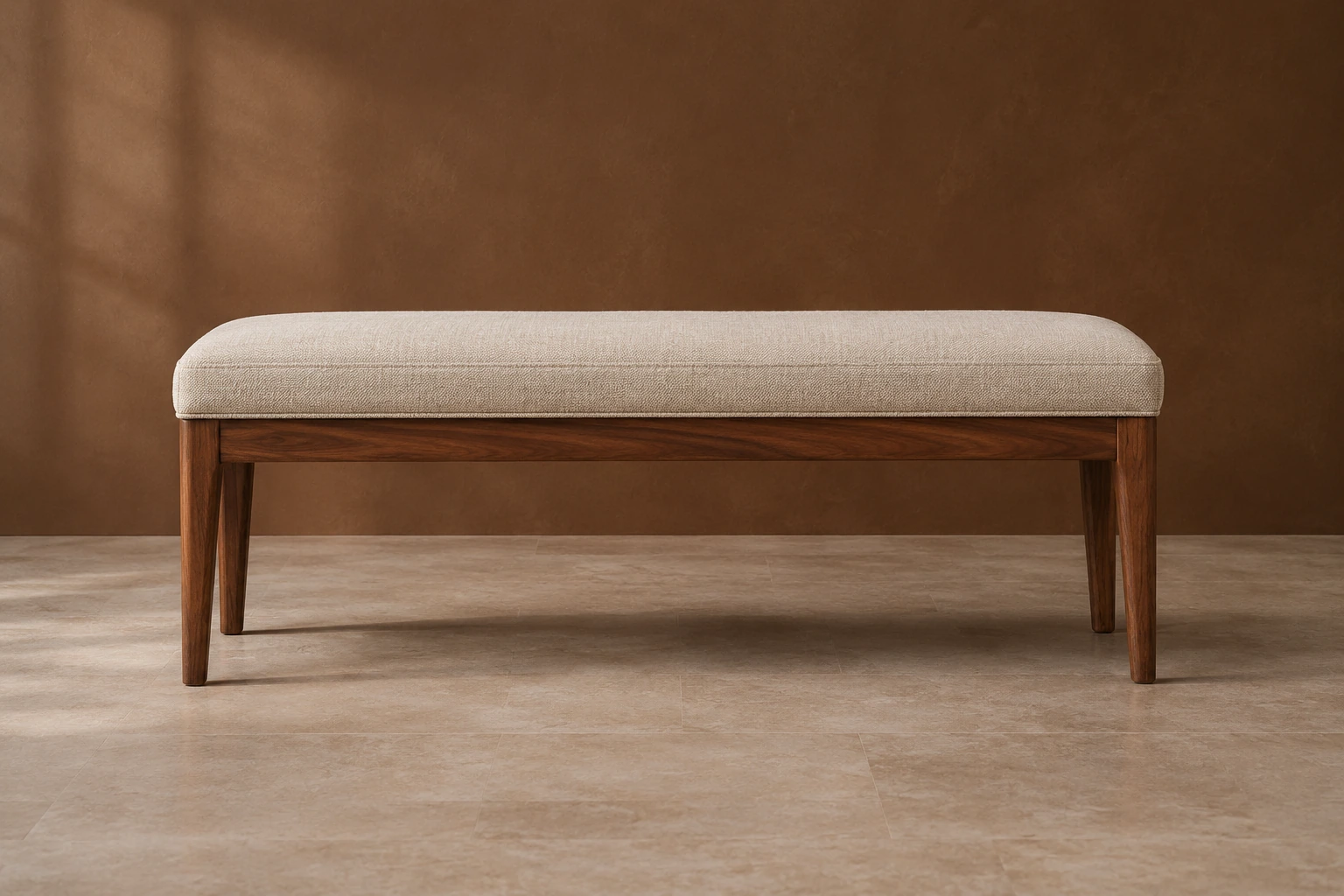
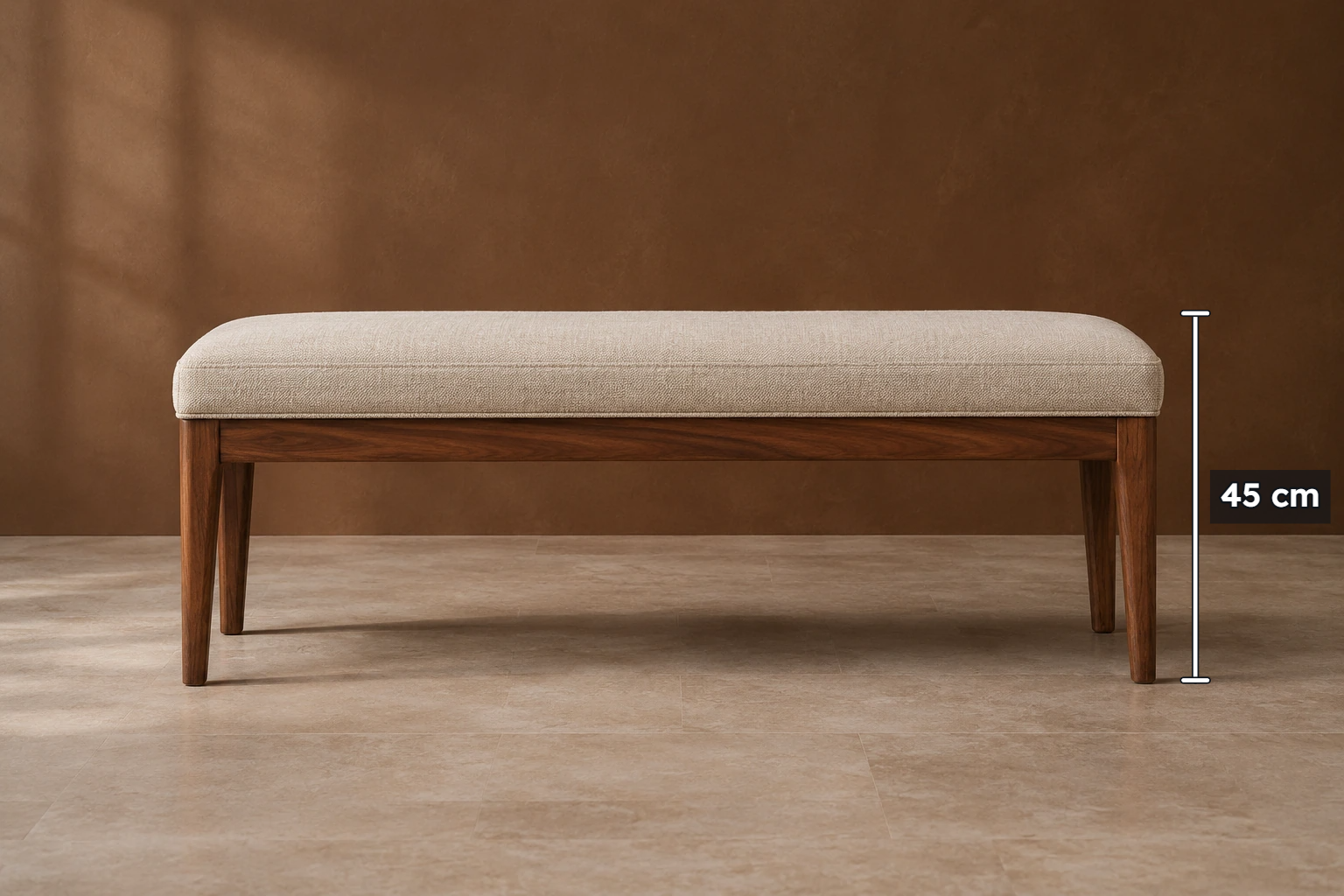
Entry bench seat height
Show where the height is measured from, with endpoints aligned to the floor and top of the cushion.
Tips for your export
Choose a view that shows the measured edge
Use a front view for overall width or seat height. Choose a three-quarter view when you need to show the depth of a desk or table.
Give each number a clear starting point
Align width markers with the outermost edges. If an armrest, handle or overhang is included, make it clear where the line ends.
Leave room for labels
Position labels toward the edge of the frame and check contrast. Use a translucent or solid label background on busy textures.
Use dimensions from your product data
The line shows which part of the photo the number refers to. Enter the size from the product itself or a verified specification.
Try Product Size Annotation
Add your measurements to a product photo and save a full-resolution PNG.
Product Size Annotation FAQ
Where do the measurement values come from?
Enter the values you measured or found in your product specifications. The lines show which part of the photo each value describes.
Can I show more than one measurement on a furniture photo?
Yes. Add up to ten measurement lines for overall width, height, depth, diameter or details such as seat height and clearance. Style each line separately.
Can I show just the size, or convert cm and inches?
Leave Name blank to show the value and unit alone. Enter cm or in and turn on Show both cm and in to include the converted value.
Can I use the keyboard to position endpoints?
Yes. Focus a preview endpoint and use the arrow keys, or open Endpoint coordinates to enter numeric X and Y positions.
Which images can I use?
Upload PNG, JPEG or WebP up to 20 MiB, with a maximum of 4096 pixels per side and 8.29 megapixels.
What size is the download?
The PNG uses the original pixel dimensions of the decoded image.
Where is my image processed?
Your browser renders the annotations locally.
More to try
Explore your next creative step
Try another image tool, compare image models, or animate an image concept.

Image Watermark Maker
Related tool
Add a text or logo watermark to images. Drag, rotate or tile the mark, then download PNGs or a batch ZIP.
Image Compressor
Related tool
Open Image Compressor.
Product Recolor
Related tool
Open Product Recolor.

Video Frame Extractor
Related tool
Preview a moment from an MP4 or WebM clip, then save the decoded frame at full resolution as PNG or JPEG.