
Video to GIF
Turn 1–15 seconds of video into a looping GIF. Choose the start time, duration, maximum width and frame rate.
Example
Turn a short video moment into a looping image
Use the video-to-GIF converter for a short visual demonstration that needs to play inside an image-friendly destination. A small interface interaction, a rotating detail, or a brief movement can be easier to share as a GIF than as a full recording. Upload an MP4, MOV or WebM and choose the exact excerpt.
Select a width and frame rate that make the action legible for its destination. A 640-pixel width preserves more of the source detail, while a smaller width can work for a compact preview. GIF animation is silent and uses a limited palette. For a longer clip, detailed footage or a soundtrack, keep a video file as well.
How to use Video to GIF
Find the moment in your video
Upload one file and play the original. Identify where the action starts and where it should loop back to the beginning.
Set the excerpt and appearance
Enter the start in seconds and a duration of one to 15 seconds. Pick the width and frame rate based on detail and file size.
Preview the repeat and download
Watch more than one pass, check any small text or movement and download the animated GIF. Reduce the settings if you need a smaller file.
Balance movement, detail and GIF file size
Use fewer seconds when you can
Cut any lead-in or pause outside the action. A short loop tends to be easier to follow and usually makes a smaller file than lowering the quality of an unnecessarily long clip.
Keep small content readable
Use 640 pixels when the action involves small controls or labels. Check the preview at the size your audience will actually see it, especially if the GIF will be placed in a narrow article column.
Choose a useful frame rate
Try 10 fps for a mostly static interface or simple icon motion. Use 15 or 20 fps for quicker changes when the extra frames are worth the added file size.
Plan the end of the loop
The GIF jumps back to its first frame after the last. Match the start and end composition for a gentler loop, or use a clear reset when the action is intended to repeat in distinct steps.

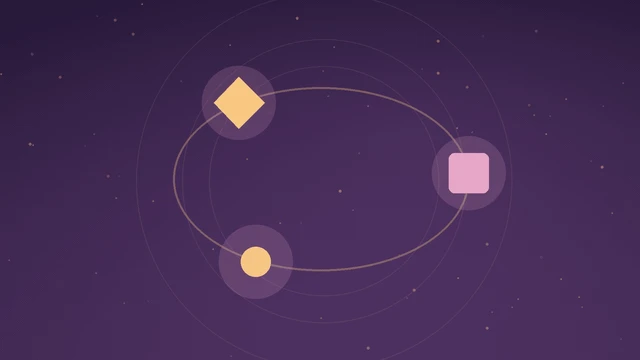
A two-second stream of rising bubbles
The two-second, 640-pixel export plays at 10 frames per second.
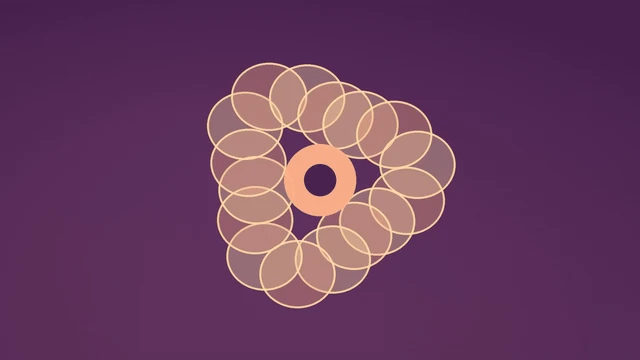
Capture the bloom of a rosette
The 640-pixel export samples the bloom at 20 frames per second.
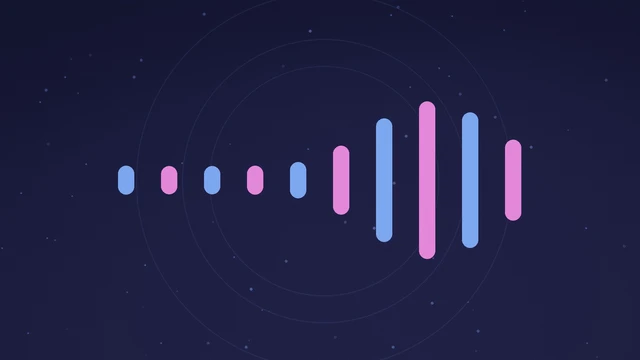
Share a neon pulse as an animation
A 640-pixel GIF plays the 2.5-second excerpt at 15 frames per second.
Create GIF
Turn 1–15 seconds of video into a looping GIF. Choose the start time, duration, maximum width and frame rate.
Video to GIF FAQ
Does a GIF include audio?
No. The downloaded GIF contains only the animation.
Can I choose only part of my video?
Yes. Enter a start time and a duration between 1 and 15 seconds. The entire selection must fit within the source clip.
How can I reduce the file size?
Choose a shorter clip, smaller width, or lower frame rate.
Which GIF sizes can I choose?
Select a maximum width of 320, 480 or 640 pixels and a frame rate of 10, 15 or 20 fps. The GIF keeps the source aspect ratio. Smaller sources stay at or below their original width.
Does the GIF repeat automatically?
Yes. The downloaded GIF is set to repeat indefinitely in viewers that support animation.
What kind of footage works well as a GIF?
Short, high-contrast motion is easier to read at small sizes. Fine gradients and complex camera motion can take more space and show color banding.
Related paths
Refine the clip another way
Try another video step when the next move is a new source, a different model, or a cleaner result.

Video Speed Changer
Video editing
Speed up or slow down the whole video, or set a different speed for each section. Keep the audio in sync or mute it, then export as MP4.
Reverse Video
Video editing
Play a clip backward. Reverse its sound too, or keep the audio in its original order.
Video Looper
Video editing
Repeat a video, fill a target duration, or export a forward-and-back Boomerang as MP4.
Video Compressor
Video editing
Export a smaller video for uploading or sharing.