
Video Compressor
Set a maximum file size as a percentage or MB limit, preview the original and compressed videos, and download a verified MP4. The actual file can be smaller than the limit.
No credits are used. Sign in to process your file.
Real processing example
0:00 / 0:00
0:00 / 0:00
Drag the divider to compare. Play either side using its own controls and audio; the other video pauses.
Original moving video and actual compression to at most 50% of its source bytes.
A video that fits the place you want to share it
Large video files can slow down a handoff or exceed an upload limit even when the clip is short. This video compressor works from your chosen maximum file size, then measures the finished MP4 before offering it as a completed result. Drag the divider to compare Original and Compressed. Each side has its own play and seek controls and plays its own soundtrack if present.
Set an upper limit of 25%, 50% or 75% of the original bytes, enter a custom percentage, or switch to a maximum MB limit. These are size ceilings, not exact output sizes: a simple clip can compress further. The default keeps the original dimensions and audio. Advanced options let you explicitly set a maximum edge or create a muted copy.
Make a delivery copy for your next destination
Meet an attachment limit
Prepare a clip for an email, form or client review with a specific size requirement. Set the destination limit directly and leave some room if it also counts other attachments.
Make a website delivery copy
A smaller video can be easier to publish in a page or product story. Choose a maximum edge that fits its display area, then check motion and gradients for visible artifacts.
Share a silent visual
Create a muted landscape or product clip when sound is unnecessary. The audio option is explicit, so you can choose a silent delivery copy while retaining the original recording.
How to use Video Compressor
- 01
Upload one video
Use an MP4 or MOV up to 50 MB and 30 minutes. Start from a supported, readable source and keep the original as your master.
- 02
Choose a size target and delivery options
Choose a percentage of the original size or a custom maximum MB limit. In Advanced options, choose Longest edge to allow resizing or Mute audio for a silent copy.
- 03
Compare and download the measured MP4
Play Original or Compressed using the controls on that video. Inspect motion, fine details and sound, then check the measured file size before downloading.
Explore common ways to use a smaller video below. The images illustrate publishing and sharing scenarios; use the playable example above to inspect an actual compression result.
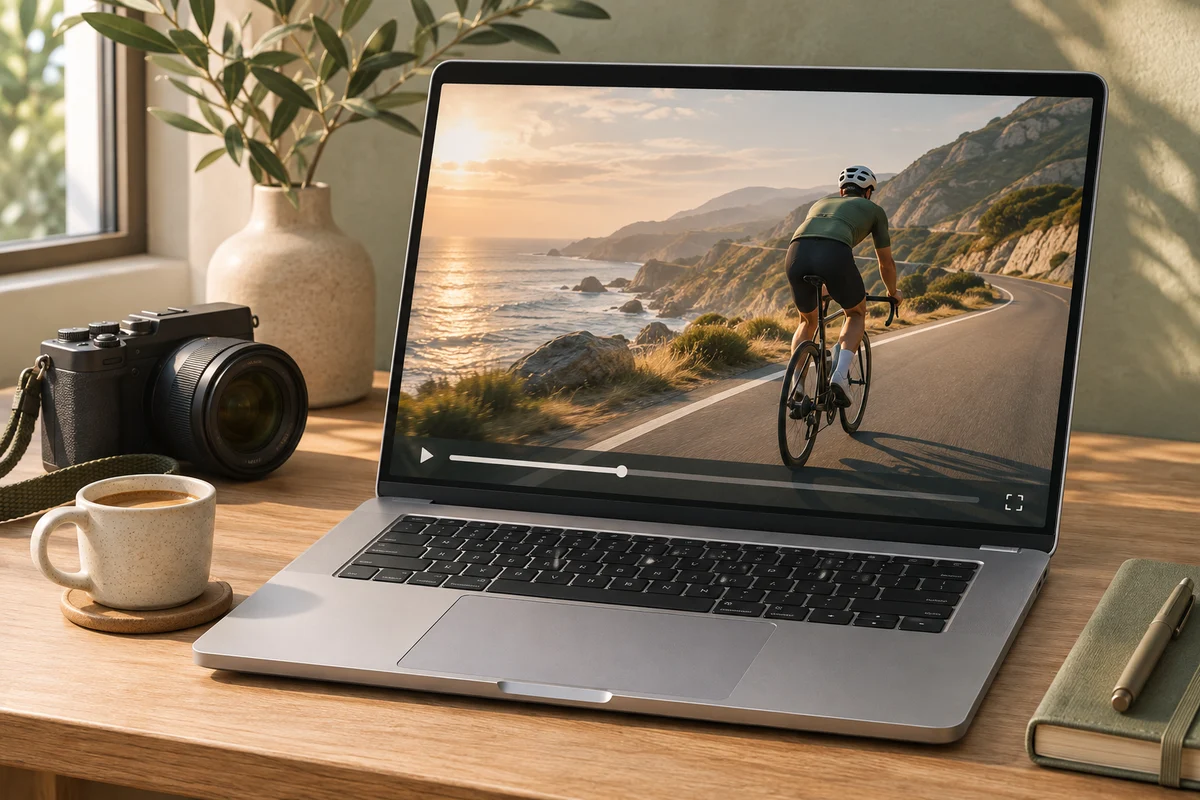
Prepare lighter videos for your website
A cycling film, travel reel or product demonstration can start as a large camera recording. Create a smaller MP4 delivery copy for your page, with a size ceiling suited to your publishing workflow. Before downloading, play the compressed video and inspect movement, textures and gradients. Fewer bytes reduce the amount of data to transfer; actual loading and playback also depend on your hosting and visitors’ connections. Keep the original recording for future edits.
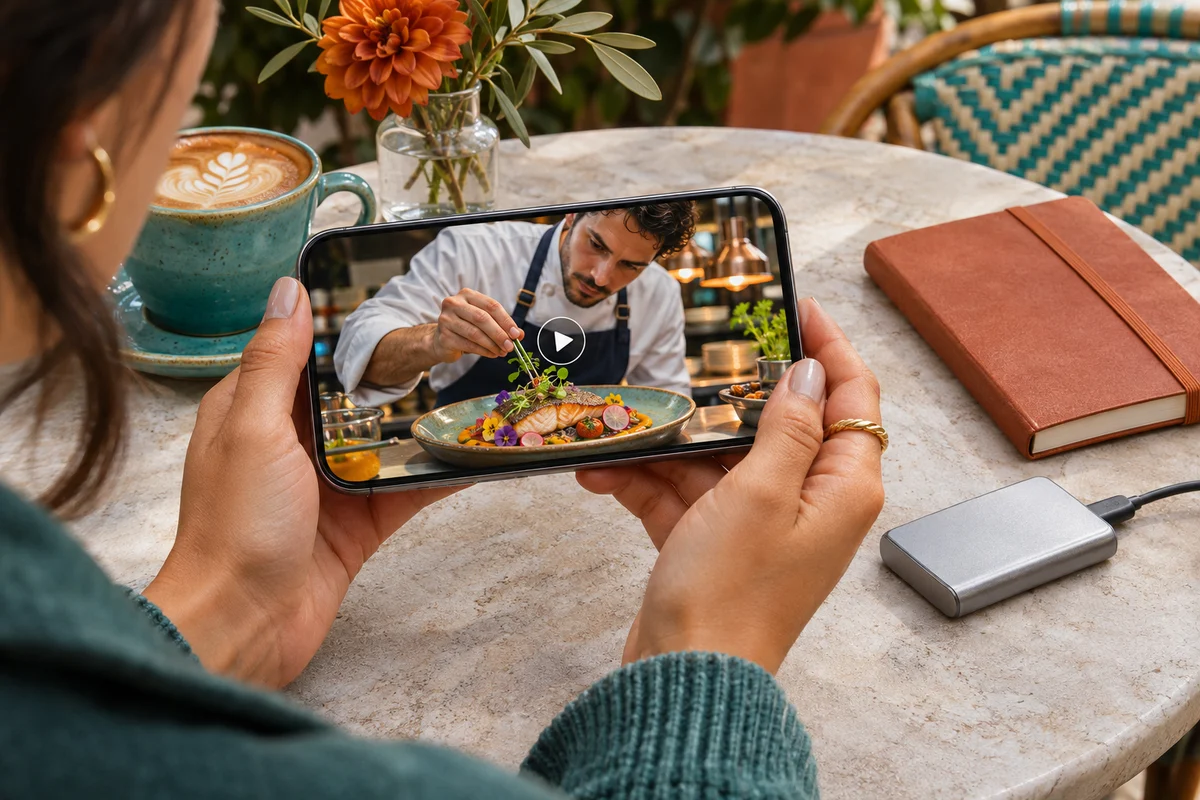
Share a video within an attachment limit
A food demonstration or client-review clip may need to fit a message, form or upload limit. Enter the destination’s maximum size in MB, or choose an upper percentage of the original file. Check the measured output before attaching it, allowing room for any other files that count toward the same limit. The finished video can be smaller than the ceiling. If detail looks too soft, increase the allowance and process the original again.

Adapt a recording for its viewing size
A workshop demonstration may be watched in a large page player or on a phone. Keep Original dimensions to retain the source frame size, or choose a maximum edge of 1920 or 1280 pixels for a smaller delivery version. The aspect ratio is retained and smaller sources are never enlarged. Keep original audio for spoken instructions, or choose Mute audio when the visual will be used without sound. Review the full-length MP4 at its intended display size before sharing.
Choose a sensible video size
File size is a budget for the whole clip
A long video needs to spread the same number of bytes over more seconds. If a result looks too soft, try a larger limit or explicitly reduce dimensions. Check the receiving service for its own duration, codec and resolution rules.
Keep a high-quality original
MP4 output is intended as a delivery copy. Re-encoding can lose detail even when the frame size stays the same. Keep your source for future edits, and use the downloaded file for the destination you selected.
Make the next version yours
Set a maximum file size as a percentage or MB limit, preview the original and compressed videos, and download a verified MP4. The actual file can be smaller than the limit.
Video Compressor FAQ
How do I compress a video to under 10 MB?
Under Maximum file size, choose Size limit in MB and enter 10. The result is measured after encoding and offered as a completed MP4 only if it meets that upper limit. The actual file may be smaller than 10 MB.
Why is the result smaller than my chosen percentage?
The percentage sets a maximum size, not an exact output. A 50% limit means at most half the original bytes. Encoding efficiency, picture complexity and audio affect the measured result, so it can be smaller. Compare the actual size and picture quality before sharing.
Will compression reduce the resolution?
The default keeps dimensions. Selecting a maximum edge explicitly allows a smaller frame. If another reduction is needed to meet the target, the tool asks for approval.
Can I remove the audio?
Yes. Select Mute audio in advanced options. Keep original audio is the default. The output is checked against the selected soundtrack mode.
What if my video is already smaller than the MB limit?
Choose a limit below the original file size, or switch to a percentage. For example, a 4 MB video already fits a 10 MB limit, so the tool asks for a smaller limit before submitting. It does not return the unchanged file as a new compression result.
Which video formats can I upload?
Upload one readable MP4 or MOV, up to 50 MB, 30 minutes and the supported 3840 x 2160 pixel limit. The source must contain one video stream and at most one audio stream.
What format is the compressed video?
The output is an MP4 with H.264 picture and AAC sound when audio is retained. Play it in the preview and check the destination requirements before sharing.
Can every target size be reached?
No. Very small limits may be unable to retain the full duration and required sound. Increase the target or approve a smaller resolution instead of expecting unlimited compression.
Does this run in my browser?
No. The video is uploaded for server processing. Sign in to compress your file for free; no credits are used. Local playback and inspection do not create another compression task.
More to try
Find the right next tool
Find the next tool for generation, restyling, cleanup, extension, or model comparison.

AI video tools
More video tools
Generate, edit, clean up, or improve clips.

AI models
Compare video models
Pick a better model before rendering again.

AI image tools
Prepare source images
Create a stronger still for the next video run.

AI Video Generator
Start a video
Create a clip from a prompt or image.

Text to Video
Prompt-first video
Turn a written scene into motion.

Image to Video
Animate a still
Turn an image into a short clip.
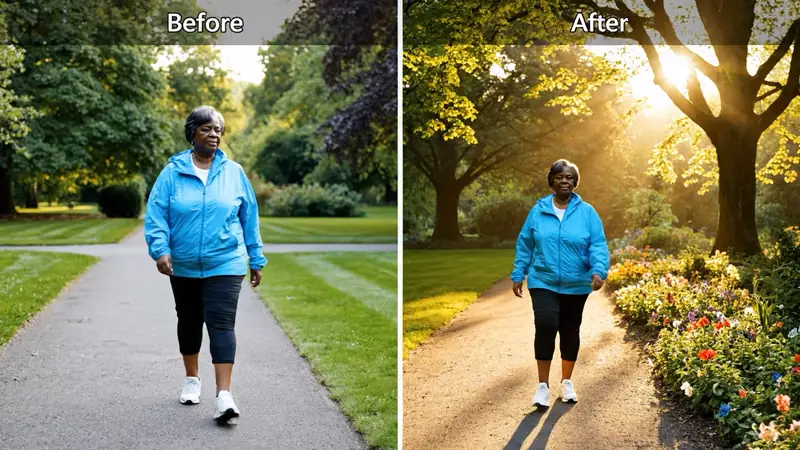
Video to Video
Restyle footage
Change the look of an existing clip.

AI Video Extender
Extend a clip
Continue a short video into a longer scene.
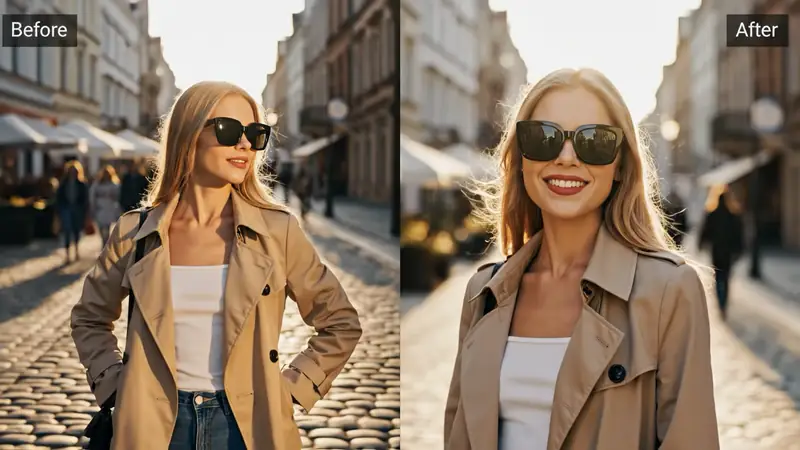
AI Video Editor
Edit with prompts
Revise a clip without a timeline.