
Video Looper
Repeat a video, fill a target duration, or export a forward-and-back Boomerang as MP4.
Example
Repeat a clip, match a runtime or make a Boomerang
Video Looper writes repeated motion into a downloadable MP4. Use a repeat count when viewers should see a product turn or animation a specific number of times. Use a target duration to fill a fixed time slot in a presentation, a web preview or a longer video.
Boomerang gives a different result. It plays the complete clip forward, then returns through the same frames in reverse. A subject that travels from left to right therefore comes back to the left. Use it for a deliberate out-and-back motion or for shots that end somewhere different from where they started.
How to use Video Looper
Upload a clip with a clear movement
Select MP4, MOV or WebM. Subjects that cross the frame or change position make it easy to see where each pass begins and ends.
Choose a loop mode
Set a count from two to ten, enter a target from one to 120 seconds, or choose Boomerang for clips up to 60 seconds. In Repeat count or Target duration, turn on Blend joins to add a 0.3-second crossfade.
Preview the loop and download
If the output includes multiple passes, watch and listen through the first join. Download the MP4 when the motion and duration work for your use.
Pick the type of loop for your clip
Repeat count for a predictable number of passes
A three-second clip repeated three times lasts about nine seconds with a hard cut at each join. This suits a demonstration where the same movement needs to be seen several times.
Target duration for a fixed slot
Choose the length you need and the tool repeats or cuts the clip to fit. The last pass can stop partway through when the target is not a multiple of the source length.
Crossfade when the ends nearly match
Use Blend joins on clips longer than 0.6 seconds. A short overlap can soften a jump and blend the soundtrack, though big changes in camera angle or brightness may still be visible.
Boomerang when the direction change is the effect
Choose an object moving clearly from one position to another. It will return along the same path. The output is about twice as long as the input, so a short clip is easier to watch and share.
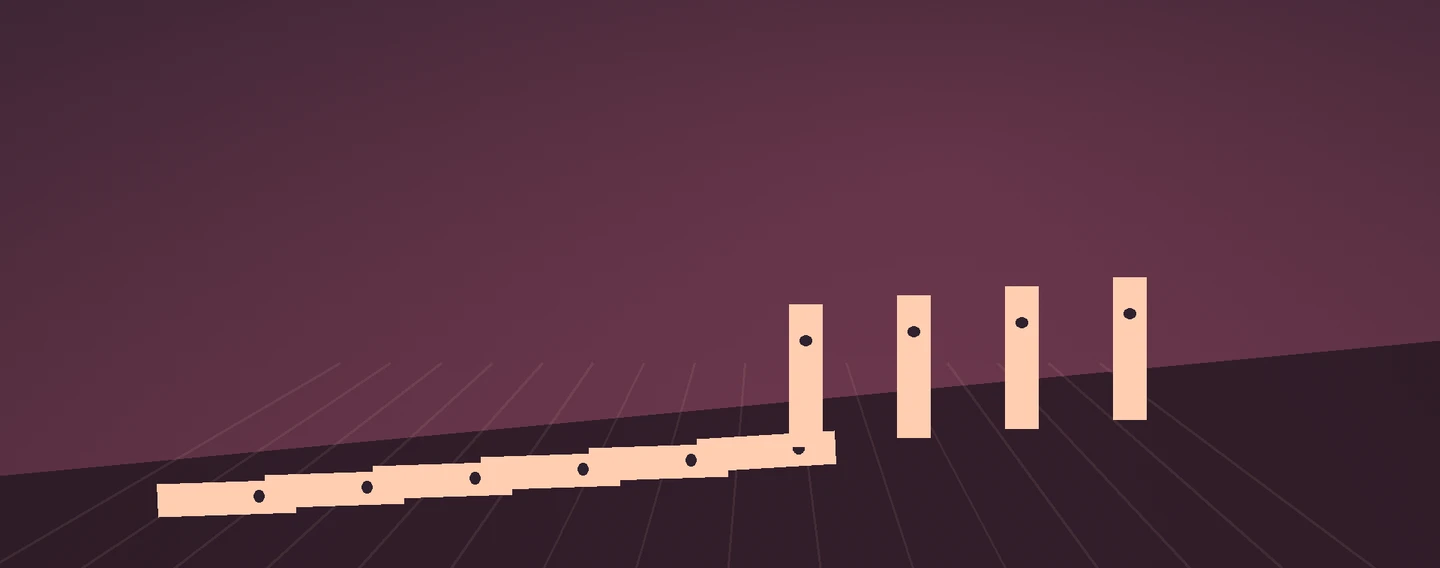
Fill eight seconds with a signal beacon
The beam sweeps across the horizon, resets at three and six seconds, and stops partway through the third pass at eight seconds.
Send a paper kite out and back
The kite travels from low left to high right. At three seconds the direction changes, and the kite traces the same path back to its starting point.
Blend three passes of a night crossing
The vehicle crosses the scene three times. Watch around 2.7 and 5.4 seconds to see the two 0.3-second overlaps.
Create loop
Repeat a video, fill a target duration, or export a forward-and-back Boomerang as MP4.
Video Looper FAQ
What does Boomerang do?
It plays the original once, then plays its frames backward. The export is about twice the original length.
Why is my crossfaded loop shorter?
Each join overlaps the two passes by 0.3 seconds. With Repeat count, those overlaps shorten the overall video. Choose Target duration to set the final length.
Can I loop a video to a specific duration?
Yes. Choose a target between 1 and 120 seconds.
How many times can I repeat a clip?
Repeat count accepts two to ten passes. Each pass is written into the MP4 file, so you can see the repeats in a regular player.
Does the audio repeat too?
Yes. The main audio track repeats with the picture. With a crossfade, the sound blends across the join as well. Boomerang reverses the audio during the return pass.
Which clips work well for a smooth loop?
Look for matching positions, framing and lighting at the start and end. Crossfade can soften a small jump. For a deliberate change of direction, use Boomerang.
Related paths
Refine the clip another way
Try another video step when the next move is a new source, a different model, or a cleaner result.

Video Speed Changer
Video editing
Speed up or slow down the whole video, or set a different speed for each section. Keep the audio in sync or mute it, then export as MP4.
Reverse Video
Video editing
Play a clip backward. Reverse its sound too, or keep the audio in its original order.

Video to GIF
Video editing
Turn 1–15 seconds of video into a looping GIF. Choose the start time, duration, maximum width and frame rate.

Video Compressor
Video editing
Export a smaller video for uploading or sharing.