
Video Translator
Translate speech from a short video without burned-in subtitles. Review the words, choose a voice and export with optional translated subtitles.
Credits are checked before each request.
Real processing example
Translated voiceover · original picture
AI-generated workshop presenter: English original and reviewed Spanish voiceover, with selectable captions. Three detailed examples compare Spanish, French and German soundtracks. The translated language is selected by default. The same 10-second picture is retained; lip movements are unchanged.
Translate spoken audio while keeping your original video picture
Start with a short speaking video that has no subtitles burned into the picture. This video translator transcribes the spoken audio, creates an editable translation and lets you review the words before making a new voiceover. The original picture is retained while the full soundtrack is replaced. Existing text in the picture is not translated, erased or replaced.
Choose from the supported target languages, check names and facts, then pick a voice and explicitly confirm export. Subtitles are off by default; turn on Add translated subtitles if you want them in the video. Compare the original and translated sound, then download the MP4, voiceover or reviewed text for another workflow.
Make your short video useful to another audience
Introduce a workshop or course
Adapt a short welcome or booking announcement for another audience. Review the time, date and call to action before confirming the new voiceover.
Explain a product or service
Translate a simple single-speaker demonstration while keeping the original visuals. Check measurements and product claims against the transcript; the tool does not redraw the product.
Share a personal update
Make a short announcement understandable in another language. Use the text review to keep the tone appropriate, then listen to the selected synthetic voice before sharing it.
How to use Video Translator
- 01
Upload a video without burned-in subtitles
Use a clear single-speaker H.264 MP4 or MOV, up to 50 MB and 60 seconds, without subtitles burned into the picture. Reduce background music and overlapping speech where possible.
- 02
Choose a language and review the translated speech
Select the target language and click Analyze & translate. Review the transcript and editable translation, check names and numbers, and leave enough room for a natural reading pace.
- 03
Confirm the voiceover, listen and export
Choose a voice and click Confirm voiceover & export MP4. Enable Add translated subtitles if you want captions on the finished video. Compare the two soundtracks before downloading.
Translated voiceover · original picture
Hear the Spanish version of a workshop announcement
Switch between the English original and Spanish voiceover while watching the same presenter. Review names, times and booking details in the editable translation before creating your own voiceover.
Translated voiceover · original picture
Compare the English and French soundtracks
Listen to the French synthetic voice over the original picture. Mouth movements stay the same when the soundtrack changes.
Translated voiceover · original picture
Read captions while listening to the German version
Use the player’s subtitle controls to show or hide captions in this sample. For your own export, Add translated subtitles burns captions into the MP4 and makes a separate VTT available.
Prepare a video for a better translation
Prepare a clear, subtitle-free source
Use a recording with one audible speaker and no subtitles burned into the picture. Text already in the frame will stay visible and will not be translated. Avoid overlapping speakers and check important facts after analysis. Export replaces the complete original audio track, including music and ambient sound.
Choose whether your video needs subtitles
Subtitles are off by default: the MP4 keeps the original picture and replaces the soundtrack with translated speech. Enable Add translated subtitles to burn short, two-line captions directly into the picture in white with a thin outline. The captions remain visible in the downloaded MP4. VTT captions are also available for subtitled exports; timing is approximate.
Use subtitles as an optional output
Start with a source that has no burned-in captions. Keep Add translated subtitles off to change only the soundtrack, or enable it to display the translated speech as short captions. Original selectable subtitle tracks are omitted from the export. The tool does not detect or remove text already embedded in the picture.
Make the next version yours
Translate speech from a short video without burned-in subtitles. Review the words, choose a voice and export with optional translated subtitles.
Video Translator FAQ
Which target languages are supported?
The menu includes English, Spanish, Portuguese, French, German, Russian, Italian, Japanese, Korean and Chinese. Review the translation and listen to the selected voice before publishing.
Does changing the language generate a video immediately?
No. Choose a language, explicitly start analysis, review the translated text, then confirm voiceover export. Analysis and export each have an estimate and credit check.
Can I edit the translation?
Yes. Edit the wording after analysis. Local edits do not call speech synthesis. A separate confirmation is required before a new voiceover task starts.
Can I choose a different voice?
Yes. Choose an available voice in the review stage. It is a supported synthetic voice, not a clone of the speaker in your original recording.
What if the voiceover is too long or short?
Modest differences are fitted using pitch-preserving speed adjustment. If the mismatch is too large, listen to the returned audio and edit the translation before confirming again. The tool does not truncate speech, loop the picture or automatically create another speech request.
Will downloaded videos show translated subtitles?
Only if you enable Add translated subtitles before export. It is off by default. When enabled, white subtitles with a thin outline are burned directly into the MP4, and a separate VTT file is available. Existing exports keep their previous format.
What source video should I upload?
Upload a short video with clear spoken audio and no subtitles burned into the picture. The tool translates speech and creates a new voiceover. It does not translate on-screen writing or remove existing hard subtitles. Selectable subtitle tracks are omitted from the export.
What if my video already has burned-in subtitles?
Use a subtitle-free original before translating. Burned-in captions are part of the picture, so they will remain visible and can overlap newly added subtitles. This tool does not detect or remove them.
Will the speaker lips match the translation?
No. The original picture is retained, including mouth movement. The tool replaces sound and does not perform lip synchronization.
Will background music remain?
No. Export replaces the entire original audio track, including music and ambient sound. Keep the original if you need those tracks for a separate edit.
What can I download?
Download the reviewed translation as TXT after analysis and the voiceover when audio is available. A successful video export provides an MP4. If you enable translated subtitles, you can also download the VTT. If the voiceover is too long or short, you can still download the returned audio.
Related paths
Refine the clip another way
Try another video step when the next move is a new source, a different model, or a cleaner result.

AI video tools
More video tools
Generate, edit, clean up, or improve clips.

AI models
Compare video models
Pick a better model before rendering again.

AI image tools
Prepare source images
Create a stronger still for the next video run.

AI Video Generator
Start a video
Create a clip from a prompt or image.

Text to Video
Prompt-first video
Turn a written scene into motion.

Image to Video
Animate a still
Turn an image into a short clip.
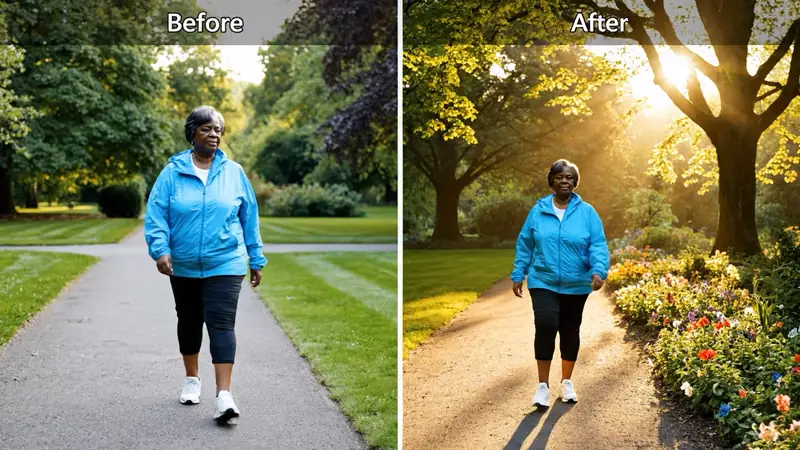
Video to Video
Restyle footage
Change the look of an existing clip.
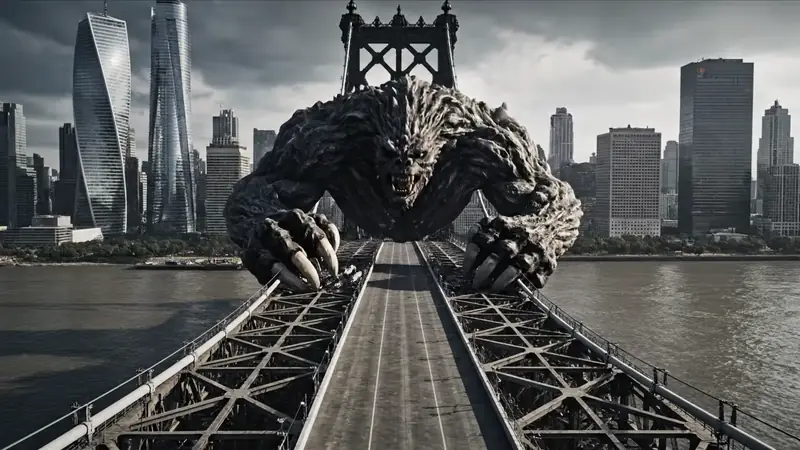
AI Video Extender
Extend a clip
Continue a short video into a longer scene.
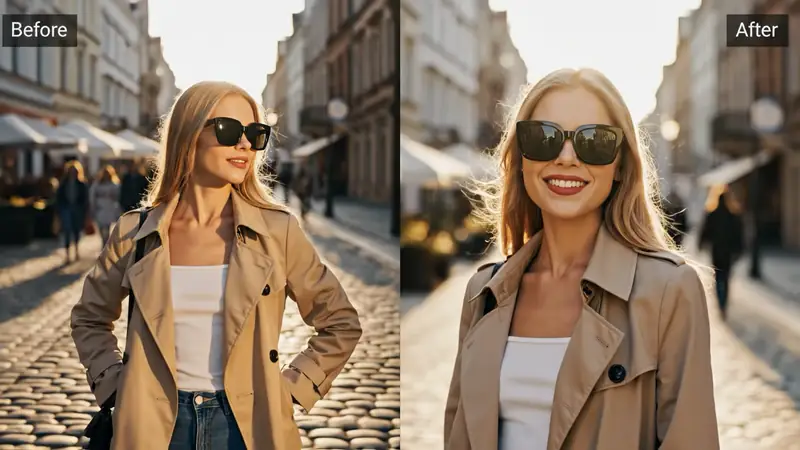
AI Video Editor
Edit with prompts
Revise a clip without a timeline.