Image Translator
Translate the text in an image and get a translated image in one step. Check names, numbers and fine details before sharing.
Sign in to translate. Credits are checked before each image request. Editing text does not automatically generate or charge.
Examples
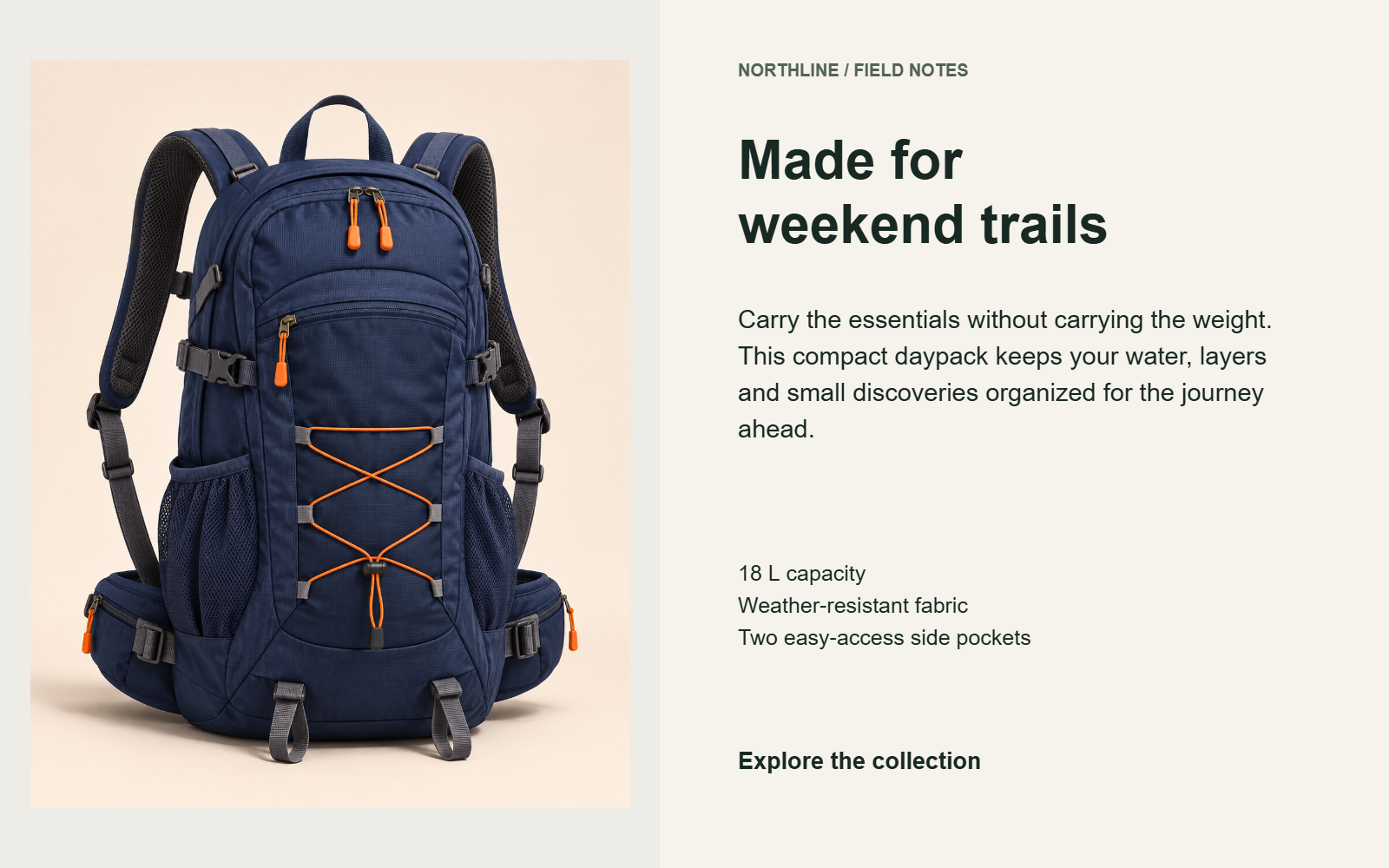
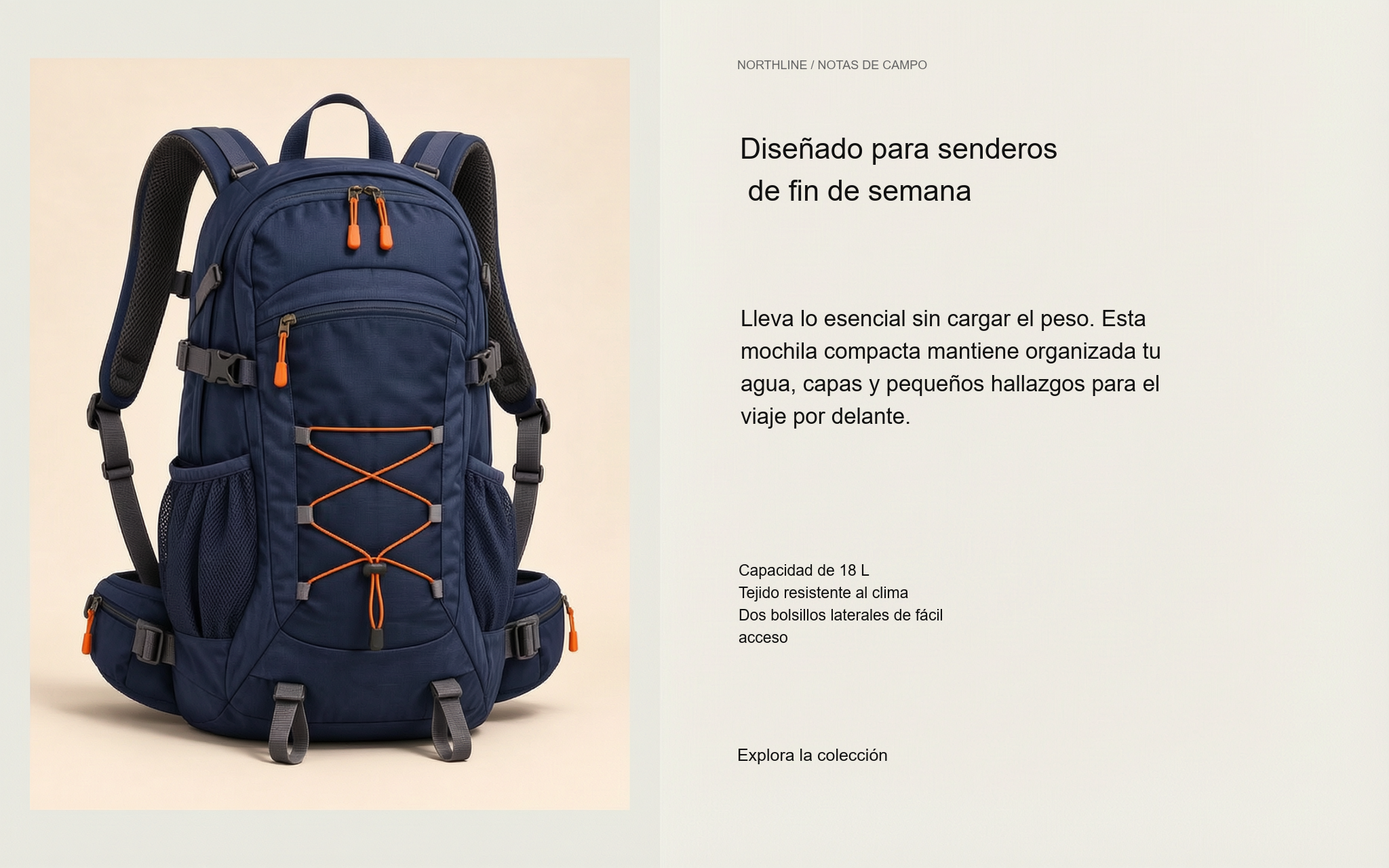
Outdoor product feature card
English to Spanish - AI image translation of a product graphic.
Translate the words and get an image back
A product graphic, event poster or illustrated announcement can carry a message that you want another audience to read. Upload the image, select a target language and click Translate image. Recognition, translation and image editing run together, and the completed image appears in the result panel without a separate preview step.
The tool uses the original image as a reference while replacing its visible text and rebuilding the area behind it. It is no longer limited to filling plain-color rectangles. Clear, readable text still gives the best results. AI editing can change lettering, spacing and nearby details, so compare the finished image with your original before publishing.
- One-click translated image
- Ten target languages
- Optional wording corrections
Bring your existing graphics to another audience
Localize product graphics
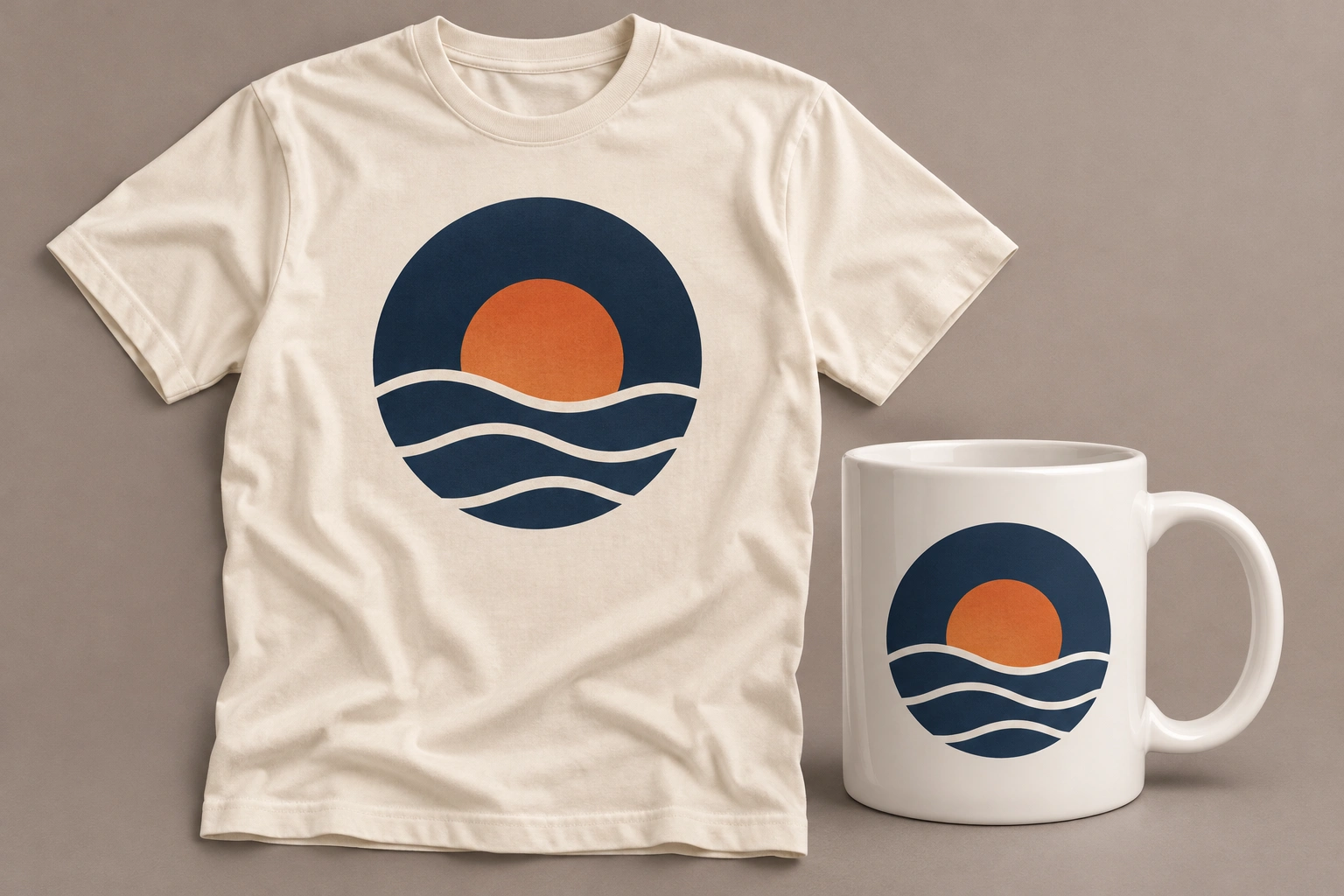
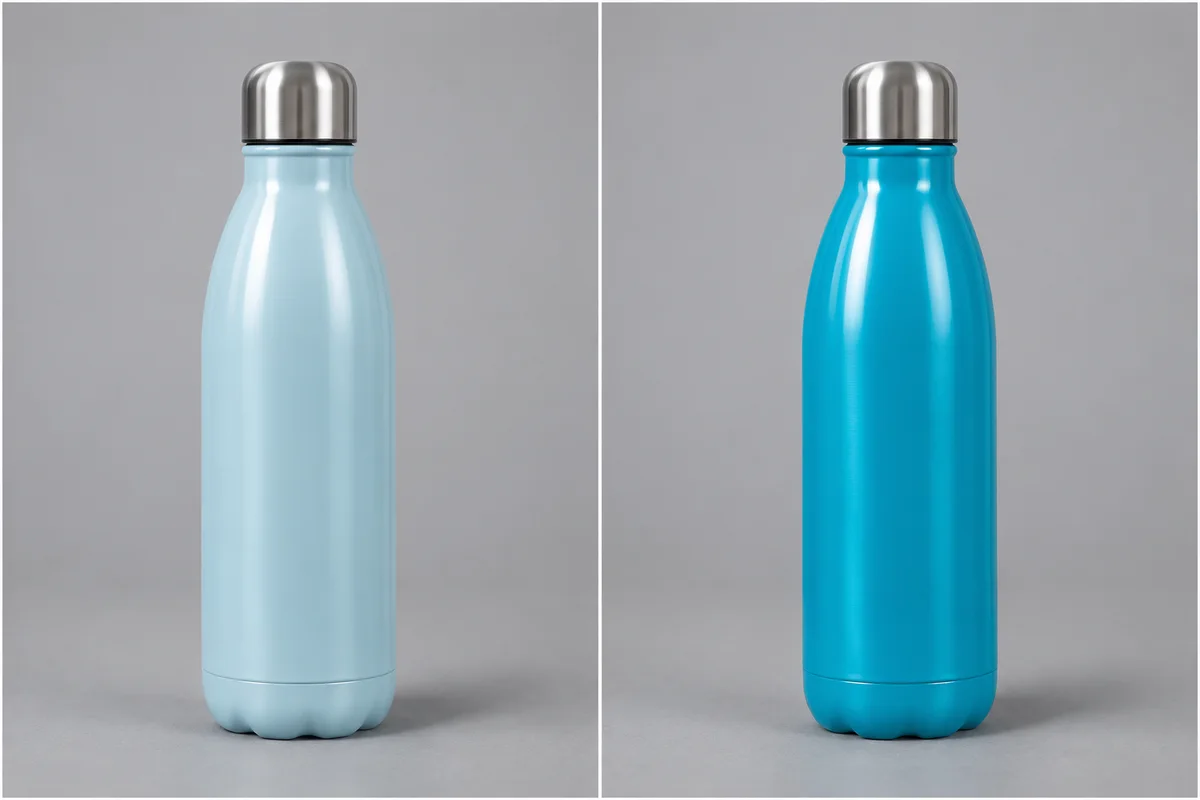
Translate product feature cards and promotional graphics for another audience. Compare the product, names, measurements and prices with the original; AI editing is not a guarantee that every visual detail remains identical.
Translate event posters
Create another-language version of workshop and concert announcements. Check dates, venue details and booking instructions in the generated image. Longer translations may require a different line arrangement.
Adapt illustrated explanations
Translate readable text alongside diagrams or illustrations. Review terminology and visual details after generation, and keep the original if exact technical drawings or pixel-perfect artwork are required.
How to use Image Translator
- 01
Upload your image
Use one static PNG, JPEG or WebP up to 10 MB and 16 megapixels. Start with a sharp source so small letters and numbers are readable.
- 02
Choose a target language
Select the language you want the image to use. The button shows the available tool estimate before submission; changing the menu alone never starts a generation.
- 03
Generate the translated image
Click Translate image once. The tool recognizes the wording, translates it and creates an edited image automatically. No text-box coordinates or preview confirmation are required.
- 04
Compare and download
Compare the result and download it. If wording needs a correction, open the optional text section, edit it and explicitly request an updated image. Updating starts a new estimated task.
Review your translation before sharing
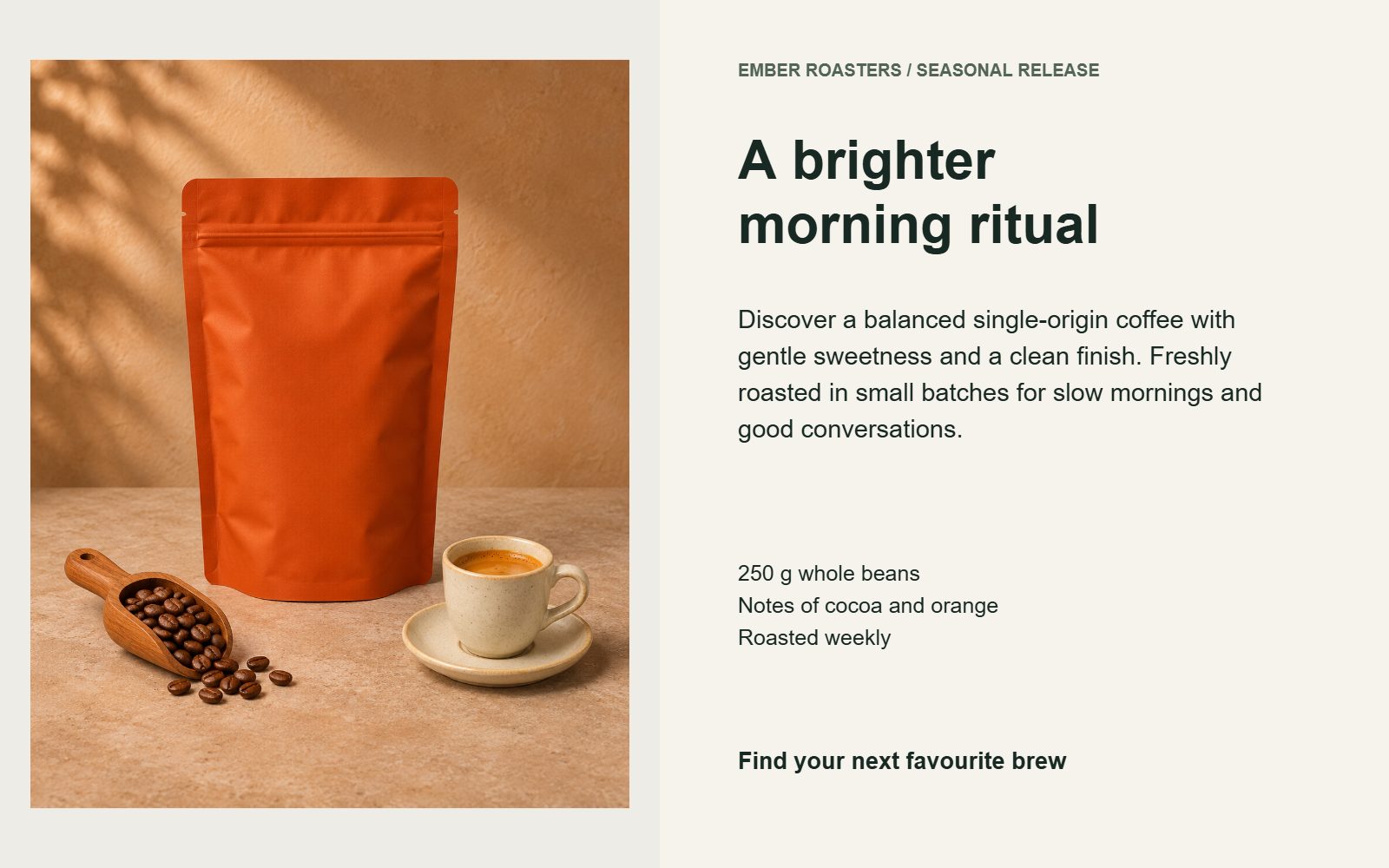
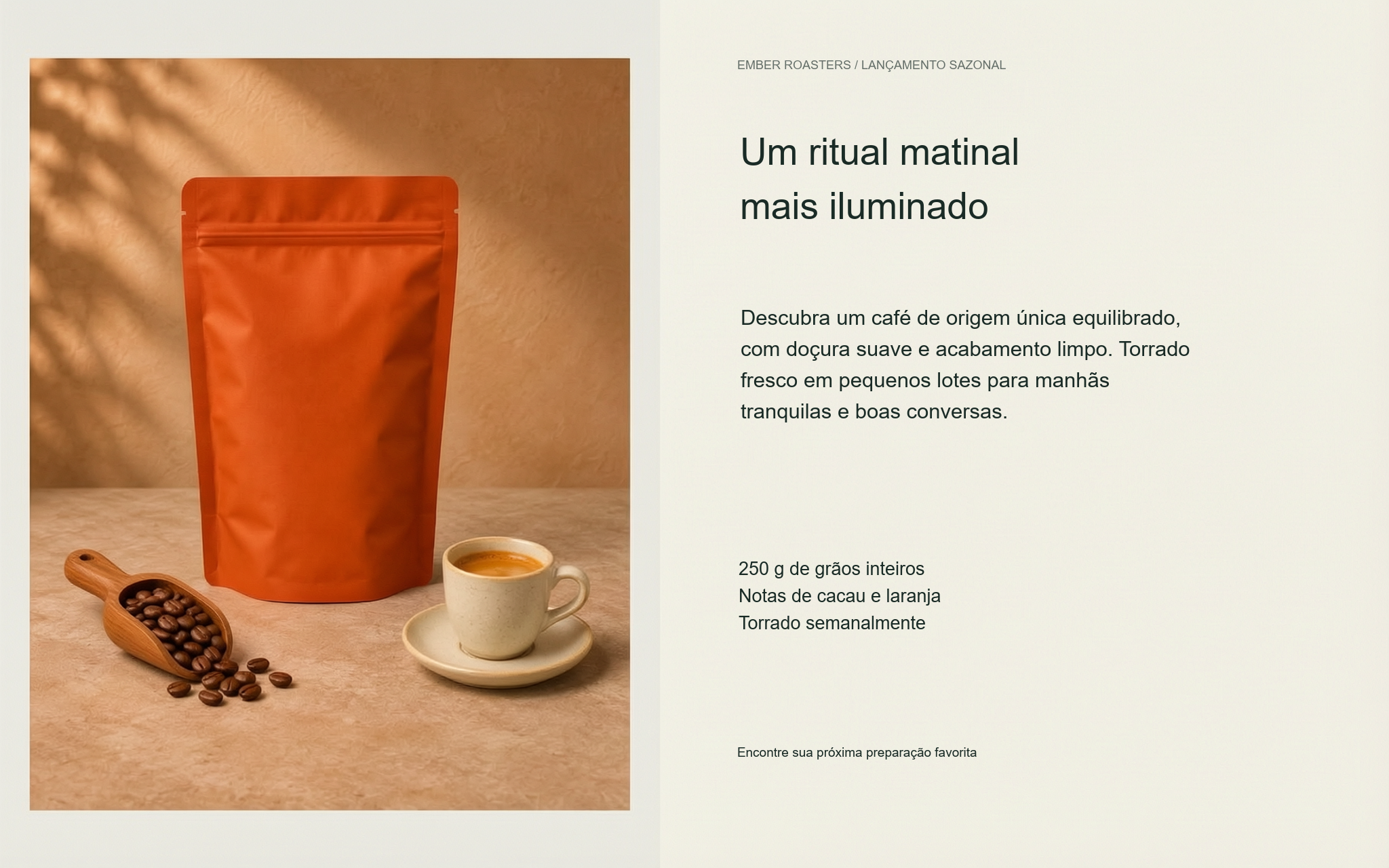
Translate the whole visual message
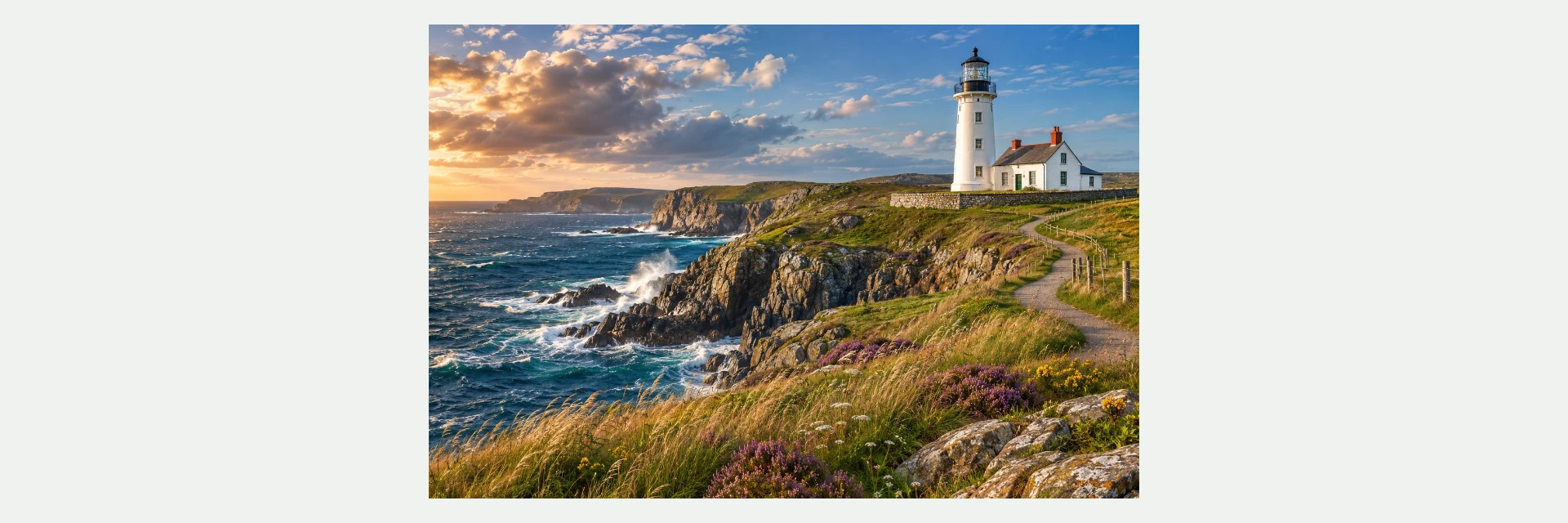
A coffee announcement includes headings, tasting notes and delivery information. One request recognizes and translates the text, then uses image editing to create the result. Download only after checking the final wording and product details.
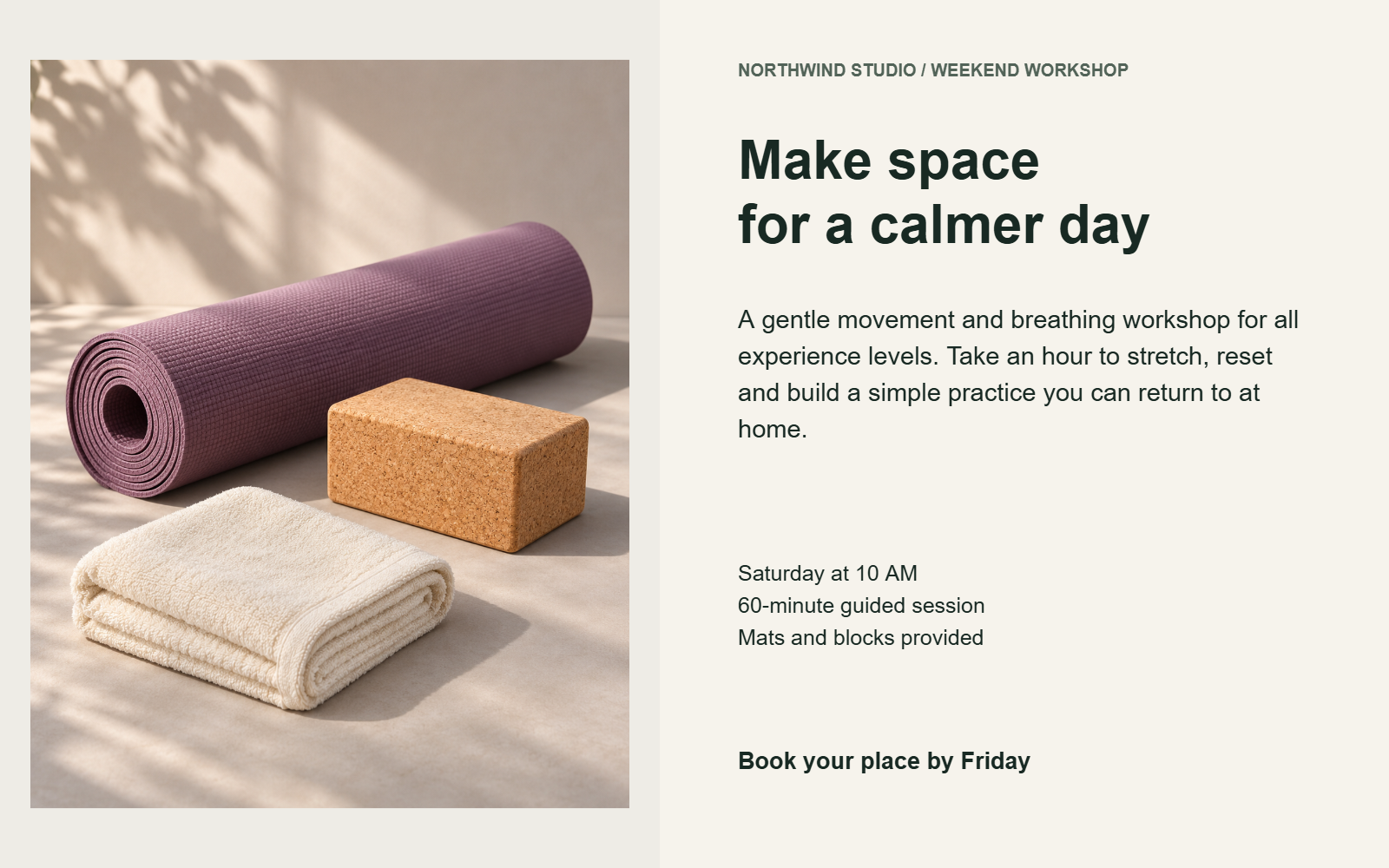
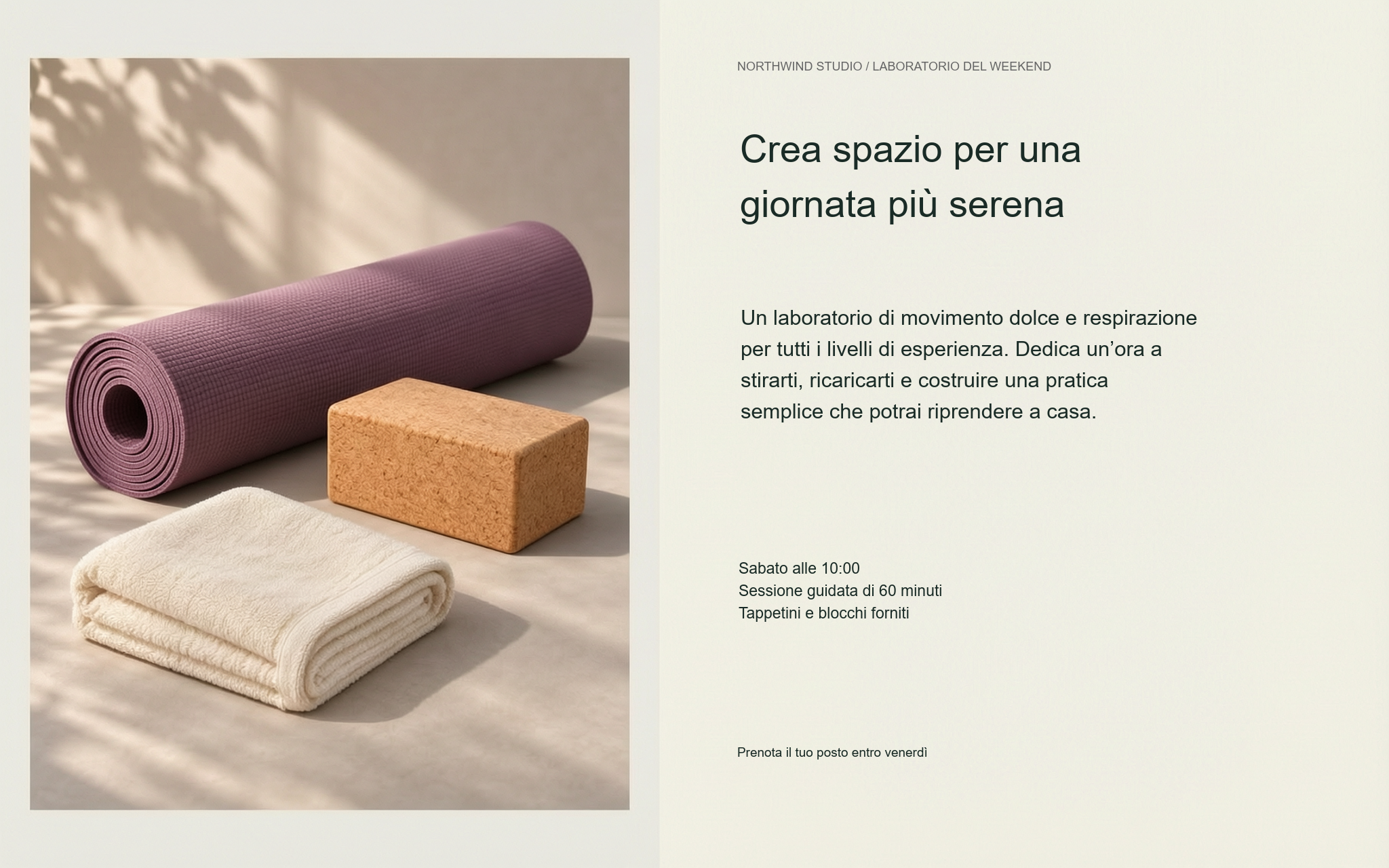
Translate a workshop announcement into Italian
Compare the Italian headline, booking deadline and schedule with the English original. If wording needs a correction, open View or correct translated text and click Update translated image to submit a new task.
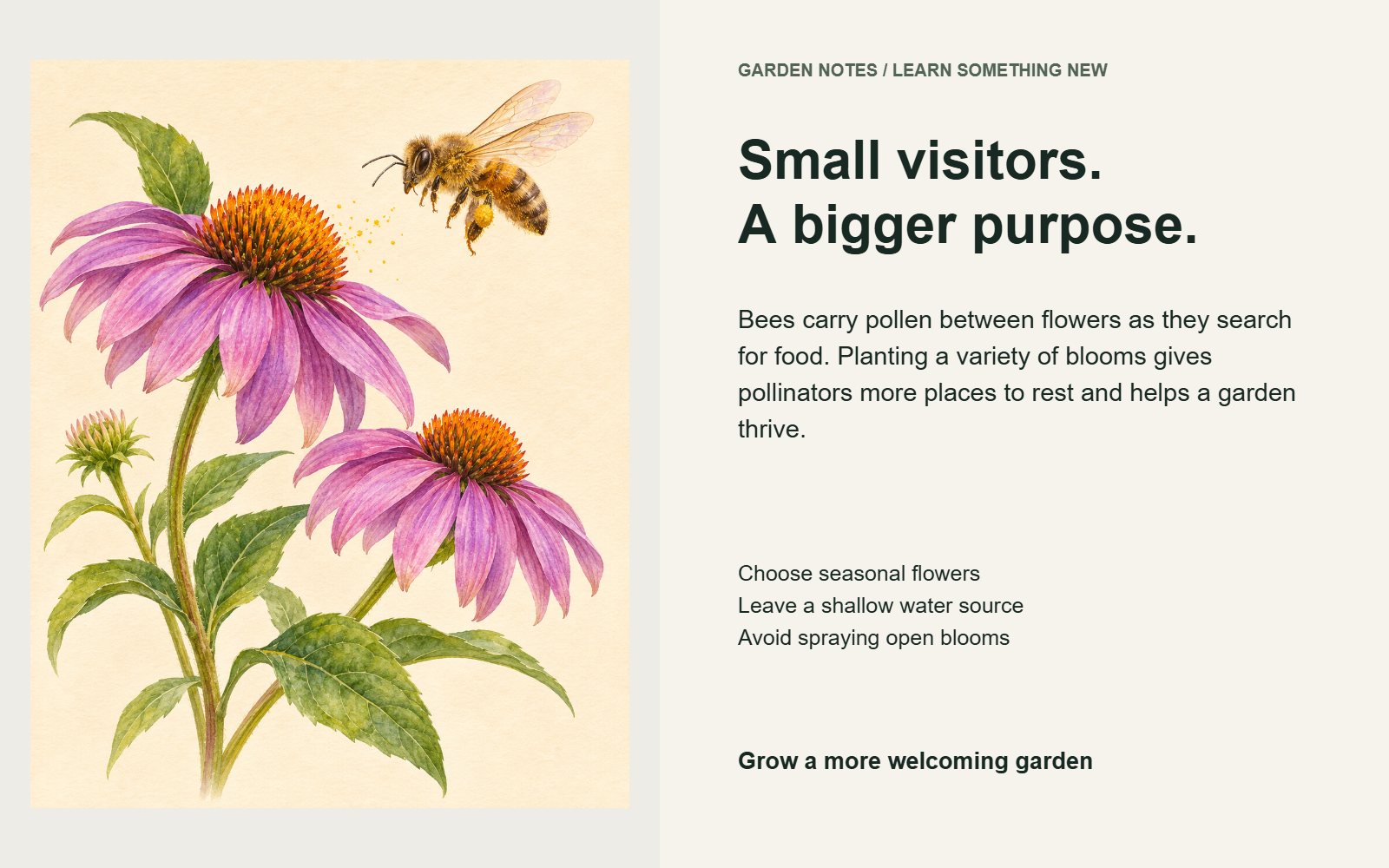
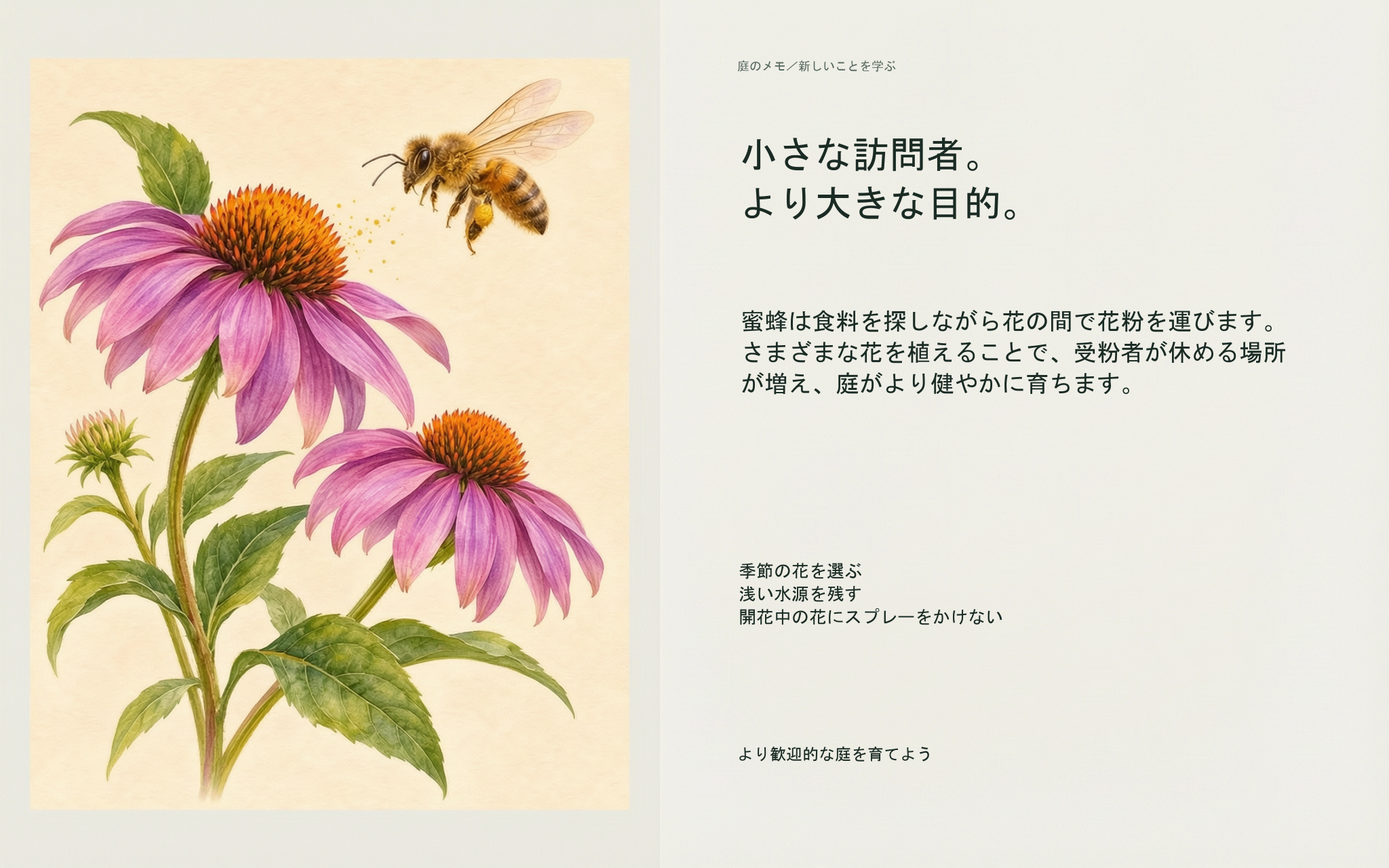
Translate a pollinator graphic into Japanese
Compare the Japanese heading and body text with the English original. Check the translated wording and the botanical illustration before sharing.
Keep the original, inspect the result
Your source stays available for comparison. Downloads use the latest completed result, with the actual format and dimensions.
Make changes deliberately
Edit the translated wording if needed, then click Update translated image to request a new result. Typing alone uses no credits.
Prepare an image for a better translation
Start with readable text
Use a sharp source with enough resolution to distinguish letters and numbers. Dense pages, tiny screenshots, curved lettering and highly stylized fonts are harder to reproduce. The tool may need a simpler source if recognition is uncertain.
Review facts and the edited image
The model is instructed to preserve names, numbers, currencies and the original composition. It can still make mistakes or change image details. Check the final pixels as well as the optional transcript; a correct text translation alone does not prove that the generated image spells it correctly.
Ready to use Image Translator?
Upload an image, choose a language and generate a translated image in one step. Compare the AI-edited result, download it or optionally refine the wording.
Image Translator FAQ
How does image translation work?
Upload an image, select a target language and click Translate image. Recognition, translation and AI image editing run in a single tool request and return a translated image automatically.
Which languages are supported?
English, Spanish, Portuguese, French, German, Russian, Italian, Japanese, Korean and Chinese. Review the final wording and image, especially specialist terms.
Do I need to adjust text boxes?
No. The main workflow does not ask for pixel coordinates, a plain-background checkbox or a separate preview confirmation.
Can I use a photo or patterned background?
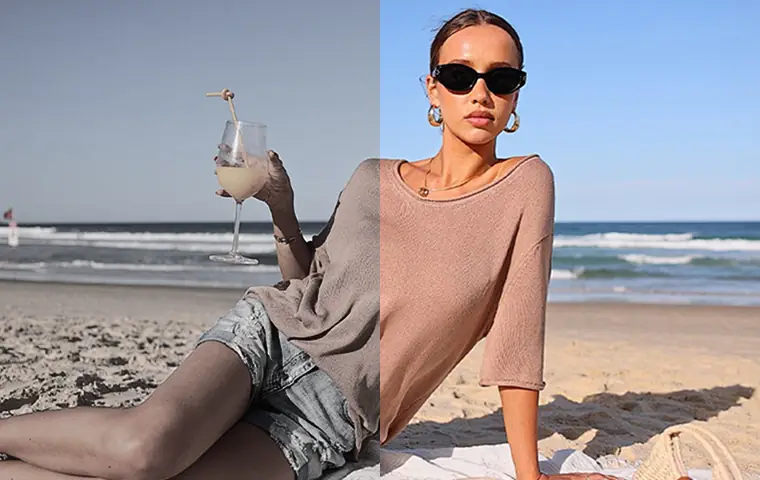
The editing model can work beyond plain-color text areas. Readable lettering is still important, and complex backgrounds, tiny text or unusual fonts can reduce accuracy.
Will the product and layout stay exactly the same?
The original is supplied as the editing reference and the instructions prioritize its composition. AI editing can change details, so exact pixels, fonts or product features are not guaranteed. Inspect the result before use.
Can I correct the translated words?
Yes. Open the optional text section, edit the wording and explicitly request an updated image. This starts another estimated task. Field edits alone do not generate or charge another request.
What files can I upload?
Use one static PNG, JPEG or WebP up to 10 MB and 16 megapixels. The shortest side must be at least 240 px, the longest side at most 8000 px, and the aspect ratio from 1:8 to 8:1. The download uses the generated format and dimensions.
How are credits handled?
The tool estimate covers the configured recognition and image-editing operation. Sign-in and a credit check are required before submission. An explicitly requested updated image is another operation.
Can I download the text too?
When recognition and translated text are available, you can export the translated wording separately without generating another image.
Related paths
Explore related image tools
Explore another image step, check model options, or make the output move.